You've just unboxed a sleek new laptop that only has a couple of USB-C ports. You plug in your mouse, and suddenly you have no free ports for your external hard drive, your monitor, or your SD card. This is the classic dilemma that a USB-C hub solves — but choosing the right one can feel overwhelming with dozens of confusing specs.
In this guide, you'll learn the eight key factors to consider when picking a USB-C hub, from port selection and power delivery to video output and operating system compatibility. By the end, you'll be able to confidently compare any hub and choose the one that fits your needs and budget.
We'll walk through a simple step-by-step decision-making process that takes about 15 minutes. No technical jargon — just plain-English explanations with examples. We'll also highlight common mistakes to avoid and recommend a few reliable hubs at different price points.
▸What You'll Need
- •Understanding of the devices you want to connect (mouse, keyboard, monitor, external drives)
- •Your laptop's model and its USB-C/Thunderbolt capabilities (check the spec sheet or System Information)
- •A list of the ports you use daily (e.g., USB-A, HDMI, SD card, Ethernet)
- •Optional: Your laptop charger wattage (printed on the power brick)
- •Optional: A notepad to jot down your requirements
Estimated Time: 15-20 minutes to read and evaluate your needs
Difficulty: beginner
▸Step-by-Step Instructions
Step 1: Inventory the Ports You Use Every Day
Start by taking a close look at how you currently use your laptop. What peripherals do you plug in on a daily basis? For most people, the list includes a mouse, a keyboard, an external monitor, or maybe an SD card from their camera. Jot down every device you can think of — both for your current setup and for things you plan to buy in the next year.
Once you have your list, categorize each device by connector type: USB-A, USB-C, HDMI, DisplayPort, SD card, Ethernet, or audio. This inventory becomes the checklist for evaluating USB-C hubs. If you have three USB-A devices, you'll need a hub with at least three USB-A ports (or two plus a small USB-A expansion). Similarly, if you rely on a wired internet connection, an RJ45 Ethernet port on the hub is a must.
It is also smart to note which devices are essential versus nice-to-have. Do you actually still need a VGA port, or can you survive with just HDMI? Prioritizing your needs keeps you from overpaying for ports you will never use.
💡 Tips:
- •Count your USB-A devices carefully; it's the most commonly underestimated number.
- •Include devices like a phone cable, external drive, or USB microphone if you use them often.
⚠️ Warnings:
- •Don't forget the power cable for your laptop — you need a hub with power delivery if you want to charge through it.
Step 2: Check Your Laptop's USB-C Specifications (Thunderbolt vs. USB-C)
Before buying any hub, you need to know what kind of USB-C port your laptop has. USB-C is just the shape of the connector; the underlying technology can be USB 3.2 Gen 1 (5Gbps), USB 3.2 Gen 2 (10Gbps), or Thunderbolt 3/4 (40Gbps). Laptops like the MacBook Pro, Dell XPS, and Lenovo ThinkPad often include Thunderbolt ports, while budget-friendly models may only offer standard USB-C.
To find out, check your laptop's official spec sheet online or look for a small lightning bolt icon printed next to the port. On Windows, you can also open Device Manager and expand 'Thunderbolt' to see if the controller is present. On macOS, go to About This Mac > System Report and look under Thunderbolt.
This matters because Thunderbolt hubs and docks cost significantly more than standard USB-C hubs. If your laptop doesn't support Thunderbolt, you will not get 40Gbps speeds or dual 4K video output — so paying for a Thunderbolt dock would be wasted money. Conversely, if you do have Thunderbolt, a Thunderbolt dock unlocks its full potential.
If you're unsure, a standard USB-C hub will still work in a Thunderbolt port, but it will fall back to USB speeds. Most casual users are perfectly happy with a standard USB-C hub.
💡 Tips:
- •Look for the lightning bolt symbol near the port to confirm Thunderbolt support.
- •On Windows, check 'Thunderbolt' in Device Manager; if it's missing, you have standard USB-C.
⚠️ Warnings:
- •Don't assume that a USB-C port on a budget laptop supports video output or high power delivery — check the specifics.
Step 3: Determine Your Power Delivery Needs
A common pain point with USB-C hubs is losing access to your laptop's charging port. Many hubs solve this with Power Delivery (PD) passthrough: you plug your laptop charger into the hub, and the hub provides power to the laptop while also connecting your peripherals. Without this, you'd have to choose between charging your laptop or using your devices.
Check how many watts your laptop charger outputs. You can usually find this printed on the charger itself or in the laptop manual. For example, a MacBook Air typically uses 30W, while a MacBook Pro 16-inch pushes up to 96W or even 140W. When choosing a hub, ensure its PD rating meets or exceeds your laptop's requirements. A hub with 60W PD is enough for many ultrabooks, but not for larger laptops under heavy load.
Also consider whether you need PD at all. If you only use the hub during short meetings or as a portable adapter, you can save money by buying a hub without PD and using your dedicated charger as usual. For a permanent desk setup, though, PD passthrough is nearly essential — it cuts down cable clutter and keeps your laptop topped up.
Finally, pay attention to how the hub distributes power among its ports. Some hubs reserve part of the wattage for connected devices, meaning your laptop might not always receive the full advertised PD wattage.
💡 Tips:
- •Pick a hub whose PD wattage is at least 20% higher than your laptop's charger wattage.
- •Choose a hub with a separate DC-in barrel connector if you need very high wattage.
⚠️ Warnings:
- •Be cautious with hubs that 'share' power among ports — a 100W PD hub may only deliver 60W to your laptop when other ports are active.
Step 4: Match Video Output to Your Monitor and Resolution
If you plan to connect an external display, the hub's video output type is a key spec. The two most common options are HDMI and DisplayPort. Which one you need depends on your monitor. Some monitors only have HDMI, while others also accept DisplayPort. Modern hubs often include one HDMI port and one DisplayPort, or two HDMI ports.
Just as important as the port type is the version of the port. HDMI 2.0 supports 4K at 60Hz, which feels smooth for everyday work and even light gaming. HDMI 1.4, found on older or cheaper hubs, is limited to 4K at 30Hz — a noticeably choppy experience. Always verify the specs and look for '4K@60Hz' in the product title if that matters to you.
For users with dual monitors, look for hubs that explicitly support two displays. Note that Apple Silicon Macs (M1, M2, M3) may not support dual displays over a standard USB-C hub; you'll likely need a DisplayLink adapter or a Thunderbolt dock to get two screens working.
If you use a high-refresh-rate monitor (144Hz or 240Hz), check that the hub supports the refresh rate at your desired resolution. Many hubs cap out at 4K@60Hz, which is fine for office work but not for competitive gaming.
💡 Tips:
- •If you use a 4K monitor, reject any hub that doesn't explicitly state 4K@60Hz support.
- •For dual monitors on a Mac, search the reviews to see if other users succeeded.
⚠️ Warnings:
- •HDMI 1.4 hubs are outdated — paying a few extra dollars for HDMI 2.0 is worth the smoother display.
Step 5: Choose the Right Data Transfer Speeds
USB-C hubs offer a variety of data speeds, and the fastest port isn't always the one you need. USB 3.0 (USB 3.2 Gen 1) provides 5Gbps, which is fine for keyboards, mice, and SD card readers. USB 3.1 (Gen 2) doubles that to 10Gbps for faster external SSDs. Thunderbolt 3/4 pushes up to 40Gbps, which is crucial for video editors or anyone transferring massive files (like 4K RAW footage) frequently.
Examine the hub specs to see how the data speeds are distributed across ports. Many hubs have a mixture: one USB-C data port at 10Gbps and several USB-A ports at 5Gbps. If you plan to plug an external SSD into the hub to edit photos or video, you want the fastest port available and a cable that can handle it.
Remember that your laptop's port speed is also a factor. If your laptop only supports USB 3.2 Gen 1 (5Gbps), you won't get 10Gbps speeds from any hub. But if your laptop has Thunderbolt, a Thunderbolt hub will maintain those high speeds.
For most everyday users, 5Gbps is plenty. Don't get caught up in the spec war if you're just connecting a mouse, a keyboard, and a monitor. But if you work with large files, prioritize hubs with 10Gbps ports or Thunderbolt.
💡 Tips:
- •Look for the port labels on the hub itself (they are often printed next to each port).
- •Use a USB-C-to-USB-C cable rated for 10Gbps if your hub has a USB-C data port.
⚠️ Warnings:
- •Cheap USB-C cables can bottleneck even a fast hub — use cables from reputable brands.
Step 6: Pick a Form Factor That Fits Your Setup — Dock vs. Dongle
USB-C hubs are available in two main physical designs. The first is the dongle-style hub that plugs directly into your laptop's USB-C port. These are compact, lightweight, and easy to toss in a bag — perfect for travelers. However, a bulky dongle can put physical stress on the port, especially if the hub is heavy or the cable migrates while you walk around.
The second design is the dock-style hub, which connects to your laptop with a short cable. Docks are generally bigger, offer more ports, and are designed to sit permanently on your desk. They also tend to run cooler and provide more stable power delivery. If you're setting up a home office, a dock is the better investment. It also makes connecting to your laptop a one-cable operation.
There are also hybrid designs — a dongle hub with a detachable cable — which offer flexibility without the bulk of a full dock. When choosing, think about where you'll spend the majority of your time using the hub. If you use a laptop stand or external monitor at a desk, a dock is ideal. If you're a road warrior, a slim dongle keeps your kit light.
💡 Tips:
- •For desk use, choose a dock with a cable length of 15-30cm so you can hide it behind the monitor.
- •If you travel often, check whether the hub's cable is detachable so you can replace it if damaged.
⚠️ Warnings:
- •A heavy dongle-style hub can strain your laptop's USB-C port and, in extreme cases, cause connection issues. Use a short extension cable if you're worried.
Step 7: Verify Compatibility With Your Operating System
Most USB-C hubs work out of the box with Windows, macOS, ChromeOS, and even iPadOS. But there are exceptions, and you should check compatibility before you buy. For example, some Ethernet chipsets require drivers on Windows, while macOS has built-in support. On Linux, some hubs have partial support only.
Apple Silicon Mac users should look for hubs explicitly marked as 'compatible with M1/M2/M3 Macs.' While most hubs are plug-and-play, some features like dual monitor support, charging, and SD card reader speed can vary on Apple Silicon. Reviews from other Mac users are the best source of truth.
Windows users with Thunderbolt might encounter a BIOS or security setting that asks to approve new Thunderbolt devices. If your laptop is company-managed, you may need IT approval for new Thunderbolt accessories.
Finally, note that not all hubs support every feature of the iPad Pro or iPad Air, even though they connect via USB-C. Video output, for example, may be limited depending on the iPadOS version and the hub's hardware.
💡 Tips:
- •Search for 'M1' or 'M2' or 'M3' in the product title or reviews if you use a modern Mac.
- •Read individual reviews from users who have the same laptop as you; they'll reveal quirks and workarounds.
⚠️ Warnings:
- •Avoid hubs that say 'Windows only' if you're on macOS, unless you're prepared to fiddle with drivers.
Step 8: Set a Budget and Compare Your Final Candidates
By now, you should have a clear list of required ports, power needs, and video requirements. It's time to shop. USB-C hubs vary widely in price, but here's a rule of thumb: $15-$30 buys a basic hub with 3-5 ports (mostly USB-A and one HDMI). $50-$100 gets you a quality 7-11 port hub with HDMI 2.0, Ethernet, SD, and PD. Above $100, you're in Thunderbolt dock territory with premium build quality and high data speeds.
Look for sales on reputable brands like Anker, UGREEN, Satechi, and Belkin. These manufacturers have a consistent track record for reliability and good customer support. Pay attention to user reviews, particularly the negative ones, to spot recurring issues like overheating, Wi-Fi interference, or failing SD readers.
When comparing two similar hubs, check the warranty length. Many brands offer 18-24 months, while Apple's official hubs are often pricier without extra features. The best value is usually found in the $40-$70 range.
Remember: the cheapest hub is not always the best deal if it lacks the ports you need or has poor build quality. Aim for a brand and model with solid reviews and a design that matches your workspace.
💡 Tips:
- •Use price-tracking tools to get notified when a hub you like goes on sale.
- •Check the review section for photos from real customers to see how the hub looks in action.
⚠️ Warnings:
- •Be wary of no-name brands offering 40Gbps Thunderbolt specs at a $20 price — they rarely deliver and may cause system instabilities.
▸Pro Tips
- •Check your laptop's wattage before buying a hub with Power Delivery — most chargers list the output in watts directly on the brick.
- •If you're a Mac user, search for 'M1' or 'M2' compatibility in the product title to avoid confusion.
- •For 4K@60Hz output, verify the HDMI version is 2.0 or higher. Don't trust vague '4K support' claims.
- •Overestimate your port needs slightly — you will add more peripherals over time, and a hub with an extra port is better than one you outgrow.
- •A dock-style hub with a detachable cable is easier to replace if the cable breaks or bends.
- •When using a hub in a hotel or coffee shop, a short USB-C extension cable can prevent stress on your laptop's port.
- •For critical work, use the hub's USB-C data port (not USB-A) for external SSDs to avoid speed bottlenecks.
▸Common Mistakes to Avoid
- •Buying a hub without Power Delivery and then realizing your laptop runs out of battery while connected to all your peripherals. Always check PD wattage and buy a hub that can charge your laptop.
- •Assuming all USB-C ports support Thunderbolt. Standard USB-C and Thunderbolt look identical, but the capabilities are very different — verify with the lightning icon or spec sheet.
- •Choosing HDMI 1.4 and dealing with 4K@30Hz choppy performance. Spend a few extra dollars for HDMI 2.0 to get smooth 4K@60Hz.
- •Overspending on a Thunderbolt dock for a laptop that only has standard USB-C. You won't get the extra bandwidth, and you'll have wasted your money.
- •Ignoring review warnings about Wi-Fi interference or overheating. Some poorly shielded hubs can disrupt your Wi-Fi or overheat under load — read recent reviews.
▸Troubleshooting
Problem: Monitor isn't displaying anything through the hub.
Solution: Check that your hub supports video output from your laptop's specific USB-C port. Try plugging the hub into a different USB-C port on the laptop (some ports support data only). Also try a different HDMI/DisplayPort cable and ensure the monitor input is set correctly.
Problem: Laptop isn't charging via the hub.
Solution: Verify that the hub's PD port is the one you're plugging the charger into. Check that the hub's wattage is sufficient for your laptop. If the laptop continues to drain, the charger may be too weak or the hub's PD chip may be faulty.
Problem: Devices keep disconnecting or the connection is unstable.
Solution: Connect the hub to a different USB-C port. If the hub has its own power adapter, plug it in. Avoid using long or low-quality USB-C cables between the laptop and hub. Also update your laptop's firmware and chipset drivers.
Problem: Data transfer speed is much slower than expected.
Solution: Make sure you're using the hub's fastest port (often a USB-C data port) and a cable rated for that speed. Check whether your laptop's USB-C port supports that speed at all. Sometimes a USB-A port on the hub shares bandwidth; consult the specs.
Problem: The hub is getting very hot.
Solution: Some heat is normal under heavy load, but if it's hot to the touch, unplug it and ensure it has ventilation. Avoid covering it with papers or blankets. If the heat continues even with light use, you should replace the hub under warranty.
Problem: Ethernet port isn't working.
Solution: Many hubs use a Realtek Ethernet chipset that needs drivers installed on Windows. Download the latest drivers from the manufacturer. On macOS, check System Settings > Network for the Ethernet interface. Reboot the router if necessary.
Anker 555 USB-C Hub (8-in-1)
Anker is a trusted brand, and this hub delivers a great balance of ports: HDMI 2.0 (4K@60Hz), Gigabit Ethernet, SD card slot, two USB-A ports, and 100W power delivery. It's one of the most popular all-rounders.
Best for: Ideal for both MacBook and Windows users who need a reliable daily driver for the office or home.
Price Range: $70-$100
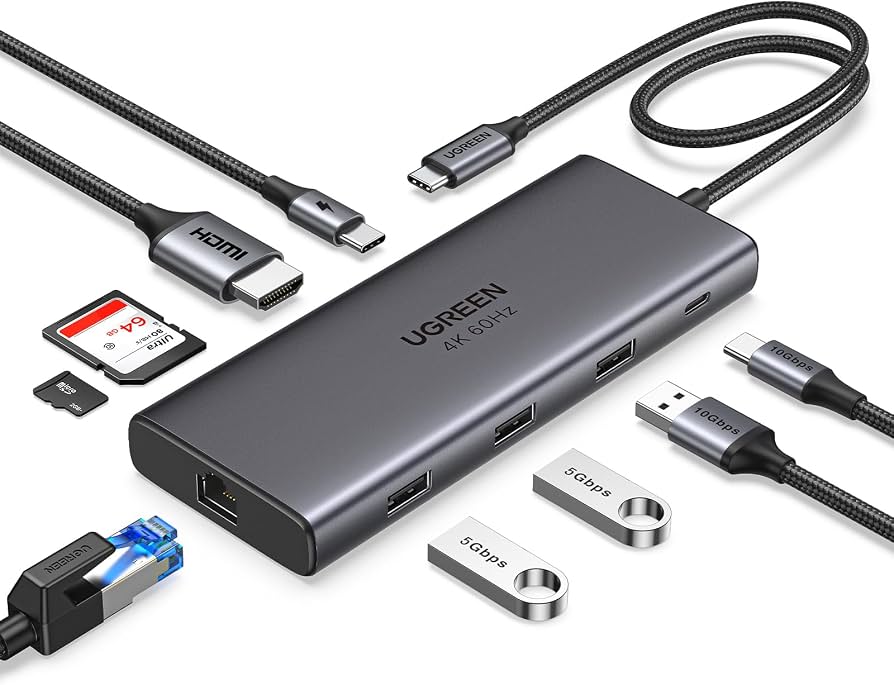
UGREEN USB-C Hub 9-in-1
Offers exceptional value with HDMI 4K@60Hz, Ethernet, SD/TF card readers, and 100W PD passthrough. UGREEN has a solid reputation for compatibility across Mac, Windows, and iPadOS.
Best for: Perfect for budget-conscious buyers who still need a full set of ports without breaking the bank.
Price Range: $30-$50
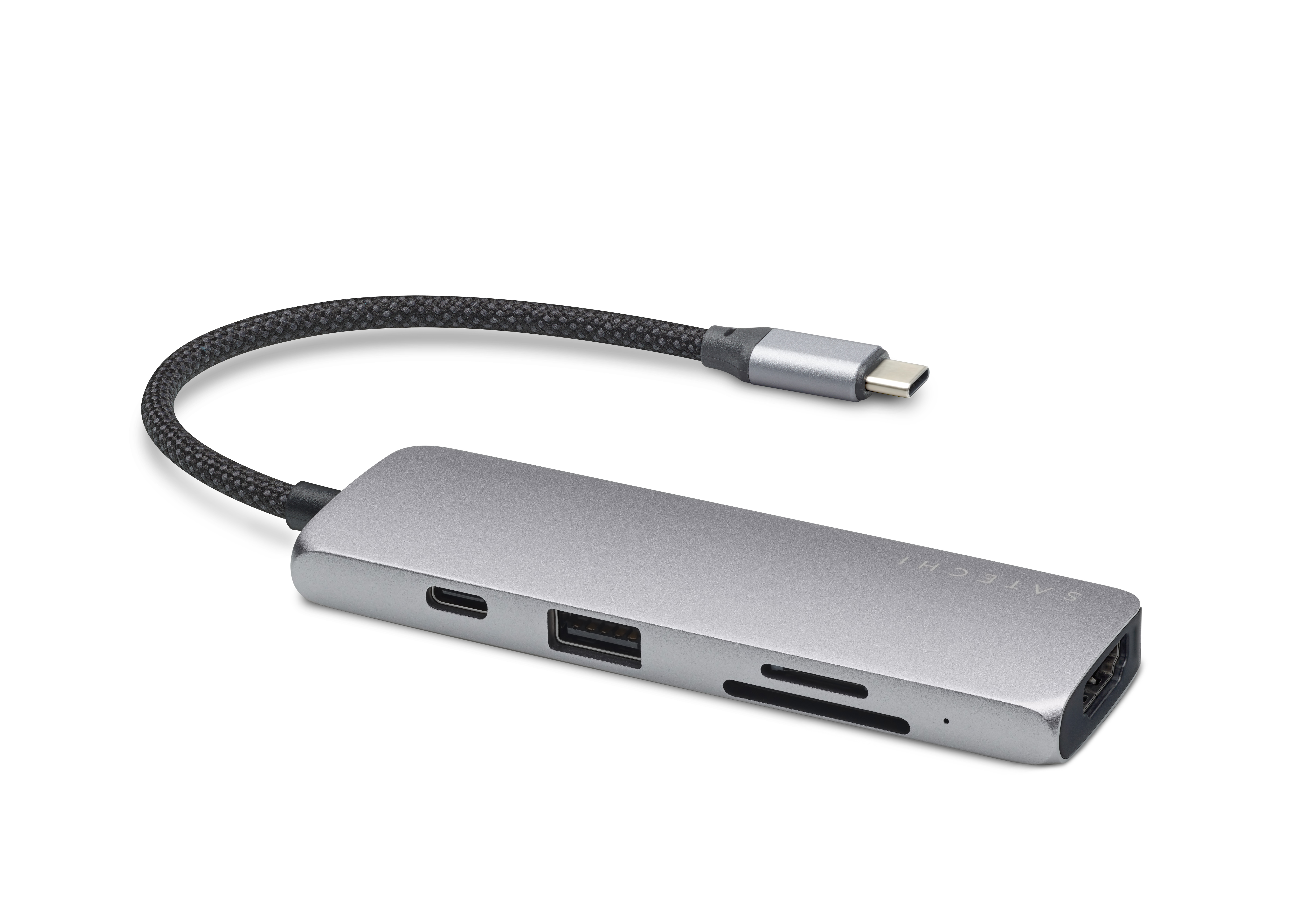
Satechi USB-C Multi-Port Adapter
Beautifully designed in aluminum that matches Apple's aesthetic. It includes HDMI, USB-A, Ethernet, and USB-C PD, all in a slim, travel-friendly body.
Best for: Great for MacBook owners who want a premium, color-matched hub that fits neatly in a laptop sleeve.
Price Range: $70-$100
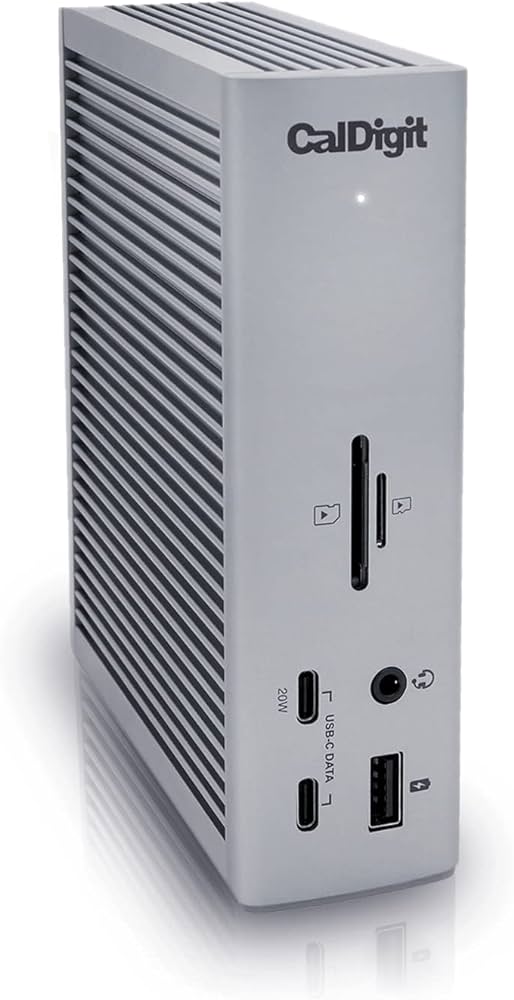
CalDigit TS4 Thunderbolt 4 Dock
The gold standard for connectivity: 18 ports, 98W charging, dual 8K display support, 2.5GbE Ethernet, and thunderbolt speeds up to 40Gbps. Built like a tank.
Best for: Best for creative professionals or power users with Thunderbolt-equipped laptops who need maximum performance and expandability.
Price Range: $350-$400
Belkin USB-C 7-in-1 Multiport Adapter
Belkin is a well-known accessory brand, and this adapter is a reliable compact option with HDMI, power delivery, and gigabit Ethernet.
Best for: A solid travel companion for laptop users who want a dependable, widely available hub for the road.
Price Range: $50-$80