You've seen the label "4K Ultra HD" on TVs everywhere, but what does it actually mean? If you're shopping for a new television, the word 4K is almost impossible to avoid — and it's easy to wonder whether it's a real upgrade or just marketing buzzword. The truth is, 4K is both. It represents a genuine leap in picture sharpness, but only if you understand what it is and how to get it.
In short, 4K resolution means a TV screen is made up of roughly 8.3 million tiny pixels — four times as many as a standard 1080p Full HD TV. That extra detail makes images look sharper, crisper, and more lifelike, especially on larger screens. But there's more to 4K than just the number of pixels. Screen size, viewing distance, HDR, and your internet connection all play a role in whether you'll actually see the difference.
In this guide, you'll learn exactly what 4K resolution is, how it compares to other resolutions like 1080p and 8K, and — most importantly — what you truly need to enjoy 4K content at home. By the end, you'll never feel confused by resolution specs again.
▸What You'll Need
- •A basic understanding of what a TV screen is (or no prior knowledge — we'll cover everything)
- •A 4K TV or the intention to buy one (to apply what you learn)
- •A 4K-capable source device: streaming stick, 4K Blu-ray player, or a modern game console
- •A stable internet connection of at least 25 Mbps for 4K streaming
- •An HDMI cable that supports 4K (HDMI 2.0 or newer)
Estimated Time: 10-15 minute read
Difficulty: beginner
▸Step-by-Step Instructions
Step 1: Master the Building Block: What Is a Pixel?
A pixel is the smallest unit of a digital image. It's essentially a tiny square of colored light that can change color. Everything you see on a TV screen is made up of millions of these squares arranged in a grid. When you look at the screen from a normal distance, your eyes blend the individual pixels together, creating a smooth, seamless picture.
The more pixels a screen has, the more detail it can display — and the harder it becomes to see individual pixels. Think of pixels like mosaic tiles. A small mosaic made of hundreds of tiles can only capture the broad strokes of a picture. But a mosaic built from tens of thousands of tiles can reproduce fine details like facial expressions and tiny text. This is the core idea behind resolution: resolution is simply the count of pixel columns and rows on your screen.
💡 Tips:
- •Each pixel on a modern TV is made up of three subpixels — red, green, and blue — which mix together to create every color you see.
⚠️ Warnings:
- •Don't confuse the number of pixels with the quality of those pixels. Brightness, color accuracy, and motion handling are just as important as resolution.
Step 2: Decode the Numbers: What Exactly Does '4K' Mean?
4K resolution is defined by the number of pixels on the screen: 3840 horizontal pixels × 2160 vertical pixels. That's about 8.3 million pixels in total. You might also see it called 2160p or Ultra High Definition (UHD). These terms all refer to the same consumer standard used in virtually every 4K TV sold today.
To put that in perspective, a Full HD (1080p) screen is 1920 × 1080 — roughly 2 million pixels. That means a 4K screen packs exactly four times as many pixels into the same physical area. If you've ever seen a 1080p video look slightly soft or pixelated on a large screen, you've seen the limitation that 4K is designed to solve. This four-fold jump is why the sharpness difference is so obvious when you compare a 1080p TV next to a 4K TV.
💡 Tips:
- •When you see a TV advertised as '4K UHD,' it's referring to this 3840 × 2160 spec. 'UHD' and '4K' are used interchangeably by TV manufacturers.
⚠️ Warnings:
- •Some cameras and professional projectors use true cinema 4K (4096 × 2160), which has a slightly wider aspect ratio. This doesn't affect the TVs you buy, but it explains why you might sometimes see different numbers.
Step 3: Understand Why It's Called '4K'
The name 4K comes from the screen's approximate horizontal resolution — about 4,000 pixels across. The 'K' stands for kilo, meaning thousand. So '4K' literally means 'about 4,000 pixels across.' This naming convention has its roots in the film industry, where the Digital Cinema Initiatives (DCI) standard defines 4K as 4096 × 2160 pixels.
Consumer TVs adopted a slightly lower version, 3840 × 2160, to fit the standard 16:9 widescreen aspect ratio, but the '4K' label stuck. Understanding this history clears up a common point of confusion: 4K, 2160p, and UHD all describe essentially the same thing in the TV world. When a brand says '4K Ultra HD,' it's describing a display with roughly 4,000 columns of pixels — not a specific brand, format, or proprietary technology.
💡 Tips:
- •The 'K' in 4K stands for kilo, meaning thousand. It refers to the horizontal pixel count, not the vertical one.
⚠️ Warnings:
- •Don't get hung up on the exact pixel count difference between cinema 4K and consumer 4K. For buying a TV, 3840 × 2160 is what every model uses.
Step 4: Compare 4K with 1080p and 8K to Keep It in Context
4K sits comfortably between Full HD (1080p) and 8K. 1080p has about 2 million pixels, 4K has 8.3 million, and 8K has a staggering 33 million pixels (7680 × 4320). While 8K is technically the superior resolution, it remains very niche: there's almost no native 8K content for consumers, and 8K TVs are still expensive. For most people, 8K is overkill.
4K is the sweet spot. It offers a massive jump in detail over 1080p, and there's a huge ecosystem of native 4K movies, TV shows, and games. 1080p still dominates broadcast TV, cable, and parts of streaming libraries, while 4K is now the standard for premium new content. Knowing where 4K sits helps you set realistic expectations: it's a big upgrade from what you likely have, and it's not going anywhere anytime soon.
💡 Tips:
- •If you're coming from a 1080p TV, the sharpness jump will be obvious, especially on screens 55 inches and larger.
⚠️ Warnings:
- •Don't pay a premium for 8K unless you're a very early adopter. Content and hardware support are still extremely limited.
Step 5: Match 4K to the Right Screen Size and Viewing Distance
Here's a truth most shoppers miss: 4K's extra detail is only visible if you sit close enough to the screen — or the screen is big enough. The human eye can only perceive a certain level of detail at a given distance. Industry guidance based on display research suggests that for a 4K TV, the ideal viewing distance is roughly 1 to 1.5 times the screen's diagonal size. For a 55-inch 4K TV, that's about 4.5 to 7 feet (1.4 to 2.1 meters).
At these distances, individual pixels become essentially invisible, and you see all the detail 4K has to offer. If you sit much farther away, your eyes blend the extra pixels together, and 4K will look almost identical to 1080p. This is why buying the biggest 4K TV your room can accommodate — and seating yourself within the recommended range — is usually the right move. A common rule of thumb: with 4K, you can sit about 1.5 times closer than you would with a 1080p TV without seeing pixels.
💡 Tips:
- •Use an online TV distance calculator before buying to find the ideal screen size for your room.
⚠️ Warnings:
- •An extremely large 4K TV in a small room can feel overwhelming. Measure your viewing distance first, then choose the screen size.
Step 6: Learn How Upscaling Brings Old Content to 4K
Most of the content you watch — cable TV, older streaming videos, YouTube clips — is not native 4K. In fact, the majority is 1080p or even lower. To display that content on a 4K screen, your TV uses a process called upscaling. The TV's processor takes the existing pixels and mathematically creates new ones to fill the gaps, so the image appears to fill the entire 4K resolution.
The quality of upscaling varies significantly between TV brands and models. Higher-end TVs have powerful processors that do an impressive job of making HD look close to native 4K, while budget TVs may produce softer or less natural-looking results. Upscaled 4K is not the same as true 4K — but in practice, a good upscaler makes a huge difference in everyday viewing. This is why reviews of TVs often discuss upscaling quality alongside resolution and HDR.
💡 Tips:
- •If you watch a lot of HD (non-4K) content, prioritize a TV with a well-reviewed upscaling processor, such as Sony's Bravia XR or LG's newer α-series chips.
⚠️ Warnings:
- •Upscaling can't fix a bad source. A low-bitrate video from the internet will still look poor on a 4K screen — sometimes worse, because the upscaler also magnifies compression artifacts.
Step 7: Know the Difference Between 4K and HDR (and Why They're a Pair)
4K resolution isn't the only factor that determines picture quality. You'll almost always see 4K paired with High Dynamic Range (HDR). While 4K adds pixels (more detail), HDR adds contrast — deeper blacks, brighter highlights, and more vivid colors. The two work together to create the dramatic 'wow' effect you see in TV showrooms.
HDR comes in several formats: HDR10 is the universal baseline used by virtually all 4K TVs, Dolby Vision adds dynamic metadata for scene-by-scene optimization, and HLG is used for broadcast. When comparing 4K TVs, HDR performance often matters as much as or more than resolution. If a TV has a great 4K panel but poor HDR brightness, it may look worse than a TV with slightly lower resolution but excellent HDR. As a beginner, look for 4K TVs with good HDR support — nearly all models since 2020 support at least HDR10.
💡 Tips:
- •When shopping, pay attention to peak brightness and local dimming. These are the two specs that determine HDR quality.
⚠️ Warnings:
- •All HDR TVs are 4K, but not all 4K TVs offer great HDR. Understanding this prevents disappointment after purchase.
Step 8: Assemble the Complete 4K Chain: TV, Source, Cable, and Port
To actually watch true 4K content, every component in the 'chain' must support 4K. That chain includes: a 4K TV, a 4K source (a streaming stick, 4K Blu-ray player, or a modern game console), an HDMI cable that can handle the data rate (HDMI 2.0 or newer), and an HDMI input on the TV that supports 4K. Many TVs label one or two ports as '4K' or 'HDCP 2.2' — others on the same TV may be older standard inputs that top out at 1080p.
This is the single most common reason why people buy a 4K TV and still can't get 4K to appear: one link in the chain is 1080p-only. So before you troubleshoot a 'blurry' picture, check each link. Also, many TVs require you to enable a setting (often called 'Enhanced HDMI' or 'HDMI UHD Color') for each port before it will pass 4K and HDR signals. It's a hidden step that surprises new users.
💡 Tips:
- •Use the HDMI port labeled 'HDMI (4K)' or 'Enhanced Format' on your TV. You may need to turn this feature on in the TV's settings menu.
⚠️ Warnings:
- •Very long HDMI cables (over 25 feet) can fail with 4K signals. Use a certified HDMI 2.1 cable for the most reliable long-run connection.
Step 9: Check Your Internet Setup for 4K Streaming
Streaming is how most people watch 4K today, and it's the most demanding on your internet connection. A 4K video stream carries about four times as much data as a 1080p stream of the same video. Netflix officially recommends a 25 Mbps connection for 4K streaming. That's the minimum for a single stream — you'll want more if other people in your home use Wi-Fi at the same time.
The way you connect matters too. While Wi-Fi can work, wired Ethernet is more reliable and avoids interference from walls and other devices. Some streaming services also reserve 4K for higher subscription tiers. On Netflix, for example, you need the Premium plan to access Ultra HD. And be aware of data caps: a single 4K movie can consume 7 to 10 GB of data, and even more with HDR enabled. If you have a data cap, heavy 4K streaming can push you over the limit.
💡 Tips:
- •Search '4K' or 'Ultra HD' inside your streaming apps to find native 4K titles quickly. Most apps show a badge on 4K content.
⚠️ Warnings:
- •If your internet plan has a data cap, monitor your usage. Streaming 4K every night can consume several hundred gigabytes per month.
Step 10: Verify You Are Truly Watching 4K
Once everything is connected, how can you be sure you're actually getting 4K? There are a few quick checks. On most streaming devices (Roku, Apple TV, Fire TV), go to Settings → Display/Video and confirm the output resolution says 4K/2160p. On your TV, press the 'Info' or 'Display' button on the remote — many TVs will show the incoming resolution (3840 × 2160) at the top of the screen.
In streaming apps, look for badges like '4K Ultra HD' or 'Dolby Vision' on the program description. On game consoles, check the video output settings. The most common reasons 4K doesn't appear are: a settings issue, a cable limitation, an incorrect HDMI port, or simply that the content itself is not 4K. If your TV's info screen reads 3840 × 2160, you're officially in the 4K club.
💡 Tips:
- •Use YouTube's '4K' filter to find native 4K test clips and quickly verify your setup. Search for '4K HDR demo' for sample content.
⚠️ Warnings:
- •If your TV shows 3840 × 2160 but the picture still looks soft, the source video may be upscaled rather than native 4K.
▸Pro Tips
- •Enable 'Enhanced HDMI' or 'HDMI UHD Color' on your TV — many TVs default to standard HDMI mode, which blocks 4K and HDR signals.
- •Use the 'Calibrated' or 'Cinema' picture mode for accurate colors. 'Vivid' and 'Standard' modes exaggerate colors and hide detail.
- •Watch a mix of high-quality native 4K content (like a 4K Blu-ray or a well-produced Netflix original) to truly appreciate the resolution difference.
- •Update your TV's firmware and streaming device software regularly — updates improve 4K stability and add support for new HDR formats.
- •If you game, check that your console outputs 4K at 60Hz or 120Hz. You'll need an HDMI 2.1 cable and port for 4K at 120Hz.
- •Higher-bitrate 4K content (like from a physical 4K Blu-ray disc) looks noticeably better than low-bitrate streaming 4K. If you're a quality enthusiast, discs are the gold standard.
- •For reliable 4K streaming, prefer a wired Ethernet connection over Wi-Fi when possible. If Wi-Fi is your only option, a Wi-Fi 6 router helps.
- •Don't rush the purchase: a TV's HDR quality and upscaling processor matter as much as the resolution. Read reviews that focus on those two factors.
▸Common Mistakes to Avoid
- •Sitting too far away to see the difference — the #1 cause of '4K doesn't impress me' moments. Move closer or buy a bigger screen.
- •Using an old HDMI cable or plugging into a non-4K HDMI port on the TV. Always check the port label and use a certified high-speed HDMI cable.
- •Assuming all content is 4K just because the TV is 4K. The TV upscales everything, but only native 4K content shows true 4K detail.
- •Ignoring HDR when buying a 4K TV. A 4K TV with poor HDR can look less impressive than a good 1080p TV in some situations.
- •Not checking which HDMI ports on the TV support 4K@60Hz and HDR. On many TVs, only one or two ports have full support.
▸Troubleshooting
Problem: 4K option is greyed out in my streaming device or TV settings.
Solution: Check that your TV's HDMI port supports HDCP 2.2/2.3. Enable 'Enhanced HDMI' mode in the TV's settings, try a different HDMI port, and replace the cable with a certified HDMI 2.0/2.1 cable.
Problem: The picture looks soft even though my TV shows 3840 × 2160.
Solution: You are likely viewing upscaled 1080p content, not native 4K. Watch a known native 4K title to confirm. Also try turning off the TV's noise reduction or smoothing (motion interpolation) settings, which can soften the image.
Problem: Netflix doesn't show 'Ultra HD 4K' badges on any titles.
Solution: Make sure your Netflix plan includes 4K (the Premium tier), your internet speed is at least 25 Mbps, and your streaming device or TV app supports Netflix 4K. You may also need to update the Netflix app.
Problem: 4K streaming stutters or drops to lower quality.
Solution: Reduce network congestion: upgrade your Wi-Fi, use an Ethernet cable, or lower streaming quality settings temporarily. Move your router or streaming device to improve signal strength. Restart your router if needed.
Problem: No picture at all when selecting a 4K input (black screen).
Solution: This is often an HDMI handshake issue. Disconnect and reconnect the HDMI cable, turn the TV and source off and on, or try a different HDMI port. If you're using an AV receiver, the receiver may be the limiting component; connect the source directly to the TV to test. If the problem persists, you may need a professional installer to evaluate compatibility.
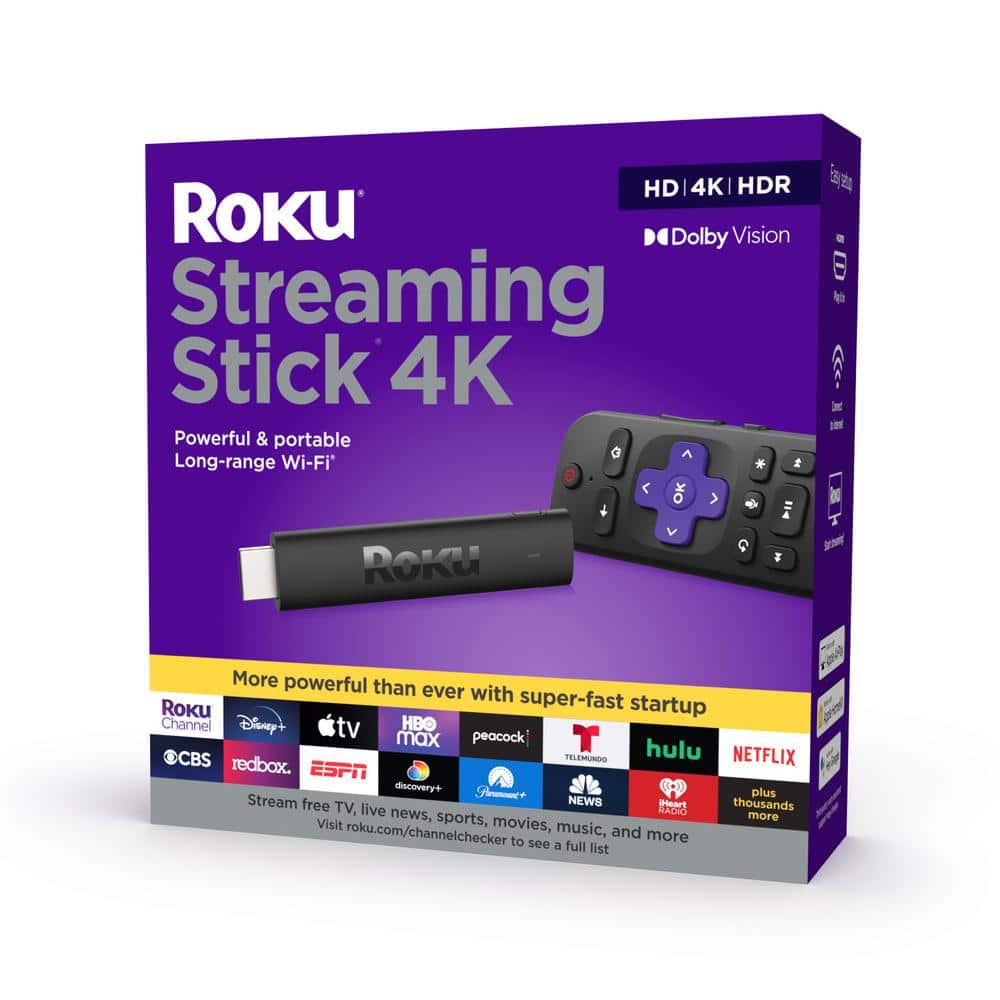
Roku Streaming Stick 4K
An easy, affordable way to turn almost any TV with an HDMI port into a 4K streaming powerhouse. It supports all major HDR formats and has one of the simplest interfaces — perfect for beginners who want no-fuss 4K streaming.
Best for: Ideal for anyone with a 4K TV who wants to stream Netflix, Prime Video, Disney+, and more in 4K without relying on the TV's built-in smart features.
Price Range: $40-$50 (estimated)
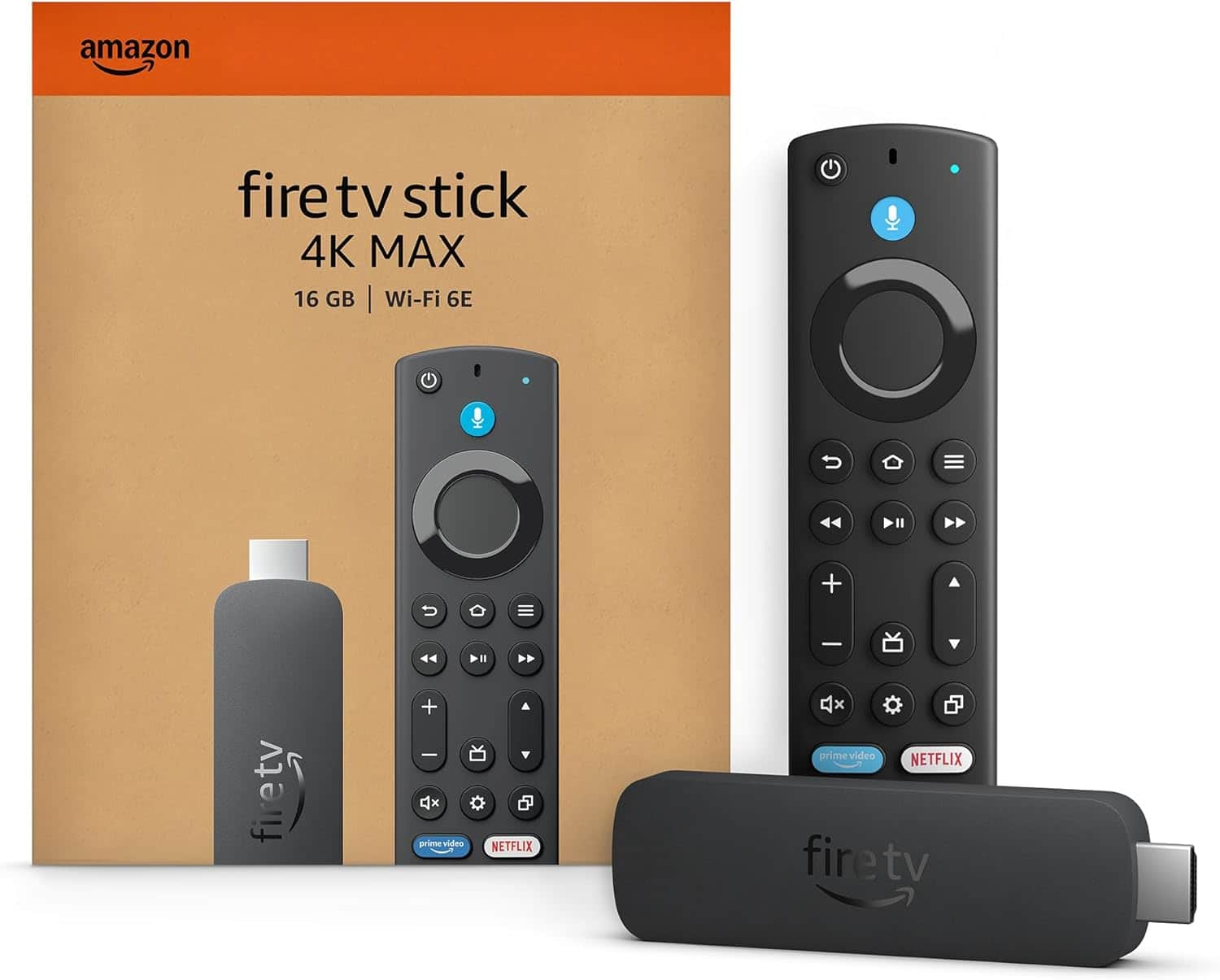
Amazon Fire TV Stick 4K Max
Amazon's most advanced streaming stick supports Wi-Fi 6 for more stable 4K streaming and includes Dolby Vision/HDR10-. It also has a feature that upscales HD content to 4K, which helps older videos look better.
Best for: Best for households in the Amazon/Alexa ecosystem and for users who want the latest Wi-Fi 6 support for smoother 4K streams.
Price Range: $45-$60 (estimated)
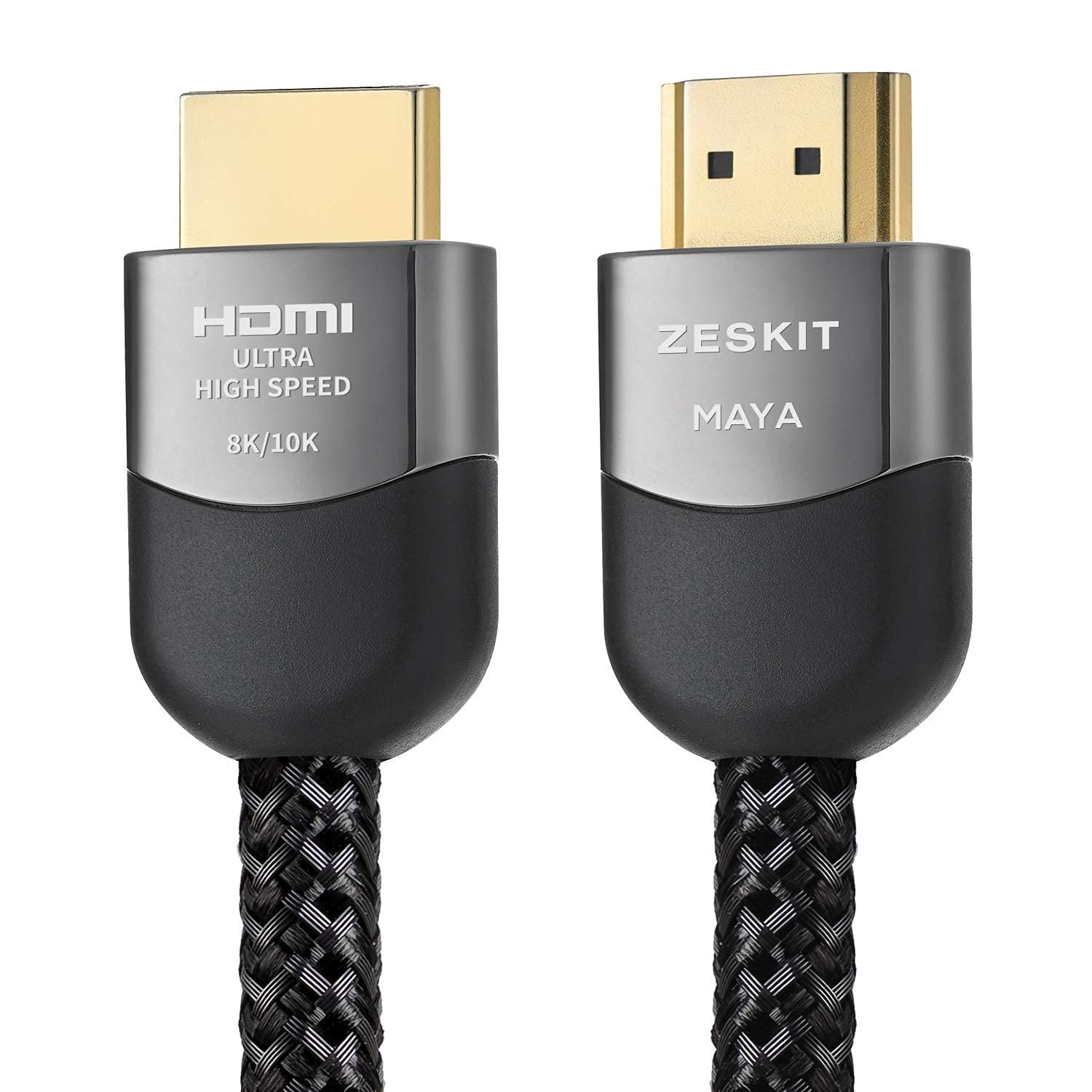
Zeskit 8K HDMI 2.1 Cable
A reliable, certified HDMI 2.1 cable at a budget price. It handles full 4K 60Hz HDR bandwidth and even 8K/120Hz for future-proofing. Since a weak cable is the most common cause of '4K not working,' this is the cheapest insurance you can buy.
Best for: Use to connect your 4K TV to a streaming device, game console, or 4K Blu-ray player. Recommended for runs up to 6 feet for maximum reliability.
Price Range: $10-$20 (estimated)
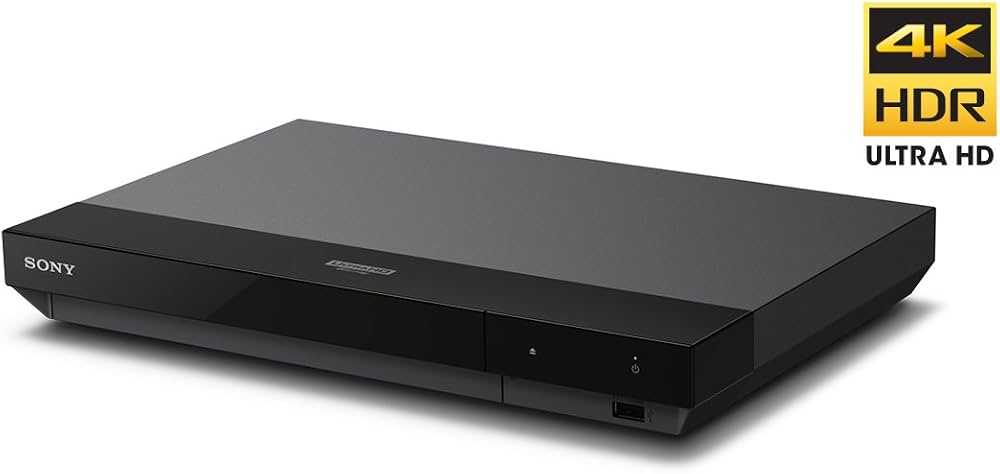
Sony UBP-X700 4K Ultra HD Blu-ray Player
If you want to see 4K at its absolute best, nothing beats a physical disc. This popular entry-level 4K player supports Dolby Vision and has fast load times, making it a favorite among home theater enthusiasts.
Best for: For movie lovers who want the highest possible picture and sound quality from a physical 4K Blu-ray collection.
Price Range: $220-$250 (estimated)
LG C4 OLED 4K TV
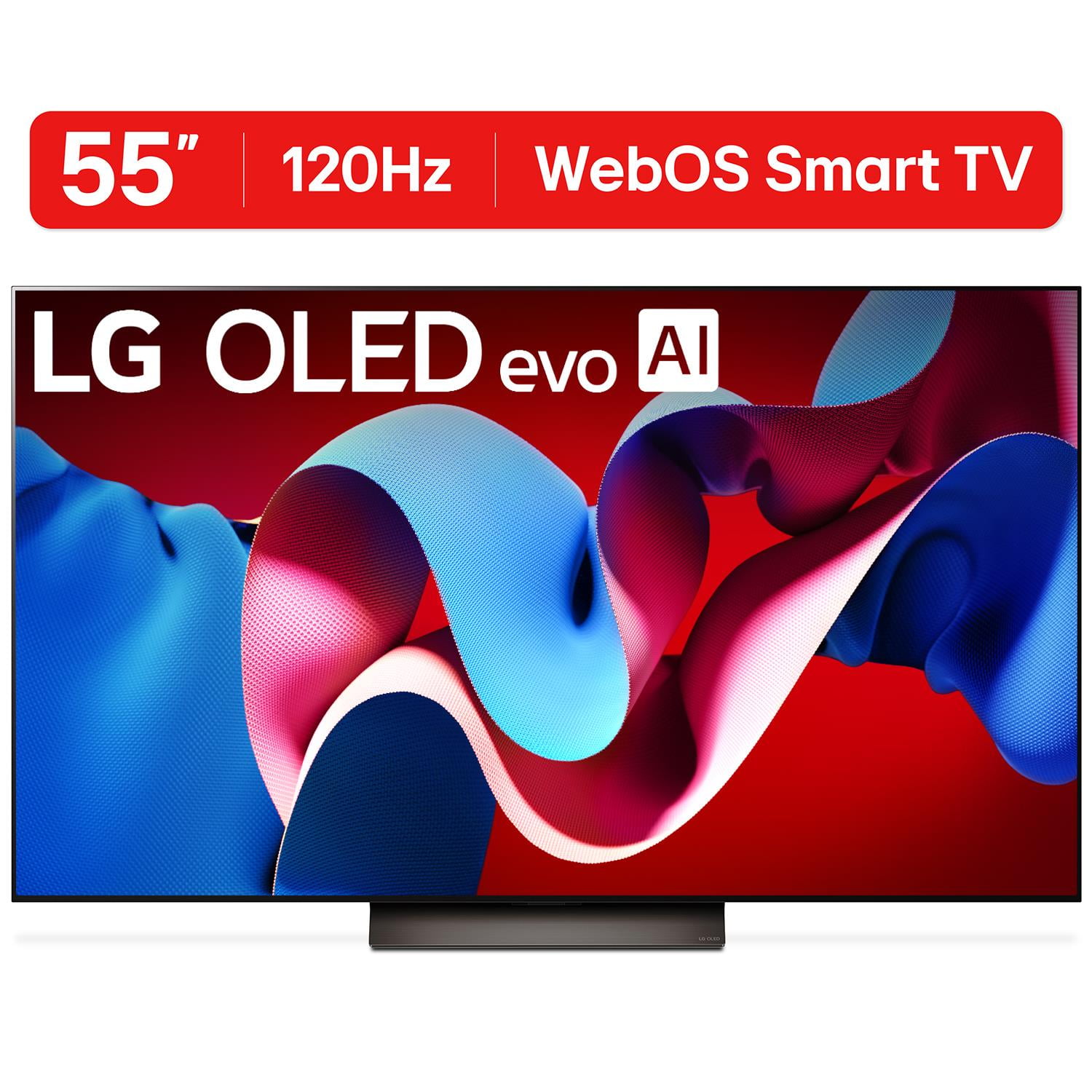
While not a necessary purchase, an OLED TV like the LG C4 represents the ideal showcase for 4K resolution and HDR. Expert reviews consistently highlight OLED for perfect blacks, wide viewing angles, and incredible contrast — the two things that make 4K content truly shine.
Best for: A premium 4K TV for someone who wants the best possible picture quality for movies, streaming, and gaming. Also a great choice if you want to future-proof for next-gen console gaming.
Price Range: $1,500-$3,500 depending on screen size (estimated)