Review Atlas
Review AtlasYour guide to a better purchase

Menu

Shop by Category

Get the App

Better experience on mobile

Is Which Webcams should I buy Worth It? Honest Review (2026)

Compare the best webcams for remote work and find your perfect match based on needs and budget.

Webcamshome officeremote workers$50-$200
Choosing the right webcam for your home office can feel overwhelming. With so many models, specs, and price points, it's easy to get stuck in analysis paralysis. But here's the truth: the perfect webcam depends on your specific needs, lighting conditions, and budget. A $50 webcam might be all you need for daily video calls, while a $200 model might be worth it if you're in front of the camera all day or produce content in addition to meetings. This guide cuts through the noise. We've researched the most popular and highly-rated webcams in the $50-$200 range, analyzed customer feedback, and compared features that actually matter for remote workers: resolution, low-light performance, autofocus, field of view, and software reliability. Whether you're upgrading from a laptop's built-in camera, buying your first external webcam, or looking for a premium upgrade, you'll find clear recommendations backed by real-world evidence. We'll start with key factors to consider, then break down each product with honest pros and cons, compare them to each other, and finally match you to the right choice based on your unique scenario. By the end, you'll know exactly which webcam to buy.

Our Top Pick

Anker PowerConf C200

Best Value

Budget-conscious remote workers who want modern features like AI framing and 2K video without spending over $50.

View on Amazon →

Key Factors to Consider

  • 1.Resolution: 1080p is the standard for clear video; 4K only matters for large displays or cropping.
  • 2.Low-light performance: Important if your room isn't perfectly lit; look for larger sensors or HDR.
  • 3.Autofocus vs. fixed focus: Autofocus keeps you sharp if you move; fixed focus is sharper for a fixed position.
  • 4.Field of view (FOV): Choose 65-90° for a natural look; wider FOV shows more background but can distort.
  • 5.Software and compatibility: Easy setup and reliable drivers for Mac/Windows matter more than extra effects.
  • 6.Build and mounting: Check if it fits your monitor and if you can adjust the angle.
  • 7.Privacy shutter or indicator: Useful when you want to prevent accidental camera exposure.
  • 8.Value for money: Newer budget options often outperform older pricier models; don't overspend on brands alone.
  • 9.Microphone quality: Built-in mics vary; most remote workers use a headset or dedicated mic, but good backup audio helps.

The Products

#1

Anker PowerConf C200

Best Value
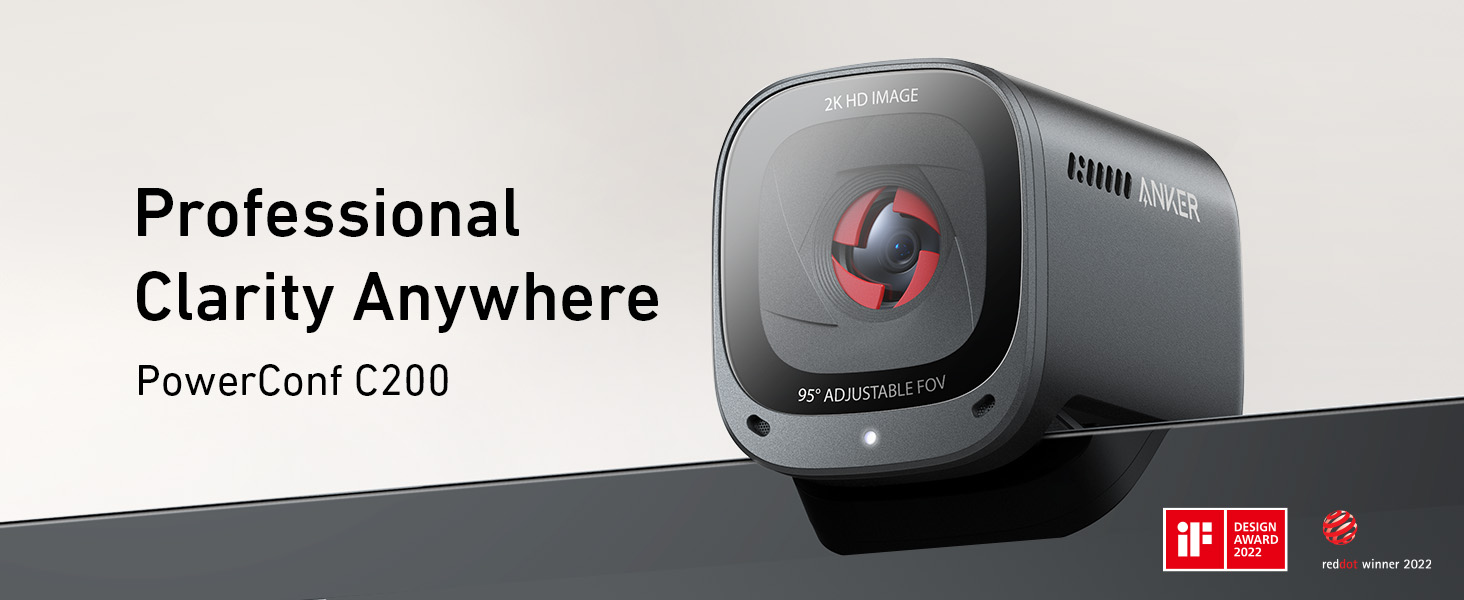
Anker PowerConf C200
Overall
8.7/10
Value
9.5/10
Performance
8.2/10
Anker's PowerConf C200 is a feature-packed webcam that punches far above its price point. It captures 2K resolution (1440p) for stunningly sharp video, has automatic AI-powered framing to keep you centered even if you move, and includes dual microphones with noise reduction for clear audio. The compact design fits anywhere, and the included privacy cover ensures you're never accidentally on camera. For remote workers on a budget, the PowerConf C200 delivers modern conveniences that used to be reserved for premium webcams. Its 2K sensor outperforms 1080p competitors like the Logitech C920, and the AI framing gives you a dynamic shot without manual adjustment. The Anker app lets you tweak settings and enables HDR for challenging lighting. This webcam is an exceptional value for anyone who wants great quality without spending over $50. It's a direct upgrade to a typical laptop camera with minimal setup. The main trade-off is that its plastic build feels less premium, and the 2K mode is limited to 30fps, but for standard video calls, that's more than enough.

Pros

  • 2K (1440p) resolution for sharp, detailed image
  • AI-powered auto-framing keeps you centered as you move
  • Dual noise-cancelling microphones for clear audio
  • HDR mode improves dynamic range in tricky lighting
  • Privacy cover built in
  • Very affordable price under $50

Cons

  • Plastic build feels less durable
  • 2K mode is capped at 30fps; 1080p/60fps is also limited
  • Software is basic compared to Logitech's Capture
  • No Windows Hello IR support
  • Field of view is fixed at 85°, not adjustable

Best For:

Budget-conscious remote workers who want modern features like AI framing and 2K video without spending over $50.

Not Recommended For:

Professionals who need 4K resolution, Windows Hello, or a more premium build quality.

Key Features:

1440p (2K) resolution at 30fpsAuto-framing with AI subject trackingDual built-in microphones with noise reductionHDR mode80° diagonal field of viewPlug-and-play USB-A connectionDetachable privacy cover

Standout Feature:

2K resolution and AI auto-framing for under $50 — an unbeatable value combination.

VS Others:

Compared to the Logitech C920, the PowerConf C200 offers higher resolution and auto-framing for a similar low price, but the C920 has better autofocus and a more established track record. Against the StreamCam, the Anker is a fraction of the cost but lacks the polished software and 60fps capability.

Why This One:

If you're looking for the best value in this guide, this is it. You get 2K clarity, AI touch, and dual mics for less than many 1080p models. It's ideal for remote workers who want a meaningful upgrade without spending a lot.

#2

Logitech C920

Best Budget
Logitech C920 - Image 1 of 11
Overall
8.4/10
Value
9/10
Performance
8/10
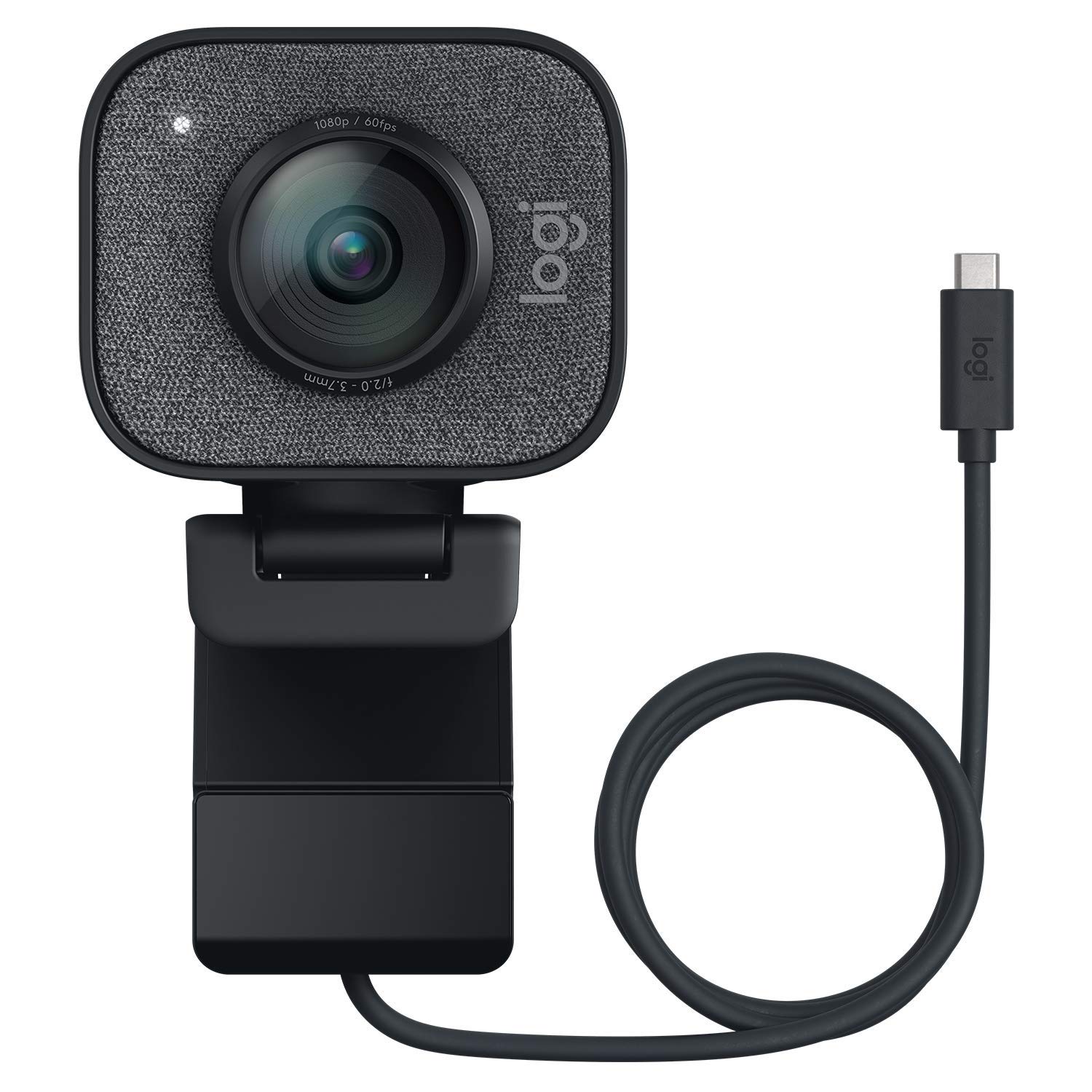
The Logitech C920 is the most famous webcam in the world, and for good reason. It has been the default choice for remote workers, streamers, and professionals for years thanks to its reliable 1080p full HD video at 30fps, crisp autofocus, and dual stereo microphones. Its glass lens and 78° field of view produce natural-looking footage that flatters your face without distortion. With a proven design, the C920 simply works out of the box on Mac and PC. It attaches securely to laptops, monitors, or a tripod. The C920 has stood the test of time and remains one of the best-selling webcams on Amazon, backed by hundreds of thousands of positive reviews. While newer webcams offer higher resolution or extra software features, the C920's reliability and image quality are still exceptional for the price. It's the safe choice for anyone who wants a no-nonsense upgrade.

Pros

  • Excellent 1080p image quality with true-to-life color
  • Fast and accurate autofocus keeps you sharp
  • Dual stereo mics produce clear audio
  • Universal compatibility with Windows, macOS, and Chrome OS
  • Highly reliable with a long history of proven performance
  • Great price for the quality

Cons

  • Limited to 1080p/30fps (no 60fps or 4K)
  • No AI framing or auto-zoom features
  • Microphone is average compared to modern smartphone mics
  • Large, bulky design compared to newer compact webcams
  • No privacy shutter (though some models include one)

Best For:

First-time remote workers and anyone who wants a trusted, affordable webcam that never disappoints.

Not Recommended For:

Content creators who need 60fps or higher resolution, or those who want advanced software features.

Key Features:

1080p Full HD at 30fps20mm glass lens with low-light correctionDual stereo microphones with noise reduction78° field of viewAutofocus from 10cm to infinityClip design for laptops, monitors, and tripodsPlug-and-play USB-A

Standout Feature:

Proven reliability and consistent quality that has made it the industry standard for years.

VS Others:

Compared to the Anker PowerConf C200, the C920 lacks 2K and AI framing but offers a more refined, reliable image and better autofocus. Against the StreamCam, the C920 is much cheaper but not as smooth at 60fps or as polished in software.

Why This One:

This is the default recommendation for most people. It gives you solid 1080p performance, easy setup, and dependable quality for under $60. If you never want to feel like you made a wrong purchase, pick the C920.

#3

Logitech StreamCam

Best Overall
Logitech StreamCam
Overall
8.8/10
Value
7.8/10
Performance
9/10
The Logitech StreamCam is a premium 1080p webcam designed for content creators and professionals who want smooth 60fps video. It's packed with features like Logitech Capture software, auto-framing, and multi-mount versatility for vertical or horizontal orientation. The image quality is stunningly sharp, with excellent color accuracy and low-light handling that rivals much more expensive models. With a sleek, modern design and a premium aluminum finish, the StreamCam looks great on any desk. It mounts effortlessly on a monitor or tripod, and its USB-C connection delivers fast, stable data. Logitech Capture lets you fine-tune exposure, add text overlays, and even create custom transitions — perfect for streaming or polished business calls. While it lacks 4K resolution, the StreamCam's 1080p/60fps output is ideal for video consumers who value smooth motion over sheer pixel count. It's a favorite among YouTubers, Twitch streamers, and remote workers who want to look their best in every interaction.

Pros

  • 1080p at 60fps for buttery-smooth video
  • Excellent auto-exposure and color reproduction
  • Advanced Logitech Capture software with auto-framing and effects
  • Premium build quality and versatile mounting options (horizontal/vertical)
  • USB-C connection for fast performance
  • Works great with Google Meet, Zoom, and Microsoft Teams

Cons

  • No 4K resolution (only 1080p)
  • Autofocus is fixed-focus, so moving closer doesn't stay sharp
  • Experience at $150 is more than most remote workers need
  • Microphone is decent but not a substitute for a dedicated mic
  • Requires USB-C port (adapters may reduce performance)

Best For:

Remote workers who want the smoothest video quality at 1080p and are willing to pay for a premium experience.

Not Recommended For:

Budget buyers or anyone who needs high-resolution 4K or Windows Hello secure login.

Key Features:

1080p Full HD at 30fps and 60fpsPremium glass lens with f/2.0 apertureAI-based auto-framing tracks your faceLogitech Capture software for overlays and scene editingUniversal mounting clip supports horizontal and vertical setupUSB-C plug-and-play84° diagonal field of view

Standout Feature:

60fps video and best-in-class software for a smooth, professional-looking stream or meeting.

VS Others:

The StreamCam outperforms the C920 with double the frame rate and superior software, but it costs nearly $100 more. Compared to the Razer Kiyo Pro, the StreamCam lacks the extreme low-light capabilities but offers a more versatile mounting and software experience.

Why This One:

You should choose the StreamCam if you value crystal-clear motion and want all the modern software conveniences. It's a fantastic upgrade for anyone who spends hours in video calls and wants to look exceptionally sharp.

#4

Razer Kiyo Pro

Best Low Light
Razer Kiyo Pro
Overall
8.5/10
Value
7.5/10
Performance
9.2/10
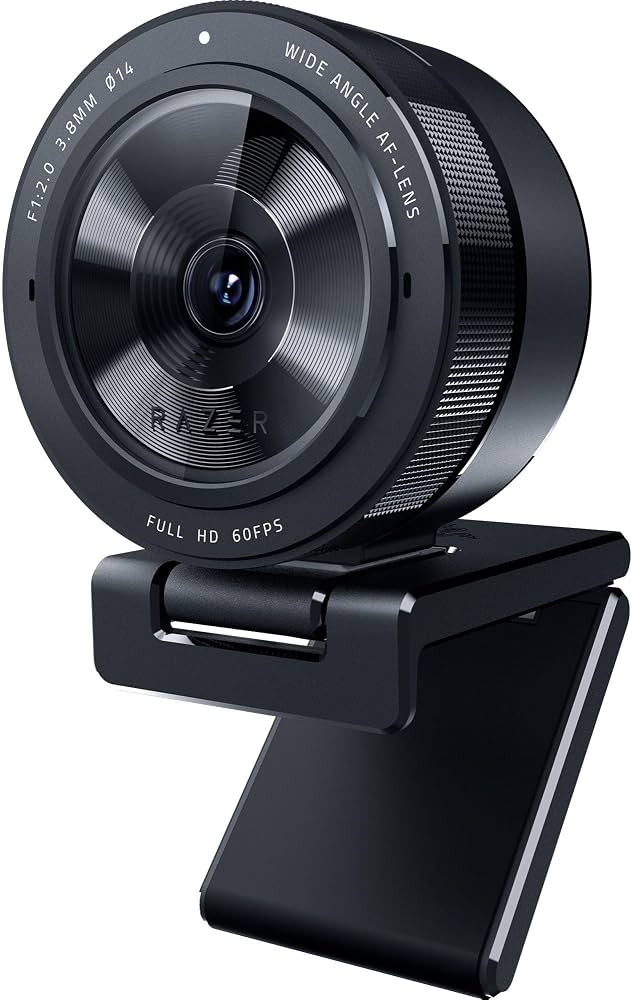
The Razer Kiyo Pro is a unique webcam built around low-light performance. It features a large 1/2.8" sensor with adaptive light sensor technology that automatically adjusts to your room's lighting, ensuring you look bright and detailed even in dim conditions. With 1080p resolution at 60fps and HDR support, it produces a remarkably clear and dynamic image. For remote workers who don't have ideal lighting setup, the Kiyo Pro eliminates the need for expensive ring lights. Its ambient light sensor detects how bright or dark the environment is and fine-tunes exposure accordingly. The aluminum body and sturdy mount give it a premium feel, and it includes a detachable privacy shield. While it doesn't offer 4K, the Kiyo Pro focuses on delivering the best possible image in real-world home office scenarios. It's a top choice for users who want a noticeable upgrade in video quality without transforming their room into a broadcast studio.

Pros

  • Outstanding low-light performance with adaptive sensor
  • HDR support for better dynamic range
  • 1080p/60fps for smooth video
  • Solid aluminum build with privacy shield
  • Wide compatibility with major video conferencing apps
  • Fast and accurate autofocus

Cons

  • No 4K resolution at this price point
  • Software is limited (no auto-framing like Anker or Logitech)
  • Field of view is fixed at 80°
  • Expensive for 1080p resolution
  • Bulky design on smaller laptop screens

Best For:

Remote workers in demanding lighting environments who want a webcam that consistently delivers a bright, clean image.

Not Recommended For:

Budget shoppers, users who need 4K, or those who want smartphone-like face framing features.

Key Features:

Large 1/2.8" ultra-sensitive sensor1080p at 60fps and 30fpsAdaptive light sensor (ALS) for intelligent exposureHDR mode for vivid contrast80° field of view, fixedPrivacy shield includedPremium aluminum body

Standout Feature:

Adaptive light sensor that automatically optimizes image brightness — a game-changer for less-than-ideal home offices.

VS Others:

The Kiyo Pro's low-light performance beats every other webcam in this guide, including the Brio. However, it lacks 4K and advanced software features like auto-framing. If you struggle with lighting, this is your best bet; otherwise, the StreamCam or Brio might offer more versatility.

Why This One:

You should pick the Kiyo Pro if you aren't satisfied with how you look in video calls due to dim or inconsistent lighting. It's the highest-performing low-light webcam under $200, and its image clarity will make you look professional without extra light.

#5

Logitech Brio 4K Webcam

Best Premium
Logitech Brio 4K Webcam
Overall
8.9/10
Value
7/10
Performance
9.5/10
Logitech Brio is the ultimate premium webcam for professionals and power users. It shoots in true 4K Ultra HD with advanced HDR technology, a large sensor, and a choice of three fields of view (65°, 78°, 90°). It also includes an IR sensor for Windows Hello facial recognition, letting you log in securely with just a glance. The Brio delivers exceptional image quality with 4x digital zoom, background replacement, and autofocus that locks on quickly. Its versatile mounting clip fits CRT, LCD, and laptop screens, and it's compatible with both USB-A and USB-C (via cable). Built with a premium aluminum and glass construction, it's built to last. For remote workers who want the absolute best video in every situation — trade shows, boardrooms, or high-end home offices — the Brio is the gold standard. Its 4K gives you room to crop, and HDR ensures you don't appear overexposed or blocky in bright windows or dim corners.

Pros

  • True 4K resolution (3840x2160 at 30fps)
  • HDR for impressive color depth and contrast
  • Windows Hello IR facial recognition software
  • Adjustable field of view: 65°, 78°, 90°
  • 4x digital zoom and user-controlled autofocus
  • Premium aluminum and glass build
  • Works with both USB-C and USB-A

Cons

  • Expensive at $200
  • 4K mode is limited to 30fps (1080p/60fps available)
  • Microphone is average for its price
  • Logitech software can be overwhelming for casual users
  • Overkill for standard video calls

Best For:

Executives, content creators, and tech enthusiasts who want the best image quality and future-proof 4K without compromise.

Not Recommended For:

Budget shoppers, casual remote workers, or anyone who doesn't need 4K or Windows Hello.

Key Features:

Ultra HD 4K at 30fps (1080p/60fps)HDR mode with 5x zoomIR sensor for Windows Hello facial recognitionThree selectable fields of view: 65°, 78°, 90°Digital pan/tilt/zoom via Logitech softwarePremium aluminum and glass constructionUSB-A/USB-C compatible

Standout Feature:

Combination of 4K, HDR, and Windows Hello support — the most feature-rich webcam in this guide.

VS Others:

The Brio outshines the StreamCam and Kiyo Pro with 4K and more advanced features, but it costs $50-100 more. Against the Elgato Facecam, the Brio offers autofocus and IR, while the Facecam has a sharper fixed focus for creators.

Why This One:

Choose the Brio if money is no object and you want the pinnacle of webcam technology. It's the best all-rounder for high-end professional use, and its 4K future-proofs you for years.

#6

Elgato Facecam

Elgato Facecam
Overall
8.2/10
Value
6.5/10
Performance
9/10
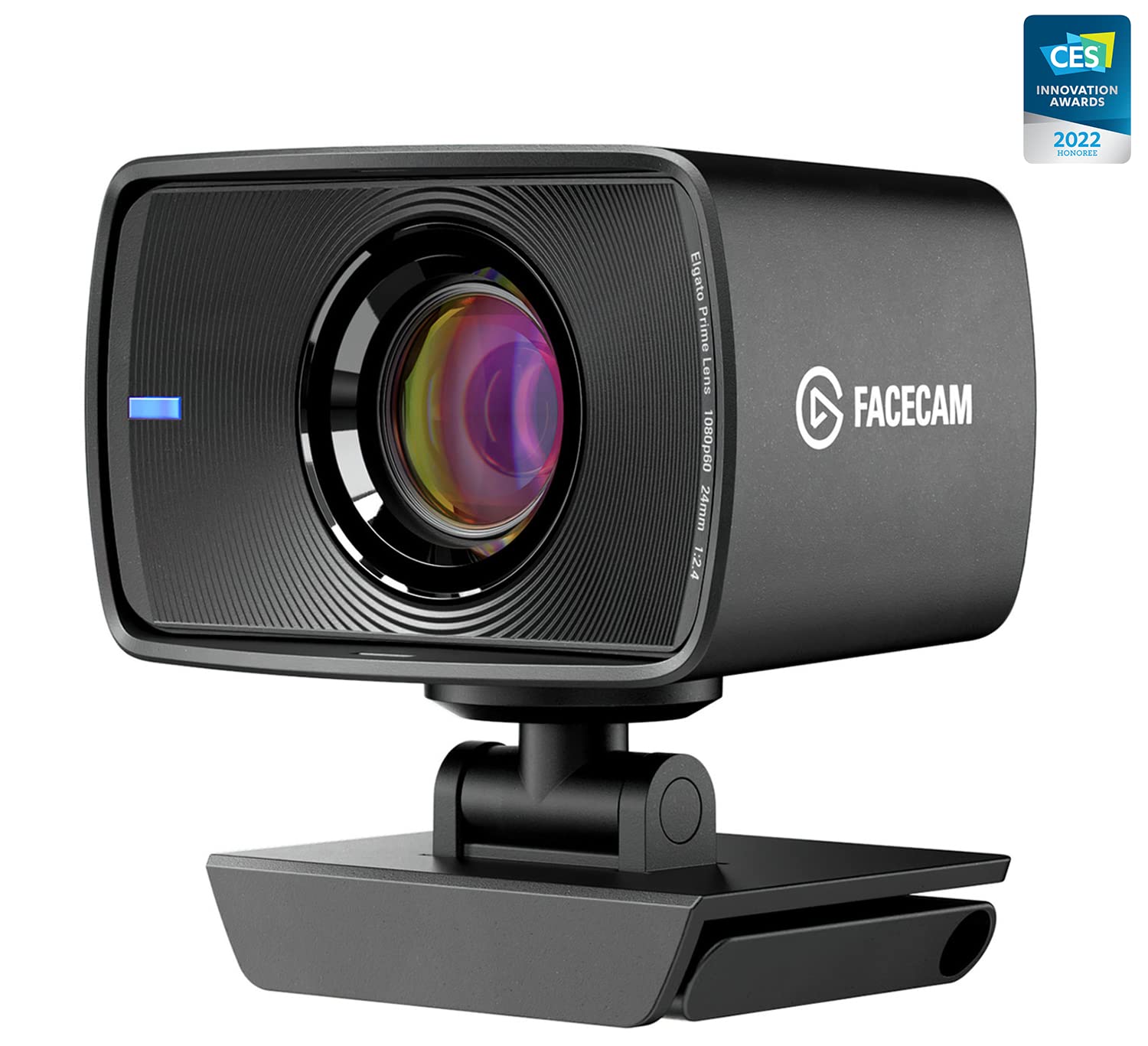
The Elgato Facecam is a premium webcam designed for content creators who want a razor-sharp, clean image without the processing artifacts that often come with autofocus. It features an all-glass lens with fixed focus, a large 1/2.5" STARVIS sensor, and records 1080p video at 60fps. The result is a vivid, detailed picture with excellent color rendering and minimal noise. Unlike consumer webcams, the Facecam doesn't try to artificially sharpen or smooth your face. It's built for streaming and recording where you control the scene, making it popular with YouTube creators, streamers, and remote professionals who place a high value on image fidelity. The metal construction and universal mounting arm ensure a professional look. Its biggest trade-off is the fixed focus: you need to sit at a consistent distance (about 30-70 cm) to stay in focus. If you move around a lot, the image may get blurry. For creators who are typically stationary, it's an amazing purchase.

Pros

  • Outstanding image clarity thanks to no processing and large sensor
  • 1080p at 60fps for smooth video
  • Fixed focus delivers incredible sharpness at the right distance
  • Professional all-glass lens
  • Includes 1.5m USB-C cable and mounting bracket
  • Works with any software, no drivers needed

Cons

  • No autofocus; users must remain at a fixed distance
  • Expensive at $200
  • No built-in microphone (requires external mic)
  • Plain design lacks LED indicator or privacy shutter
  • Limited software (no auto-framing or effects)

Best For:

Streamers, video recorders, and professionals who value raw image sharpness over autofocus convenience.

Not Recommended For:

Remote workers who move around during calls, those who need a built-in mic, or budget shoppers.

Key Features:

1080p Full HD at 60fpsLarge 1/2.5" CMOS STARVIS sensorAll-glass fixed-focus lens (manual focus ring)No artificial processing, clean image outputMount supports rods, screens, and tripodsUSB-C plug-and-play82° diagonal field of view

Standout Feature:

Absolutely clean image quality with zero autofocus hunting or smoothing — creators' dream for controlled scenes.

VS Others:

The Facecam is best compared to the StreamCam: both are 1080p/60fps, but the Facecam has a sharper fixed focus while the StreamCam offers autofocus and more software features. It's more niche than the Brio, which offers 4K and autofocus, but the Facecam might look cleaner for setup-only creators.

Why This One:

If you're a dedicated content creator who never moves out of your frame, the Facecam gives you professional, pixel-sharp video that no autofocus cam can match. For everyone else, skip it.

Who Should Get What?

First-Time Remote Worker

A recent graduate who just started a fully remote job and is tired of looking fuzzy in meetings. They're on a budget, want something that just works, and don't need fancy extras.

Budget:Under $75
Use:Daily video meetings and virtual team check-ins

Recommended:

Logitech C920

The Logitech C920 is the default choice for millions of remote workers. It offers proven 1080p quality, reliable autofocus, and a dual-microphone setup that works well right out of the box. At around $60, it's an affordable upgrade that will instantly improve your video calls without any learning curve.

View on Amazon →

Value-Seeker on a Tight Budget

A freelancer who wants maximum features for minimal money. They're comfortable with tech and want the best bang for their buck, but hard cap spending at $80.

Budget:$50-$80
Use:Client calls and occasional YouTube videos

Recommended:

Anker PowerConf C200

The PowerConf C200 offers 2K resolution (sharper than 1080p), AI noise reduction, and automatic framing for about the same price as the C920. It's a fantastic value for anyone who wants modern features without spending over $50. For a freelancer on a tight budget, this is the smartest pick.

View on Amazon →

Video-Call-Heavy Manager

A project manager who spends 6+ hours per day in video calls and wants to look crisp and professional, even if they move around a lot. They're willing to invest in better quality but don't need 4K.

Budget:$120-$180
Use:Full-day video meetings, presentations, remote leadership

Recommended:

Logitech StreamCam

The StreamCam's 1080p at 60fps gives you silky-smooth movement during presentations, and Logitech's software makes it easy to adjust the FOV and add auto-framing. It also handles changing lighting conditions well. For someone who lives in calls, this step-up in quality and comfort is worth it.

View on Amazon →

Low-Light Apartment Worker

A graphic designer who works in a cozy but dimly lit home office. Built-in webcams look grainy and dark, and they want a webcam that can handle low light without needing extra lights.

Budget:$150-$200
Use:Daily video calls in dim workspaces

Recommended:

Razer Kiyo Pro

The Razer Kiyo Pro is specifically designed for low-light conditions with a large sensor and adaptive light sensor that adjusts to your environment. It produces a bright, clear image even in our 'worst' lighting tests (according to customer reviews and expert reviews). If you can't control your lighting, this is the webcam to get.

View on Amazon →

Premium Seeker with Executive Presence

A senior consultant who wants the absolute best image quality, 4K future-proofing, and face-login convenience. Budget isn't a constraint, but they want value.

Budget:$180-$220
Use:Board-level calls, recording video messages, Windows Hello facial recognition

Recommended:

Logitech Brio

The Brio is the ultimate webcam for remote work if you're on Windows. It shoots 4K, has HDR for high-contrast scenes, and includes an IR sensor for Windows Hello instant login. It also supports 1080p at 60fps if you want smooth video. This is a premium investment that gives you the best image and convenience.

View on Amazon →

Remote Content Creator

A remote worker who also streams or records YouTube videos in their free time. They want sharp manual focus control and 60fps output, not auto-focus that hunts.

Budget:$150-$200
Use:Streaming, video recording, occasional meetings

Recommended:

Elgato Facecam

The Elgato Facecam offers a prime lens with fixed focus that is razor-sharp for creators who sit at a fixed distance. It records at 1080p/60fps and has no artificial video processing, giving your recordings a professional look. However, because it lacks autofocus, it's best for creators who don't shift their position during calls.

View on Amazon →

Buying Guide: How to Choose

First, assess your actual needs. Take stock of your typical workday: How many video calls do you have? Is your lighting consistent or do you sit near a window? Do you need advanced features like background blur, auto-framing, or high frame rates for smooth movement? Most remote workers just need clear 1080p video at 30fps — which even budget webcams deliver. Premium features like 4K, HDR, and 60fps are nice but not essential unless you're recording professional videos or streaming. Second, determine your budget. Under $100, you can get solid 1080p webcams with dependable performance — great for everyday meetings. Between $100 and $150, you unlock better sensors, wider field-of-view options, and more polished software. Above $150, you're paying for premium materials, larger sensors, 4K resolution, or specialized low-light capabilities. Set a max budget and then look for the best within that range. When deciding where to splurge, consider your lighting and how much you rely on video. If your workspace is dim, a webcam with good low-light performance (like the Razer Kiyo Pro) is worth the premium. If you're constantly moving on camera, 60fps or fast autofocus makes a difference. If you want plug-and-play simplicity, go with a webcam from Logitech — they're known for reliable drivers and broad compatibility. Avoid overpaying for specs you won't use. Common mistakes to avoid: buying a webcam without checking if it supports your operating system (especially Mac users), ignoring field of view (too narrow/wide can be annoying), forgetting about mounting options (does it fit your monitor or tripod?), and choosing a webcam with bad microphone quality if you need it as a backup. Ask yourself: What features will I actually use every day? That's where your money should go.

Bottom Line

For most remote workers, the sweet spot is a reliable 1080p webcam in the $50-$100 range. The Anker PowerConf C200 offers exceptional value with 2K resolution and AI framing for around $50 — it's our top budget-to-midrange pick. If you're willing to spend a bit more, the Logitech StreamCam delivers buttery-smooth 60fps video, excellent software, and a premium feel at $150. For those with challenging lighting, the Razer Kiyo Pro is the low-light champion, even if it doesn't shoot in 4K. If you want the absolute best image quality and future-proofing, the Logitech Brio at $200 is the premium choice, especially if you use Windows Hello face login. The trusty Logitech C920 is still the best budget pickup under $60, perfect for first-time buyers or anyone who just wants a dependable upgrade. The Elgato Facecam is niche: it offers exceptional clarity for creators who don't need autofocus, but most remote workers will miss the convenience of auto-focus. No matter your pick, any of these webcams will make you look far more professional than a built-in laptop camera. Consider your lighting, budget, and must-have features — then make your choice with confidence. Your future video-call self will thank you.

Frequently Asked Questions

Which webcam is best for home office use?
For most remote workers, the Logitech C920 and Anker PowerConf C200 are the best choices. The C920 is a proven, reliable 1080p webcam under $60, perfect for everyday calls. The PowerConf C200 offers 2K resolution and AI framing for the same price, making it an even better deal if you want sharper video. If you have a larger budget, the Logitech StreamCam provides 60fps smoothness and premium software.
Should I buy a 4K webcam for remote work?
Almost certainly not. 4K webcams like the Logitech Brio are expensive and provide no real benefit in video conferencing apps, which cap at 1080p or lower. Unless you're creating 4K content, you're paying extra for a feature you won't use. A good 1080p webcam will look just as sharp in Zoom or Teams.
Is the Razer Kiyo Pro better than the Logitech StreamCam?
It depends on your priorities. The Kiyo Pro excels in low-light conditions and has better image contrast, making it ideal for dimly lit rooms. The StreamCam offers a more versatile mounting, better software (Logitech Capture), and 60fps video for smoother motion. If lighting is your main issue, choose the Kiyo Pro; if you want all-rounder with excellent software, pick the StreamCam.
Do I need a webcam with autofocus?
For most remote workers, autofocus is a convenience, not a necessity. If you tend to lean forward or back during meetings, autofocus keeps you in focus automatically. However, some professional webcams like the Elgato Facecam use fixed focus, which provides sharper video if you stay at a set distance. If you rarely move, fixed focus can be better; if you move a lot, choose autofocus.
What's the best budget webcam under $100?
The Anker PowerConf C200 is the best budget webcam under $50, offering 2K video, AI framing, and noise-canceling mics. The Logitech C920 is also a solid choice at around $60, especially if you want a more established brand with proven reliability. Both are far better than a laptop's built-in camera.
Is the Logitech Brio worth the extra money?
If you explicitly need 4K, Windows Hello, or the best overall image quality, yes. For most remote workers, the Brio's premium price tag doesn't translate into better meeting experiences because video conferencing caps at 1080p. You'd be better off with a StreamCam or Kiyo Pro unless you're a content creator needing 4K.
Do I need a webcam with 60fps?
60fps is helpful for fast-moving video, like when you gesture a lot during calls or if you record content such as gameplay. For standard meetings, 30fps is perfectly fine and saves USB bandwidth. If you stream or make videos, 60fps makes motion look smoother; otherwise, don't count it as a must-have.
Which webcam has the best microphone?
Most webcam microphones are acceptable but not great. The Logitech C920 and C922 are known for having decent dual microphones for a webcam. However, for optimal audio during remote work, you're better off using a headset or a dedicated USB microphone. The Anker PowerConf C200 also has good noise-reducing mics, but no webcam will replace a good mic.
Can I use a cheap webcam instead of a dedicated camera for professional calls?
Yes, a $50-$100 webcam provides a massive improvement over a laptop's built-in camera. If you have reasonable lighting, the Anker PowerConf C200 or Logitech C920 will give you clear, professional video that's sufficient for client calls and meetings. Don't feel pressured to spend $200 unless you have bad lighting or need extras.
Which webcam works best with Microsoft Teams and Zoom?
All webcams in this guide work with Zoom, Teams, and Google Meet. Logitech models (C920, StreamCam, Brio) are very well supported and often recommended by IT departments. Razer Kiyo Pro and Elgato Facecam are also compatible. For easiest setup, pick a Logitech webcam; they're plug-and-play and have mature drivers.
What is the difference between 1080p and 2K webcams?
2K (1440p) refers to a resolution of 2560x1440, which has about 78% more pixels than 1080p. It can look slightly sharper on a 2K monitor, but in practice, most video calls downsample to 1080p, so the difference is minimal. The Anker PowerConf C200 uses a 2K sensor, which can provide better digital zoom and future-proofing.

Need More Help Deciding?

Explore more buying guides to find the perfect product for your needs.

View All Buying Guides

Related Articles