
Quick Verdict
The Samsung Odyssey G7 is a good option for video editing, especially for users who want a hybrid gaming/creation monitor. Its 4K IPS panel offers wide color coverage and sharp detail, but lack of calibration and moderate brightness limit its professional use.
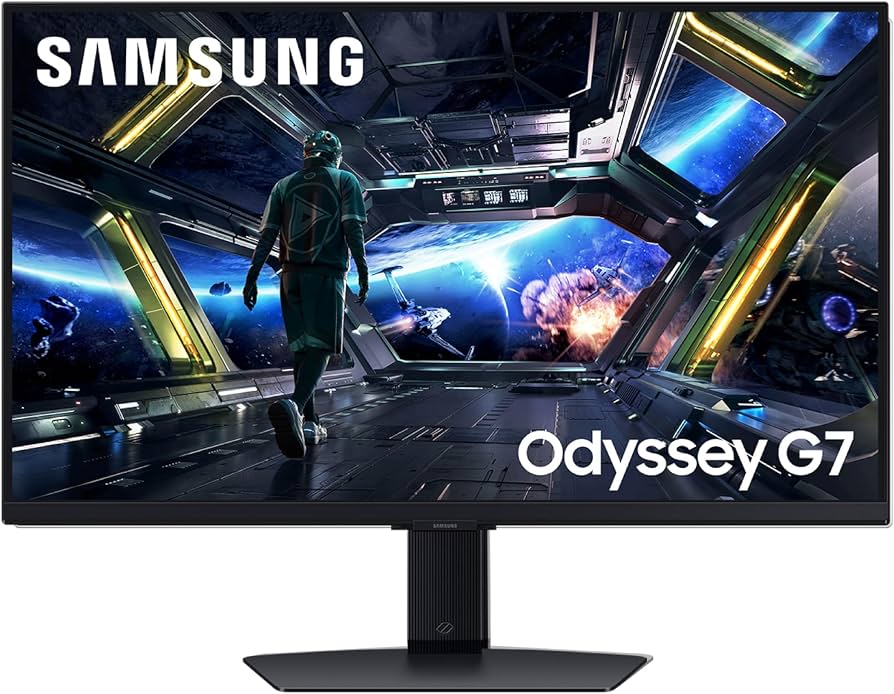
Samsung Odyssey G7
$499.99

✓ Key Strengths
- •4K resolution provides sharp details for editing high-resolution footage
- •IPS panel with 95% DCI-P3 coverage offers good color gamut for HDR and film
- •Large 32-inch screen improves multitasking with timelines and previews
- •HDMI 2.1 support enables high-bandwidth connection to modern GPUs and consoles
- •Low input lag and 144Hz refresh rate are beneficial if you also game
- •Adjustable stand with ergonomic options (height, tilt, swivel) improves comfort during long edits
✗ Key Weaknesses
- •No factory calibration, so color accuracy may need adjustment for professional work
- •Peak brightness of 400 nits is insufficient for HDR grading in well-lit rooms
- •Monitor lacks a sRGB emulation mode, which can cause oversaturation in standard color space
- •Curved version may distort straight lines in editing grids (though the flat version is recommended)
- •Built-in speakers are poor; external speakers or headphones needed for audio review
What is Samsung Odyssey G7?
What is video editing?
Detailed Analysis
👍 Perfect For
- ✓Video editors who also game and want one monitor for both tasks
- ✓Hobbyist or semi-professional editors working in DCI-P3 or HDR projects
- ✓Those who need a large 4K display under $500 for basic editing
- ✓Color-critical beginners learning DaVinci Resolve or Premiere Pro
👎 Not Ideal For
- ✗Professional colorists requiring factory-calibrated monitors with Delta E <2
- ✗Editors working in sRGB-only workflows who need accurate sRGB reproduction
- ✗Users who need UHD with high brightness (>600 nits) for HDR mastering
- ✗Those with limited desk space who prefer a smaller 27-inch screen
Use Case Scenarios
Casual Hobbyist Editing YouTube Videos
A YouTuber or enthusiast who edits in 1080p or 4K for personal channels, using free or low-cost editing software. Color accuracy is important but not critical.
✓ Strengths
- 4K resolution for detailed previews
- Good color gamut for vibrant results
- Large screen for multiple windows
- Affordable compared to dedicated editing monitors
✗ Weaknesses
- Colors may appear overly saturated without calibration
- Not ideal for color-critical projects that will be printed or broadcast
- Requires manual color adjustment
💡 Workarounds
- Use a colorimeter like Datacolor SpyderX to calibrate
- Switch to sRGB mode via custom settings if available (requires tinkering)
- Use software LUTs in your editing app to adjust color
For casual editing, the monitor's strengths outweigh its weaknesses, especially when paired with basic calibration.
Semi-Professional Freelance Editor
A freelancer editing commercials or short films, often working in DCI-P3 or Rec.709 color spaces, and delivering to clients. Accuracy is important but not reference-grade.
✓ Strengths
- Wide DCI-P3 coverage suitable for HDR
- Large 4K display improves workflow
- HDMI 2.1 allows high refresh rate input
✗ Weaknesses
- No factory color accuracy guarantee
- Moderate peak brightness limits HDR grading confidence
- No built-in calibration software or hardware LUT support
💡 Workarounds
- Invest in a hardware calibrator and calibrate regularly
- Use the monitor as a preview screen alongside a professional monitor
- Rely on scopes and waveform monitors in editing software for accuracy
It works but requires extra effort and tools to achieve acceptable accuracy; dedicated editing monitors are more efficient.
Professional Colorist in a Studio
A colorist grading feature films or TV shows in a controlled environment, requiring reference-level accuracy, high brightness, and true 10-bit color.
✓ Strengths
- None for this specific high-end use case
✗ Weaknesses
- Insufficient color depth (8-bit+FRC instead of true 10-bit)
- Low brightness for HDR
- No factory calibration certificate
- Not designed for color-critical workflows
💡 Workarounds
- Not recommended; consider a different monitor entirely
- If budget-constrained, use it as a secondary display for UI only
The monitor lacks the necessary color precision, brightness, and panel technology for professional color grading.
Student Learning Video Editing
A student using a laptop but wanting a larger desktop monitor for editing assignments in college. Budget is a priority.
✓ Strengths
- Affordable 4K IPS monitor under $500
- Large screen for educational software
- Versatile for both editing and personal use
- Good connectivity for laptops via HDMI/DP
✗ Weaknesses
- May require color adjustments for accurate class projects
- Not as color-accurate as some similar-priced Dell monitors
💡 Workarounds
- Use built-in sRGB-like mode if available
- Follow online guides to tweak settings for editing
- Calibrate using free software visual adjustments
For students, the combination of price, size, and performance makes it an excellent choice for learning video editing.
Related Products You Should Consider
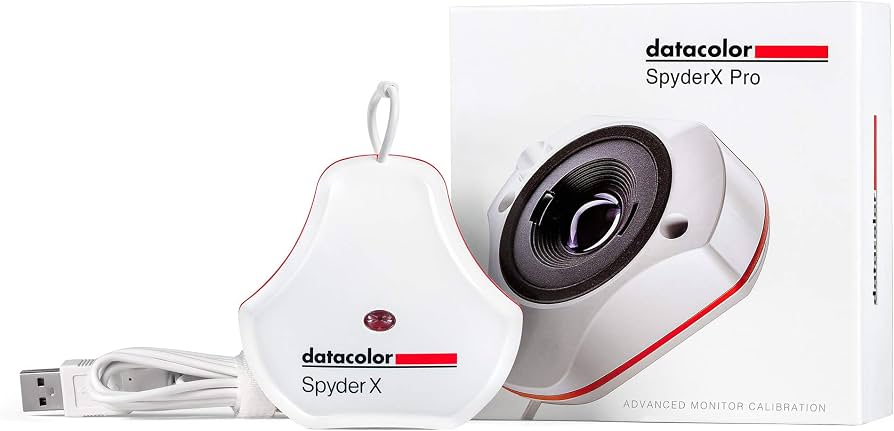
Datacolor SpyderX Pro Calibration Tool
$159.99
Why recommend: Resolves the key weakness of color accuracy, making the Odyssey G7 much more suitable for video editing.
Best for: Semi-professional editors and hobbyists who want reliable color without buying a professional monitor.
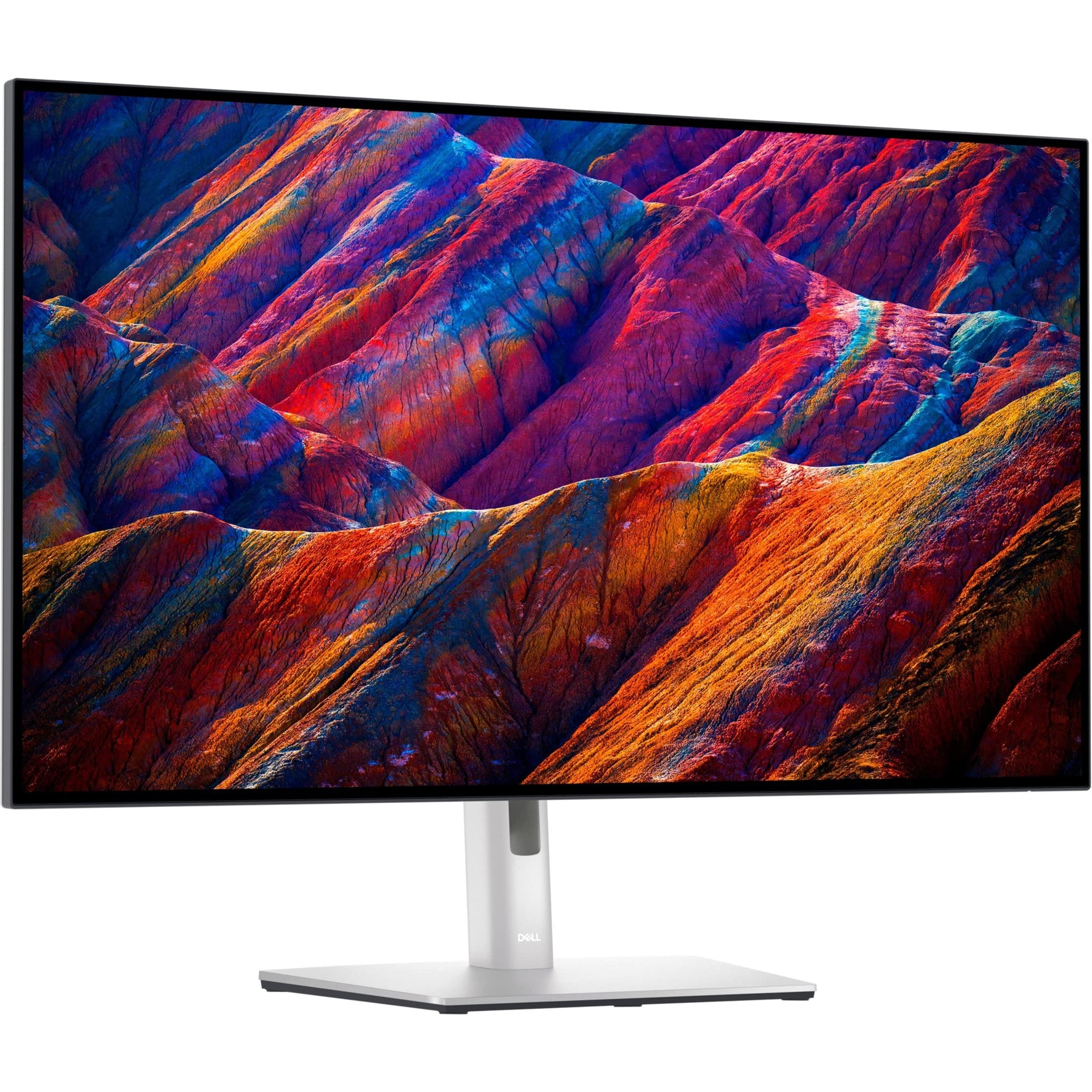
Dell U3223QE 32-inch 4K IPS Monitor
$849.99
Why recommend: A superior alternative if color accuracy and professional features are a priority, though more expensive.
Best for: Professional editors and those who need reliable out-of-box accuracy.
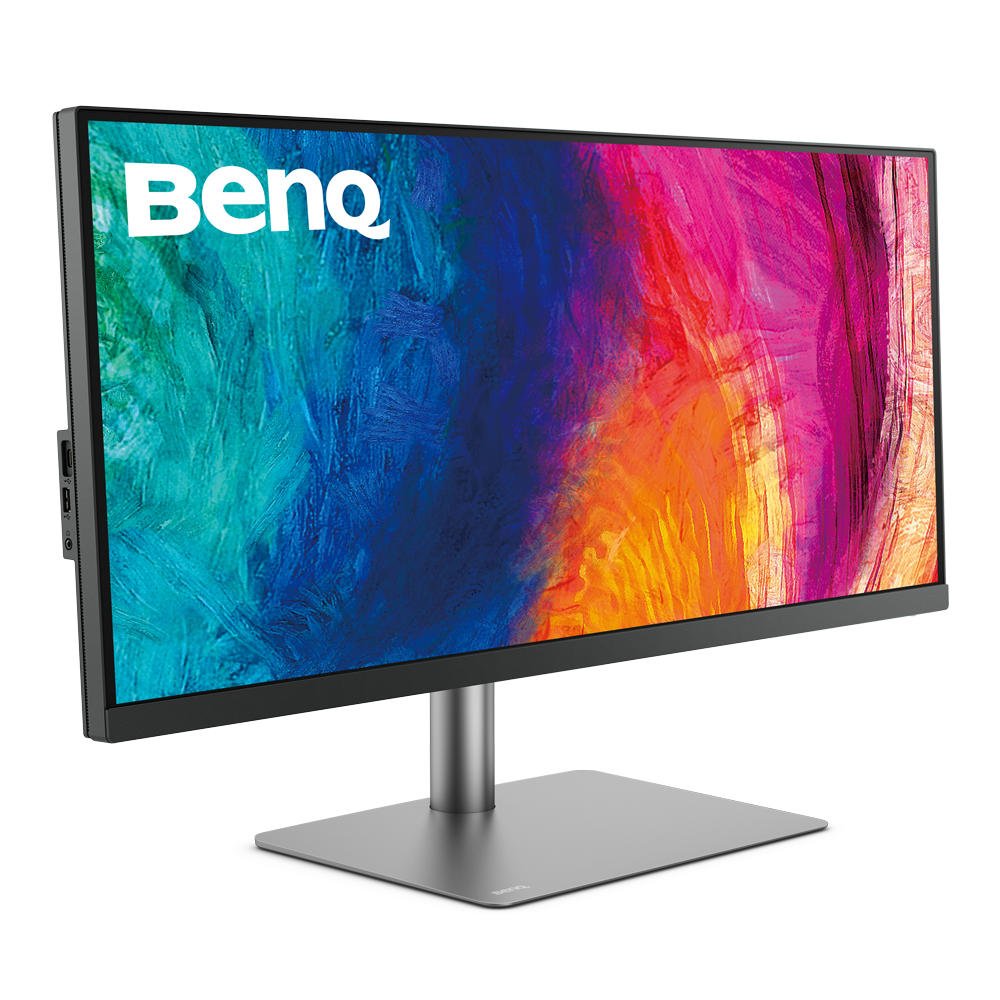
BenQ PD3220U 32-inch 4K Designer Monitor
$1199.99
Why recommend: Designed specifically for creative professionals; offers better ergonomics and color modes.
Best for: Designers and video editors who want a dedicated creation monitor with advanced features.
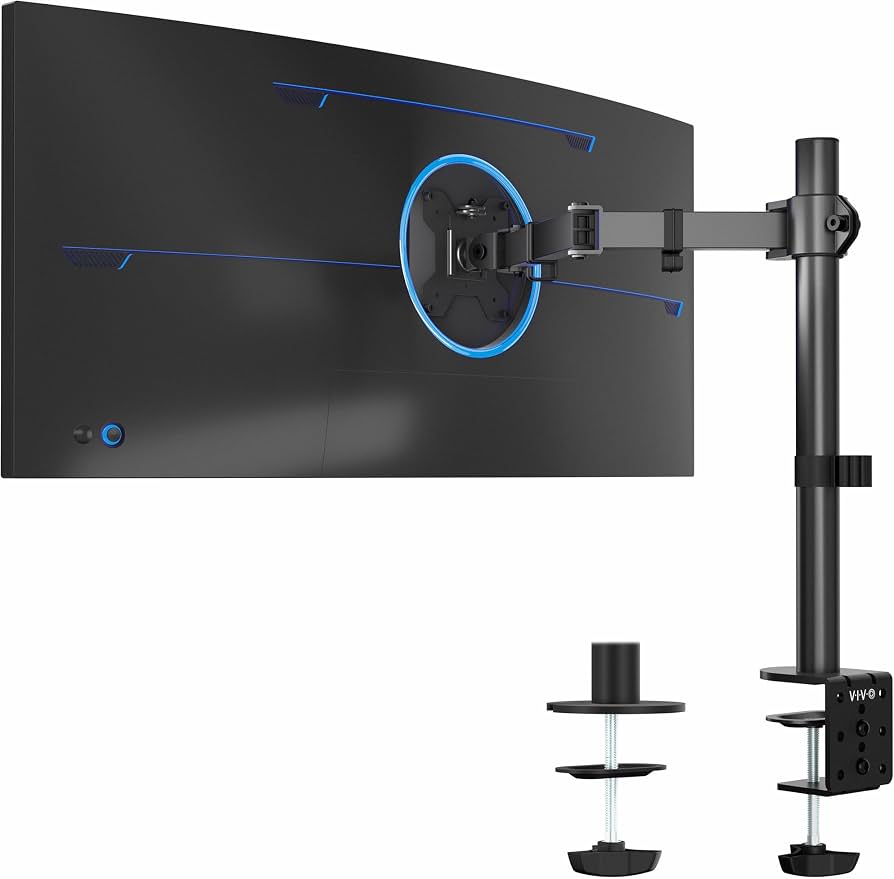
VIVO Single Monitor Desk Mount (STAND-V001)
$29.99
Why recommend: Improves desk organization and ergonomics during long editing sessions.
Best for: Anyone who wants to optimize their workspace or add a second monitor.
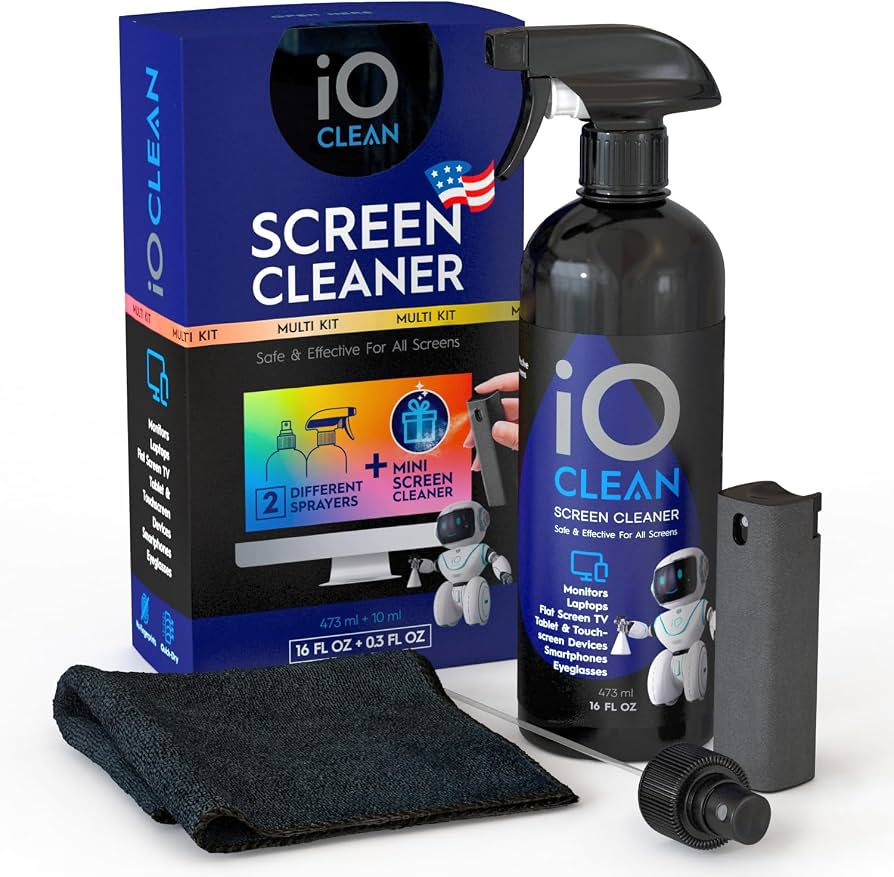
AmazonBasics Premium Monitor Cleaning Kit
$9.99
Why recommend: Simple maintenance to ensure consistent viewing quality.
Best for: All users who care about image quality.
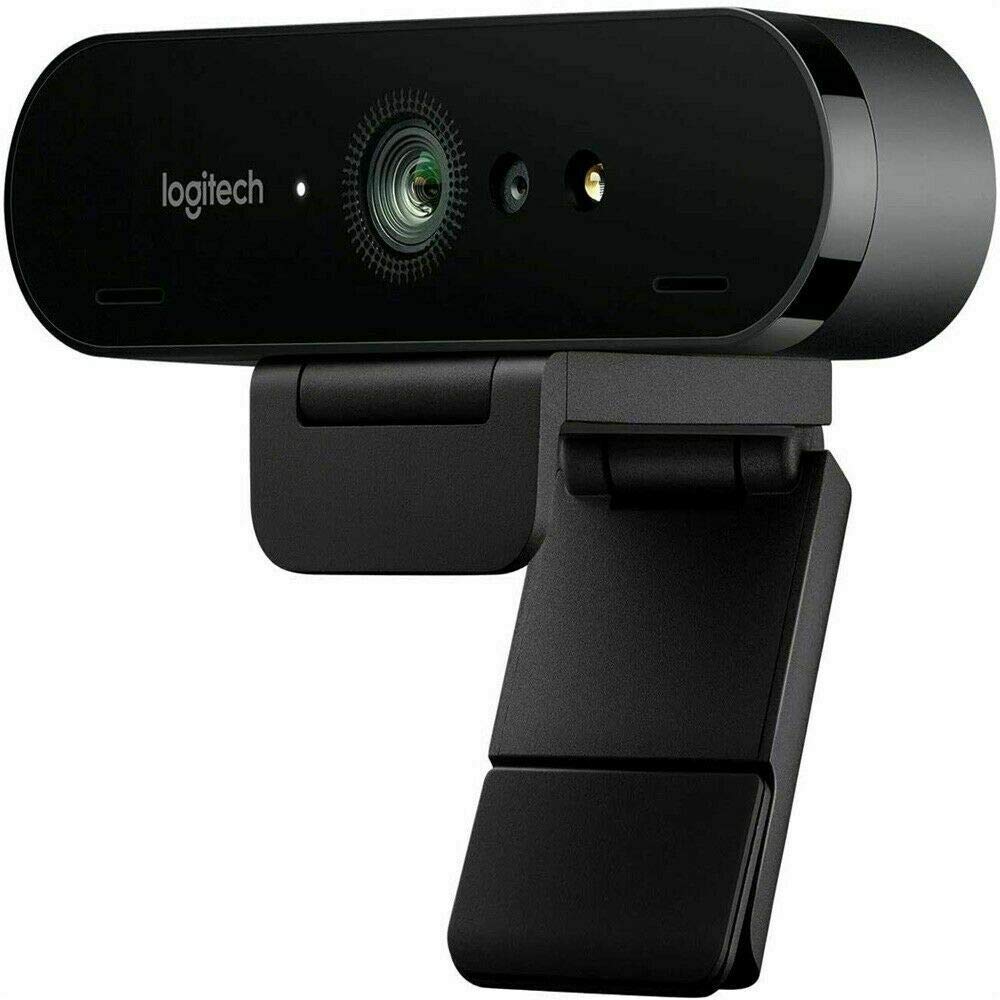
Logitech Brio 4K Webcam
$199.99
Why recommend: A high-quality webcam matches the 4K monitor for a unified resolution experience.
Best for: Remote editors or content creators recording video.

Blue Yeti USB Microphone
$129.99
Why recommend: Essential for video editors who also record audio.
Best for: Those producing tutorials, podcasts, or voiceovers.
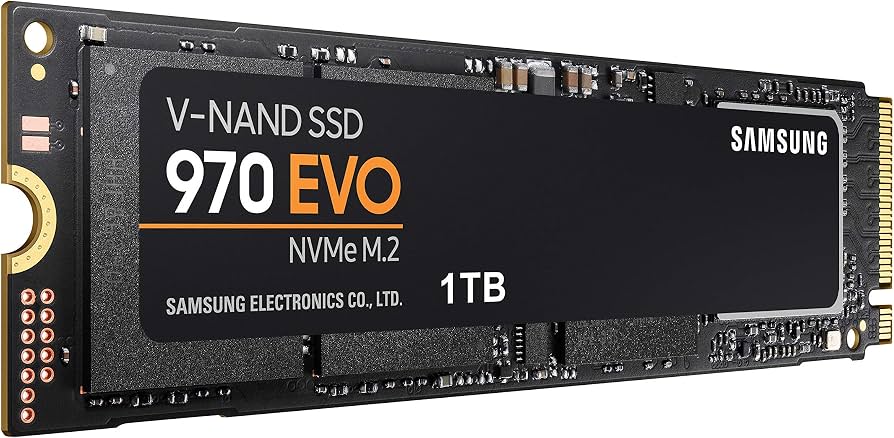
Samsung 970 EVO Plus 1TB NVMe SSD
$139.99
Why recommend: Speeds up project load times and scrubbing through timeline.
Best for: Editors dealing with large 4K files.
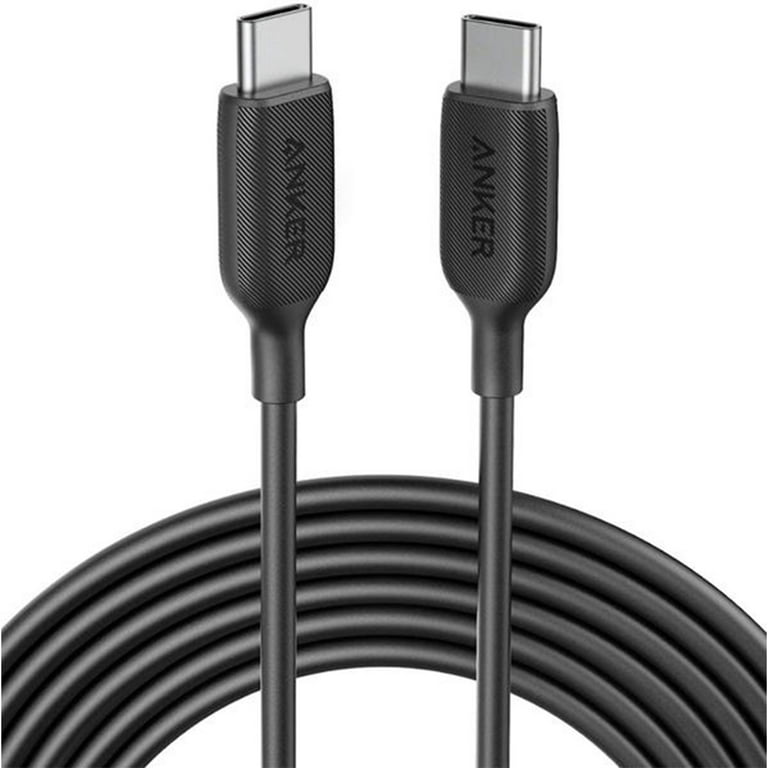
Anker Powerline III USB-C to DP Cable
$14.99
Why recommend: Reliable connection for best performance.
Best for: Users who need a high-quality cable for their gaming/editing setup.
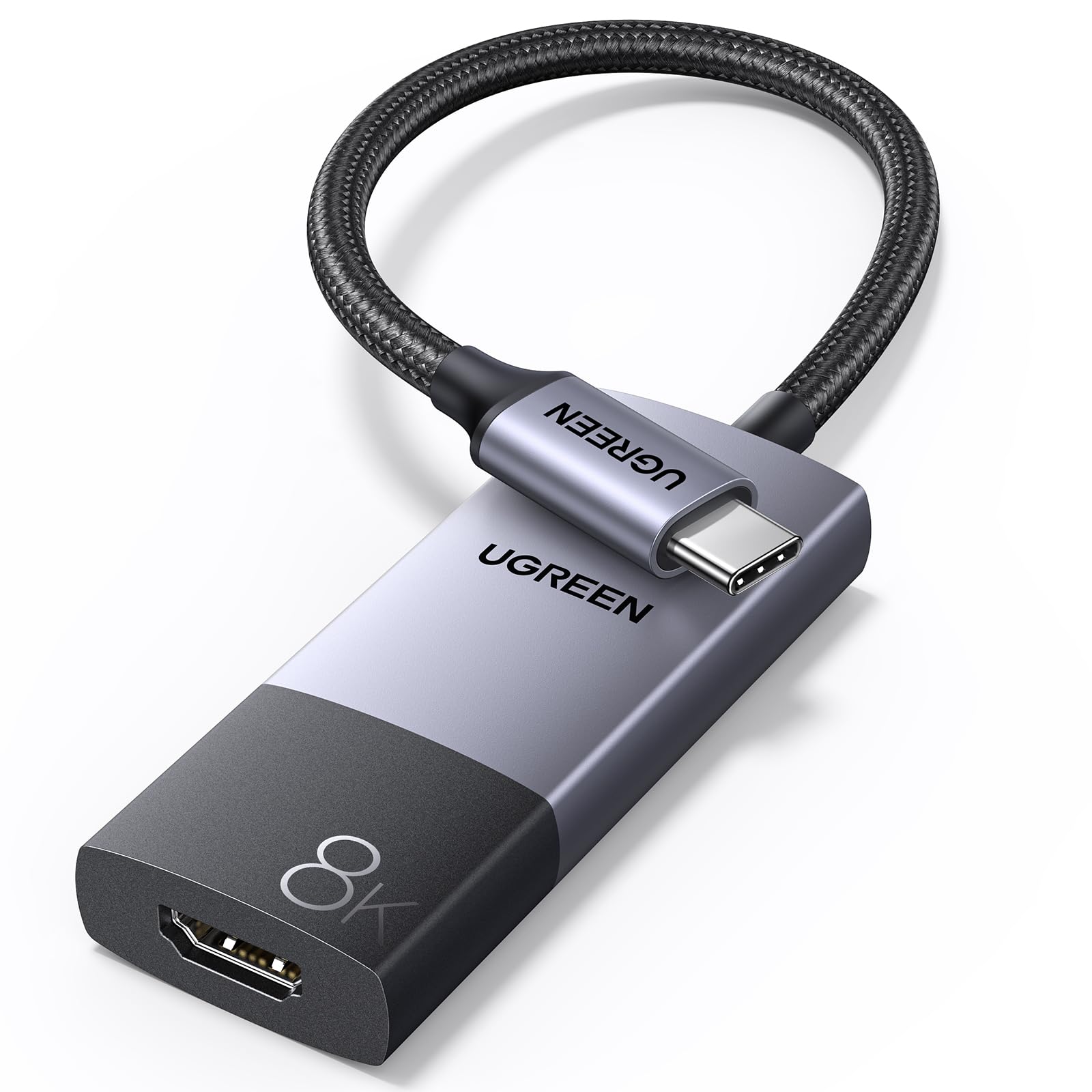
UGREEN USB C Hub with HDMI 2.1
$39.99
Why recommend: Essential for connecting a laptop to the monitor while adding ports.
Best for: Students or freelancers using laptops.
Bottom Line
Ready to get the Samsung Odyssey G7? Check the latest price on Amazon.
🛒 Buy on AmazonAs an Amazon Associate we earn from qualifying purchases.
Frequently Asked Questions
Is Samsung Odyssey G7 good for video editing?
Yes, it can be good for general video editing thanks to its 4K resolution and IPS panel with 95% DCI-P3 coverage. However, it lacks factory calibration and has moderate brightness, so it's best suited for hobbyist or semi-professional use rather than color-critical professional work.
Can you use Samsung Odyssey G7 for color grading?
You can use it for basic color grading, but it's not ideal. The panel is 8-bit+FRC (not true 10-bit), and without calibration, colors may be inaccurate. For professional color grading, a dedicated monitor like the BenQ SW series or Eizo is recommended.
Is the Samsung Odyssey G7 suitable for 4K video editing?
Yes, its native 4K resolution displays fine details of UHD footage. The 32-inch size provides ample screen space for timelines and previews, making it suitable for 4K editing workflows.
Does the Odyssey G7 have good color accuracy for editing?
Out of the box, color accuracy is average. Many users report a Delta E around 3-4, which is acceptable for casual work but not for professional. Using a calibration tool like SpyderX can improve accuracy significantly.
What is the color gamut of Samsung Odyssey G7?
It covers 95% DCI-P3 and 125% sRGB. This makes it wide-gamut, but it lacks an sRGB emulation mode, so sRGB content may appear oversaturated unless manually adjusted.
Is the 144Hz refresh rate beneficial for video editing?
Not directly, but it doesn't harm. It can make cursor movements and interface interactions feel smoother. However, some editing software may have issues with variable refresh rate; it's recommended to disable VRR when editing.
How does the Odyssey G7 compare to the Dell U3223QE for editing?
The Dell U3223QE offers better factory calibration, true 10-bit panel (via FRC but better), higher brightness (400 nits vs 400 nits similar), USB-C with 90W power delivery, and KVM. It is more expensive but significantly better for color-critical work.
Can I use the Odyssey G7 for HDR video editing?
It supports HDR10 but only has VESA DisplayHDR 400 certification, meaning peak brightness of 400 nits and limited local dimming. For real HDR editing, you need at least 600 nits and true 10-bit panel.
What cables are included with the Samsung Odyssey G7?
It typically comes with a DisplayPort cable and an HDMI cable. Both are high-speed cables. You may need a separate USB-C cable if you want to use USB hub features.
Is the curved version of the Odyssey G7 good for video editing?
The curved version has a 1000R radius, which can distort straight lines and grids visible in editing software. For video editing, a flat panel is generally preferred to avoid geometric distortion.
How do I calibrate the Odyssey G7 for video editing?
Use a hardware calibrator like SpyderX or i1Display Pro. Alternatively, you can adjust brightness, contrast, gamma, and color temperature via the OSD menu. Many users find a setting around 6500K and 2.2 gamma works well.
What is the best alternative to Odyssey G7 for video editing under $500?
The LG 27UP850-W 27-inch 4K IPS monitor, or the ASUS ProArt PA279CV are strong competitors with better color accuracy out of the box. The Dell S2722QC is also a good budget option.