Is Best Monitor for beginners Worth It? Honest Review (2026)
Everything beginners need to know to choose their first monitor with confidence.
Choosing your first monitor can feel overwhelming. With so many technical terms—refresh rates, IPS, resolution, response time—it's easy to get lost. But don't worry: this guide is here to simplify everything. We'll walk you through what features actually matter for a beginner, how to pick the right size and resolution, and which monitors offer the best balance of price and performance. By the end, you'll know exactly what to look for and feel confident buying your first monitor.
📋 In This Guide
• Why Beginners Struggle with Monitor
• What to Look For (Key Features)
• Top 4 Beginner-Friendly Monitor
• Essential Accessories for Beginners
• Common Beginner Mistakes to Avoid
• Your Progression Path
• FAQ & Learning Resources
😰 Why Beginners Struggle with Monitor
Beginners often struggle because monitor specs are filled with jargon. Terms like 'IPS panel', '144Hz', '1ms response time' sound impressive but can be confusing. Many newcomers either buy the cheapest option and are disappointed by poor colors or blur, or overspend on features they don't need like high refresh rates for casual use. Another common challenge is not knowing what size fits their desk or how to connect the monitor to their computer. Overwhelmed by hundreds of options on Amazon, beginners often make quick decisions they later regret. This guide cuts through the noise and focuses on what you really need as a first-time buyer.
🔍 What to Look For: Key Beginner-Friendly Features
For a beginner monitor, focus on these key aspects: size and resolution – 24 to 27 inches with 1080p (Full HD) or 1440p (QHD) is ideal; panel type – IPS offers the best colors and viewing angles, while VA provides deeper blacks; connectivity – ensure it has HDMI or DisplayPort that works with your computer; adjustability – a monitor that can tilt or be height-adjusted is more comfortable; built-in speakers – optional but convenient for basic audio. Avoid getting caught up in high refresh rates (120Hz+) unless you play fast-paced games. For general use like browsing, office work, or watching videos, a 60Hz or 75Hz monitor is perfectly fine. Also, look for a 'low blue light' mode to reduce eye strain during long sessions.
✅ Essential Features for Beginners
•IPS panel for vibrant colors and wide viewing angles
•1080p or 1440p resolution for sharp text without straining your GPU
•Adjustable stand (tilt and height) for comfortable viewing
•Multiple input ports (HDMI and DisplayPort) for compatibility
•Built-in blue light filter to reduce eye fatigue
🏆 Top 4 Best Monitor for Beginners
#1
💰 Budget
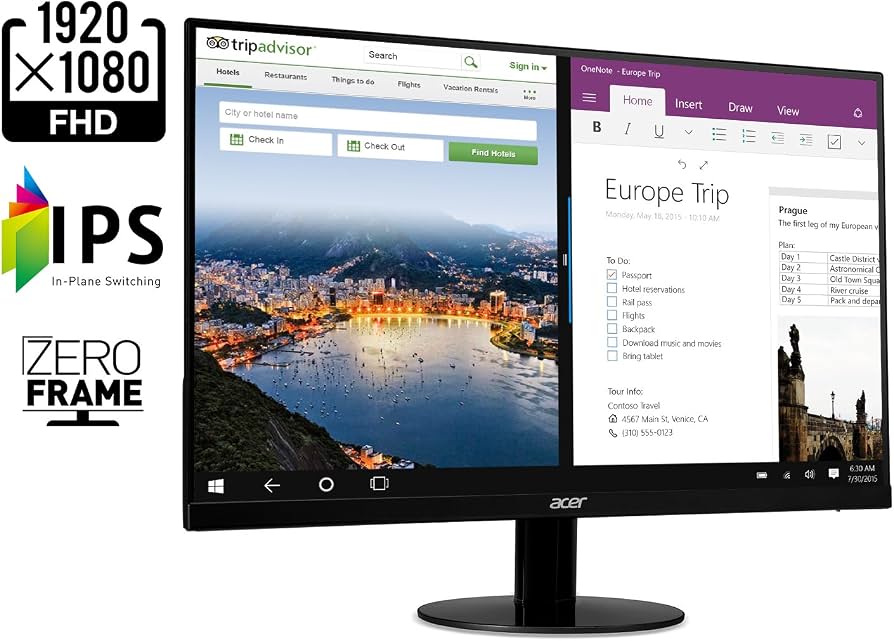
Acer SB220Q bi 21.5" Full HD IPS Monitor
Learning Curve: Easy
$109.99
Difficulty: 1/5
Why Great for Beginners:
This is an ultra-affordable IPS monitor that offers decent colors and a slim bezel design. It's perfect for basic office work, web browsing, and light media consumption without breaking the bank.
✓ Beginner Pros
+Very affordable price under $120
+IPS panel for good colors and viewing angles
+Thin bezels look modern
+Energy efficient
✗ Beginner Cons
-Only 21.5 inches – may feel small for some
-No height adjustment – fixed stand
-1080p resolution limits multitasking
-Only one HDMI port
👍 Best for: Beginners on a strict budget who need a basic monitor for everyday computing.
👎 Not for: Users who want a larger screen or height adjustment; gamers needing high refresh rates.
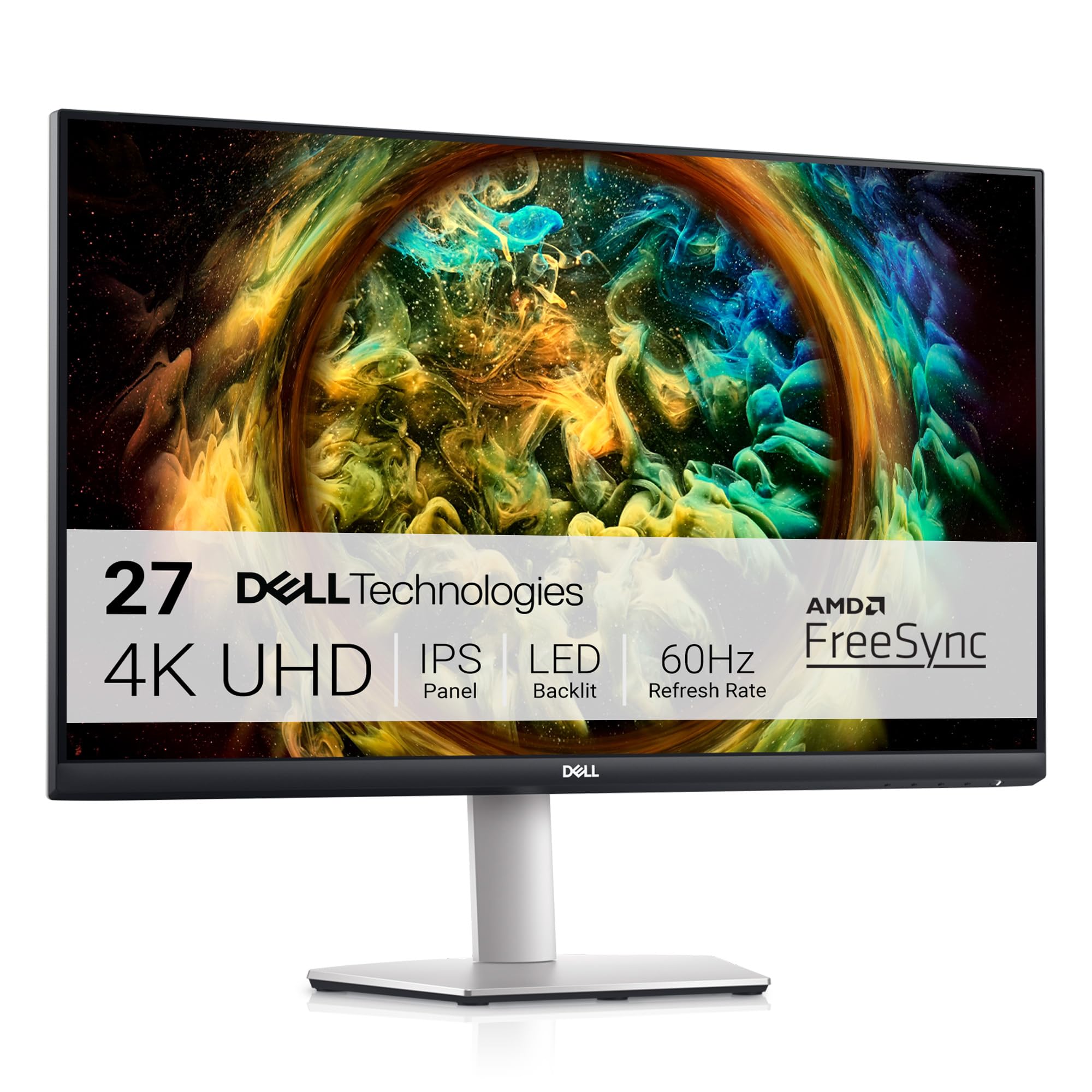
This 27-inch 4K IPS monitor offers stunning clarity and plenty of screen space. It includes a fully adjustable stand (height, tilt, pivot) and built-in speakers, making it a great all-rounder for productivity, media, and light gaming.
✓ Beginner Pros
+Sharp 4K resolution for crisp text and images
+Fully adjustable ergonomic stand
+Built-in speakers – no need for external
+Multiple inputs (HDMI, DisplayPort)
+VESA compatible for arm mounting
✗ Beginner Cons
-Requires a reasonably powerful computer for 4K
-60Hz refresh rate – not for competitive gaming
-Price may be high for some budgets
-Some reports of backlight bleed (common in IPS)
👍 Best for: Beginners who want a premium experience for work, study, and entertainment. Suitable for programming, design, and general productivity.
👎 Not for: Budget-constrained beginners; hardcore gamers needing high refresh rates.
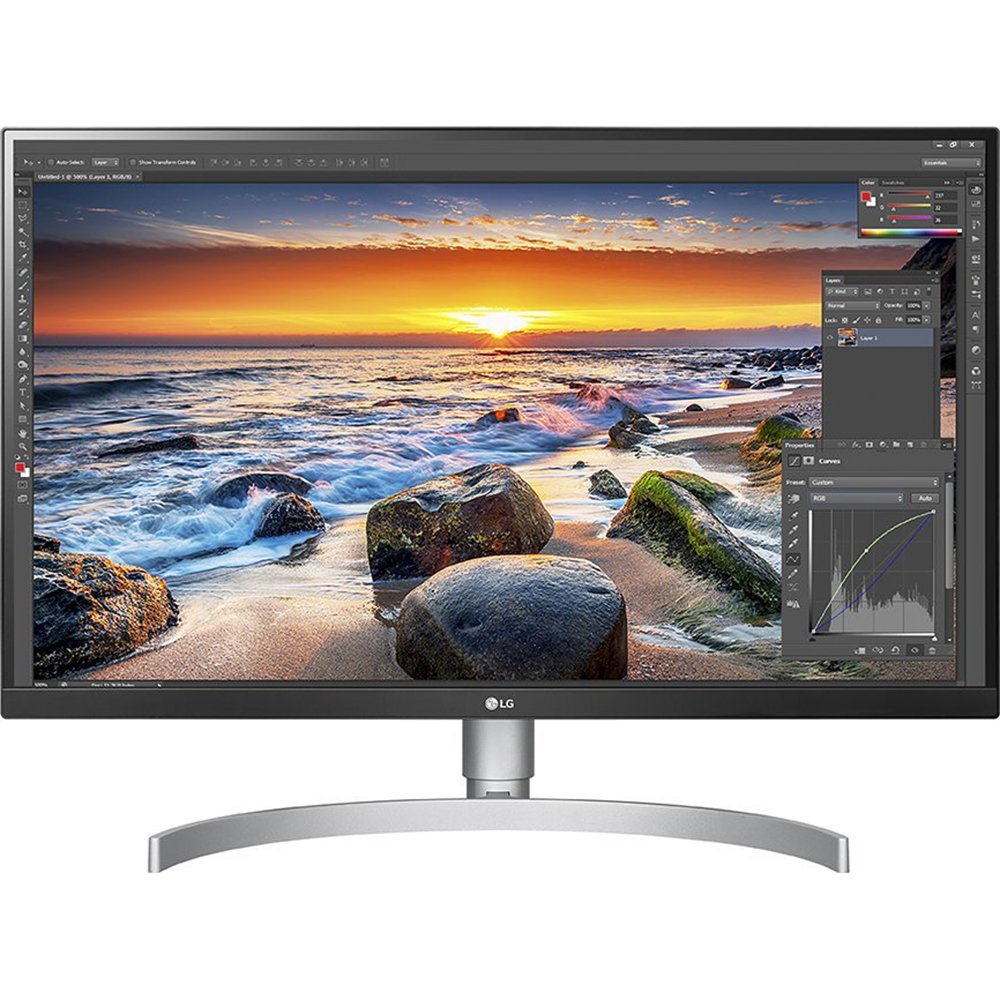
This monitor is ideal for beginners who also use a MacBook or laptop with USB-C, as it can charge and display video with one cable. It features a vibrant IPS panel with HDR10 support and a fully adjustable stand, delivering a professional experience right out of the box.
✓ Beginner Pros
+USB-C connectivity with 60W power delivery – one cable for MacBooks
+Excellent color accuracy out of the box
+Fully adjustable stand (height, tilt, pivot, swivel)
+HDR10 support for better video quality
+AMD FreeSync for smooth gaming
✗ Beginner Cons
-High price may be overkill for basic use
-60Hz refresh rate not for competitive gamers
-Built-in speakers are mediocre
-Requires a device with USB-C or HDMI 2.0 for 4K@60Hz
👍 Best for: Beginners with a USB-C laptop (especially MacBook) who want a seamless, premium setup for productivity and media.
👎 Not for: Budget-conscious buyers; those who don't need USB-C or 4K.
This affordable curved monitor offers a slight immersion boost and a 75Hz refresh rate, which is great for casual gaming and general use. Its 1080p resolution is easy to drive, and the thin bezel design looks clean.
✓ Beginner Pros
+Curved screen adds immersion without huge cost
+75Hz refresh rate – smoother than 60Hz
+Very affordable price point
+Built-in speakers
+VESA mount compatible
✗ Beginner Cons
-VA panel – better contrast but narrower viewing angles than IPS
-No height adjustment – tilt only
-24 inches – some may want larger
-Refresh rate not high enough for competitive gaming
👍 Best for: Beginners on a tight budget who want a slightly curved screen for media and casual gaming.
👎 Not for: Users needing color accuracy (photo/video editing); those who prefer IPS panels.
A monitor is simply a screen that displays what your computer outputs. The most important specs are resolution (how sharp the image is), panel technology (how colors and angles look), and refresh rate (how smooth motion appears). For beginners, a 24-inch 1080p IPS monitor is the safest choice: it's affordable, looks good for all tasks, and works with almost any computer. If you have a bit more budget, a 27-inch 1440p IPS monitor offers more screen space and sharper text, great for multitasking. Avoid 4K for now unless you have a powerful GPU – it can make text too small on smaller screens and requires more graphics power. Connectivity is simple: most monitors use HDMI cables (included). If your computer only has a USB-C port, you may need an adapter. Remember, you don't need a 'gaming' monitor with 144Hz for everyday use – those are for competitive gamers. Stick to standard 60Hz or 75Hz IPS monitors for the best all-around experience.
🔧 Essential Accessories for Beginners
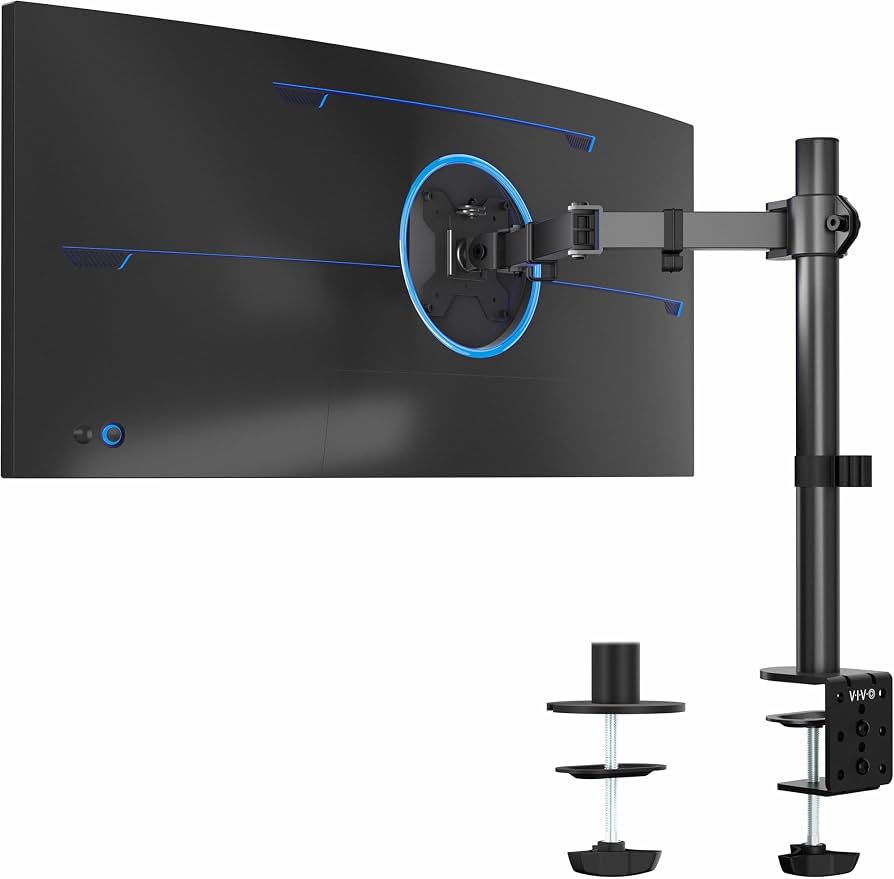
VIVO Single Monitor Desk Mount (STAND-V001)
👍 Recommended
$29.99
When to buy:
After you're comfortable
A monitor arm allows you to adjust the height, tilt, and position of your monitor without relying on the stock stand. This is especially helpful if your monitor's stand doesn't adjust height, preventing neck strain and improving ergonomics.
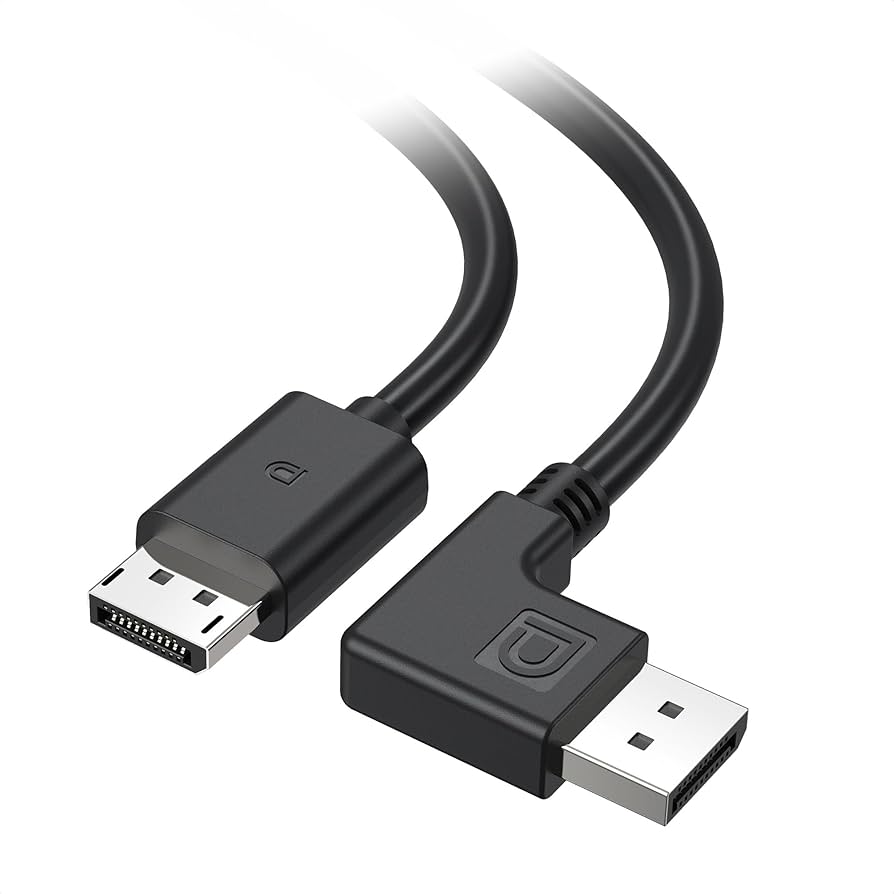
Many monitors come with an HDMI cable, but DisplayPort is often the preferred connection for high resolutions and refresh rates. This cable is future-proof and ensures you get the best performance from your monitor, especially if you plan to game or use high-res displays.
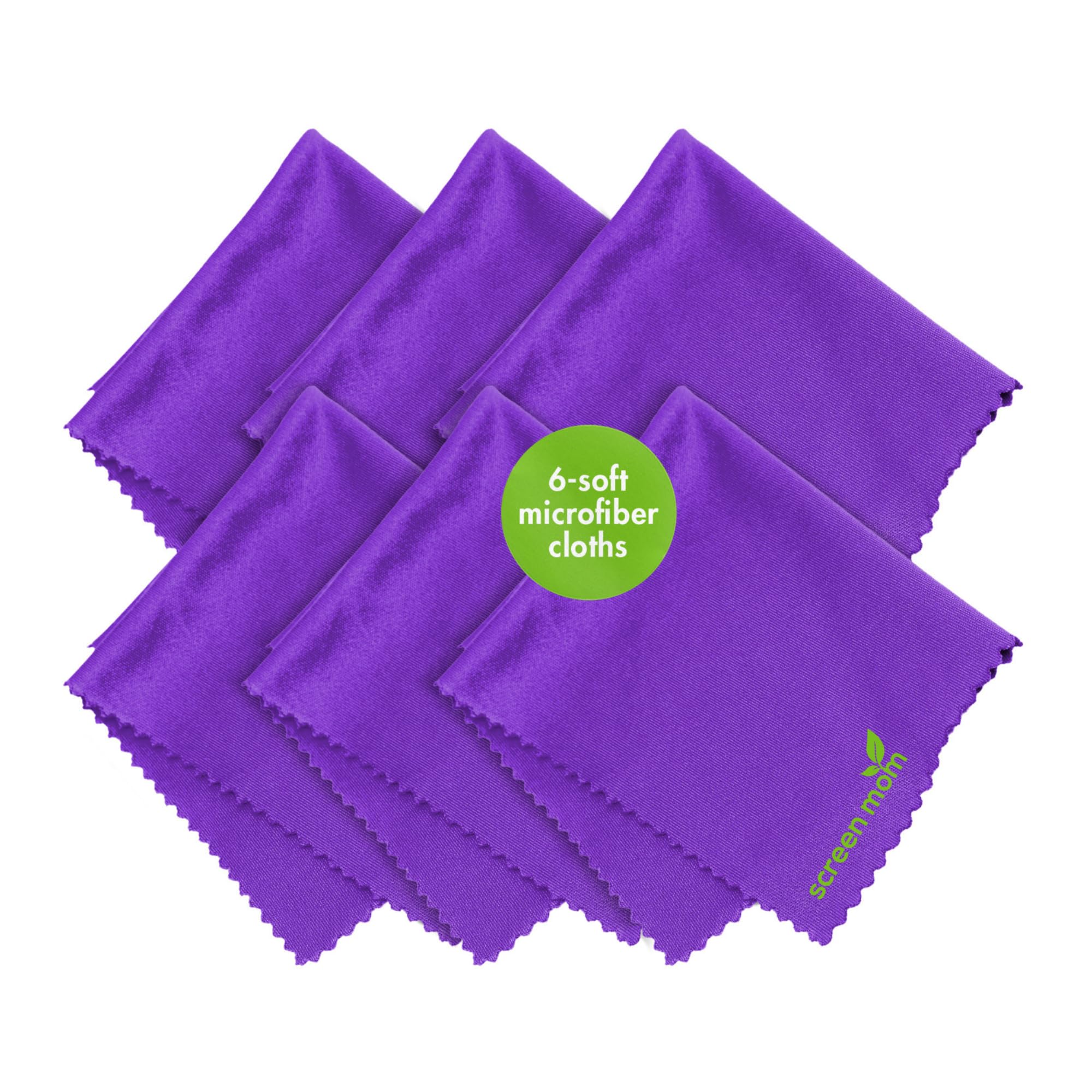
Monitors attract dust and fingerprints, and using paper towels or rough cloths can scratch the screen. A microfiber cloth is safe for cleaning without damage, keeping your monitor looking new.
Start by asking: What will I use this monitor for? If it's mainly web browsing, email, and Netflix, a basic 24-inch 1080p IPS monitor at $100–$150 is perfect. If you do photo editing, coding, or multitasking with many windows, invest in a 27-inch 1440p IPS model around $250–$350. For gaming, consider a 1080p 144Hz IPS monitor, but only if you play competitive games. Next, check your computer's ports – most laptops have HDMI, but some newer ones use USB-C – and ensure the monitor has a matching input. Measure your desk to see if a 27-inch monitor fits comfortably. Finally, set a budget: entry-level ($100–$150), sweet spot ($200–$350), or premium ($350–$500+). Remember, a good monitor lasts 5–10 years, so it's worth investing a bit more if you can.
💰 Budget Guide for Beginners
500+
Professional entry – serious beginners with larger budgets can get 4K, HDR, or ultrawide monitors.
150 - $300
Sweet spot – best value for most beginners, IPS panel, 1080p or 1440p, often with good ergonomics.
300 - $500
Premium beginner – excellent quality, higher resolution, better stands, and additional features like USB-C.
Under $ - $150
Entry level – good for basic tasks, may lack adjustability or premium colors.
⚠️ Common Beginner Mistakes to Avoid
One common mistake is buying a monitor with too high a resolution (like 4K) for a small screen, making text tiny and hard to read without scaling. Another is ignoring panel type – many cheap monitors use TN panels with poor colors and narrow viewing angles, which look washed out. Beginners often forget to check if the monitor includes a stand that adjusts (tilt, height) – fixed stands can cause neck strain. Many also skip checking connectivity: they buy a monitor with only VGA or DVI ports, which modern computers don't have. Lastly, some beginners overspend on a high refresh rate monitor (144Hz or 240Hz) when they only use their computer for office work or streaming, wasting money on a feature they won't use.
×Buying a 4K monitor for a small screen (makes text too small)
×Choosing a TN panel for better colors (TN has poor viewing angles)
×Ignoring connectivity: buying a monitor with VGA when you need HDMI
×Overspending on high refresh rate (144Hz) when not gaming
×Not measuring the desk – monitor may be too large or small
×Skipping a monitor arm or proper stand – causing neck pain
📈 Your Progression Path: Beginner to Intermediate
As a beginner, first focus on getting comfortable with your monitor: adjust brightness, contrast, and maybe enable a blue light filter. Learn to connect multiple monitors if needed. After a few months, you might notice you want more screen real estate – that's when you could upgrade to a larger size or higher resolution. If you start editing photos or videos, you'll appreciate an IPS panel with better color accuracy. Gamers might eventually want a higher refresh rate. The typical beginner stays with their first monitor for 2–3 years before upgrading. Signs you've outgrown it: you find yourself wishing for more screen space, better colors, or smoother motion. Your next step could be a 27-inch 1440p 75Hz+ IPS monitor, or even an ultrawide for immersive productivity.
📚 Learning Resources for Beginners
📖Amazon e-book: 'Monitor Buying Guide for Beginners' (search on Amazon)
📖Online course: 'Computer Basics: Monitors' on Udemy (available via Amazon)
📖YouTube playlist: 'How to Choose a Monitor' (not a product, but a learning resource – we can list as 'Online video tutorials'
📖Book: 'PC Hardware: A Beginner's Guide' by Morris Rosenthal (available on Amazon)
🎯 Bottom Line: Our Recommendations
For most beginners, the best overall pick is a 27-inch 1440p IPS monitor like the Dell S2721QS – it offers sharp text, great colors, and a reasonable price around $300. If your budget is tight, the Acer SB220Q (21.5-inch 1080p IPS) at about $100 is a solid entry point. For those who want premium from the start, the LG 27UK850-W (27-inch 4K IPS with USB-C) at $400+ gives you room to grow. Don't forget essential accessories: a monitor arm or stand for ergonomics, and a good HDMI or DisplayPort cable if not included. Take your time, choose based on your actual needs, and enjoy your new monitor!
❓ Frequently Asked Questions
The best monitor for most beginners is a 27-inch 1440p IPS model like the Dell S2721QS. It offers great sharpness, good colors, an adjustable stand, and works well for work, productivity, and media. If your budget is tight, a 24-inch 1080p IPS monitor is also a solid choice.
Beginners should budget between $100 and $300. In this range, you can get a quality 24-inch 1080p IPS or 27-inch 1440p IPS monitor. Spending less than $100 may lead to poor image quality, while more than $300 often adds features (like 4K or high refresh rates) that beginners may not need initially.
Focus on: IPS panel for good colors, 1080p or 1440p resolution, an adjustable stand (tilt/height), at least one HDMI port, and a blue light filter. Avoid high refresh rates unless you game competitively. Also, consider size based on your desk – 24 to 27 inches is ideal.
Monitors with simple plug-and-play setup and intuitive on-screen menus are easiest. The Acer SB220Q is very simple: just plug in HDMI and power, and it works. The Dell S2721QS also has a user-friendly joystick control. Avoid monitors with complex calibration or many ports.
Essential: a microfiber cleaning cloth. Highly recommended: a monitor arm or VESA mount if your monitor's stand lacks adjustment. Nice-to-have: an extra HDMI or DisplayPort cable, and a screen protector if you worry about scratches.
Determine your primary use (work, gaming, media), check your computer's output ports (HDMI, DisplayPort, USB-C), measure your desk space, and set a budget. Then pick a monitor that has an IPS panel, your preferred resolution, and an adjustable stand if possible. Read reviews to confirm quality.
No, modern monitors are very easy to set up. You usually just take it out of the box, attach the stand, connect the power and video cable (HDMI or DisplayPort), and turn it on. Most operating systems will automatically detect the monitor and configure the resolution.
Common mistakes include: buying the cheapest monitor without checking panel type (often TN with poor colors), ignoring the stand adjustability, getting a 4K monitor for a small screen (text too small), overspending on high refresh rate when not gaming, and not checking connectivity compatibility.
A curved monitor can be nice for immersion, but it's not necessary. Beginners may find flat IPS monitors more versatile and often cheaper. If you do go curved, ensure it's a VA or IPS panel and at least 24 inches for the curvature to be noticeable.
Typically 2 to 5 years. If you invest in a quality 27-inch 1440p IPS monitor, it can easily last 5+ years. Cheaper 1080p monitors may feel limiting sooner, prompting an upgrade in 2-3 years.