
Quick Verdict
The Dell XPS 15 is a good fit for video editing, especially for those who value display quality and portability. It handles common editing tasks well but falls short under heavy sustained loads. Recommended for intermediate creators and color work, but not for professional heavy-duty workflows.
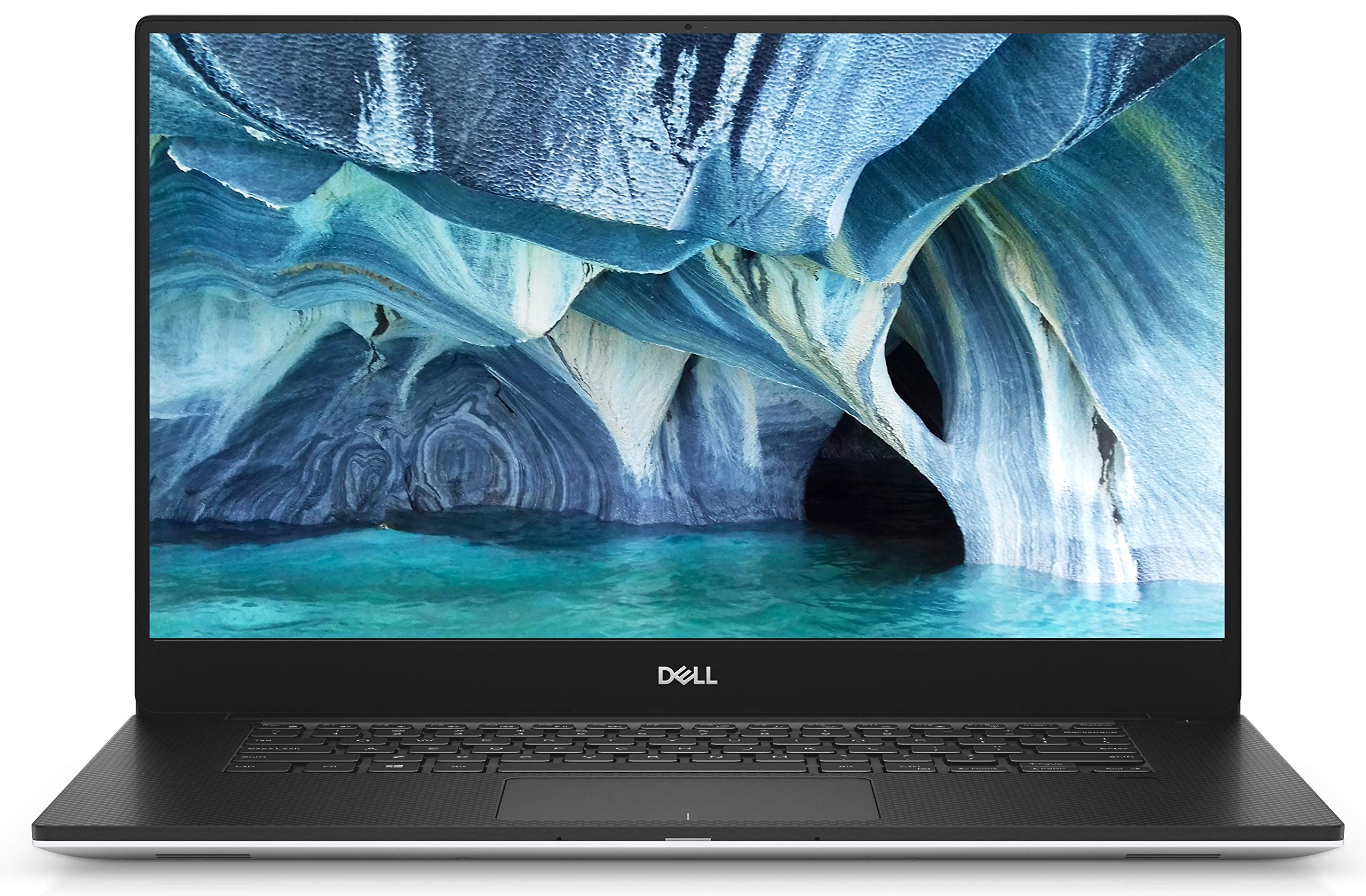
Dell XPS 15
$1799.99

✓ Key Strengths
- •Stunning 4K OLED display with 100% Adobe RGB and DCI-P3 for accurate color grading
- •Powerful Intel Core i9 and NVIDIA RTX 40-series for smooth timeline playback and fast exports
- •Excellent build quality and premium aluminum chassis
- •Lightweight and portable for a 15-inch laptop (4.2 lbs)
- •Fast PCIe Gen4 SSD storage for quick file access
- •Great keyboard and large precision touchpad
✗ Key Weaknesses
- •Thermal throttling under sustained heavy loads leads to performance dips during long renders
- •Limited ports: only 2 Thunderbolt 4, 1 USB-A, no SD card slot (requires adapter)
- •High price for comparable specs vs. gaming laptops
- •Gets hot and loud when editing for extended periods
- •No full-size SD card slot, inconvenient for videographers
What is Dell XPS 15?
What is video editing?
Detailed Analysis
👍 Perfect For
- ✓Freelance video editors who need a portable machine for client meetings and on-site work
- ✓YouTubers and content creators editing 1080p to 4K videos with moderate effects
- ✓Colorists and reviewers who need a premium display for grading
- ✓Students learning video editing who want a laptop that doubles as a daily driver
👎 Not Ideal For
- ✗Professional editors working with long 4K/8K timelines, heavy effects, and tight deadlines who need sustained render performance
- ✗Videographers who frequently ingest footage via SD cards (lack of built-in reader)
- ✗Budget-conscious buyers who can get similar editing performance from gaming laptops with better thermals
Use Case Scenarios
Professional Editor with Long 4K Projects
A full-time editor working on multi-cam 4K timelines in Premiere Pro, with color grading and effects, needing consistent performance for hours.
✓ Strengths
- Excellent color-accurate OLED for grading
- Fast SSD reduces loading times
- Good initial playback performance
✗ Weaknesses
- Significant thermal throttling during long renders
- Single USB-A and no SD slot (adapter needed)
- Loud fans under load
💡 Workarounds
- Use a cooling pad like the Kootek Laptop Cooling Pad to reduce throttling
- Create proxy files for all footage
- Purchase a USB-C SD card reader like the Anker USB-C Card Reader
- Consider an external monitor with wider color gamut
While capable for short sessions, the thermal limitations and port constraints make it less ideal for sustained, professional 4K editing.
YouTuber Editing 1080p Videos
A content creator editing 1080p vlogs with basic transitions, titles, and occasional color tweaks, wanting a portable all-in-one.
✓ Strengths
- Overpowered for 1080p, so no performance issues
- Excellent display for color and detail
- Lightweight for a powerful laptop
✗ Weaknesses
- Still gets warm during export
- Limited ports may require dongles
💡 Workarounds
- Use a simple USB-C hub like the Satechi Multi-Port Adapter for extra ports
- Set performance mode to 'Ultra Performance' in Dell Power Manager for faster exports
Perfect match for light to moderate 1080p editing, with enough headroom for future proofing.
Student Learning Video Editing
A college student taking courses on video editing, working on projects up to 4K, needing a laptop for both schoolwork and editing.
✓ Strengths
- Versatile for both productivity and editing
- Long battery life for class (when not editing)
- Premium feel and durability
✗ Weaknesses
- Expensive for a student budget
- Gets warm when editing on soft surfaces
💡 Workarounds
- Use a laptop stand like the Rain Design mStand for better airflow
- Invest in an external SSD for project files: Samsung T7 Portable SSD
A solid choice if budget allows, but cheaper alternatives exist. The XPS 15 offers a premium experience that can last through college.
Related Products You Should Consider
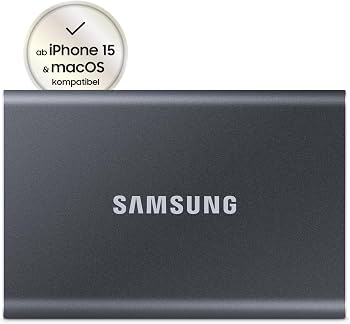
Samsung T7 Portable SSD 1TB
$109.99
Why recommend: Adds fast, portable storage for video projects without slowing down workflow.
Best for: Editors with the base 512GB SSD or those who need to move projects between machines.
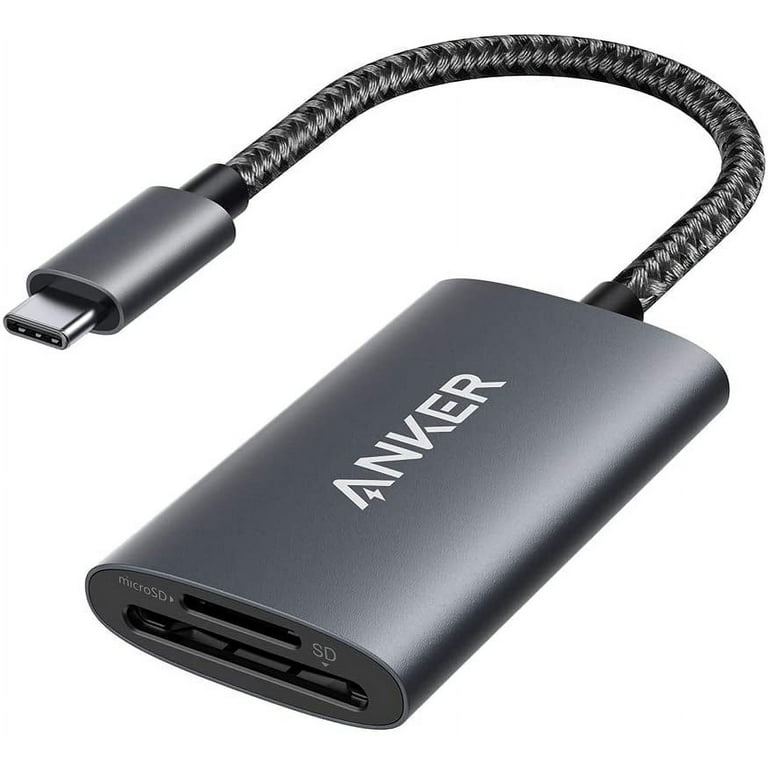
Anker USB-C SD Card Reader
$12.99
Why recommend: Solves the missing SD slot, essential for videographers.
Best for: Anyone who uses SD cards to transfer video files.
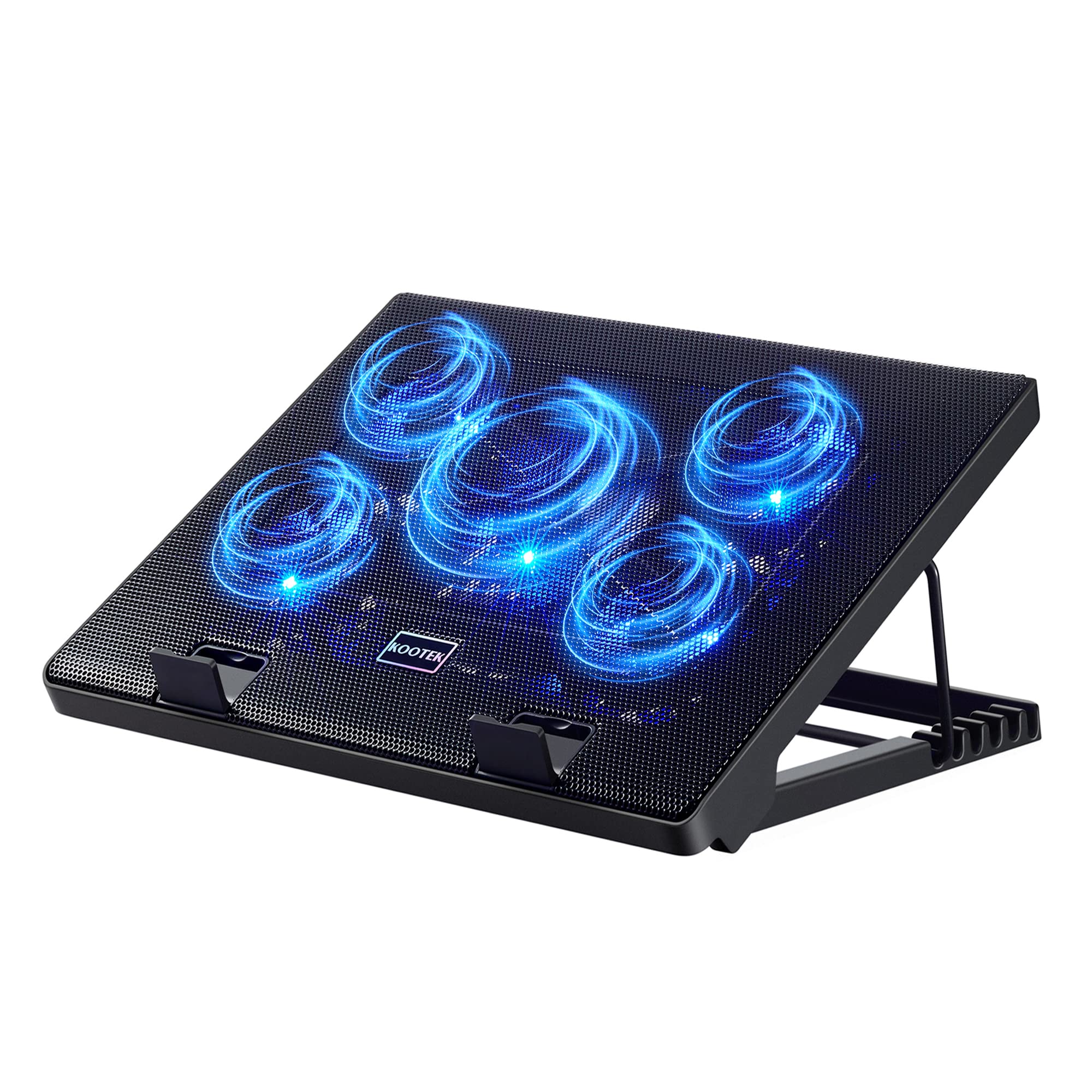
Kootek Laptop Cooling Pad
$25.99
Why recommend: Helps mitigate thermal throttling, improving sustained performance.
Best for: Editors who work on long renders or in warm environments.
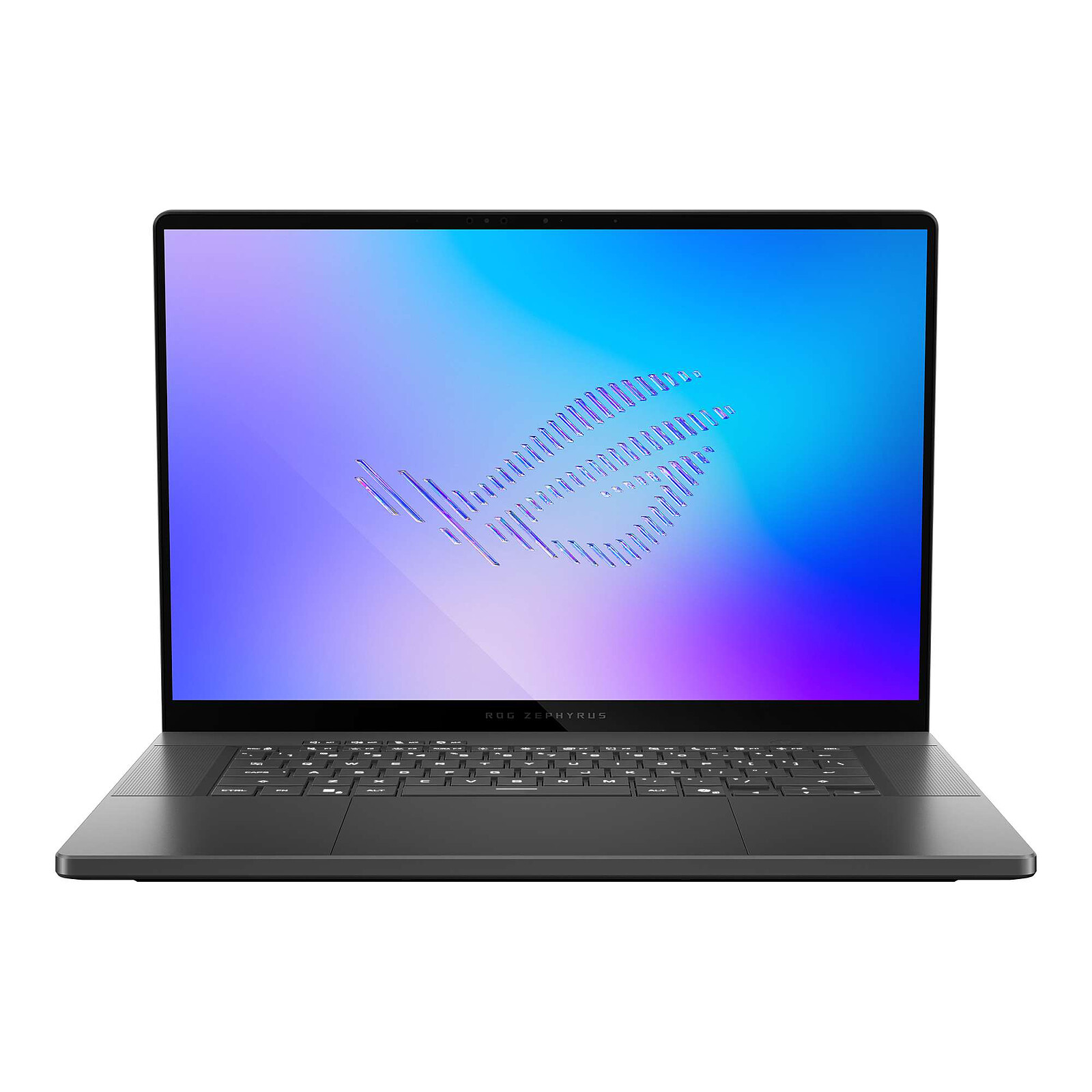
ASUS ROG Zephyrus G16
$1899.99
Why recommend: Better sustained performance for heavy 4K editing, with a full SD slot.
Best for: Professional editors who need raw power without throttling.
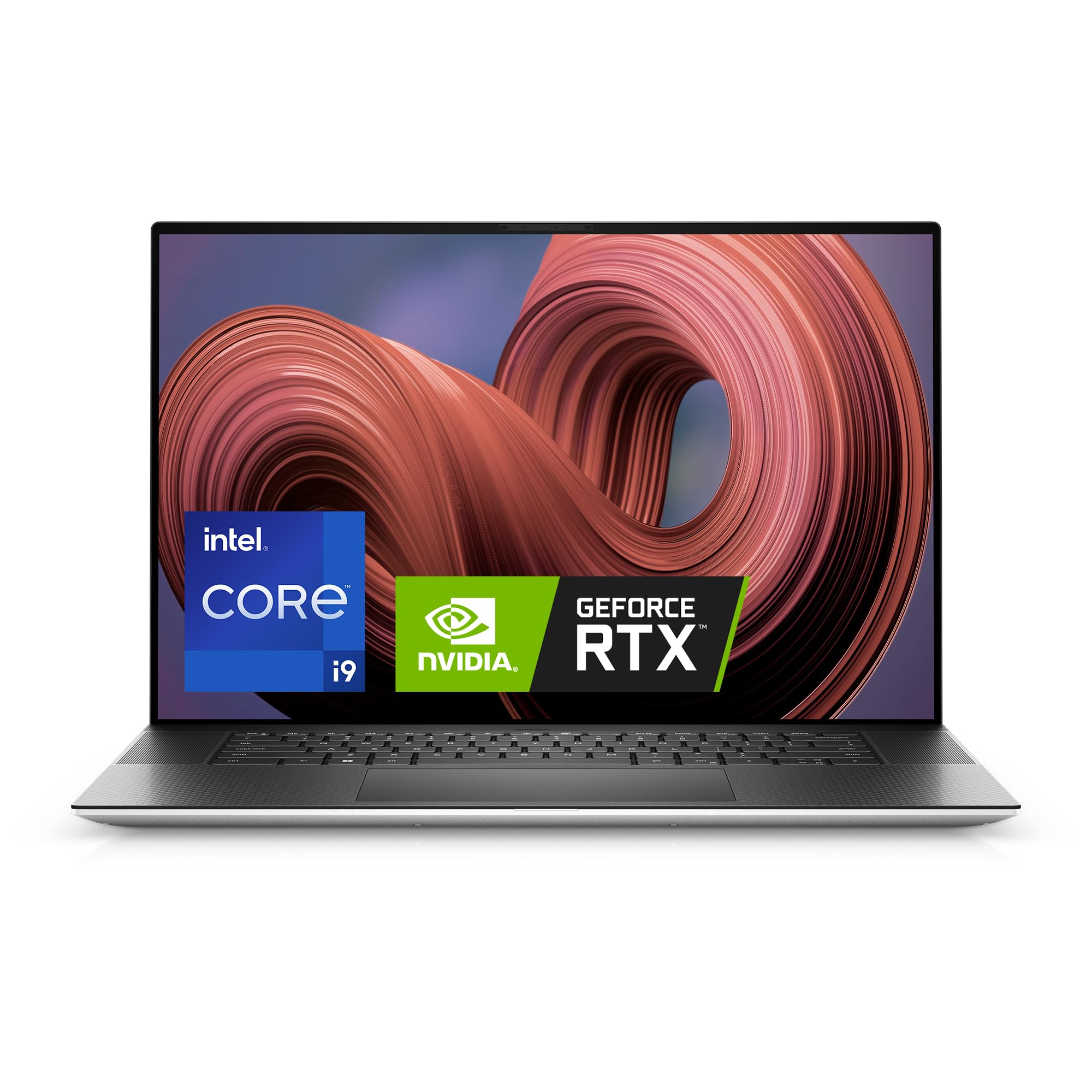
Dell XPS 17 (9730)
$2499.99
Why recommend: Solves thermal issues and adds SD slot, same premium feel.
Best for: Editors who want a larger display and better cooling but prefer the XPS design.
Adobe Creative Cloud Subscription (1 year)
$599.99
Why recommend: Essential software suite for video editing, especially if you use Premiere Pro.
Best for: Any serious editor using Adobe ecosystem.
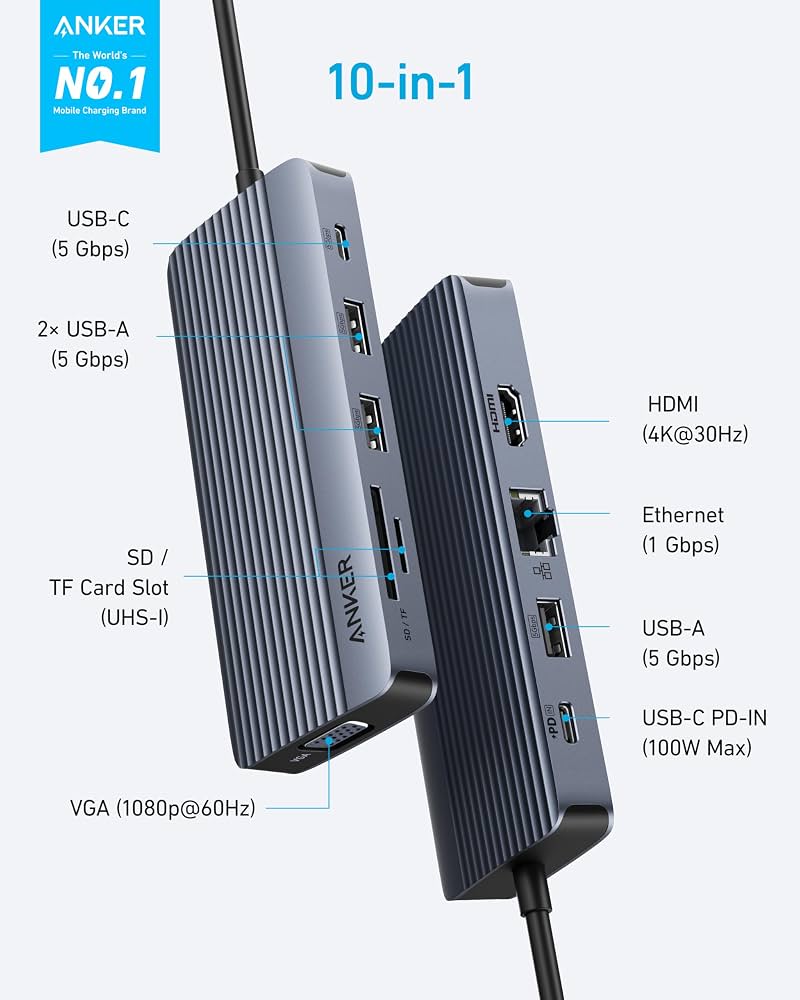
Anker 10-in-1 USB-C Hub
$44.99
Why recommend: Adds essential ports missing on the XPS 15, like HDMI and SD.
Best for: Editors who need multiple peripherals or an external monitor.
Bottom Line
Ready to get the Dell XPS 15? Check the latest price on Amazon.
🛒 Buy on AmazonAs an Amazon Associate we earn from qualifying purchases.
Frequently Asked Questions
Is Dell XPS 15 good for video editing?
Yes, the Dell XPS 15 is good for video editing, especially for 1080p and light 4K projects. Its powerful CPU/GPU and gorgeous OLED display are great for editing, but it throttles under sustained heavy loads, so it's not ideal for professional long-form 4K/8K work without workarounds.
Can you use Dell XPS 15 for professional video editing?
It can be used for professional work, but with limitations. For consistent performance on long timelines, consider using proxies or an external cooling pad. The lack of an SD card slot and limited ports require additional adapters. Many professionals prefer thicker workstations for reliability.
Does Dell XPS 15 have an SD card slot?
No, the Dell XPS 15 does not have a built-in SD card slot. This is a common complaint among videographers. You'll need a USB-C SD card reader or a docking station.
Is Dell XPS 15 good for 4K video editing?
It can handle 4K editing as long as you use proxy files or have efficient codecs. The CPU and GPU are powerful enough, but thermal throttling may cause performance drops during long exports. The 4K OLED display is excellent for viewing the final output.
What are better alternatives to Dell XPS 15 for video editing?
Alternatives include the Dell XPS 17 (better thermals and SD slot), ASUS ROG Zephyrus G16 (better sustained performance), MacBook Pro 16 (excellent performance and software optimization), and the Lenovo Legion 5 Pro (more affordable with good performance).
Does Dell XPS 15 overheat when editing?
Yes, the XPS 15 can get hot during intensive editing, especially when rendering. The slim chassis limits thermal dissipation. Using a cooling pad or elevating the laptop can help, but it's not as effective as thicker laptops.
What specs do I need for video editing on Dell XPS 15?
For smooth editing, aim for at least 16GB RAM, an Intel Core i7-13700H or better, an NVIDIA RTX 4050 or higher, and a 4K OLED display. The 32GB RAM and RTX 4070 configuration is recommended for 4K projects.
Is Dell XPS 15 good for Adobe Premiere Pro?
Yes, the XPS 15 runs Premiere Pro well. The NVIDIA GPU accelerates effects and Mercury Playback Engine. However, you may need to adjust proxy settings for 4K footage to maintain smooth playback.
Can I upgrade Dell XPS 15 RAM for video editing?
The RAM in the Dell XPS 15 is soldered to the motherboard and is not upgradeable. Buy the configuration you need from the start (16GB or 32GB recommended, 64GB available).
What accessories do I need for video editing on Dell XPS 15?
Essential accessories include a USB-C SD card reader, an external monitor (if you need more screen space), a portable SSD for extra storage, and a cooling pad to manage thermals.