
7 Best Which External Monitors should I buy in 2026: Tested & Ra…
Compare top 4K USB-C monitors for MacBook and find your perfect match in minutes.
Our Top Pick
LG 27UP850N-W 27" 4K USB-C IPS Monitor
Best OverallMacBook users who want one cable for video and full laptop charging with strong 4K color.
View on Amazon →Key Factors to Consider
- 1.USB-C with Power Delivery (PD) – Look for at least 60W to charge your MacBook while it's plugged into the monitor; 90W+ is ideal for 16-inch models.
- 2.Resolution and scaling – 4K (3840×2160) is the sweet spot for macOS. 27 inches gives crisp HiDPI text without needing accessory scaling tools.
- 3.Color accuracy and coverage – Aim for 95% DCI-P3 or 100% sRGB for photo and video work; look for factory calibration if you edit color professionally.
- 4.Ports and hub features – Extra USB-A, USB-C downstream, or Ethernet can replace a dongle and simplify your desk.
- 5.Stand and ergonomics – Height, tilt, swivel, and pivot reduce neck strain; some premium stands offer USB-C and cable management too.
- 6.HDR quality – Most monitors under $800 have basic HDR10; if HDR is crucial, look for a VESA DisplayHDR 400+ certification.
- 7.Panel type and matte finish – IPS panels offer the best viewing angles; a matte finish reduces glare but may slightly dull colors.
- 8.Warranty and support – Three-year warranties are standard for Dell, LG, and ASUS; check pixel and backlight policies.
The Products
LG 27UP850N-W 27" 4K USB-C IPS Monitor
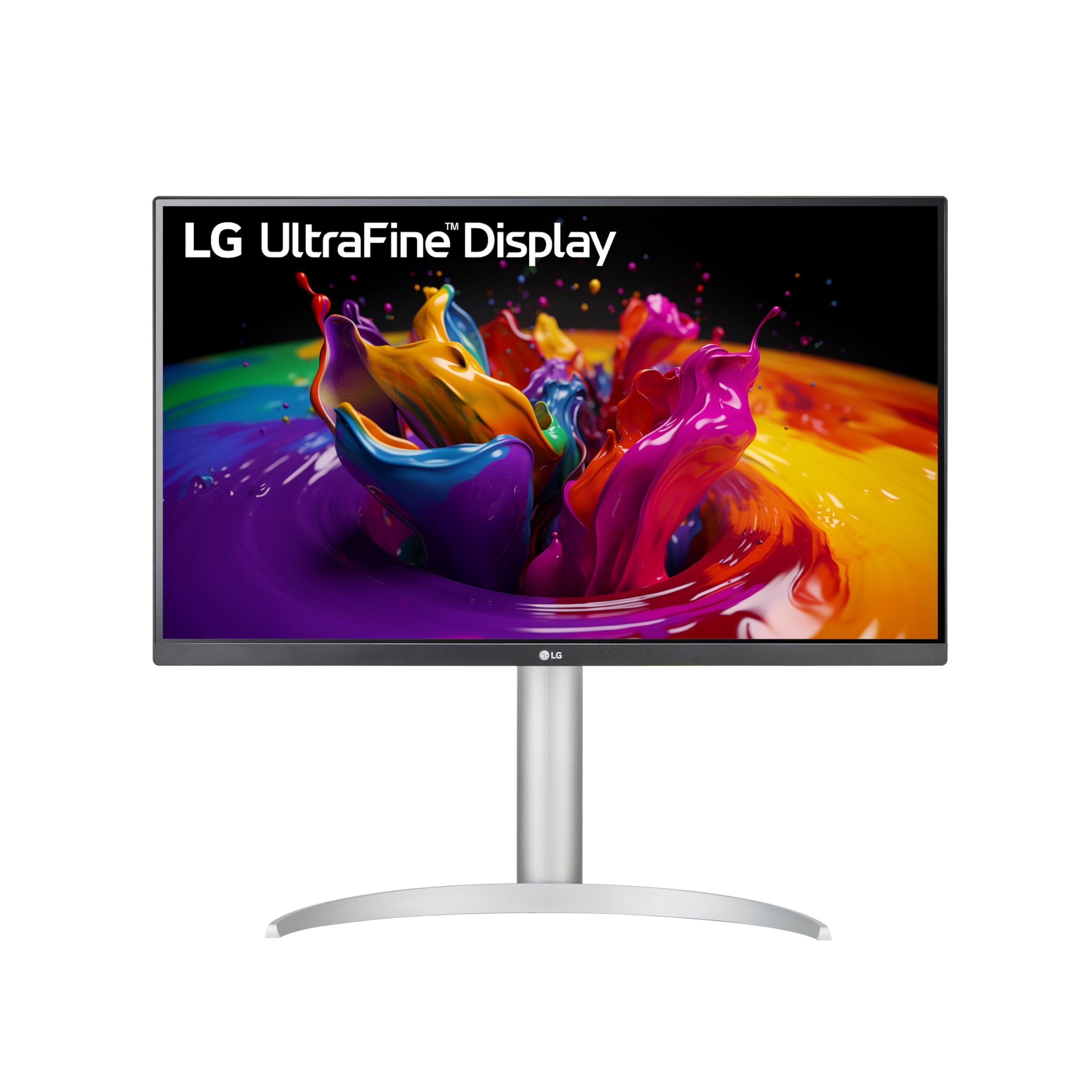
✓ Pros
- •96W USB-C charges 16-inch MacBook Pro
- •95% DCI-P3 with strong sRGB coverage
- •Height-adjustable stand with full ergonomics
- •Clean industrial design matches Mac setup
- •Stable, reliable USB-C connection
- •3-year warranty
✗ Cons
- •No USB hub ports (only one USB-C, no USB-A)
- •60Hz refresh, not for gaming
- •Basic HDR brightness
- •Older model's stand feels slightly plastic
- •Occasional backlight bleed reported by some users
Best For:
MacBook users who want one cable for video and full laptop charging with strong 4K color.
Not Recommended For:
Gamers needing 120Hz+ or users who require multiple USB peripherals on a monitor hub.
Key Features:
Standout Feature:
96W USB-C power delivery in an affordable 4K package.
VS Others:
Compared to the Dell S2722QC, the LG costs about $100 more but doubles the Power Delivery and has slightly better P3 color. If you have a 13-inch MacBook Air, Dell is enough; if you own a 14/16-inch Pro, the LG is the smarter choice.
Why This One:
It hits the perfect balance of display quality, Mac integration, and price. Most readers who can afford it should start here.
Dell S2722QC 27" 4K USB-C Hub Monitor
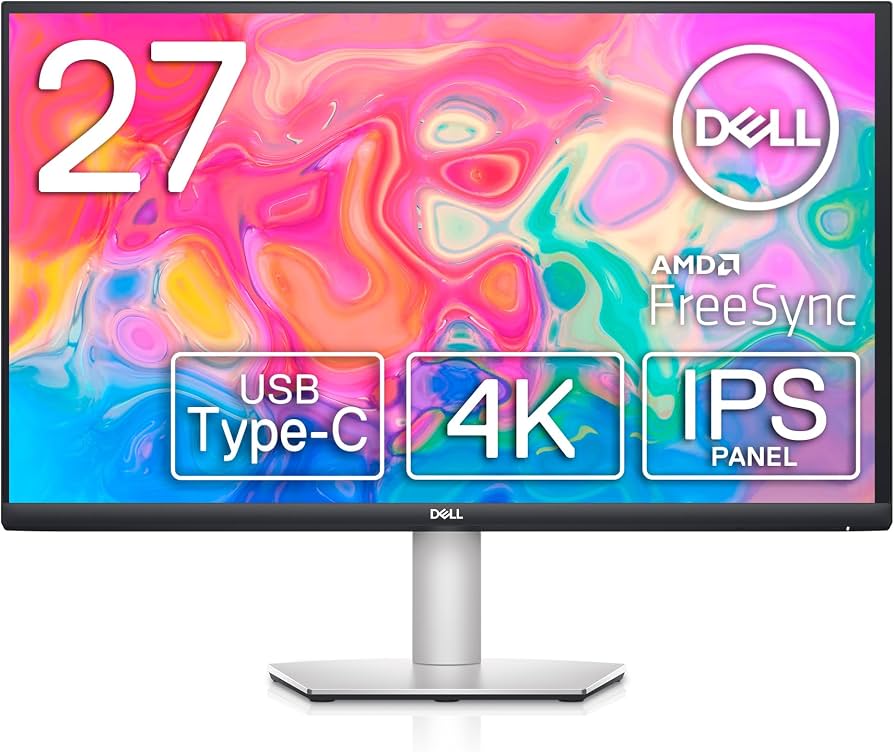
✓ Pros
- •65W USB-C charges MacBook Air and 13-inch Pro
- •Built-in USB hub (4x USB-A) replaces a dongle
- •Excellent 3-year door-to-door warranty
- •High PPI for crisp macOS text
- •DisplayHDR 400 adds a little extra pop
- •Frequently discounted
✗ Cons
- •65W PD won't fast-charge large Pro models
- •No KVM switch
- •Minimal port selection beyond the hub
- •Color quality is good but not factory calibrated
- •Stand is a slight step down from premium models
Best For:
Budget-minded remote workers and students who need USB-C charging and a built-in USB hub.
Not Recommended For:
Creative pros who demand factory-calibrated color or 16-inch MacBook Pro users who need fast charging.
Key Features:
Standout Feature:
USB-C hub and 4K at a price that’s hard to beat.
VS Others:
It costs $100 less than the LG 27UP850N-W but only offers 65W charging. If you have a MacBook Air or 13-inch Pro, you'll never notice the difference; if you have a 16-inch Pro, get the LG.
Why This One:
For most non-pro MacBook users, this monitor gives you everything you need for hundreds less than the premium option.
ASUS ProArt PA279CV 27" 4K IPS Monitor
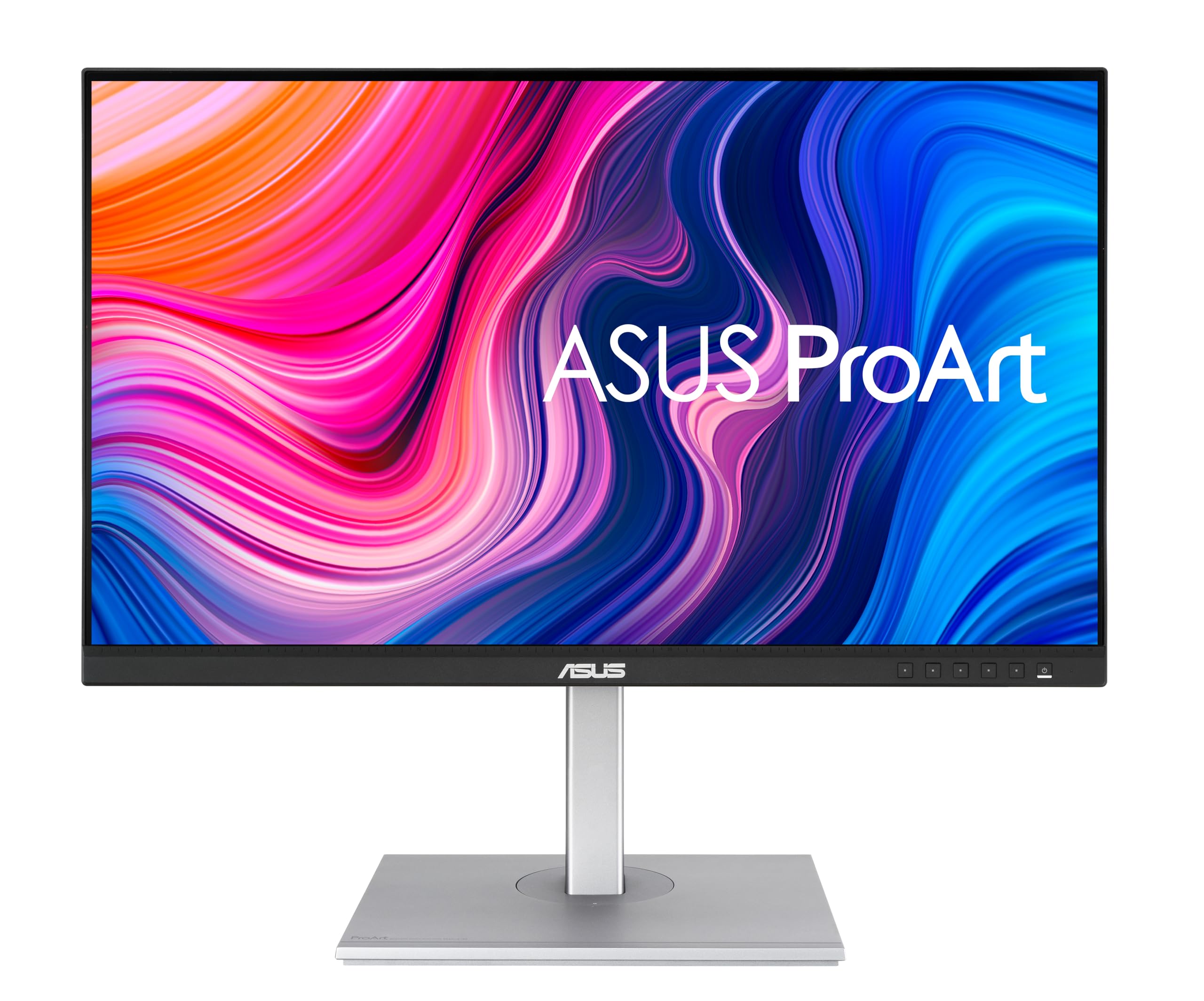
✓ Pros
- •Factory-calibrated Delta E < 2
- •100% sRGB / Rec.709 coverage
- •USB-C with 65W and USB-A hub
- •Includes color calibration report
- •ProArt workflow modes
- •3-year warranty
✗ Cons
- •65W PD, not enough for large Pro models
- •Plastic build not premium
- •HDR brightness is modest
- •No Thunderbolt daisy-chaining
- •Limited OSD navigation
Best For:
Photographers, designers, and video editors who need accurate color without buying a $1,000 reference monitor.
Not Recommended For:
General users who don’t need factory calibration and want faster charging or a better stand.
Key Features:
Standout Feature:
Factory color calibration at a mid-range price.
VS Others:
If you're choosing between this and the LG 27UP850N-W, the LG wins on charging power while the ASUS wins on color precision. If color is your priority, ProArt; if power delivery is, LG.
Why This One:
It's the cheapest monitor you can trust for color-critical work without needing a dedicated colorimeter.
LG 32UN650-W 32" 4K UHD IPS Monitor
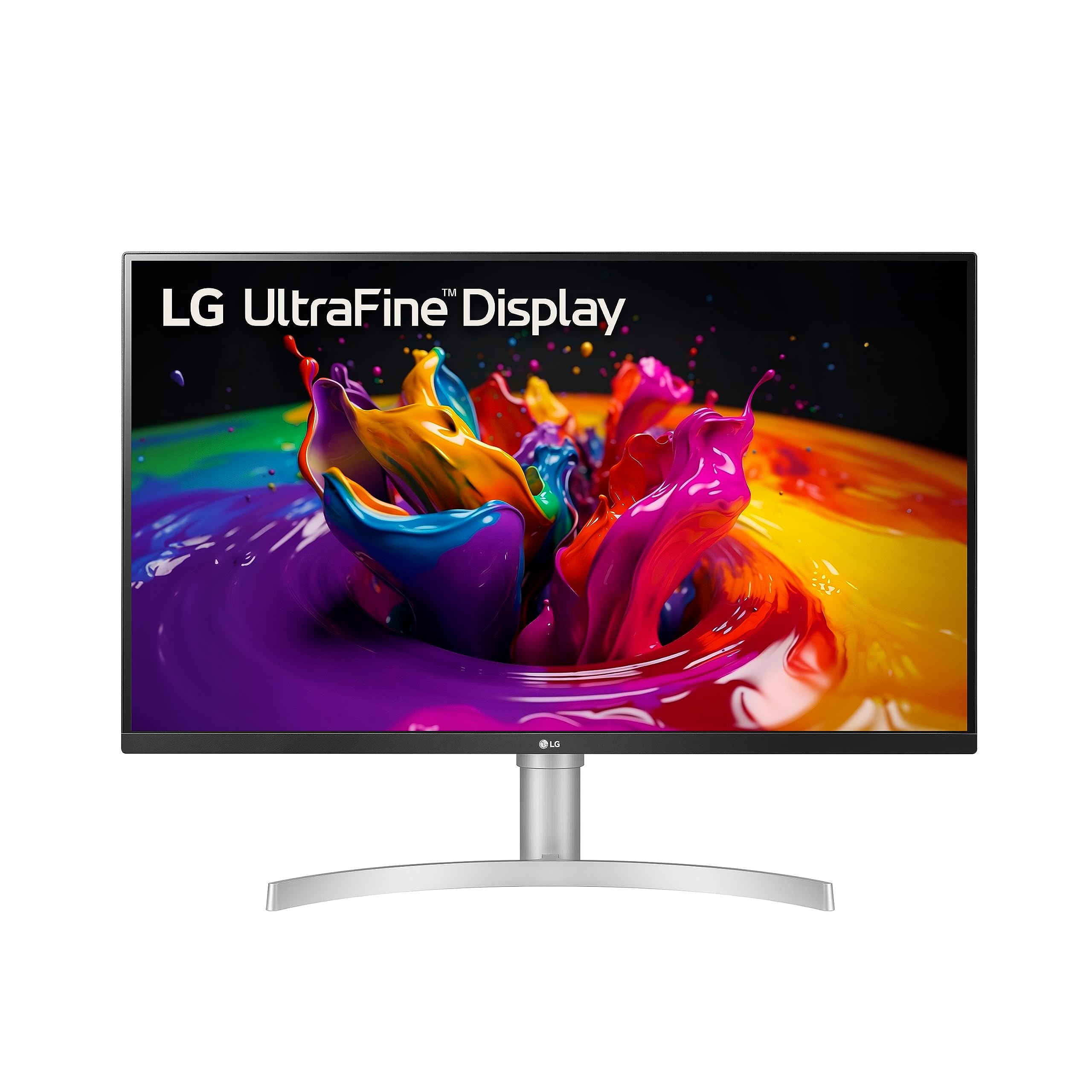
✓ Pros
- •Large 32-inch 4K workspace
- •95% DCI-P3 for color-critical apps
- •Height-adjustable stand
- •Incredible value per square inch
- •Flicker-safe and low blue light
✗ Cons
- •No USB-C port (requires adapter/DisplayPort cable)
- •No USB hub
- •Basic HDR
- •Stand is wobbly at full height
- •Text scaling may need 125% for some users
Best For:
MacBook users who want a big 4K screen for productivity and don't mind using a USB-C to DisplayPort adapter.
Not Recommended For:
Anyone who wants one clean cable or needs built-in USB ports.
Key Features:
Standout Feature:
A 32-inch 4K panel at a price usually found on 27-inch models.
VS Others:
The LG 27UP850N-W has USB-C and a smaller footprint; this LG gives you 5 more inches and costs slightly less. Pick it if you already have a USB-C to DisplayPort cable.
Why This One:
If you're a coder, trader, or video editor who lives in multiple windows, the extra 5 inches is worth more than USB-C convenience.
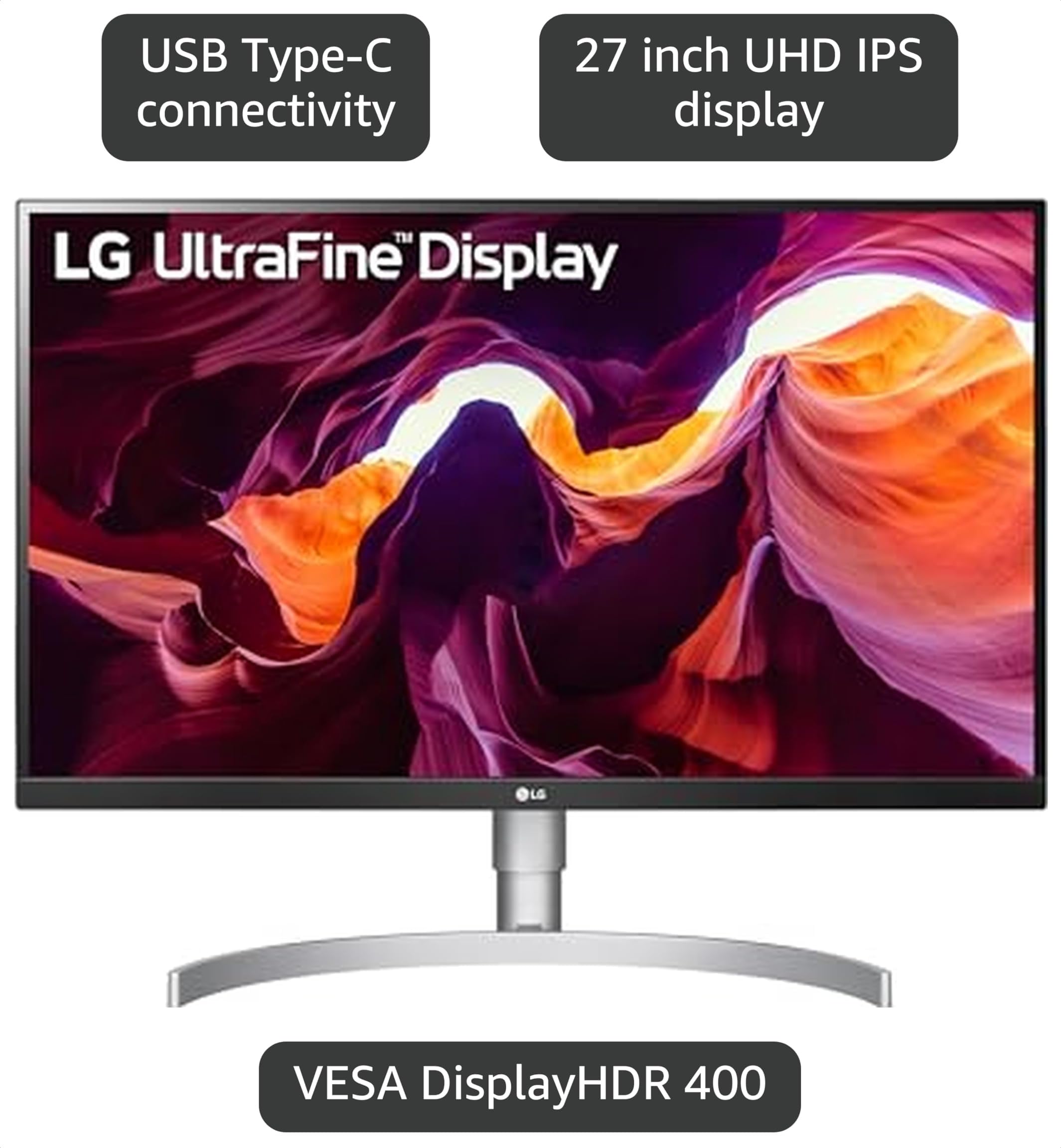
LG 27UL850-W 27" 4K USB-C IPS Monitor
✓ Pros
- •USB-C 60W charging
- •Reliable plug-and-play with MacBooks
- •95% DCI-P3 color
- •Height-adjustable stand
- •Often priced under $350
- •Arctic silver design matches Mac aesthetic
✗ Cons
- •60W PD not enough for 16-inch MacBook Pro
- •No USB-A ports
- •No factory calibration report
- •Older power supply design
- •HDR is basic
Best For:
MacBook users on a tight budget who just want a dependable 4K monitor with USB-C charging.
Not Recommended For:
Users who need USB hub ports or fast charging for a 16-inch MacBook Pro.
Key Features:
Standout Feature:
The lowest-risk USB-C 4K monitor when it hits a sale price.
VS Others:
It's essentially a stripped-down LG 27UP850N-W: same panel family, same stand, but 60W PD and no hub. If both are near same price, get the 27UP850N-W for the extra 36W and newer electronics.
Why This One:
For budget shoppers who still want a quality panel and USB-C simplicity—catch it on sale.
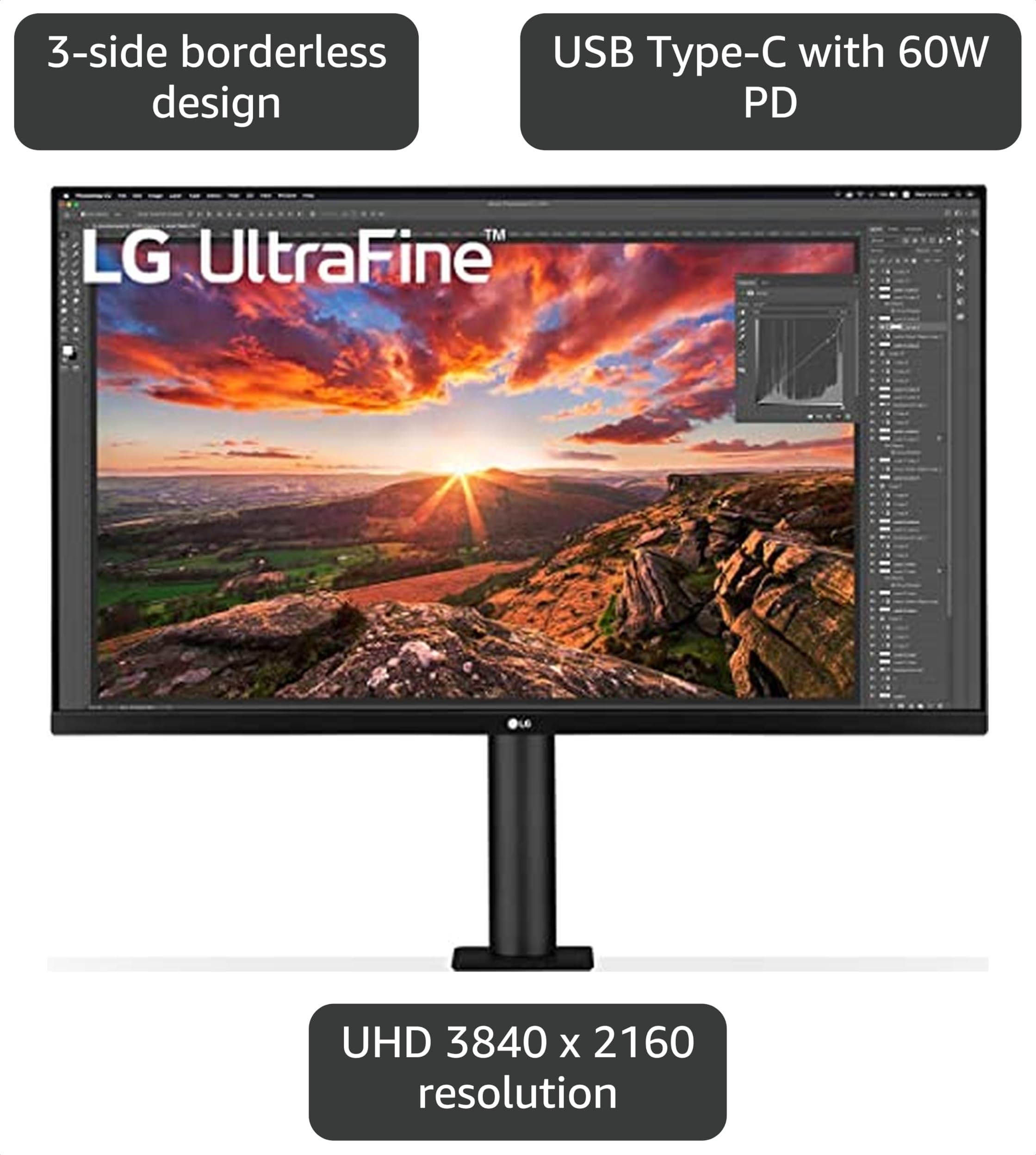
LG 32UN880-B 32" 4K Ergo IPS Monitor
✓ Pros
- •Smooth ergonomic arm stand with great range
- •32-inch 4K IPS with 95% P3
- •USB-C 60W charging + video
- •Built-in USB-A hub
- •VESA-compatible if you swap the arm
- •Attractive borderless design
✗ Cons
- •60W PD not for large Pro models
- •HDR performance is limited
- •No KVM or Ethernet
- •Arm base may not clamp on all desks
- •Premium price for the arm
Best For:
Users who spend long hours at a desk and want a flexible, space-saving monitor that also works with a MacBook.
Not Recommended For:
Gamers needing high refresh or users who just want the cheapest 4K USB-C panel.
Key Features:
Standout Feature:
The included Ergo monitor arm gives you adjustable positioning without buying a separate stand.
VS Others:
Compared to the LG 32UN650-W, this monitor adds USB-C and a premium arm for about $250 more. If you already have a desk-mount arm, save money and get the 32UN650-W with an adapter.
Why This One:
It solves two problems at once: a large 4K screen and a comfortable ergonomic setup.
LG UltraFine 24MD4KL-B 24" 4K Thunderbolt 3 Monitor
✓ Pros
- •Thunderbolt 3 with 85W charging
- •One-click macOS brightness control
- •P3 color and built-in speakers
- •Classic Mac aesthetic
- •Excellent build quality
- •True 4K density on a 24-inch screen
✗ Cons
- •Expensive for 24 inches
- •No USB hub or extra ports
- •Only Thunderbolt input (not USB-C) means Windows/PC compatibility is limited
- •Basic stand
- •Outdated design/features for the price
Best For:
Mac users who prioritize Apple-like integration and a compact desktop footprint.
Not Recommended For:
Anyone who wants more screen real estate, USB ports, or the best value for $700.
Key Features:
Standout Feature:
Thunderbolt 3 plug-and-play that feels like an Apple-branded display.
VS Others:
The LG 27UP850N-W gives you a larger screen, USB connectivity, and similar P3 color for $250 less. The UltraFine only makes sense if you absolutely need Thunderbolt or a very small footprint.
Why This One:
There's still no other monitor that matches its level of native macOS integration, but it’s a niche choice in 2026.
Who Should Get What?
College Student on a Budget
A student using a 13-inch MacBook Air for notes, essays, and occasional streaming. Wants a sharper external screen for dual-window studying but has a small desk and tight budget.
Recommended:
Dell S2722QC
The Dell S2722QC is the cheapest reliable 4K monitor with USB-C, 65W charging, and a USB hub. It charges your MacBook Air while giving you ports for a USB mouse and external SSD, and the 27-inch 4K image makes text crisp for reading and research.
View on Amazon →Creative Professional
A freelance photographer using a 14-inch MacBook Pro for photo editing and client reviews. Needs accurate colors, high charging power, and a clean one-cable setup.
Recommended:
ASUS ProArt PA279CV
The ProArt's factory-calibrated Delta E < 2 and 100% sRGB coverage ensure the colors you edit match what you deliver. The 65W USB-C charges your 14-inch MacBook Pro in most use cases, and the USB-A hub keeps peripherals connected. It's the best color-first choice under $500.
View on Amazon →Remote Worker / Home Office
A business analyst with a 13-inch MacBook Pro who spends 8 hours a day in spreadsheets, video calls, and browser tabs. Wants an organized desk without a mess of dongles.
Recommended:
LG 27UP850N-W
It charges the 13-inch MacBook Pro at full 96W (even future-proofs if you upgrade to a 16-inch), offers a height-adjustable stand, and has solid color for occasional charts and decks. Overall, it's the most balanced monitor for full-time work.
View on Amazon →Big-Screen Enthusiast
A video editor using a MacBook Air who wants maximum workspace for timelines and preview windows. Doesn't mind an extra cable if it means a larger canvas.
Recommended:
LG 32UN650-W
You get 32 inches of 4K resolution for around $400—the cheapest way to get that much PPI and workspace. Pair it with a USB-C to DisplayPort cable and enjoy a huge timeline at a price that leaves room for a monitor arm.
View on Amazon →Ergonomics-First User
A UX designer with chronic neck pain who works from a kitchen counter. Wants a monitor that can be adjusted throughout the day and accepts MacBook charging.
Recommended:
LG 32UN880-B
The built-in Ergo arm lets you move the screen up/down, tilt, and rotate it into a comfortable position without a third-party mount. The 32-inch 4K panel with USB-C keeps your MacBook charged and the workspace clean—a premium solution for a serious desk setup.
View on Amazon →Mac Purist
A long-time Apple user who wants the closest thing to a native Apple external display with a single Thunderbolt cable. Prefers small footprint and values macOS-level integration.
Recommended:
LG UltraFine 24MD4KL-B
The UltraFine is the only monitor under $800 with native Thunderbolt 3 and macOS brightness controls. It's not the best value, but if you want a premium Apple-like experience and are okay with a 24-inch screen, it’s your pick.
View on Amazon →Buying Guide: How to Choose
Bottom Line
Frequently Asked Questions
Which external monitor is best for MacBook?▼
Is 4K or 5K better for a MacBook?▼
Why is USB-C Power Delivery important?▼
LG 27UP850N vs Dell S2722QC: which is better?▼
Is the LG UltraFine monitor worth it in 2026?▼
Can I use a gaming monitor with a MacBook?▼
Do I need HDR on a monitor for MacBook?▼
What is the best budget 4K monitor for MacBook?▼
Is a 27-inch 4K monitor better than 24-inch for macOS?▼
Does a Thunderbolt 3 monitor work with M1/M2/M3 MacBooks?▼
Can I connect two MacBooks to one monitor?▼
Should I buy a smart monitor for MacBook?▼
Need More Help Deciding?
Explore more buying guides to find the perfect product for your needs.
View All Buying Guides