Ever plugged in a friend's laptop charger only to find it won't charge properly, or worse, damaged your device? Choosing the wrong AC adapter wattage is a common mistake that can lead to slow charging, overheating, or even permanent battery harm. This guide breaks it down simply so you can confidently select the right one.
You'll learn how to read specs, calculate wattage, match voltage and connectors, and choose replacements. No tech expertise needed—just follow these beginner-friendly steps. In 10 minutes, you'll know exactly what wattage your laptop needs.
We'll cover basics like why wattage matters (think of it as your laptop's 'fuel pump size'), real examples from popular brands, and tips for universal chargers. Expect clear analogies, checklists, and product picks to make it actionable.
▸What You'll Need
- •Your laptop (to check labels)
- •Current AC adapter (original preferred)
- •Internet access or laptop user manual
- •Tape measure or ruler (optional, for connector size)
Estimated Time: 10-15 minutes
Difficulty: beginner
▸Step-by-Step Instructions
Step 1: Understand What Wattage Means
Wattage (W) is the power rating of your AC adapter, calculated as Voltage (V) × Amps (A). It's like the engine size in a car—too small, and it struggles; too big (if specs match), it's fine.
Your laptop needs a minimum wattage to charge while in use. Laptops typically range from 30W (ultrabooks) to 230W+ (gaming rigs). Check the label on your adapter: e.g., '19.5V 3.34A = 65W'. This tells you the exact power draw.
Why it matters: Wrong wattage causes issues like no charging under load or excess heat. Expect to see this on every charger.
💡 Tips:
- •Memorize the formula: W = V × A for quick math.
⚠️ Warnings:
- •Never guess—always verify numbers.
Step 2: Check Your Laptop's Required Wattage
Flip your laptop over and look for a sticker on the bottom with power specs, often near the battery info. It might say '65W' or 'Input: 19V 3.42A'.
If no sticker, boot up and check Settings > System > About (Windows) or About This Mac > System Report (Mac). Search your model online, e.g., 'Dell Inspiron 15 wattage'.
Real example: HP Pavilion x360 often needs 45W (19.5V 2.31A). Note it down—this is your target.
💡 Tips:
- •Take a photo of the label for easy reference.
Step 3: Verify Voltage and Amps Match
Voltage must exactly match (e.g., 19V, not 20V)—it's like plug shape; wrong fit damages internals. Amps can be equal or higher.
Adapters supply what the laptop pulls, so higher amps are safe if voltage matches. Analogy: Water hose pressure (V) must match faucet; flow rate (A) can be more.
Expect minor variances (±0.5V) on universals, but stick to exact for OEM.
⚠️ Warnings:
- •Mismatched voltage fries the motherboard—double-check!
Step 4: Measure the Connector Size and Tip Type
Laptops use barrel plugs (round) or USB-C. Measure the barrel: outer/inner diameter (e.g., 7.4mm x 5.0mm) and check center pin (solid or hollow).
USB-C is universal (e.g., 65W+ PD). Look up your model: Dell uses blue-tip for 130W+.
Why: Wrong tip won't fit or connect properly.
💡 Tips:
- •Use online connector charts for brands like HP, Dell, Lenovo.
Step 5: Decide on Wattage: Exact, Higher, or Universal?
Exact match: Best performance, from manufacturer.
Higher wattage (e.g., 90W for 65W laptop): Safe if voltage/connector match—charges faster, handles load better.
Lower: Avoid—slow or no charge. Universals bundle tips for multi-brand use.
💡 Tips:
- •Higher is better for gaming/power-hungry tasks.
⚠️ Warnings:
- •Very high (double) may overheat cheap adapters.
Step 6: Calculate Wattage if Specs Are Incomplete
If only V or A given: Multiply. E.g., 20V × 2.25A = 45W.
Online tools like OuterVision calculator confirm. For USB-C: Look for PD rating (e.g., 65W).
Expect: Most consumer laptops 45-90W; check battery % while running apps to estimate real draw.
Step 7: Test Your Current Setup
Plug in, run a demanding app (browser tabs, video), check if battery holds/charges. Use HWMonitor (free) for real-time power draw.
If it drains under load, you need higher wattage.
💡 Tips:
- •Safe test—no risk if using original.
Step 8: Shop Smart for Replacements
Search 'laptop model + charger' on Amazon. Prioritize UL-certified, reviews >4.5 stars. Universals save money long-term.
Match all: W, V, A, tip. Done—your laptop's powered right!
▸Pro Tips
- •Always buy from reputable sellers to avoid fakes.
- •Carry a universal charger for travel—covers 95% laptops.
- •Label your adapter with model for family sharing.
- •USB-C laptops? Any 65W+ PD charger works universally.
- •Check polarity (center positive common)—rare but critical.
- •Store adapters coiled loosely to prevent wire damage.
- •Upgrade to GaN chargers: smaller, cooler for same power.
▸Common Mistakes to Avoid
- •Using lower wattage: Causes slow/no charging under load—verify min W first.
- •Ignoring voltage: Leads to instant damage—must match exactly.
- •Wrong connector: Won't plug in—measure before buying.
- •Cheap no-name brands: Overheat or fail—stick to certified.
- •Assuming all universals work: Check tip compatibility list.
▸Troubleshooting
Problem: Charger plugs in but no power
Solution: Check voltage match and connector pin. Try another outlet/port. Clean contacts.
Problem: Overheating or slow charge
Solution: Upgrade to higher wattage or replace faulty unit. Ensure ventilation.
Problem: Sparks/smoke on plug-in
Solution: Unplug immediately! Voltage mismatch—stop using and get exact replacement.
Problem: Battery drains while plugged
Solution: Wattage too low for load. Run HWMonitor to confirm power draw > adapter W.
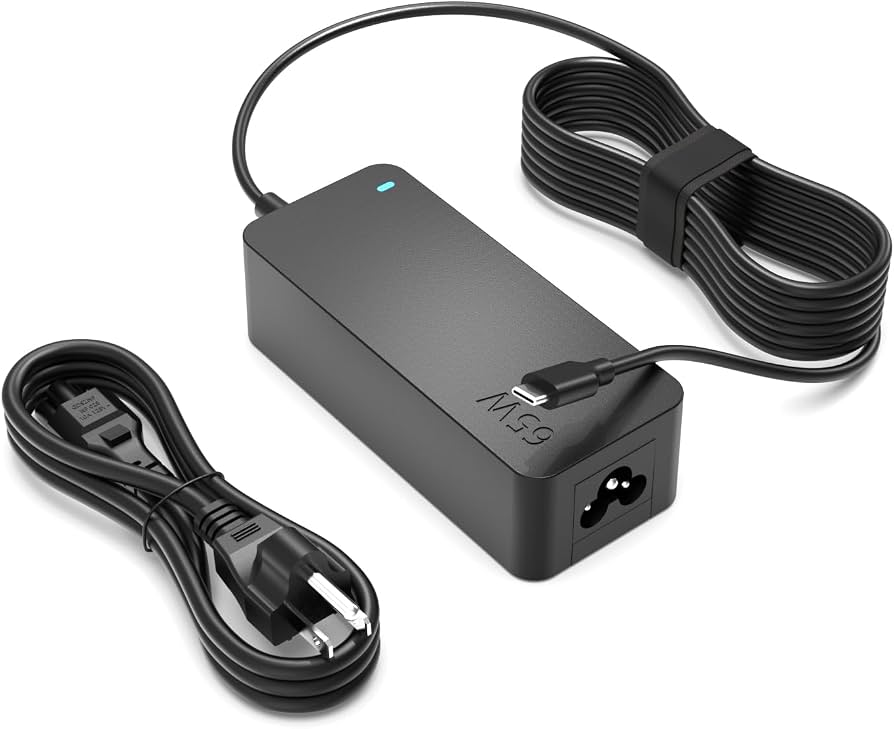
Superer 65W Laptop Charger (Universal)
Affordable universal with 9 tips for HP/Dell/Lenovo/ACER; matches common 19V specs exactly.
Best for: Replacement for 45-65W laptops; great for beginners needing multi-brand compatibility.
Price Range: $15-$20
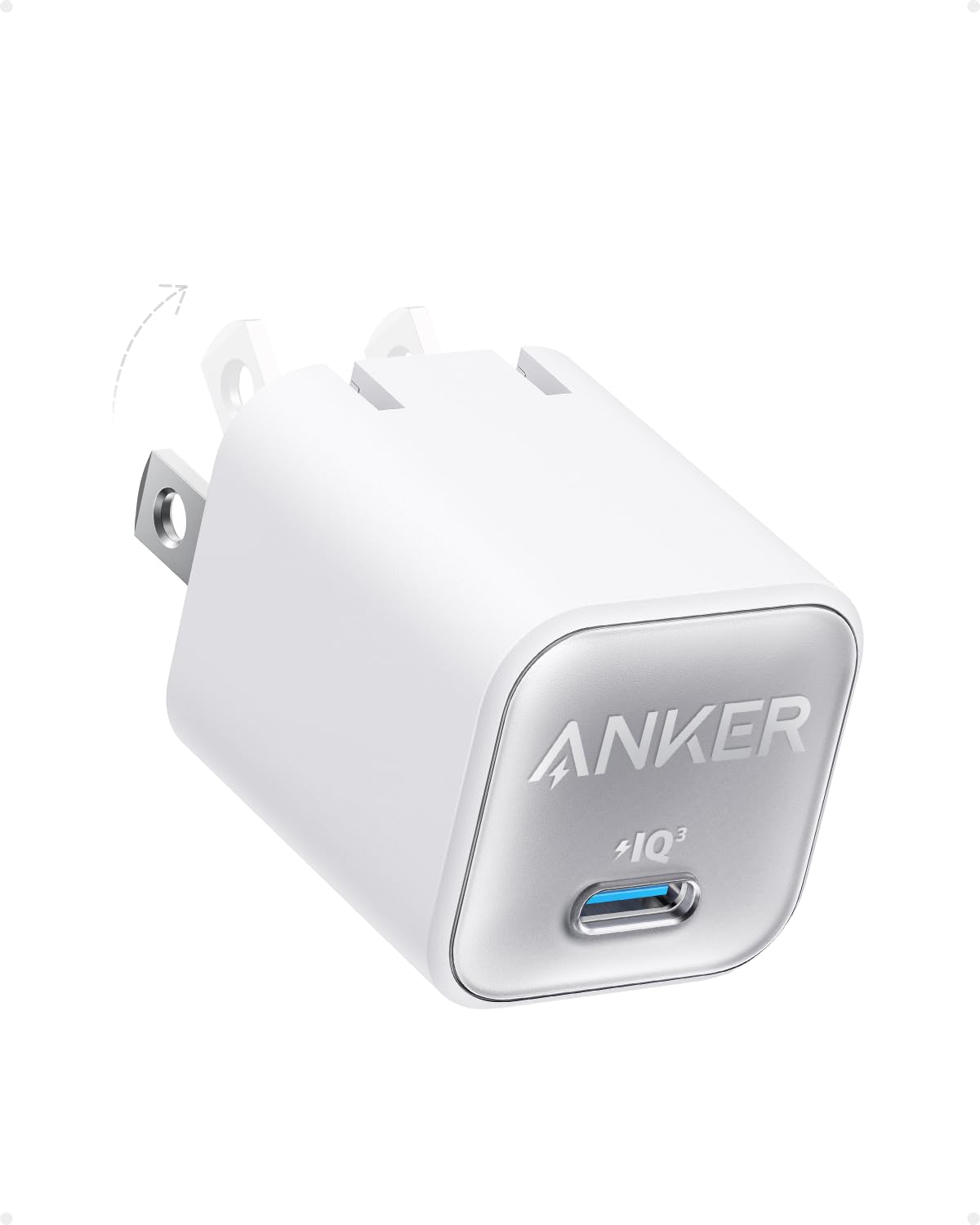
Anker 735 Nano II 65W GaN Charger (USB-C)
Compact, fast-charging for modern USB-C laptops; safe GaN tech prevents overheating.
Best for: Ultrabooks like MacBook/Dell XPS; single cable simplicity.
Price Range: $40-$50
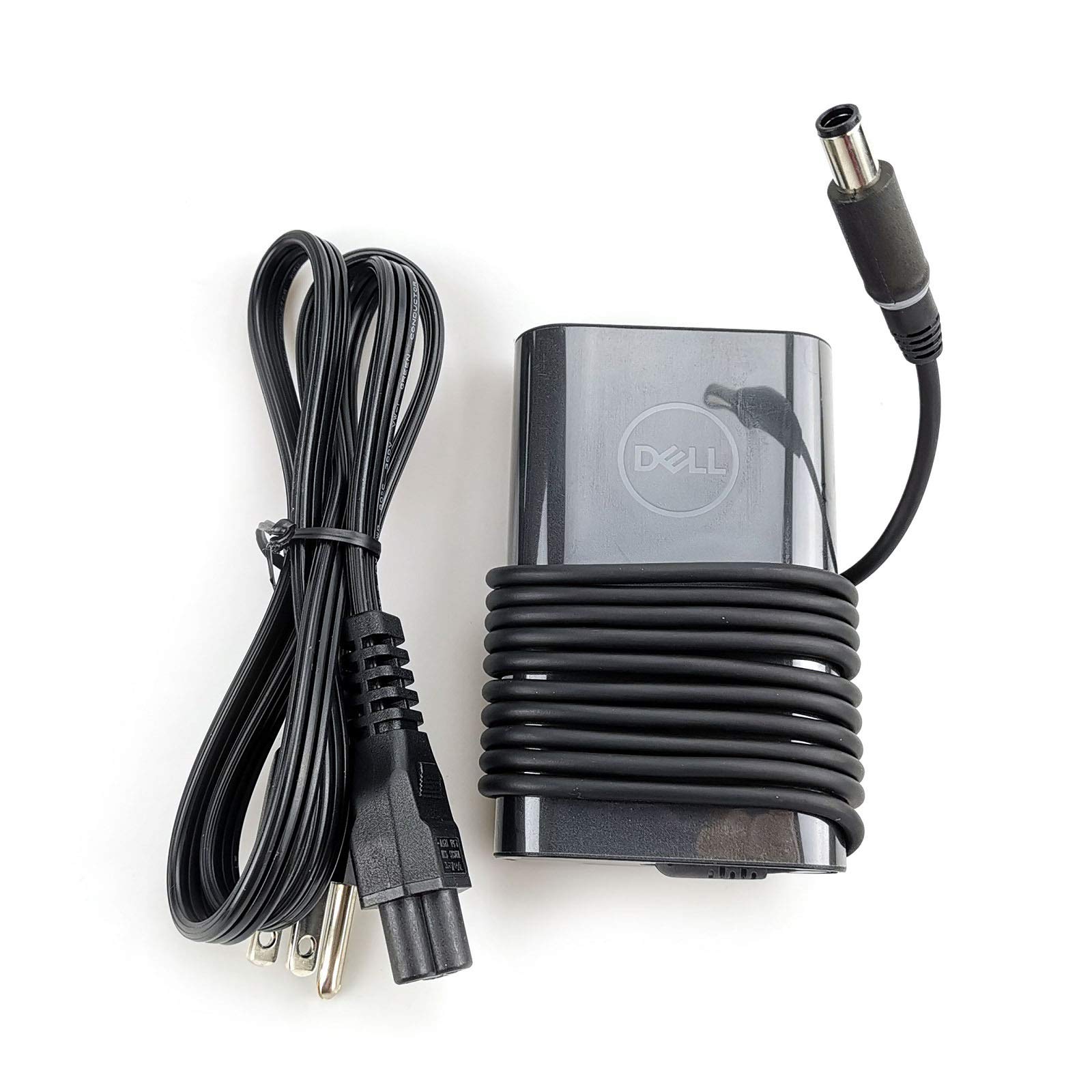
Dell 65W AC Adapter (HA65NM140)
Official OEM for precision match; reliable for Inspiron/Latitude.
Best for: Dell owners wanting exact specs without hassle.
Price Range: $25-$35
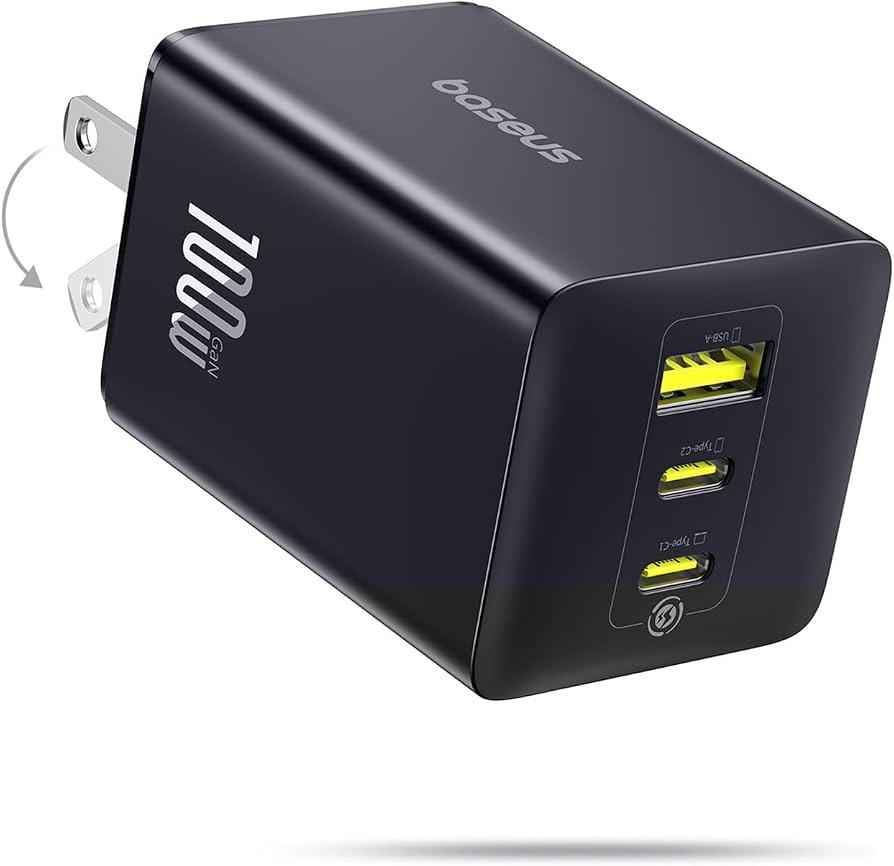
Baseus 100W USB-C GaN Charger
Higher wattage for power users; multiple ports, future-proof.
Best for: Gaming laptops or multi-device charging (65W+ needs).
Price Range: $35-$45