
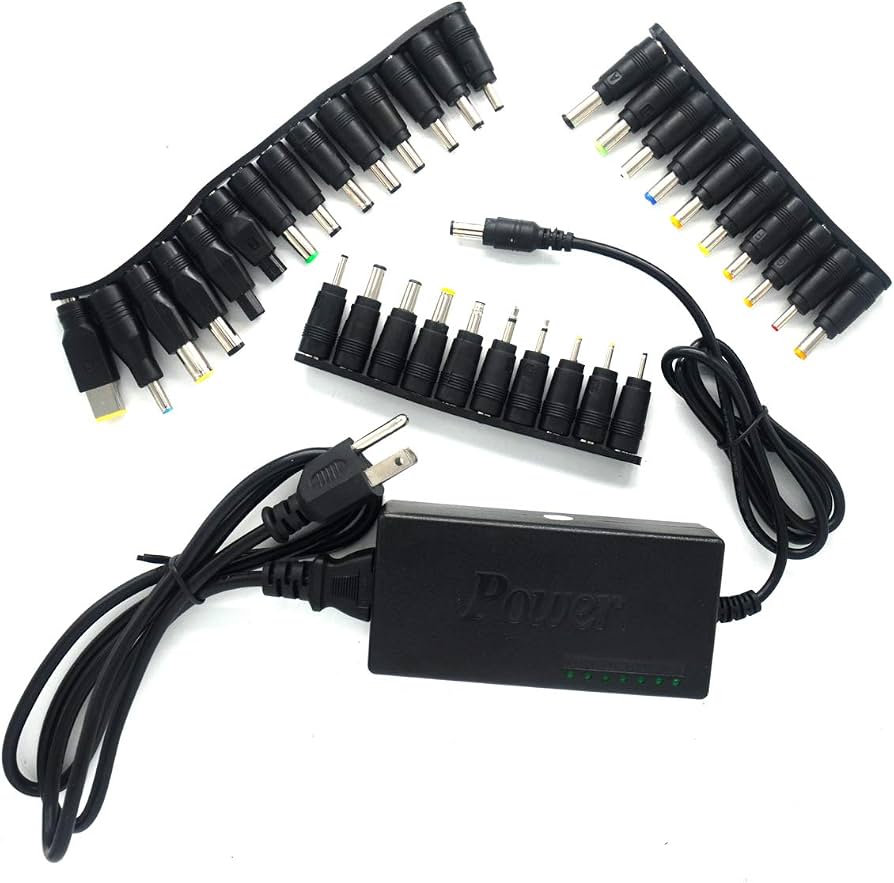
AC Doctor Universal Laptop Charger (96W)
Lost original charger—versatile for Dell, HP, Lenovo.
$29.99
AC Doctor Universal Laptop Charger (96W) Compatible with 95% laptops, adjustable voltage 12-24V, includes 80+ tips, UL certified for safety.
Get the App
Better experience on mobile
Discover how to match the exact voltage for your laptop charger to prevent damage, fires, and ensure safe charging in minutes.
Buying the wrong AC adapter for your laptop can fry its internals, cause overheating, or even start a fire—it's a common mistake that costs users hundreds in repairs. Whether your original charger is lost, broken, or too slow, knowing the right voltage is crucial for safety and performance.
In this guide, you'll learn the basics of laptop adapter specs, how to find your model's requirements, and tips for safe replacements. No technical expertise needed—we break it down with simple analogies like matching a car's fuel type. Expect to spend just 10-15 minutes checking your setup.
By the end, you'll confidently shop for adapters without risking your device.
Estimated Time: 10-15 minutes Difficulty: beginner
Voltage (measured in volts, V) is the 'pressure' pushing electrical current through your laptop, like water pressure in a hose. Laptops typically use 19V DC (direct current) from adapters, converted from wall AC (110-240V alternating current).
Using the wrong voltage is like over-pressurizing: too high damages components; too low causes unstable power or failure to charge. Most laptops need exact voltage match—common values are 12V, 19V, 19.5V, or 20V.
Why it matters: Mismatched voltage bypasses built-in protections, leading to instant failure.
💡 Tips:
Flip your laptop over and check the bottom sticker for input specs, like '19V 3.42A' or model details (e.g., Dell Inspiron 15). Note the voltage first.
If faded, search your model number (e.g., 'HP Pavilion 15') on the manufacturer's site: Go to support page > enter model > 'Power Adapter' specs.
Expect formats like 19.5V⎓3.33A—voltage first, amperage (A) second.
💡 Tips:
⚠️ Warnings:
Look at your current charger's output label (small print on brick): It lists Voltage (V), Amperage (A), and Wattage (W = V x A).
Example: 'Output: 19V 3.42A 65W'. This is your gold standard—replacements must match V exactly.
Adapters are safe across input voltages (100-240V), but output must match laptop.
Your replacement must have identical voltage (e.g., 19V only). No higher (overheats) or lower (won't power on).
Analogy: Like plugging a 110V appliance into 220V—boom.
Higher amperage (A) is okay (provides more current if needed), but calculate watts to ensure compatibility.
💡 Tips:
⚠️ Warnings:
Amperage (A) is current flow—like hose width. Higher A is safe (adapter won't overload), but match watts roughly (±10W).
Example: Laptop needs 19V 3A (57W)—use 19V 4A (76W) fine, but not 19V 2A (38W).
Why? Undersized starves power; oversized just runs cooler.
Adapters have barrel plugs (sizes like 5.5x2.5mm). Check polarity symbol: center positive (⏚) most common.
Mismatch melts connectors. Measure with calipers or match visually.
Universal adapters include swappable tips.
💡 Tips:
⚠️ Warnings:
Look for UL, CE, FCC marks—proves tested for safety. Avoid cheap no-name adapters.
Buy OEM (original) or reputable third-party. Test new adapter: Plug in, check for heat/smell.
Problem: Laptop won't power on with new adapter
Solution: Double-check voltage match and connector size. Test original if available; replace if faulty.
Problem: Adapter gets very hot
Solution: Undersized amperage or poor quality—return and get higher A or certified one.
Problem: Sparks or smoke on plug-in
Solution: Polarity or connector mismatch—unplug immediately, seek exact OEM replacement.
Problem: Slow charging or battery drain
Solution: Too low amperage—upgrade to higher A same voltage.
Compatible with 95% laptops, adjustable voltage 12-24V, includes 80+ tips, UL certified for safety.
Best for: Lost original charger—versatile for Dell, HP, Lenovo.
Price Range: $29.99
Exact voltage match for modern USB-C laptops (20V PD), compact GaN tech, UL/ETL certified.
Best for: MacBook, Dell XPS, or any USB-C port—fast, safe charging.
Price Range: $19.99
Precise voltage delivery, multi-port, safety chips prevent overvoltage—trusted brand.
Best for: Portable charging for travel, laptops + phone.
Price Range: $34.99
100% voltage match for Dell models, OEM quality—no compatibility issues.
Best for: Dell Latitude/Inspiron owners needing exact replacement.
Price Range: $49.99
Lost original charger—versatile for Dell, HP, Lenovo.
AC Doctor Universal Laptop Charger (96W) Compatible with 95% laptops, adjustable voltage 12-24V, includes 80+ tips, UL certified for safety.
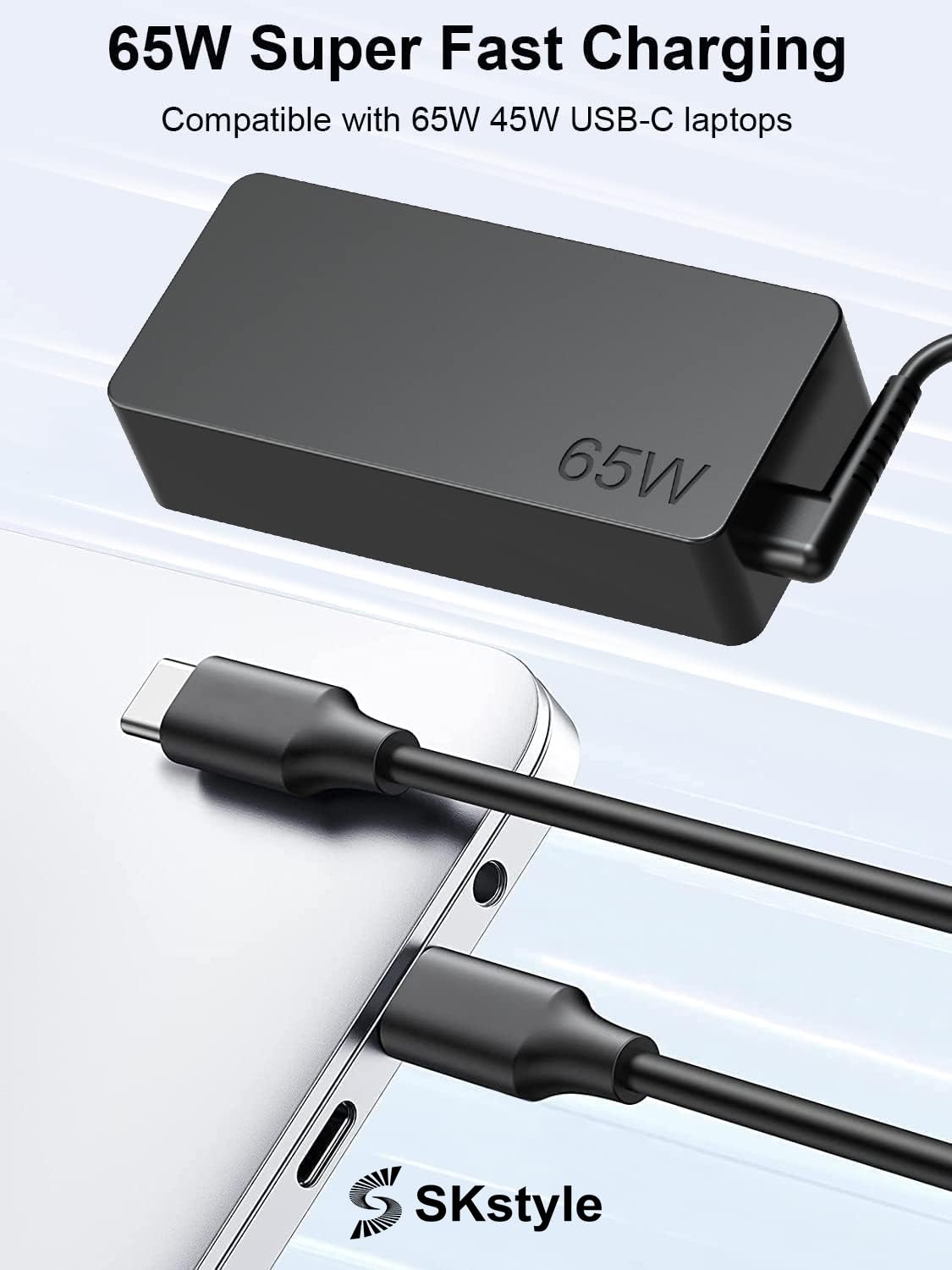
MacBook, Dell XPS, or any USB-C port—fast, safe charging.
Kerlos 65W USB-C Laptop Charger Exact voltage match for modern USB-C laptops (20V PD), compact GaN tech, UL/ETL certified.
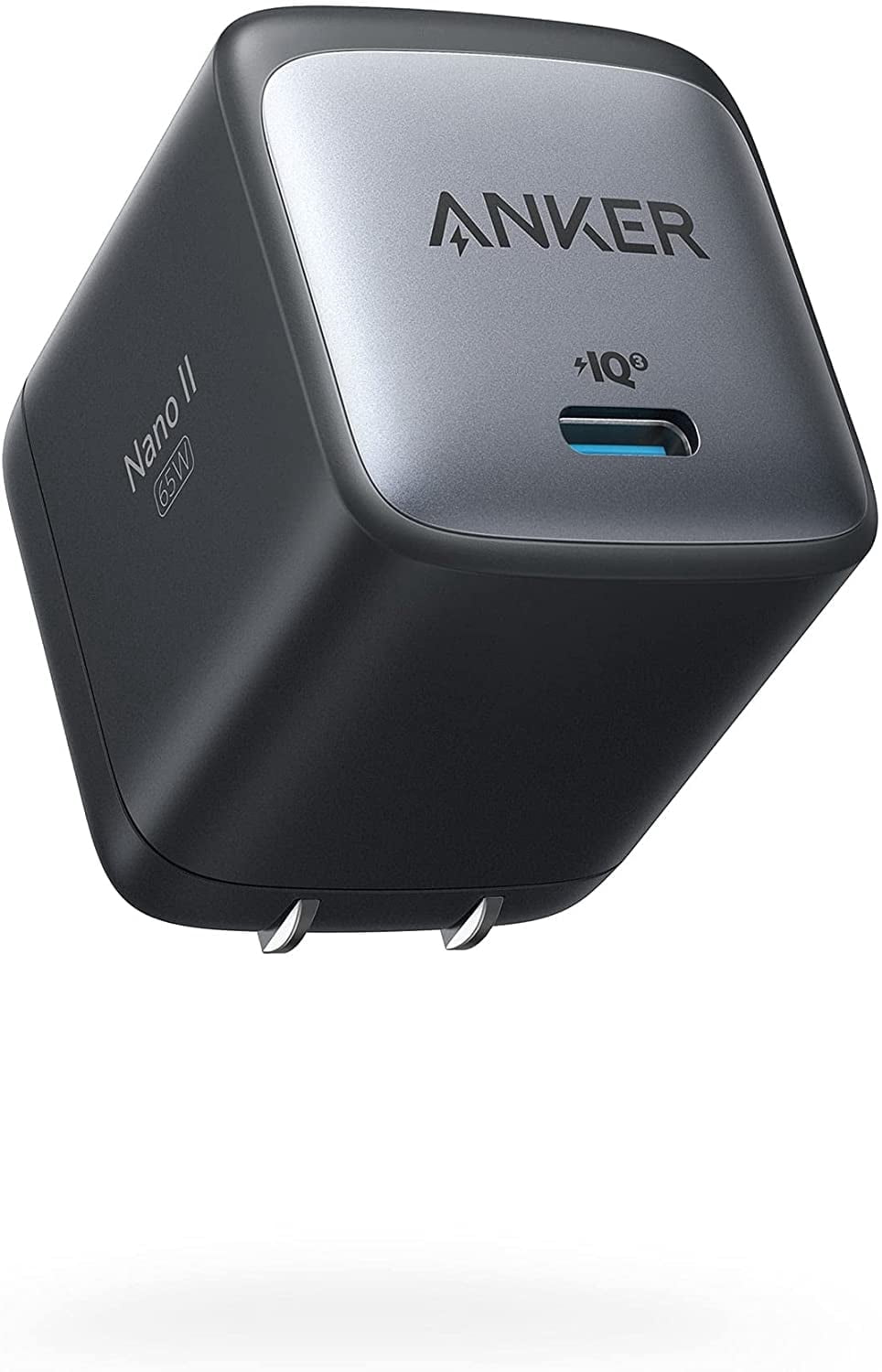
Portable charging for travel, laptops + phone.
Anker 65W GaN II Charger Precise voltage delivery, multi-port, safety chips prevent overvoltage—trusted brand.
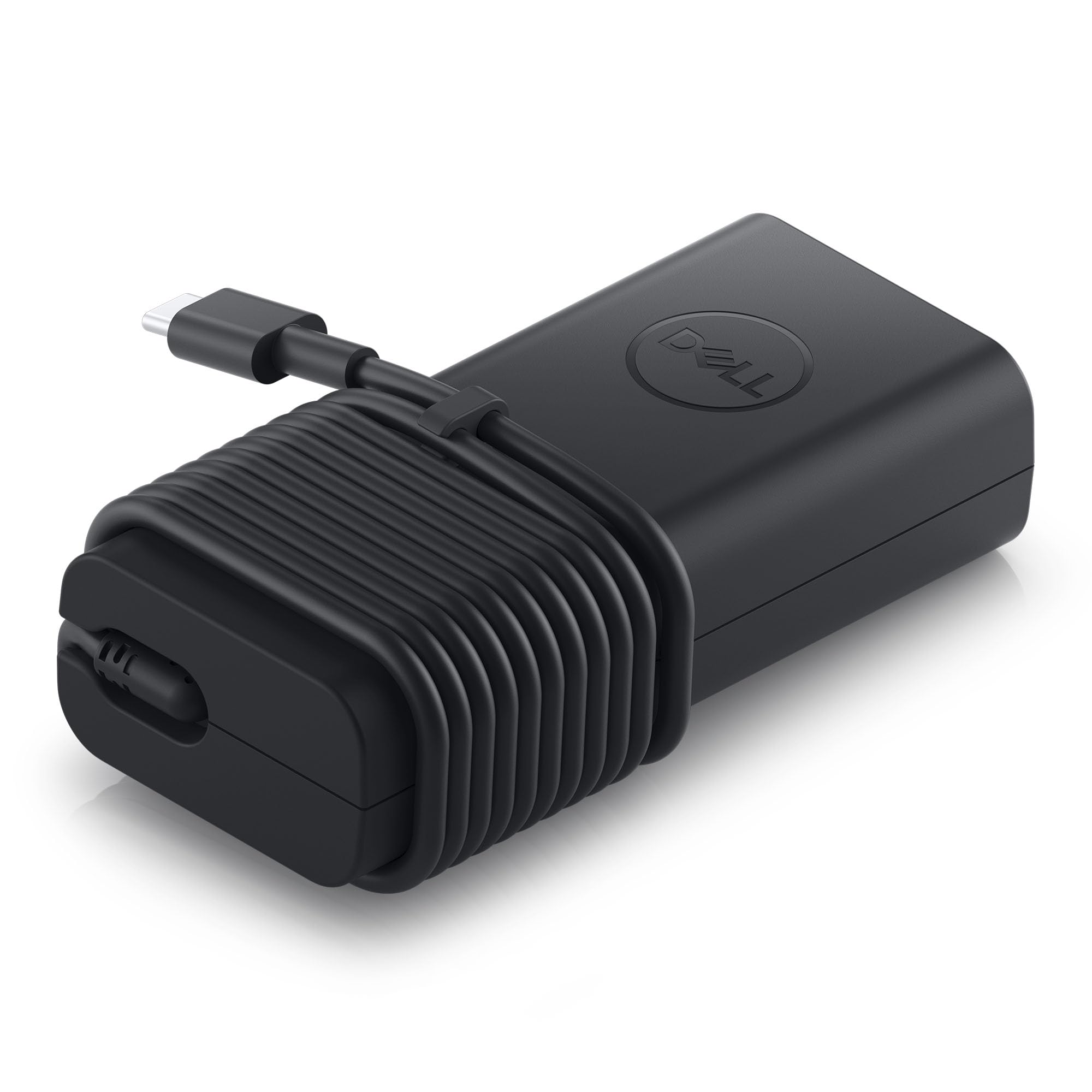
Dell Latitude/Inspiron owners needing exact replacement.
Official Dell 65W USB-C Adapter 100% voltage match for Dell models, OEM quality—no compatibility issues.