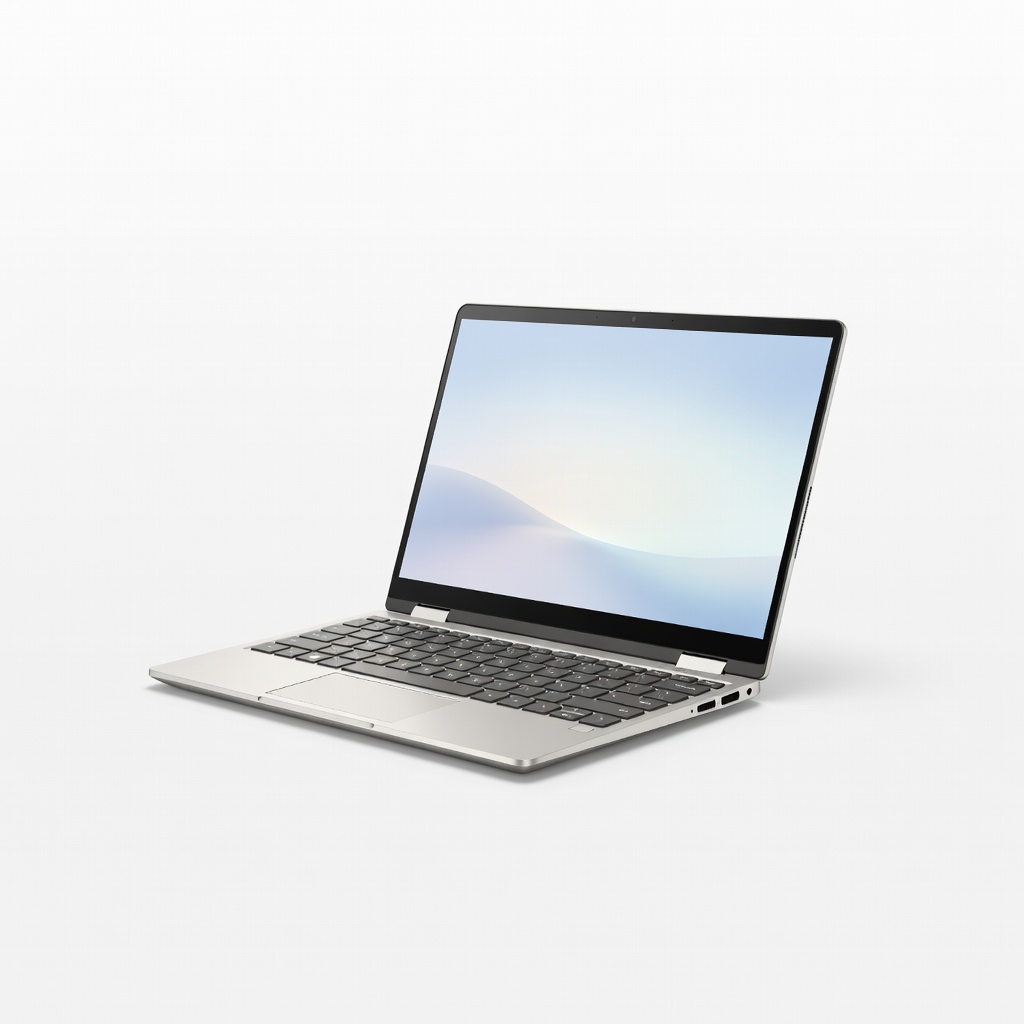
Buying a laptop can feel overwhelming with endless options, specs, and brands staring back at you from store shelves or online listings. Many beginners end up with a device that's either too slow for their tasks or overpriced for what they need, leading to frustration and regret. But it doesn't have to be that way—this guide breaks it down simply so you can make a confident choice.
In this explainer, you'll learn the key features to evaluate, from performance basics to practical considerations like battery life. We'll use real-world examples and analogies to make tech terms easy to grasp, like comparing a processor to a car's engine. By the end, you'll know how to match a laptop to your lifestyle, whether for school, work, or streaming.
Expect a straightforward process: no advanced tech knowledge required. This should take about 20-30 minutes to read and apply as you shop, helping you avoid common pitfalls and find value for your money.
▸What You'll Need
- •A clear idea of your primary uses (e.g., browsing, gaming, video editing)
- •Your budget range (e.g., $300-$1500)
- •Access to online reviews or comparison sites (optional but recommended)
- •Basic understanding of your daily routine (e.g., travel needs or desk setup)
Estimated Time: 20-30 minutes to read and assess options
Difficulty: beginner
▸Step-by-Step Instructions
Step 1: Assess Your Needs and Usage
Start by figuring out what you'll use the laptop for—this is the foundation of your decision. Think of it like choosing shoes: you wouldn't buy running sneakers for hiking. Common uses include web browsing and emails (light tasks), office work like Word or Zoom (moderate), or creative work like photo editing (heavy). For beginners, list 3-5 main activities to prioritize features.
Why it matters: A laptop optimized for gaming might be bulky and expensive if you just need it for Netflix. Expect to spend 5 minutes jotting notes. If you're a student, focus on portability; for professionals, durability.
This step prevents overspending on unnecessary power. For example, if you're mostly streaming videos, you don't need a high-end graphics card.
💡 Tips:
- •Make a simple checklist: portability, performance, screen size.
⚠️ Warnings:
- •Avoid assuming 'one size fits all'—tailor to your life.
Step 2: Set a Realistic Budget
Determine how much you're willing to spend, factoring in long-term value. Budget laptops start around $300 for basic tasks, mid-range at $500-$800 for everyday use, and premium over $1000 for power users. Analogy: It's like buying a phone—cheaper models handle calls and texts, but you pay more for cameras and speed.
Why it matters: Sticking to budget avoids debt while ensuring quality. Research shows laptops under $400 often have shorter lifespans (2-3 years), so aim for value. Expect to adjust based on needs; add 10-20% buffer for accessories like a mouse.
This guides your search—filter online stores by price to see options immediately.
💡 Tips:
- •Look for sales around back-to-school or Black Friday for deals.
⚠️ Warnings:
- •Don't go cheapest; poor build can lead to quick replacements.
Step 3: Evaluate the Processor (CPU)
The processor is the laptop's brain, handling all computations. For beginners, look for Intel Core i3/i5 or AMD Ryzen 3/5 for basic to moderate tasks—these are like a reliable sedan for city driving. Higher like i7/Ryzen 7 are for intensive work, akin to a sports car.
Why it matters: A weak CPU causes lag during multitasking. In 2024, aim for at least 10th-gen Intel or equivalent for smooth performance. Test by imagining opening 10 tabs plus a video call—does it stutter?
Expect newer chips like Intel's 13th-gen or Apple's M-series to be more efficient, running cooler and longer on battery.
💡 Tips:
- •Check benchmarks on sites like PassMark for real comparisons.
Step 4: Check RAM and Storage
RAM is short-term memory for running apps (think of it as your desk space), while storage (SSD vs. HDD) holds files long-term (like a filing cabinet). Beginners need 8GB RAM minimum for smooth multitasking; 16GB for future-proofing. Storage: 256GB SSD is standard—faster than HDDs, like a quick-access drawer.
Why it matters: Low RAM (4GB) feels sluggish today; SSDs boot in seconds vs. minutes for HDDs. In 2024, cloud storage reduces need for huge drives, but 512GB is ideal for photos/videos.
Upgrading RAM/storage later is possible but costs more, so get it right upfront.
💡 Tips:
- •Opt for SSD over HDD for speed—it's non-negotiable now.
⚠️ Warnings:
- •Avoid 4GB RAM; it's outdated for modern OS like Windows 11.
Step 5: Choose Display Size and Quality
Screen size affects portability and viewing—13-14 inches for travel (like a tablet), 15-17 for desk work (like a mini-monitor). Look for IPS panels for better colors/angles over TN. Resolution: Full HD (1920x1080) minimum; higher for crispness.
Why it matters: A dim or low-res screen strains eyes during long sessions. Touchscreens add $100-200 but suit creative tasks. Expect brightness (300+ nits) for outdoors.
Analogy: It's your window to the digital world—bigger isn't always better if you're carrying it daily.
💡 Tips:
- •Test in-store for glare and color accuracy.
Step 6: Assess Battery Life and Portability
Battery life measures unplugged use—aim for 8+ hours for all-day mobility. Weight under 4 lbs for easy carry. Ports: USB-C, HDMI matter for connecting devices.
Why it matters: Frequent charging kills productivity; heavy laptops aren't travel-friendly. In 2024, efficient chips like ARM-based extend life to 15+ hours.
Check real-user tests, not just specs—lab claims often exceed reality.
💡 Tips:
- •Prioritize if you're a commuter; ignore if desk-bound.
⚠️ Warnings:
- •Gaming laptops guzzle battery—expect 2-4 hours.
Step 7: Review Build Quality, Keyboard, and Webcam
Build: Aluminum over plastic for durability. Keyboard: Comfortable typing with good travel. Webcam: 720p minimum, 1080p for video calls.
Why it matters: Cheap builds crack easily; bad keyboards cause fatigue. Post-pandemic, clear webcams are essential.
Feel it in person—analogy: Like a book's cover, it affects daily use.
💡 Tips:
- •Read user reviews for hinge durability.
Step 8: Decide on Operating System
Windows for versatility, macOS for Apple ecosystem/creatives, ChromeOS for cheap/light use. Linux for tinkerers.
Why it matters: Affects software compatibility—Windows runs most apps.
For beginners, Windows or macOS; expect learning curve with others.
💡 Tips:
- •Stick to what you know if switching OS.
Step 9: Research Reviews, Compare, and Buy
Read expert/user reviews on sites like PCMag. Compare prices across Amazon/Best Buy.
Why it matters: Uncovers hidden issues like overheating.
Final check: Warranty (1+ year) and return policy.
💡 Tips:
- •Use tools like Google Shopping for deals.
▸Pro Tips
- •Prioritize SSD storage and 8GB RAM as non-negotiables for 2024.
- •Visit stores to test keyboards and screens—online specs don't tell all.
- •Consider refurbished from trusted sellers for 20-30% savings.
- •Factor in total cost: Add mouse, case if needed.
- •Update your OS knowledge—Windows 11 requires TPM 2.0.
- •Look for upgradeable RAM models to extend life.
- •Use comparison charts from CNET for quick specs side-by-side.
▸Common Mistakes to Avoid
- •Ignoring future needs: Buying low-spec now means upgrading soon—assess 3-5 years ahead.
- •Focusing only on brand: Apple is premium, but great Windows options exist at half price—compare features.
- •Overlooking ports: No USB-C? You'll need adapters, adding hassle and cost.
- •Skipping reviews: Specs look good, but real-world heat/fan noise surprises—always check user feedback.
- •Forgetting battery: Great on paper, but heavy use drains fast—test estimates.
▸Troubleshooting
Problem: Laptop feels slow after purchase
Solution: Check if it meets your tasks; upgrade RAM if possible or close background apps. Run diagnostics.
Problem: Battery drains too fast
Solution: Adjust power settings to balanced mode; update drivers. If under 6 hours, consider return.
Problem: Overheating during use
Solution: Use on hard surface, clean vents. If persistent, check warranty for fan issues.
Problem: Can't connect peripherals
Solution: Verify port types (e.g., USB-A vs. C); buy adapters. Ensure drivers are installed.
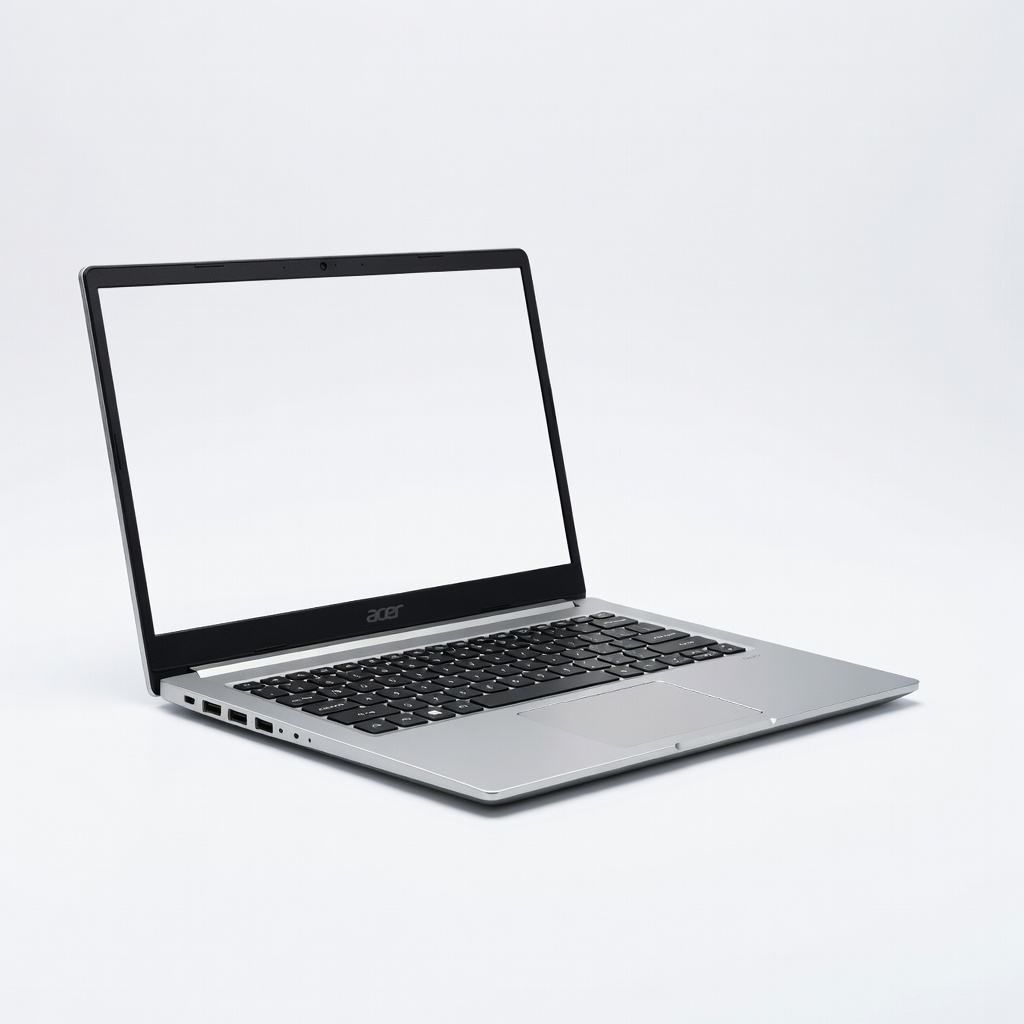
Acer Aspire 5 (A515-56)
Affordable entry-level laptop with solid Intel i5, 8GB RAM, and 512GB SSD for everyday tasks like browsing and office work.
Best for: Best for students or beginners on a tight budget needing reliability without extras.
Price Range: $400-$500
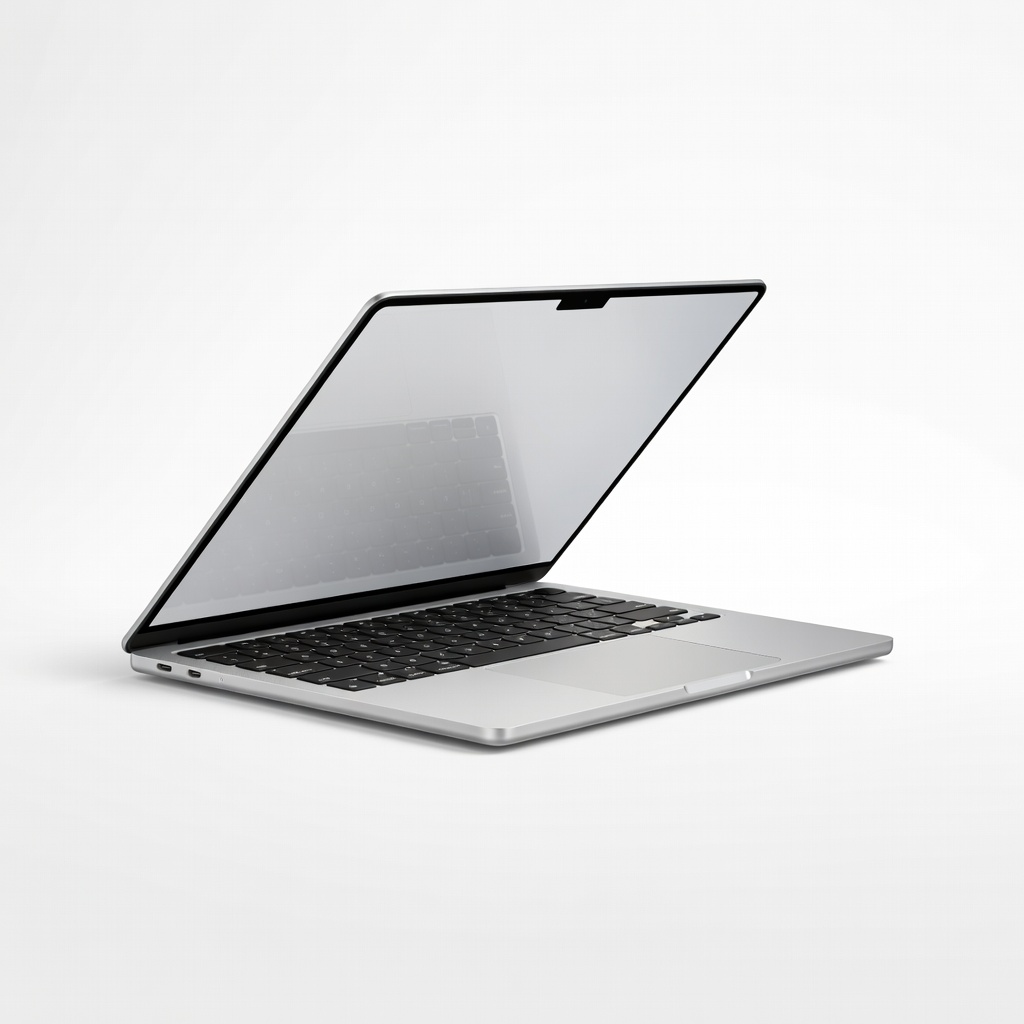
Apple MacBook Air (M2, 2022)
Excellent battery life (18+ hours), seamless macOS integration, and lightweight design make it beginner-friendly for creative or light professional use.
Best for: Ideal for Apple users or those wanting portability and ecosystem compatibility for school/work.
Price Range: $900-$1100
Dell XPS 13 (2024)
Premium build with Intel Core Ultra processor, stunning display, and 16GB RAM for smooth multitasking and future-proofing.
Best for: Suits professionals or power users needing high performance in a compact form for travel and video editing.
Price Range: $1000-$1300
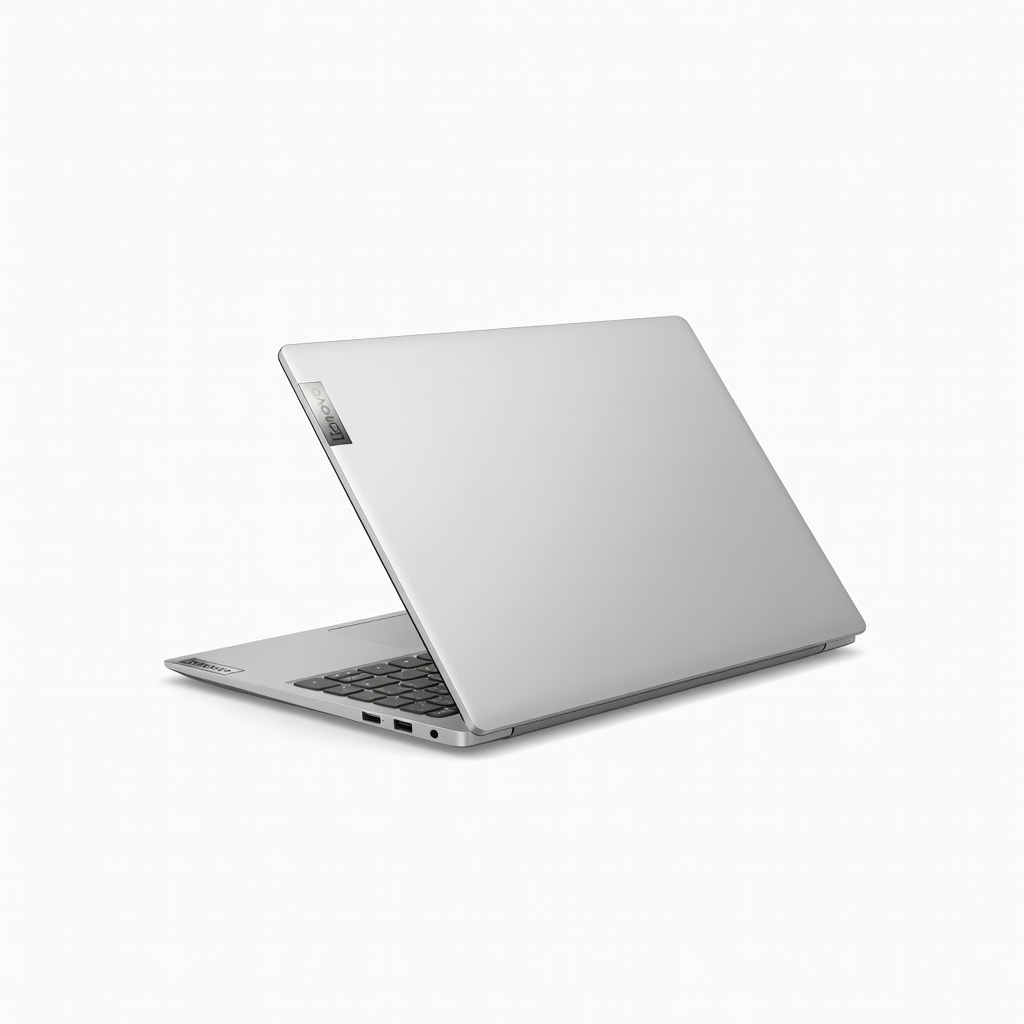
Lenovo IdeaPad 3
Budget-friendly with AMD Ryzen 5, good keyboard, and expandable storage—great value for beginners exploring options.
Best for: For casual users focused on typing and streaming without breaking the bank.
Price Range: $350-$450
HP Pavilion x360
Versatile 2-in-1 convertible with touch screen, Intel i5, and stylus support for interactive learning or note-taking.
Best for: Perfect for students or hybrid workers who want tablet-like flexibility.
Price Range: $600-$800