

Blender 3D Software
Advanced editing, animation-ready models from any scanner.
Free
Blender 3D Software Versatile free tool with unmatched sculpting, retopo, and add-ons for scanner data.
Get the App
Better experience on mobile
Learn top software pairings for cleaning, refining, and perfecting your 3D scans to create print-ready or CAD-compatible models.
Raw 3D scans from scanners like structured light or laser devices often come with noise, holes, excess data, and inconsistencies that make them unusable for 3D printing, reverse engineering, or animation. Without the right editing software, hours of scanning effort go to waste. This guide solves that pain by matching proven software to common 3D scanner workflows.
You'll discover the best free and paid tools, their strengths, and step-by-step logic for choosing and using them. Whether you're an intermediate user handling hobby projects or professional prototypes, these pairings streamline post-processing. Expect to grasp concepts in 20-30 minutes, with actionable advice to implement immediately.
We'll break down data types, tool categories, and workflows, using real-world examples like cleaning a scanned bust or converting to CAD.
Estimated Time: 20-30 minutes to read and understand; 1-2 hours for first workflow test Difficulty: intermediate
3D scanners output raw data as point clouds (millions of 3D points) or meshes (connected triangles forming surfaces). Point clouds are great for accuracy but heavy; meshes are lighter but may have errors like holes or overlaps.
Why it matters: Software choice depends on this. Use point cloud tools first for cleaning, then mesh editors. Expect files up to 1GB+ – test with a small scan (e.g., a coffee mug) to learn.
Analogy: Point clouds are like a pixelated photo before smoothing into a vector image.
💡 Tips:
⚠️ Warnings:
CloudCompare is a free powerhouse for aligning, filtering, and decimating point clouds. Import your .las or .ply scan, use 'Noise Filter' to remove outliers, and 'Poisson Reconstruction' to generate meshes.
Why pair it? Scanners like Revopoint output noisy points; this cleans 90% of issues before heavier editors. Expect 5-10x file size reduction.
Real example: Scanning a car part – subsample to 1M points, align multi-scan shots seamlessly.
💡 Tips:
MeshLab excels at filter chains for hole-filling, smoothing, and remeshing. Apply 'Remove Duplicate Vertices', then 'Laplacian Smooth' iteratively.
Why it pairs best: Handles large scanner meshes efficiently, open-source, no bloat. Great for intermediate users bridging scanner to printer.
Analogy: Like Photoshop's healing brush for 3D surfaces. Output clean STL for slicing.
💡 Tips:
⚠️ Warnings:
Autodesk Meshmixer offers intuitive tools like 'Inspector' (auto-fills holes), 'Make Solid' (hollows for printing), and sculpting brushes.
Why ideal for scanners: One-click fixes for common artifacts from handheld scans. Pairs perfectly with budget scanners like Creality CR-Scan.
Example: Erase scanner tripod artifacts in seconds, then plane-cut for flat bases.
💡 Tips:
Blender's geometry nodes, sculpt mode, and add-ons (e.g., Point Cloud Visualizer) turn scans into polished assets. Retopologize high-poly scans for animation or games.
Why it shines: Free, scriptable, integrates UV/textures from color scans. Handles 100M+ poly counts with GPU acceleration.
Workflow: Import > Decimate > Sculpt > UV unwrap > Export FBX.
💡 Tips:
For CAD conversion, import mesh to Fusion 360, use 'Mesh to BREP' for parametric solids. Ideal for reverse engineering.
Why pair: Scanners + Fusion = manufacturable parts. Subscription model suits pros.
Analogy: Scan a broken gear, fit primitives, 3D print replacement.
⚠️ Warnings:
Chain tools: Scanner > CloudCompare (clean) > Meshmixer (fix) > Blender/Fusion (model). Export STL/OBJ for printing, STEP for CAD.
Test print a 5cm model to validate. Track file sizes at each stage.
💡 Tips:
Problem: Mesh import fails or appears black.
Solution: Check normals (flip in MeshLab) or scale (scans often in mm, software expects m).
Problem: Software crashes on large files (>500MB).
Solution: Split scans, decimate to <10M faces, or upgrade RAM/GPU.
Problem: Holes persist after filling.
Solution: Use Poisson reconstruction in CloudCompare before Meshmixer.
Problem: Textures lost on export.
Solution: Export OBJ+MTL or bake in Blender.
Versatile free tool with unmatched sculpting, retopo, and add-ons for scanner data.
Best for: Advanced editing, animation-ready models from any scanner.
Price Range: Free
Intuitive auto-repair and print prep tools tailored for scan cleanup.
Best for: Quick fixes for hobbyist scans before printing.
Price Range: Free
Specialized point cloud processing outperforms general tools in noise reduction.
Best for: Initial cleaning of large raw scans from laser scanners.
Price Range: Free
Seamless mesh-to-CAD conversion for engineering workflows.
Best for: Reverse engineering scanned parts into editable designs.
Price Range: $70/month or $545/year
Professional sculpting for high-detail organic scans.
Best for: Refining character busts or artistic scans.
Price Range: $39/month or $895 perpetual
Advanced editing, animation-ready models from any scanner.
Blender 3D Software Versatile free tool with unmatched sculpting, retopo, and add-ons for scanner data.
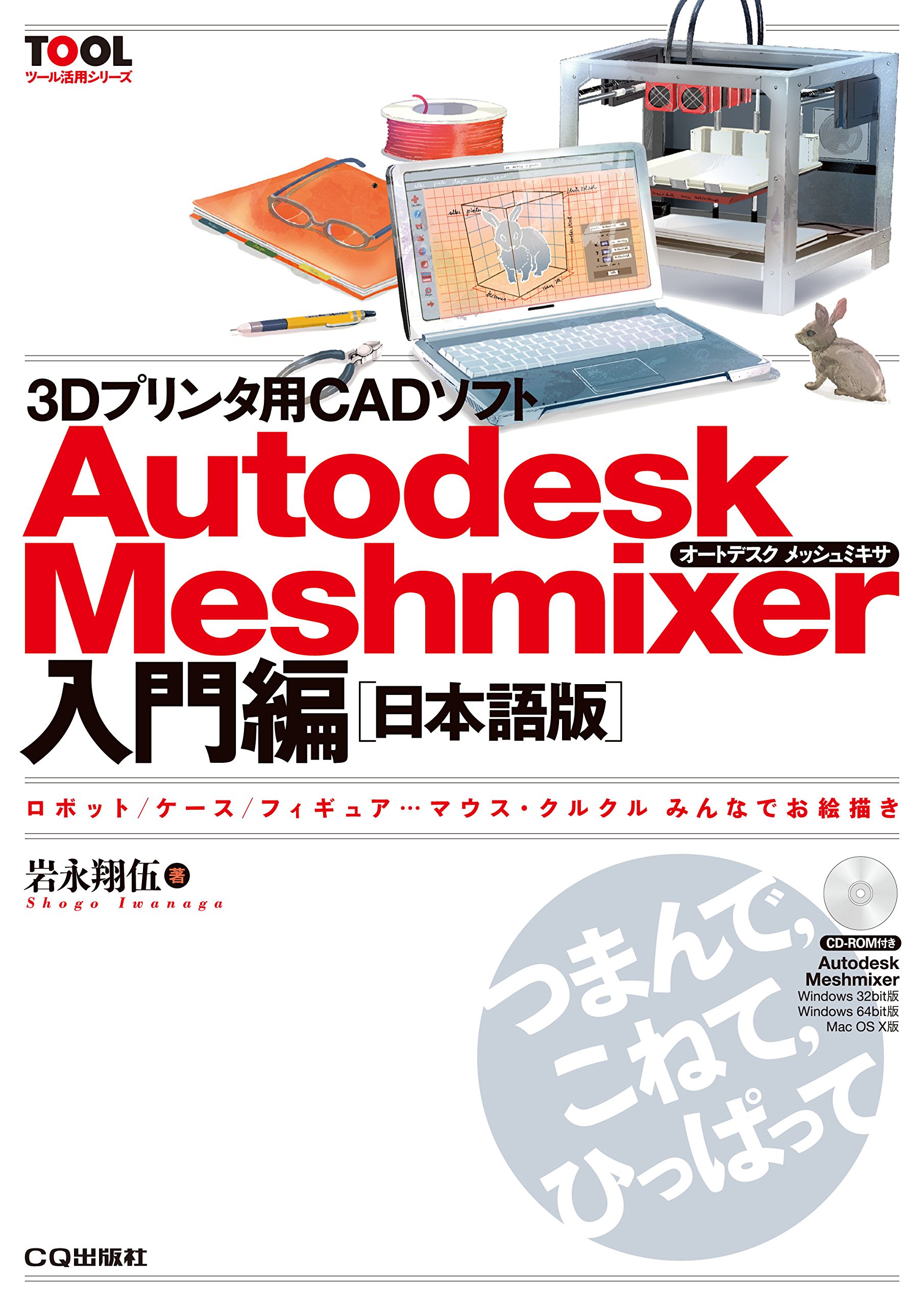
Quick fixes for hobbyist scans before printing.
Autodesk Meshmixer Intuitive auto-repair and print prep tools tailored for scan cleanup.

Initial cleaning of large raw scans from laser scanners.
CloudCompare Specialized point cloud processing outperforms general tools in noise reduction.
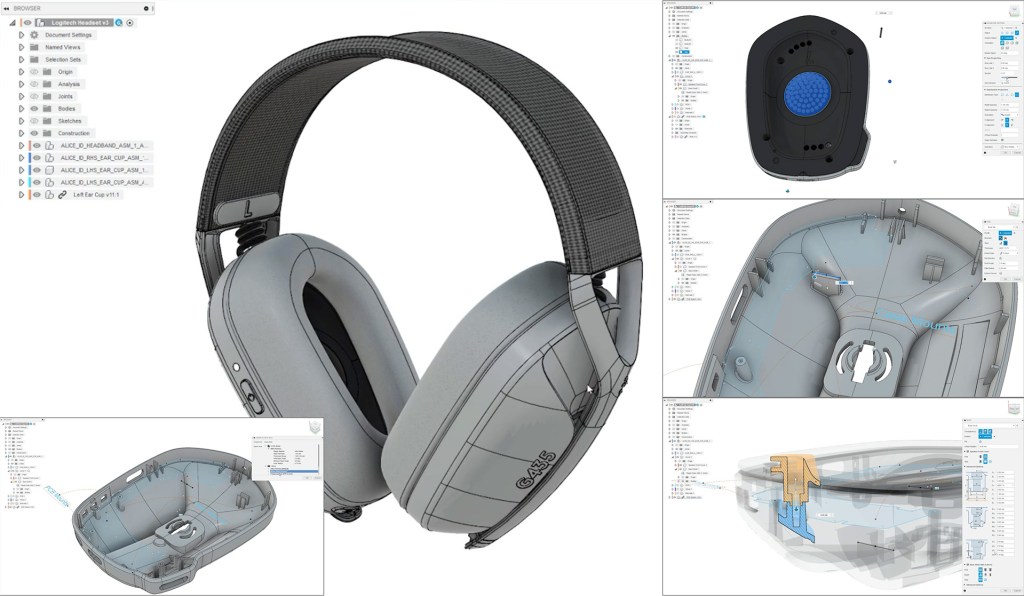
Reverse engineering scanned parts into editable designs.
Autodesk Fusion 360 Seamless mesh-to-CAD conversion for engineering workflows.
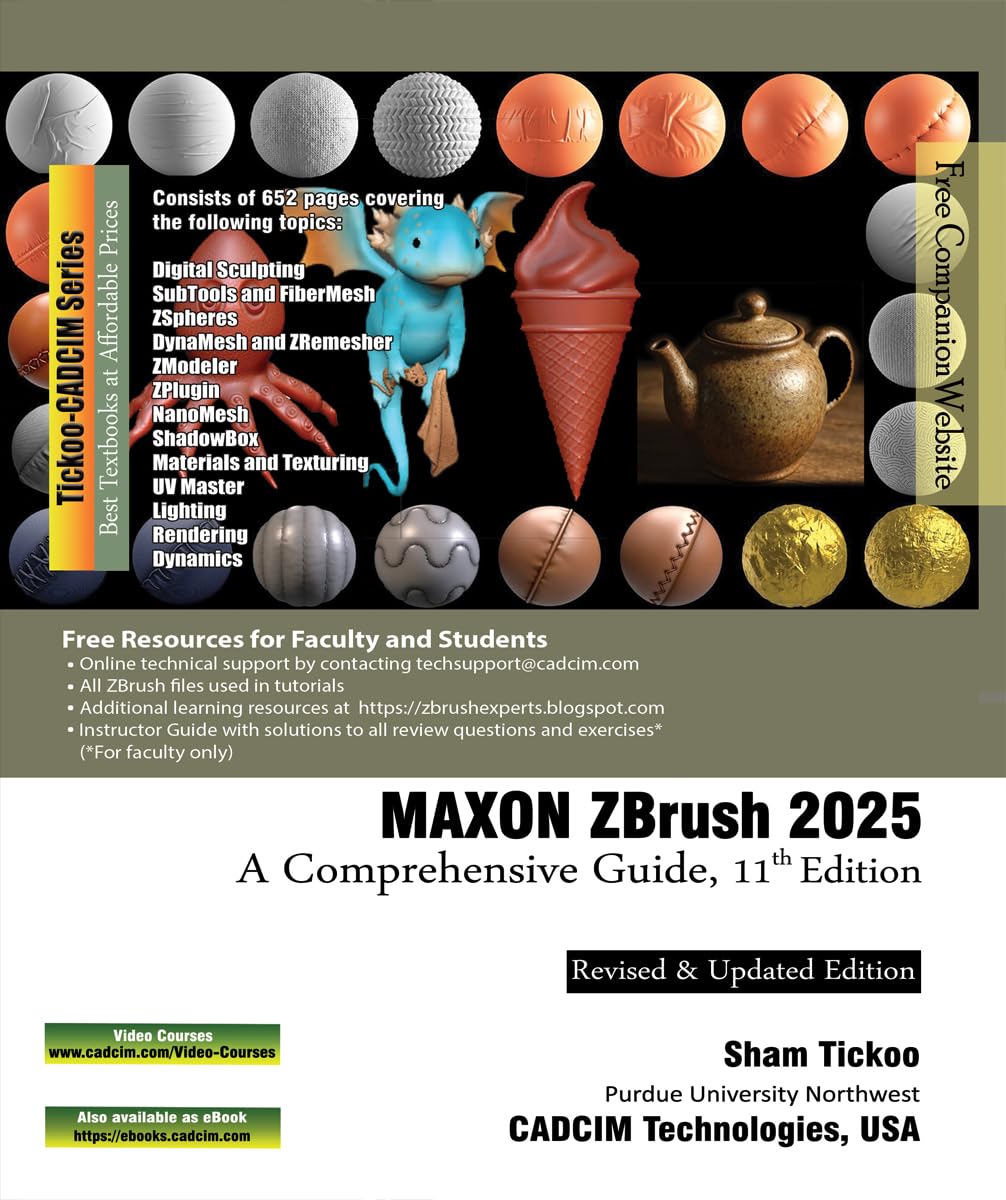
Refining character busts or artistic scans.
Maxon ZBrush Professional sculpting for high-detail organic scans.