Gaming and 2-in-1 laptops have traditionally been at odds—gaming demands raw power and cooling, while convertibles prioritize thinness and versatility. But in 2026, advances in integrated graphics (like AMD RDNA 4 and Intel Arc Xe3) and dedicated mobile GPUs have blurred the lines. Whether you're a student who wants to game between classes or a professional seeking a single device for work and play, this guide will help you understand what makes a 2-in-1 suitable for gaming, which specs matter most, and how to find the right balance. We'll cover trade-offs, key components, and real-world performance expectations, plus product recommendations to get you started.
▸What You'll Need
- •Understanding of basic laptop specs (CPU, GPU, RAM, storage)
- •Knowledge of your gaming preferences (e.g., esports vs AAA titles)
- •Budget range (typically $1,000–$3,000 for gaming convertibles)
- •Desired form factor (detachable vs 360° hinge)
- •Willingness to compromise on battery life or weight
Estimated Time: 15 minutes to read; 2-3 hours to research and decide
Difficulty: intermediate
▸Step-by-Step Instructions
Step 1: Understand the Gaming 2-in-1 Trade-Offs
A 2-in-1 laptop must balance thinness, weight, and battery life with enough thermal headroom to dissipate heat from a discrete GPU. In 2026, many models use dedicated mobile graphics (e.g., NVIDIA GeForce RTX 4060/4070 Laptop GPU) or powerful integrated graphics (AMD Radeon 800M series). However, even high-end convertibles rarely match the raw performance of a traditional gaming laptop of the same price due to thermal constraints. Recognize that you may need to lower settings in demanding games or rely on upscaling technologies like DLSS or FSR. The benefit is a single device for note-taking, media consumption, and light-to-moderate gaming.
💡 Tips:
- •Focus on models with a vapor chamber or dual-fan cooling solution.
- •Consider a detachable like the ASUS ROG Flow Z13 for better cooling than a 360° hinge.
⚠️ Warnings:
- •Avoid ultra-thin fanless 2-in-1s if you plan to play anything beyond indie or esports titles.
Step 2: Identify Your Gaming Needs
List the games you play or plan to play. Competitive esports titles like Fortnite, Overwatch 2, and Rocket League run well on integrated graphics (e.g., AMD Radeon 780M or Intel Iris Xe LPG). AAA single-player games like Cyberpunk 2077 or Starfield demand a dedicated GPU. For AAA gaming at 1080p medium settings, aim for at least an RTX 4050 or RX 7600M equivalent. For 1440p or ray tracing, step up to an RTX 4070 or higher. Also consider whether you need high refresh rates (120Hz+ for esports) or are fine with 60Hz for RPGs.
💡 Tips:
- •Use online benchmarks for specific 2-in-1 models as thermal performance varies.
- •Check if the laptop supports VRR (variable refresh rate) for smoother gaming.
Step 3: Choose the Right Form Factor: Detachable vs. 360° Hinge
Detachable 2-in-1s (like the Surface Pro or ASUS ROG Flow Z13) have the keyboard completely separate, allowing the tablet portion to be thinner and often house the GPU. They tend to have better cooling than 360° hinge laptops because the chassis is open on the back. However, they usually offer fewer ports and a smaller keyboard. 360° hinge laptops (like the Lenovo Yoga 9i or HP Spectre x360) are more traditional, with the keyboard always attached, providing more space for ports and better acoustics. For gaming, a detachable with an external GPU (eGPU) support can be ideal, while a 360° hinge with a dedicated GPU offers all-in-one convenience.
💡 Tips:
- •If you want eGPU upgradability, look for a model with Thunderbolt 5 or USB4 support.
- •Test the hinge in-store to ensure it feels sturdy for gaming in tent mode.
⚠️ Warnings:
- •Detachable keyboards sometimes have latency or connectivity issues; check reviews.
Step 4: Evaluate Graphics Performance: Integrated vs. Dedicated
In 2026, integrated graphics have become surprisingly capable. AMD's RDNA 3.5/4 integrated graphics can handle esports at high settings and some AAA titles at low settings 1080p. Intel's Arc Xe3 competes similarly. Dedicated GPUs still reign for higher fidelity and ray tracing. However, note that many 2-in-1s use 'Max-Q' or lower TGP (Total Graphics Power) versions of GPUs to fit the thermal envelope. Compare TGP ratings (e.g., 85W vs 115W) as they affect performance more than the GPU model alone. Also consider Graphics Processing Units (GPUs) with GDDR7 memory for bandwidth-heavy workloads.
💡 Tips:
- •Search for notebookcheck or jarrod'stech reviews for thermal and power benchmarks.
- •Look for GPUs with at least 8GB VRAM for modern games.
⚠️ Warnings:
- •Beware of misleading naming – an RTX 4080 laptop GPU in a thin 2-in-1 may perform like a desktop RTX 4060 due to power limits.
Step 5: Assess Cooling and Noise
Gaming generates heat, and thin convertibles struggle to keep temperatures down. Look for laptops with dual fans, multiple heat pipes, and vapor chambers. In 2026, some high-end 2-in-1s like the ROG Flow Z13 have a built-in kickstand that allows better airflow. Check reviews for fan noise – gaming under load can be loud on a 2-in-1. If you play with headphones, noise is less of an issue. Also consider skin temperature on the screen or keyboard – some areas may become hot to the touch.
💡 Tips:
- •Use a laptop stand or elevate the device for better cooling.
- •Undervolting the GPU via software can reduce heat without major performance loss.
⚠️ Warnings:
- •Avoid gaming on your lap for extended periods – heat and restricted airflow can damage components.
Step 6: Consider Display Specifications
A good gaming display matters. Look for at least 1080p resolution (1200p is common in 16:10 screens), 100% sRGB coverage, and a refresh rate of 120Hz or higher for smooth gameplay. Some 2-in-1s offer 2.8K OLED panels with great color but often at 60Hz or 90Hz – these are better for content consumption than competitive gaming. Also consider touch responsiveness and stylus support, as these are key benefits of a 2-in-1. For gaming, IPS panels with fast response times (5ms or less) are preferred.
💡 Tips:
- •If you play fast-paced games, prioritize 120Hz+ over OLED.
- •Check if the display supports adaptive sync (FreeSync or G-Sync) to reduce tearing.
⚠️ Warnings:
- •OLED panels can suffer from burn-in if static UI elements are left for many hours.
Step 7: Check RAM, Storage, and Upgradeability
Modern games require 16GB RAM minimum (32GB recommended for heavy multitasking). Some 2-in-1s have soldered RAM that cannot be upgraded, so choose your capacity wisely. Storage should be at least 512GB NVMe SSD; 1TB is preferable. Many convertibles allow SSD upgrades, but verify if the drive is user-replaceable. Also consider Thunderbolt 5/USB4 ports for fast external storage or eGPUs. In 2026, most gaming-oriented 2-in-1s come with PCIe Gen 5 SSDs.
💡 Tips:
- •If you can't upgrade RAM later, invest in 32GB if within budget.
- •Use an external SSD to store less frequently played games.
⚠️ Warnings:
- •Some models have only one RAM slot or are single-channel, which cripples performance; avoid those.
Step 8: Weigh Battery Life and Portability
Gaming on battery is rarely effective – expect 1-2 hours of play on a dedicated GPU 2-in-1. Integrated graphics models can game for 4-6 hours on light titles. For portability, weight matters: detachable 2-in-1s with keyboard may weigh ~2.5 lbs (tablet) plus 1 lb keyboard, while 360° models weigh 3.5-4.5 lbs. Decide what you're willing to carry. Charging: some gaming 2-in-1s require a bulky 180W+ power adapter, but USB-C PD is becoming common for 'office' use, with a separate barrel plug for gaming.
💡 Tips:
- •Look for laptops with GaN (gallium nitride) chargers for lighter weight.
- •Use the laptop's 'gaming mode' or 'turbo' only when plugged in.
⚠️ Warnings:
- •Battery life estimates from manufacturers are often inflated; check real-world reviews.
Step 9: Check Connectivity and Ports
Gaming peripherals require ports. Ensure at least one USB-C with Thunderbolt 5 or USB4 for external GPU, an HDMI 2.1 for external monitor, and a couple of USB-A ports for mouse/headset. Some compact 2-in-1s may have only USB-C, requiring adapters. In 2026, Wi-Fi 7 is standard and beneficial for game streaming and online play. Also check if the laptop has a headphone jack (still common but vanishing).
💡 Tips:
- •A USB-C hub or dock can expand port options cheaply.
- •If planning to use an eGPU, verify the port supports at least 40Gbps bandwidth.
⚠️ Warnings:
- •Avoid models with only USB 2.0 ports – they throttle external storage speeds.
Step 10: Set a Budget and Compare Models
Prices for gaming-capable 2-in-1s in 2026 range from $1,000–$1,500 (integrated graphics, 16GB RAM) to $2,000–$3,000+ (RTX 4070/4080, 32GB RAM, high-refresh display). The sweet spot is around $1,500-$2,000, where you get a decent discrete GPU (RTX 4060) and good build quality. Consider refurbished or last-gen models to save money. Top models include the ASUS ROG Flow Z13 (detachable, up to RTX 4070), Lenovo Yoga Pro 9i 16 (360°, RTX 4060), HP Spectre x360 16 (RTX 4050), and Microsoft Surface Laptop Studio 2 (RTX 4060, unique hinge).
💡 Tips:
- •Subscribe to deal alerts for seasonal sales (Prime Day, Back to School).
- •Read multiple reviews before buying – performance can vary between units.
⚠️ Warnings:
- •Beware of older models with outdated GPUs (e.g., RTX 3050) still sold at high prices.
Step 11: Consider External GPU (eGPU) Options
If you want a thin 2-in-1 for everyday use but crave desktop-level gaming at home, an eGPU enclosure with a full-size GPU is a flexible solution. Laptops with Thunderbolt 5 (up to 120Gbps) or USB4 with PCIe tunneling allow near-native performance. However, eGPU enclosures cost $300-$500 plus the GPU itself. This is ideal for a detachable like the Surface Pro or ROG Flow Z13. Performance loss is about 10-20% compared to desktop, but much better than integrated graphics.
💡 Tips:
- •Choose an enclosure with a built-in power supply – 650W or more for modern GPUs.
- •Ensure the laptop has enough RAM and CPU power to avoid bottlenecking the eGPU.
⚠️ Warnings:
- •Not all Thunderbolt 5 laptops support eGPU – check manufacturer specs.
▸Pro Tips
- •Prioritize GPU TGP over GPU model name – a full-power RTX 4060 beats a low-power RTX 4070.
- •Use DLSS (Deep Learning Super Sampling) or FSR to boost frame rates on lower-end GPUs.
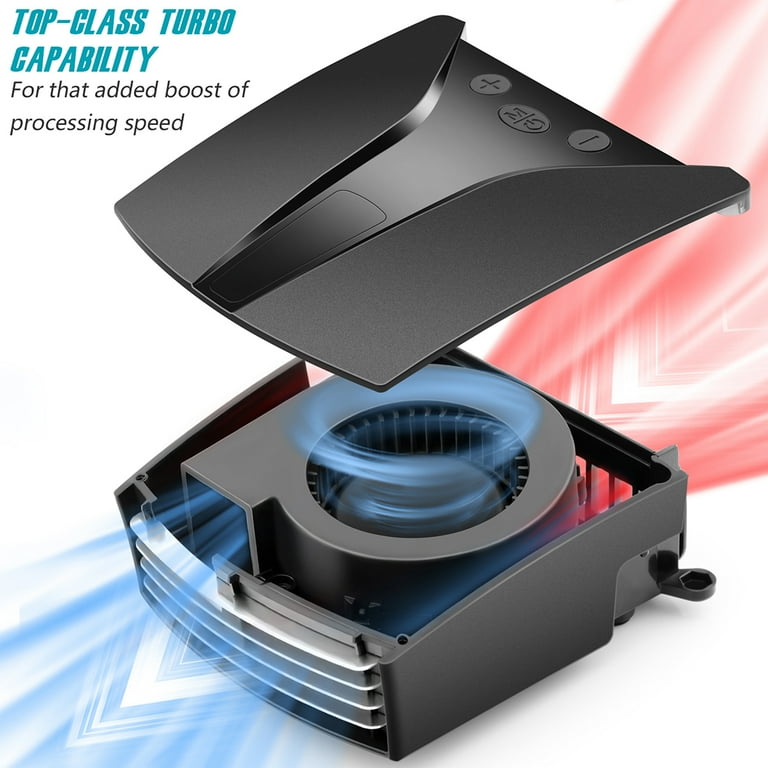
- •Invest in a good cooling pad if you game for long sessions.
- •Keep your drivers updated – especially for integrated and dedicated GPUs.
- •Consider a laptop with a 16:10 aspect ratio for better vertical screen space in games and work.
- •Enable hardware-accelerated GPU scheduling in Windows for smoother performance.
- •Use game mode and battery settings to minimize background processes while gaming.
▸Common Mistakes to Avoid
- •Buying a 2-in-1 with only integrated graphics expecting AAA gaming – check benchmarks first.
- •Ignoring cooling – a thin laptop may throttle and perform worse than a thicker model with the same GPU.
- •Overlooking upgradeability – soldered RAM means you're stuck with 8GB or 16GB.
- •Assuming all USB-C ports are Thunderbolt – only specific ports support eGPUs.
- •Focusing solely on resolution/refresh rate – a 4K 60Hz display is less suited for gaming than a 1440p 120Hz display.
▸Troubleshooting
Problem: Games stutter or run slower than expected.
Solution: Check if the laptop is running in power-saver mode. Plug in the charger, set Windows power plan to High Performance, and ensure the dedicated GPU is being used (set per-game in GPU control panel). Also check for thermal throttling via HWMonitor.
Problem: Fan noise is too loud during gaming.
Solution: Use a headset or noise-cancelling earphones. You can also limit FPS to 60 via in-game settings or use MSI Afterburner to undervolt the GPU, reducing heat and fan speed.
Problem: External GPU not recognized.
Solution: Ensure the enclosure is powered on and drivers are installed. Check if the Thunderbolt cable is compatible (40Gbps rated). Restart the laptop. Some eGPUs require disabling the internal GPU in Device Manager.
Problem: Battery drains quickly even when not gaming.
Solution: Disable the dedicated GPU for non-gaming applications via task manager or GPU control panel. Lower screen brightness and refresh rate to 60Hz when on battery. Check for background apps consuming GPU resources.
ASUS ROG Flow Z13 (2026 model)
One of the few detachable 2-in-1s with a dedicated GPU (up to RTX 4070), excellent cooling via a built-in kickstand, and supports XG Mobile eGPU.
Best for: Best for users who want a powerful tablet for gaming and a desktop-like experience via eGPU at home.
Price Range: $1,800 - $2,500
Lenovo Yoga Pro 9i 16 (2026)
A 360° convertible with up to RTX 4060, mini-LED display, and excellent build quality – a great all-rounder.
Best for: Ideal for creative professionals who game occasionally and want a large, high-quality display.
Price Range: $1,500 - $2,200
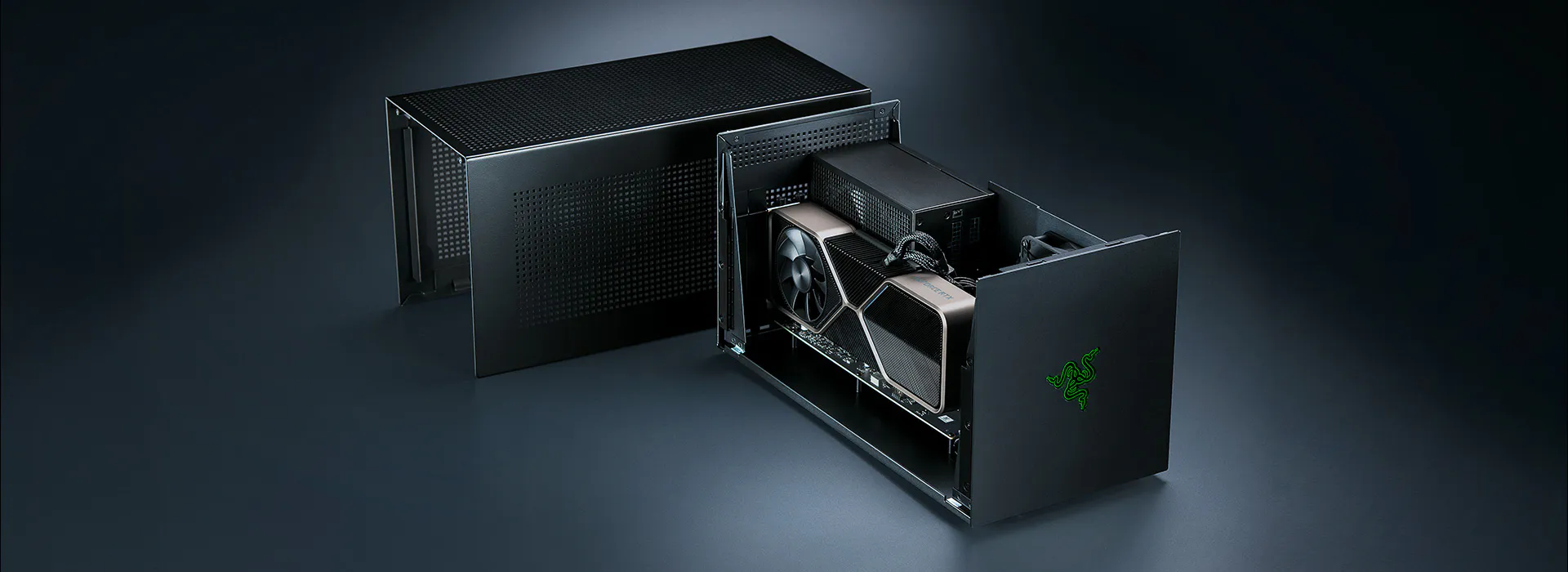
Razer Core X Chroma eGPU Enclosure
High-quality Thunderbolt 5 compatible enclosure with 700W PSU, supports full-size GPUs.
Best for: Pair with any Thunderbolt 5 2-in-1 for desktop-level gaming at home.
Price Range: $400 - $500
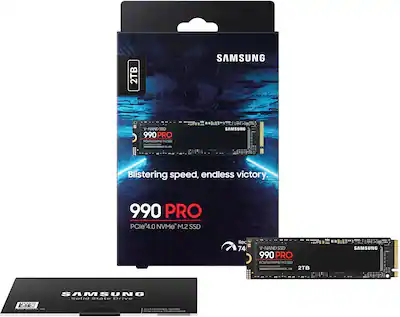
Samsung 990 Pro 2TB NVMe SSD
Fast PCIe Gen 5 SSD for upgrading storage in compatible 2-in-1s.
Best for: Upgrade your laptop's storage for faster game loading and more capacity.
Price Range: $200 - $300
OPOLAR Cooling Pad with RGB
Affordable dual-fan cooling pad that lifts the laptop and improves airflow, reducing thermal throttling.
Best for: Use during extended gaming sessions on a desk.
Price Range: $25 - $40