In today's digital world, visual content is king—whether you're promoting a business, designing social media graphics, or crafting personal projects. But if you're new to graphic design, choosing the right software can feel overwhelming. What exactly is graphic design software, and do you need to spend a fortune on premium tools like Adobe Photoshop?
This guide breaks it down for beginners, explaining what graphic design software is, how it works, and why free alternatives are a game-changer. You'll discover the core concepts, common features, and step-by-step insights into getting started. By the end, you'll understand how to pick and use tools that fit your needs, all without technical jargon.
Expect a straightforward read that takes about 15-20 minutes. No prior design experience required—just curiosity and a device to explore on.
▸What You'll Need
- •A computer, laptop, or tablet with internet access
- •Basic computer literacy (e.g., downloading files and navigating apps)
- •Optional: A mouse or drawing tablet for more precise work
Estimated Time: 15-20 minutes to read and understand
Difficulty: beginner
▸Step-by-Step Instructions
Step 1: Define Graphic Design Software
Graphic design software is a digital tool that lets you create, edit, and manipulate visual content like images, logos, posters, and layouts. Think of it as a digital canvas and toolbox combined—similar to how a painter uses brushes and paints, but on your screen.
At its core, it helps turn ideas into professional-looking graphics. For beginners, it's accessible via user-friendly interfaces with drag-and-drop features. Why it matters: In a world dominated by visuals (social media, ads, websites), this software empowers anyone to communicate ideas effectively without hiring a pro.
Expect to see terms like 'raster' (pixel-based for photos) and 'vector' (scalable lines for logos), but we'll explain them later.
💡 Tips:
- •Start with simple projects like editing a photo to build confidence.
- •Use analogies: Software is like Microsoft Word but for pictures.
⚠️ Warnings:
- •Don't confuse it with video editing software—graphic design focuses on static visuals.
Step 2: Explore Key Features
Most graphic design software includes tools for drawing, layering, color adjustment, and text manipulation. Layers act like transparent sheets stacked on top of each other, allowing edits without ruining the base image—imagine editing a sandwich without disassembling it.
Common features: Selection tools (to isolate parts of an image), brushes (for freehand drawing), and filters (to enhance colors or add effects). Why it matters: These make complex designs manageable, saving time and reducing errors.
For beginners, look for intuitive interfaces with tutorials built-in. Expect a learning curve, but free trials or versions ease you in.
💡 Tips:
- •Practice with built-in templates to see features in action.
- •Focus on 3-5 core tools first: crop, resize, and text.
Step 3: Understand Types of Software
Graphic design software falls into categories: Raster editors (like Photoshop for photo editing) handle pixels, ideal for detailed images but lose quality when scaled. Vector software (like Illustrator) uses math-based paths for crisp, scalable designs—perfect for logos that resize without blurring.
There's also all-in-one tools for web graphics or UI design. Why it matters: Choosing the type matches your project; e.g., vectors for print, rasters for web photos.
Beginners often start with hybrid tools that blend both.
💡 Tips:
- •Test raster for photos and vector for icons to feel the difference.
- •Analogy: Raster is like a mosaic (pixels), vector like connect-the-dots (lines).
⚠️ Warnings:
- •Avoid using raster for logos—it'll pixelate when enlarged.
Step 4: Why Use It? Benefits for Beginners
Graphic design software democratizes creativity, letting hobbyists or small business owners produce pro-level work. Benefits include cost savings (vs. outsourcing), skill-building, and endless experimentation—no mess like traditional art.
It boosts productivity: Edit quickly, collaborate via cloud sharing, and export in various formats (PNG for web, PDF for print). Why it matters: In 2024, visuals drive engagement—posts with images get 94% more views.
Expect empowerment: Start simple, grow complex.
💡 Tips:
- •Join online communities like Reddit's r/graphic_design for inspiration.
Step 5: Paid vs. Free: The Trade-Offs
Paid software like Adobe Suite offers advanced features, seamless updates, and integrations but costs $20-50/month. Free alternatives match 80% of needs for beginners, with open-source communities providing support.
Trade-offs: Paid has polished UI and AI tools; free might lack some plugins but is cost-free and ad-light. Why it matters: Most starters don't need premium—free builds foundations.
Overview: Free tools evolve rapidly, often inspired by paid ones.
💡 Tips:
- •Try free first; upgrade if you hit limits.
⚠️ Warnings:
- •Free doesn't mean low-quality—many pros use them.
Step 6: Top Free Alternatives to Try
GIMP (GNU Image Manipulation Program) is a raster powerhouse, mimicking Photoshop for photo editing and custom brushes. Inkscape excels in vectors for logos and illustrations. Canva's free tier offers templates for quick social media designs—no skills needed.
Others: Photopea (browser-based Photoshop clone) and Krita (for digital painting). Why it matters: These are robust, community-backed, and cross-platform (Windows, Mac, Linux).
Expect easy downloads; start with Canva for no-install fun.
💡 Tips:
- •Download from official sites to avoid malware.
- •Use Canva for beginners, GIMP for deeper edits.
Step 7: Getting Started with Free Tools
Install a free tool like GIMP: Download from gimp.org, run the installer, and launch. Follow built-in tutorials to create your first project—import an image, add text, export.
Practice workflow: Plan (sketch ideas), design (use tools), refine (adjust layers), share. Why it matters: Hands-on builds intuition faster than theory.
Expect initial frustration, but 30 minutes daily yields quick progress.
💡 Tips:
- •Watch YouTube tutorials specific to the tool.
- •Save work in native formats for easy edits.
⚠️ Warnings:
- •Backup files—free tools can crash like any software.
▸Pro Tips
- •Start small: Design a business card before tackling full posters.
- •Use keyboard shortcuts (e.g., Ctrl+Z for undo) to speed up work.
- •Leverage free stock images from sites like Unsplash to practice.
- •Customize workspaces in free tools to mimic paid software layouts.
- •Join free online courses on platforms like Coursera for guided learning.
- •Experiment with themes: Dark mode reduces eye strain during long sessions.
- •Export in multiple formats for versatility (e.g., SVG for web scalability).
▸Common Mistakes to Avoid
- •Overloading on features too soon: Beginners skip basics and get frustrated—focus on fundamentals first.
- •Ignoring file formats: Saving vectors as JPEG loses scalability—always choose appropriate formats like PNG or SVG.
- •Not using layers: Editing without layers merges everything, making changes hard—treat layers like editable Post-it notes.
- •Downloading from untrusted sites: Leads to viruses—stick to official sources for free software.
- •Expecting instant pro results: Free tools require practice—set realistic goals to avoid discouragement.
▸Troubleshooting
Problem: Software crashes during use
Solution: Update your OS and drivers; reduce image size or close other apps. For GIMP, check plugins for conflicts.
Problem: Designs look blurry when printed
Solution: Use vector tools for logos and set high DPI (300+) for exports. Test prints on small scale first.
Problem: Can't install on older computer
Solution: Opt for browser-based like Photopea or check system requirements. Upgrade RAM if possible for smoother performance.
Problem: Colors differ on different screens
Solution: Calibrate your monitor or use sRGB color profile. When to seek help: Consult a pro for color-critical work like printing.
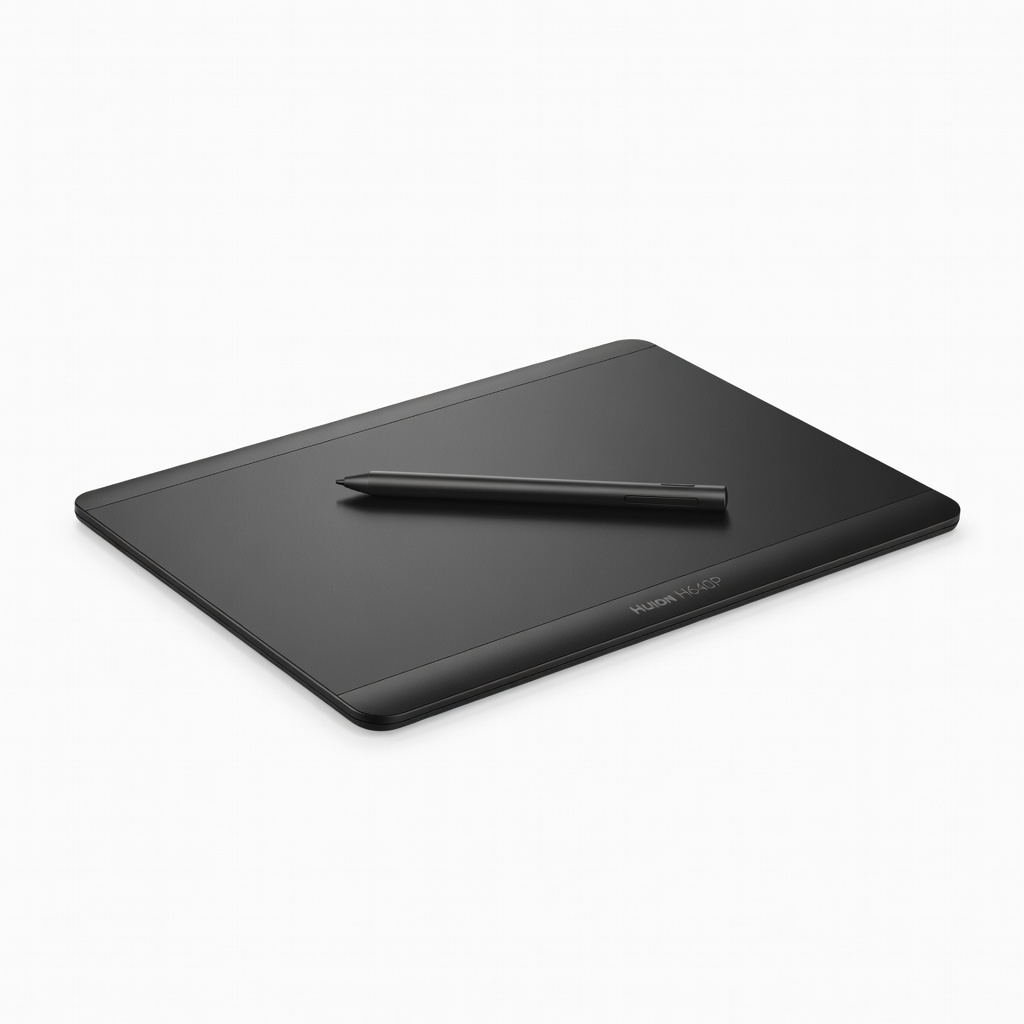
Huion H640P Graphics Drawing Tablet
Enhances precision for beginners using free software like Krita or GIMP, turning mouse-based design into natural drawing.
Best for: Ideal for digital sketching and photo editing when freehand control is needed.
Price Range: $30-$40
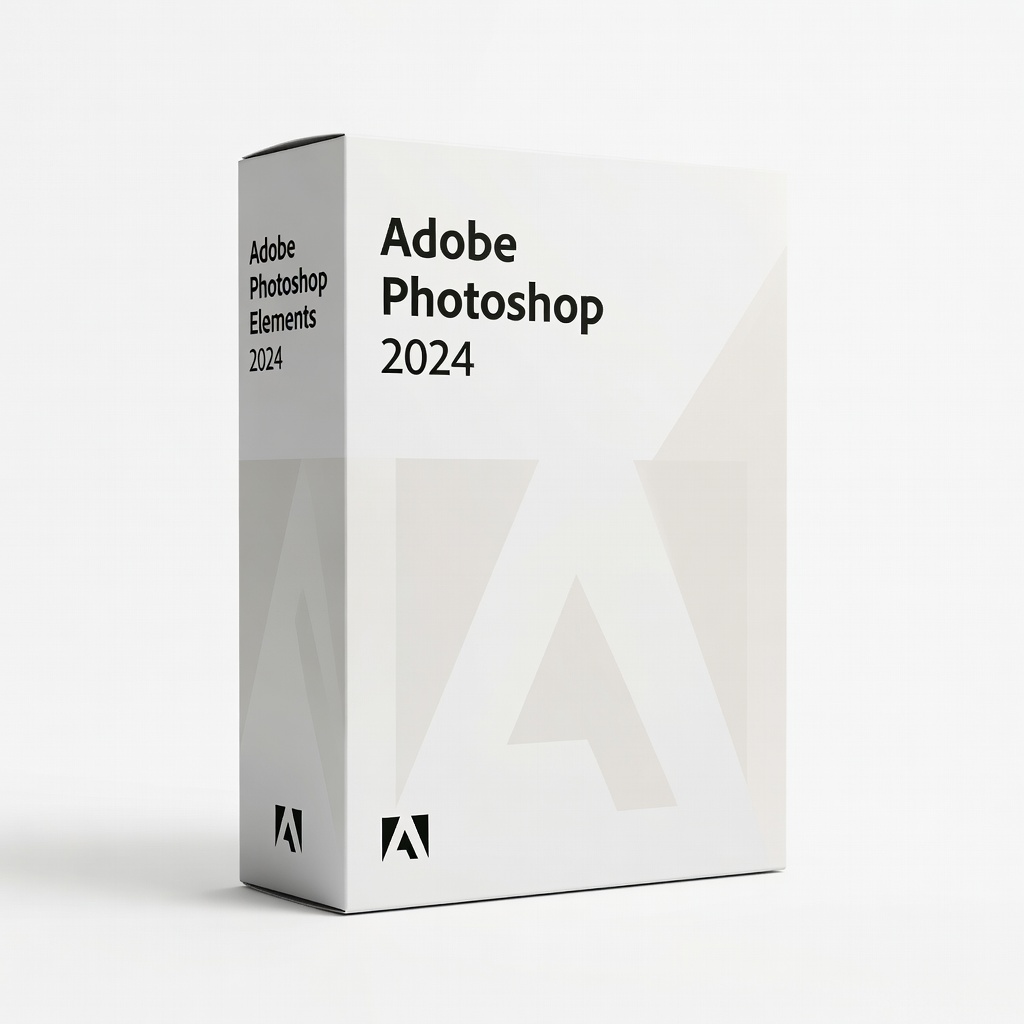
Adobe Photoshop Elements 2024
A beginner-friendly paid alternative to full Photoshop with AI tools, bridging free software to pro features.
Best for: For users outgrowing free tools needing organized photo editing and templates.
Price Range: $90-$100
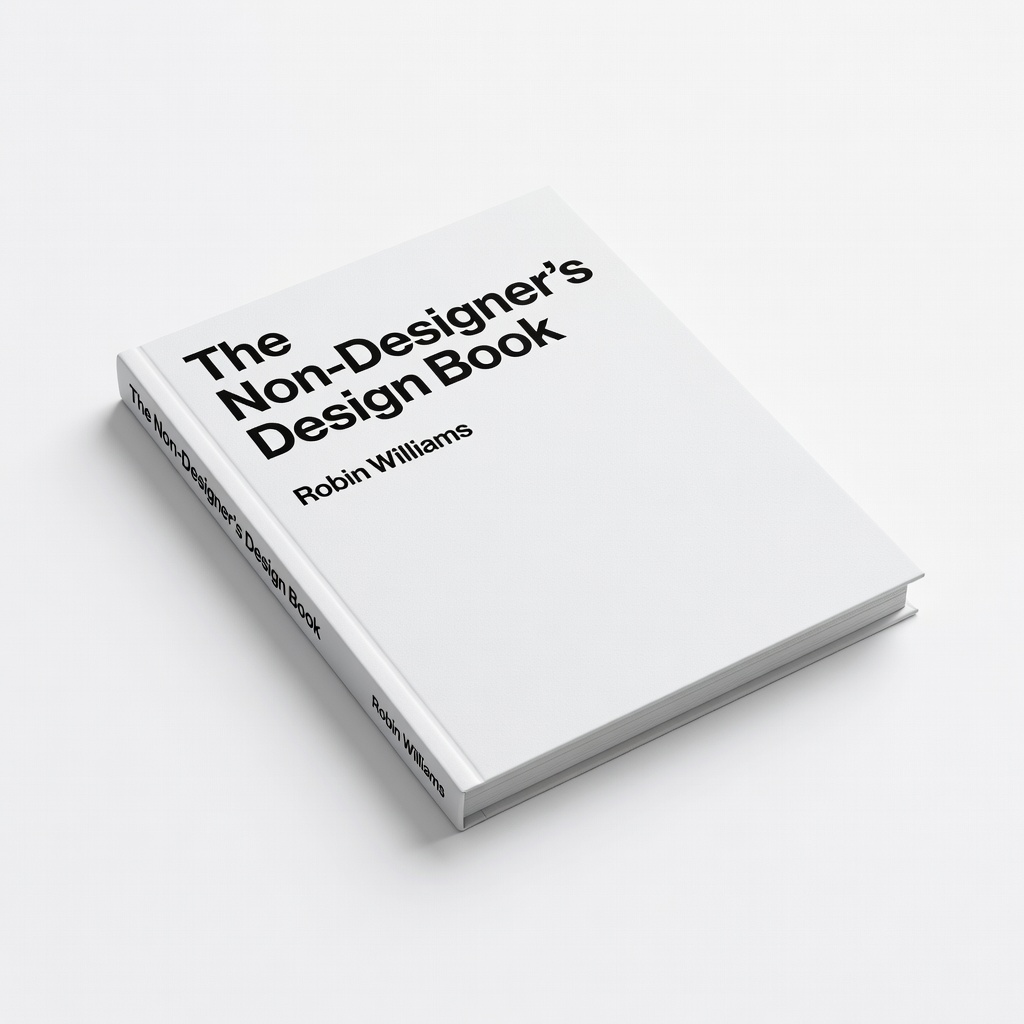
The Non-Designer's Design Book by Robin Williams
Teaches design principles to complement free software use, helping beginners create better visuals intuitively.
Best for: Reference for learning layout, color, and typography while practicing in tools like Canva.
Price Range: $25-$30
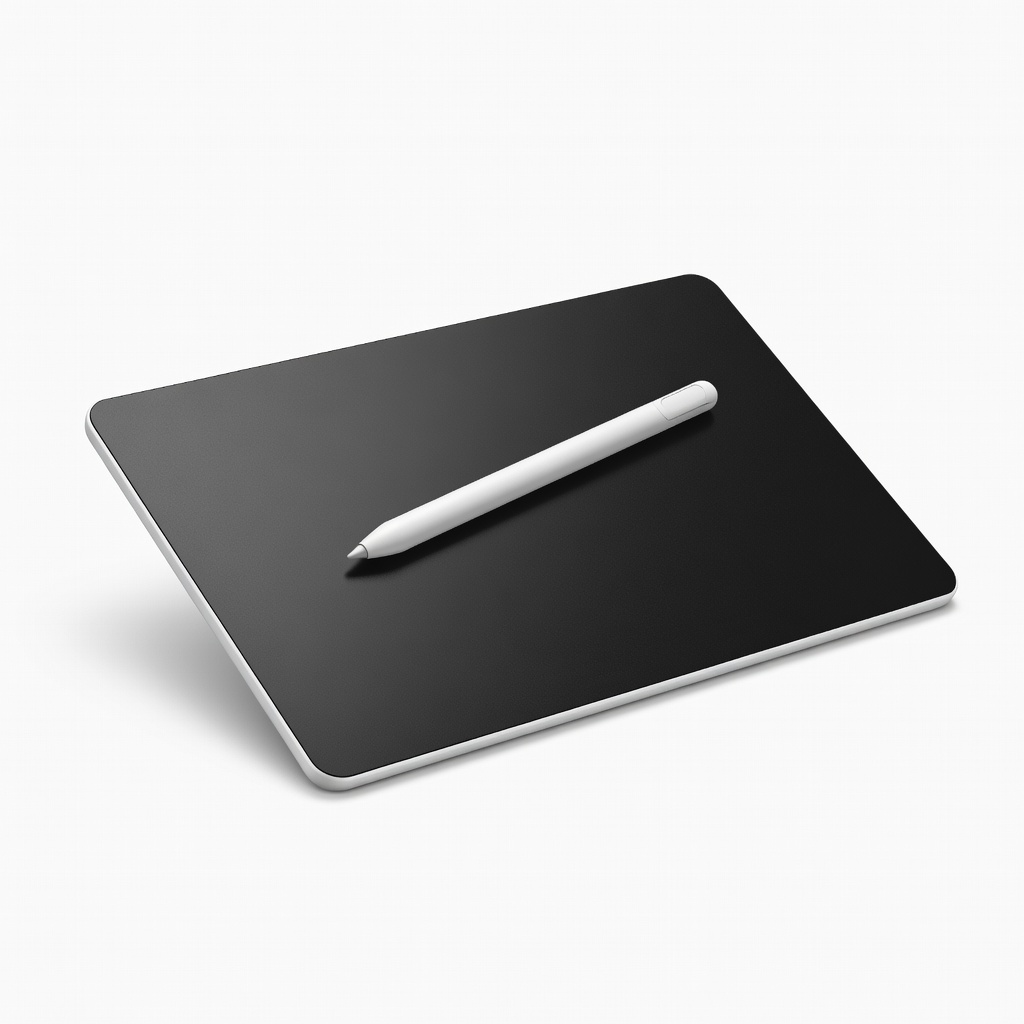
XP-Pen Deco Mini7 Drawing Tablet
Affordable upgrade for free vector software like Inkscape, with customizable buttons for efficiency.
Best for: Logo creation and illustration for hobbyists wanting tablet input without high cost.
Price Range: $40-$50