Choosing a graphics card can feel like reading a foreign language. Between VRAM, CUDA cores, boost clocks, and ray tracing, it's easy to get lost and end up with a card that's either underpowered or overkill for your needs. The good news? You don't need to be a hardware engineer to make a smart choice.
This guide cuts through the jargon and walks you through exactly what a graphics card does, which specifications really matter, and how to make a decision that fits the games you play, your monitor, and your budget. By the end, you'll know what to look for, what to avoid, and how to confidently pick your next GPU—whether you're building your first PC or upgrading an existing system.
▸What You'll Need
- •A basic understanding of PC components (CPU, motherboard, power supply)
- •Your monitor's native resolution and refresh rate (usually found in the manual or on the manufacturer's website)
- •A list of games you currently play or plan to play
- •A realistic budget for your entire PC build or upgrade
- •Optional: PC Part Picker or similar compatibility tool
Estimated Time: 10-15 minutes to read, plus 1-2 hours to research and compare finalists
Difficulty: beginner
▸Step-by-Step Instructions
Step 1: Understand What a Graphics Card Does
A graphics card (also called a GPU) is the brain behind what you see on your monitor. It handles the heavy lifting of rendering images, videos, and 3D scenes. When you launch a game, the GPU takes instructions from the game engine and transforms them into the colorful, moving frames you play. This process involves millions of complex calculations every second.
Your CPU handles general tasks like game logic and AI, but it's not efficient at the kind of parallel, visual math required for high-resolution graphics. That's why a dedicated graphics card is essential for modern gaming. NVIDIA, AMD, and Intel are the main GPU manufacturers, and each offers cards with different strengths and price points.
💡 Tips:
- •Think of the GPU as an artist that paints every frame on your screen.
- •For gaming, a dedicated GPU is essentially required for modern titles.
⚠️ Warnings:
- •Don't confuse integrated graphics (built into the CPU) with a dedicated graphics card; they're not nearly as powerful.
Step 2: Know the Key Specs: VRAM, Core Count, Clock Speed
When you look at a graphics card, you'll see specs like VRAM (video RAM), CUDA cores or Stream Processors, and clock speeds. VRAM stores textures and models; more VRAM lets you run higher-resolution textures without stuttering. For modern gaming, 8GB is a practical minimum for 1080p, while 16GB is a safer bet for 1440p and 4K.
Core count (e.g., NVIDIA CUDA cores, AMD Stream processors) determines how many parallel calculations the GPU can perform. More cores generally mean better performance, but architecture and clock speed also matter. Clock speed, measured in MHz, tells you how fast those cores run. Higher is better, but there are diminishing returns depending on the architecture.
💡 Tips:
- •Check recommended VRAM for the specific games you play.
- •Use benchmarks that show 'average FPS' at your resolution rather than just 'core count'.
⚠️ Warnings:
- •Don't get tricked by a large number of cores alone; compare performance in real games.
Step 3: Determine Your Resolution and Refresh Rate
Your monitor's native resolution and refresh rate are critical when choosing a GPU. At 1080p (1920x1080), you can get high frame rates with a mid-range card like the RTX 4060 or RX 7600. For 1440p (2560x1440), you'll want a stronger card like the RTX 4070 Super or RX 7800 XT to maintain high settings and smooth gameplay. If you game at 4K (3840x2160), you're in premium GPU territory, and even top cards may need to use upscaling to maintain high FPS.
Refresh rate (Hz) matters too. A 144Hz or 165Hz monitor can display up to 144 or 165 frames per second, so you need a GPU capable of hitting those frame rates to enjoy the benefit. If you have a 60Hz monitor, a cheaper card can still be fine.
💡 Tips:
- •Check your monitor's exact model on the manufacturer's site to see its refresh rate.
- •If you're building a new PC, choose your GPU after you've decided on your monitor.
⚠️ Warnings:
- •Don't buy a 4K GPU for a 1440p monitor unless you plan to upgrade soon; you're paying for extra performance you can't fully use.
Step 4: Identify the Games You Play and Their Requirements
Not all games are equally demanding. Competitive titles like Fortnite, Valorant, and CS2 run well on almost any recent card. Single-player AAA games like Cyberpunk 2077 or Alan Wake 2 are graphically intensive and benefit from a more powerful GPU. Look up the recommended system requirements for the games you play, not just minimums, to get a smooth experience.
Also consider future games you might want to play. If you're planning to play the next big release at high settings, it's worth investing a bit more today. Use the game's official website or Steam page to see recommended specs.
💡 Tips:
- •Write down 3-5 games you care about and their recommended GPU requirements.
- •Use online benchmarks that show how specific GPUs perform in those games.
⚠️ Warnings:
- •Don't ignore the CPU requirements; you might be bottlenecked if your processor is too old.
Step 5: Set a Realistic Budget
Graphics cards range from under $200 to over $1,500. For a budget build, you can get by with an Intel Arc A750 or a used GTX 1660 Super for 1080p gaming. Mid-range cards like the RTX 4060 or RX 7600 cost around $300 and handle 1080p on high settings, with some 1440p capability. Enthusiast cards like the RTX 4070 Super or RX 7800 XT, priced around $500-$650, are ideal for 1440p high refresh and even 4K on lower settings.
Your budget shouldn't just cover the GPU; you also need a compatible CPU, power supply, and case. A general rule is to spend about 30-40% of your total PC budget on the graphics card, but this can vary based on your priorities.
💡 Tips:
- •Set a strict ceiling and factor in shipping and taxes.
- •Check for bundle deals that include games or other hardware.
⚠️ Warnings:
- •Don't stretch your budget to a card that forces you to cheap out on a power supply, as that can be dangerous.
Step 6: Compare AMD, NVIDIA, and Intel
The three main GPU makers take different approaches. NVIDIA has the most advanced features, including ray tracing, DLSS (AI upscaling), and NVENC for streaming. AMD offers excellent rasterization performance per dollar and now supports FSR, its upscaling tech, and ray tracing, though often less refined than NVIDIA's first generation. Intel's Arc cards are a newer, more budget-friendly option, but still have some driver quirks and are best for value-conscious buyers.
Your choice also depends on your CPU and monitor. NVIDIA G-Sync and AMD FreeSync are monitor sync technologies; check which your monitor supports. For beginners, don't get too hung up on brand loyalty. Instead, read up-to-date product reviews from sources you trust.
💡 Tips:
- •Look at charts that compare GPUs at your target resolution.
- •Check if the card's features like ray tracing performance matter to you.
⚠️ Warnings:
- •Beware of fanless or blower-style cards in small cases; they can run hot differently.
Step 7: Check Compatibility with Your PC
Before you buy a graphics card, make sure it fits inside your computer. Check the length of your case, available PCIe x16 slot, and power supply wattage. High-end cards like the RTX 4090 are huge and often require 12VHPWR power connectors and at least 850W PSU. Mid-range cards are generally shorter and use one 8-pin or 16-pin connector.
Use a compatibility checker like PCPartPicker to ensure your CPU won't bottleneck your chosen GPU. A very old CPU can hold back a new GPU at low resolutions. Also, check that your operating system supports the card (Windows 10/11 supports all modern GPUs).
💡 Tips:
- •Use PCPartPicker or a similar site to build your system and see compatibility.
- •Measure the empty space inside your case to avoid surprises.
⚠️ Warnings:
- •Don't ignore the power supply's PCIe cable requirements; you can burn out a card if it's underpowered.
Step 8: Look at Performance Benchmarks from Trusted Reviewers
The best way to compare GPUs is to look at benchmark reviews from respected sources like Gamers Nexus, TechPowerUp, or Hardware Unboxed. These reviews run a suite of games and record average FPS at different resolutions. While you might not get identical performance in your own system, they provide a reliable idea of relative performance.
Pay attention to the 'relative performance' charts, which typically show a percentage comparison. Also check temperature and noise measurements, as some cards are louder or hotter than others. Never rely solely on manufacturers' marketing numbers or 'up to' percentages.
💡 Tips:
- •Search for '[GPU name] review 2025' on YouTube to see recent tests.
- •Look at frame rates in the games you actually play.
⚠️ Warnings:
- •Don't trust performance figures posted by random sellers or forums without raw data.
Step 9: Consider Features: Ray Tracing, DLSS, FSR, Streaming Encoders
Ray tracing is a visually impressive effect that simulates how light behaves in real life. It's very demanding, so all modern GPUs include hardware to accelerate it. NVIDIA and AMD both support ray tracing, but NVIDIA's implementation is generally faster. DLSS (NVIDIA) and FSR (AMD and Intel) are upscaling technologies that render a game at a lower internal resolution and then upscale it back, giving you more FPS with minimal visual loss.
If you plan to stream, NVIDIA's NVENC encoder is the gold standard for quality and low CPU impact. AMD and Intel have their own encoders, but they aren't as universally praised. These features can extend the lifespan of your GPU and make it more versatile.
💡 Tips:
- •If you're a streamer, prioritize NVIDIA cards for the smoothest streaming.
- •Learn how to enable DLSS or FSR in your games for a free FPS boost.
⚠️ Warnings:
- •Don't buy a card solely for ray tracing support if you don't plan to use it.
Step 10: Decide on New vs. Used or Previous Generation
Buying the latest generation isn't always the right move. Previous-generation cards, like the RTX 30 series or RX 6000 series, offer huge discounts when new ones launch. For example, an RTX 3060 still handles 1080p great and can often be found under $200. Used cards can be even cheaper, but they come with risks.
If you buy used, ask the seller about its origin (e.g., mining) and test it in person if possible. Ensure the card hasn't been overclocked or modified. Some buyers prefer 'factory refurbished' cards that come with a warranty. If a deal seems too good to be true, it probably is.
💡 Tips:
- •Check your local resale market and forums for reputable sellers.
- •Consider buying a refurbished card from the manufacturer if it includes a warranty.
⚠️ Warnings:
- •Avoid used cards that were used for crypto mining; they may have degraded fans or memory.
Step 11: Make Your Choice and Purchase
By now, you should have a shortlist of cards that fit your resolution, games, and budget. Narrow it down by comparing the benchmarks you've gathered, the features you care about, and the price difference. Once you've picked a finalist, check availability across online stores like Amazon, Newegg, and Micro Center, and look for promotions.
When you're ready to buy, confirm the return policy and warranty. A standard 3-year warranty is typical for new cards from major brands. Keep the box and receipt in case you need to return it. Then, when your GPU arrives, follow a reliable installation guide to get it running.
💡 Tips:
- •Set up a price alert using sites like CamelCamelCamel for Amazon price drops.
- •Don't forget to update your graphics drivers after installation.
⚠️ Warnings:
- •Don't make the purchase on impulse at full MSRP when you can wait for a sale.
▸Pro Tips
- •Always check your power supply's PCIe connectors before buying.
- •Use a GPU support bracket to prevent sagging in bigger cards.
- •For laptops, you can't upgrade the GPU, so choose wisely from the start.
- •Read the full tech review, not just the summary, because thermals and noise matter.
- •Consider the resale value: popular cards from NVIDIA tend to hold their value better.
- •Don't be afraid to buy an entry-level card now and upgrade later; the slot is standard.
- •If you're on a tight budget, look for factory-refurbished cards from the manufacturer.
- •Always update your BIOS and chipset drivers before installing a new GPU.
▸Common Mistakes to Avoid
- •Ignoring your monitor's resolution and buying either too weak or too strong a GPU.
- •Buying a card with a huge cooler and realizing it doesn't fit in the case.
- •Not upgrading the power supply and causing system reboots or instability.
- •Focusing only on VRAM and not considering the overall performance in games.
- •Trusting synthetic benchmark numbers over real-game performance.
▸Troubleshooting
Problem: No display after installing a new GPU.
Solution: Reseat the card, double-check that the power cables are connected, and confirm the monitor is plugged into the GPU, not the motherboard.
Problem: Low FPS in games despite a high-end GPU.
Solution: Check for CPU bottlenecks, enable XMP/EXPO for RAM, and update drivers.
Problem: The card runs hot or the fan is loud.
Solution: Improve case airflow, adjust fan curves, and ensure the card is clear of obstructions.
Problem: Coil whine (a high-pitched noise).
Solution: This is normal under high FPS; you can cap the frame rate to reduce it.
Problem: Driver crashes or 'Display driver stopped responding'.
Solution: Use Display Driver Uninstaller (DDU) in safe mode to remove old drivers, then do a clean driver install.
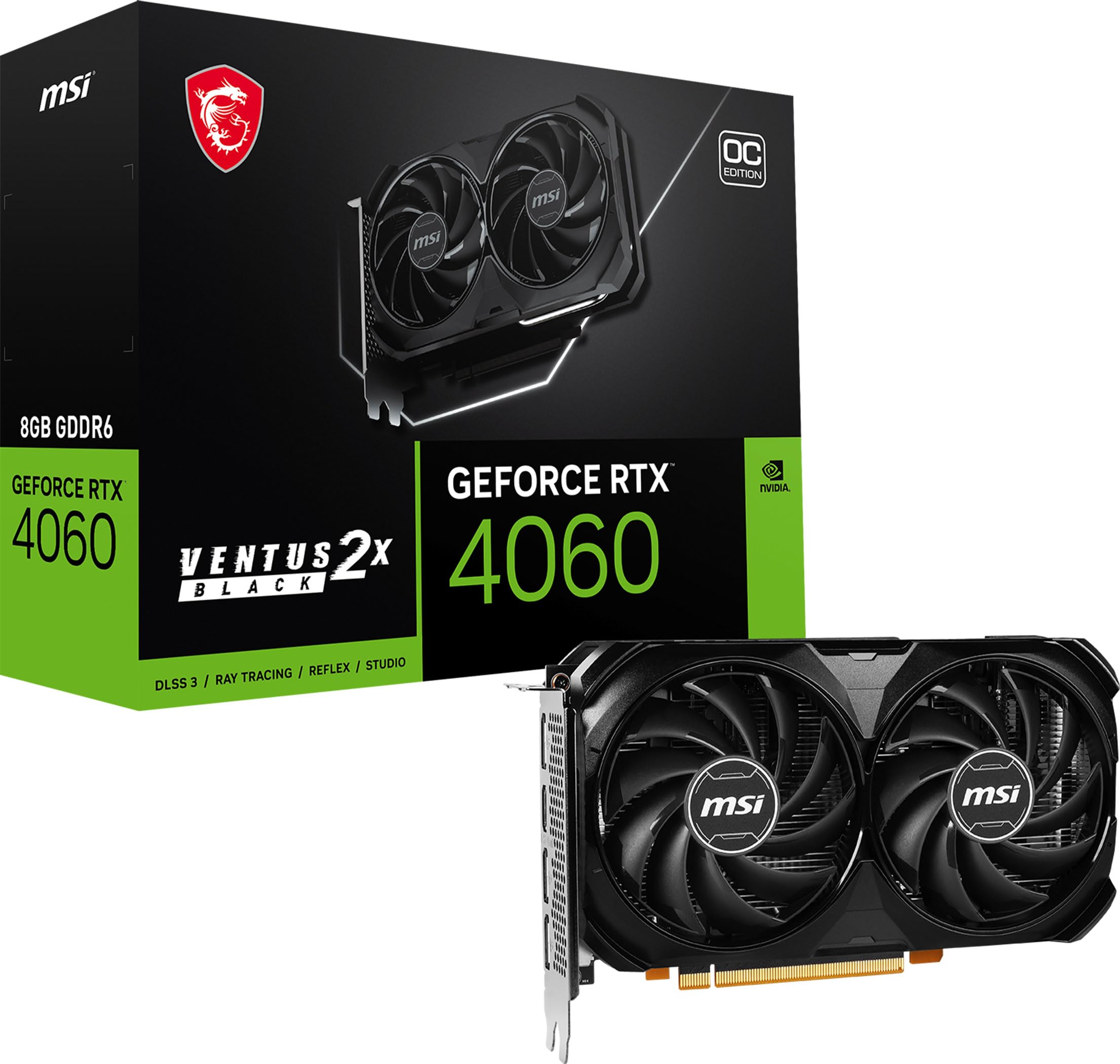
NVIDIA GeForce RTX 4060
The RTX 4060 is the go-to card for 1080p gaming. It offers excellent performance per watt, supports DLSS 3, and handles ray tracing surprisingly well at this price point.
Best for: Ideal for gamers on a budget who want a smooth 1080p experience in modern titles with high settings.
Price Range: around $300
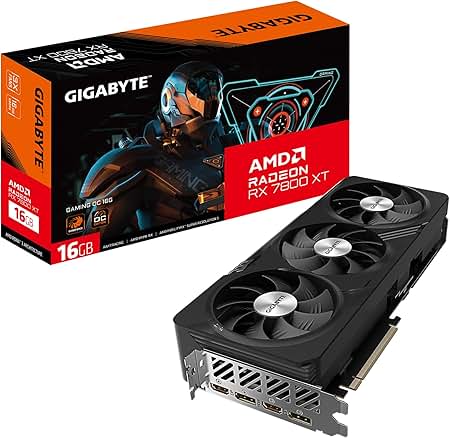
AMD Radeon RX 7800 XT
With 16GB of VRAM and impressive rasterization performance, the RX 7800 XT is a standout for 1440p gaming. It often delivers better raw FPS than NVIDIA cards in the same price range.
Best for: Great for gamers targeting 1440p high refresh rates without needing ray tracing or streaming features.
Price Range: around $500
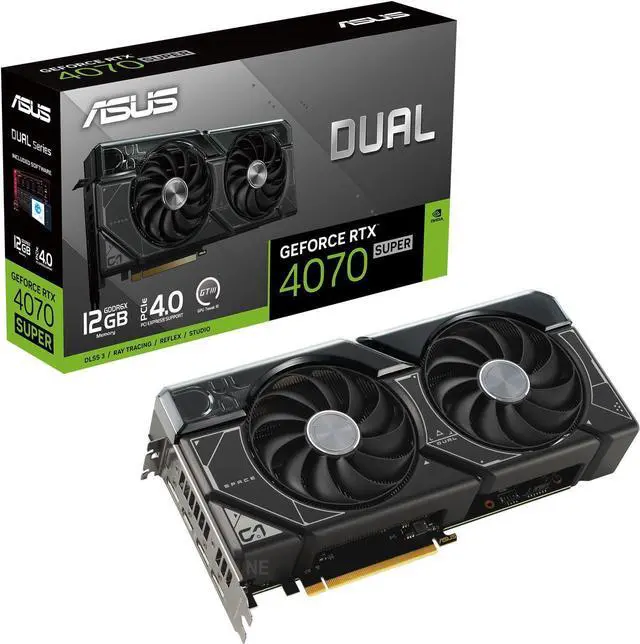
NVIDIA GeForce RTX 4070 Super
This is the sweet spot for 1440p with ray tracing and high refresh rates. It also has improved DLSS 3 and a new encoder, making it a strong choice for streamers.
Best for: Perfect for gamers who want to play the latest AAA games at 1440p with ray tracing enabled and still hit high FPS.
Price Range: around $600
Intel Arc A750
One of the best budget buys in years, the Arc A750 competes with much more expensive cards at 1080p and offers modern features like ray tracing and XeSS upscaling for a low price.
Best for: For first-time PC builders or those on a strict budget who still want a capable gaming card for 1080p.
Price Range: around $200
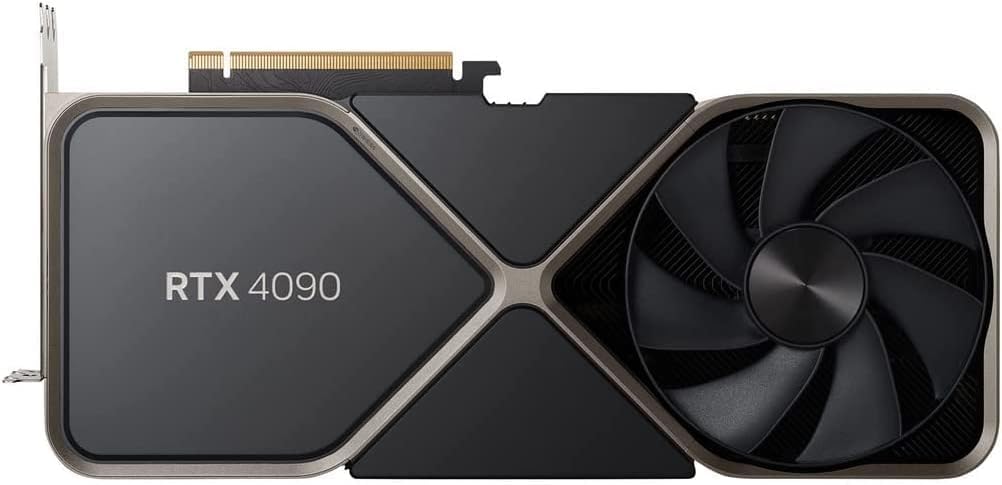
NVIDIA GeForce RTX 4090
The undisputed king of performance. If you want the absolute best, nothing comes close for 4K gaming, AI workloads, and future-proofing.
Best for: For enthusiasts building a no-compromise rig and those who play on high-refresh 4K monitors.
Price Range: around $1,600