▸Why AC Adapter Compatibility Matters
Buying the wrong laptop charger can damage your device, void warranties, or leave you stranded without power. With countless adapters on the market, confusion is common—especially when universal options promise to fit 'everything.' This guide breaks it down so you can confidently choose or replace your adapter.
You'll learn the core specs (voltage, amps, connectors), how to check your laptop's needs, and when universals work (or don't). No jargon overload—just clear explanations with examples. Expect 10-15 minutes to read and verify your own setup; intermediate knowledge of basic tech helps but isn't required.
By the end, you'll spot compatible adapters instantly and avoid costly errors.
▸What You'll Need
- •Your laptop's model number (found on bottom sticker or in settings)
- •Access to manufacturer's website or user manual
- •A current AC adapter for reference (optional but helpful)
- •Basic understanding of numbers (volts, amps—no advanced math needed)
Estimated Time: 10-15 minutes
Difficulty: intermediate
▸Step-by-Step Instructions
Step 1: Understand What an AC Adapter Does
An AC adapter (also called a power brick or charger) converts wall outlet AC power (alternating current, like 110-240V) to DC power (direct current) your laptop needs. Laptops run on low-voltage DC, similar to batteries.
Analogy: Think of it like a language translator—AC is 'English' from the wall, DC is 'Laptop-ese.' Without matching translation (specs), communication fails (no charging or damage).
Expect labels like 'Input: 100-240V~50/60Hz' (universal wall voltage) and 'Output: 19V 3.42A' (laptop side). This is step zero for compatibility.
💡 Tips:
- •Always unplug before inspecting to avoid shocks.
Step 2: Identify Required Voltage (V)
Voltage is the 'pressure' of electricity—mismatch fries circuits. Most laptops need 19V or 20V DC (check label).
Example: Dell Inspiron might say '19.5V'. Use exactly that or slightly higher (e.g., 19-20V); never lower.
Why it matters: Too low = no charge; too high = overheating/burnout. Find yours on the original adapter or laptop bottom.
⚠️ Warnings:
- •Never guess voltage—double-check manual.
Step 3: Check Amperage (A) or Current Rating
Amps measure flow rate. Your adapter must supply at least the laptop's required amps (e.g., 3.42A or 4.74A for 65W/90W).
Rule: Equal or higher is safe (extra capacity unused); lower = insufficient power, slow charging, or shutdowns.
Analogy: Like a pipe—bigger diameter (higher A) handles flow fine, but smaller clogs up.
💡 Tips:
- •Calculate min A: Watts / Volts = Amps needed.
Step 4: Calculate Wattage (W) Needs
Watts = Volts x Amps (e.g., 19V x 3.42A = 65W). It's total power output.
Laptops list W on labels (45W ultrabooks, 90W+ gaming). Match or exceed—higher W adapters throttle to match.
Pro tip: Gaming rigs need 150W+; offices 65W suffices.
Step 5: Match Connector Size and Type
The barrel plug must fit perfectly (e.g., 5.5mm x 2.5mm outer/inner diameter). Mismatches won't connect or wobble loose.
Types: Barrel (most PCs), USB-C (newer like MacBooks/Dell XPS), proprietary (old ThinkPads).
Measure with calipers or compare to original. USB-C is easiest—standardized.
⚠️ Warnings:
- •Force-fitting damages ports.
Step 6: Verify Center Pin Polarity
Rare but critical: + in center (standard) or - (uncommon). Symbol on label: ⥊ (positive center) or ⥋ (negative).
Mismatch reverses current flow = instant damage. 99% laptops are positive center—confirm via symbol.
💡 Tips:
- •Use multimeter if unsure (set to polarity test).
Step 7: Consider Brand-Specific Features
OEM (original) have smart chips for communication (e.g., HP 'smart' pin). Third-party may lack, causing 'not recognized' errors.
Example: Lenovo G-series needs slim tip; universals often include swaps.
Step 8: Evaluate Universal Adapters
Adjustable voltage/amps with swappable tips. Great backups if specs match.
Pros/Cons: Convenient but bulkier; ensure UL-certified for safety. Test immediately—return if issues.
▸Pro Tips
- •Search '[laptop model] charger specs' on Google for instant label info.
- •Buy UL/ETL certified adapters to avoid fire risks.
- •Keep original as reference; photograph label.
- •For USB-C laptops, PD 65W+ chargers are often plug-and-play.
- •Higher W adapters future-proof for upgrades.
- •Use voltage tester app or multimeter for verification.
- •Store extras labeled by specs to grab fast.
▸Common Mistakes to Avoid
- •Using higher voltage—overheats and destroys components; always match V exactly.
- •Ignoring connector size—loose fit sparks fires; measure twice.
- •Cheaping out on non-certified adapters—safety hazard; stick to reputable brands.
- •Assuming universal fits all—check specs first, not 'compatible list'.
- •Overlooking polarity—rare but fatal; look for the symbol.
▸Troubleshooting
Problem: Laptop not charging or 'wrong adapter' error
Solution: Verify V/A/W match and connector; try OEM or reset SMC (Mac)/battery calibration (PC).
Problem: Adapter gets hot/smells
Solution: Unplug immediately—wrong specs or fake; replace with certified one.
Problem: Slow charging or fan spins up
Solution: Amps too low; upgrade to higher A/W rating.
Problem: Plug doesn't fit tightly
Solution: Wrong barrel size; get exact match or USB-C upgrade if possible.
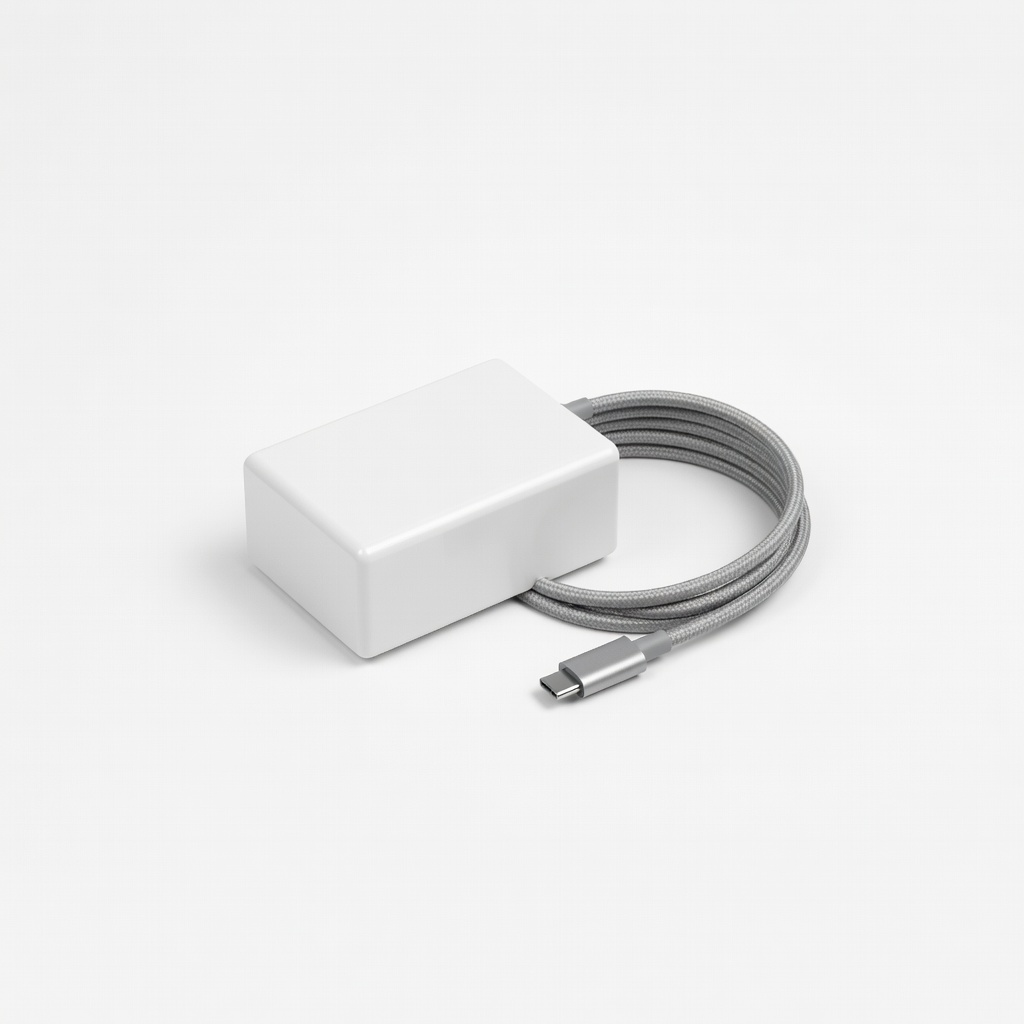
65W USB-C Laptop Charger (for Dell, HP, Lenovo)
Universal USB-C compatibility for modern laptops; matches common 20V/3.25A specs with PD fast charging.
Best for: Replacement for XPS, Spectre, ThinkPad—portable and safe.
Price Range: $19.99
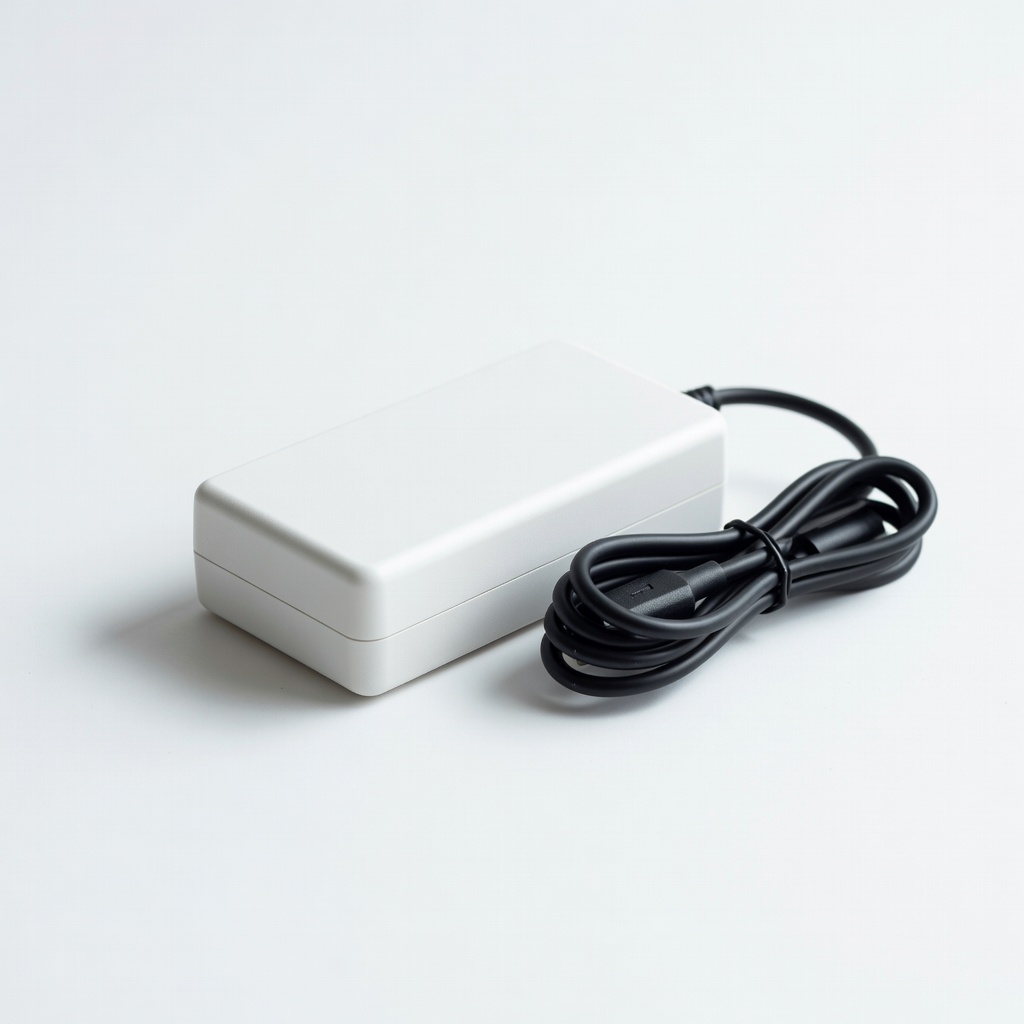
Dell 65W AC Adapter (HA65NM150)
OEM exact match with smart pin; reliable voltage regulation for Dell models.
Best for: Latitude/Inspiron series needing 19.5V 3.34A.
Price Range: $29.99
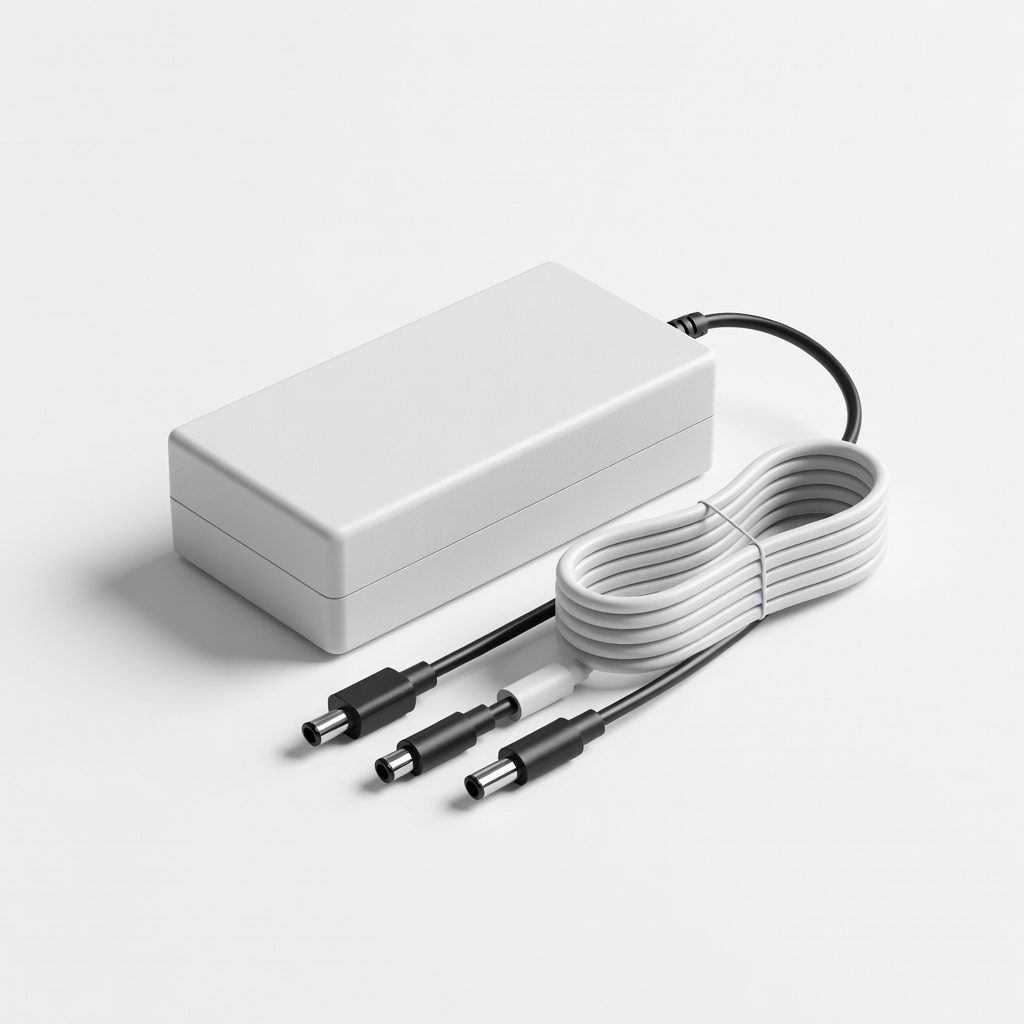
PowerHOOD 90W Laptop AC Adapter (Universal)
Multiple tips, adjustable for 14+ brands; exceeds common W needs safely.
Best for: Gaming laptops or mixed fleet (HP Pavilion, ASUS); 19V 4.74A.
Price Range: $22.99
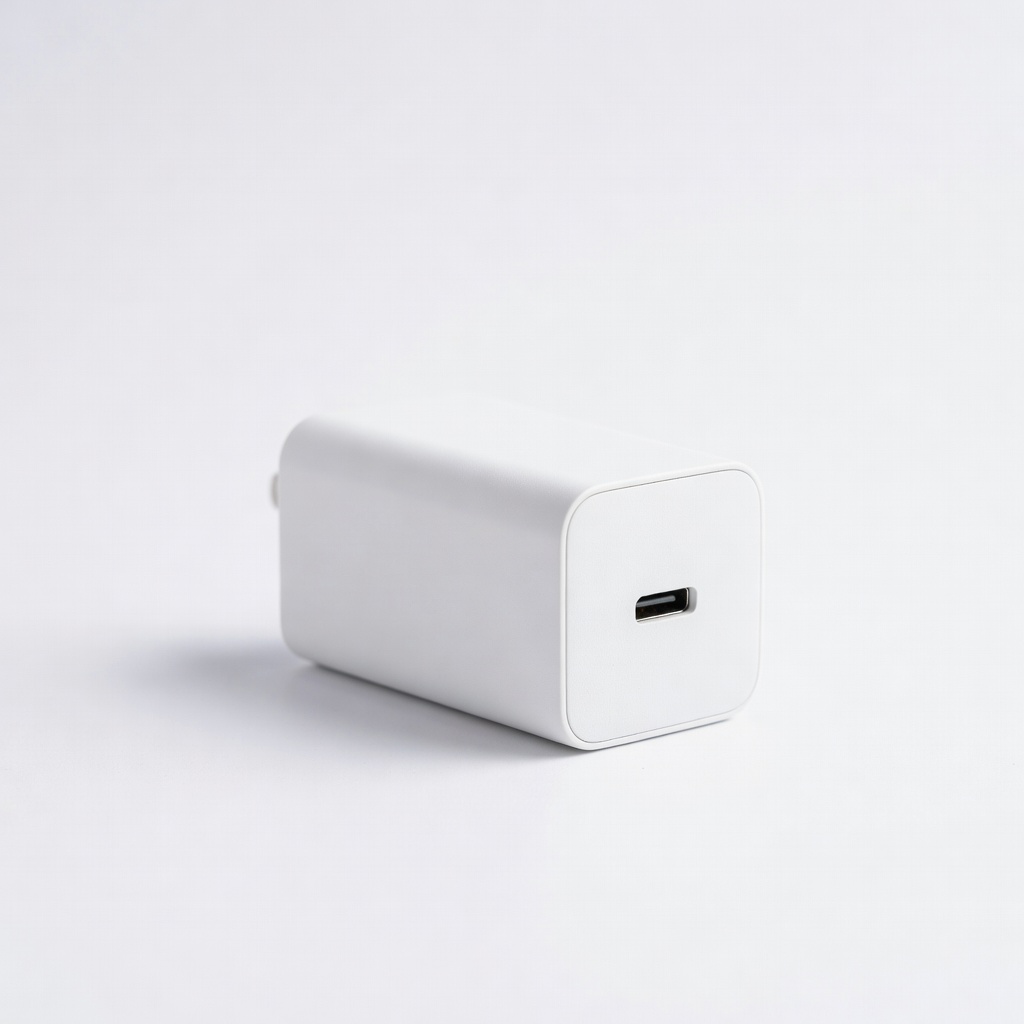
Anker 65W GaN Charger (USB-C)
Compact, efficient GaN tech; PD 3.0 for precise power delivery without bulk.
Best for: Ultrabooks like MacBook Air or Surface—travel-friendly.
Price Range: $39.99
HSN 65W Laptop Charger (for HP)
Budget OEM replacement with 18.5V 3.5A pin; high reviews for compatibility.
Best for: Pavilion, Envy models.
Price Range: $15.99