Dreaming of designing your own home but scared off by complex pro tools like AutoCAD or Revit? You're not alone—most beginners feel overwhelmed by steep learning curves and high costs. The good news? There are user-friendly architecture software options built specifically for hobbyists and first-timers who want to sketch floor plans, visualize 3D models, and experiment with home layouts without a degree in architecture.
In this guide, you'll discover the best architecture software for beginners, from free web-based tools to affordable paid suites. We'll break down key features, pros/cons, and how to pick the right one for your home design projects. By the end, you'll know exactly what to download and how to get started—no prior experience needed. Expect to spend 30 minutes reading and choosing your tool.
Whether you're renovating a kitchen, planning an addition, or just having fun, these tools make architecture accessible. Let's dive in!
▸What You'll Need
- •Computer (Windows 10+, macOS 10.15+, or Chromebook) with at least 8GB RAM and 4GB free storage
- •Stable internet connection (for downloads, tutorials, and cloud-based tools)
- •Basic computer skills (mouse/keyboard navigation, simple file management)
- •Optional: Graphics tablet for precise drawing
Estimated Time: 30-45 minutes (to read, compare, and download your first software)
Difficulty: beginner
▸Step-by-Step Instructions
Step 1: Understand What Makes Software Beginner-Friendly
Beginner architecture software prioritizes ease of use over pro-level precision. Look for drag-and-drop interfaces, pre-made templates (like room layouts or furniture libraries), and instant 3D previews—no coding or manual measurements required.
Think of it like LEGO blocks: Instead of drafting every line from scratch, you snap together walls, doors, and roofs. Key traits include intuitive tutorials, free starter plans, and mobile/web access. This lowers the barrier, letting you focus on creativity.
Why it matters: Pro tools demand weeks to learn; beginner ones get you designing in hours. Expect a gentle learning curve with tooltips and video guides built-in.
💡 Tips:
- •Start with tools offering 'home design templates' for instant inspiration.
- •Test free trials to match your style—visual vs. technical.
Step 2: Explore Top Free Options
Free tools are perfect for dipping your toes in.
- •
SketchUp Free (web-based): Google's tool with a huge 3D warehouse of models. Draw walls, add roofs, and walk through your design in 3D. Ideal for simple homes.
- •
Floorplanner: Online floor plan creator with drag-and-drop. Export 2D/3D images; great for quick layouts.
- •
Sweet Home 3D: Downloadable, offline app. Import furniture, auto-generate 3D views. Runs on low-end PCs.
These have no watermarks on basic exports and communities for help.
💡 Tips:
- •Use SketchUp's 'Sandbox' tool for terrain if designing yards.
- •Save projects to cloud for access anywhere.
⚠️ Warnings:
- •Free versions limit advanced exports—upgrade if sharing professionally.
Step 3: Check Out Affordable Paid Tools
For more polish, paid beginner software ($50-$200 one-time or subscription) adds automation like auto-roof generation and material lists.
- •
Planner 5D: Freemium app (premium $10/month). Thousands of items, VR tours.
- •
Home Designer Suite by Chief Architect: $99 one-time. Pro results with easy wizards for kitchens/baths.
- •
Live Home 3D: $50 Mac/Windows. Photorealistic renders, terrain editing.
Why upgrade? Better libraries, no ads, and export to PDF/DXF for builders.
💡 Tips:
- •Look for 'one-time purchase' to avoid subscriptions.
- •Check Black Friday sales for 50% off.
Step 4: Compare Key Software Side-by-Side
Use this table to pick:
| Software | Free Tier | 3D Walkthrough | Furniture Library | Best For |
|---|
| SketchUp Free | Yes | Yes | Huge | General homes |
| Floorplanner | Yes | Basic | Medium | Floor plans |
| Sweet Home 3D | Full free | Yes | Good | Offline use |
| Home Designer Suite | Trial | Advanced | Pro | Full houses |
Analogy: Free tools are like sketchpads; paid are digital drafting tables.
💡 Tips:
- •Prioritize '3D export' if presenting to family/contractors.
Step 5: Choose Based on Your Goals
Match software to needs: Quick floor plan? Floorplanner. Full remodel? Home Designer. Mobile-first? Planner 5D app.
Consider OS compatibility, community size (YouTube tutorials), and future-proofing (e.g., SketchUp scales to pro). Budget under $100? Stick to one-time buys.
Test drive: Most offer 14-30 day trials. Spend 10 minutes drawing a room to feel the interface.
💡 Tips:
- •Read user reviews on 'learning curve' for honest feedback.
- •Join Reddit's r/Sketchup or forums for free help.
⚠️ Warnings:
- •Avoid overkill like Revit—it's for architects, not homeowners.
Step 6: Get Started with Your First Project
Download/install (5 mins), watch 10-min tutorial, then:
- •Open new project.
- •Draw exterior walls.
- •Add doors/windows from library.
- •Furnish rooms.
- •Switch to 3D view, tweak.
Expect: First design looks basic—practice makes photoreal. Save iterations!
💡 Tips:
- •Use grid snap for straight lines.
- •Export PNG for sharing.
Step 7: Level Up with Resources
Accelerate learning with free YouTube channels (e.g., SketchUp School), official docs, and forums. Practice real projects like your living room.
Pro tip: Print a cheat sheet of shortcuts (e.g., Orbit tool in SketchUp).
💡 Tips:
- •Set weekly goals: Week 1 floor plan, Week 2 full house.
▸Pro Tips
- •Start small: Design one room before whole houses to build confidence.
- •Use pre-built templates—saves 80% time on basics.
- •Enable auto-save and backup to cloud weekly.
- •Customize shortcuts after first week for 2x speed.
- •Join Discord/Reddit groups for feedback on designs.
- •Measure your real home first for accurate scales.
- •Experiment with materials/lighting for wow-factor renders.
▸Common Mistakes to Avoid
- •Jumping to pro software too soon—causes frustration; stick to beginner tools first.
- •Ignoring tutorials—leads to bad habits; watch 1-2 videos per tool.
- •Not scaling correctly—designs look toy-like; input real measurements.
- •Overloading with details early—start wireframe, add later.
- •Forgetting exports—test PDF/3D file compatibility upfront.
▸Troubleshooting
Problem: Software crashes on startup
Solution: Update graphics drivers (NVIDIA/AMD site) and close background apps. Use 64-bit version.
Problem: Slow performance in 3D view
Solution: Lower render quality settings or upgrade RAM. Use 'wireframe' mode for editing.
Problem: Can't import furniture
Solution: Check file formats (.skp for SketchUp). Download from official warehouses.
Problem: Design won't print to scale
Solution: Set print scale in export menu (1:50 common). Verify page setup.
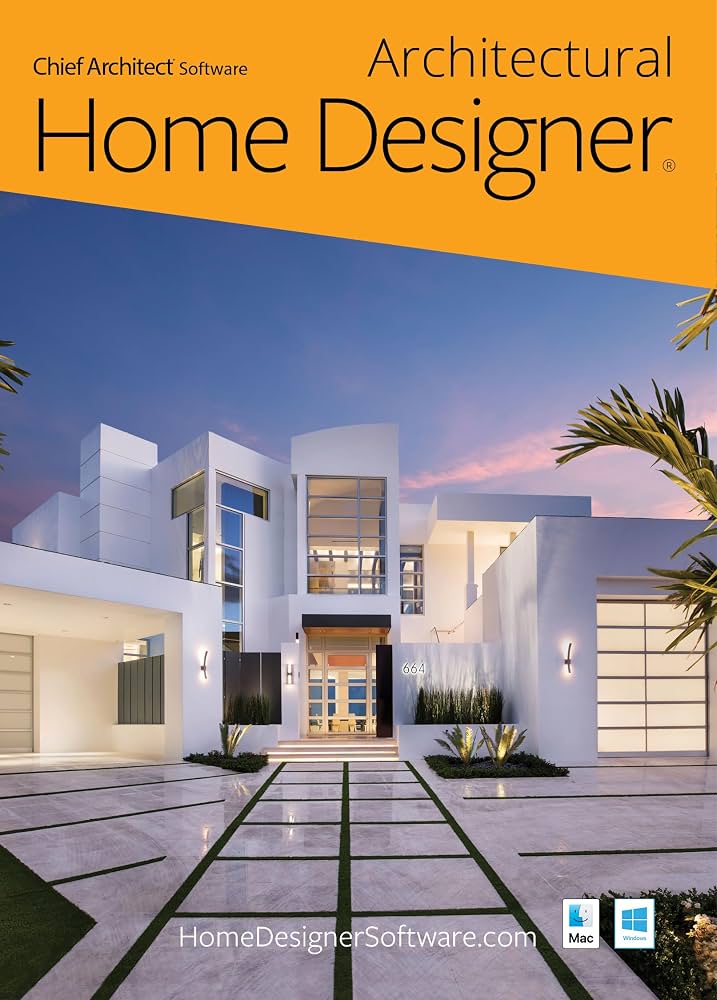
Chief Architect Home Designer Suite 2024 (PC)
Drag-and-drop interface with automated 3D homes, material lists, and pro exports—ideal for beginners wanting polished results without complexity.
Best for: Full home designs or remodels; one-time buy for unlimited use.
Price Range: $99
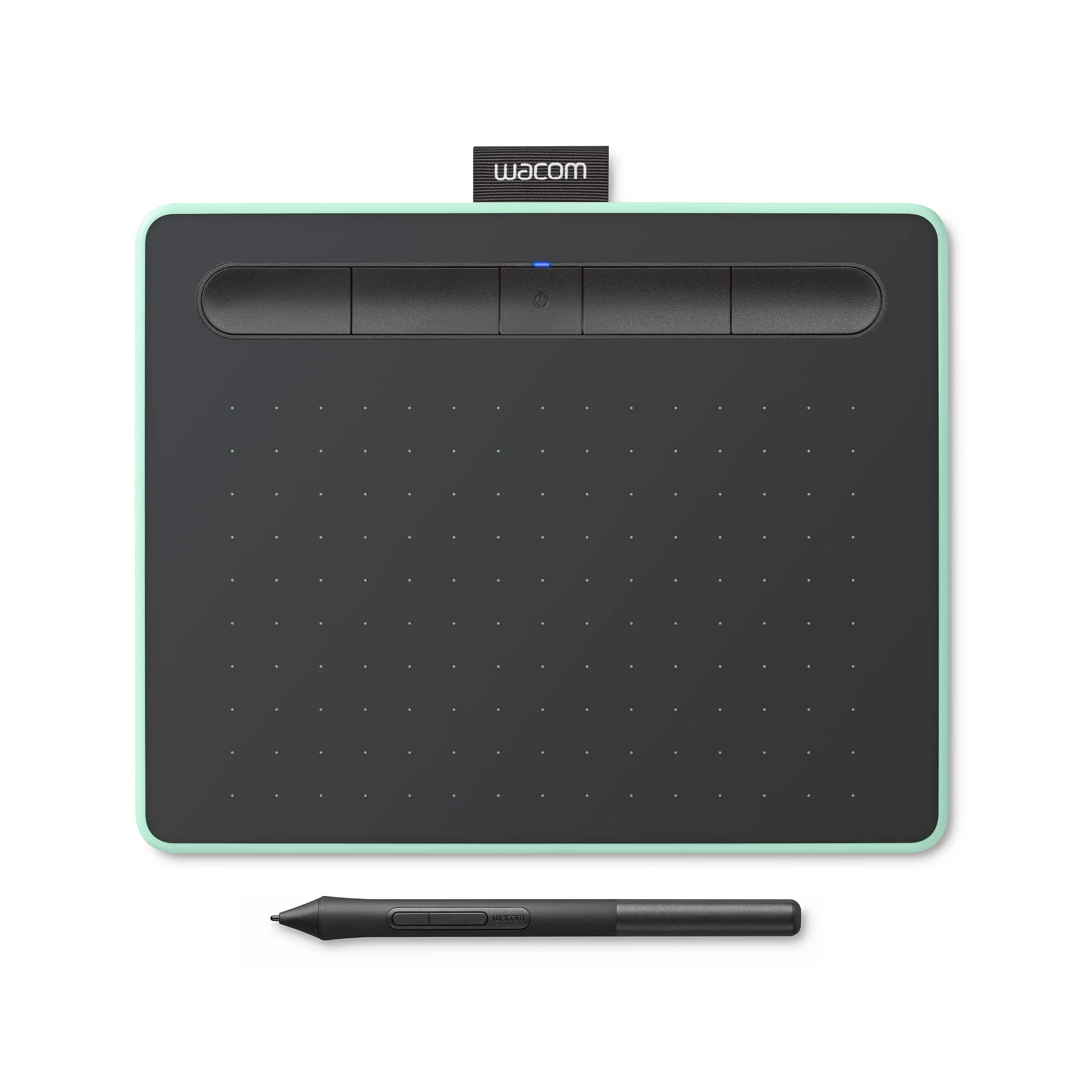
Wacom Intuos Small Graphics Drawing Tablet
Pressure-sensitive pen for precise wall/curve drawing, far better than mouse for organic home designs.
Best for: Any desktop software; pairs perfectly with SketchUp or Home Designer for detailed work.
Price Range: $49.95
Logitech MX Master 3S Wireless Mouse
Ergonomic with horizontal scroll and gesture controls—speeds up 3D navigation in architecture apps.
Best for: Long design sessions; customizable buttons for zoom/pan.
Price Range: $99
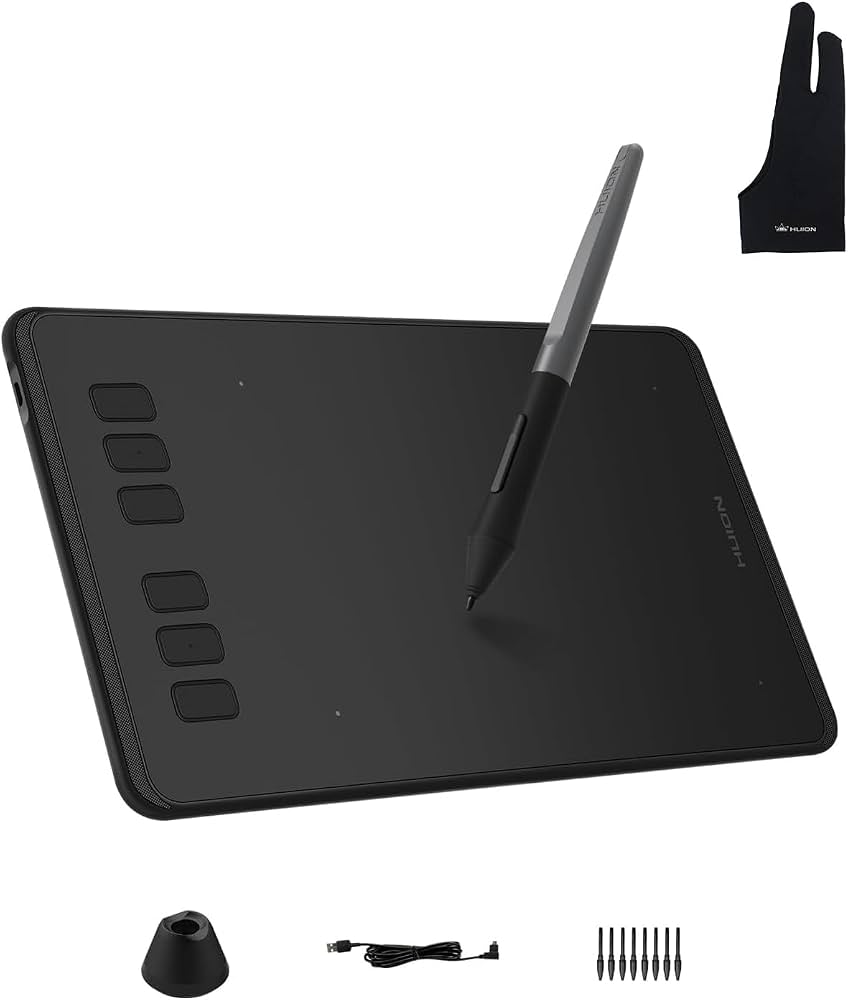
Huion H640P Graphics Drawing Tablet
Budget pen tablet with 6x10 inch area—entry-level precision for beginners on tight budgets.
Best for: Floor plans and sketches in free tools like Sweet Home 3D.
Price Range: $29.99
Apple Pencil (2nd Generation)
For iPad-based apps like Planner 5D—natural drawing feel for mobile home designs.
Best for: On-the-go sketching synced to desktop software.
Price Range: $129