
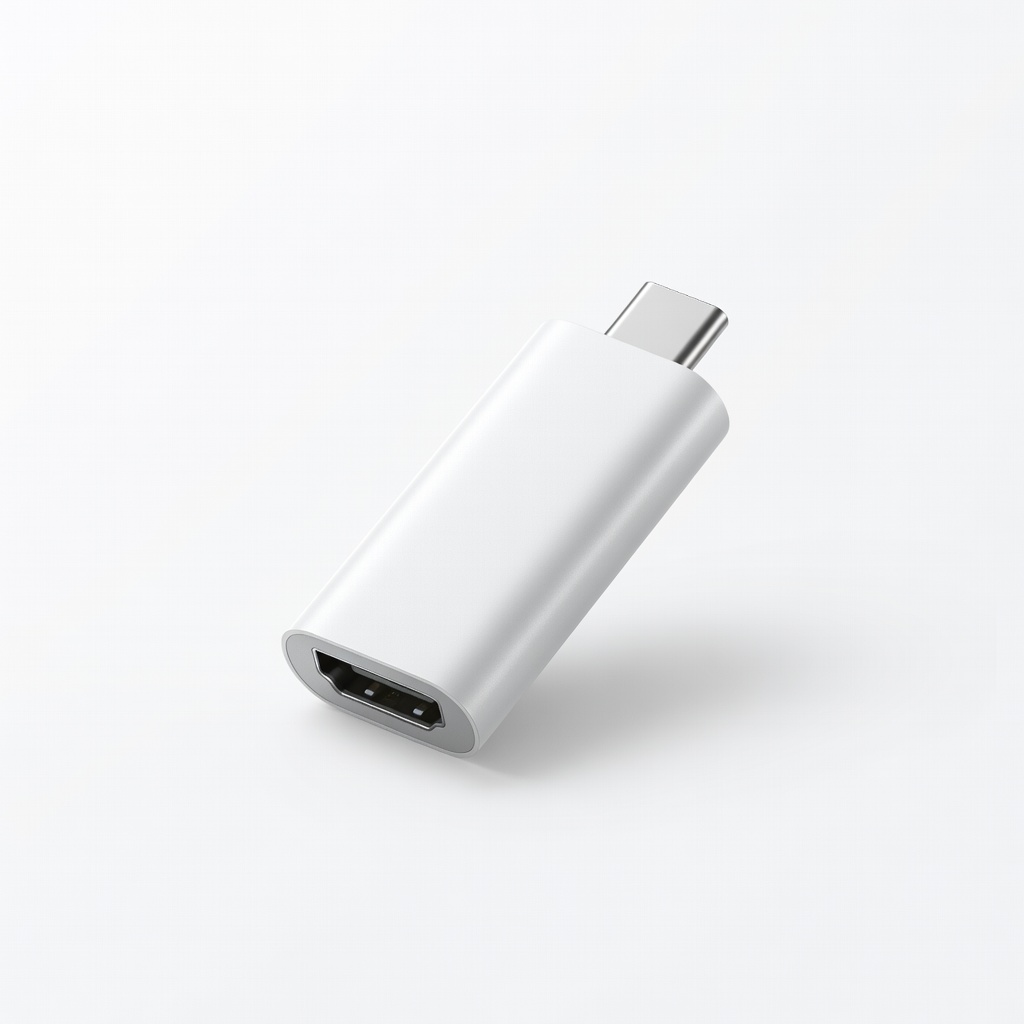
Anker USB-C to HDMI Adapter (4K@60Hz)
Daily office use or home TV mirroring on Windows/Mac laptops.
$17.99
Anker USB-C to HDMI Adapter (4K@60Hz) Reliable aluminum build, supports DP Alt Mode perfectly, plug-and-play for most laptops.
Get the App
Better experience on mobile
Discover which adapters convert USB-C to HDMI, how to check compatibility, and top picks to connect your laptop to any TV or monitor effortlessly.
Gone are the days of bulky HDMI ports on every laptop. Modern ultrabooks like MacBooks, Dell XPS, and Lenovo ThinkPads rely on slim USB-C ports, leaving you scrambling when you want to hook up to a TV, projector, or external monitor. If you've ever stared at your HDMI cable wondering why it won't fit, you're not alone—this is a common frustration for remote workers, gamers, and presenters.
In this guide, you'll learn exactly what USB-C to HDMI adapters do, which ones work with your laptop, and how to set them up without headaches. We'll break down the tech simply (no jargon overload), cover compatibility checks, and recommend reliable products. Expect to go from confusion to confident connection in under 15 minutes of reading.
By the end, you'll know how to mirror or extend your display seamlessly, boosting productivity or entertainment on bigger screens.
Estimated Time: 10-15 minutes to read and test Difficulty: beginner
Not all USB-C ports handle video—only those with DisplayPort Alt Mode (DP Alt Mode) or Thunderbolt 3/4 can output to HDMI. This is key because standard USB-C is for data/charging only.
Open your laptop's specs (search 'model + USB-C DisplayPort' online) or use Windows Settings > System > Display > Connect to a wireless display (if it detects, you're good). On Mac, it's automatic for M1+ models. Expect most post-2018 laptops to support it, like Dell XPS or HP Spectre.
Why it matters: Wrong assumption leads to dead adapters. Analogy: USB-C is like a Swiss Army knife—video is just one blade, not always sharpened.
💡 Tips:
Adapters come in two flavors:
Example: Passive is like a direct translation; active is like hiring an interpreter. Most beginners need passive—check product listings for 'DP 1.4'.
💡 Tips:
Resolution: Aim for 4K@60Hz (handles 3840x2160 smoothly).
Refresh Rate: 60Hz for work/movies; 120Hz+ for gaming.
Other must-haves: HDCP 2.2 (for Netflix/Blu-ray), aluminum build (heat dissipation), and USB-C 3.1+ for bandwidth.
Why? Mismatched specs cause flickering or black screens. Real-world: 1080p adapters lag on 4K TVs.
⚠️ Warnings:
Your HDMI display must match: HDMI 1.4 for 4K@30Hz, HDMI 2.0+ for 4K@60Hz.
Plug in directly if possible, or check manual. TVs often max at HDMI 2.0; older monitors may cap at 1080p.
Pro tip: Use 'HDMI handshake'—adapters bridge USB-C signal to HDMI protocol seamlessly if specs align.
💡 Tips:
Laptop should auto-detect (mirror/extend display). On Windows: Win+P for modes. Mac: System Settings > Displays.
Expect: Instant image or 'detecting' prompt. Like plugging in a USB drive, but for video.
💡 Tips:
⚠️ Warnings:
If no signal:
Choose 'Extend' for dual screens or 'Duplicate' for mirroring. Adjust resolution to match display.
Why: OS needs nudge sometimes. Analogy: Telling your brain to use both eyes.
Play a video or drag windows to new screen. Success? You're set!
Monitor temps—adapters get warm but shouldn't burn. Unplug safely via 'Safely Remove'.
💡 Tips:
Problem: No signal or black screen
Solution: Swap ports/cables, restart devices, check OS detect settings. Ensure DP Alt Mode.
Problem: Flickering or low resolution
Solution: Lower refresh rate, update drivers, use active adapter or shorter cable.
Problem: Adapter gets too hot
Solution: Unplug, let cool; switch to metal-bodied model. Avoid enclosed spaces.
Problem: Only audio, no video
Solution: Confirm HDCP support for protected content; try different source.
Reliable aluminum build, supports DP Alt Mode perfectly, plug-and-play for most laptops.
Best for: Daily office use or home TV mirroring on Windows/Mac laptops.
Price Range: $17.99
Budget-friendly passive adapter with 4K@60Hz and HDCP 2.2—thousands of positive reviews.
Best for: Beginners needing affordable single-monitor extension.
Price Range: $13.29
Durable braided cable option, supports 8K@60Hz for future-proofing.
Best for: High-res gaming or 4K video editing setups.
Price Range: $19.99
Built-in chip for non-DP USB-C ports, 4K@60Hz with power delivery.
Best for: Tablets or older laptops without native video out.
Price Range: $24.99
Premium build for MacBooks, slim design, official Apple compatibility.
Best for: Travelers wanting reliable, portable pro-grade connection.
Price Range: $29.99
Daily office use or home TV mirroring on Windows/Mac laptops.
Anker USB-C to HDMI Adapter (4K@60Hz) Reliable aluminum build, supports DP Alt Mode perfectly, plug-and-play for most laptops.
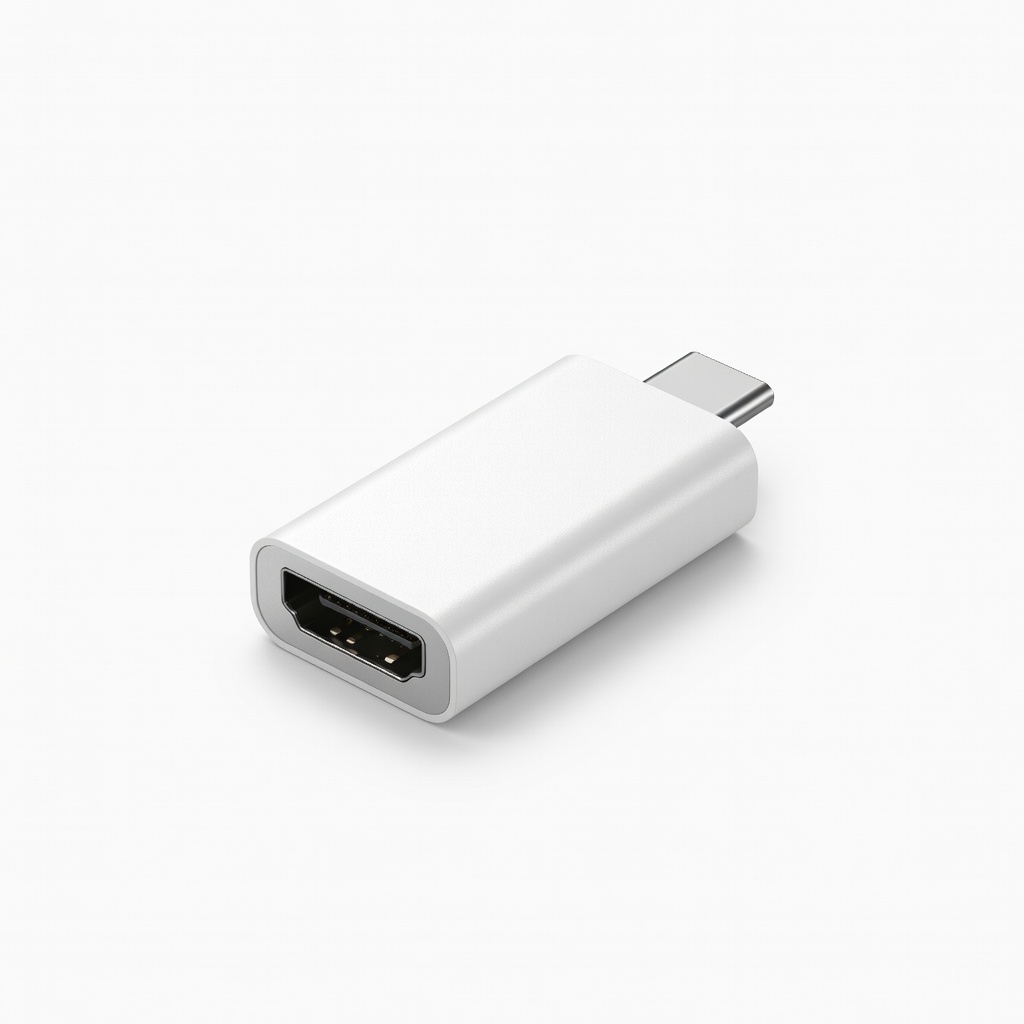
Beginners needing affordable single-monitor extension.
BENFEI USB C to HDMI Adapter Budget-friendly passive adapter with 4K@60Hz and HDCP 2.2—thousands of positive reviews.
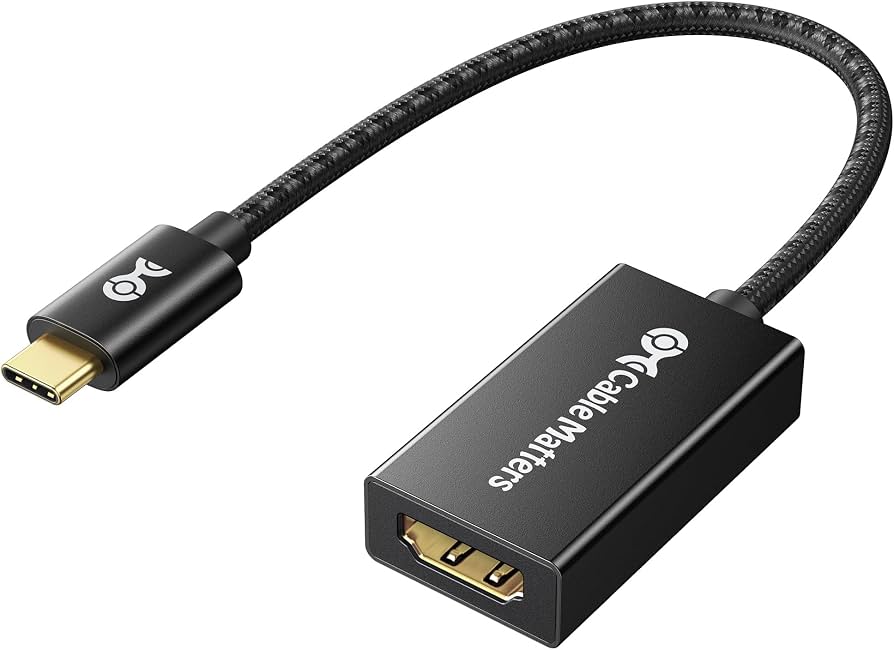
High-res gaming or 4K video editing setups.
Cable Matters USB-C to HDMI Adapter Durable braided cable option, supports 8K@60Hz for future-proofing.
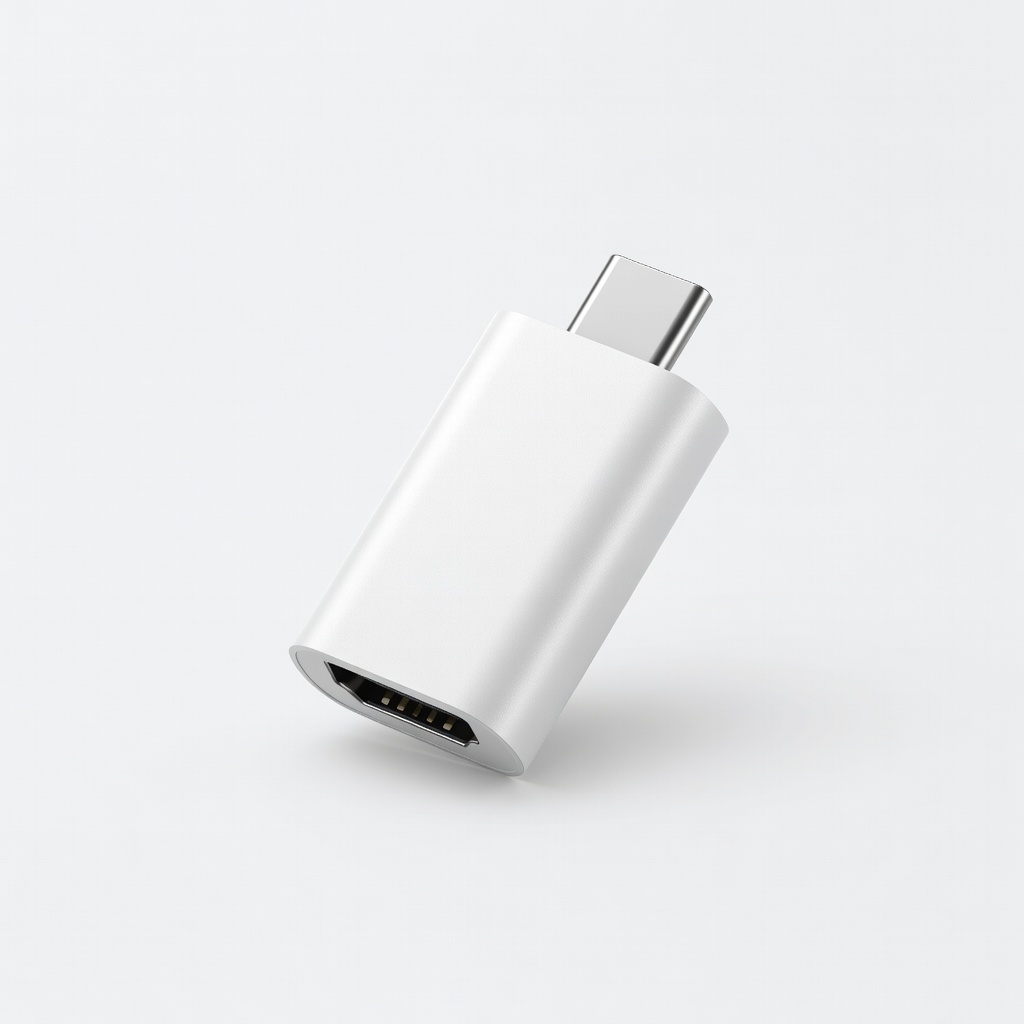
Tablets or older laptops without native video out.
UGREEN USB C to HDMI Adapter (Active) Built-in chip for non-DP USB-C ports, 4K@60Hz with power delivery.

Travelers wanting reliable, portable pro-grade connection.
Belkin USB-C to HDMI Adapter Premium build for MacBooks, slim design, official Apple compatibility.