
Expensify
Travel-heavy teams or frequent spenders needing instant reports.
$5-20/user/month
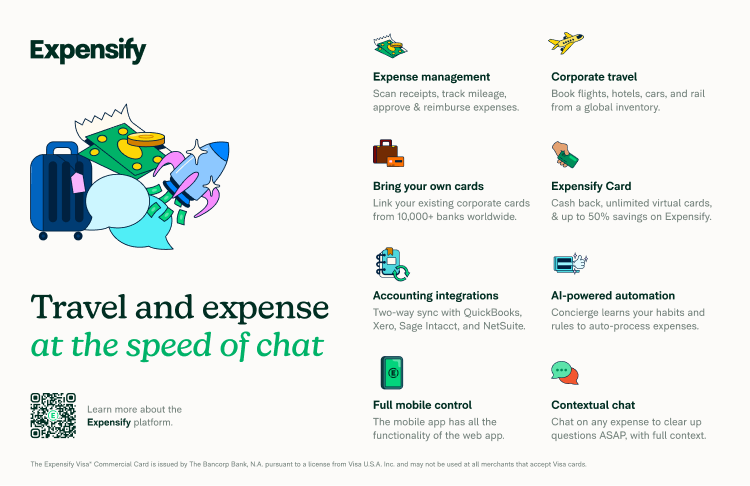
Expensify Leader in real-time OCR and mobile scanning with unlimited receipts.
Get the App
Better experience on mobile
Learn top tools, features, and setup tips to automate expense tracking, saving hours weekly and minimizing errors for your business.
Manually tracking expenses—scanning receipts, categorizing spends, and reconciling bank statements—is a tedious nightmare that eats up 5-10 hours per week for most small business owners. Errors lead to tax issues, audits, or lost reimbursements, costing thousands annually. Automation changes everything by using AI, OCR, and integrations to handle it seamlessly.
In this guide, you'll discover what expense tracking automation really means, key features to prioritize, top tools with comparisons, and step-by-step advice on choosing and implementing one. Whether you're a freelancer or managing a team, you'll finish with clear recommendations tailored to intermediate users. Expect to spend 20-30 minutes reading, with actionable insights you can apply immediately.
We'll break it down from basics to advanced selection, using real-world examples and pro tips—no fluff, just value.
Estimated Time: 20-30 minutes Difficulty: intermediate
Manual tracking involves physically collecting receipts, entering data into spreadsheets or software, and matching them to accounts—error-prone and time-intensive. Automation uses software to scan receipts via photo/OCR (optical character recognition), auto-categorize expenses with AI, and sync directly with bank feeds.
Why it matters: Businesses lose 1-5% of revenue to expense errors. Automation cuts processing time by 80%, per Gartner studies. Expect near-real-time reports and compliance-ready audits.
Example: Snap a coffee receipt; AI extracts amount, date, merchant, and suggests 'Meals & Entertainment' category.
💡 Tips:
Prioritize OCR for receipt digitization, AI categorization (learns from your patterns), bank/CC integrations (e.g., Plaid API), mobile apps for on-the-go capture, and reporting dashboards. Advanced: Multi-currency, policy enforcement (e.g., flag over-budget spends), and export to payroll/tax software.
Why it matters: Not all tools excel equally—focus on 80/20 features matching your needs. Intermediate users should seek API access for custom workflows.
Analogy: Like autopilot in a car; it handles routine driving, you oversee exceptions.
⚠️ Warnings:
OCR scans images/PDFs to extract text (vendor, amount, date, taxes). AI then categorizes (e.g., 'Uber' as 'Travel') and detects duplicates/fraud. Machine learning improves accuracy over time.
Why it matters: 95%+ accuracy reduces manual reviews. Tools process thousands of receipts instantly.
Example: Upload Starbucks receipt; tool auto-tags 'Meals', deducts taxes, matches corporate card spend.
💡 Tips:
Top tools integrate with QuickBooks, Xero, Sage via APIs—expenses flow automatically into ledgers. Corporate cards (e.g., Ramp) embed tracking.
Why it matters: Eliminates double-entry; ensures real-time books. For intermediates, check Zapier support for 1000+ app connections.
What to expect: One-click sync, audit trails preserved.
Expensify: Best for mobile-heavy teams (unlimited scans). QuickBooks Expenses: Seamless if you're already on QB. Zoho Expense: Affordable for SMBs. Xero Expenses: Strong bank rec. Dext: Receipt-focused for accountants.
Why it matters: Match to scale—solo vs. 100 employees. Pricing tiers from free to enterprise.
| Tool | OCR | Pricing | Best For |
|---|---|---|---|
| Expensify | Yes | $5+/user/mo | Travel-heavy |
| QuickBooks | Yes | $30/mo | All-in-one |
💡 Tips:
Free tiers for <50 expenses/mo; paid from $5/user. Enterprise adds approvals, controls. ROI: Pays for itself in 1-2 months via time savings.
Why it matters: Avoid vendor lock-in; check data export.
Sign up for trial, connect banks/cards, upload test receipts, set categories/rules. Train team via app tours.
Why it matters: Proper setup yields 90% automation rate. Go live in 1 week.
⚠️ Warnings:
Problem: OCR fails on faded receipts
Solution: Use flashlight for photos; switch to tools like Dext with advanced AI.
Problem: Bank sync delays or errors
Solution: Reconnect via Plaid; contact support—often 24hr fix.
Problem: High categorization errors initially
Solution: Bulk-edit first 100 items; AI learns fast.
Problem: Team non-compliance
Solution: Mandatory training + policy reminders in app.
Leader in real-time OCR and mobile scanning with unlimited receipts.
Best for: Travel-heavy teams or frequent spenders needing instant reports.
Price Range: $5-20/user/month
Built-in expense automation with seamless accounting integration.
Best for: Small businesses already using QuickBooks for full bookkeeping.
Price Range: $30-200/month
Affordable, user-friendly with strong AI categorization and free tier.
Best for: Startups or SMBs under 10 users wanting low-cost entry.
Price Range: Free-$4/user/month
Excellent bank feeds and multi-currency for global teams.
Best for: International businesses with complex reconciliations.
Price Range: $15-70/month
Specialized receipt extraction with 99% accuracy for accountants.
Best for: Firms handling client expenses or high-volume receipts.
Price Range: $10-50/month
Travel-heavy teams or frequent spenders needing instant reports.
Expensify Leader in real-time OCR and mobile scanning with unlimited receipts.
Small businesses already using QuickBooks for full bookkeeping.
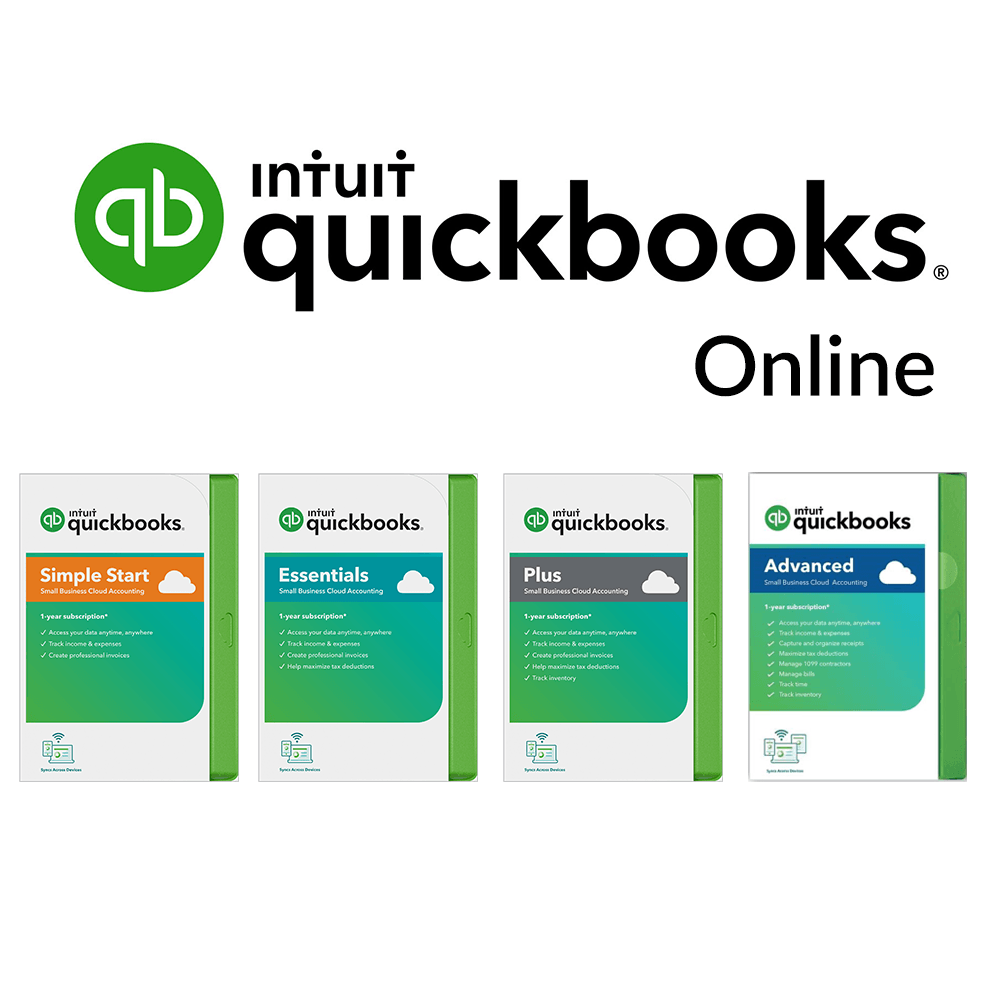
QuickBooks Online Built-in expense automation with seamless accounting integration.

Startups or SMBs under 10 users wanting low-cost entry.
Zoho Expense Affordable, user-friendly with strong AI categorization and free tier.

International businesses with complex reconciliations.
Xero Excellent bank feeds and multi-currency for global teams.

Firms handling client expenses or high-volume receipts.
Dext Specialized receipt extraction with 99% accuracy for accountants.