Many small businesses and accountants still rely on physical account books—like bound ledgers or journals—for compliance, audits, or simply habit. But manually transferring data to digital systems is time-consuming and error-prone. This guide shows you accounting software that 'integrates' by supporting manual entry, OCR scanning of physical pages, ledger-style interfaces, and reconciliation to bridge the analog-digital gap.
You'll discover integration methods, top software picks like QuickBooks and Xero, and step-by-step setup for a hybrid system. Expect to understand concepts in 20-30 minutes, with actionable advice for intermediate users familiar with basic double-entry accounting.
By the end, you'll have a clear path to efficiency gains, like 50% faster reconciliations, while maintaining your physical records for legal needs.
▸What You'll Need
- •Physical account books (e.g., columnar ledger pads or bound journals)
- •Computer or smartphone with internet
- •Scanner or mobile app for OCR (optional but recommended)
- •Basic accounting knowledge (debits, credits, trial balance)
- •Subscription to chosen software (free trials available)
Estimated Time: 20-30 minutes to read and plan setup
Difficulty: intermediate
▸Step-by-Step Instructions
Step 1: Understand Physical Account Books
Physical account books are traditional paper ledgers, such as general journals, cash books, or sales ledgers, used for recording transactions manually. They're often required for audits in small businesses or certain jurisdictions (e.g., partnerships in the UK or India).
Why it matters: These books provide a tangible audit trail but lack searchability and scalability. Integration means syncing their data into software without full digitization.
Expect a hybrid workflow where physical books serve as the 'source of truth' and software handles analysis.
💡 Tips:
- •Use pre-printed columnar pads matching software templates for easier transfer.
Step 2: Define Your Integration Goals
Assess why you need integration: error reduction, faster reporting, tax prep, or compliance? Common goals include reconciling physical entries with bank feeds or generating digital trial balances.
Analogy: Think of physical books as a handwritten diary and software as a searchable database—integration is the bridge copying key entries.
List your transaction volume (e.g., 100/month) and pain points to pick the right method.
⚠️ Warnings:
- •Avoid over-automation if compliance requires unaltered physical records.
Step 3: Explore Integration Methods
Three main ways to integrate:
- •Manual Entry: Type physical data into software ledgers (best for low volume).
- •Scanning & OCR: Photograph/scan pages and use optical character recognition to import data.
- •CSV Export/Import: Summarize physical books into spreadsheets, then upload.
Manual is simple; OCR saves time for high-volume users. All methods preserve physical books.
💡 Tips:
- •Start with manual for accuracy, add OCR later.
Step 4: Evaluate Top Software Options
Key picks:
- •QuickBooks Online/Desktop: Native ledger views, manual entry, app integrations for scans.
- •Xero: Hubdoc for unlimited scanning/OCR of physical docs.
- •Zoho Books: Built-in bill/ledger OCR.
- •Wave: Free manual entry with ledger reports.
- •Manager.io: Free desktop app mimicking physical double-entry ledgers.
Compare based on price, OCR quality, and mobile apps.
💡 Tips:
- •Test free trials matching your physical format.
Step 5: Set Up QuickBooks for Physical Sync
Sign up for QuickBooks Online (or install Desktop). Create chart of accounts mirroring your physical ledger columns.
Enable bank feeds for auto-reconciliation against physical cash book entries. Use the 'Journal Entry' screen for direct input from physical pages.
Why it works: Reports export to PDF matching physical formats.
Step 6: Integrate Scanning with Xero & Hubdoc
In Xero, connect Hubdoc (free with Xero). Scan physical ledger pages via mobile app or desktop scanner—OCR extracts dates, amounts.
Publish extracted data to Xero ledgers automatically. Review for accuracy (90%+ success rate).
Expect: 5-10 min/page initially, faster with practice.
💡 Tips:
- •Scan in good light; use pencil for physical entries to erase errors post-scan.
⚠️ Warnings:
- •Always verify OCR—numbers like 3 vs. 8 can misread.
Step 7: Import Data from Physical Summaries
From physical trial balance, create CSV: columns for Account, Debit, Credit. Use software importers (QuickBooks > Gear > Import Data).
Map columns to ledger accounts. Run reconciliation to match physical totals.
Pro: Handles bulk monthly closes.
Step 8: Reconcile and Audit Regularly
Monthly: Compare software trial balance to physical. Flag discrepancies.
Generate matching reports (e.g., QuickBooks 'Transaction Detail by Account').
This ensures integrity, like a digital carbon copy of your books.
💡 Tips:
- •Schedule weekly spot-checks for ongoing accuracy.
▸Pro Tips
- •Use consistent formats in physical books (e.g., same date style) for better OCR.
- •Batch scan end-of-month to save time.
- •Print software reports and staple to physical books for audits.
- •Train staff on dual-entry to avoid silos.
- •Leverage mobile apps for on-the-go photos of receipts tied to ledger lines.
- •Backup physical books digitally via cloud scans.
- •Use color highlighters in physical books for scanned vs. entered flags.
▸Common Mistakes to Avoid
- •Skipping verification of OCR data, leading to compounded errors—always double-check totals.
- •Ignoring software chart of accounts setup, causing mismatched categories.
- •Over-relying on automation without physical backups, risking compliance issues.
- •Not reconciling monthly, allowing small discrepancies to grow.
- •Choosing software without ledger views, forcing awkward workarounds.
▸Troubleshooting
Problem: OCR misreads handwritten entries
Solution: Switch to typed physical books or edit post-scan; upgrade to premium OCR like Hubdoc.
Problem: Import errors (e.g., duplicate transactions)
Solution: Clear duplicates via software tools; use unique reference numbers from physical books.
Problem: Reconciliation mismatches
Solution: Check date formats and rounding; consult accountant if persistent.
Problem: Software lacks physical-like interface
Solution: Switch to Manager.io or customize dashboards; seek pro help for complex setups.
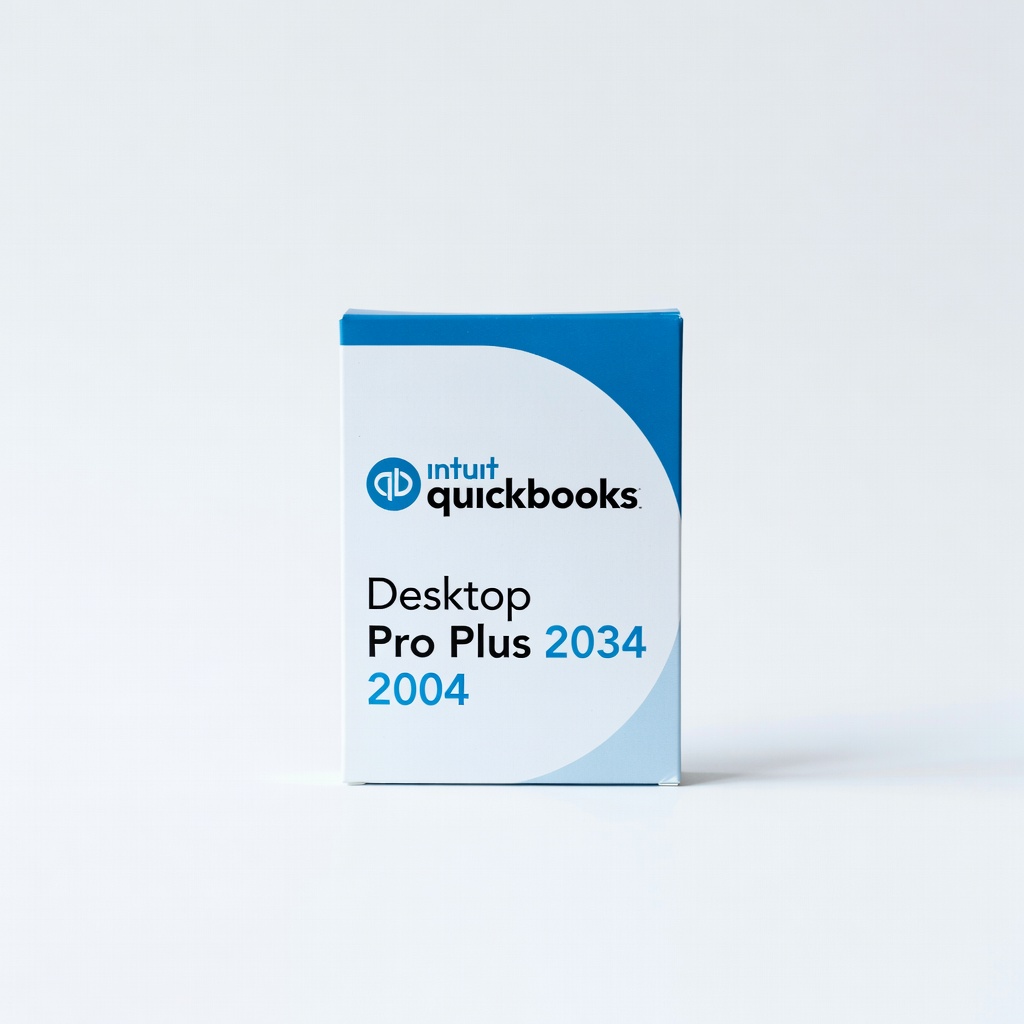
Intuit QuickBooks Desktop Pro Plus 2024
Offers ledger-style manual entry and reports that exactly mirror physical books, with easy CSV import for hybrid workflows.
Best for: Small businesses transitioning slowly; one-time purchase for offline use.
Price Range: $349.99
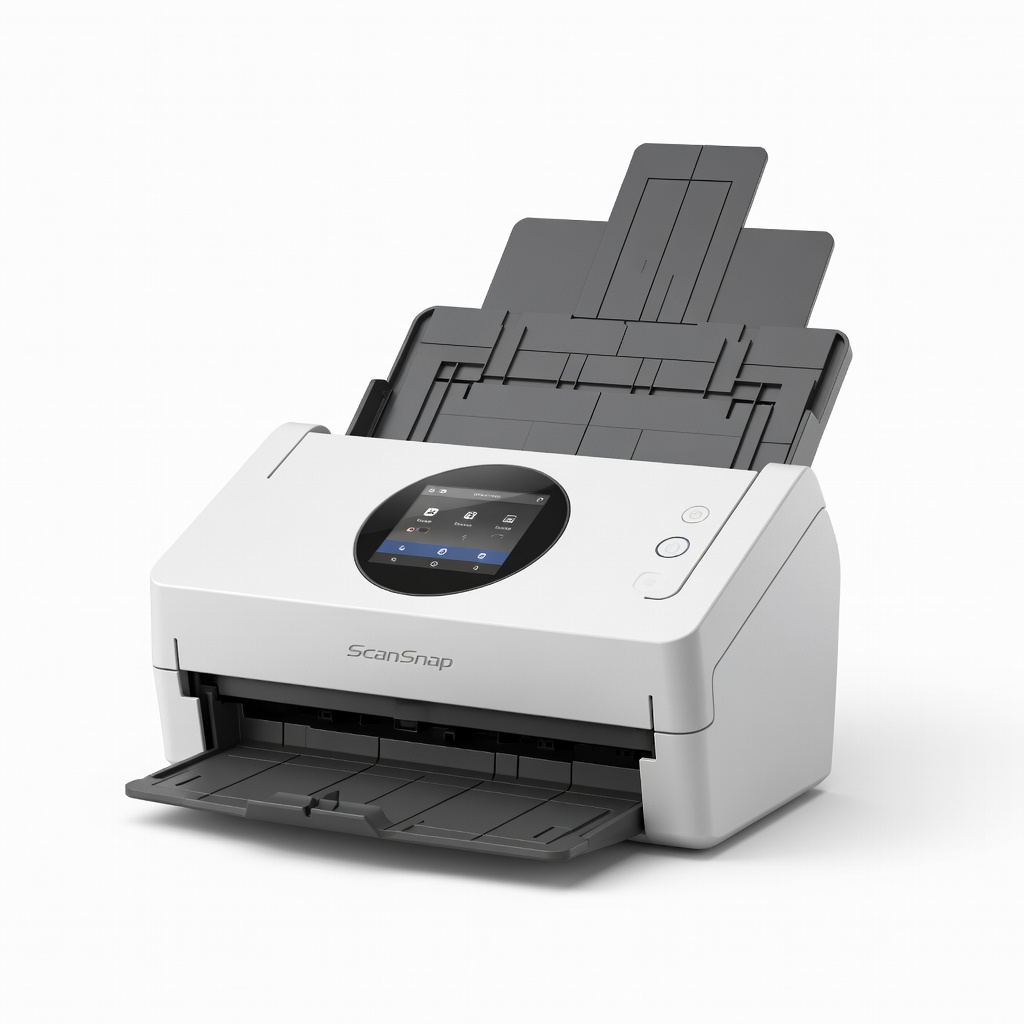
Fujitsu ScanSnap iX1600 Document Scanner
Fast duplex scanning with excellent OCR compatibility for accounting software like Xero, handles ledger pages without damage.
Best for: High-volume physical books needing quick digitization.
Price Range: $400-$430
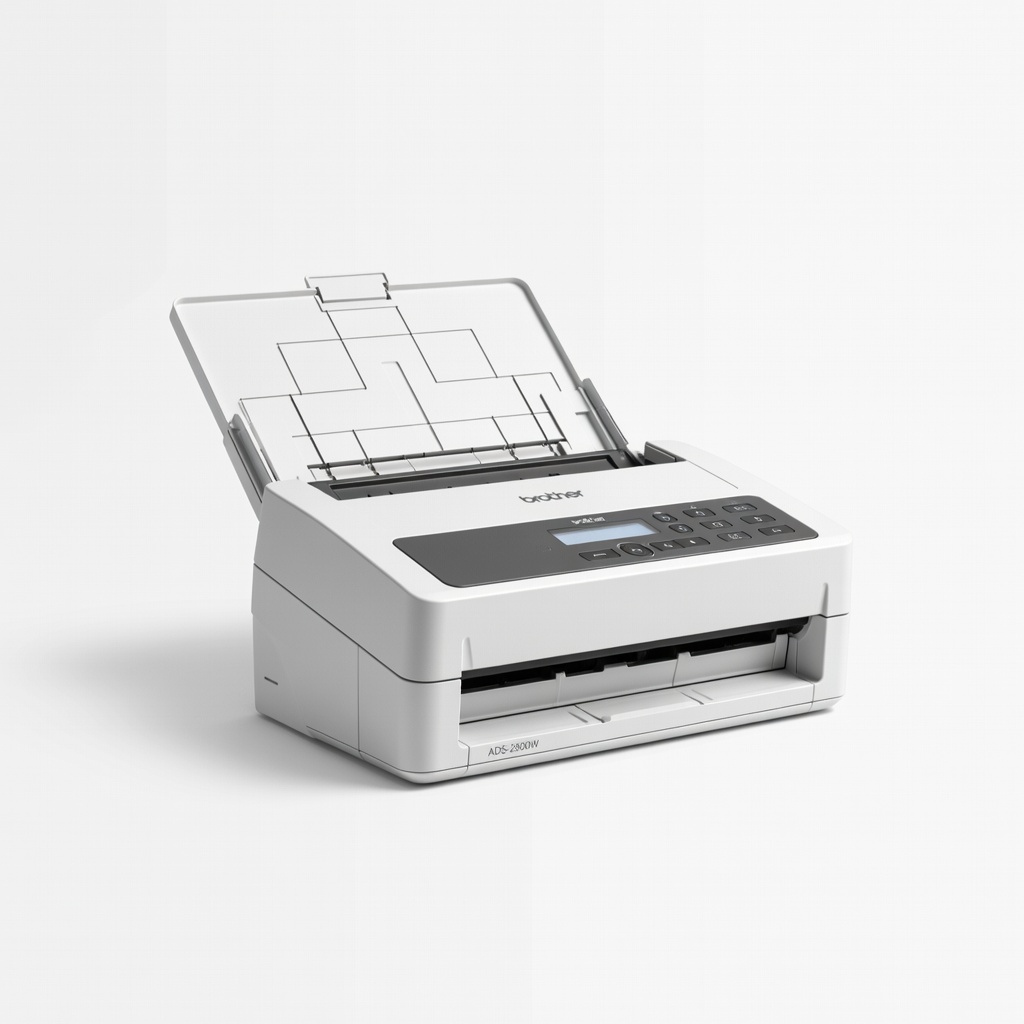
Brother ADS-2800W Wireless Scanner
Affordable wireless option with sheet-fed scanning and direct integration to QuickBooks via apps, ideal for receipts and partial ledgers.
Best for: Budget-conscious users scanning mixed physical docs.
Price Range: $350-$400
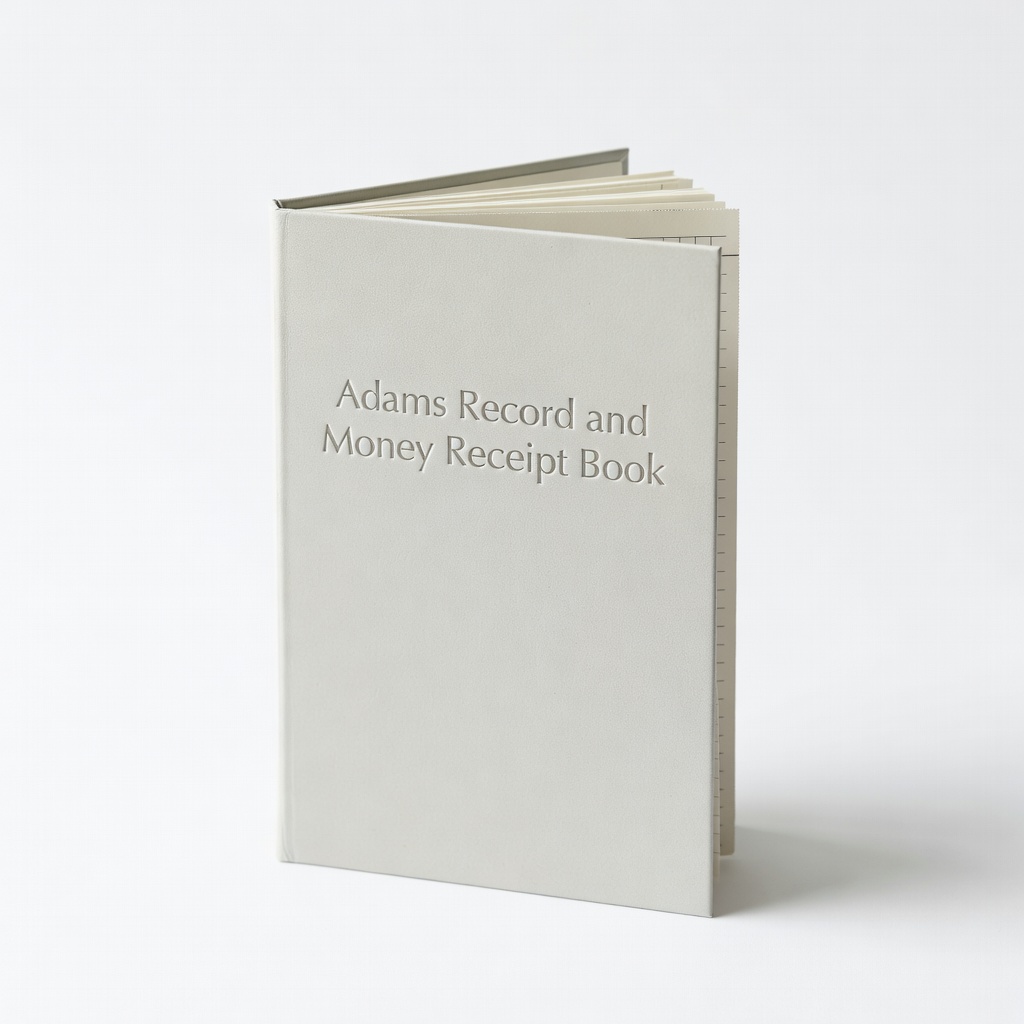
Adams Record and Money Receipt Book
Durable physical ledger companion with carbonless duplicates, formats match software imports.
Best for: Starting or supplementing physical records.
Price Range: $10-$15
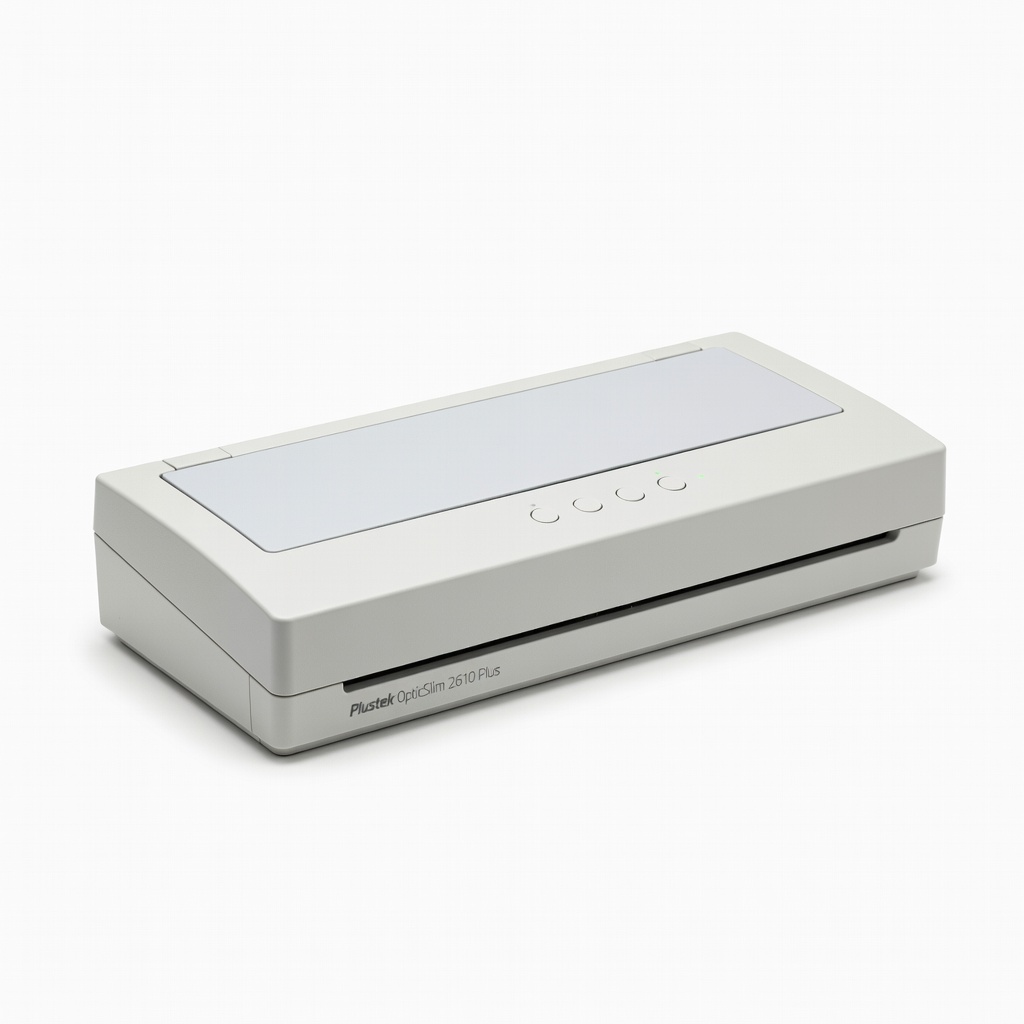
Plustek OpticSlim 2610 Plus Scanner
Flatbed for bound books without tearing pages, good OCR output for Zoho or Wave.
Best for: Fragile or bound physical account books.
Price Range: $150-$200