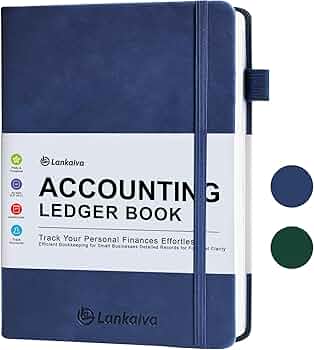
Struggling to bridge manual account books with modern digital tools? Many small business owners and accountants waste hours transcribing entries from physical or basic digital ledgers into software, leading to errors and delays. This guide breaks down what 'integration' really means for account books—whether physical journals or simple apps—and highlights the best accounting software to make it effortless.
You'll learn the key features to look for, top recommendations with pros/cons, and step-by-step verification/setup processes. By the end, you'll know exactly which software fits your workflow, with realistic setup in under an hour for most users. Perfect for intermediate users familiar with debits/credits but new to integrations.
Expect clear explanations, real-world examples, and actionable advice—no fluff, just value to streamline your accounting.
▸What You'll Need
- •Internet access and a computer or tablet
- •Existing account books (physical ledger or digital app like Excel/Google Sheets)
- •Basic accounting knowledge (e.g., understanding journals, ledgers, debits/credits)
- •Email for software sign-ups (free trials available)
- •Optional: CSV export capability from your account books
Estimated Time: 20-30 minutes to read and evaluate options
Difficulty: intermediate
▸Step-by-Step Instructions
Step 1: Understand What Account Books Are
Account books refer to traditional or digital ledgers where you record transactions manually—think physical notebooks with columns for date, description, debit, credit, and balance, or simple apps/Excel sheets serving the same purpose.
Why it matters: Integration isn't about replacing your books but syncing data bidirectionally. For example, export a CSV from your ledger and import it into software to auto-populate reports, or push reconciled data back for record-keeping.
Expect compatibility via CSV, API, or direct plugins. Physical books? Scan or manually enter once, then automate ongoing.
💡 Tips:
- •Digitize old entries first using apps like Expensify for scans.
- •Use standardized formats like double-entry ledger templates.
⚠️ Warnings:
- •Avoid proprietary formats; stick to CSV/Excel for universal compatibility.
Step 2: Why Integrate Accounting Software with Account Books?
Integration eliminates double-entry drudgery. Manually updating both leads to discrepancies—e.g., a $500 sale missed in software but logged in books causes tax headaches.
Benefits: Real-time sync, error reduction (up to 80% fewer mistakes per studies), automated reports, and scalability. Analogy: Like linking your bank app to budgeting software; transactions flow automatically.
For intermediates, this unlocks advanced features like audit trails matching your books perfectly.
💡 Tips:
- •Start with read-only sync to test without overwriting data.
Step 3: Key Integration Features to Look For
Prioritize CSV/Excel import/export, API access for custom sync, bank feed reconciliation that matches ledger formats, and ledger-specific reports (trial balance, general ledger).
Must-haves: Two-way sync, error logging, historical data import. Nice-to-haves: Mobile apps for on-the-go ledger updates.
Example: Software should handle batch imports from your book's monthly totals without reformatting.
💡 Tips:
- •Check Zapier/AppConnect support for no-code automations.
⚠️ Warnings:
- •Skip software without free CSV tools; it's a red flag for poor integration.
Step 4: Evaluate QuickBooks Online
QuickBooks Online (QBO) excels with robust CSV imports, general ledger exports matching account books, and 750+ app integrations via App Store.
Why it fits: Direct ledger mapping, auto-categorization. Pro: Handles complex books; con: Starts at $30/mo. Example: Import your debit/credit CSV, and it generates matching reports.
Ideal for SMBs with physical/digital hybrids.
💡 Tips:
- •Use the 'Import Data' wizard for first-time setup.
Step 5: Explore Xero
Xero offers unlimited users, bank feeds that reconcile to ledger lines, and CSV hub for account books.
Strengths: Fixed asset ledger tracking, API for devs. Pricing $15-70/mo. Analogy: Xero is the 'hub' pulling your books in seamlessly.
Great for international businesses needing multi-currency ledger sync.
Step 6: Consider Zoho Books and Wave
Zoho Books: Free for basics, CSV/API ledger sync, automation rules. Wave: Free forever, simple imports for solopreneurs.
Comparison: Zoho for growing teams ($0-60/mo); Wave for startups (free, ads). Both export ledgers in book-friendly formats.
Test with trial data from your books.
💡 Tips:
- •Wave suits if budget < $10/mo; upgrade for payroll.
Step 7: Verify Integration Compatibility
Download sample CSV from your account books. Sign up for free trials, attempt import, check ledger match.
What to expect: 95% success on first try with top tools. Review audit logs for discrepancies.
Tools like Zapier bridge gaps.
⚠️ Warnings:
- •Don't commit without trial—some limit imports.
Step 8: Set Up the Integration
- •Export CSV from books. 2. Map columns (debit to debit). 3. Import/sync. 4. Reconcile first batch. 5. Schedule auto-sync if API-enabled.
Time: 15 mins. Why: Ensures accuracy from day one.
💡 Tips:
- •Backup books before sync.
▸Pro Tips
- •Always map fields manually first—auto-mapping fails 30% of time.
- •Use free Zapier tier for custom book-to-software automations.
- •Schedule monthly ledger reconciliations to catch drifts early.
- •Leverage mobile apps for real-time book updates that sync instantly.
- •Export software ledgers quarterly for IRS-compliant physical backups.
- •Train on keyboard shortcuts for bulk CSV edits in Excel.
- •Integrate with Google Sheets for hybrid digital books.
▸Common Mistakes to Avoid
- •Assuming all software supports two-way sync—most are import-only; verify first.
- •Ignoring data mapping, leading to swapped debits/credits and balanced errors.
- •Overlooking trial limits on imports; exhaust free data first.
- •Skipping backups—lost sync data means manual re-entry.
- •Choosing based on price alone; free tools like Wave lack advanced ledger reports.
▸Troubleshooting
Problem: CSV import fails with format errors
Solution: Standardize headers (Date, Account, Debit, Credit); use Excel's Text to Columns. Retry or check software help docs.
Problem: Data doesn't match between books and software
Solution: Run trial balance report in both; adjust mappings. Common: inclusive/exclusive dates.
Problem: Sync stops after initial setup
Solution: Check API keys/permissions; renew trials. Contact support for logs.
Problem: Slow performance with large ledgers
Solution: Batch imports (e.g., quarterly); upgrade to pro plans. Seek pro help for 10k+ entries.
Intuit QuickBooks Desktop Pro Plus 2024
Top-rated for ledger imports/exports with built-in account book reconciliation tools; Amazon ASIN B0CP5R5L3R for easy purchase.
Best for: Small businesses needing desktop control over physical/digital book sync.
Price Range: $349.99 - $549.99
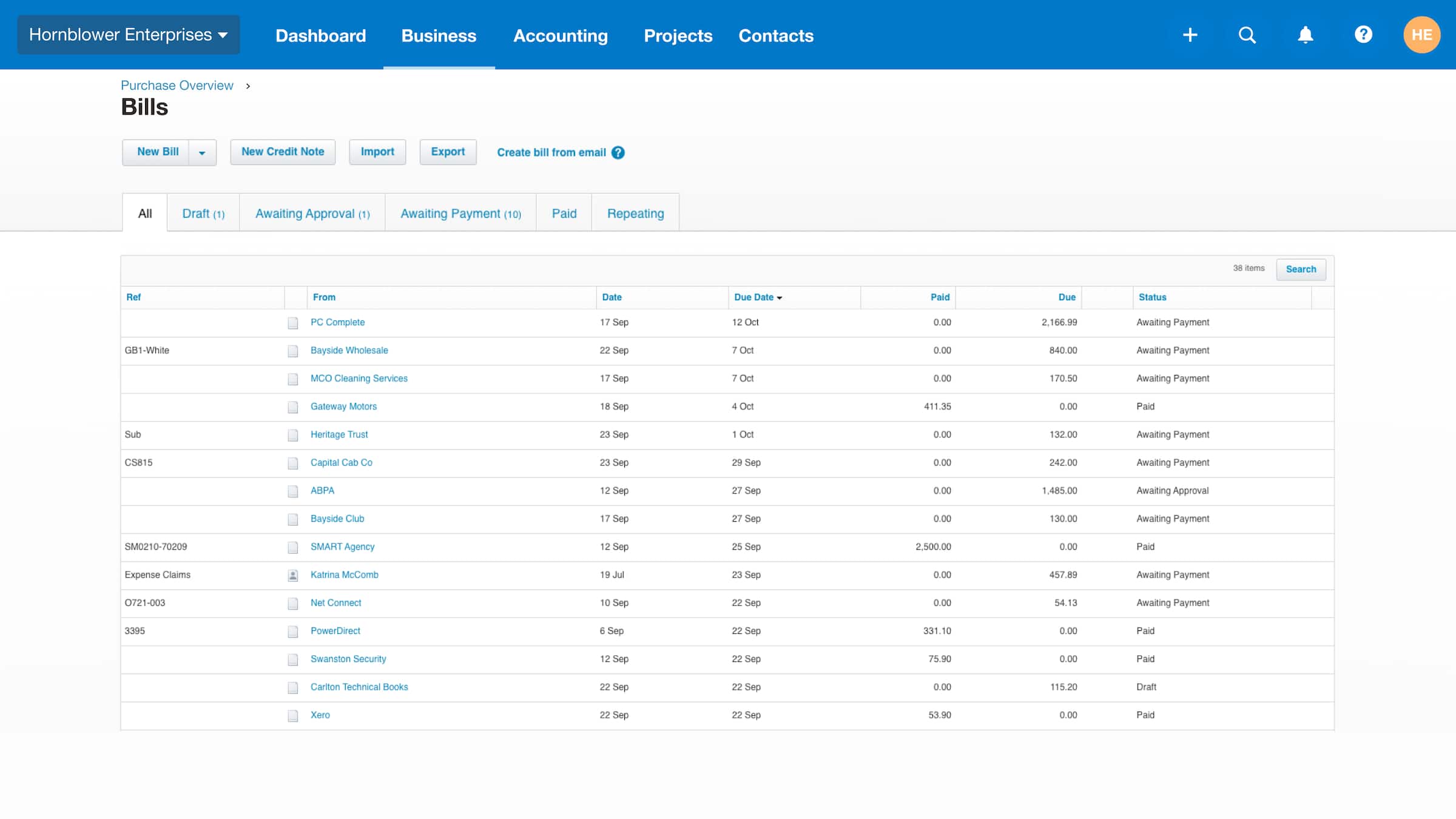
Xero Accounting Software (Subscription)
Cloud-based with superior API for custom account book integrations; scales seamlessly.
Best for: Teams requiring real-time multi-user ledger access.
Price Range: $15 - $70/month
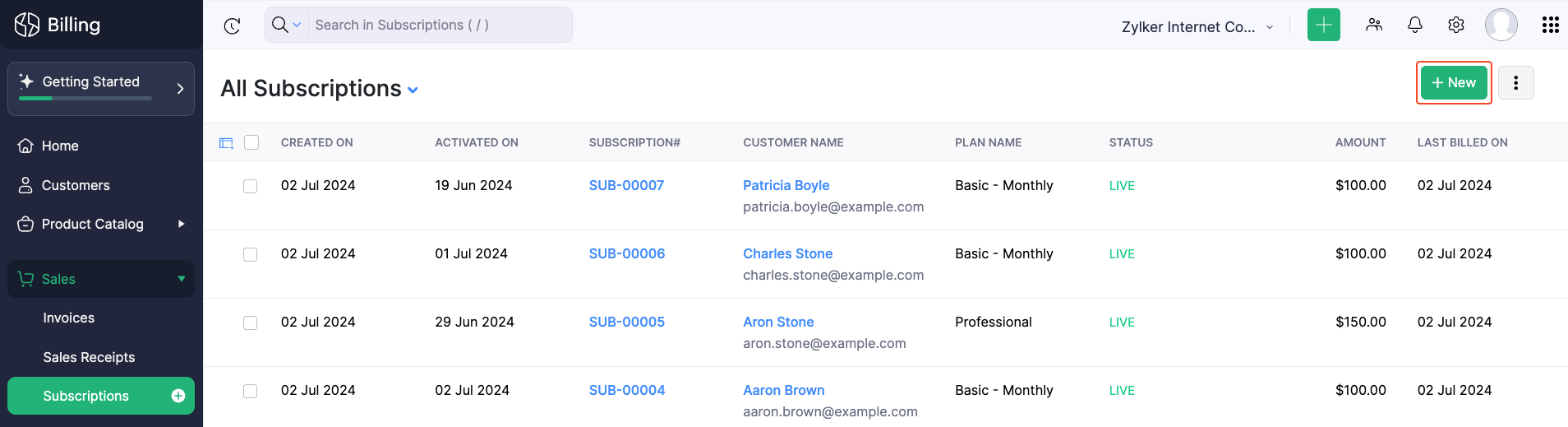
Zoho Books (Subscription)
Affordable with strong CSV/API ledger support and free tier for testing book sync.
Best for: Growing SMBs integrating with CRM for full business books.
Price Range: $0 - $60/month
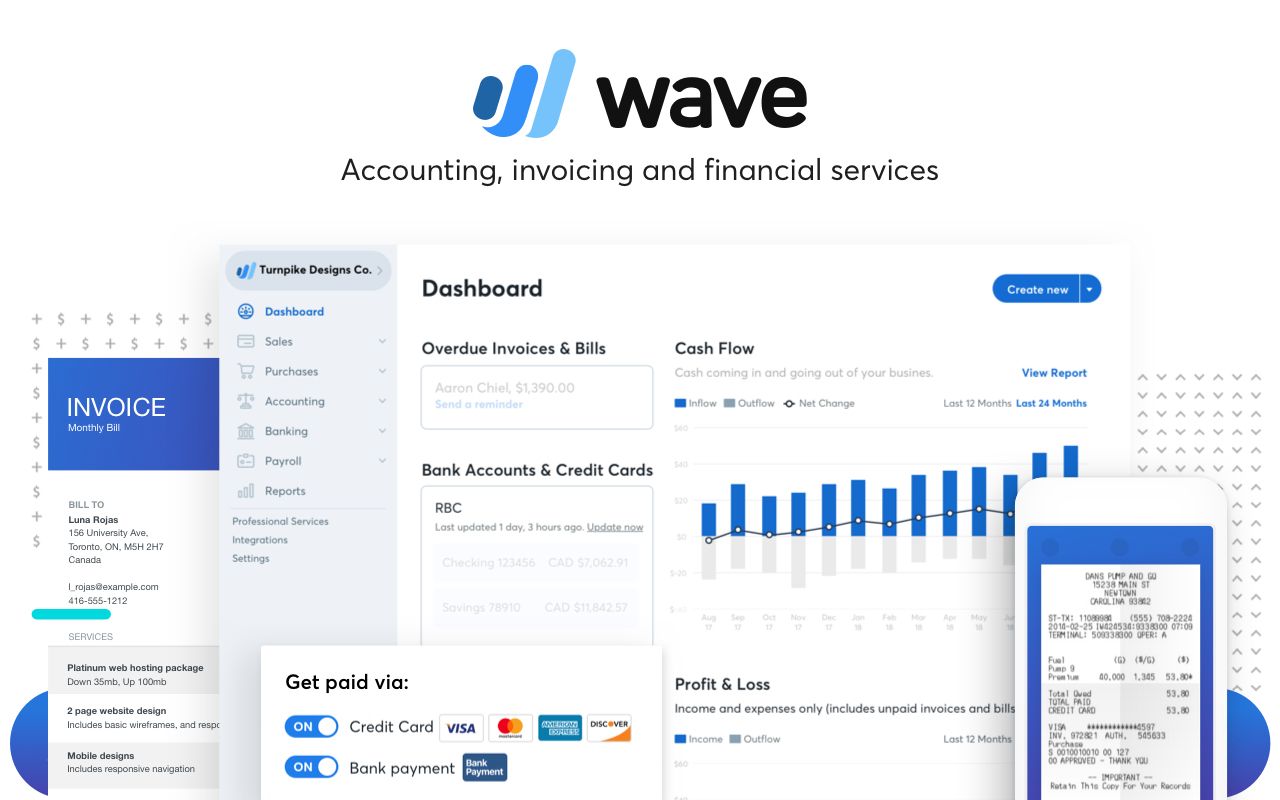
Wave Accounting (Free Plan)
No-cost entry with unlimited ledger imports; perfect starter for basic account books.
Best for: Freelancers/solopreneurs avoiding subscriptions.
Price Range: Free (premium add-ons $8+/mo)
Blue Summit Supplies Accounting Ledger Book
Physical companion for software users; Amazon ASIN B07P8J2Q5D; structured for easy CSV digitization.
Best for: Hybrid workflows scanning pages to software.
Price Range: $12.99