Running a business with QuickBooks is great for core accounting, but many users struggle with siloed data from payroll, expenses, or bill payments—leading to errors and wasted time. Integrating specialized accounting software can automate data flow, ensuring accuracy and compliance.
In this guide, you'll discover the best accounting software that integrates with QuickBooks Online or Desktop, based on ease of setup, sync reliability, and user reviews. We'll break down top picks, integration types, and setup steps so you can choose and implement the right one for your needs.
Expect a straightforward explainer: no fluff, just actionable insights for intermediate users. You'll be evaluating options in under 30 minutes.
▸What You'll Need
- •Active QuickBooks Online or Desktop subscription (admin access required)
- •Internet connection for app store and API access
- •Basic knowledge of QuickBooks charts of accounts and data sync
- •Optional: Zapier account for advanced no-code integrations
Estimated Time: 20-30 minutes
Difficulty: intermediate
▸Step-by-Step Instructions
Step 1: Understand QuickBooks Integrations Ecosystem
QuickBooks offers over 750 apps in its App Store for seamless data sync. Accounting software integrates via native connectors (direct), API (programmatic), or third-party like Zapier (no-code automations). This matters because poor integration causes duplicate entries or data lags.
Start by logging into QuickBooks > Apps tab. Search for 'accounting' or specific needs like 'payroll'. Expect real-time or scheduled syncs—native is fastest.
Image description: Screenshot of QuickBooks Apps store dashboard with search bar for integrations.
💡 Tips:
- •Prioritize 'Platinum' or 'Gold' certified apps for reliability.
⚠️ Warnings:
- •Avoid unverified apps to prevent data security risks.
Step 2: Assess Your Specific Accounting Needs
Before picking software, list pain points: Is it payroll, expense tracking, AP/AR, or inventory? Match to QuickBooks strengths (general ledger) and gaps.
Example: If payroll is manual, prioritize Gusto. Use QuickBooks reports to quantify time lost (e.g., 5 hours/week on expenses). This ensures ROI—integrations pay off by reducing errors 80% per user studies.
Create a simple spreadsheet: columns for need, must-have features, budget.
💡 Tips:
- •Factor in employee count or transaction volume for scalability.
Step 3: Compare Integration Types
Native: Plug-and-play (e.g., Gusto auto-syncs paychecks to QB journals). API: Custom, developer-needed. Zapier: Triggers like 'new expense → QB invoice'.
Why it matters: Native is zero-code, ideal for intermediates. Test sync direction (one-way vs. bi-directional) to avoid overwrites.
Analogy: Native is like USB plug; Zapier is wireless adapter—flexible but with latency.
Step 4: Top Pick: Gusto for Payroll Integration
Gusto excels with bi-directional sync: employee data, wages, taxes flow to QB automatically. Setup: Connect in 5 mins via Apps.
Best for SMBs (1-100 employees). Users report 95% less manual payroll entry. Pricing starts at $40/mo + $6/user.
Why best: Handles W-2s, 401k, benefits—full payroll accounting without double-entry.
💡 Tips:
- •Map Gusto payroll items to QB accounts during setup.
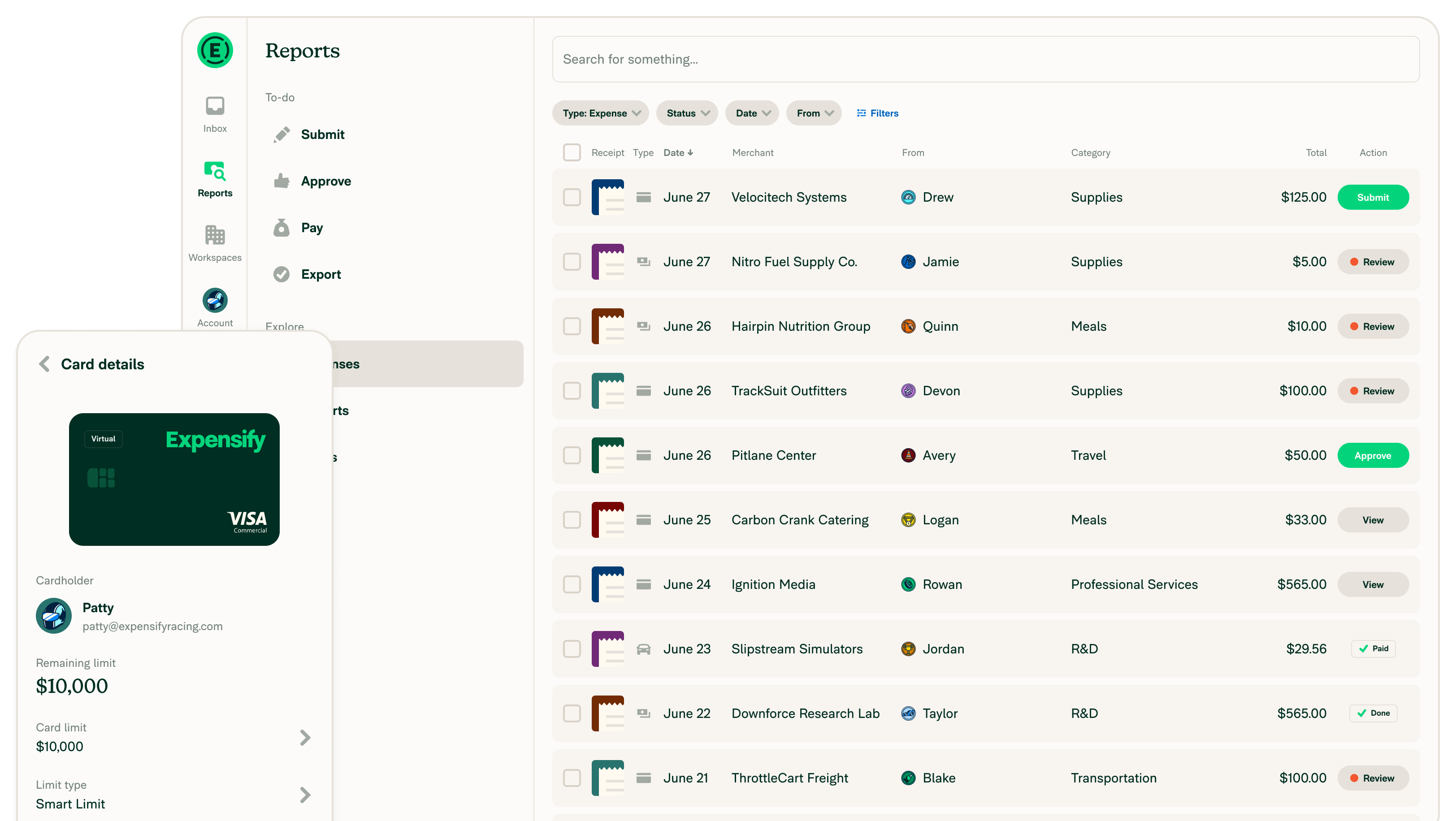
Step 5: Top Pick: Expensify for Expense Management
Expensify scans receipts via app, auto-categorizes, and exports to QB as expenses or bills. Real-time sync prevents reimbursement delays.
Ideal for field teams. Integrates via native app or SmartScan AI. Expect 70% faster month-end close.
Example: Snap receipt → OCR extracts data → QB vendor bill created.
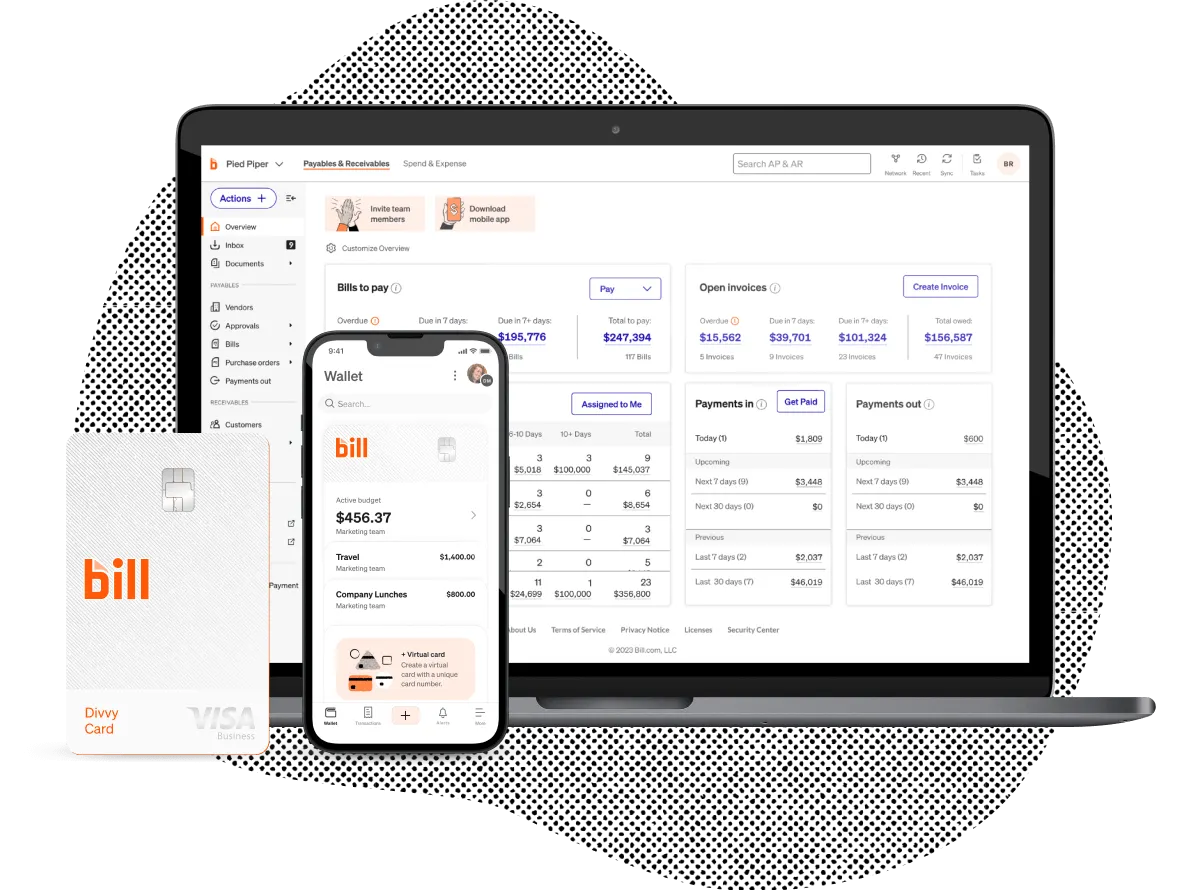
Step 6: Top Pick: Bill.com for AP/AR Automation
Bill.com automates bill approval/pay, syncing payments, invoices to QB. Bi-directional: QB invoices → Bill.com collections.
Suits growing businesses with 50+ bills/mo. Features duplicate detection, ACH payments. ROI: Cuts AP time by 50%.
Why top: Handles multi-entity if using QB Enterprise.
💡 Tips:
- •Use approval workflows to match your org chart.
Step 7: Honorable Mentions: Inventory and CRM
For inventory: Fishbowl or SOS Inventory—syncs stock levels, COGS to QB. For customer accounting: Method:CRM tracks AR aging in QB.
Choose based on niche: Fishbowl for warehouses (real-time qty adjustments). These extend QB without replacing it.
⚠️ Warnings:
- •Inventory syncs can lag; schedule daily reconciliations.
Step 8: Set Up and Test Your Integration
In QB Apps: Find app > Connect > Authorize > Map fields (e.g., Gusto 'gross pay' to QB wage expense). Run test transaction.
Monitor via QB audit log. Expect 1-2% initial errors—fix mappings.
Pro tip: Use sandbox mode if available.
Step 9: Monitor and Optimize Syncs
Post-setup, check weekly: Reports > Reconciliation. Set alerts for failures.
Scale by adding zaps (e.g., Shopify sales → QB via Zapier). This keeps data fresh, audits clean.
💡 Tips:
- •Backup QB before live syncs.
▸Pro Tips
- •Always map custom fields first to avoid data mismatches.
- •Use QuickBooks multi-currency if integrating global payroll like Gusto.
- •Leverage free trials (most offer 14-30 days) to test real data.
- •Combine tools: Expensify + Bill.com covers 80% accounting workflows.
- •Subscribe to Intuit's integration updates for new features.
- •For Desktop users, check for Web Connector compatibility.
- •Train team on app logins to prevent access issues.
▸Common Mistakes to Avoid
- •Ignoring field mapping: Leads to wrong account postings—always preview syncs.
- •Over-relying on one-way syncs: Use bi-directional for accuracy.
- •Skipping permissions: Causes auth errors—grant app full read/write.
- •Not reconciling post-sync: Hidden duplicates inflate books.
- •Choosing non-certified apps: Risk data loss—stick to App Store.
▸Troubleshooting
Problem: Sync errors or failed transactions
Solution: Check API permissions in QB settings; clear cache; contact app support (most have 24/7 chat).
Problem: Data duplication after integration
Solution: Pause sync, run QB duplicate report, merge entries, remap unique IDs.
Problem: Slow performance with large datasets
Solution: Switch to scheduled syncs (hourly vs real-time); upgrade QB tier.
Problem: Integration breaks after QB update
Solution: Verify app certification; use Zapier as backup bridge.
Gusto Payroll Software
Top-rated for seamless, compliant payroll sync with QuickBooks, handling taxes and direct deposit automatically.
Best for: Small to mid-sized businesses needing full payroll integration without manual journal entries.
Price Range: $40/month base + $6 per employee/month
Expensify Expense Management
AI-powered receipt scanning and auto-export to QuickBooks expenses or bills, reducing errors by 90%.
Best for: Teams with frequent travel or reimbursements requiring mobile-first expense tracking.
Price Range: $5/user/month (Collect plan)
Bill.com AP/AR Automation
Automates entire bill workflow with bi-directional QuickBooks sync, including approvals and payments.
Best for: Businesses processing 20+ bills/month wanting to eliminate paper checks.
Price Range: $45/month (Essentials plan)
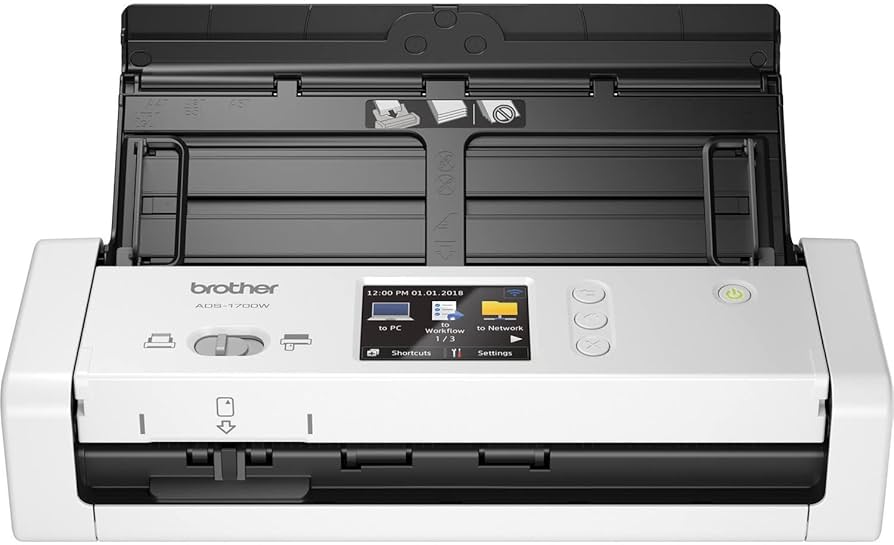
Brother ADS-1700W Document Scanner
Compact scanner for digitizing receipts/bills directly into Expensify or QuickBooks-compatible apps.
Best for: Paper-heavy offices transitioning to digital accounting integrations.
Price Range: $250-$300
QuickBooks Online Accountant (Book)
Companion guide for mastering integrations, with setup tutorials for top apps.
Best for: Intermediate users deepening QuickBooks knowledge for better integrations.
Price Range: $25-$35