
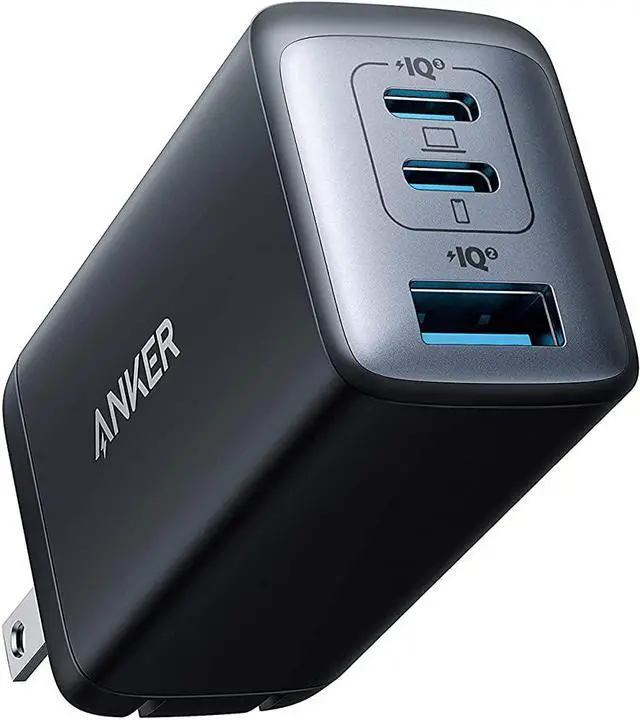
Anker 735 Nano II 65W GaN Charger
Universal USB-C laptops (Dell XPS, MacBook Air) needing portable, efficient charging.
$35-$40
Anker 735 Nano II 65W GaN Charger GaN tech runs ultra-cool, PD 3.0 delivers precise power to prevent strain and heat.
Get the App
Better experience on mobile
Discover key AC adapter features and specs that deliver stable power to keep your laptop cool and performant.
Laptop overheating is a common frustration—fans whirring loudly, throttled performance, and even shutdowns during heavy use or charging. Surprisingly, your AC adapter plays a bigger role than you might think. An underpowered, faulty, or low-quality charger forces your laptop's internals to work harder, generating excess heat.
In this guide, you'll learn how to identify AC adapters that prevent overheating by providing efficient, stable power. We'll break down critical specs like wattage, voltage, and advanced features like GaN technology. No technical expertise needed beyond basic laptop knowledge—this intermediate explainer takes just 10-15 minutes to read and apply.
By the end, you'll know exactly what to look for when buying or replacing your adapter, avoiding the pitfalls that lead to heat issues.
Estimated Time: 10-15 minutes Difficulty: intermediate
Start by finding your laptop's exact power needs. Every model has a recommended voltage (V), amperage (A), and wattage (W—calculated as V x A). Check the original adapter label or manufacturer's site.
Why it matters: Mismatched specs cause unstable power delivery, making the laptop's power management system overcompensate and heat up components like the CPU and battery.
Expect to see something like '19.5V 3.34A 65W'. Note these down for matching.
💡 Tips:
Choose an adapter with equal or slightly higher wattage (e.g., 65W laptop needs 65W+). Underpowered adapters (like 45W on 65W) strain the system, causing thermal throttling.
Higher wattage is safer if compatible, as modern laptops negotiate power via USB-C PD or proprietary protocols. Analogy: It's like giving your car the right fuel octane—wrong mix causes knocking and heat.
Test: Plug in and monitor temps with tools like HWMonitor (Windows) or smcFanControl (Mac).
⚠️ Warnings:
Voltage must match exactly (e.g., 19V, not 20V). Polarity (center positive/negative) is crucial for non-USB-C laptops—symbol on label looks like ⊕ or ⊖.
Why it prevents overheating: Wrong voltage causes inefficient power conversion, spiking heat in the DC-in jack and motherboard.
For USB-C laptops, it's simpler—look for USB Power Delivery (PD) 65W+ support.
💡 Tips:
Stick to OEM (original equipment manufacturer) or third-party with certifications like UL, CE, or MFi (for Apple). Fakes use cheap components that overheat themselves and deliver erratic power.
Real-world example: Counterfeit Dell chargers have caused fires—stable power from certified ones keeps internals cool.
Check holograms, serial numbers, and buy from reputable sellers.
⚠️ Warnings:
Gallium Nitride (GaN) adapters run cooler and smaller than silicon ones. They convert power more efficiently, reducing waste heat passed to your laptop.
Analogy: GaN is like a fuel-efficient engine vs an old gas-guzzler.
Look for 'GaN' or 'GaNPrime' labels—ideal for modern USB-C laptops.
💡 Tips:
Adapters with Power Delivery (PD) 3.0+, PPS (Programmable Power Supply), or brand-specific protocols (e.g., HP Smart Adapter) dynamically adjust output, preventing overcharge heat.
Why it works: Matches exact needs, unlike fixed-output adapters that force constant high draw.
Thick, shielded cables (20-24 AWG) minimize voltage drop. Metal casing dissipates adapter heat better.
Test for heat after 30 mins use—if adapter gets >60°C, replace. Good ones stay warm, not hot.
💡 Tips:
⚠️ Warnings:
Problem: Adapter works but laptop still overheats
Solution: Check dust in vents, reapply thermal paste, or update BIOS/power drivers. Test with OEM adapter.
Problem: Adapter gets extremely hot
Solution: Immediate replacement—indicates failing capacitors. Use on hard surface for ventilation.
Problem: No charging or flickering
Solution: Clean DC jack with isopropyl alcohol. Test voltage with multimeter (should match specs ±5%).
Problem: Incompatible voltage error
Solution: Confirm specs exactly. Seek pro repair if jack damaged. When unsure, contact manufacturer.
GaN tech runs ultra-cool, PD 3.0 delivers precise power to prevent strain and heat.
Best for: Universal USB-C laptops (Dell XPS, MacBook Air) needing portable, efficient charging.
Price Range: $35-$40
Dual ports with PPS for dynamic power adjustment, certified safe, stays cool under load.
Best for: Multi-device users or HP/Lenovo laptops during work sessions.
Price Range: $45-$55
OEM-quality with smart IC chip for stable output, matches HP specs perfectly to avoid throttling.
Best for: HP Pavilion/Envy owners seeking genuine replacement.
Price Range: $40-$50
Compact, efficient GaN with 3 ports and PD/PPS—reduces heat for prolonged use.
Best for: Budget-conscious users with gaming or thin laptops like ASUS ROG.
Price Range: $30-$35
Official Dell with precise voltage negotiation, proven to eliminate power-related overheating.
Best for: Dell Inspiron/XPS for guaranteed compatibility.
Price Range: $50-$60
Universal USB-C laptops (Dell XPS, MacBook Air) needing portable, efficient charging.
Anker 735 Nano II 65W GaN Charger GaN tech runs ultra-cool, PD 3.0 delivers precise power to prevent strain and heat.
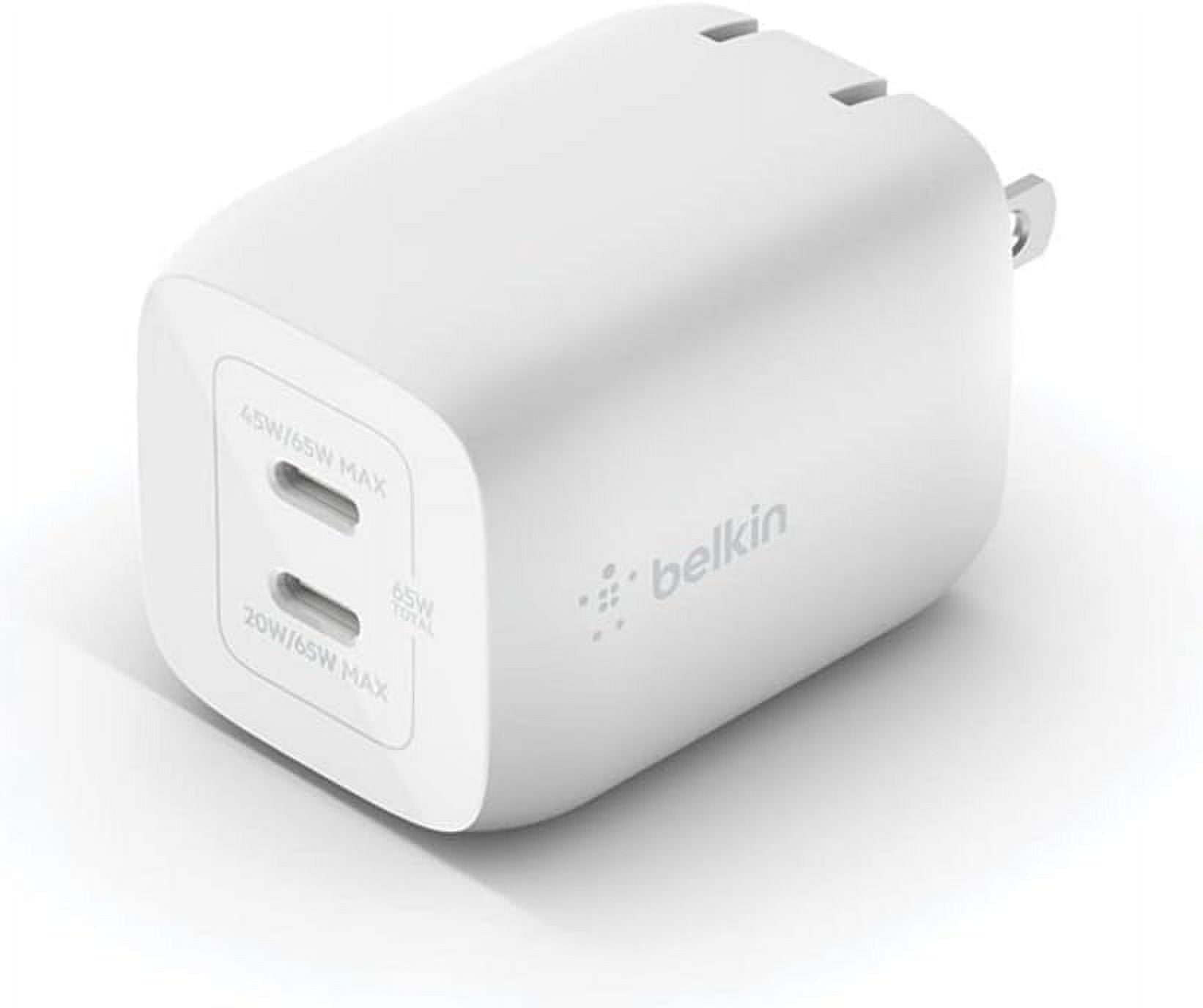
Multi-device users or HP/Lenovo laptops during work sessions.
Belkin BoostCharge Pro 65W Dual USB-C GaN Charger Dual ports with PPS for dynamic power adjustment, certified safe, stays cool under load.
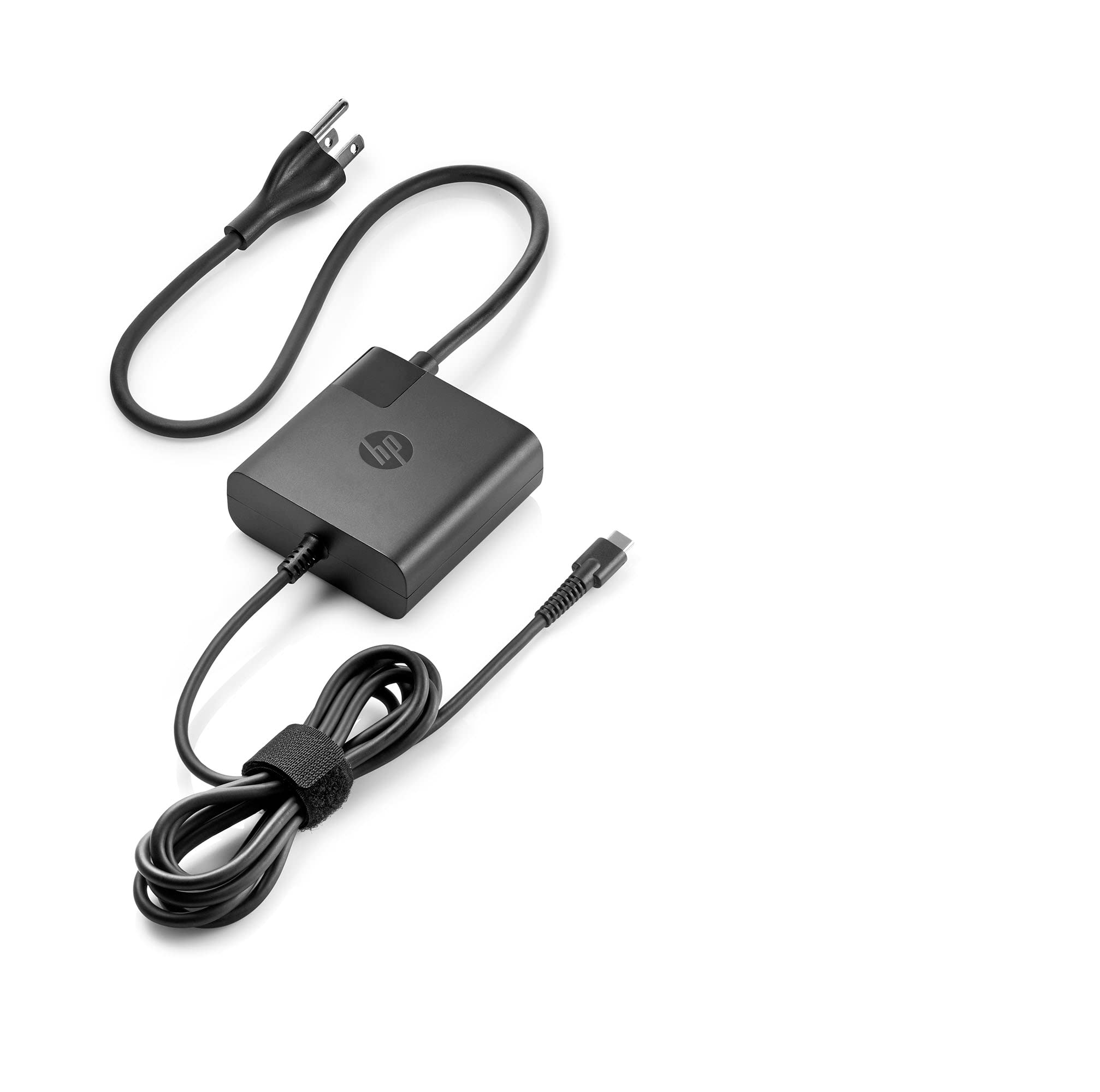
HP Pavilion/Envy owners seeking genuine replacement.
HP 65W USB-C Travel Adapter OEM-quality with smart IC chip for stable output, matches HP specs perfectly to avoid throttling.
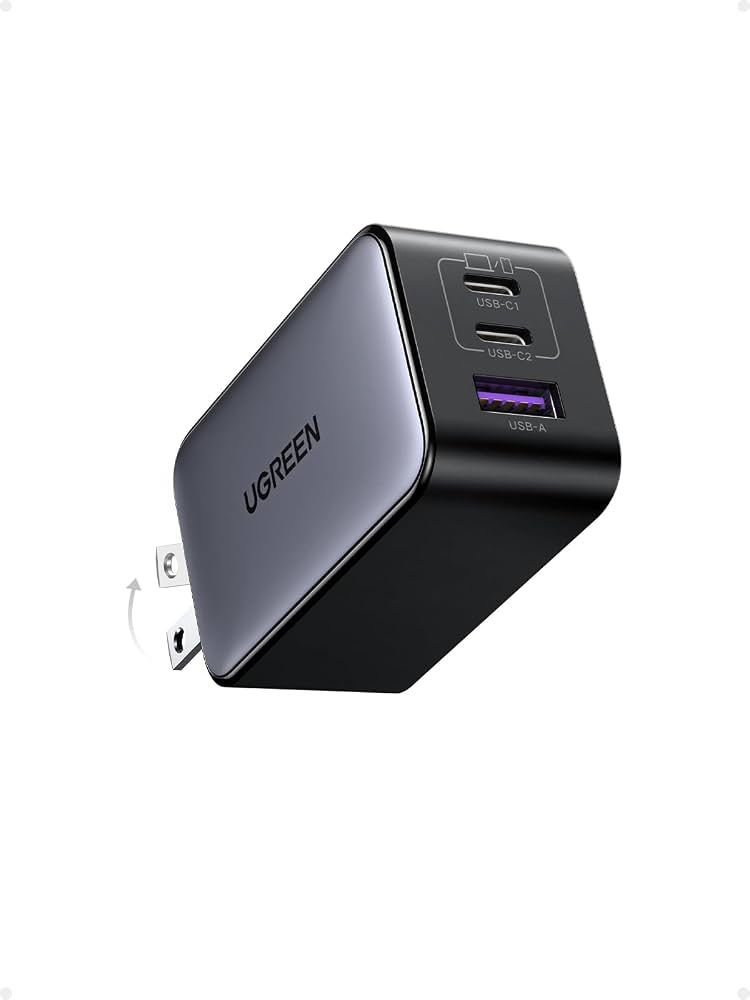
Budget-conscious users with gaming or thin laptops like ASUS ROG.
UGREEN 65W GaN Charger Nexode 3 Compact, efficient GaN with 3 ports and PD/PPS—reduces heat for prolonged use.
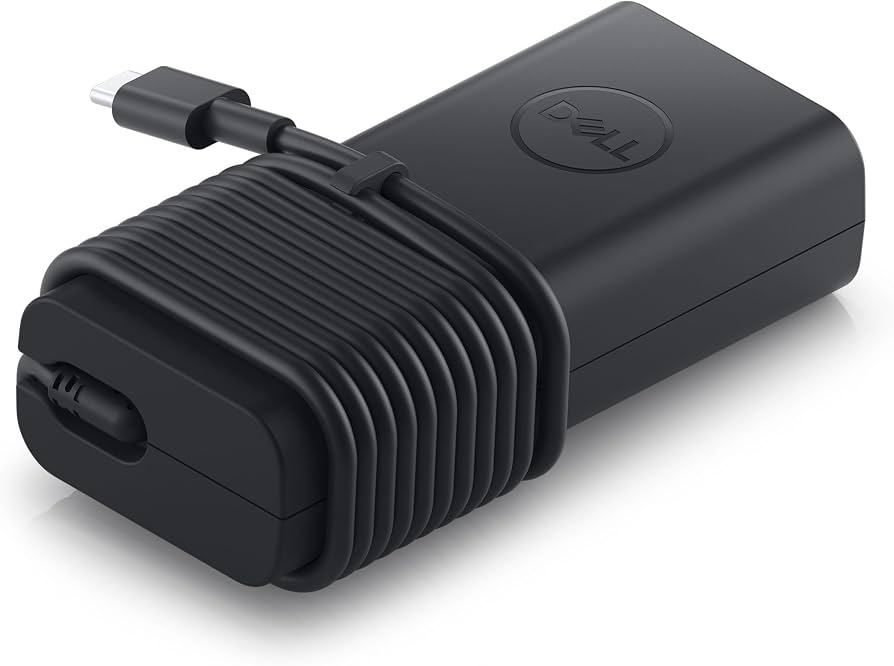
Dell Inspiron/XPS for guaranteed compatibility.
Dell 65W USB-C AC Adapter Official Dell with precise voltage negotiation, proven to eliminate power-related overheating.