
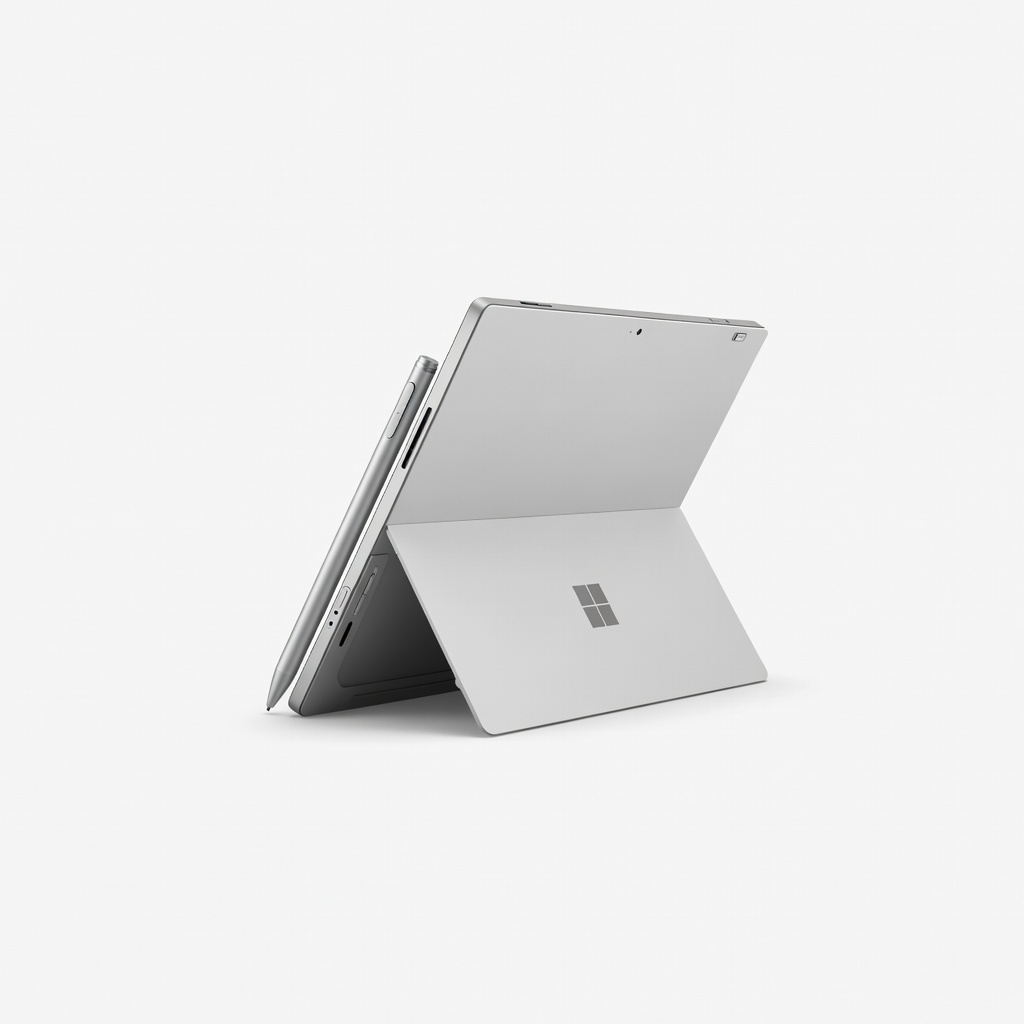
Microsoft Surface Pro 11
Pro digital painters needing portability and Windows apps.
$1200-$2000
Microsoft Surface Pro 11 Best-in-class stylus (Slim Pen 2) with 4096 pressure levels, Snapdragon X Elite for AI art tools, and stunning OLED display.
Get the App
Better experience on mobile
Learn why 2-in-1 laptops outperform traditional ones for digital artists, with top features and model recommendations.
Digital artists often juggle sketching on the go, editing in studio mode, and presenting work seamlessly—but traditional laptops fall short with rigid screens and no stylus support. This leaves creators frustrated with bulky tablets or underpowered devices.
In this guide, you'll discover the key strengths of 2-in-1 laptops for digital art, from versatile designs to pro-level performance. We'll break down features with real-world examples, so you can decide if one fits your workflow. Expect clear explanations and actionable insights—no prior hardware expertise needed.
Perfect for intermediate users familiar with tools like Photoshop or Procreate, this takes 15-20 minutes to explore.
Estimated Time: 15-20 minutes Difficulty: intermediate
2-in-1 laptops shine with designs that flip, fold, or detach into tablet mode, mimicking a digital sketchpad while offering full laptop power. Unlike fixed laptops, they let you draw at natural angles (like a Wacom tablet) or type reports upright.
Why it matters for digital art: Artists switch between ideation (tablet mode), refining (laptop mode), and collaboration (tent mode). Expect smooth transitions without extra gear.
Analogy: Think of it as a Swiss Army knife for creators—compact yet multifunctional.
💡 Tips:
⚠️ Warnings:
High-pressure sensitivity (4096+ levels) and low latency stylus input make 2-in-1s feel like professional drawing tablets. Screens use Gorilla Glass or similar for smooth gliding, with palm rejection to ignore your hand while drawing.
Real-world example: Pressure curves mimic traditional brushes in apps like Krita. Expect tilt support for realistic shading.
This excels over iPads for artists needing Windows/Mac software compatibility.
💡 Tips:
OLED or IPS panels with 100% DCI-P3 color gamut and 120Hz+ refresh rates deliver vibrant, accurate colors crucial for digital painting. High brightness (500+ nits) handles outdoor sketching.
Why superior: Calibrated for pros (Delta E <2), reducing edits in print workflows. Analogy: Like upgrading from newsprint to canvas.
⚠️ Warnings:
Intel Core Ultra or Snapdragon X Elite CPUs, 16GB+ RAM, and discrete GPUs (e.g., Arc or Adreno) handle multilayer Photoshop files or Blender renders without lag.
Performance edge: Run multiple apps like Illustrator + streaming simultaneously. Expect 4K editing at 60fps.
💡 Tips:
Under 3lbs with 12+ hour battery, 2-in-1s let you create anywhere—from coffee shops to client meetings—without cords.
Key advantage: Detachable designs pack like tablets but compute like laptops. Real example: Surface Pro users sketch on trains effortlessly.
Thunderbolt 4 ports connect to external monitors, Cintiq displays, or graphics docks, turning your 2-in-1 into a desktop studio.
Pro use case: Dual-monitor setups for reference + canvas.
💡 Tips:
Windows 11 with touch gestures, stylus drivers (e.g., MPP 2.0), and art apps optimized for tilt/pressure outshine Chromebooks or basic tablets.
Future-proofing: AI tools like Copilot+ enhance upscaling and auto-masking.
⚠️ Warnings:
Problem: Stylus lag or jitter
Solution: Update drivers via manufacturer's app; disable Windows Ink if conflicting; test on clean Windows install.
Problem: Poor color accuracy out-of-box
Solution: Run factory calibration or use X-Rite i1Display Pro; adjust in NVIDIA/Intel control panel.
Problem: Overheating during renders
Solution: Use a cooling pad; limit to 80% CPU in power settings; ensure vents are dust-free.
Problem: Battery drains fast in tablet mode
Solution: Switch to power-saver profile; close background apps; check for firmware updates.
Best-in-class stylus (Slim Pen 2) with 4096 pressure levels, Snapdragon X Elite for AI art tools, and stunning OLED display.
Best for: Pro digital painters needing portability and Windows apps.
Price Range: $1200-$2000
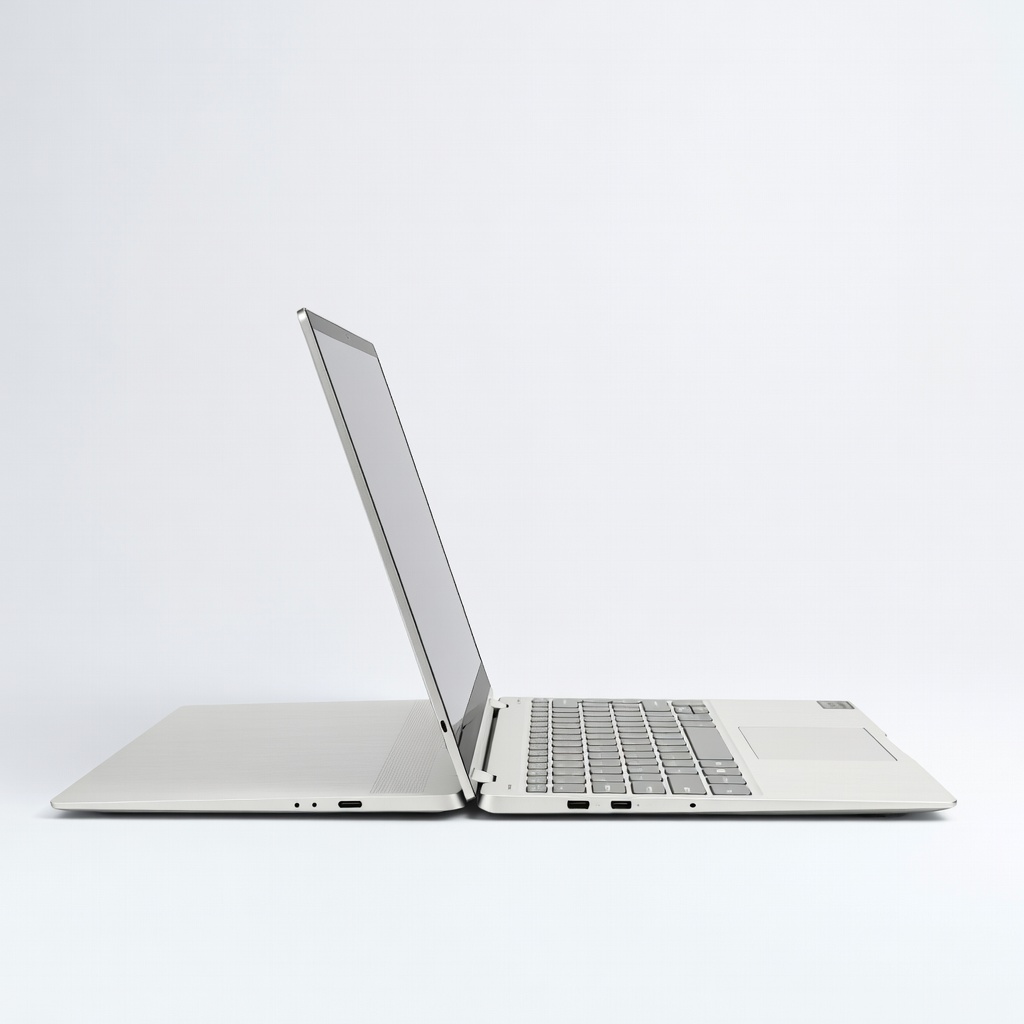
14-inch OLED touchscreen with 100% DCI-P3, Intel Core Ultra, and pen garage for secure storage.
Best for: Intermediate illustrators balancing sketching and video editing.
Price Range: $1300-$1600
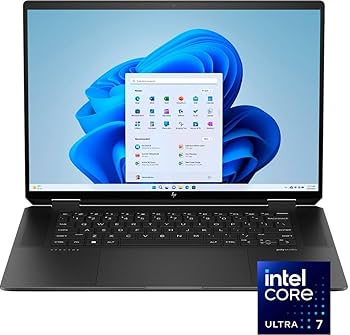
Large 16-inch OLED, haptic touchpad for gestures, and strong GPU for 3D modeling.
Best for: Concept artists wanting big canvas space.
Price Range: $1400-$1700
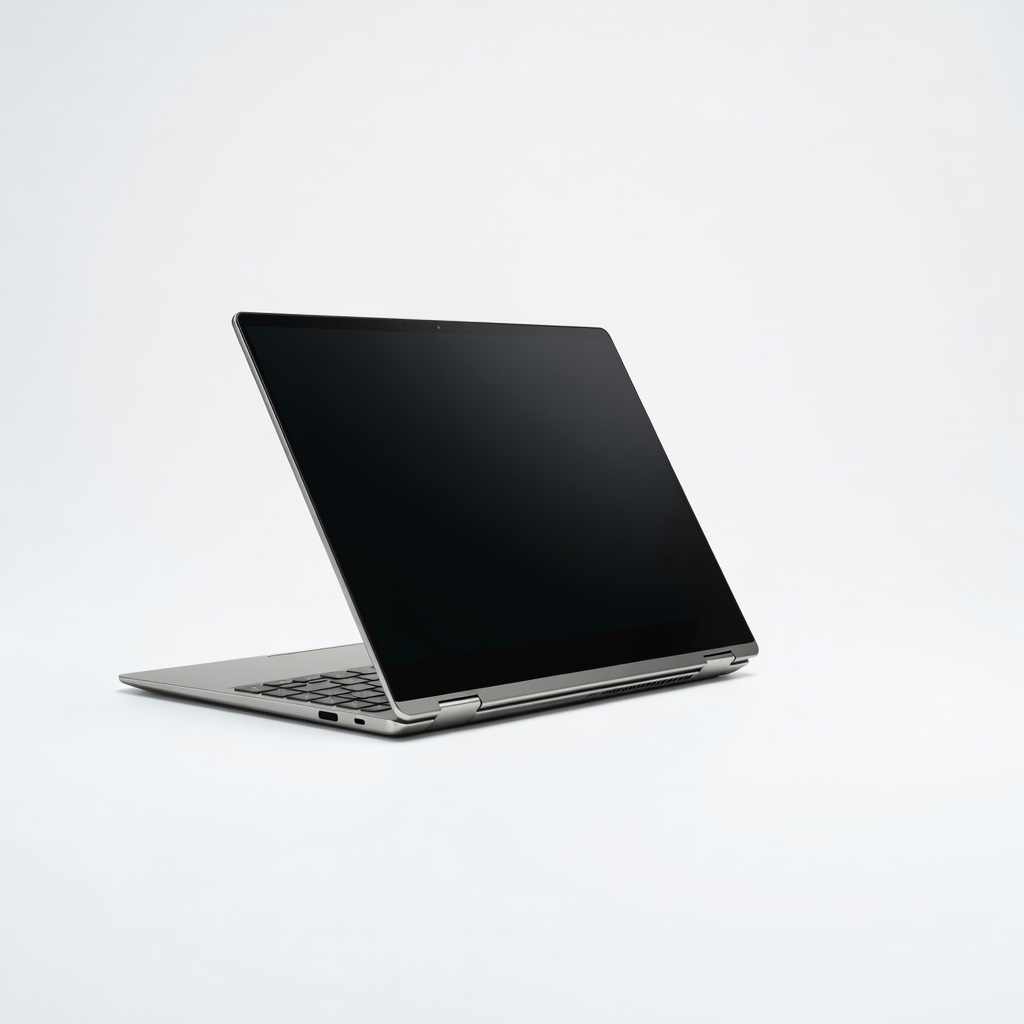
AMOLED display with S Pen included, excellent battery, and ARM efficiency for all-day creation.
Best for: Budget-conscious mobile artists using cross-platform apps.
Price Range: $1000-$1400
Creator-focused with 13.3-inch touchscreen, discrete GPU, and color-calibrated panel.
Best for: Professional digital sculptors needing power in a tiny form.
Price Range: $1100-$1500
Pro digital painters needing portability and Windows apps.
Microsoft Surface Pro 11 Best-in-class stylus (Slim Pen 2) with 4096 pressure levels, Snapdragon X Elite for AI art tools, and stunning OLED display.
Intermediate illustrators balancing sketching and video editing.
Lenovo Yoga 9i 2-in-1 (2024) 14-inch OLED touchscreen with 100% DCI-P3, Intel Core Ultra, and pen garage for secure storage.
Concept artists wanting big canvas space.
HP Spectre x360 16 (2024) Large 16-inch OLED, haptic touchpad for gestures, and strong GPU for 3D modeling.
Budget-conscious mobile artists using cross-platform apps.
Samsung Galaxy Book4 Pro 360 AMOLED display with S Pen included, excellent battery, and ARM efficiency for all-day creation.
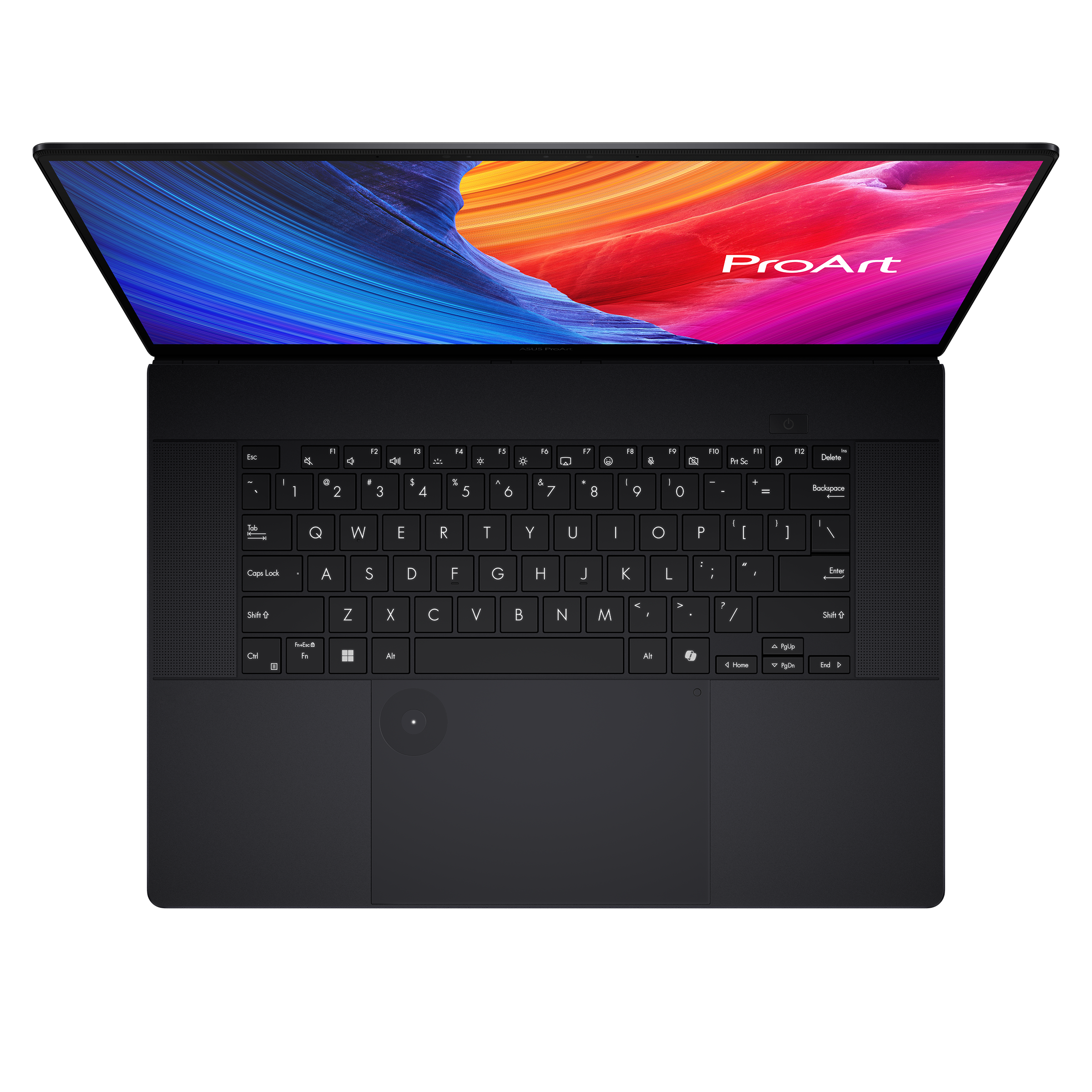
Professional digital sculptors needing power in a tiny form.
ASUS ProArt PZ13 Creator-focused with 13.3-inch touchscreen, discrete GPU, and color-calibrated panel.