Many small business owners and accountants still rely on physical ledgers for their tactile reliability and audit-proof nature, but modern accounting software offers speed, automation, and remote access. The pain point? Keeping both in sync without double work or errors. This guide solves that by showing you how to digitize entries, reconcile balances, and maintain hybrid records effortlessly.
You'll learn a step-by-step process to set up, transfer data, and verify accuracy between physical books and software. Whether transitioning fully digital or using physical as backup, you'll achieve error-free records in hours. Expect 2-4 hours for initial setup, with ongoing maintenance taking minutes per session—perfect for intermediate users comfortable with basic software.
▸What You'll Need
- •Accounting software (e.g., QuickBooks Online or Desktop—required)
- •Physical accounting ledger book (required)
- •Computer or tablet with internet (required)
- •Scanner or smartphone with OCR app (optional but recommended for digitizing)
- •Calculator or spreadsheet for verification (optional)
Estimated Time: 2-4 hours for initial setup; 15-30 minutes per reconciliation
Difficulty: intermediate
▸Step-by-Step Instructions
Step 1: Choose and Install Accounting Software
Select software that supports manual entry and reconciliation, like QuickBooks or Xero. Sign up for a trial or purchase if needed. Download and install on your device.
Why it matters: Matching software features to your physical book's structure (e.g., columns for debits/credits) ensures easy syncing. Expect a clean dashboard upon login.
Success looks like: Software opens with a new company file ready for setup.
💡 Tips:
- •Start with QuickBooks Online for cloud access if you work remotely.
⚠️ Warnings:
- •Avoid free tools without reconciliation features—they lead to mismatches.
Step 2: Prepare Your Physical Books
Gather your ledgers and organize by date or account. Ensure pages are neat, with clear columns for date, description, debit, credit, and balance.
Scan or photograph messy pages first. Why? Clean physical records make data entry faster and reduce errors. Expect to spend 15-30 minutes sorting.
Success looks like: Ledger pages in chronological order, totals at month-end visible.
💡 Tips:
- •Use colored tabs to mark sections like expenses or income.
Step 3: Set Up Chart of Accounts in Software
In software, go to 'Chart of Accounts' and create entries matching your physical book's categories (e.g., Cash, Accounts Receivable).
Import a template if available or manually add 10-20 accounts. Why it matters: Alignment prevents posting errors. Test with a sample entry.
Success looks like: Software accounts mirror physical ledger categories exactly.
💡 Tips:
- •Export physical totals to CSV first for bulk import.
Step 4: Digitize Transactions from Physical Books
Manually enter or scan transactions: Date > Description > Amount (debit/credit). Use OCR scanner for bulk import.
Batch by week/month. Why? Automation cuts time from hours to minutes. Verify 10% randomly.
Success looks like: Software transaction list matches a ledger page side-by-side.
💡 Tips:
- •Apps like Expensify OCR receipts directly into QuickBooks.
⚠️ Warnings:
- •Don't skip descriptions—vague entries complicate audits.
Step 5: Reconcile Balances Between Books and Software
Run a reconciliation report in software (e.g., QuickBooks 'Reconcile Accounts'). Compare ending balances to physical ledger totals.
Adjust discrepancies (e.g., missed entries). Why it matters: Ensures accuracy for taxes/filing. Aim for $0 difference.
Success looks like: 'Reconciled' status with matching balances.
💡 Tips:
- •Reconcile monthly to catch issues early.
Step 6: Set Up Ongoing Dual Maintenance
Decide workflow: Enter in physical first, then software (or vice versa). Schedule weekly syncs.
Backup physical scans digitally. Why? Hybrid setup provides redundancy. Automate reports.
Success looks like: Daily entries flow smoothly without duplication.
💡 Tips:
- •Use software bank feeds to auto-match physical cash entries.
⚠️ Warnings:
- •Never erase physical entries—keep as audit trail.
Step 7: Review and Audit Your Setup
Generate trial balance reports in software and compare to physical summary. Check for outliers.
Why? Validates the entire system. Fix any gaps.
Success looks like: Trial balances identical across both systems.
💡 Tips:
- •Share reports with an accountant for second eyes.
▸Pro Tips
- •Use keyboard shortcuts in software (e.g., Ctrl+J for journals) to speed entry.
- •Color-code physical ledger discrepancies in red for quick spotting.
- •Batch-scan receipts weekly with apps like Adobe Scan for free OCR.
- •Set software reminders for monthly reconciliations.
- •Keep physical books in a fireproof safe for compliance.
- •Integrate with bank APIs to auto-fill cash from physical notes.
- •Train a team member on the process for backups.
▸Common Mistakes to Avoid
- •Mismatched account names leading to double-counting—always copy-paste from physical.
- •Skipping verification, causing tax errors—reconcile before filing.
- •Over-relying on manual entry without scanning—use OCR to halve time.
- •Forgetting backups, losing physical scans—cloud store weekly.
- •Ignoring date formats—standardize YYYY-MM-DD everywhere.
▸Troubleshooting
Problem: Balances don't match after entry
Solution: Check for transposed numbers or missed transactions; use software's 'Find Discrepancies' tool.
Problem: Scanner OCR garbles numbers
Solution: Clean scanner glass and use high-contrast ink in physical books; manually correct key totals.
Problem: Software import fails
Solution: Export physical data as CSV with matching columns; test small batches first.
Problem: Slow performance with large ledgers
Solution: Archive old periods in software; scan physical to PDF for storage.
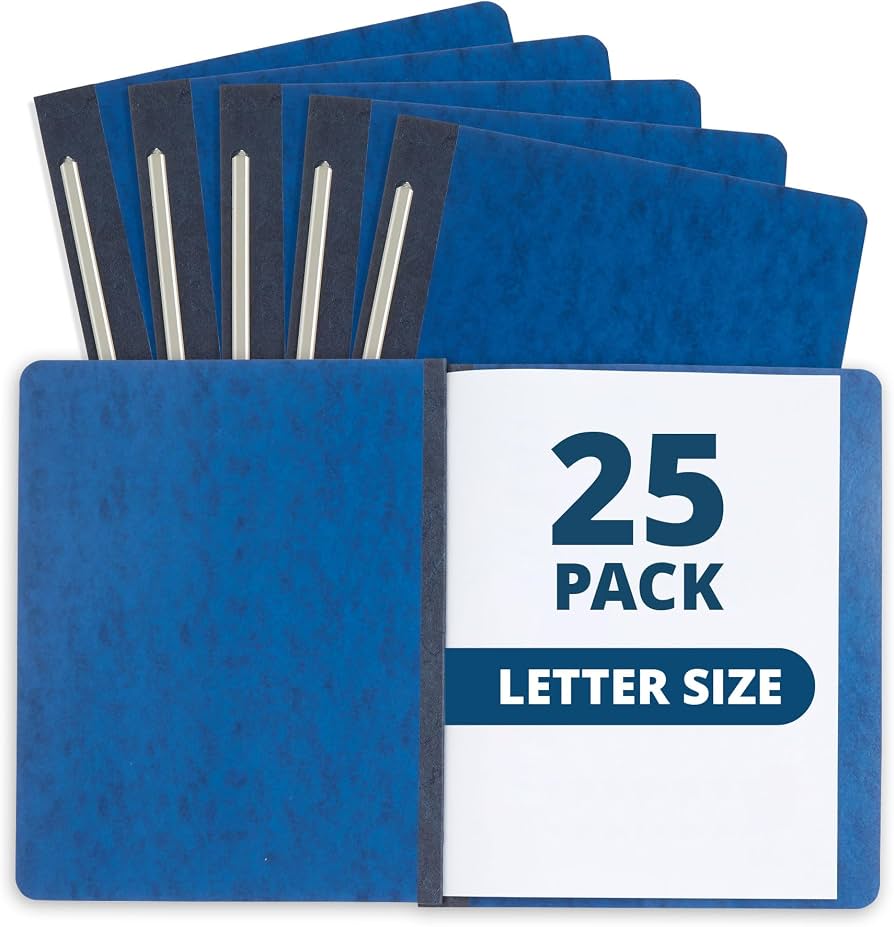
Blue Summit Supplies Accounting Ledger Book, 8.5x11, 208 Pages
Durable, acid-free paper with pre-printed columns matches software perfectly for easy transfer.
Best for: Daily physical entry before digitizing.
Price Range: $12.99
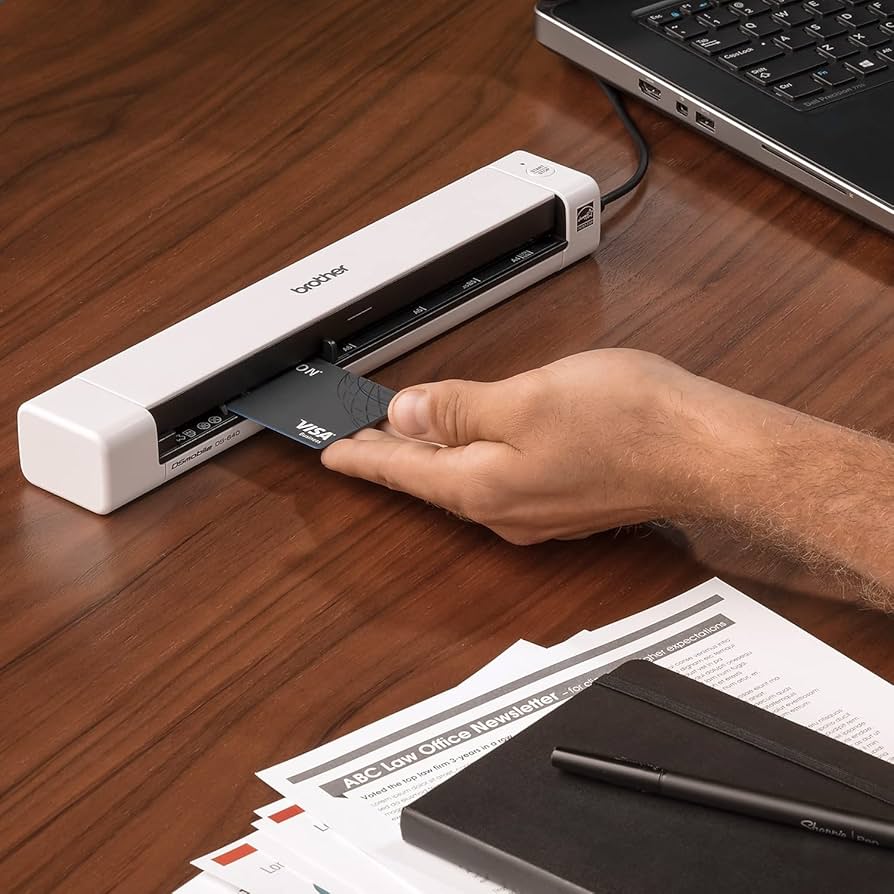
Brother DS-640 Compact Document Scanner
Portable, fast scanning with OCR compatibility feeds directly into QuickBooks.
Best for: Digitizing ledger pages and receipts in batches.
Price Range: $99.99
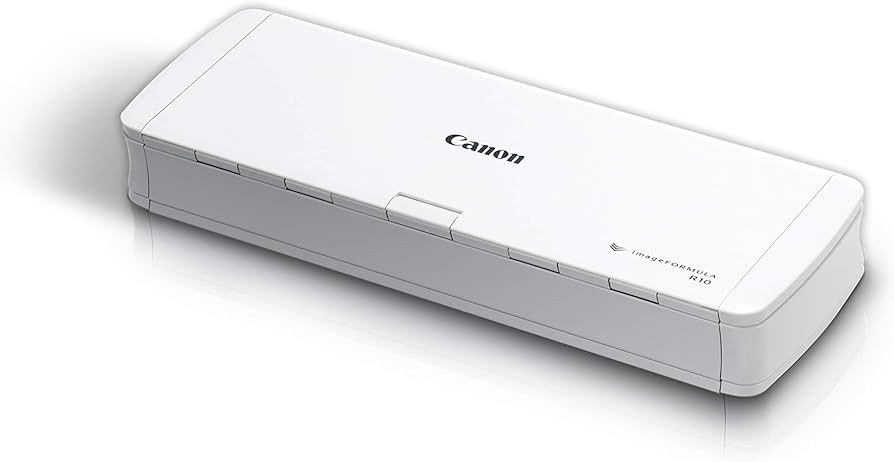
Canon imageFORMULA R10 Wireless Scanner
Wireless, app-integrated for mobile scanning; excellent for small biz hybrid workflows.
Best for: On-the-go ledger digitization syncing to cloud software.
Price Range: $179
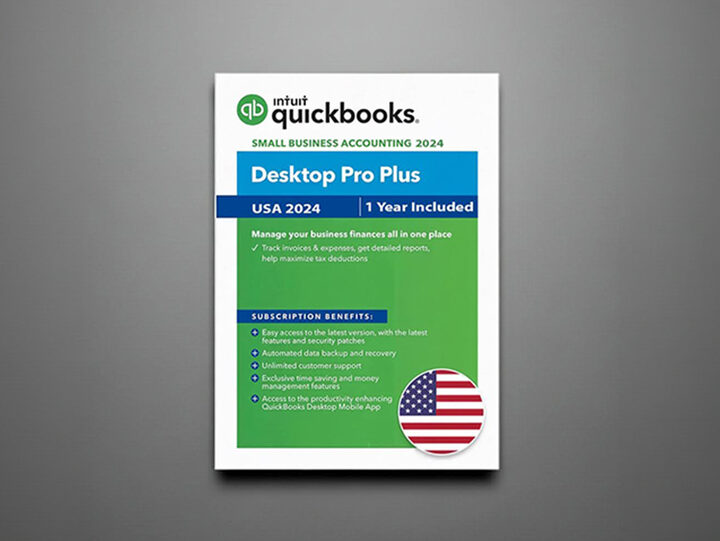
QuickBooks Desktop Pro Plus 2024 (1 User)
Robust reconciliation tools and manual entry perfect for physical book integration.
Best for: Core software for intermediate users handling inventory-ledgers.
Price Range: $349.99 (one-time purchase)
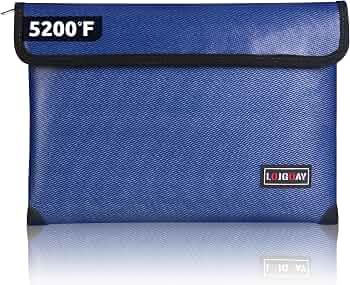
Fireproof Document Bag for Ledgers
Protects physical books from damage, ensuring long-term audit compliance.
Best for: Secure storage alongside digital backups.
Price Range: $25.99