Managing inventory manually with spreadsheets is a nightmare for small businesses—leading to stockouts, overstocking, lost sales, and costly errors. What if you could automate tracking purchases, sales, and stock levels in one place? This guide shows you how to use accounting software like QuickBooks Online to handle inventory seamlessly, giving you real-time insights and peace of mind.
You'll learn step-by-step from setup to generating reports, using QuickBooks Online Plus as our primary example (it excels at inventory for small businesses). Whether you're selling physical products online or in-store, this process will streamline operations. Expect 1-2 hours total, suitable for intermediate users with basic accounting knowledge—no coding required.
By the end, you'll have a live inventory system tracking every item, with alerts for low stock and valuation reports ready for taxes.
▸What You'll Need
- •Computer or laptop with reliable internet
- •Accounting software subscription (e.g., QuickBooks Online Plus, $90/month)
- •List of products: SKUs, descriptions, costs, selling prices, quantities on hand
- •Supplier details: names, contacts, terms
- •Bank/credit card info for optional bank feeds (required for full automation)
- •Optional: Barcode scanner for faster entry
Estimated Time: 1-2 hours for initial setup and first inventory cycle
Difficulty: intermediate
▸Step-by-Step Instructions
Step 1: Choose and Sign Up for Inventory-Ready Accounting Software
Start by selecting software with robust inventory features. QuickBooks Online Plus or Advanced is ideal for small businesses as it tracks quantities, costs, and values automatically. Avoid basic plans without inventory tracking.
Go to the software's website (e.g., quickbooks.intuit.com), sign up for a free trial, and enter your business details. Verify your email and log in. Success looks like a dashboard with 'New Company Setup' prompts.
Why it matters: Proper software prevents data silos and scales with growth.
💡 Tips:
- •Start with a 30-day free trial to test fit.
- •Compare 2-3 options like Xero or Zoho Books.
⚠️ Warnings:
- •Don't choose free tools; they lack inventory automation.
Step 2: Set Up Your Company Profile
In the dashboard, complete company setup: enter business name, address, tax ID, and fiscal year. Enable inventory tracking under Settings > Account and Settings > Sales > Products and Services (toggle 'Track quantity and cost').
Connect bank accounts via Plaid for auto-imports. Success: Green checkmarks on setup checklist, inventory module visible.
This foundational step ensures accurate costing (FIFO by default) and reporting.
💡 Tips:
- •Use your legal business name for tax compliance.
Step 3: Add Products and Initial Inventory
Navigate to Sales > Products and Services > New > Inventory. For each item: enter Name, SKU, Initial Quantity on Hand (as of today), Cost (from supplier), Sales Price, Income/Expense accounts.
Bulk import via CSV if you have 50+ items (download template first). Expect 10-30 mins for 20 items. Success: Items list populates with stock levels.
Why: Accurate starting quantities prevent valuation errors.
💡 Tips:
- •Use categories (e.g., Clothing > Shirts) for grouping.
- •Scan barcodes if using a compatible scanner.
⚠️ Warnings:
- •Double-check quantities to avoid negative stock surprises.
Step 4: Record Inventory Purchases
When buying stock: Expenses > New > Bill (or Vendor Credit). Select/add vendor, link to inventory items, enter quantities/costs. Save & Close—software auto-adjusts stock up and applies costs.
For partial receives, use Receive Payment. Success: Stock levels increase, average cost updates.
This tracks cost of goods sold (COGS) precisely.
💡 Tips:
- •Set vendors as 'Track payments later' for terms like Net 30.
Step 5: Process Sales and Update Stock
Create Invoice or Sales Receipt: +New > Invoice, add customer, select inventory items—quantities auto-decrease on payment. For POS, use Sales Receipt.
Success: Stock drops, revenue/COGS posted. Integrate with Shopify/WooCommerce via apps for auto-sync.
Automates outflow tracking.
💡 Tips:
- •Use bundles for kits (e.g., shirt + logo).
⚠️ Warnings:
- •Oversell? Enable warnings in settings.
Step 6: Make Inventory Adjustments
+New > Inventory Qty Adjustment. For shrinkage/theft/damage: select items, enter new quantity or qty difference, add memo. Software recalculates value.
Run monthly. Success: Clean, accurate counts match physical inventory.
Essential for real-world variances.
💡 Tips:
- •Schedule cycle counts quarterly.
Step 7: Set Reorder Points and Generate Reports
Edit items: set Reorder Point (e.g., 10 units), Preferred Vendor. Reports > Business Overview > Inventory Valuation Summary or Stock Status.
Customize alerts via email. Success: Low-stock emails, profit margin views.
Drives smart buying.
💡 Tips:
- •Export to Excel for custom analysis.
Step 8: Review and Optimize Monthly
End of month: Run Inventory Profitability, reconcile physical count. Adjust settings as needed (e.g., enable serial numbers).
Success: Balanced books, data for decisions. Scale by adding users/apps.
Ongoing step for mastery.
💡 Tips:
- •Backup data weekly via export.
▸Pro Tips
- •Use keyboard shortcuts (e.g., Alt+N for New) to speed entry 2x.
- •Integrate with e-commerce for hands-free sync—saves hours weekly.
- •Tag slow-movers with custom fields for promotions.
- •Enable multi-currency if importing globally.
- •Automate backups and set role-based access for teams.
- •Cycle count high-value items weekly, low-value monthly.
- •Link to Google Sheets for visual dashboards.
▸Common Mistakes to Avoid
- •Skipping initial physical count: Leads to inaccurate starting balances—always count first.
- •Ignoring adjustments: Causes stock/valuation mismatches—audit monthly.
- •Using wrong plan: Basic tiers lack inventory—upgrade to Plus.
- •Manual entry without import: Time-waster—use CSV for bulk.
- •Forgetting bank feeds: Misses purchase auto-matching—connect early.
▸Troubleshooting
Problem: Stock levels not updating after sales/purchases
Solution: Check if item is marked 'I buy/sell this' and inventory tracking enabled. Re-save transactions.
Problem: Import errors (CSV)
Solution: Match columns exactly to template; fix duplicates. Use sample file provided.
Problem: Negative inventory
Solution: Allow in settings temporarily, then adjust up. Set sales warnings.
Problem: Reports show wrong values
Solution: Verify costing method (FIFO default); reconcile bank/purchases. Contact support if persistent.
QuickBooks Desktop Pro Plus 2024
Full-featured desktop version with unlimited inventory tracking, ideal if you prefer offline access over cloud.
Best for: Small businesses with 1-40 employees needing advanced inventory without subscriptions.
Price Range: $549 one-time
Eyoyo Barcode Scanner
Wireless Bluetooth scanner compatible with QuickBooks for 10x faster item entry during counts/purchases.
Best for: High-volume inventory with SKUs—scan directly into software.
Price Range: $29.99
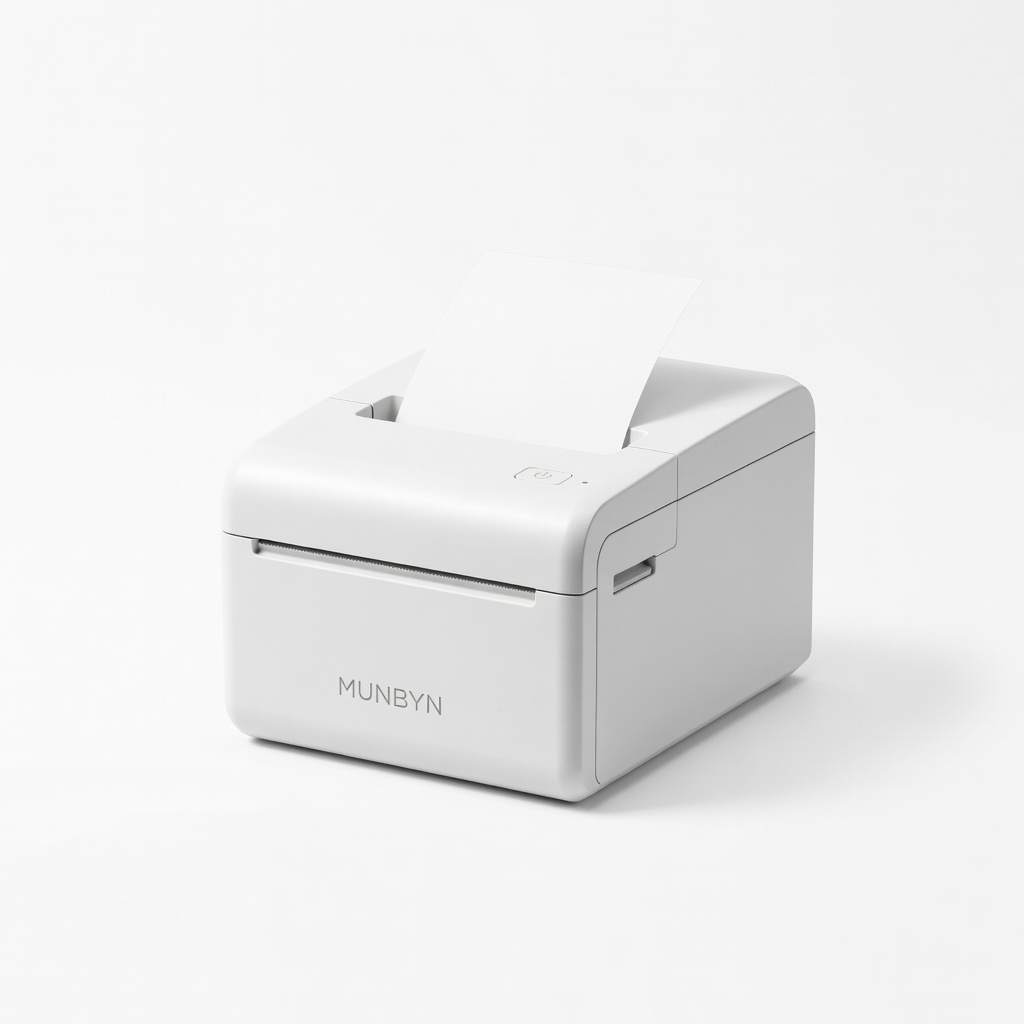
MUNBYN Thermal Shipping Label Printer
Prints inventory/shipping labels that integrate with QuickBooks for tracking outbound stock.
Best for: E-commerce sellers needing professional labels with barcodes.
Price Range: $99.99
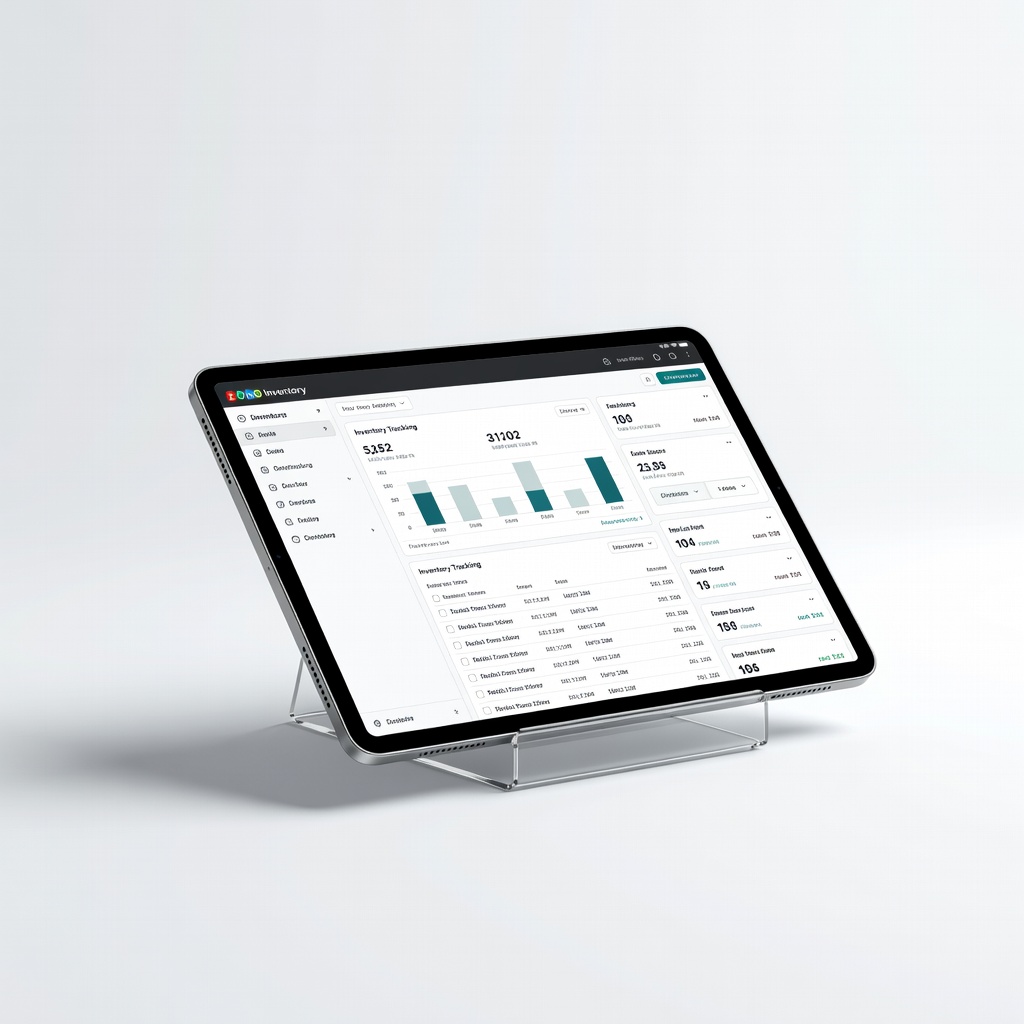
Zoho Inventory (SaaS alternative)
Free tier for basics, scales to pro inventory with QuickBooks integration via Zapier.
Best for: Budget startups wanting add-on inventory without full accounting switch.
Price Range: $0-$59/month
QuickBooks Online Plus Subscription
Cloud-based leader for real-time multi-user inventory tracking and reports.
Best for: Growing small businesses with remote teams.
Price Range: $90/month