

Energizer Ultimate Lithium AAA Batteries (8 Pack)
Ideal for infrequent users wanting minimal replacements.
$15-$20
Energizer Ultimate Lithium AAA Batteries (8 Pack) Lasts up to 20x longer in mice due to low self-discharge and leak-proof design.
Get the App
Better experience on mobile
Maximize battery life and performance in your wireless mouse with expert tips on selection, installation, and maintenance for hassle-free use.
Tired of your wireless mouse dying mid-use during important tasks? Poor battery management is a common frustration, leading to interruptions and frequent replacements. This guide shows you how to use AAA batteries optimally to get weeks or even months of reliable performance.
You'll learn step-by-step from choosing the best batteries to monitoring and replacing them effectively. Whether you're a casual user or working from home, these beginner-friendly steps will save you time and money.
The process takes just 10-15 minutes initially, with ongoing habits that are quick to maintain. No technical expertise needed—just follow along for smoother computing.
Estimated Time: 10-15 minutes for setup, 2-5 minutes for ongoing checks Difficulty: beginner
Start by selecting high-quality AAA batteries suited for low-drain devices like wireless mice. Opt for lithium or rechargeable NiMH over standard alkaline for longer life—lithium lasts up to 7x longer in intermittent use.
Why it matters: Cheap batteries leak or die quickly, damaging your mouse. Expect 3-6 months of use from premium options.
Pro tip: Check capacity—aim for 800-1000mAh for rechargeables.
💡 Tips:
⚠️ Warnings:
Locate the battery door on the bottom of your mouse—usually a sliding or clip cover. Open it gently and remove old batteries if present. Clean any residue with a dry cloth or cotton swab.
Success looks like: Empty, clean compartment ready for new batteries. This prevents corrosion issues.
💡 Tips:
⚠️ Warnings:
Align the + and - symbols on batteries with the compartment markings. Slide them in snugly—most mice take 1-2 AAA batteries.
Why it matters: Wrong polarity causes no power or damage. Expect the mouse LED to light up briefly on insert.
💡 Tips:
⚠️ Warnings:
Close the compartment, turn on the mouse (switch usually on bottom), and pair/connect to your computer. Move cursor, click, and scroll to verify smooth operation.
Success: Responsive cursor without lag or disconnection.
💡 Tips:
Install mouse software (e.g., Logitech Options) and enable power-saving modes: reduce polling rate, auto-sleep after inactivity, and disable unused lights.
Why: Cuts drain by 20-50%. Expect indicator lights showing low power only after weeks.
💡 Tips:
⚠️ Warnings:
Check battery status via software or mouse LED (blinking often means low). Track usage weekly.
Success: Predictable runtime without surprises.
💡 Tips:
Swap when performance lags. For rechargeables, use a smart charger to avoid overcharge.
Why: Prevents full drain damage.
💡 Tips:
⚠️ Warnings:
Take used batteries to recycling centers (e.g., Best Buy). Tape terminals to prevent shorts.
Success: Eco-friendly habit established.
Problem: Mouse won't turn on after insert
Solution: Check polarity, reseat batteries, try new ones. Clean contacts.
Problem: Erratic cursor movement
Solution: Replace batteries (even if LED ok), check for interference.
Problem: Fast battery drain
Solution: Disable RGB lights, lower polling rate, update software.
Problem: Batteries leaking
Solution: Clean mouse immediately, switch to lithium/rechargeables.
Lasts up to 20x longer in mice due to low self-discharge and leak-proof design.
Best for: Ideal for infrequent users wanting minimal replacements.
Price Range: $15-$20
Retain 85% charge after 1 year; perfect for daily mouse use with 1000+ cycles.
Best for: Heavy users—recharge and reuse indefinitely.
Price Range: $20-$25
Budget-friendly with 800mAh capacity; great starter for rechargeables.
Best for: Cost-conscious beginners testing rechargeables.
Price Range: $15-$18
Charges AAA precisely, shows capacity—extends battery life.
Best for: Pair with rechargeables for optimal maintenance.
Price Range: $25-$30
Checks AAA voltage quickly to avoid using weak batteries.
Best for: Troubleshoot drain issues proactively.
Price Range: $10-$12
Ideal for infrequent users wanting minimal replacements.
Energizer Ultimate Lithium AAA Batteries (8 Pack) Lasts up to 20x longer in mice due to low self-discharge and leak-proof design.
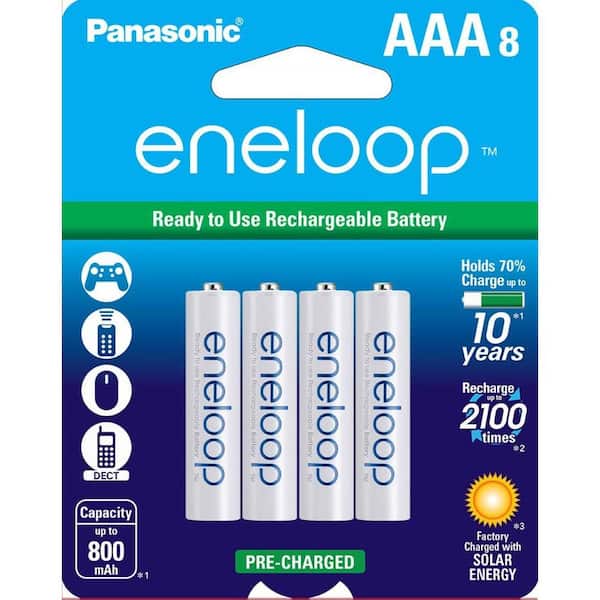
Heavy users—recharge and reuse indefinitely.
Panasonic Eneloop AAA Rechargeable Batteries (8 Pack) Retain 85% charge after 1 year; perfect for daily mouse use with 1000+ cycles.

Cost-conscious beginners testing rechargeables.
Amazon Basics AAA Rechargeable Batteries (12 Pack) Budget-friendly with 800mAh capacity; great starter for rechargeables.
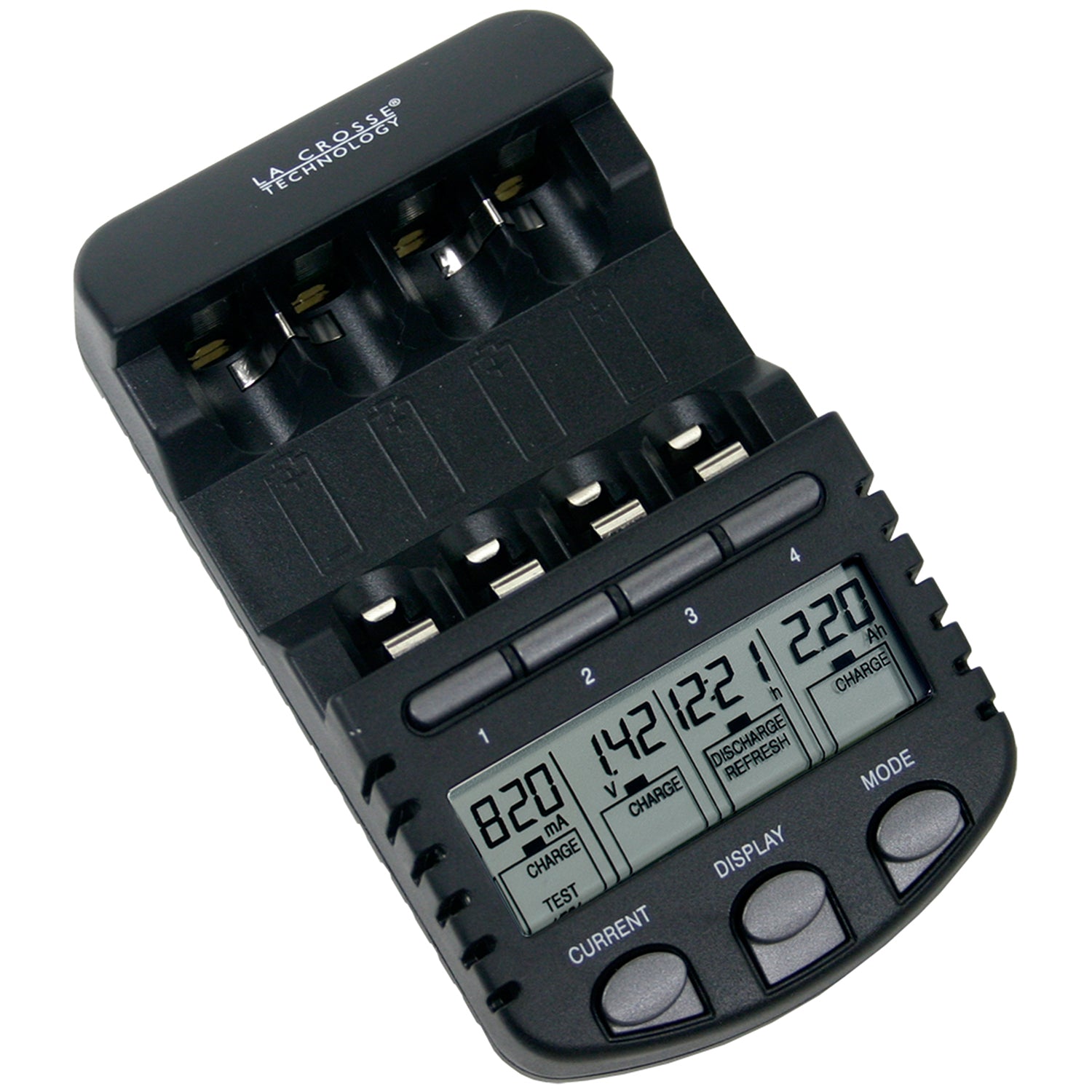
Pair with rechargeables for optimal maintenance.
La Crosse Technology BC700 Alpha Smart Charger Charges AAA precisely, shows capacity—extends battery life.
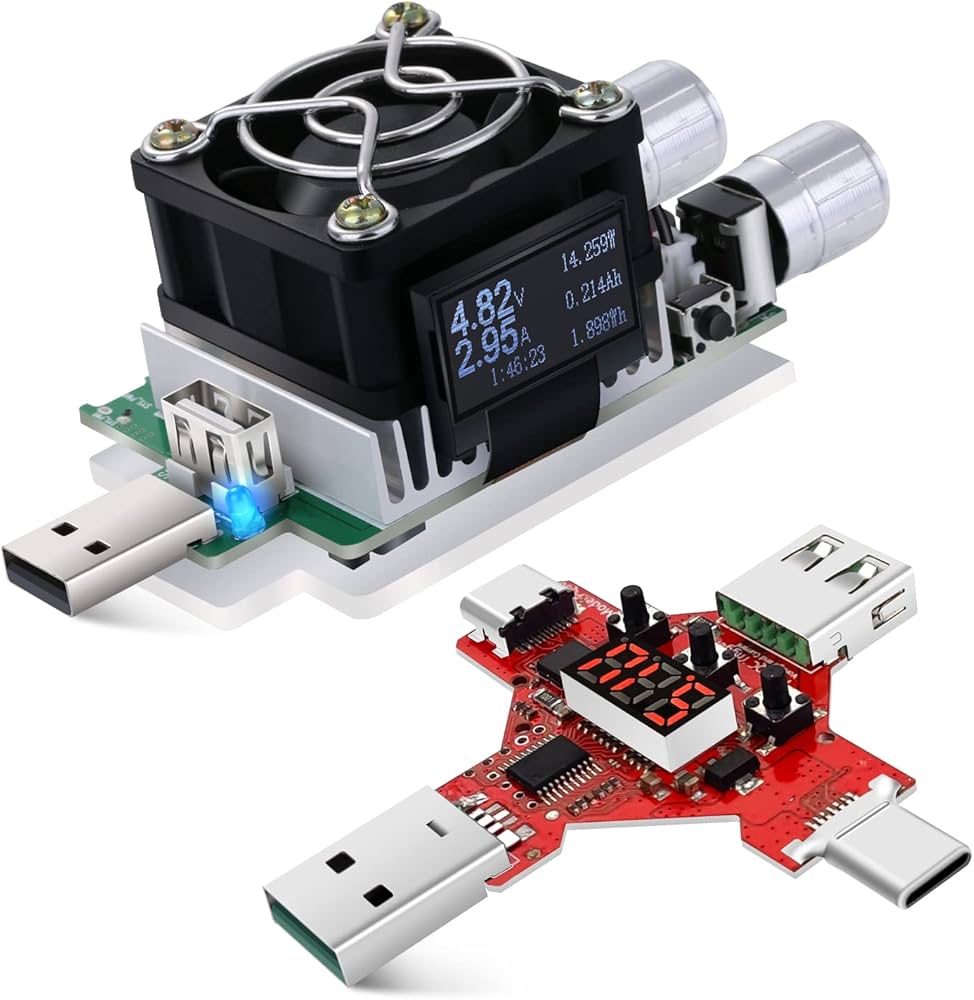
Troubleshoot drain issues proactively.
Eversame Universal Battery Tester Checks AAA voltage quickly to avoid using weak batteries.