You bought a 2-in-1 laptop for its versatility, but switching to tablet mode can feel awkward if you're used to a traditional laptop. Tablet mode offers a more intuitive touch-based experience for reading, drawing, or presenting, but it requires a few adjustments to avoid frustration. In this guide, you'll learn how to seamlessly switch between modes, navigate touch gestures, optimize display settings, and use accessories to enhance your tablet experience. Whether you have a Lenovo Yoga, HP Spectre, or Microsoft Surface, these steps apply to Windows 10/11 devices. This guide takes about 15 minutes to read and implement.
▸What You'll Need
- •A 2-in-1 laptop with a 360-degree hinge or detachable keyboard (e.g., Lenovo Yoga, HP Spectre, Dell XPS 2-in-1, Microsoft Surface Pro)
- •Windows 10 or 11 updated to the latest version
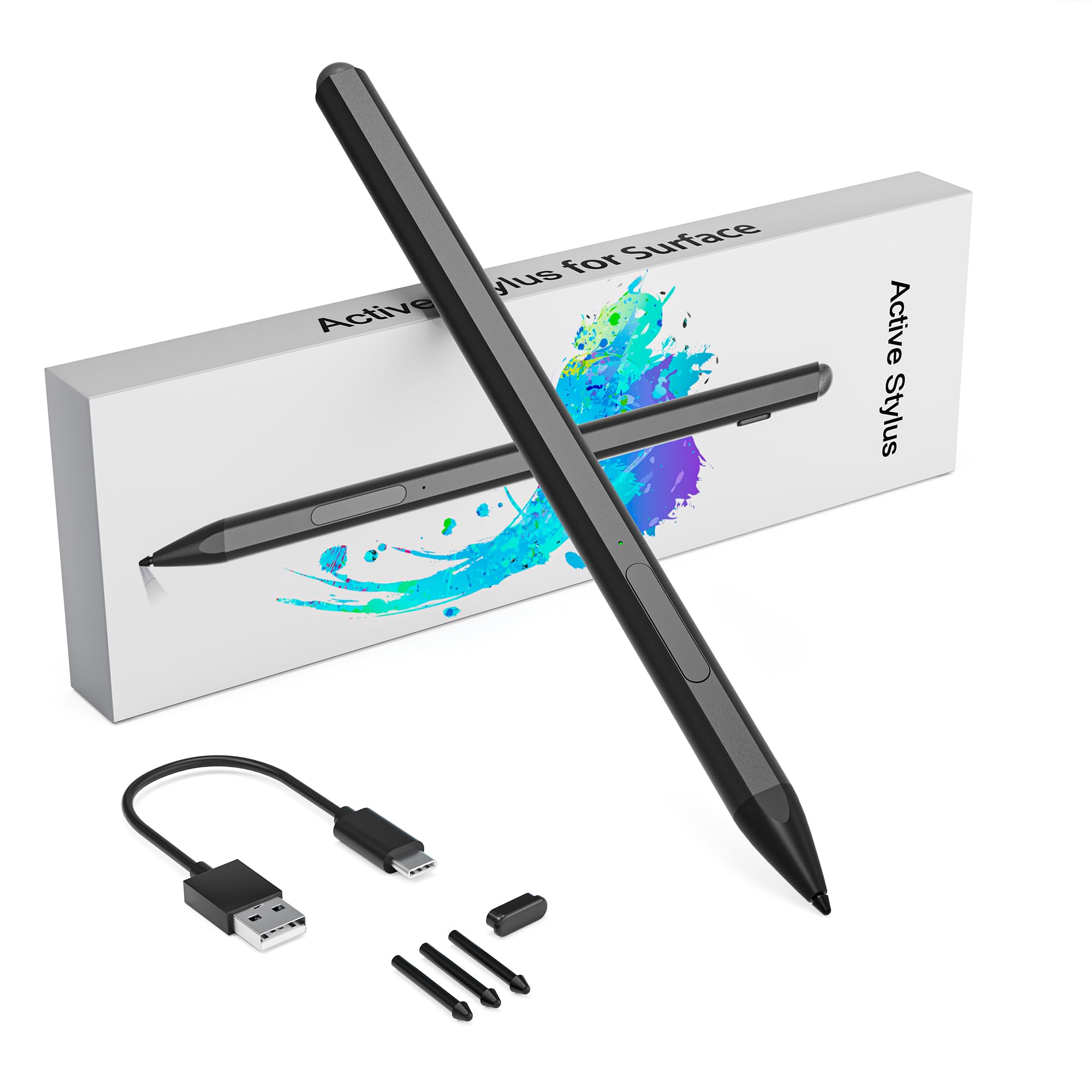
- •Optional: A stylus/pen for drawing or note-taking
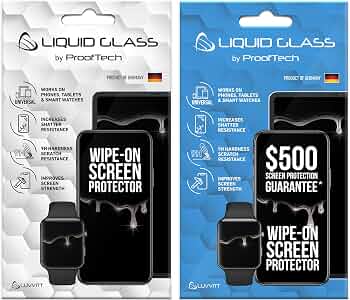
- •Optional: A screen protector to reduce fingerprints
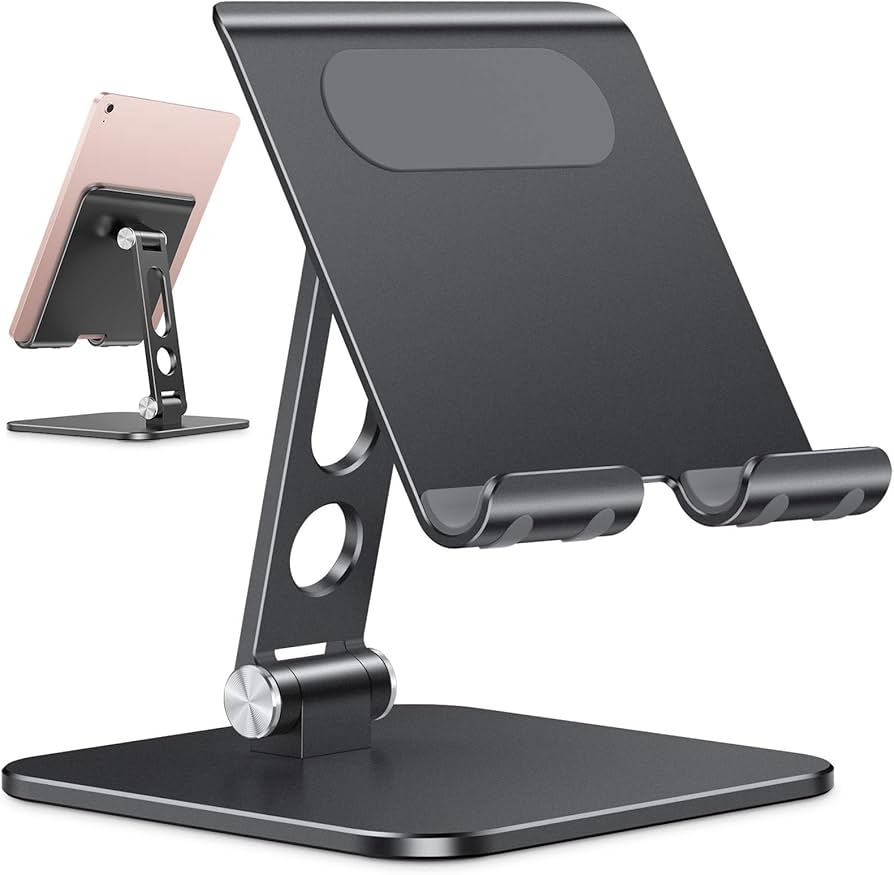
- •Optional: A tablet stand or kickstand case for hands-free use
Estimated Time: 15 minutes to read and adjust settings; additional time to practice gestures.
Difficulty: beginner
▸Step-by-Step Instructions
Step 1: Physically Switch to Tablet Mode
For convertible laptops, fold the screen fully back until it lies flat against the keyboard. Most 2-in-1s have a 360-degree hinge - fold until you feel a firm stop. For detachables (like Surface Pro), press the release button and remove the keyboard. Some laptops automatically switch to tablet mode when you fold them, but if not, proceed to Step 2.
Tip: Many laptops have a built-in lock that keeps the hinge stable at any angle. On some models, you may need to disable keyboard input manually if keys are still accessible.
💡 Tips:
- •Rotate the screen carefully to avoid straining the hinge.
- •If your laptop has a 'Tablet Mode' button on the keyboard or side, press it to auto-switch.
⚠️ Warnings:
- •Never force the hinge - if it resists, check if you're folding in the correct direction.
- •Some older 2-in-1s may not have auto-detection; you'll need to enable tablet mode manually.
Step 2: Enable Windows Tablet Mode (if not automatic)
If your screen doesn't switch to a touch-friendly interface, manually enable Tablet Mode. On Windows 10/11, open the Action Center (click the speech bubble icon in the taskbar or swipe from the right edge) and click 'Tablet Mode' to toggle it on. Or go to Settings > System > Tablet and set 'When I sign in' to 'Tablet mode'. This changes the taskbar to a simplified layout, makes icons bigger, and enables full-screen apps.
Note: Windows 11 changed how Tablet Mode works - it now adapts automatically when you detach the keyboard. If you have Windows 11, just detach or fold; you may not see a manual toggle.
💡 Tips:
- •In Windows 10, you can also press the Windows key + A to open Action Center quickly.
- •Set 'Tablet mode' to 'Use tablet mode' under Settings > System > Tablet for a permanent switch.
⚠️ Warnings:
- •If you enable Tablet Mode while the keyboard is attached, the keyboard will still work, but it's designed for touch.
- •Some enterprise-managed devices may block Tablet Mode changes.
Step 3: Master Touch Gestures
Touch gestures replace mouse clicks and keyboard shortcuts. Learn these essential gestures:
- •Tap: Single tap to select or open.
- •Long press: Right-click equivalent.
- •Swipe from left edge: Open Task View (see all open windows).
- •Swipe from right edge: Open Action Center.
- •Swipe from top edge: Snap apps (Windows 10) or close full-screen app (Windows 11).
- •Pinch/zoom: Zoom in/out on documents or webpages.
- •Two-finger swipe: Scroll up/down.
- •Swipe down from top of screen: In full-screen apps (like browsers), this often reveals the address bar or app controls.
Practice these gestures to speed up navigation.
💡 Tips:
- •In Windows 11, three-finger swipe switches between desktops; four-finger swipe opens Task View.
- •Use a stylus for precision tasks like photo editing or handwriting.
⚠️ Warnings:
- •Beware of accidental swipes - use the palm rejection feature in Settings > Devices > Pen & Windows Ink.
- •Touch gestures may conflict with some apps that use their own swipe actions.
Step 4: Adjust Display and Touch Settings
To make the tablet mode more comfortable, adjust settings:
- •Scale and layout: Go to Settings > System > Display > Scale and layout. Increase text size (e.g., 125% or 150%) to make buttons and text easier to tap.
- •Touch feedback: In Settings > Devices > Pen & Windows Ink, enable 'Show visual feedback when I touch the screen' to confirm taps.
- •Auto-rotate: Keep auto-rotate on (quick toggle in Action Center) so screen orientation changes when you hold the tablet.
- •Night light: Turn on Night light (Action Center) to reduce blue light when reading in bed.
- •Battery saver: Tablet mode can drain battery faster; enable Battery Saver in Settings > System > Battery.
💡 Tips:
- •If text is too small, also increase the resolution to recommended setting.
- •For better readability, try 'Make everything bigger' under Scale and layout.
⚠️ Warnings:
- •Setting scale too high (>150%) may cause some apps to appear blurry.
- •Auto-rotate might glitch in some programs; you can lock orientation in Action Center.
Step 5: Optimize the Virtual Keyboard
When you need to type in tablet mode, the on-screen keyboard automatically appears when you tap a text field. Customize it:
- •Size: Click the keyboard icon in taskbar and choose 'Default', 'Small', or 'Large' layout (Windows 10). In Windows 11, you can resize the keyboard by dragging its edges.
- •Docking: Undock the keyboard by dragging it up; it becomes a floating window you can move anywhere.
- •Handwriting: Use the handwriting panel (pen icon) to write with a stylus; great for entering text quickly.
- •Split keyboard: In some layouts, you can split the keyboard to thumb-type while holding the tablet with both hands.
To launch the keyboard manually, tap the keyboard icon in the taskbar or swipe up from the bottom of the screen.
💡 Tips:
- •Enable 'Show the touch keyboard when not in tablet mode' in Settings > Devices > Typing > Touch keyboard if you want it always available.
- •Use swipe typing (Windows 10/11) for faster text entry - drag from letter to letter.
⚠️ Warnings:
- •The virtual keyboard may cover half the screen; use the undock feature to view content behind it.
- •Some older apps may not support the modern touch keyboard; you may need to use the legacy keyboard.
Step 6: Use Pen and Touch Input for Productivity
A stylus boosts productivity in tablet mode. Use it for:
- •Note-taking: Open OneNote or Microsoft Whiteboard and write naturally.
- •Markup: Annotate PDFs in Edge or Drawboard PDF.
- •Screenshots: Press the top button on Surface Pen to open Snip & Sketch.
- •Navigation: Tap small buttons with the pen tip for precision.
Windows Ink Workspace (click pen icon in taskbar) offers quick apps like Sticky Notes, Sketchpad, and Screen Sketch. Customize pen shortcuts in Settings > Devices > Pen & Windows Ink.
💡 Tips:
- •Many 2-in-1s support tilt and pressure sensitivity; test in drawing apps like Adobe Fresco.
- •Keep the pen charged or replace batteries regularly.
⚠️ Warnings:
- •Not all 2-in-1s include a pen; you may need to buy one separately (e.g., Lenovo Active Pen 2).
- •Cheap styluses may scratch screens; use an active pen from the laptop manufacturer or a reputable brand.
Step 7: Manage Apps in Tablet Mode
Tablet mode encourages full-screen apps. Launch apps from the Start menu (swipe up from bottom) or your pinned taskbar icons. Switch between apps using swipe from left edge (Task View). To close an app, grab the title bar and drag down to the bottom of the screen. Snap two apps side by side: swipe from top edge until the app shrinks, then drop it to the left or right. Then tap the other app.
For easier multitasking, use the 'Snap layout' feature in Windows 11: hover over the maximize button (or press Win+Z) to choose a layout.
💡 Tips:
- •Pin your most-used apps (like Edge, Spotify, OneNote) to the taskbar in tablet mode for quick access.
- •Use virtual desktops (Win+Tab) to separate work and play.
⚠️ Warnings:
- •Some desktop-only apps may not scale well; you may need to run them in windowed mode.
- •If an app freezes, swipe up from bottom and force close it from Task View.
Step 8: Transition Back to Laptop Mode
When done, convert back to laptop mode: fold the screen back up (or attach the keyboard). If your device doesn't auto-switch, manually disable Tablet Mode from Action Center or Settings. Also, re-enable any disabled features like keyboard/trackpad. In Windows 11, simply attaching the keyboard will exit tablet mode.
After switching, adjust screen orientation (if needed) by toggling rotation lock in Action Center. Your apps will return to their original windows.
💡 Tips:
- •Some laptops have sensors that un-disable the keyboard automatically.
- •If icons remain large after switching, reduce scaling back to 100% in Display settings.
⚠️ Warnings:
- •The screen may rotate to portrait; lock rotation if you want landscape.
- •Detaching/attaching a detachable keyboard while the device is in sleep may cause recognition issues.
▸Pro Tips
- •Use a microfibre cloth to clean fingerprints from the screen frequently; a screen protector also helps.
- •Enable 'Palm rejection' in Pen settings to avoid accidental touches while writing.
- •Stream movies in landscape mode with the tablet on a stand for a better viewing angle.
- •In tablet mode, use voice typing (Win+H) to dictate text quickly.
- •If you often use tablet mode, add a 'Tablet Mode' toggle to your taskbar for faster access.
- •For reading ebooks, use the 'Microsoft Edge' browser in full-screen mode or a dedicated app like Kindle.
- •Disable notifications during focused tablet use via Focus Assist (right-click clock).
▸Common Mistakes to Avoid
- •Forcing the hinge beyond its limit - always check the max angle (usually 360 degrees).
- •Not updating Windows - older builds may lack proper touch gestures or tablet behaviors.
- •Using desktop apps that don't support touch well - look for 'Store apps' or touch-friendly versions.
- •Forgetting to adjust scaling - leaving default 100% makes small controls hard to tap.
- •Ignoring battery settings - tablet mode can drain battery faster; enable battery saver and lower brightness.
▸Troubleshooting
Problem: Tablet mode doesn't activate automatically when I fold the screen.
Solution: Check if your laptop has a physical switch or button. If not, go to Settings > System > Tablet and ensure 'When I rotate my device' or 'When I fold/hinge' settings are enabled. Some drivers may need updating.
Problem: The touch keyboard doesn't pop up when I tap a text field.
Solution: Go to Settings > Devices > Typing > Touch keyboard and enable 'Show the touch keyboard when not in tablet mode' and 'Show the touch keyboard when I’m not in tablet mode'. Also check that the keyboard service is running (Services.msc > Touch Keyboard and Handwriting Panel Service).
Problem: Touch gestures are not working properly.
Solution: Ensure your touch screen is enabled in Device Manager (Human Interface Devices > HID-compliant touch screen). Also restart the device. If gestures still fail, run the Windows touchscreen troubleshooter in Settings > Update & Security > Troubleshoot > Additional troubleshin.
Problem: The screen orientation keeps changing when I don't want it to.
Solution: Lock the rotation: open Action Center and click 'Rotation lock' to disable auto-rotate. You can also set orientation manually via Settings > System > Display.
Problem: My stylus isn't working or pairing.
Solution: Check battery of the pen. For Bluetooth styluses, go to Settings > Devices > Bluetooth & other devices and pair it. If it still doesn't work, try restarting the device or re-pairing.
Microsoft Surface Pen
Best-in-class active stylus with 4096 pressure levels, tilt support, and rear eraser. Works with Surface devices and many other 2-in-1s.
Best for: Note-taking, drawing, and precise navigation in tablet mode.
Price Range: $80-$100
LUVVITT Premium Screen Protector for 2-in-1 Laptops
Anti-fingerprint, anti-glare film that reduces smudges while maintaining touch sensitivity. Easy to install and bubbles disappear.
Best for: Protecting screen from scratches and minimizing reflections during tablet use.
Price Range: $15-$25
OMOTON Tablet Stand (Adjustable)
Sturdy aluminum stand with adjustable angles for hands-free viewing. Folds flat for portability.
Best for: Watching movies, video calls, or using tablet mode at a desk without holding the device.
Price Range: $20-$30
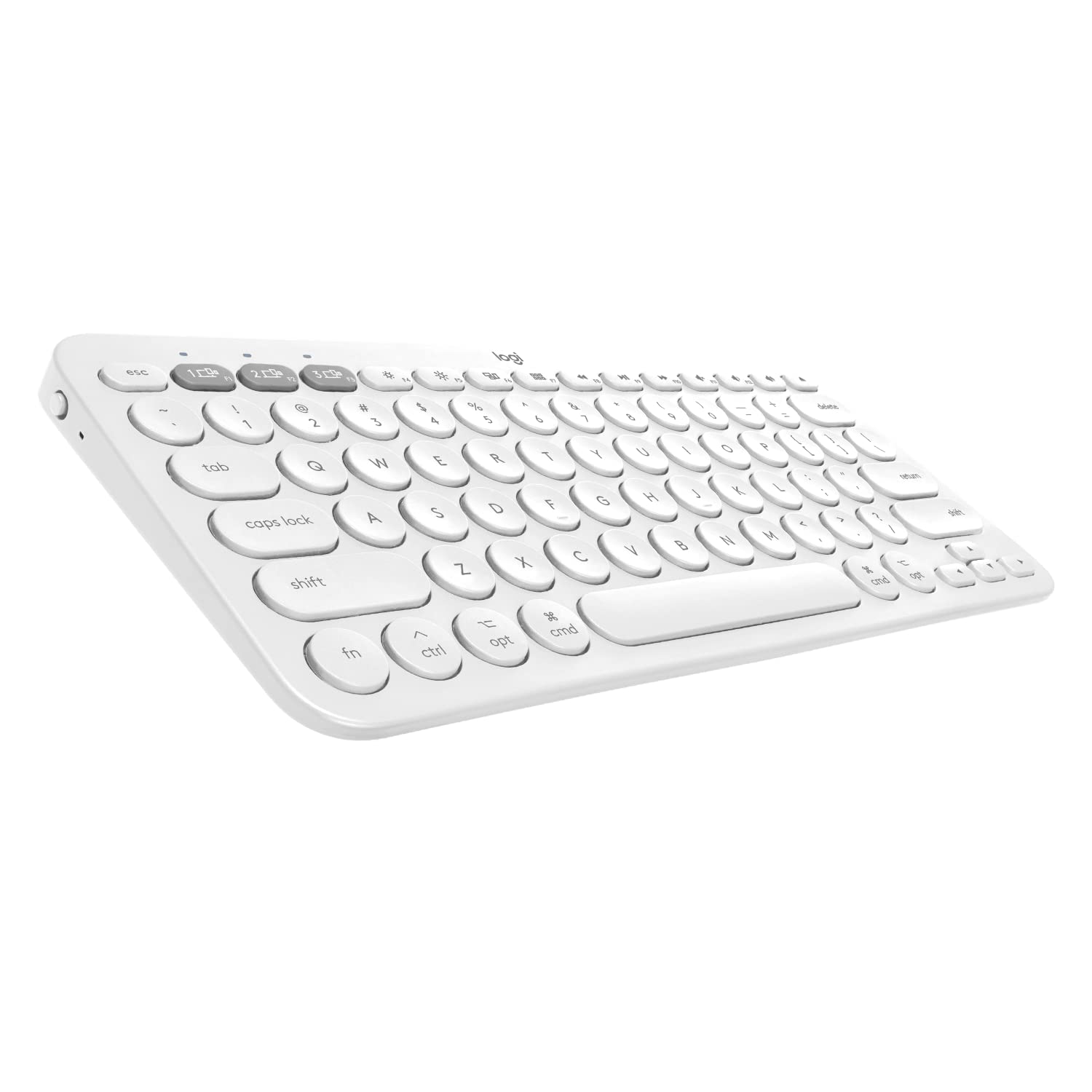
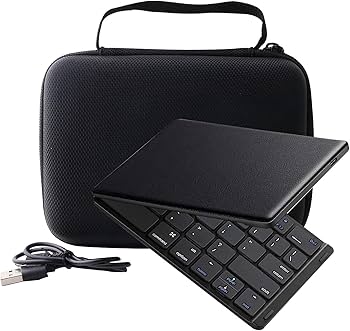
Logitech K380 Multi-Device Bluetooth Keyboard
Compact wireless keyboard that pairs with up to 3 devices. Great for typing longer documents while in tablet mode.
Best for: When you need a physical keyboard but want to keep the display in tablet orientation on a stand.
Price Range: $30-$40
iClever Bluetooth Keyboard Case for 10-12.9" Tablets
Protective case with built-in Bluetooth keyboard, perfect for detachable 2-in-1s. Provides protection and typing convenience.
Best for: For Surface Pro or similar detachables, combining protection and a keyboard in one accessory.
Price Range: $35-$50