
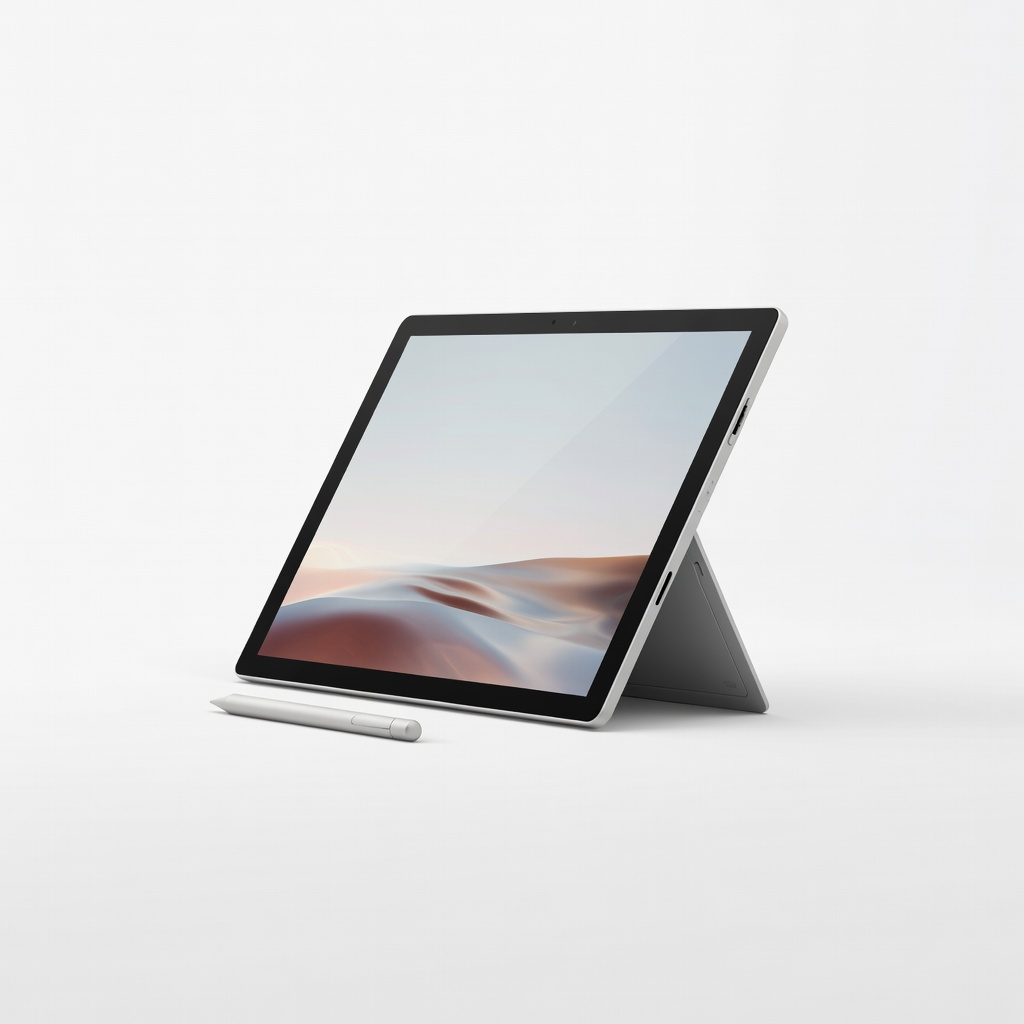
Microsoft Surface Pro 11
Professional artists needing portable power for complex illustrations.
$1000-$1500
Microsoft Surface Pro 11 Best-in-class pen support with 4096 pressure levels and Snapdragon X Elite for lag-free drawing.
Get the App
Better experience on mobile
Turn your versatile 2-in-1 laptop into a pro digital sketchpad with stylus apps and tips for seamless drawing on the go.
Ever wished you could sketch ideas anywhere without lugging around a heavy drawing tablet? 2-in-1 laptops bridge that gap perfectly, combining laptop power with tablet touchscreens for natural digital art creation. Whether you're a designer, student, or hobbyist, this setup saves space and boosts productivity.
In this guide, you'll learn to configure your 2-in-1 as a sketchpad, install essential apps, optimize settings, and start drawing like a pro. We'll cover everything from hardware checks to advanced techniques. Expect a smooth setup in under an hour, perfect for intermediate users comfortable with basic software installs.
By the end, you'll have a portable studio ready for concepts, illustrations, or note-taking with pressure-sensitive strokes.
Estimated Time: 30-60 minutes for setup + 15 minutes practice Difficulty: intermediate
Start by confirming your laptop has a touchscreen and stylus compatibility. Flip it into tablet mode and test touch gestures. Check specs for 'active pen support' like Microsoft Pen Protocol (MPP) or Universal Stylus Initiative (USI).
Why it matters: Not all touchscreens handle pressure sensitivity (up to 4096 levels). Go to Settings > Devices > Pen & Windows Ink to see if pen options appear.
Success looks like: Smooth cursor movement with finger, and pen icon in taskbar when stylus hovers.
💡 Tips:
⚠️ Warnings:
Attach your stylus (Bluetooth or direct). For Surface Pen, press the top button to pair via Bluetooth settings. Then, search for 'Pen Calibration' in Windows search and follow on-screen calibration by tapping center points.
This ensures accurate tracking and tilt support. Expect 1-2 minutes; success is precise cursor following without jitter.
Why: Calibration fixes offset issues common in new setups.
💡 Tips:
Download free apps from Microsoft Store or official sites: Autodesk SketchBook for beginners, Krita for advanced layers, or Infinite Painter for natural brushes. Install 1-2 to start.
Launch in tablet mode for full-screen canvas. Import brushes or presets for realism.
Success: App opens with blank canvas, stylus draws smooth lines with varying thickness.
💡 Tips:
⚠️ Warnings:
Go to Settings > System > Tablet > Choose 'When this device automatically switches...' to 'Don't ask, always use desktop/tablet mode'.
Disable palm rejection if needed via app settings, but enable in Windows Ink Workspace (search 'Ink Workspace' and pin it). Customize toolbar for eraser, lasso, etc.
Why: Prevents accidental inputs and maximizes screen real estate. Expect fluid switching between modes.
💡 Tips:
Prop laptop at 45-60° angle or use stand. Adjust brightness, enable night light for eye comfort. Open app, select pencil brush, vary pressure for line weight.
Practice strokes: light for thin, hard for thick; tilt for shading. Success: Natural, responsive drawing like paper.
Why: Ergonomics prevent strain during long sessions.
💡 Tips:
⚠️ Warnings:
In your app, import custom brushes (e.g., SketchBook library). Add layers for non-destructive editing: background, sketch, colors.
Test opacity blending. Export as PNG for transparency.
Success: Multi-layered artwork with pro effects.
💡 Tips:
Save as PSD for edits or PNG/JPG. Use OneDrive/Share for cloud backup. Print via laptop or apps like Adobe Fresco integration.
Why: Turns sketches into shareable assets for portfolios.
💡 Tips:
Problem: Stylus not responding or jittery
Solution: Re-pair Bluetooth, update drivers via Device Manager > Human Interface Devices, or restart.
Problem: Lag during drawing
Solution: Close background apps, lower canvas resolution, or upgrade RAM-heavy model.
Problem: Palm rejection failing
Solution: Enable in app settings or use a drawing glove ($10 on Amazon).
Problem: Pressure sensitivity lost
Solution: Check battery, recalibrate, or test in Windows Ink.
Best-in-class pen support with 4096 pressure levels and Snapdragon X Elite for lag-free drawing.
Best for: Professional artists needing portable power for complex illustrations.
Price Range: $1000-$1500
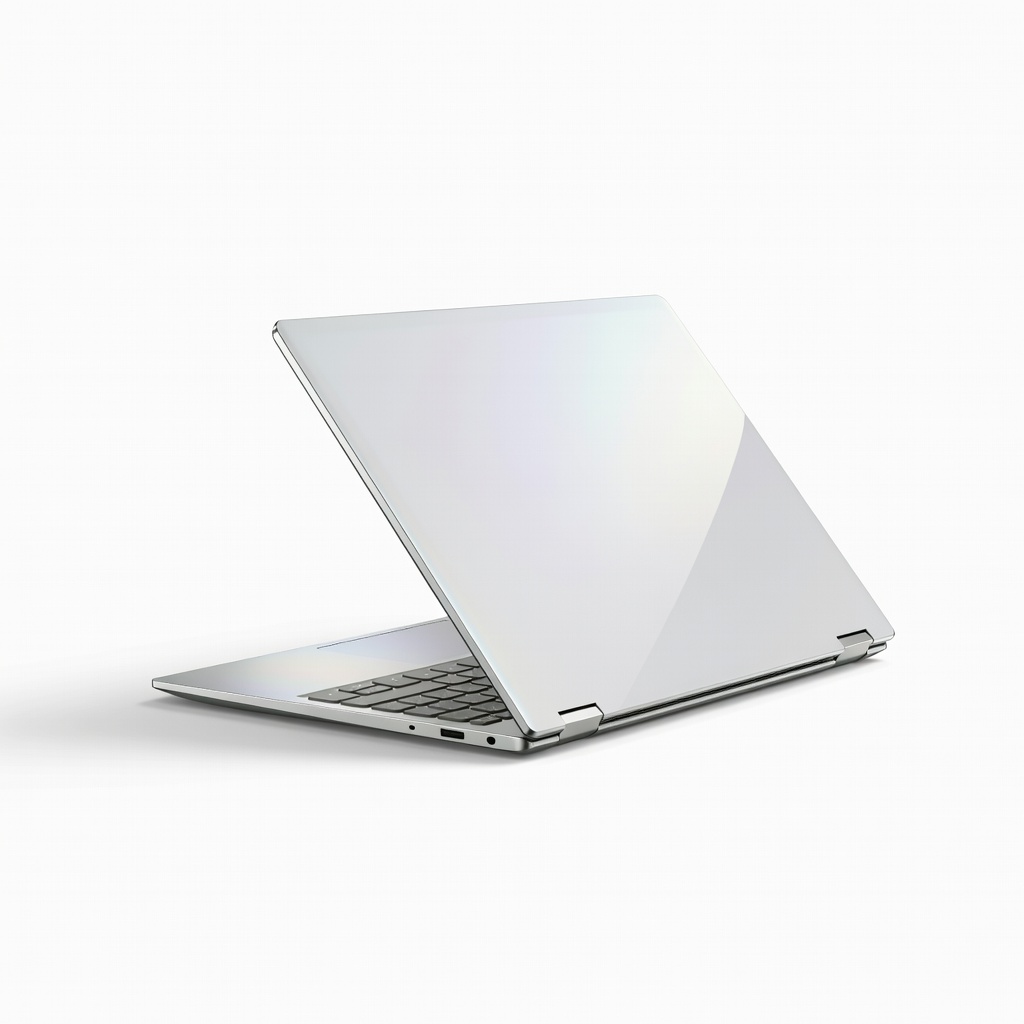
Excellent OLED touchscreen with USI pen compatibility and rotatable design for natural angles.
Best for: Intermediate users sketching on the go with vibrant colors.
Price Range: $1200-$1400
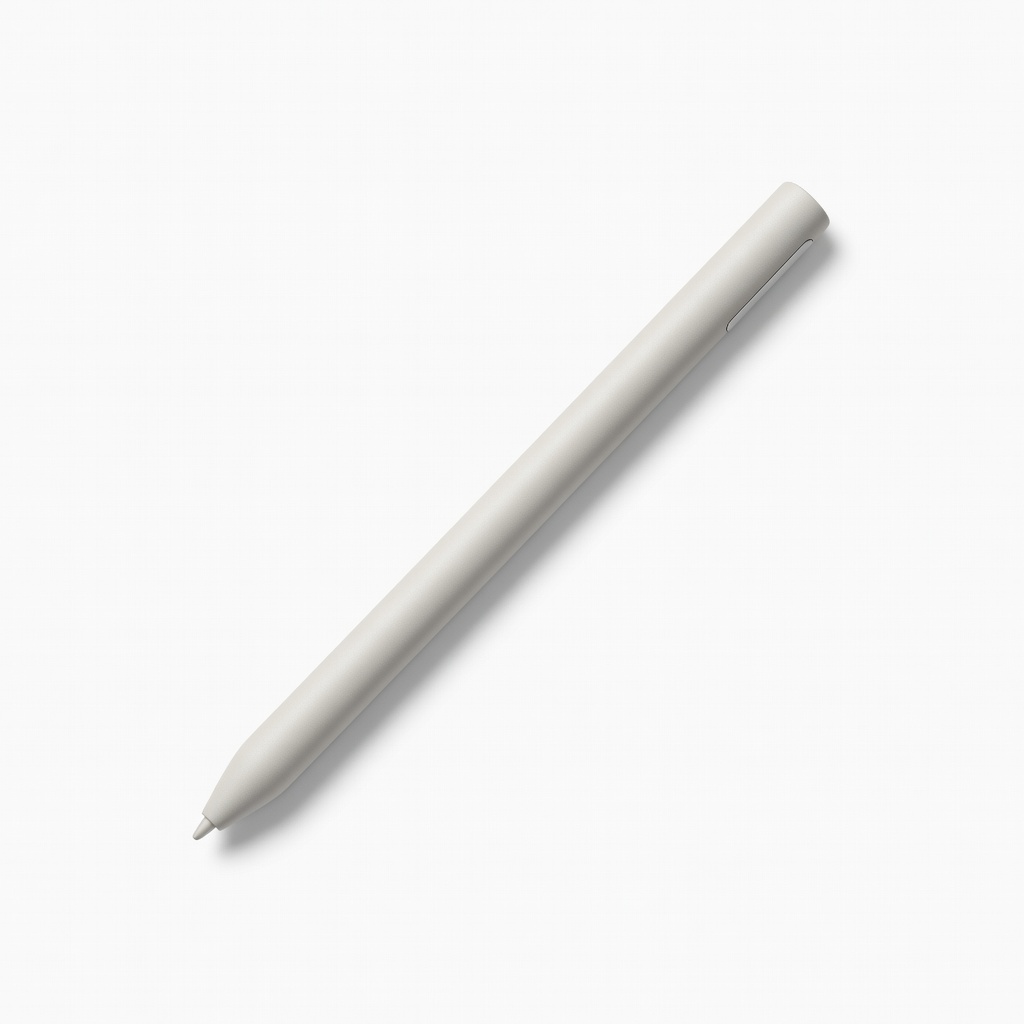
Haptic feedback and zero-force inking for realistic pencil feel.
Best for: Upgrading stylus on any MPP-compatible 2-in-1.
Price Range: $100-$130
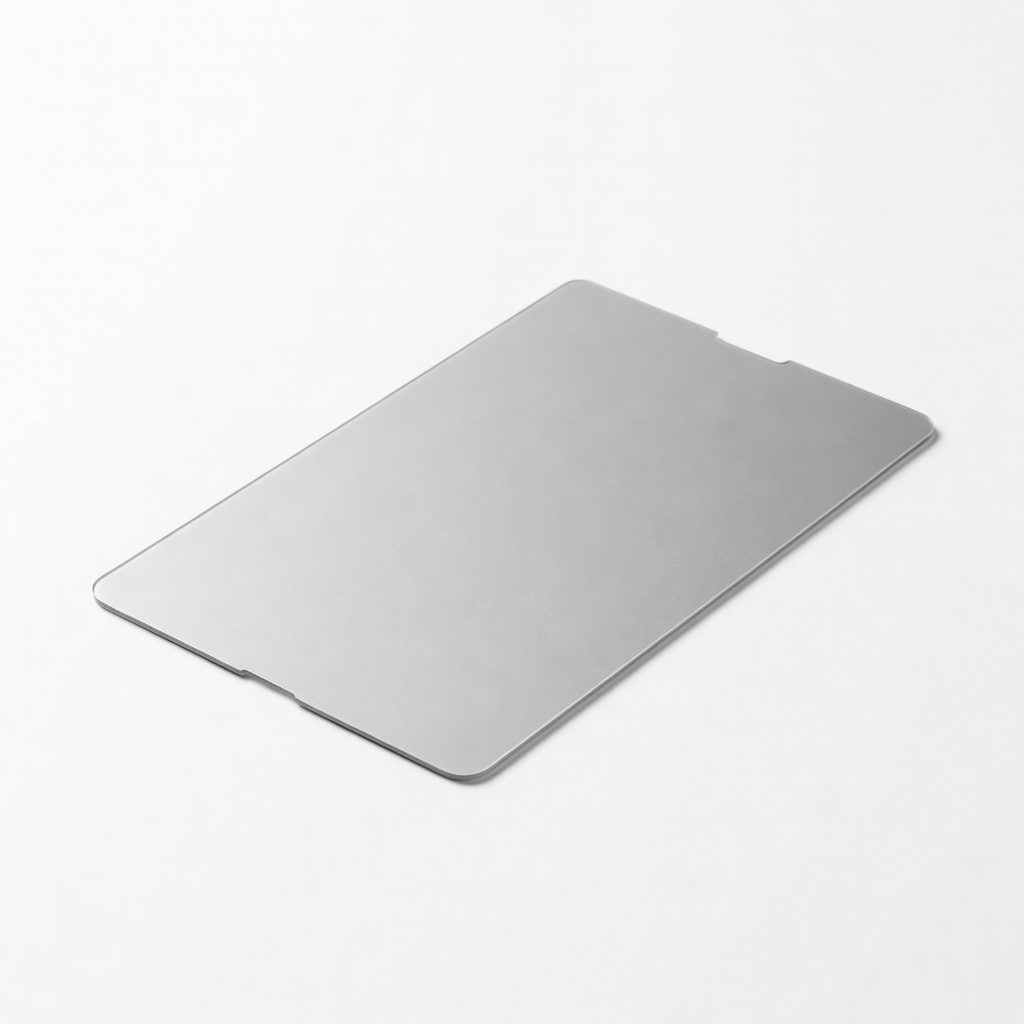
Paper-like texture reduces slip and glare for better control.
Best for: All stylus users wanting friction without bulk.
Price Range: $20-$30
Budget-friendly with MPP pen and 2K OLED for sharp sketches.
Best for: Entry-intermediate creators on a budget.
Price Range: $800-$1100
Professional artists needing portable power for complex illustrations.
Microsoft Surface Pro 11 Best-in-class pen support with 4096 pressure levels and Snapdragon X Elite for lag-free drawing.
Intermediate users sketching on the go with vibrant colors.
Lenovo Yoga 9i 2-in-1 (2024) Excellent OLED touchscreen with USI pen compatibility and rotatable design for natural angles.
Upgrading stylus on any MPP-compatible 2-in-1.
Microsoft Surface Slim Pen 2 Haptic feedback and zero-force inking for realistic pencil feel.
All stylus users wanting friction without bulk.
dbrand Matte Skin Screen Protector for Surface Paper-like texture reduces slip and glare for better control.
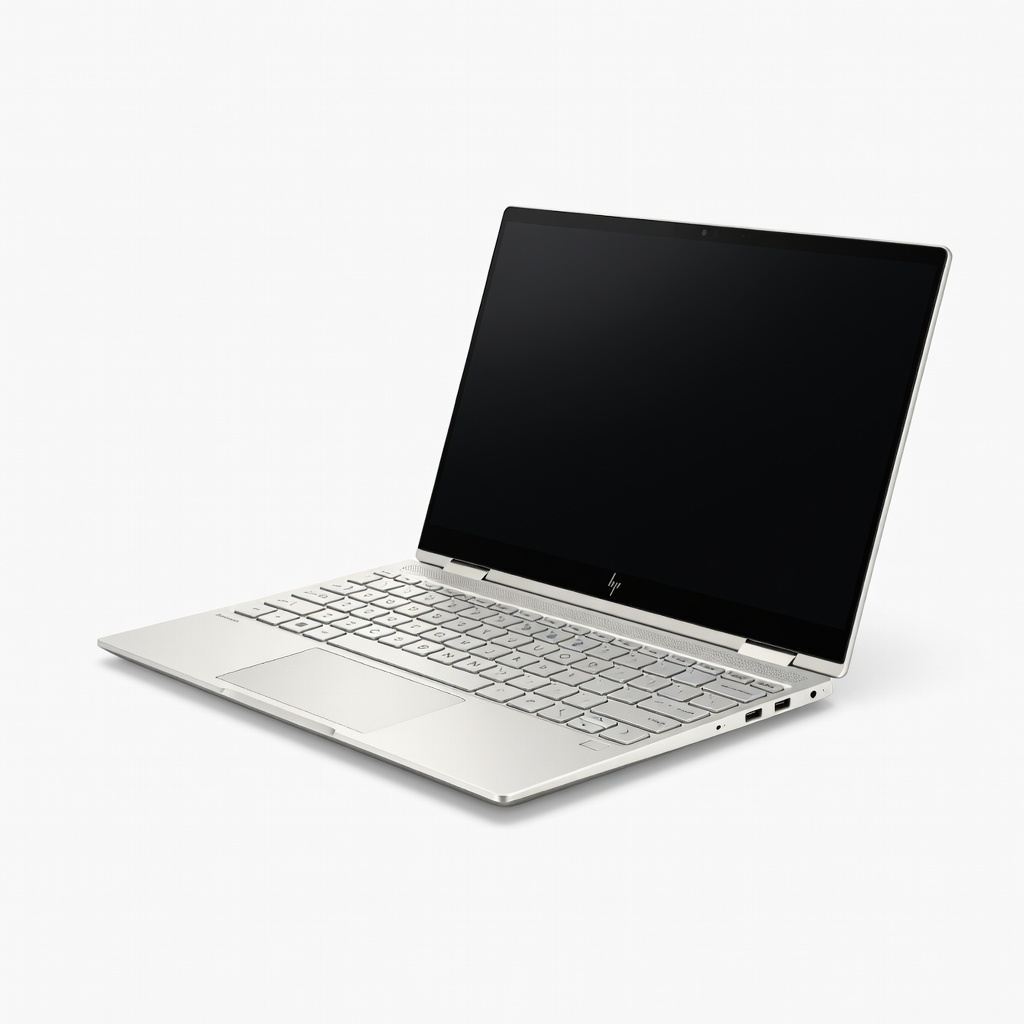
Entry-intermediate creators on a budget.
HP Spectre x360 14 (2024) Budget-friendly with MPP pen and 2K OLED for sharp sketches.