Firmware updates are essential for keeping your electronic devices running smoothly and securely. Outdated firmware can leave your gadgets vulnerable to security risks, cause performance issues, or miss out on exciting new features. Whether it's your router, smart TV, or wearable, updating firmware is like giving your device a tune-up—but many beginners hesitate because it sounds technical. The good news? It's straightforward once you know the steps.
In this guide, you'll learn how to identify, download, and install firmware updates on virtually any device, from smartphones to home appliances. We'll cover the general process that applies to most electronics, with tips for common variations. By the end, you'll feel confident handling updates yourself, saving time and money on professional help.
Expect the process to take 20-60 minutes, depending on your device and internet speed. It's beginner-friendly, requiring no advanced skills—just patience and following instructions carefully. Always use official sources to avoid risks like bricking your device.
▸What You'll Need
- •A computer or smartphone with internet access (required)
- •USB cable compatible with your device (required; e.g., USB-C or Lightning)
- •Backup storage like an external hard drive or cloud service (recommended)
- •Stable power source to keep your device charged (required)
- •Antivirus software on your computer (optional but highly recommended for safety)
Estimated Time: 20-60 minutes
Difficulty: beginner
▸Step-by-Step Instructions
Step 1: Identify Your Device and Current Firmware Version
Start by determining the exact model of your device and its current firmware version. This ensures you download the right update. For example, on a smartphone, go to Settings > About Phone; on a router, check the admin panel by typing its IP address (like 192.168.1.1) into a web browser.
Why it matters: Using the wrong firmware can damage your device irreversibly. Expect to see details like 'Firmware Version: 1.2.3'—note this down.
This step usually takes 5 minutes and sets a safe foundation for the update.
💡 Tips:
- •Use the manufacturer's app if available for easier model detection.
- •Take a screenshot of the current version for reference.
⚠️ Warnings:
- •Avoid third-party sites claiming to identify firmware; stick to official manuals.
Step 2: Backup Your Important Data
Before any update, back up photos, settings, and files to prevent loss if something goes wrong. Use built-in tools like iCloud for iPhones, Google Drive for Android, or export settings from routers.
This is crucial because updates can occasionally reset devices or cause errors. You'll know it's successful when your data is safely stored elsewhere—test restoring a small file if possible.
Allocate 10-15 minutes here, especially for large data sets.
💡 Tips:
- •Enable automatic backups in your device settings for future ease.
- •Use encrypted cloud storage for sensitive info.
⚠️ Warnings:
- •Don't skip this—data loss is a top regret during updates.
Step 3: Check for Available Firmware Updates
Visit the manufacturer's official website or app to see if updates are available. Search for your device model and look under 'Support' or 'Downloads.' For devices like smart TVs, check the built-in update menu.
Why it matters: Official sources guarantee compatibility and security. Expect a list of release notes detailing fixes or new features—read them to confirm it's worth installing.
This step confirms you're ready; if no update shows, your device is current.
💡 Tips:
- •Subscribe to manufacturer newsletters for update alerts.
- •Use the device's auto-check feature if it has one.
⚠️ Warnings:
- •Beware of fake sites mimicking official ones—verify the URL ends in .com or the brand's domain.
Step 4: Download the Firmware File
Select and download the latest firmware file matching your device. Save it to an easily accessible folder on your computer. The file might be a .zip or .bin—extract if needed.
Downloading ensures you have the update offline for installation. It matters for stability during the process. Success looks like a complete file without errors; check the size against the website's specs.
Time varies by file size (5-20 minutes on average).
💡 Tips:
- •Download during off-peak hours for faster speeds.
- •Verify the file hash (MD5/SHA) if provided on the site for authenticity.
⚠️ Warnings:
- •Pause antivirus scans during download to avoid interruptions, but scan the file afterward.
Step 5: Prepare Your Device for the Update
Charge your device to at least 50% and connect it stably to your computer via USB if required. Disable any power-saving modes and close unnecessary apps.
Preparation prevents interruptions that could corrupt the firmware. Expect your device to be responsive and connected—test the cable by transferring a small file.
This quick 5-minute step minimizes risks.
💡 Tips:
- •Use the original cable for best compatibility.
- •Work in a cool, well-ventilated area to avoid overheating.
⚠️ Warnings:
- •Never unplug during update—power loss can brick the device.
Step 6: Install the Firmware Update
Follow device-specific instructions: For USB updates, run the installer's .exe file; for over-the-air (OTA), select 'Update' in settings. The process may reboot multiple times.
Installation applies the changes, improving security and functionality. Why it matters: It's the core step where magic happens. Success: The device restarts normally, showing the new version in settings.
Monitor the progress bar; total time 10-20 minutes.
💡 Tips:
- •Follow on-screen prompts exactly—don't multitask.
- •For routers, update via wired connection for stability.
⚠️ Warnings:
- •Interruptions here are dangerous; ensure no one unplugs anything.
Step 7: Verify and Test the Update
After reboot, check the firmware version in settings to confirm the update applied. Test key functions like Wi-Fi or apps to ensure everything works.
Verification confirms success and catches issues early. Expect smoother performance or new features as per notes. If all's well, you're done!
Spend 5 minutes testing.
💡 Tips:
- •Run a speed test or benchmark app to quantify improvements.
- •Update connected apps if the firmware requires it.
⚠️ Warnings:
- •If the version didn't change, repeat from step 3—don't force reinstalls.
▸Pro Tips
- •Always update in a distraction-free environment to avoid accidental interruptions.
- •Set a reminder to check for updates monthly for ongoing device health.
- •Use a wired internet connection for downloads to ensure completeness.
- •For multiple devices, update one at a time to manage any issues.
- •Read user forums for device-specific quirks before starting.
- •Enable automatic updates where possible for hands-off maintenance.
- •Keep a log of update dates and versions for warranty claims.
▸Common Mistakes to Avoid
- •Skipping backups, leading to data loss—always back up first to recover easily.
- •Using unofficial firmware sources, which can introduce malware—stick to manufacturer sites.
- •Interrupting the installation process, risking a bricked device—ensure full charge and no distractions.
- •Ignoring release notes, missing known issues—read them to prepare for changes.
- •Forgetting to verify post-update, allowing subtle bugs to persist—always test functions.
▸Troubleshooting
Problem: Update fails with an error code
Solution: Check the manufacturer's support page for the code's meaning; try redownloading the file or using a different USB port/cable. Restart your computer and device.
Problem: Device won't boot after update
Solution: Perform a factory reset via recovery mode (hold specific buttons during power-on—search model-specific guide). If stuck, contact support.
Problem: Download is incomplete or corrupted
Solution: Clear your browser cache and redownload. Use a download manager tool for reliability.
Problem: No update option appears
Solution: Ensure your device is connected to the internet and not in airplane mode. Manually check the website if auto-update fails.
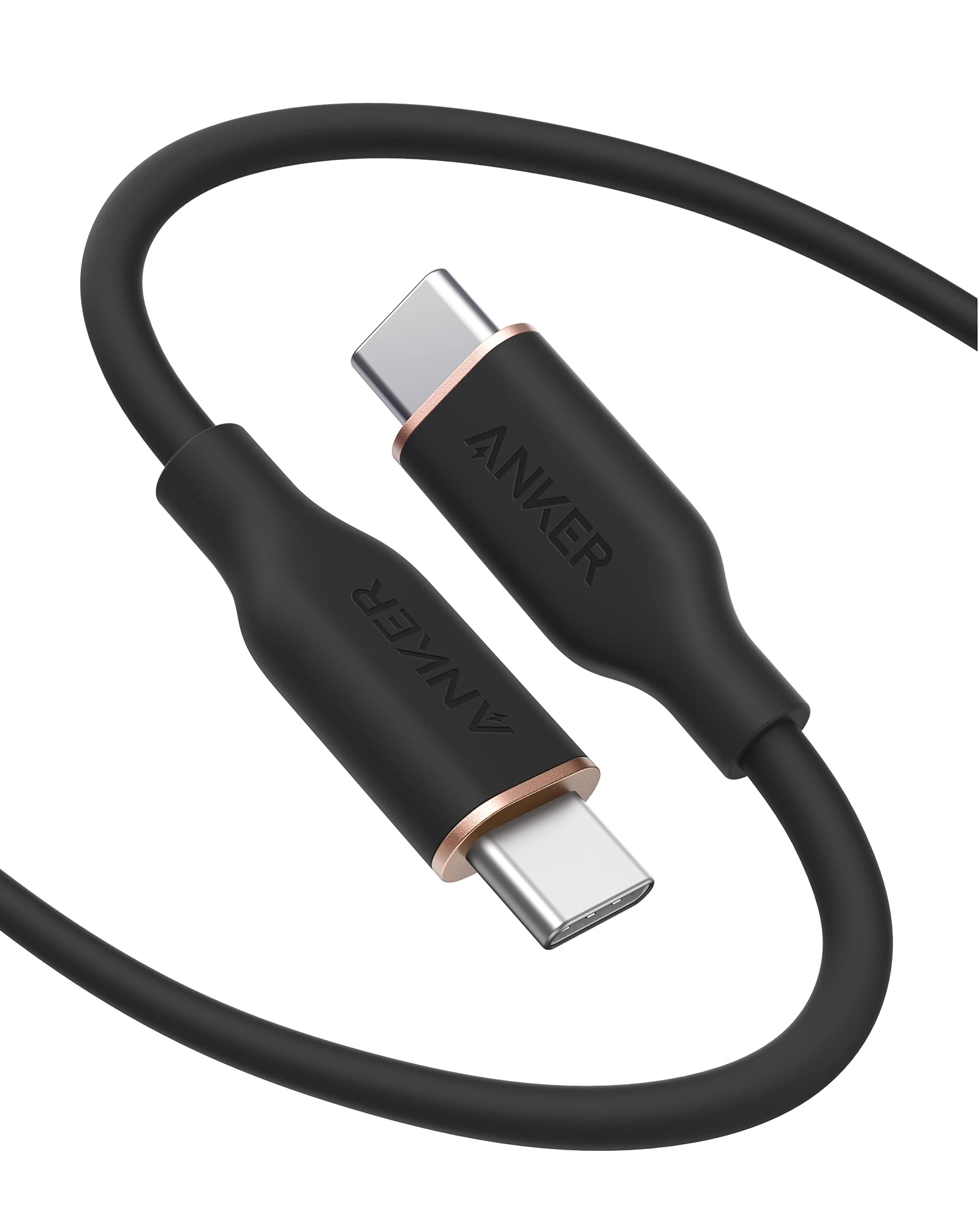
Anker PowerLine III USB-C Cable
Reliable and durable for stable connections during USB-based updates, preventing disconnections that could fail the process.
Best for: Ideal for smartphones, tablets, or routers requiring wired firmware installation.
Price Range: $10-15
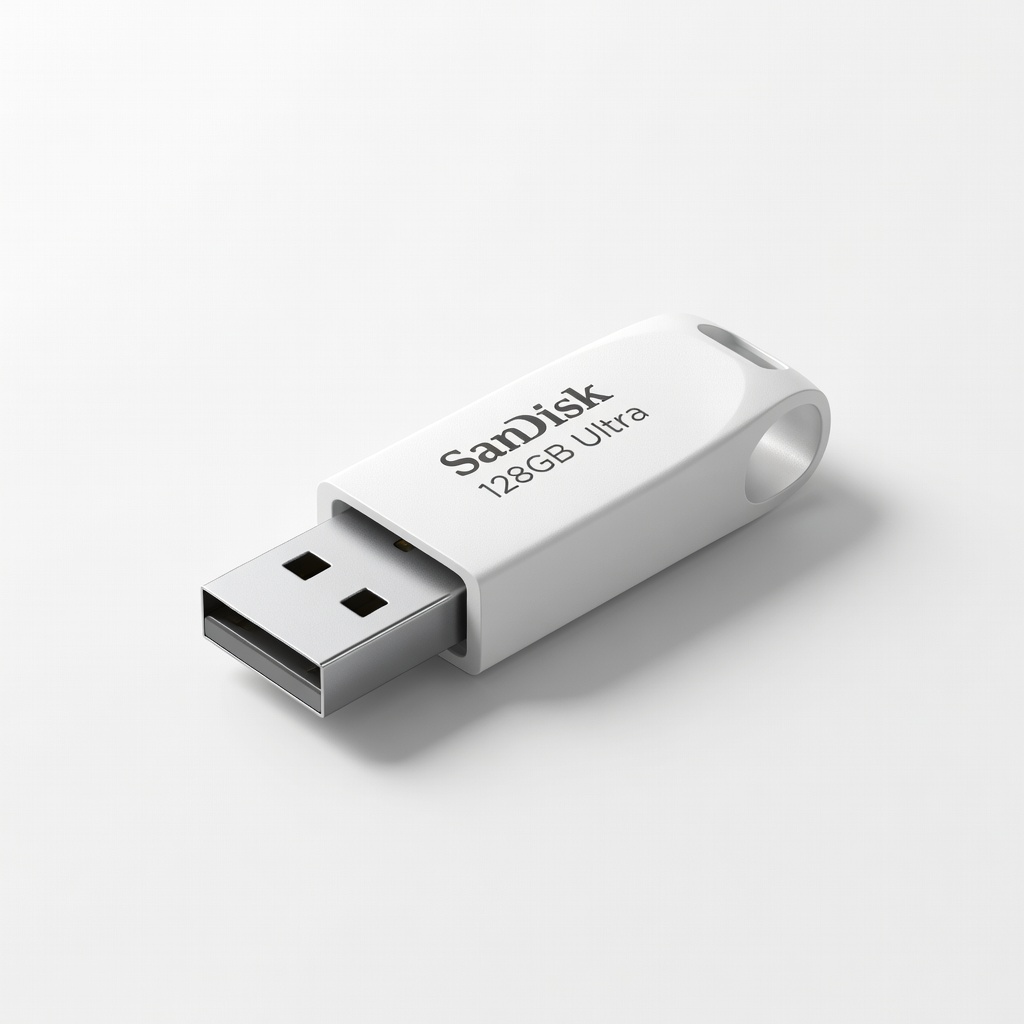
SanDisk 128GB Ultra USB Flash Drive
Fast transfer speeds and ample storage for downloading and storing large firmware files securely.
Best for: When your computer lacks space or for offline backups before updates.
Price Range: $15-20
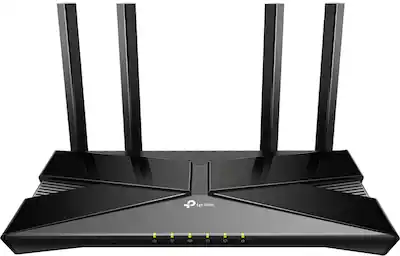
TP-Link Archer Router (as example device)
Easy firmware updates via web interface; recommended for beginners practicing the process on home networks.
Best for: Updating home Wi-Fi routers to improve speed and security.
Price Range: $50-70
Bitdefender Antivirus Plus
Scans downloaded firmware files for malware, ensuring safe updates without compromising your computer.
Best for: Protecting your system while downloading from official sites.
Price Range: $30-50/year
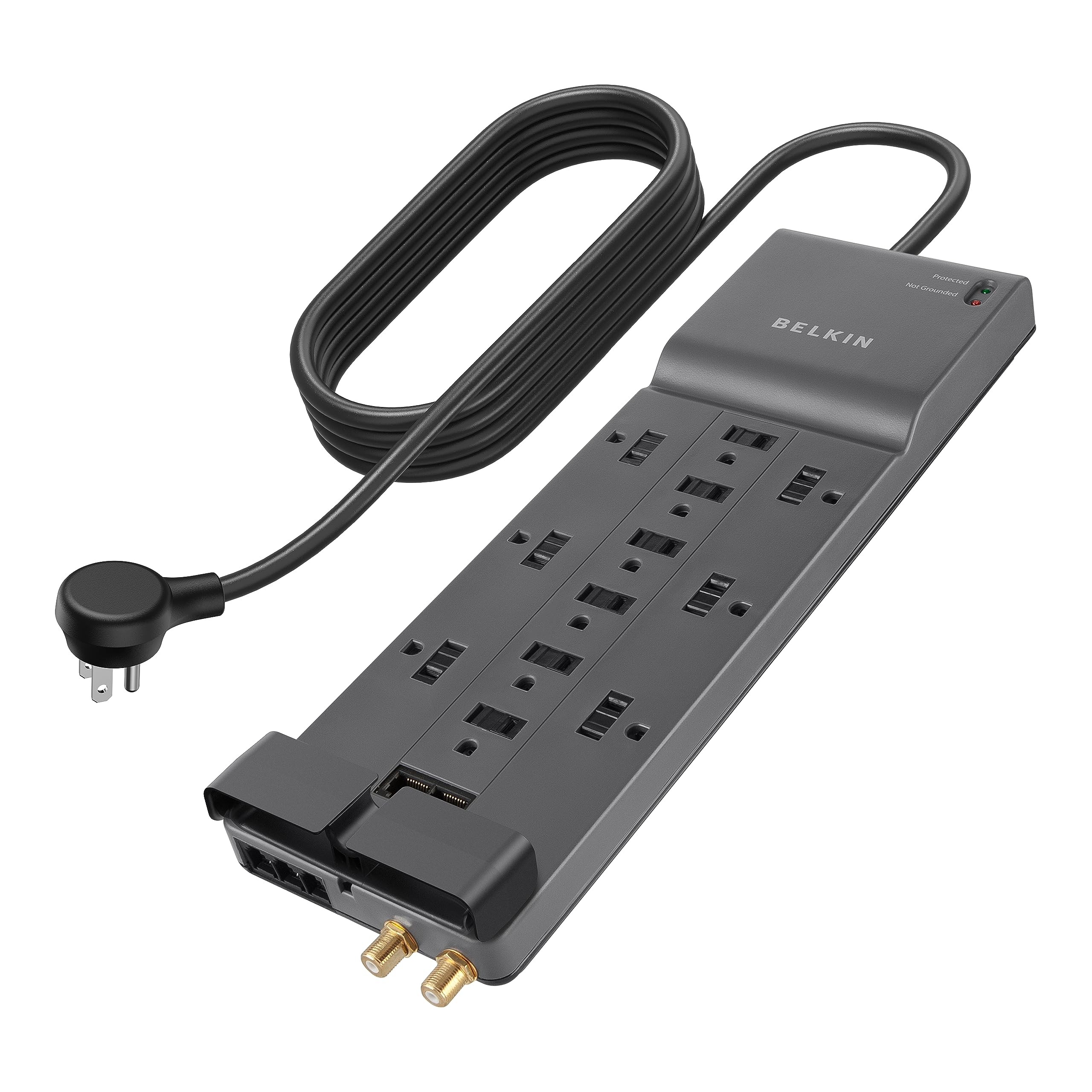
Belkin Surge Protector
Provides stable power to prevent outages during long updates, safeguarding against bricking.
Best for: For any plugged-in device like TVs or consoles during firmware installation.
Price Range: $20-30