
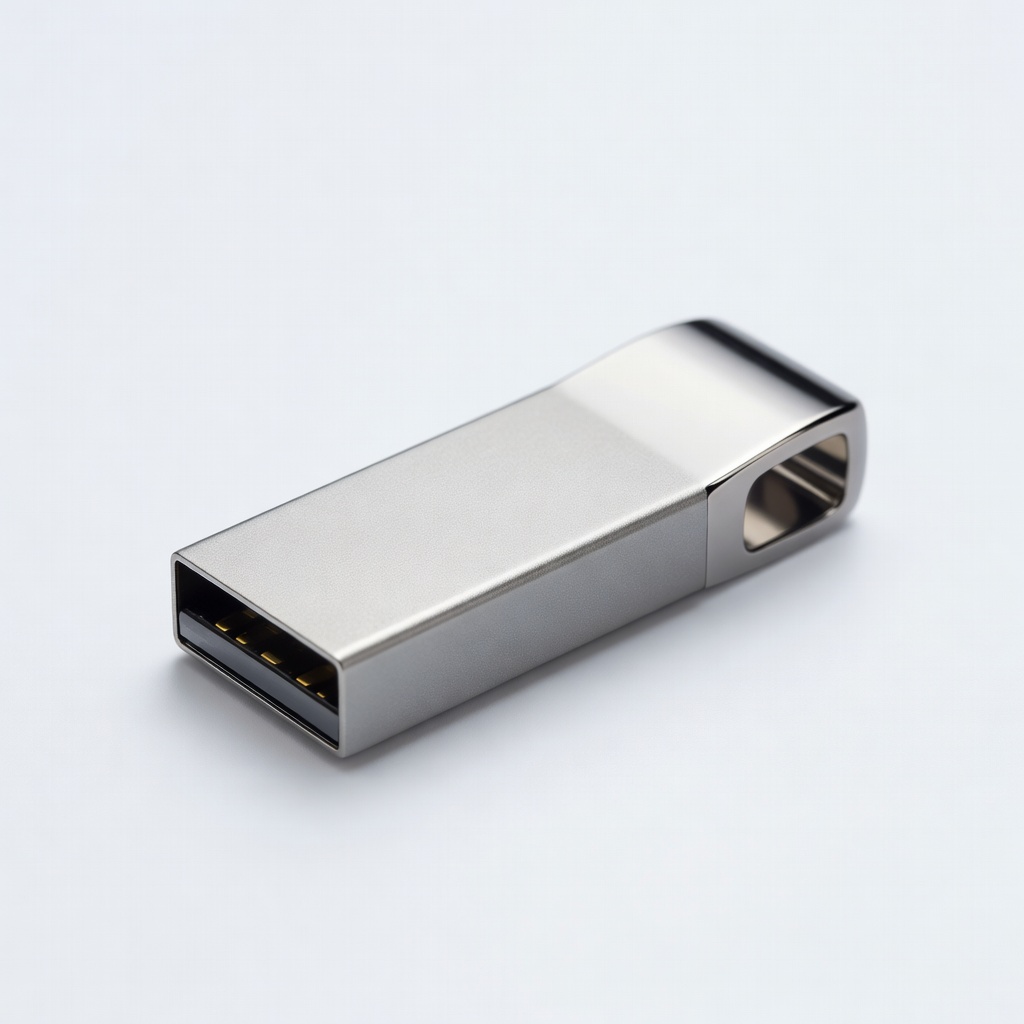
SanDisk 128GB Ultra Flair USB 3.0 Flash Drive
Store driver exports before updates to enable easy rollbacks.
$12-15
SanDisk 128GB Ultra Flair USB 3.0 Flash Drive Reliable for backing up drivers and system images quickly with USB 3.0 speeds.
Get the App
Better experience on mobile
Fix unresponsive touchscreens on your 2-in-1 laptop with this step-by-step driver update guide—restore smooth gestures in under 30 minutes.
Touchscreen glitches on 2-in-1 laptops like unresponsive swipes, ghost touches, or total failure can ruin your hybrid workflow. These issues often stem from outdated or corrupted drivers, especially after Windows updates or hardware flips between laptop and tablet modes. Don't worry—updating drivers is a reliable fix that most users overlook.
In this guide, you'll learn how to diagnose touchscreen driver problems, safely update them via Device Manager and manufacturer sites, and verify the fix. We'll cover popular 2-in-1s from Lenovo, HP, Dell, and Microsoft Surface. Expect a straightforward process taking 20-30 minutes, suitable for intermediate users comfortable with basic Windows navigation.
By the end, your touchscreen will respond flawlessly, letting you draw, scroll, and multitouch without frustration. Let's get started!
Estimated Time: 20-30 minutes Difficulty: intermediate
Before updating, confirm the problem is driver-related. Open Settings > Update & Security > Troubleshoot > Other troubleshooters and run the Hardware and Devices troubleshooter. Also, test in Safe Mode (restart while holding Shift, go to Troubleshoot > Advanced > Startup Settings).
If the touchscreen works in Safe Mode or after troubleshooting, drivers are likely the culprit. Note any error codes like 'HID-compliant touch screen' in Device Manager (search for it in Start menu).
Success looks like: No hardware faults flagged, and issue persists outside Safe Mode.
💡 Tips:
⚠️ Warnings:
Prevent rollback issues by backing up. Right-click Start > Device Manager. Expand Human Interface Devices and Mice and other pointing devices. Right-click your touchscreen (e.g., 'HID-compliant touch screen') > Update driver > Browse my computer > Let me pick > Note the current driver version.
Use a tool like Double Driver (free download) or export via Command Prompt: dism /online /export-driver /destination:C:\Drivers. Copy to USB.
Success looks like: Drivers saved to a folder on USB.
💡 Tips:
⚠️ Warnings:
Many driver fixes come via Windows. Go to Settings > Windows Update > Check for updates. Install all, including optional ones under View optional updates > Driver updates (select touchscreen/chipset-related).
Restart after installing. This handles generic Microsoft drivers first.
Success looks like: 'You're up to date' message with recent driver installs.
💡 Tips:
OEM drivers are best for 2-in-1s. Find your model: Open Command Prompt, type wmic bios get serialnumber or check sticker underside/base.
Common examples: Lenovo Yoga (yoga9i), HP Spectre x360 (14-eu0000), Dell Inspiron 14 2-in-1, Surface Pro 9.
Success looks like: Exact model/service tag noted (e.g., 'Yoga 7i 16IRL8').
💡 Tips:
⚠️ Warnings:
Visit the support site:
Download the newest touchscreen (HID), chipset, and graphics drivers (e.g., Intel UHD for integrated).
Success looks like: ZIP/EXE files downloaded to Downloads folder.
💡 Tips:
⚠️ Warnings:
Install chipset first, then graphics, then touchscreen. Right-click EXE > Run as admin. For INF: Device Manager > Right-click device > Update > Browse to unzipped folder.
Restart after each major install.
Success looks like: No errors during install; Device Manager shows no yellow icons.
💡 Tips:
Flip to tablet mode. Open Settings > Devices > Touchpad (test multitouch). Search 'Calibrate the screen for pen or touch input' in Start, run it.
Swipe, pinch, draw—if smooth, success!
Success looks like: Responsive touch across apps like Paint or Edge.
💡 Tips:
⚠️ Warnings:
Problem: Touch still unresponsive after update
Solution: Roll back driver in Device Manager > Properties > Driver > Roll Back. Or run sfc /scannow in admin CMD.
Problem: Blue screen during install
Solution: Boot to Safe Mode, uninstall via Device Manager, then retry. Use backup.
Problem: No touchscreen device in Device Manager
Solution: Right-click top > Scan for hardware changes. Check BIOS for touch enabled.
Problem: Windows Update fails
Solution: Run Windows Update Troubleshooter or reset via net stop wuauserv then restart service.
Problem: Issue returns after sleep
Solution: Update power management drivers; disable 'Allow computer to turn off device' in Device properties.
Reliable for backing up drivers and system images quickly with USB 3.0 speeds.
Best for: Store driver exports before updates to enable easy rollbacks.
Price Range: $12-15
Automates scanning, downloading, and installing OEM drivers, saving time on manual hunts.
Best for: For non-tech users needing one-click touchscreen and chipset fixes.
Price Range: $19.95
Precision stylus to test touchscreen calibration and multitouch post-update.
Best for: Ideal for artists or note-takers verifying fixes on 2-in-1 screens.
Price Range: $49-60
Compatible with many Yoga 2-in-1s; pressure-sensitive for thorough touch testing.
Best for: Enhance testing on Lenovo models during driver verification.
Price Range: $50-70
Full system imaging before driver changes for complete recovery options.
Best for: Backup entire OS if multiple drivers are involved.
Price Range: $29.95
Store driver exports before updates to enable easy rollbacks.
SanDisk 128GB Ultra Flair USB 3.0 Flash Drive Reliable for backing up drivers and system images quickly with USB 3.0 speeds.
For non-tech users needing one-click touchscreen and chipset fixes.
IObit Driver Booster 11 PRO (1 PC, 1 Year) Automates scanning, downloading, and installing OEM drivers, saving time on manual hunts.
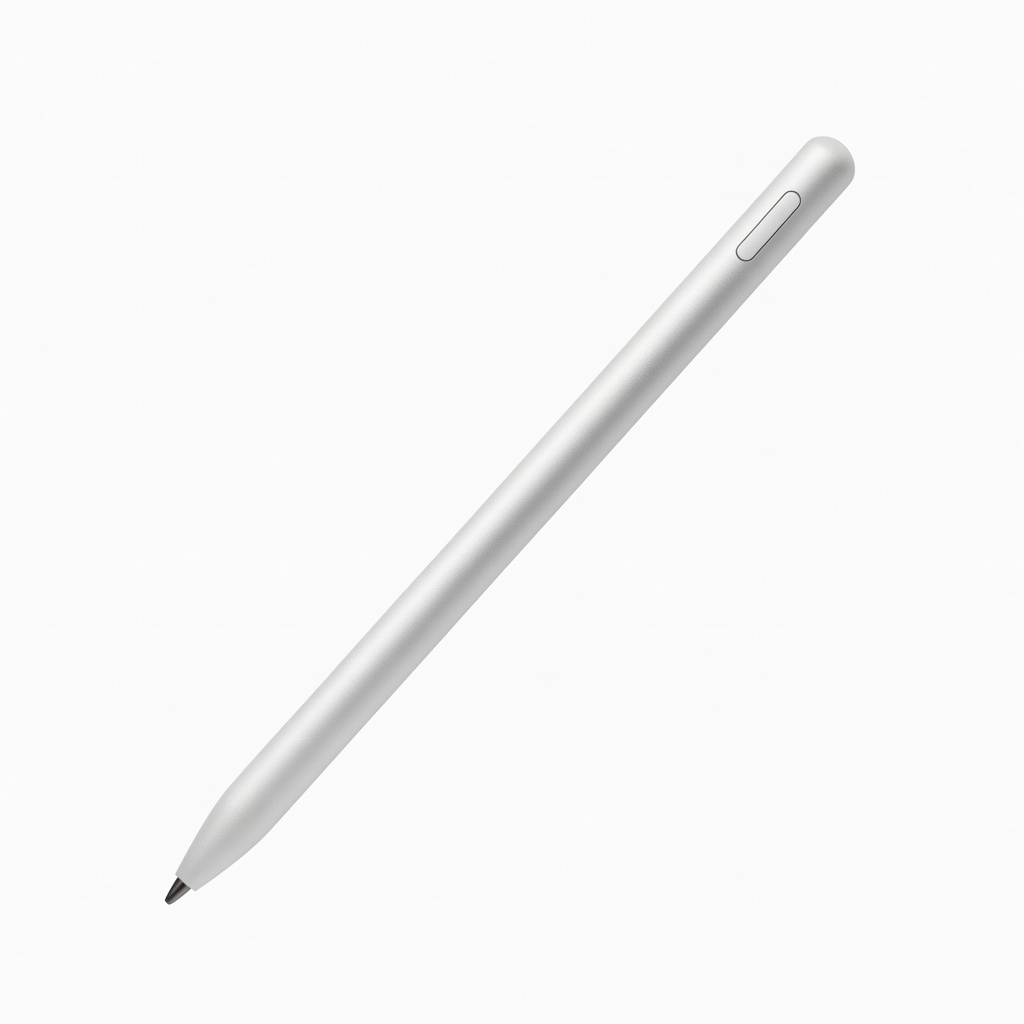
Ideal for artists or note-takers verifying fixes on 2-in-1 screens.
Adonit Note+ 2 Stylus for Touchscreens Precision stylus to test touchscreen calibration and multitouch post-update.
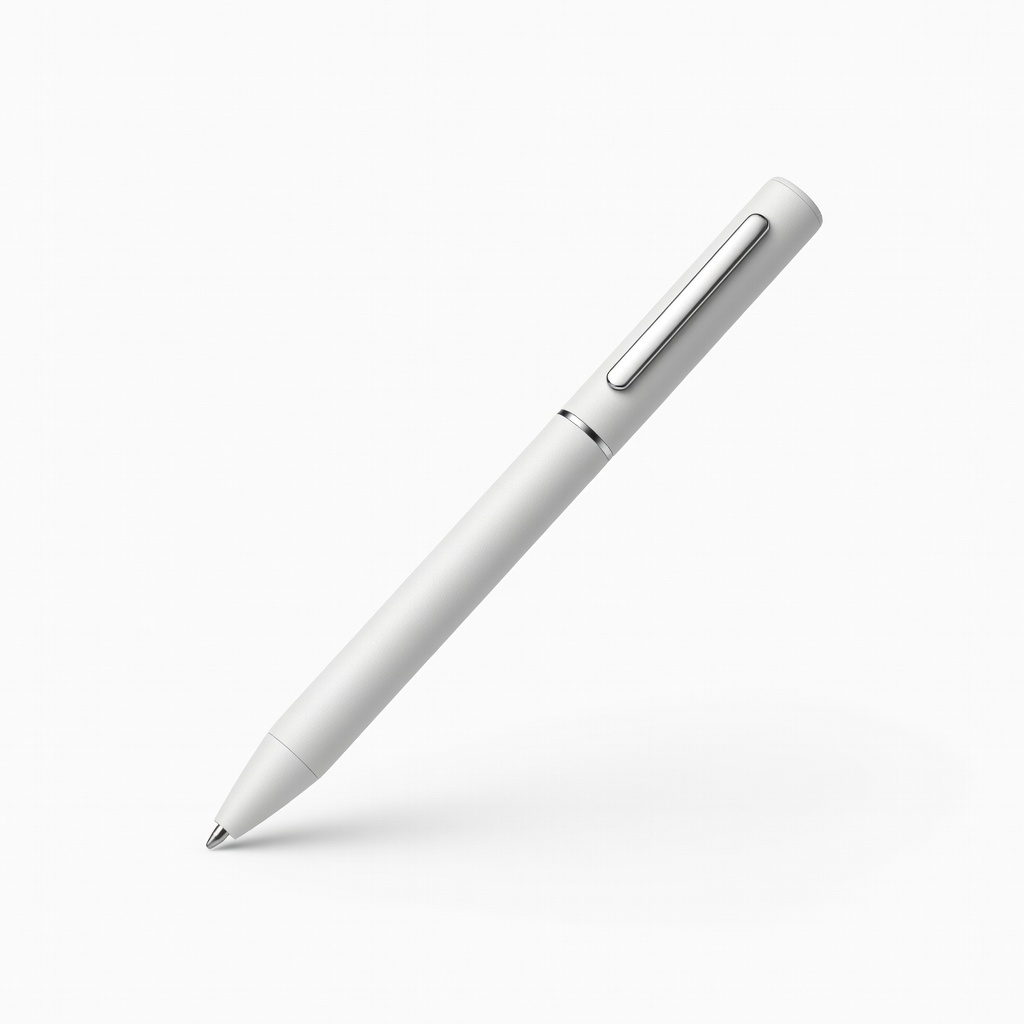
Enhance testing on Lenovo models during driver verification.
Lenovo Digital Pen 2 Compatible with many Yoga 2-in-1s; pressure-sensitive for thorough touch testing.
Backup entire OS if multiple drivers are involved.
EaseUS Todo Backup Home Full system imaging before driver changes for complete recovery options.