
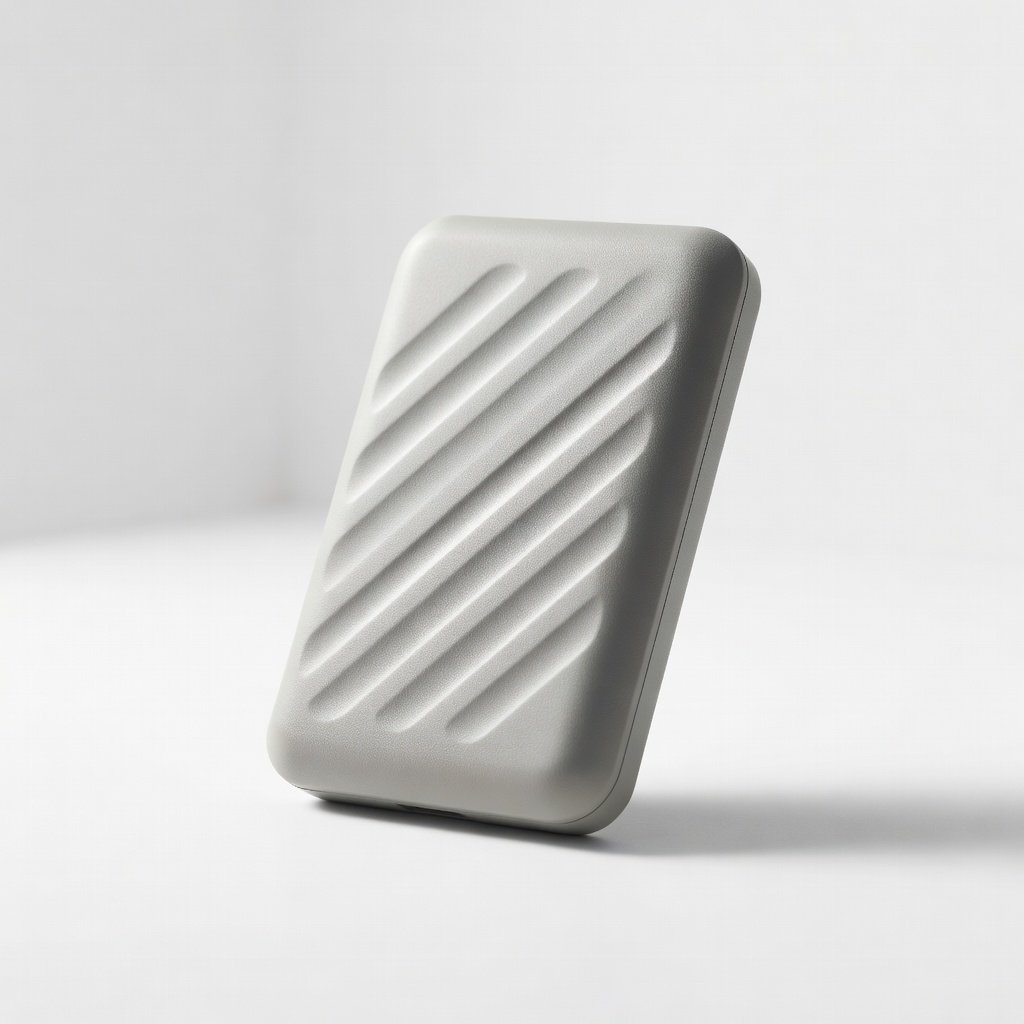
Samsung T7 Shield 1TB Portable SSD
Store files externally during the backup step for 2-in-1 laptops with limited ports.
$99-$130
Samsung T7 Shield 1TB Portable SSD Reliable, rugged backup drive prevents data loss before driver updates.
Get the App
Better experience on mobile
Fix lag, touch issues, and battery drain on your convertible laptop with these simple, beginner steps for smooth performance.
Outdated drivers on 2-in-1 laptops can cause frustrating problems like unresponsive touchscreens, poor tablet mode performance, glitchy stylus input, or random crashes—especially when switching between laptop and tent modes. Whether you have a Lenovo Yoga, HP Spectre x360, or Microsoft Surface, keeping drivers updated ensures optimal hardware integration and security.
In this guide, you'll learn how to safely update drivers using built-in Windows tools and manufacturer resources. No advanced tech skills needed—we'll cover everything step-by-step, including 2-in-1 specific tips for touch, graphics, and hinge sensors.
Expect to spend 20-40 minutes, depending on download sizes. It's beginner-friendly, with clear checks for success at each stage.
Estimated Time: 20-40 minutes Difficulty: beginner
Before updating drivers, create a backup to prevent data loss from rare glitches. Plug in an external drive or use OneDrive/Google Drive.
Go to Settings > Update & Security > Backup (Windows 10) or Settings > Accounts > Windows Backup (Windows 11). Select files/folders and back up. Success: See 'Backup complete' or files copied to your drive.
Why? Driver updates rarely cause issues, but backups protect photos, documents, and settings unique to your 2-in-1's dual modes.
💡 Tips:
⚠️ Warnings:
Know your exact model for targeted updates—2-in-1s like Surface Pro need specific touch drivers.
Press Win + R, type msinfo32, hit Enter. Note 'System Model' and 'System Manufacturer'. Then, right-click Start > Device Manager. Expand categories (Display adapters, Human Interface Devices for touch). Yellow triangles mean outdated drivers.
Success: Model noted (e.g., 'Lenovo Yoga 9i'), outdated devices flagged.
💡 Tips:
Windows handles many 2-in-1 drivers automatically.
Go to Settings > Windows Update > Check for updates. Install all, including optional ones (click 'View optional updates' for drivers). Restart if prompted.
Why? It grabs Microsoft-validated drivers for touchscreens and convertible hinges. Success: 'You're up to date' message.
⚠️ Warnings:
For specific fixes, update manually.
In Device Manager, right-click problematic device (e.g., HID-compliant touch screen) > Update driver > Search automatically. Repeat for graphics (Intel/AMD/NVIDIA), audio, and chipset.
Success: No yellow icons; device properties show recent date.
💡 Tips:
Get latest 2-in-1 optimized drivers.
Search '[your model] drivers' (e.g., 'HP Spectre x360 drivers'). Visit official site, select OS, download chipset/graphics/touch packs. Run installers as admin.
Examples: Lenovo Vantage app, Dell SupportAssist, Microsoft Surface support page. Success: Installers confirm 'Update successful'.
💡 Tips:
⚠️ Warnings:
Many 2-in-1s have auto-updaters.
Download/install: Lenovo Vantage, HP Support Assistant, Dell Update, Surface app from Microsoft Store. Run and let it scan/update.
Why? Handles pen, flip sensor, and battery drivers perfectly. Success: Software shows 'All drivers up to date'.
Reboot to apply changes.
Restart laptop, test tablet mode (rotate screen), touch gestures, stylus (if applicable), and performance (open apps).
Success: Smooth touch response, no lag in convertible modes, Device Manager clean.
💡 Tips:
⚠️ Warnings:
Confirm all good.
Reopen Device Manager—no warnings. Set Windows Update to auto, and pin manufacturer app to taskbar.
Success: Laptop feels faster, battery lasts longer.
Problem: Update fails with error code
Solution: Run Windows Update Troubleshooter (Settings > System > Troubleshoot > Other troubleshooters). Or download manually from manufacturer.
Problem: Touchscreen stops working post-update
Solution: Roll back in Device Manager (right-click > Properties > Roll Back Driver). Reinstall from OEM site.
Problem: Blue screen during install
Solution: Boot to Safe Mode (hold Shift + Restart), uninstall recent driver, then retry.
Problem: No internet after update
Solution: Reset network adapter in Device Manager or run Network Troubleshooter.
Reliable, rugged backup drive prevents data loss before driver updates.
Best for: Store files externally during the backup step for 2-in-1 laptops with limited ports.
Price Range: $99-$130
Prevents overheating during long downloads/installs on slim 2-in-1 chassis.
Best for: Elevate your laptop on table for better airflow while plugged in.
Price Range: $25-$35
Adds ports for external backup drives/monitors on port-limited 2-in-1s.
Best for: Connect SSD, mouse, and Ethernet simultaneously during updates.
Price Range: $45-$60
RGB fans cool effectively for intensive driver scans on gaming 2-in-1s.
Best for: High-airflow for Lenovo Yoga or HP Envy during multi-GB downloads.
Price Range: $35-$50
Store files externally during the backup step for 2-in-1 laptops with limited ports.
Samsung T7 Shield 1TB Portable SSD Reliable, rugged backup drive prevents data loss before driver updates.
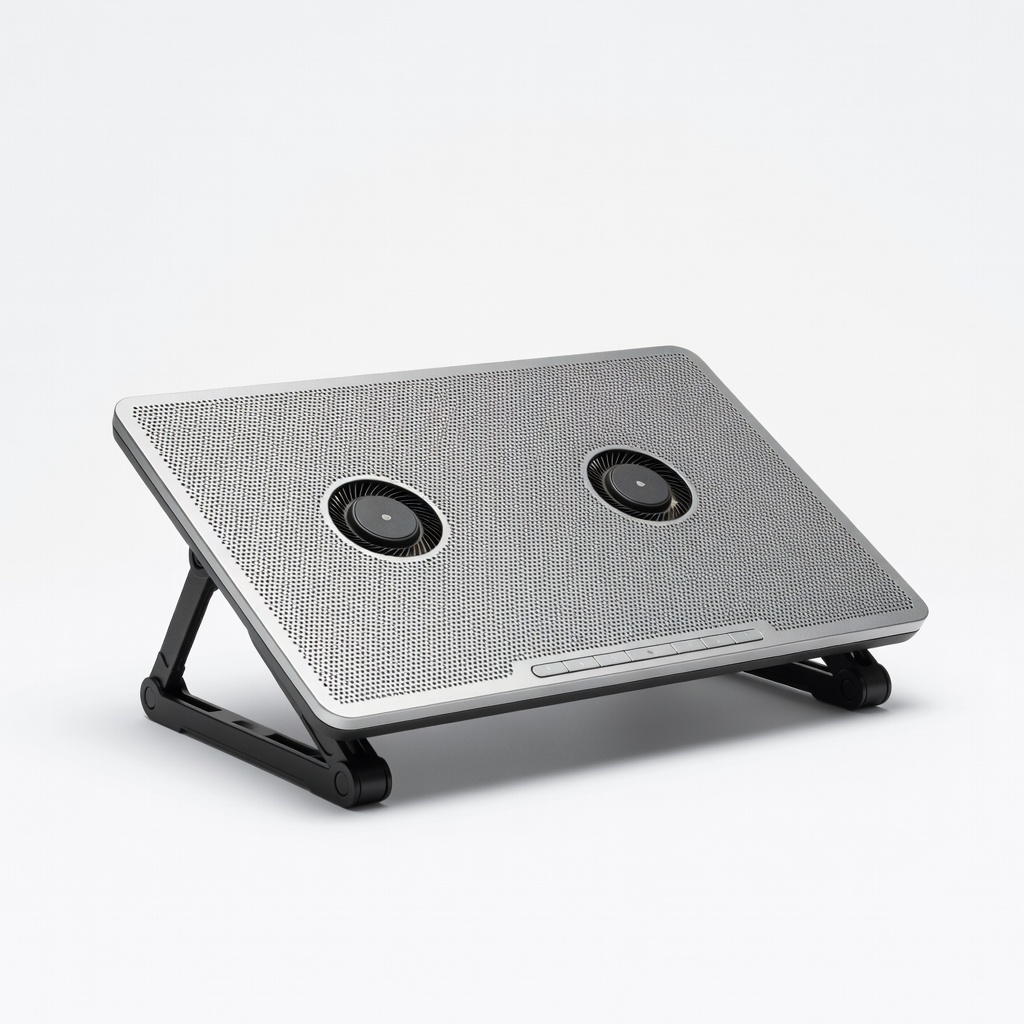
Elevate your laptop on table for better airflow while plugged in.
Kootek Laptop Cooling Pad Prevents overheating during long downloads/installs on slim 2-in-1 chassis.
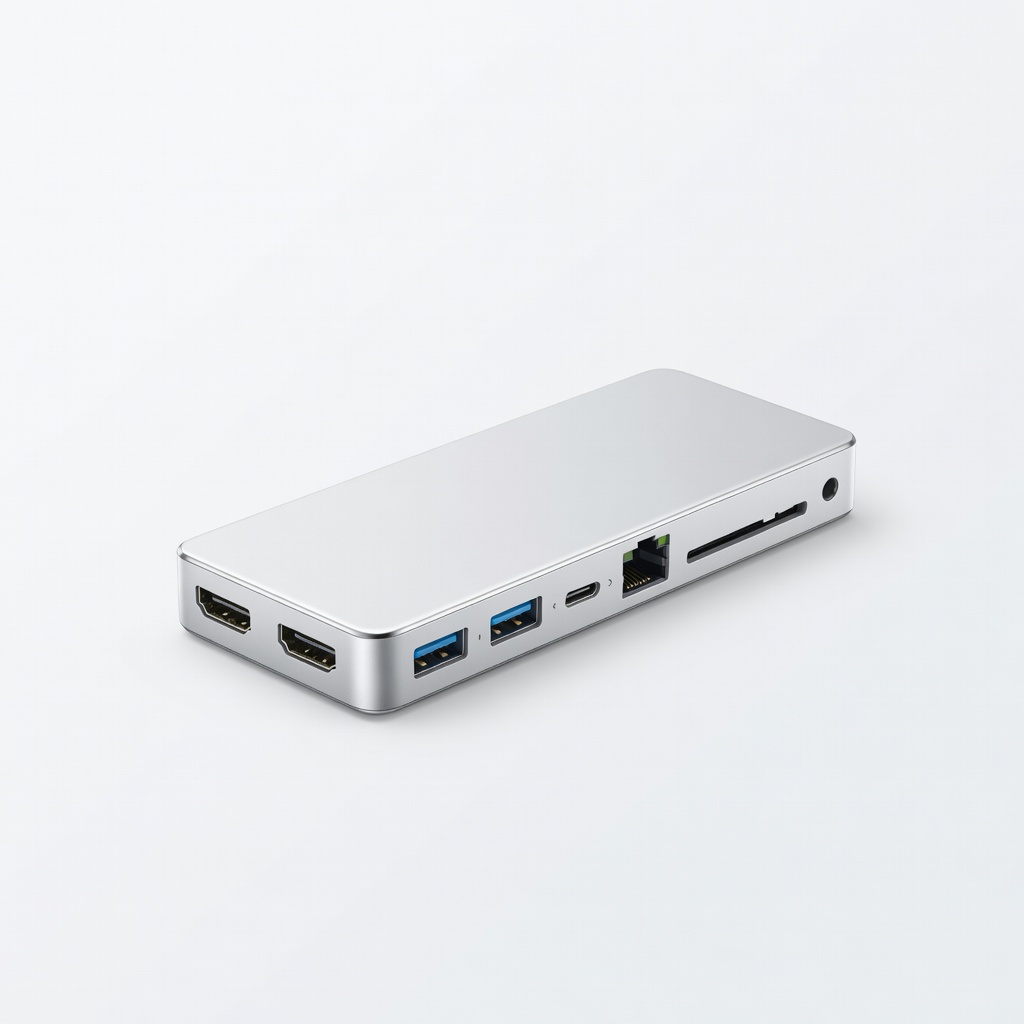
Connect SSD, mouse, and Ethernet simultaneously during updates.
Anker 555 USB-C Hub (8-in-1) Adds ports for external backup drives/monitors on port-limited 2-in-1s.
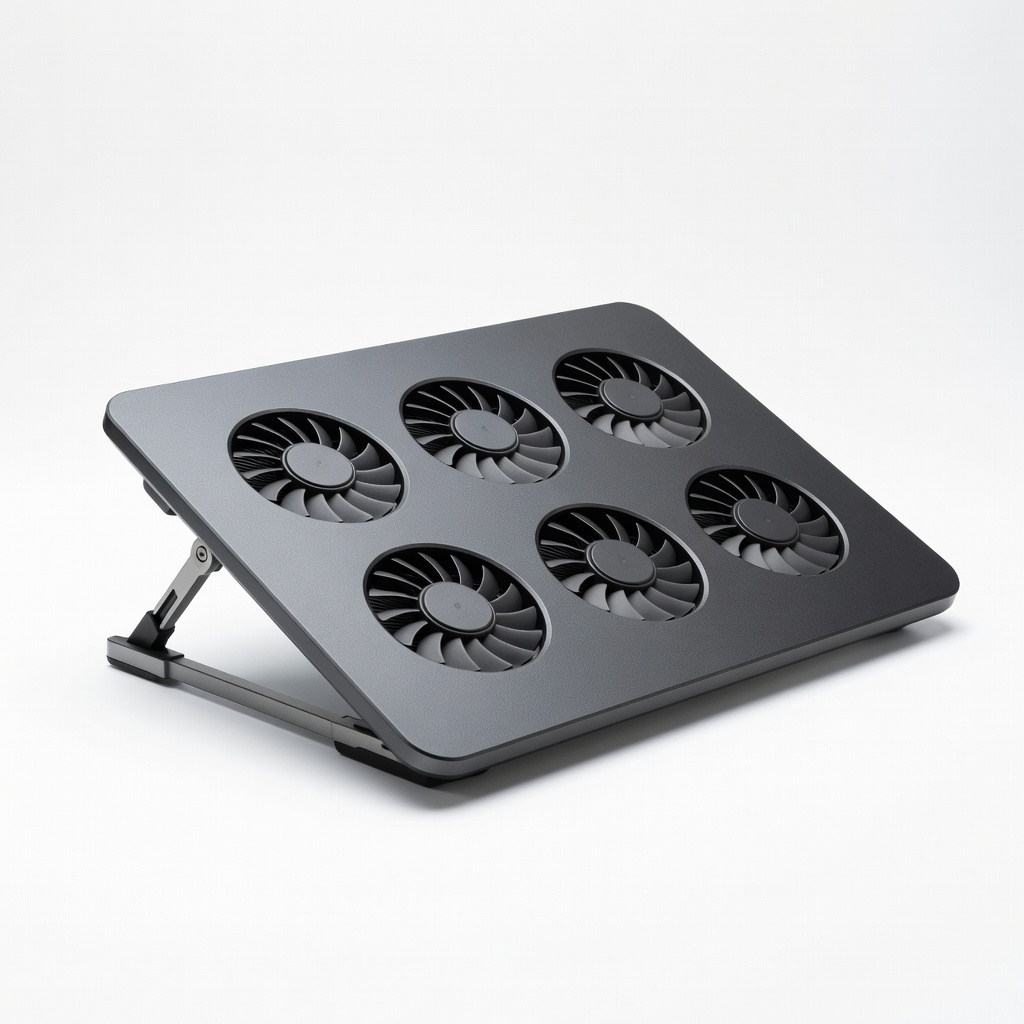
High-airflow for Lenovo Yoga or HP Envy during multi-GB downloads.
KLIM Ultimate Laptop Cooling Pad RGB fans cool effectively for intensive driver scans on gaming 2-in-1s.