
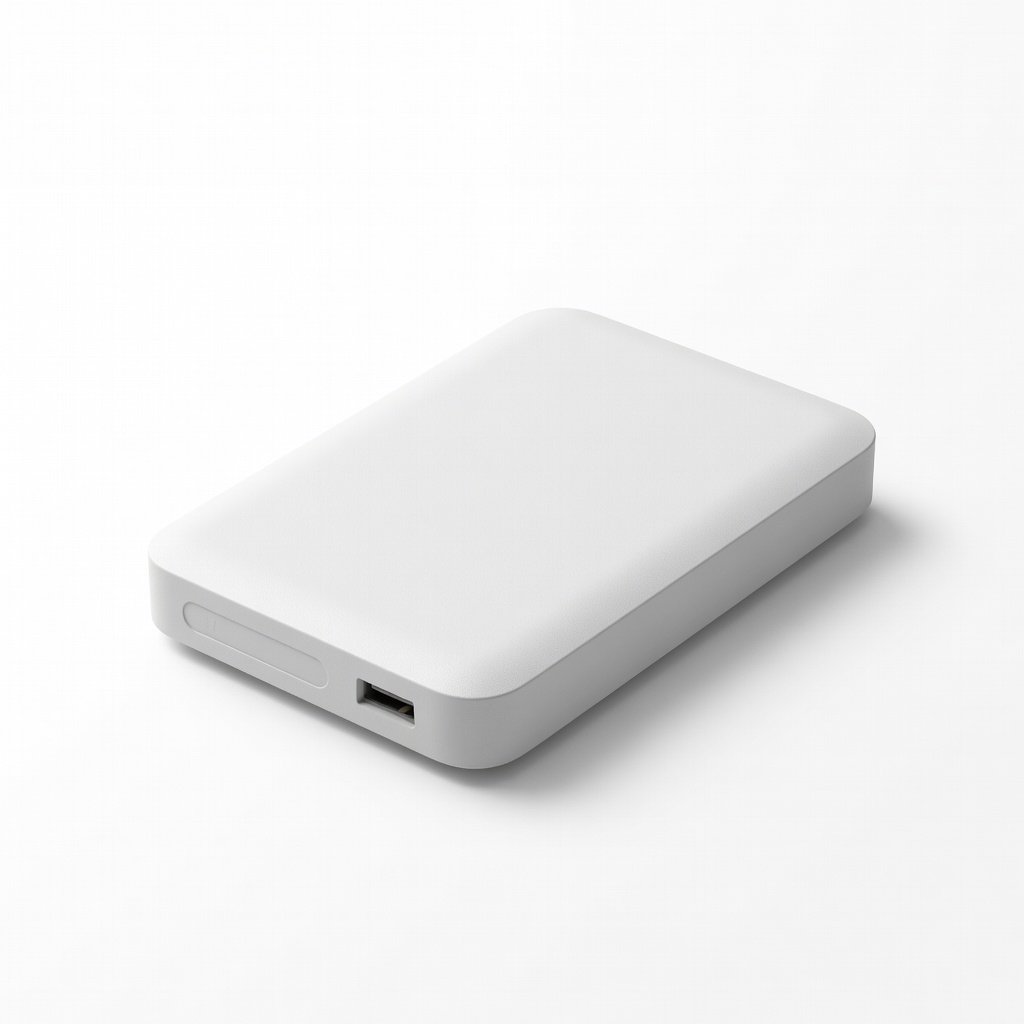
WD Elements Portable Hard Drive 5TB
Store daily company file copies securely.
$119.99
WD Elements Portable Hard Drive 5TB Reliable for automated backups before troubleshooting, preventing data loss.
Get the App
Better experience on mobile
Fix common glitches in QuickBooks, Xero, or FreshBooks step-by-step to restore accuracy and avoid costly downtime in minutes.
Accounting software errors can halt your workflow, leading to delayed reports, payroll issues, or inaccurate financials that cost businesses thousands. Whether it's a crash in QuickBooks, sync failures in Xero, or calculation errors in FreshBooks, these problems are frustrating but fixable with systematic troubleshooting.
In this guide, you'll learn a proven step-by-step process to diagnose and resolve most errors yourself. We'll cover everything from basic checks to advanced data verification, tailored for intermediate users familiar with accounting basics. Expect to spend 30-60 minutes, depending on the issue's complexity—no coding required.
By the end, your software will run smoothly, ensuring reliable books and peace of mind during tax season or audits.
Estimated Time: 30-60 minutes Difficulty: intermediate
Start by noting the exact error message, when it occurs, and steps to reproduce it. Open your accounting software and trigger the issue—e.g., run a report or reconcile accounts.
Take screenshots (use Snipping Tool on Windows or Cmd+Shift+4 on Mac) and check the error log (in QuickBooks: Help > QuickBooks Desktop Help > Search 'error log'). This pinpoints if it's a crash, sync error, or data issue.
Success looks like: Clear notes like 'Error 6000: Company file in use' with reproduction steps. Why it matters: Vague descriptions waste time later.
💡 Tips:
⚠️ Warnings:
Ensure your computer meets requirements: Check internet speed (use speedtest.net), disk space (>10GB free), and close other apps. Restart your computer and software.
In multi-user mode (e.g., QuickBooks), confirm no one else is in the file (File > Close Company > Switch to single-user).
Success looks like: Software opens without crashes, files accessible. This fixes 30% of errors caused by resource strain.
💡 Tips:
⚠️ Warnings:
Outdated versions cause most compatibility errors. In QuickBooks: Help > Update QuickBooks Desktop. For Xero/FreshBooks: Check browser or app store for updates. Update OS via Settings > Update & Security.
Restart after updates and test the error.
Success looks like: 'Software is up to date' message, error gone if patch-related.
💡 Tips:
Corrupted cache causes display/sync errors. Close software, then delete temp files: Windows (Win+R > %temp% > delete all), or use CCleaner (free). For browsers (Xero cloud): Ctrl+Shift+Del > clear cache.
Reopen and test.
Success looks like: Faster loading, resolved visual glitches.
⚠️ Warnings:
Use software's repair: QuickBooks (File > Utilities > Verify/Rebuild Data), Xero (re-sync bank feeds). Scan for malware with Windows Defender.
If virus found, quarantine and retest.
Success looks like: 'No issues found' or rebuilt file without errors.
💡 Tips:
Restore from a recent backup (File > Open Previous Copy). Compare transactions. Use audit log (Reports > Accountant > Audit Trail) for anomalies.
Success looks like: Data matches pre-error state, software stable.
⚠️ Warnings:
Disable add-ons (e.g., payroll apps). If persists, search forums (Intuit Community) or contact support with your log.
Success looks like: Issue isolated or resolved via ticket.
💡 Tips:
Problem: Error persists after all steps
Solution: Contact software support with logs/screenshots; consider professional accountant or IT help.
Problem: Multi-user sync fails
Solution: Host file on server, not local; check firewall ports (e.g., QuickBooks 8019).
Problem: Data corruption frequent
Solution: Upgrade to enterprise edition or cloud version; run daily verifies.
Problem: Slow performance
Solution: Condense data file (QuickBooks: File > Utilities > Condense Data).
Reliable for automated backups before troubleshooting, preventing data loss.
Best for: Store daily company file copies securely.
Price Range: $119.99
Scans for malware causing crashes/sync errors common in accounting software.
Best for: Run full scans during Step 5 for clean system.
Price Range: $44.99/year
Fast transfers for restoring backups or moving files during repairs.
Best for: Quick data verification and rebuilds.
Price Range: $99.99
Comprehensive protection against viruses disrupting software integrity.
Best for: Ongoing defense post-troubleshoot.
Price Range: $49.99/year
Latest version with built-in fixes for legacy errors; upgrade if old software.
Best for: Switch if troubleshooting fails repeatedly.
Price Range: $549.00
Store daily company file copies securely.
WD Elements Portable Hard Drive 5TB Reliable for automated backups before troubleshooting, preventing data loss.
Run full scans during Step 5 for clean system.
Malwarebytes Premium 1-Device Scans for malware causing crashes/sync errors common in accounting software.
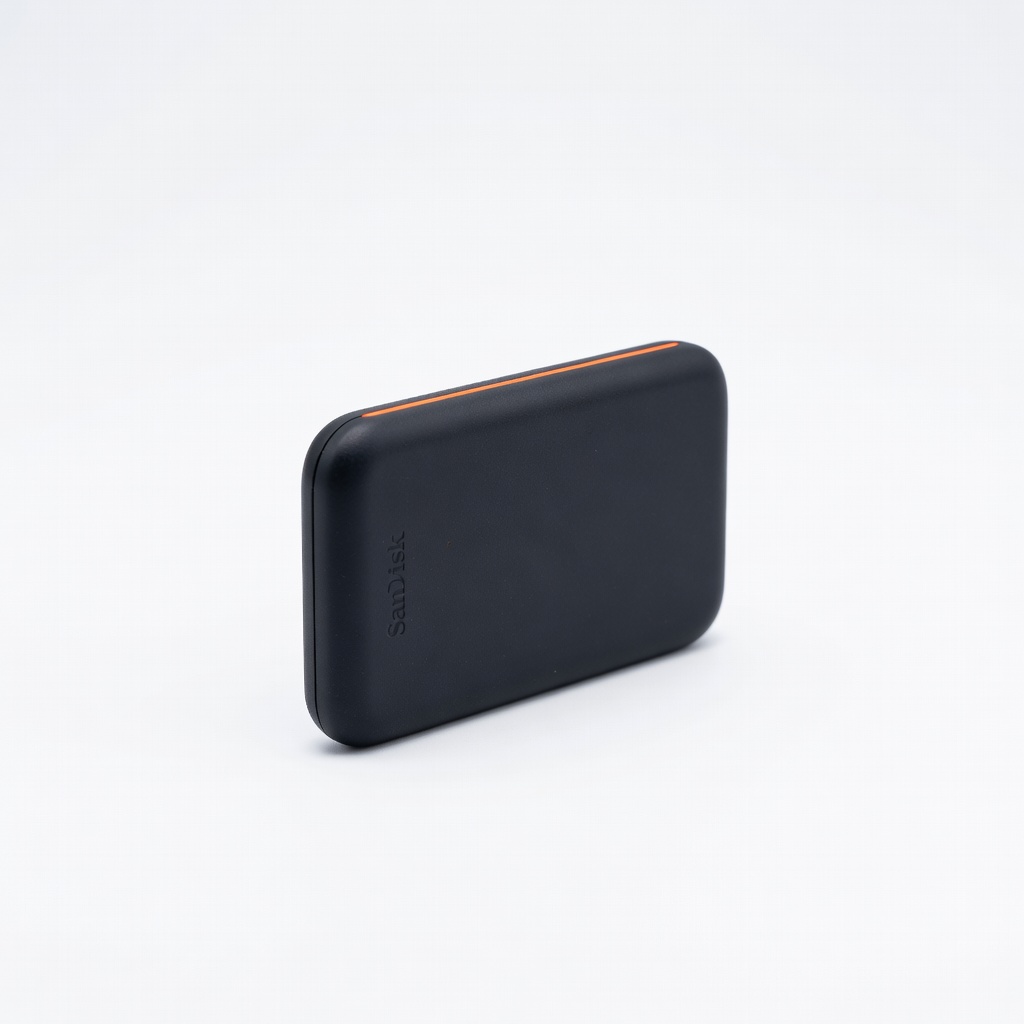
Quick data verification and rebuilds.
SanDisk 1TB Extreme Portable SSD Fast transfers for restoring backups or moving files during repairs.
Ongoing defense post-troubleshoot.
Norton 360 Deluxe Comprehensive protection against viruses disrupting software integrity.
Switch if troubleshooting fails repeatedly.
QuickBooks Desktop Pro Plus 2024 Latest version with built-in fixes for legacy errors; upgrade if old software.