Tired of scribbled ledgers and lost receipts? Manual expense tracking leads to errors, forgotten bills, and zero insights into your spending habits. In 2025, digitizing your account books transforms chaos into control, saving hours weekly and revealing money-saving patterns.
This guide teaches intermediate users how to set up a digital expense tracker mimicking traditional account books using apps and spreadsheets. You'll learn to choose tools, input data, automate entries, and generate reports. Expect a straightforward process taking 30-60 minutes to set up, with ongoing daily use under 5 minutes.
By the end, you'll have a live digital ledger syncing across devices, ready for budgets and tax prep—no accounting degree required.
▸What You'll Need
- •Smartphone or computer (iOS, Android, Windows, or Mac)
- •Free apps: Google Sheets or Microsoft Excel (required for spreadsheets); optional: scanning app like Adobe Scan
- •Digital expense app (e.g., Expensify or PocketGuard, free tiers)
- •Bank account login (for auto-sync, optional)
- •Physical receipts or old ledger (for initial data entry)
Estimated Time: 30-60 minutes setup + 5 minutes daily
Difficulty: intermediate
▸Step-by-Step Instructions
Step 1: Choose Your Digital Account Book Tool
Select a platform that feels like a digital ledger. For spreadsheet fans, use Google Sheets (free, cloud-sync) or Microsoft Excel. Apps like Expensify or QuickBooks Self-Employed offer ledger-style views with automation.
Why? Spreadsheets mimic traditional columns (date, description, category, amount); apps add OCR scanning and bank imports. Test free versions—expect a clean interface with customizable tables.
Success looks like: A new blank ledger ready for columns.
💡 Tips:
- •Start with Google Sheets for zero cost and sharing.
- •If mobile-first, pick Expensify for receipt photo magic.
⚠️ Warnings:
- •Avoid complex tools like full QuickBooks if solo—stick to simple ledgers.
Step 2: Set Up Your Ledger Structure
Create a new sheet or app project. Add columns: Date, Description, Category (e.g., Groceries, Rent), Amount, Payment Method, Notes, Receipt Link.
Format: Bold headers, freeze top row, add data validation for categories (dropdown). Use formulas like =SUM(D:D) for totals.
Why it matters: This replicates a physical account book's columns for familiarity. Expect instant totals updating as you enter data.
💡 Tips:
- •Download free templates: Search 'expense tracker Google Sheets template'.
- •Color-code categories for visual pop.
Step 3: Define and Customize Categories
List 10-15 categories based on your life (e.g., Utilities, Dining Out, Subscriptions). Sub-categorize if needed (Groceries > Produce).
In Sheets/Excel, use data validation; in apps, edit settings. Add a 'Summary' tab with pivot tables for monthly breakdowns.
Success: Dropdowns auto-fill, preventing typos—your ledger stays organized.
⚠️ Warnings:
- •Don't over-categorize (max 20) or you'll abandon it.
Step 4: Digitize and Input Historical Data
Scan old receipts/ledgers using phone camera + app (CamScanner free). Enter past 3-6 months' data row-by-row.
Batch it: 10 entries at a time. Link scanned PDFs to 'Receipt Link' column via Google Drive.
Why: Builds a full history for trends. Expect 15-30 mins for 100 entries.
💡 Tips:
- •Voice-to-text descriptions for speed.
Step 5: Log Daily Expenses in Real-Time
Snap receipt photo → app auto-extracts amount/date → select category → save. Or manually enter on desktop.
Set phone widget/home screen shortcut. Success: Entries take <30 seconds, ledger updates instantly across devices.
💡 Tips:
- •Enable bank sync (Plaid integration in apps) for auto-imports.
⚠️ Warnings:
- •Log same-day to avoid memory fades.
Step 6: Review, Reconcile, and Analyze Weekly
Weekly: Compare ledger to bank statements. Use filters/sorts for anomalies. Create charts (pie for categories, line for trends).
Formulas: =SUMIF(C:C,"Groceries",D:D). Apps have dashboards.
Why: Catches errors, informs cuts. Expect insights like 'Dining Out = 30% overspend'.
Step 7: Automate Backups, Reports, and Alerts
Enable cloud sync/auto-backup. Set monthly report emails (Google Apps Script or app features). Add budget alerts (e.g., >$100 groceries).
Success: Hands-off maintenance, PDF exports for taxes.
💡 Tips:
- •Integrate with Zapier for email receipts to ledger.
▸Pro Tips
- •Use keyboard shortcuts (Ctrl+; for date) to speed entry 2x.
- •Tag recurring expenses for bulk edits.
- •Export to PDF monthly for 'physical' feel/printing.
- •Share read-only link with spouse for family tracking.
- •Integrate with calendars for bill reminders.
- •Customize dashboard with conditional formatting (red for overspend).
- •Batch Sundays: Review week + plan ahead.
▸Common Mistakes to Avoid
- •Skipping categories—leads to vague 'Misc' dumps; fix with strict dropdowns.
- •Not reconciling weekly—errors compound; schedule reminders.
- •Overlooking mobile sync—data silos; test cross-device first.
- •Ignoring automation—manual grind kills motivation; enable imports Day 1.
- •Too many columns—paralyzes entry; start minimal, add later.
▸Troubleshooting
Problem: App won't sync across devices
Solution: Check internet; re-login; clear cache. For Sheets, ensure shared link permissions.
Problem: OCR misreads receipts
Solution: Edit manually; use better lighting/sharp photos. Switch apps if persistent.
Problem: Formulas not totaling correctly
Solution: Check cell formats (currency/numbers); avoid text in amount column.
Problem: Bank import fails
Solution: Verify Plaid connection; use manual CSV upload as backup.
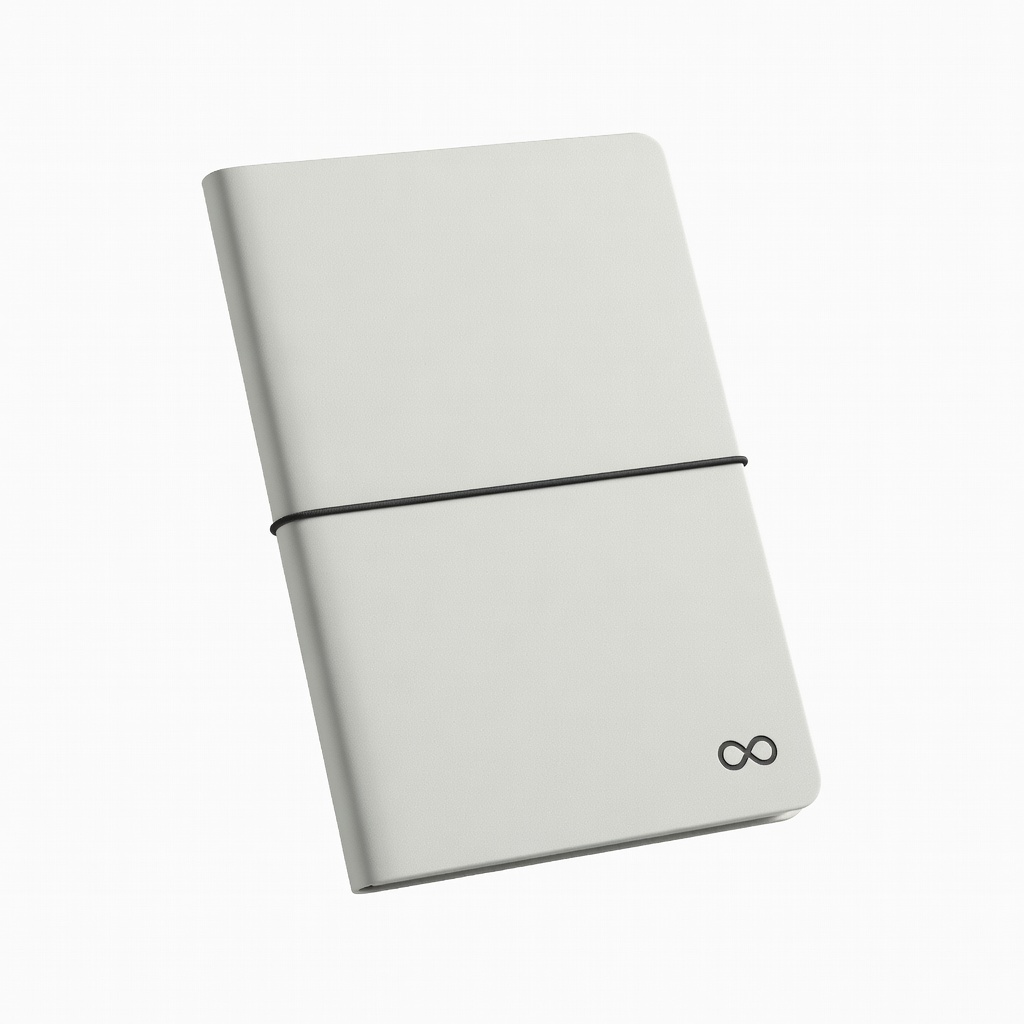
Rocketbook Core Reusable Smart Notebook
Handwrite expenses like a traditional ledger, then scan via app to auto-upload to your digital sheet—perfect hybrid for paper lovers going digital.
Best for: Daily jotting + instant digitization without typing.
Price Range: $25-$35
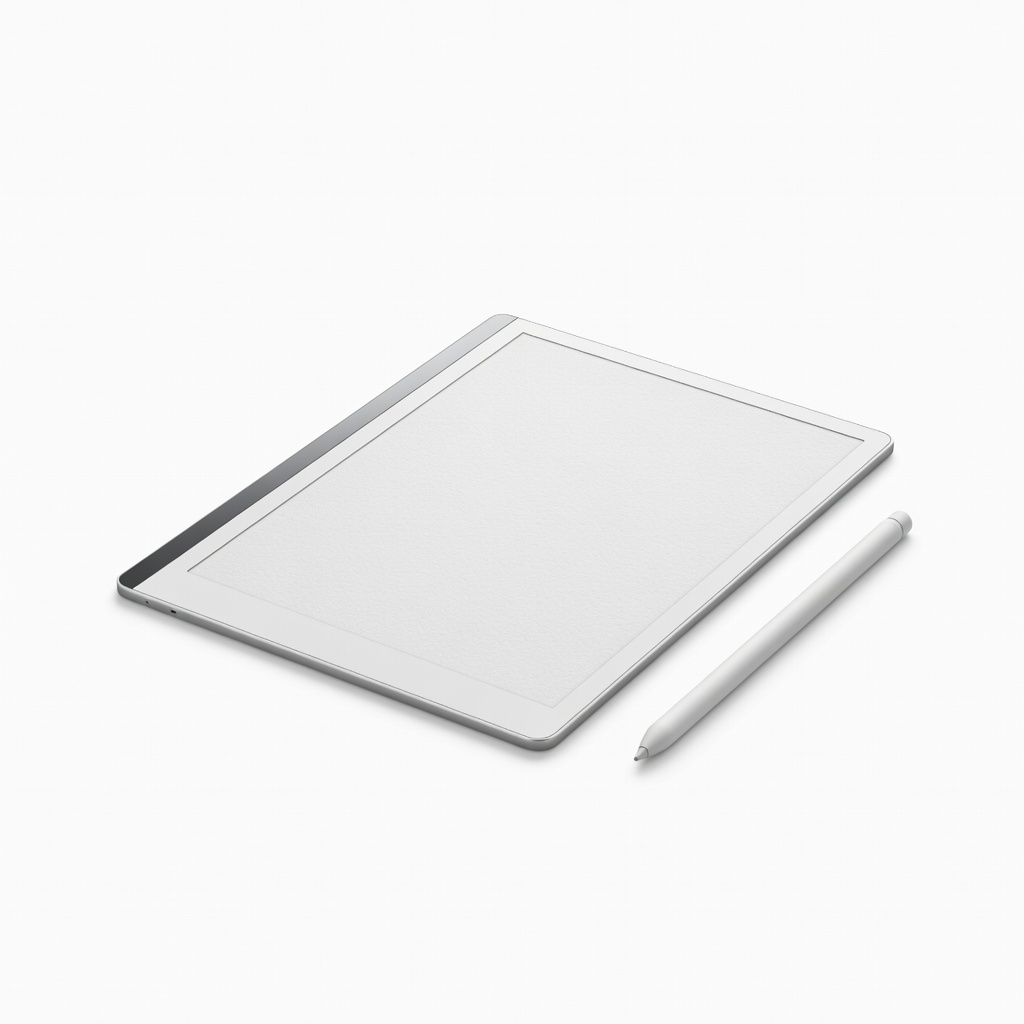
reMarkable 2 Paper Tablet
Feels like paper but fully digital—create ledger pages natively, sync to cloud, export to Excel/Sheets for pro-level tracking.
Best for: Distraction-free handwriting for expenses, budgets, and reports.
Price Range: $279
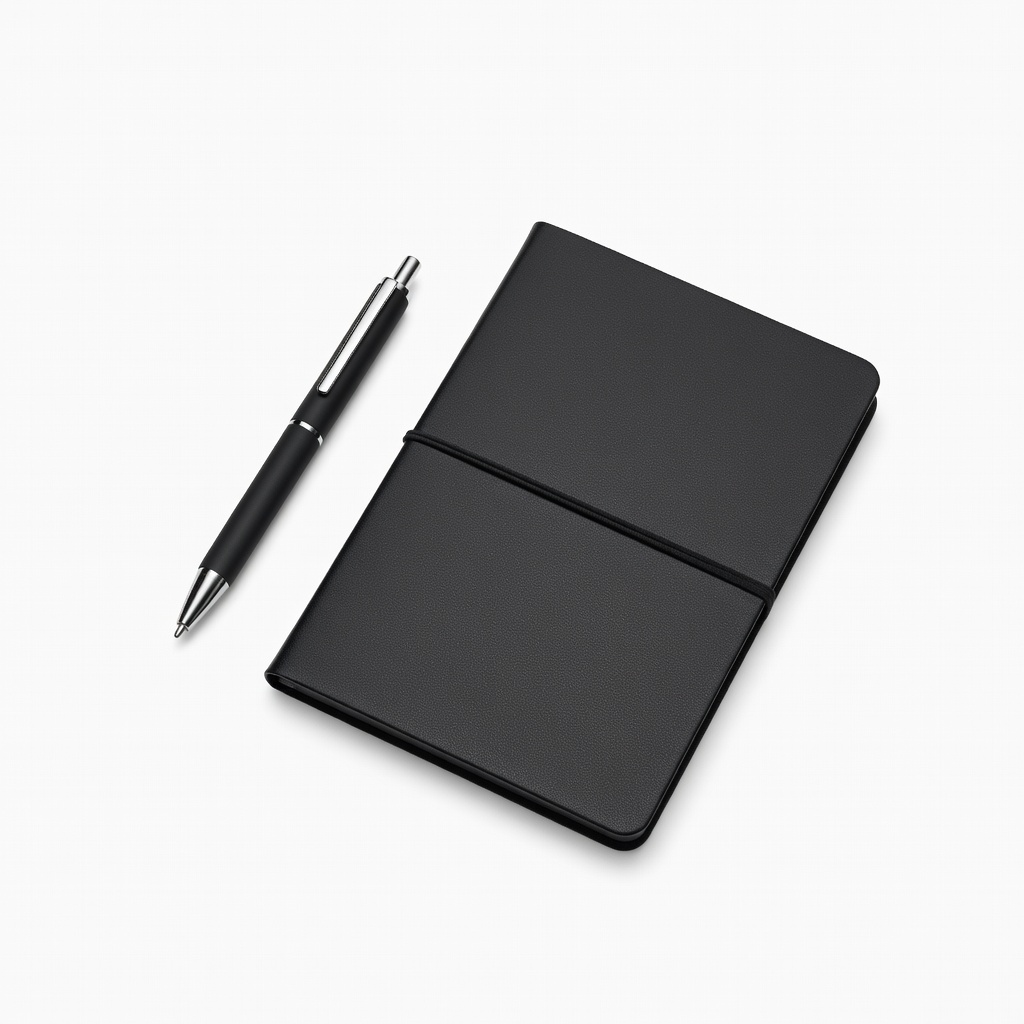
Moleskine Smart Writing Set Pen+ and Smart Notebook
Smart pen digitizes handwritten ledgers in real-time to app, with searchable text—seamless for converting physical habits digitally.
Best for: Note-taking pros who want instant digital backups.
Price Range: $150-$200
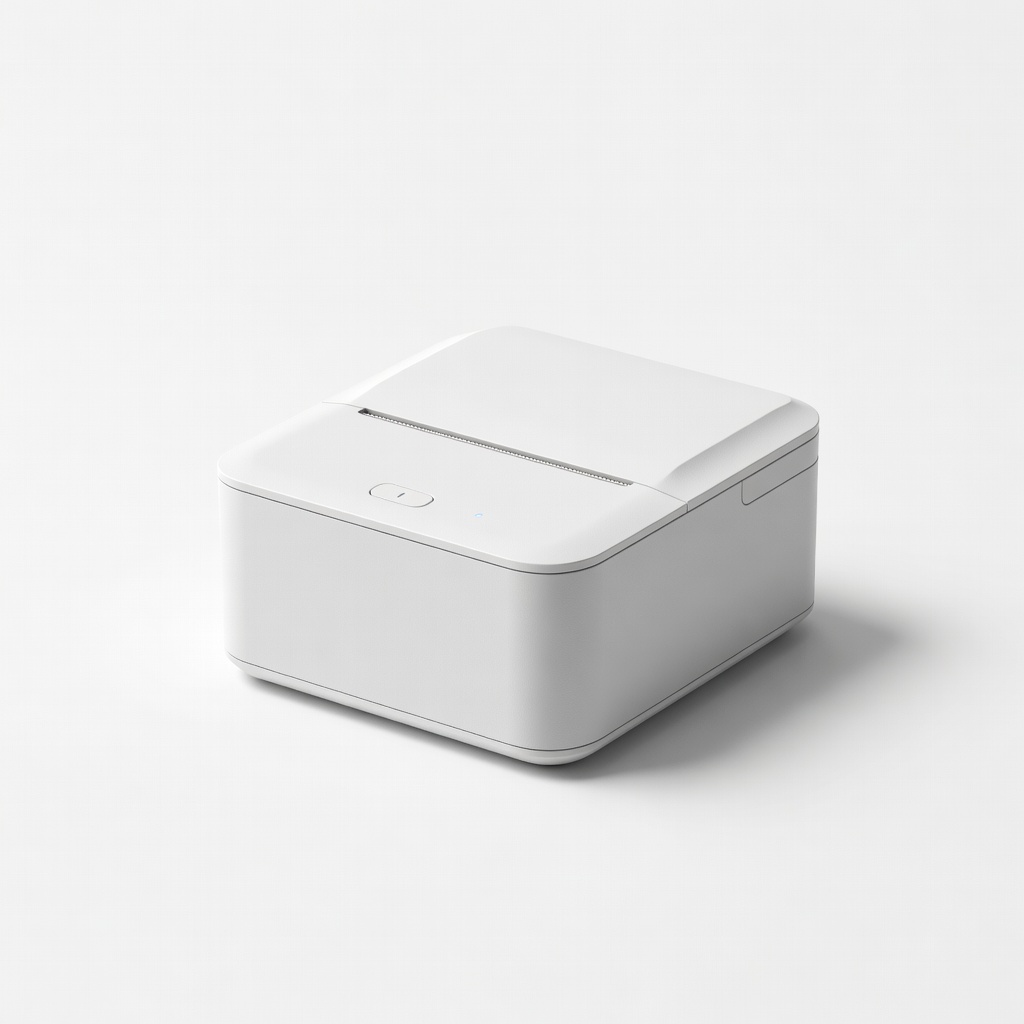
NEWYES Mini Thermal Receipt Printer
Prints digital receipts/labels for physical reference, integrates with expense apps—great for verification in hybrid tracking.
Best for: Business users needing tangible records alongside digital.
Price Range: $40-$60