Struggling with your Fitbit not updating your steps, heart rate, or sleep data on your phone? Syncing issues can be frustrating, especially when you're relying on accurate insights to stay motivated on your fitness journey. The good news is that pairing your Fitbit with your phone is straightforward and essential for unlocking the full potential of your device.
In this beginner-friendly guide, you'll learn how to sync your Fitbit step-by-step, ensuring seamless data transfer between your tracker and smartphone. Whether you're new to wearables or just troubleshooting a glitch, we'll cover everything from setup to tips for smooth operation. The process typically takes 10-15 minutes and requires no advanced tech skills—just your Fitbit, phone, and a bit of patience.
By the end, you'll have your Fitbit synced, ready to view personalized dashboards, set goals, and track progress effortlessly. Let's get started and eliminate those sync headaches for good.
▸What You'll Need
- •A compatible Fitbit tracker (e.g., Versa, Charge, or Inspire series)
- •A smartphone running iOS 15+ or Android 10+
- •The official Fitbit app (free download from App Store or Google Play)
- •Bluetooth enabled on your phone (required)
- •A stable Wi-Fi or cellular connection (optional but recommended for initial setup)
- •Fitbit charging cable (if your device needs powering up)
Estimated Time: 10-15 minutes
Difficulty: beginner
▸Step-by-Step Instructions
Step 1: Download and Install the Fitbit App
Start by getting the Fitbit app on your phone, as it's the central hub for syncing and managing your device. Open the App Store (iOS) or Google Play Store (Android) and search for 'Fitbit'. Download the official app developed by Fitbit, Inc. (now part of Google). Once installed, open the app to begin setup.
This step is crucial because the app handles all communication between your Fitbit and phone via Bluetooth. Without it, syncing won't work. Expect a quick download—usually under 100MB—and grant necessary permissions like location access for Bluetooth pairing.
Tip: If you already have the app, ensure it's updated to the latest version for bug fixes and new features.
💡 Tips:
- •Update the app immediately after installation to avoid compatibility issues.
⚠️ Warnings:
- •Avoid third-party apps; they may not sync reliably and could compromise data security.
Step 2: Create or Log Into Your Fitbit Account
Launch the Fitbit app and sign in if you have an account, or create a new one by tapping 'Create Account'. Provide your email, create a password, and verify via email if prompted. This account links all your devices and stores your health data securely in the cloud.
Why it matters: Syncing requires authentication to protect your personal info and enable features like community challenges. The process takes about 2 minutes; you'll see a welcome screen confirming your login.
If you're switching phones, log out from the old device first in the app settings to prevent conflicts.
💡 Tips:
- •Use a strong password and enable two-factor authentication for added security.
⚠️ Warnings:
- •Don't forget your password—recovery can take time if you lose access.
Step 3: Enable Bluetooth on Your Phone
Go to your phone's settings and turn on Bluetooth. On iPhone, swipe down from the top-right for Control Center and tap the Bluetooth icon. On Android, swipe down from the top and toggle Bluetooth on, or search in Settings > Connections.
Bluetooth is the wireless bridge for syncing data in real-time without cables. Expect your phone to scan for nearby devices immediately. This step ensures low-energy communication, preserving battery life on both devices.
Success looks like the Bluetooth icon appearing active in your status bar.
💡 Tips:
- •Keep Bluetooth on for automatic syncing, but turn it off when not in use to save battery.
⚠️ Warnings:
- •If Bluetooth is off, the app won't detect your Fitbit—double-check this before proceeding.
Step 4: Power On and Prepare Your Fitbit Device
Charge your Fitbit if needed using its proprietary cable, then press the side button or tap the screen to wake it up. Ensure it's not in sleep mode and displays the home screen (clocks or stats).
This prepares the device for pairing by making it discoverable. Most Fitbits enter pairing mode automatically when the app prompts, but you might see a pairing icon or animation. Battery should be at least 20% for reliable syncing.
What to expect: The device vibrates or lights up, indicating it's ready.
💡 Tips:
- •Clean the device's sensors gently with a soft cloth for better connectivity.
⚠️ Warnings:
- •Avoid syncing in areas with heavy interference, like near microwaves or thick walls.
Step 5: Pair Your Fitbit with the App
In the Fitbit app, tap the account icon (top-left) > 'Set Up a Device' > select your model. Follow on-screen prompts to scan a QR code on your Fitbit (if applicable) or select it from the Bluetooth list. Confirm the pairing code if shown on both screens.
Pairing establishes a secure connection for data transfer. It matters for automatic uploads of steps, heart rate, and more. The process takes 1-2 minutes; you'll hear a confirmation tone or see a success message.
Once paired, the app will guide you through initial setup like entering height/weight for accurate tracking.
💡 Tips:
- •Keep your phone and Fitbit close (within 30 feet) during pairing for strong signal.
⚠️ Warnings:
- •If pairing fails, restart both devices and try again—don't force multiple attempts.
Step 6: Initiate and Verify the Sync
Tap 'Sync Now' in the app or wear your Fitbit and go for a short walk—the device auto-syncs every 15-30 minutes, but manual sync ensures immediate updates. Check the app dashboard for your latest data appearing.
This final step confirms everything works, pulling in activity, sleep, and notifications. Success: Real-time stats populate your app, like today's steps or heart rate zones.
If data doesn't appear, wait 1-2 minutes or force a refresh by pulling down on the dashboard.
💡 Tips:
- •Set the app to auto-sync in background for hands-free updates throughout the day.
⚠️ Warnings:
- •Low battery on either device can interrupt sync—charge regularly.
▸Pro Tips
- •Sync in a quiet environment to minimize Bluetooth interference from other devices.
- •Regularly update your Fitbit firmware via the app for improved sync stability.
- •Use Wi-Fi for faster initial data uploads if your cellular data is limited.
- •Customize notifications in the app to avoid sync disruptions from alerts.
- •Track sync history in the app settings to monitor connection patterns.
- •Pair with multiple phones if needed, but prioritize one for primary use.
- •Enable location services for better Bluetooth accuracy on iOS devices.
▸Common Mistakes to Avoid
- •Forgetting to enable Bluetooth: This halts pairing entirely—always check settings first to avoid frustration.
- •Using an outdated app version: Leads to compatibility errors; update before starting to ensure smooth syncing.
- •Pairing in crowded Wi-Fi areas: Interference causes failures—move to a less congested spot.
- •Not charging the Fitbit: Low battery prevents detection; aim for 50%+ charge.
- •Skipping account verification: Delays data access; complete email confirmation immediately.
▸Troubleshooting
Problem: Bluetooth won't connect or device not found
Solution: Restart Bluetooth on your phone, toggle airplane mode on/off, and ensure the Fitbit is charged and awake. Forget the device in phone settings and re-pair.
Problem: Sync fails or data doesn't update
Solution: Force close and reopen the app, check for app/firmware updates, or uninstall/reinstall the app. Verify internet connection for cloud sync.
Problem: App crashes during pairing
Solution: Clear app cache (Android) or offload/reinstall (iOS). If persistent, contact Fitbit support via the app.
Problem: Multiple devices interfering
Solution: Unpair old Fitbits from the app first. If issues continue, reset the tracker (hold buttons for 10-15 seconds) and re-pair.
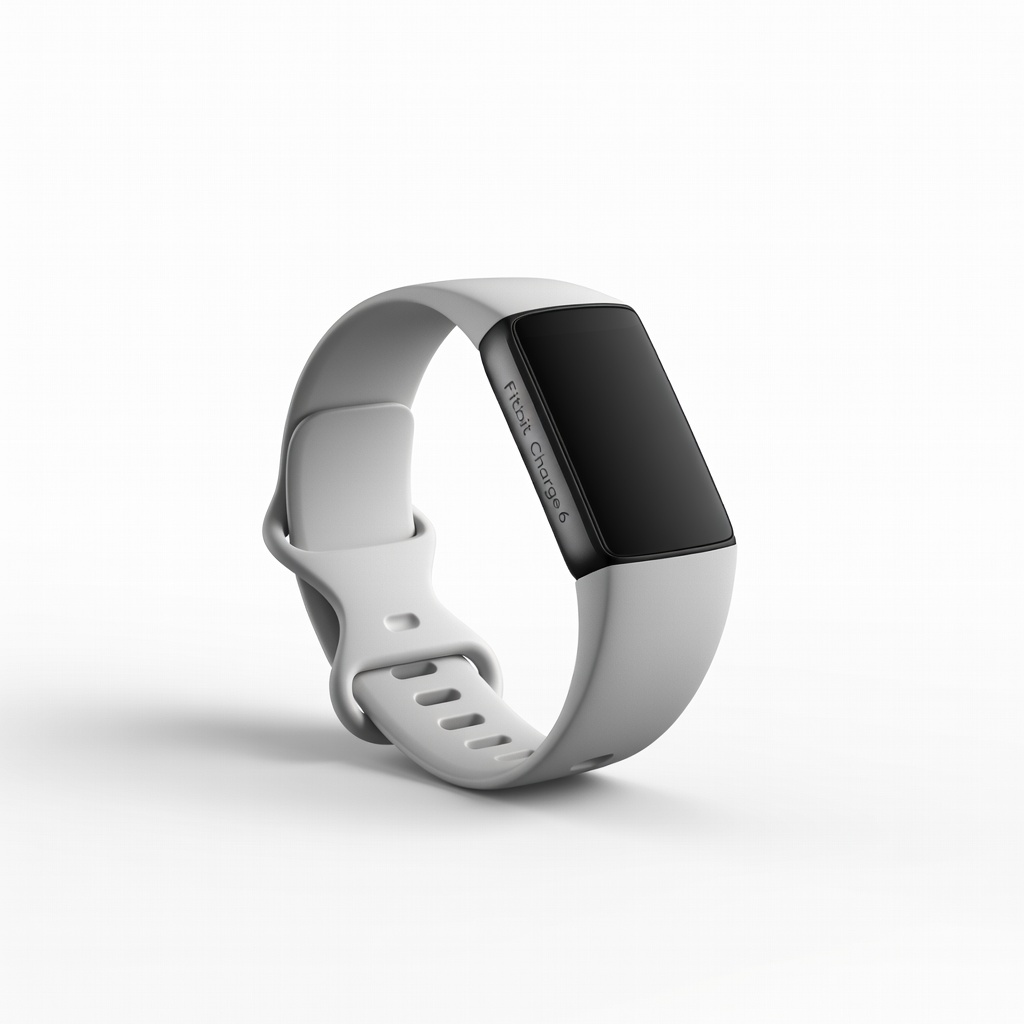
Fitbit Charge 6
This versatile tracker excels at reliable Bluetooth syncing with advanced health metrics like ECG and GPS, making it ideal for beginners needing seamless phone integration.
Best for: Daily activity tracking and real-time sync for workouts or sleep monitoring.
Price Range: $150-180
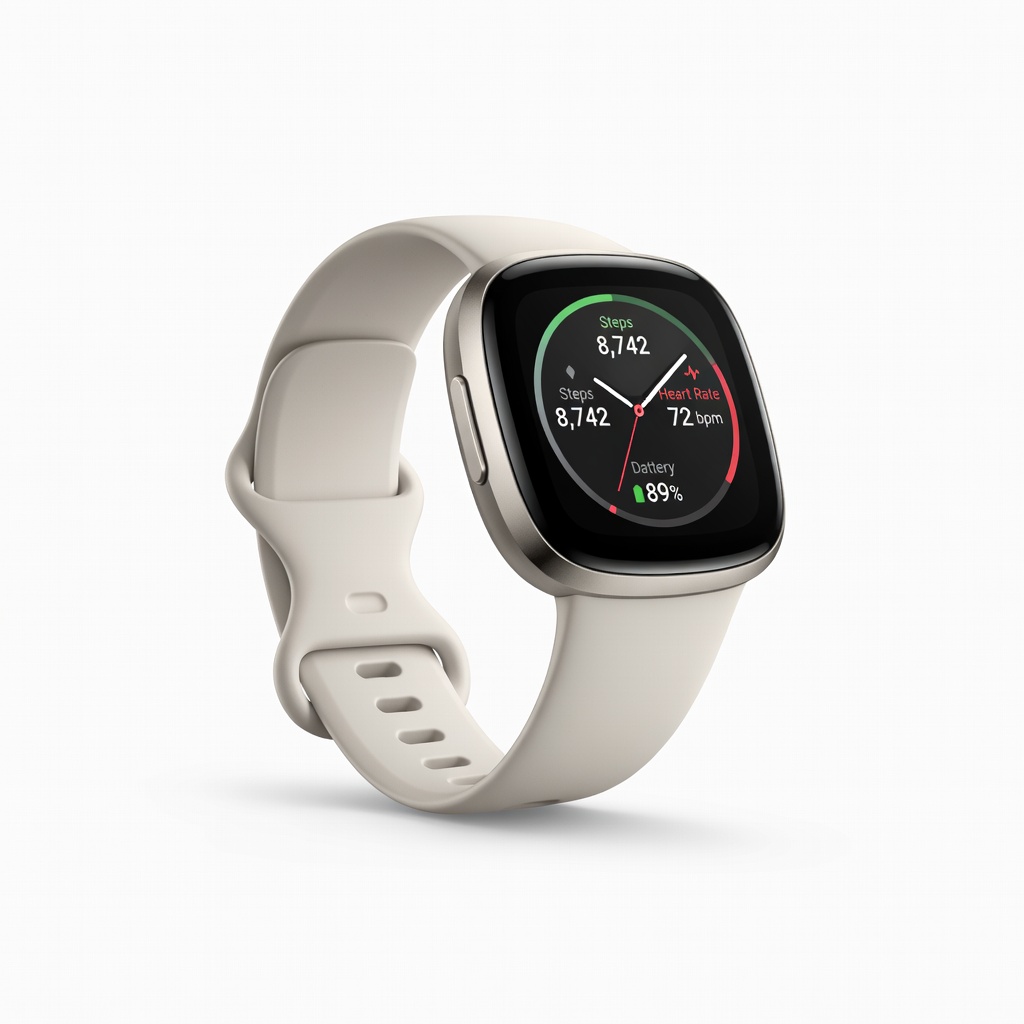
Fitbit Versa 4 Smartwatch
Offers built-in GPS and Google apps for enhanced syncing, with a larger screen for easy setup—perfect if you want more than basic tracking.
Best for: Users wanting notifications and music control synced to their phone during runs.
Price Range: $200-230
Fitbit Inspire 3
Affordable entry-level option with simple one-tap syncing and 10-day battery life, great for absolute beginners avoiding complexity.
Best for: Basic step and sleep tracking with minimal setup.
Price Range: $80-100
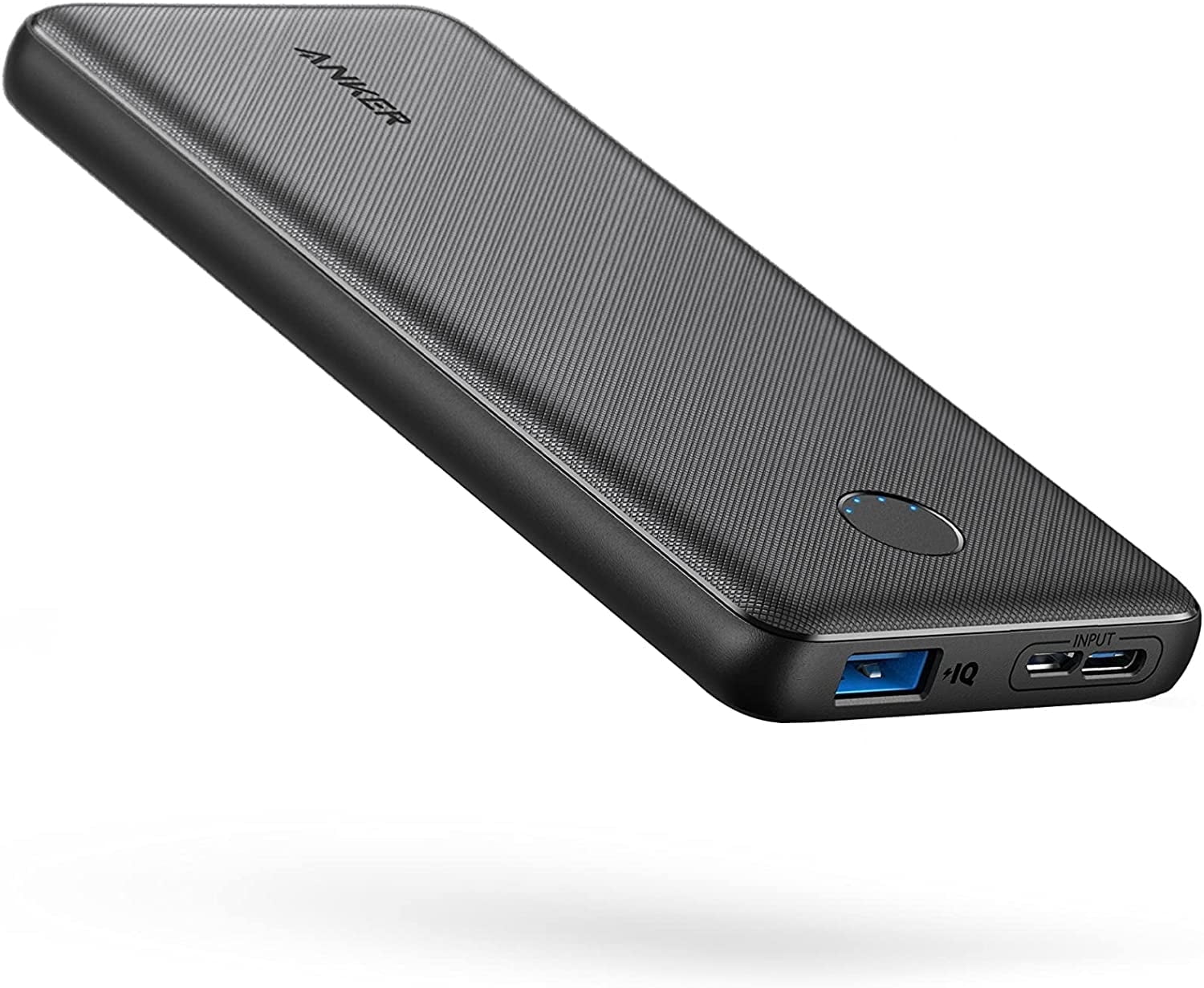
Anker PowerCore Slim 10000 Portable Charger
Keeps your phone powered during extended syncing sessions, preventing low-battery interruptions—essential for on-the-go users.
Best for: Travel or outdoor activities where outlets are scarce.
Price Range: $20-30