
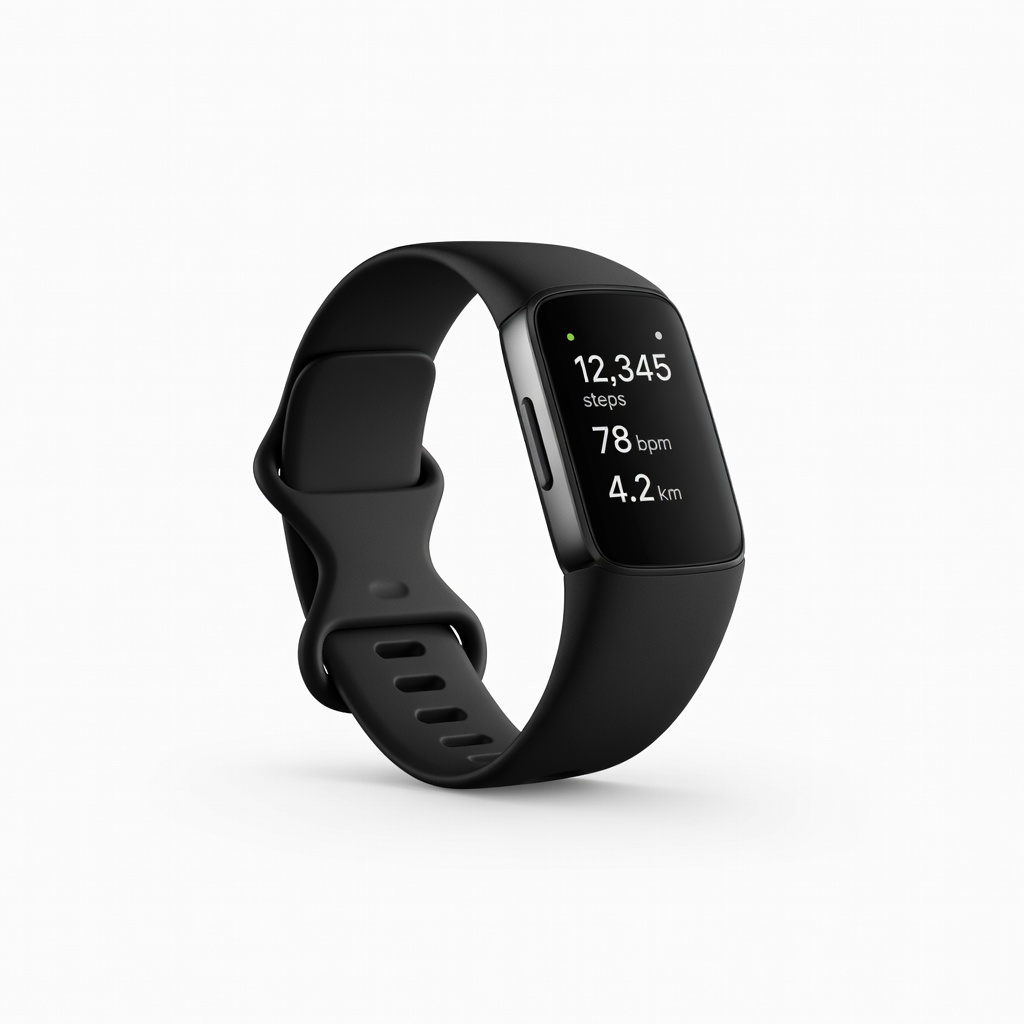
Fitbit Charge 6
Daily step/heart tracking with effortless phone integration.
$159.95
Fitbit Charge 6 Seamless Bluetooth sync with Fitbit app, automatic heart rate and GPS data transfer—top-rated for beginners.
Get the App
Better experience on mobile
Master syncing your activity tracker to its app in minutes for accurate fitness data tracking and motivation on the go.
Struggling to get your new fitness tracker to sync with its app? You're not alone—many beginners face Bluetooth glitches or app confusion, leaving steps and heart rate data stuck on the device. This guide fixes that, helping you unlock full potential like viewing progress charts and setting goals.
You'll learn a simple, universal process covering popular trackers like Fitbit, Garmin, and Xiaomi Mi Band. Expect a quick 10-20 minute setup that's beginner-friendly—no tech expertise needed. By the end, your tracker will seamlessly beam data to your phone for insights anytime.
Whether upgrading your routine or troubleshooting, follow these steps for reliable syncs every time.
Estimated Time: 10-20 minutes Difficulty: beginner
Start by checking your tracker's model (usually on the device, box, or band clasp). Download the official app: Fitbit app for Fitbit, Garmin Connect for Garmin, Mi Fitness/Zepp for Xiaomi/Amazfit, or Health app for Apple Watch.
Why? Each brand uses specific apps for secure, optimized syncing. Search your model's name + 'app' in App Store/Google Play. Install and update to latest version.
Success: App icon on home screen, ready to launch.
💡 Tips:
Plug in your tracker using its USB/charging cable for at least 30 minutes (aim for 50%+ battery). Press the side button to wake it—look for icons or vibrations confirming it's on.
Low battery causes failed syncs, so this prevents frustration. Expect the screen to light up with time, steps, or battery icon.
Success: Tracker shows active display, not blinking red low-battery warning.
⚠️ Warnings:
Go to phone Settings > Bluetooth (turn ON). Also enable Location Services (under Privacy/Settings)—apps need this for precise pairing.
Bluetooth handles the wireless link; location helps apps scan nearby devices securely. Why matters: Off toggles block discovery.
Success: Bluetooth icon in status bar, location permission granted when prompted.
💡 Tips:
Launch the app, sign up with email/Google/Apple, or log in. Grant permissions for notifications, motion, and health data when asked.
Account links your data across devices. Expect a welcome screen guiding to 'Add Device' or 'Pair Tracker'.
Success: Dashboard loads, showing option to set up new device.
Wear the tracker. In app, tap 'Pair' or 'Add Device'. For Fitbit: Swipe on tracker screen; Garmin: Hold button until Garmin logo; Xiaomi: Shake wrist or tap in app; Apple Watch: Hold near iPhone.
This broadcasts the tracker for detection. App scans 10-30 seconds.
Success: App shows 'Found [Your Tracker]'—tap to connect.
💡 Tips:
⚠️ Warnings:
Follow on-screen prompts: Confirm code if shown, enter birthdate/height for accuracy. App downloads firmware updates if needed (wait 1-5 mins).
Data like steps since last charge syncs automatically. Why: Calibrates for personalized insights.
Success: App shows 'Paired Successfully', dashboard with today's steps/heart rate.
Walk 100 steps, then pull down/refresh in app or tap sync button. Check if steps update in real-time.
Ensures ongoing sync works. Background auto-sync happens every 15-30 mins.
Success: Live data matches tracker screen—no delays.
💡 Tips:
Problem: Tracker not detected during scan
Solution: Restart Bluetooth/app/tracker. Forget device in Bluetooth settings and re-pair. Ensure no VPN active.
Problem: Sync stuck or errors
Solution: Force close app, clear cache (Android: Settings > Apps), update OS. Check tracker's firmware in app.
Problem: Data not updating
Solution: Verify internet connection. Toggle airplane mode 10 secs. Re-grant health permissions.
Problem: Battery drains fast post-sync
Solution: Disable unnecessary app notifications. Sync only when needed.
Seamless Bluetooth sync with Fitbit app, automatic heart rate and GPS data transfer—top-rated for beginners.
Best for: Daily step/heart tracking with effortless phone integration.
Price Range: $159.95
Reliable Garmin Connect app sync for advanced metrics like sleep and stress, with long battery life.
Best for: All-day wear with detailed health reports.
Price Range: $149.99
Budget-friendly with quick Mi Fitness app pairing, supports 150+ modes syncing effortlessly.
Best for: Entry-level tracking for beginners on a budget.
Price Range: $49.99
Zepp app offers fast sync and Alexa integration, great cross-platform (iOS/Android) compatibility.
Best for: Voice-assisted fitness with long 18-day battery.
Price Range: $49.99
Daily step/heart tracking with effortless phone integration.
Fitbit Charge 6 Seamless Bluetooth sync with Fitbit app, automatic heart rate and GPS data transfer—top-rated for beginners.
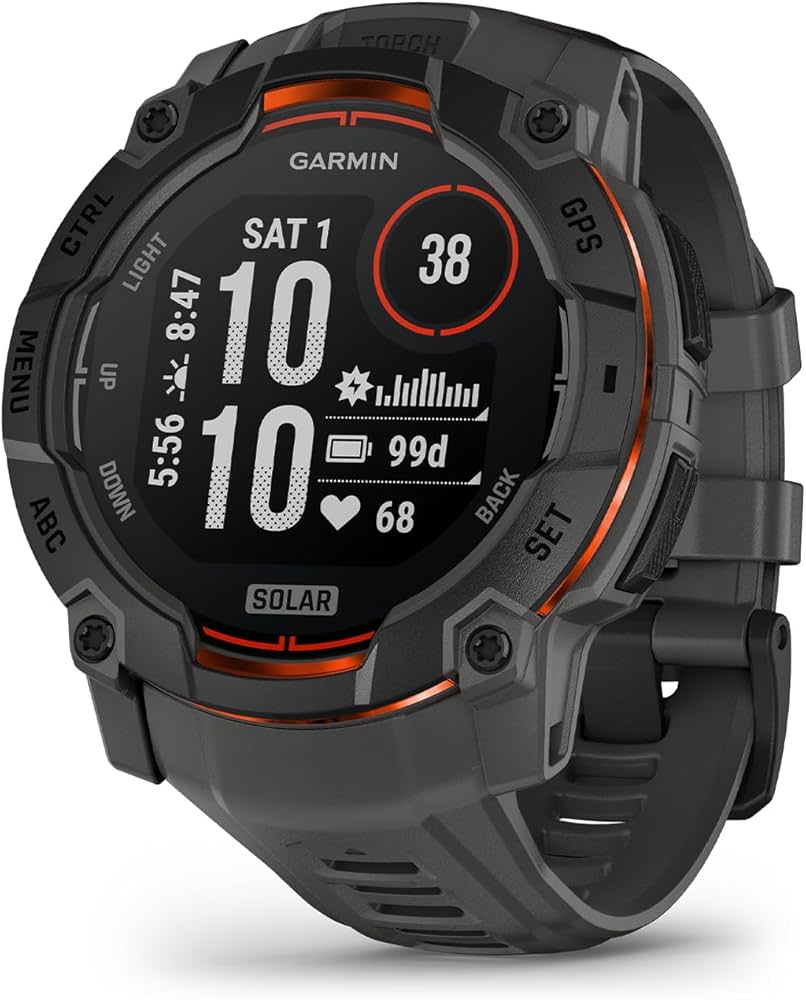
All-day wear with detailed health reports.
Garmin Vivosmart 5 Reliable Garmin Connect app sync for advanced metrics like sleep and stress, with long battery life.
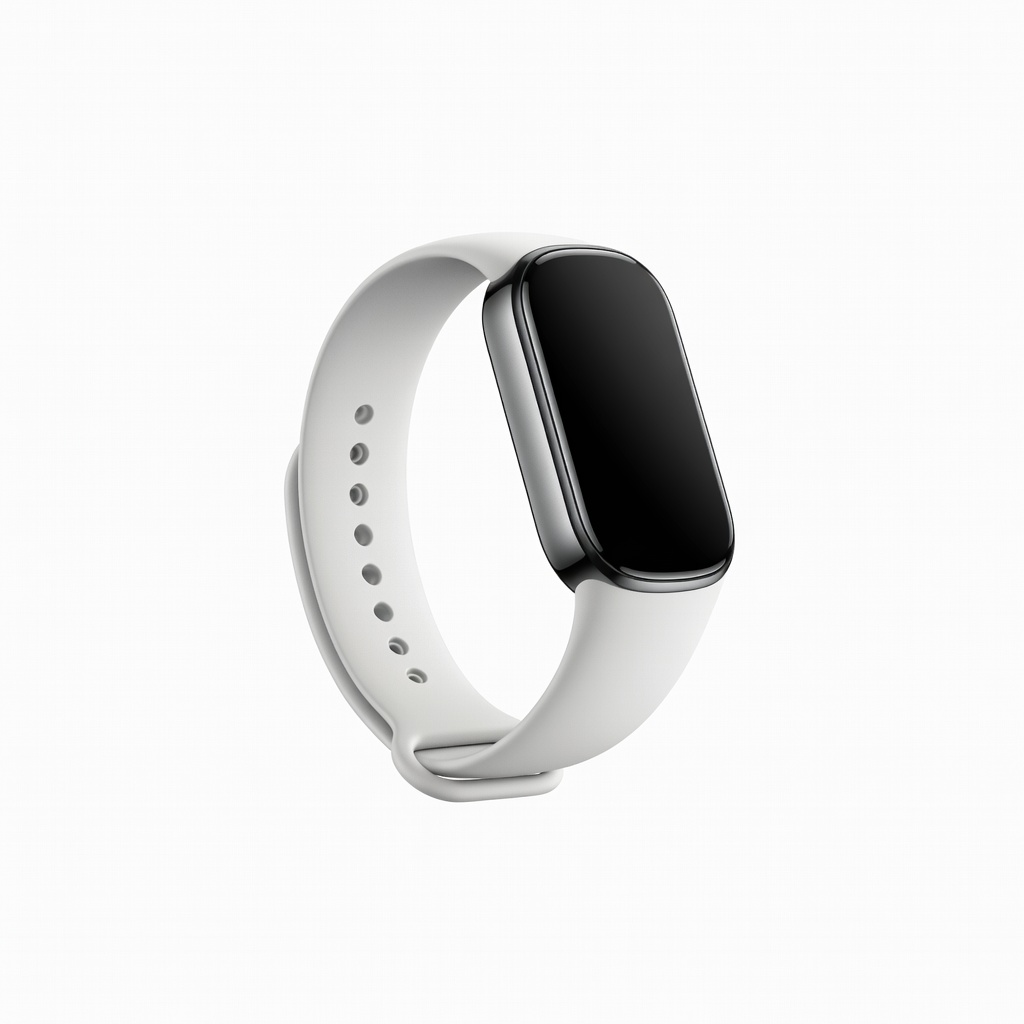
Entry-level tracking for beginners on a budget.
Xiaomi Smart Band 8 Budget-friendly with quick Mi Fitness app pairing, supports 150+ modes syncing effortlessly.
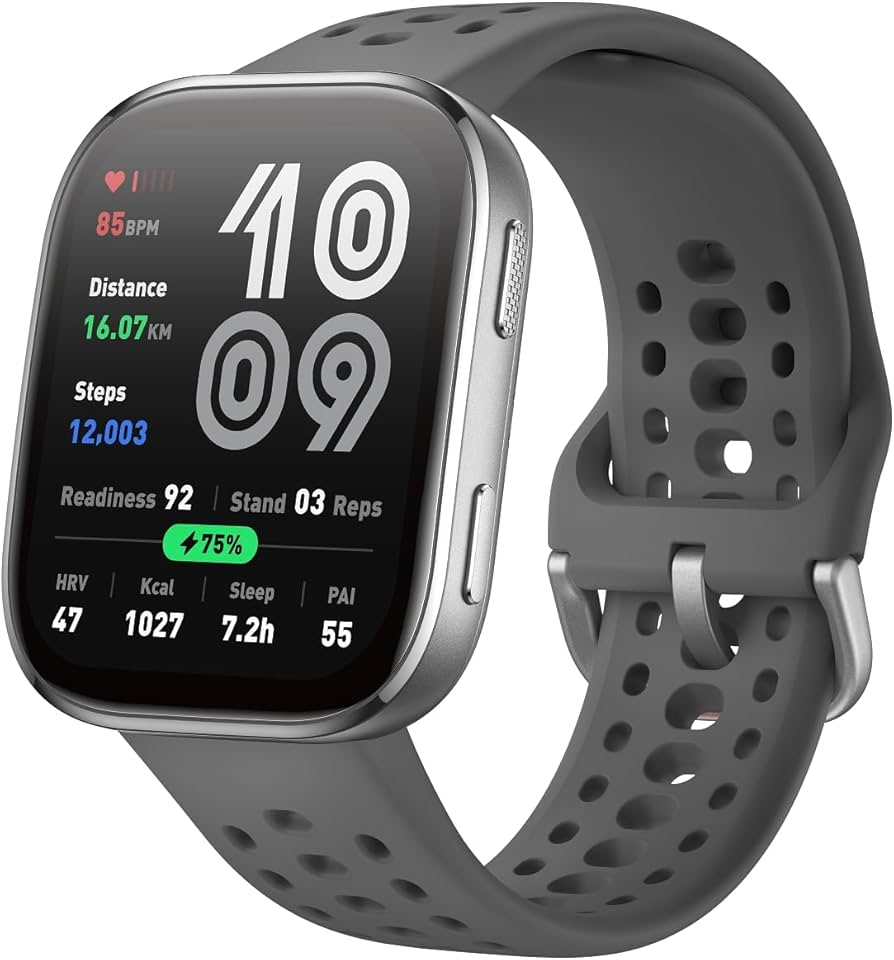
Voice-assisted fitness with long 18-day battery.
Amazfit Band 7 Zepp app offers fast sync and Alexa integration, great cross-platform (iOS/Android) compatibility.