
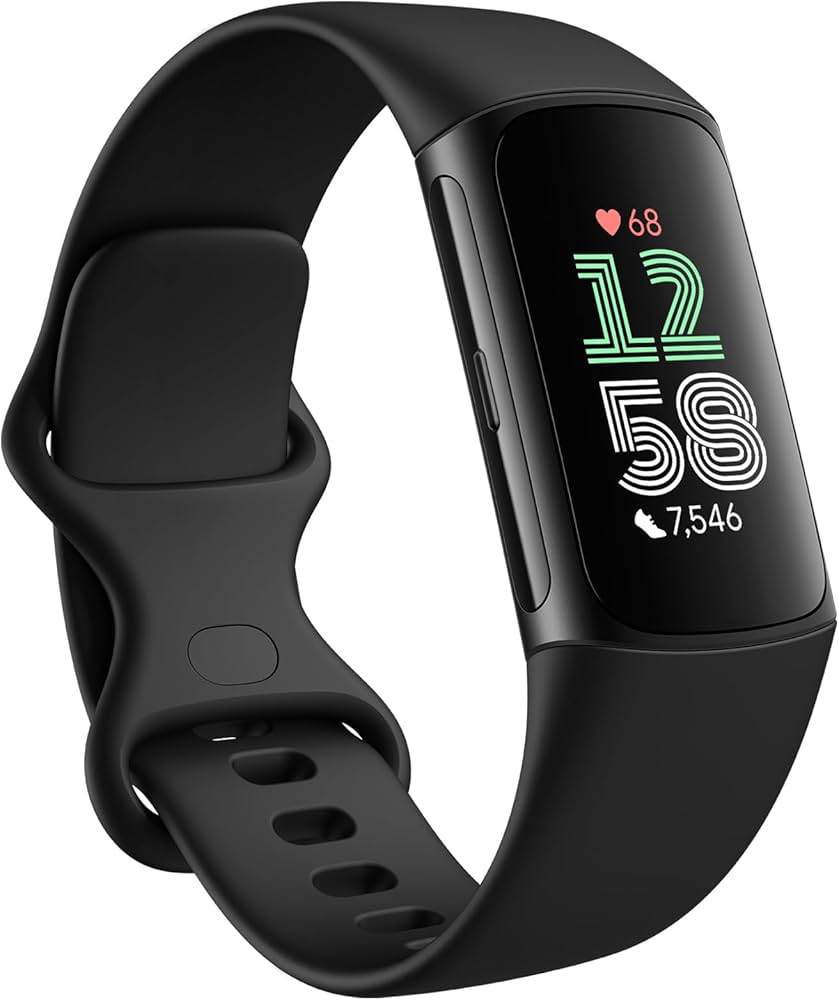
Fitbit Charge 6
Daily activity tracking with easy phone pairing for beginners.
$159.95
Fitbit Charge 6 Seamless Bluetooth sync with Fitbit app, Google integration for workouts and GPS.
Get the App
Better experience on mobile
Easily connect your fitness tracker to apps in minutes for accurate step counts, heart rate, and workout data syncing.
Tired of your fitness tracker showing data that never makes it to your phone's health app? Whether it's steps, sleep, or calories burned, syncing ensures all your hard-earned stats are analyzed, shared, and motivate you. Without proper sync, you're missing insights and progress tracking.
In this beginner-friendly guide, you'll learn a universal step-by-step process to sync popular trackers like Fitbit, Garmin, Apple Watch, and more. Expect a quick 10-20 minute setup with no tech expertise needed—just follow along.
We'll cover general steps that work for most devices, plus brand-specific tips, so you can verify success and troubleshoot any hiccups right away.
Estimated Time: 10-20 minutes Difficulty: beginner
Start by installing the official app for your tracker from the App Store (iOS) or Google Play (Android). Search for your brand:
Why? The app handles pairing, syncing, and data visualization. Success looks like: App icon on your home screen, updated to latest version.
Tap Update if prompted for the newest features and bug fixes.
💡 Tips:
⚠️ Warnings:
Go to your phone's Settings > Bluetooth and turn it ON. Also enable Location Services (under Privacy on iOS or Location on Android)—many apps need it for precise pairing.
Why it matters: Bluetooth connects devices; location helps with permissions. Expect: Blue light blinking on tracker, phone scanning for devices.
Pro tip for iOS: Add app to 'Allow While Using' for background sync.
💡 Tips:
Plug in your tracker using its charger until at least 50% charged. Press the side button to wake it up—look for the screen lighting up or vibration.
Why? Low battery prevents pairing. Success: Tracker shows battery icon >50%, ready screen.
⚠️ Warnings:
Open the app, sign up with email/Google/Apple, or log in. Verify via email if needed.
Why: Accounts store your data in the cloud for multi-device sync. Expect: Dashboard with 'Add Device' prompt.
💡 Tips:
Brand-specific:
Why: Activates Bluetooth discovery. Success: App detects device name.
💡 Tips:
⚠️ Warnings:
In app, tap Add Device or Pair New. Select your tracker model from list or scan QR code. Confirm pairing code if shown.
Why: Establishes secure Bluetooth link. Expect: 'Paired Successfully' message, vibration on tracker.
Tap Sync Now or wait for auto-sync (keep devices close, 3-10 ft). Data uploads to cloud.
Why: Transfers historical data. Success: Graphs populate with today's steps/heart rate.
💡 Tips:
Check dashboard for data accuracy (e.g., recent steps match). Enable auto-sync, notifications.
Why: Ensures ongoing reliability. Success: Data updates every 15-30 mins.
⚠️ Warnings:
Problem: Tracker not detected
Solution: Restart phone/tracker, forget device in Bluetooth settings and re-pair. Ensure no case blocks signal.
Problem: Sync stuck or no data
Solution: Force close/reopen app, check internet, toggle airplane mode 10 secs.
Problem: Inaccurate data post-sync
Solution: Calibrate tracker (walk 100 steps), update app/firmware.
Problem: Battery drain after sync
Solution: Disable unnecessary notifications; auto-sync every 30 mins max.
Seamless Bluetooth sync with Fitbit app, Google integration for workouts and GPS.
Best for: Daily activity tracking with easy phone pairing for beginners.
Price Range: $159.95
Reliable Garmin Connect app sync, long battery, accurate health metrics.
Best for: All-day wear with advanced sleep/stress tracking.
Price Range: $99-$149
Zepp app offers quick sync, Alexa built-in, budget-friendly.
Best for: Affordable entry-level tracking with 18-day battery.
Price Range: $45-$50
Instant iPhone sync via Watch app, ECG and fall detection.
Best for: iOS users wanting smartwatch features.
Price Range: $249
Mi Fitness app syncs fast, 16-day battery, SpO2 monitoring.
Best for: Budget Android users for basic steps/sleep.
Price Range: $35-$45
Daily activity tracking with easy phone pairing for beginners.
Fitbit Charge 6 Seamless Bluetooth sync with Fitbit app, Google integration for workouts and GPS.
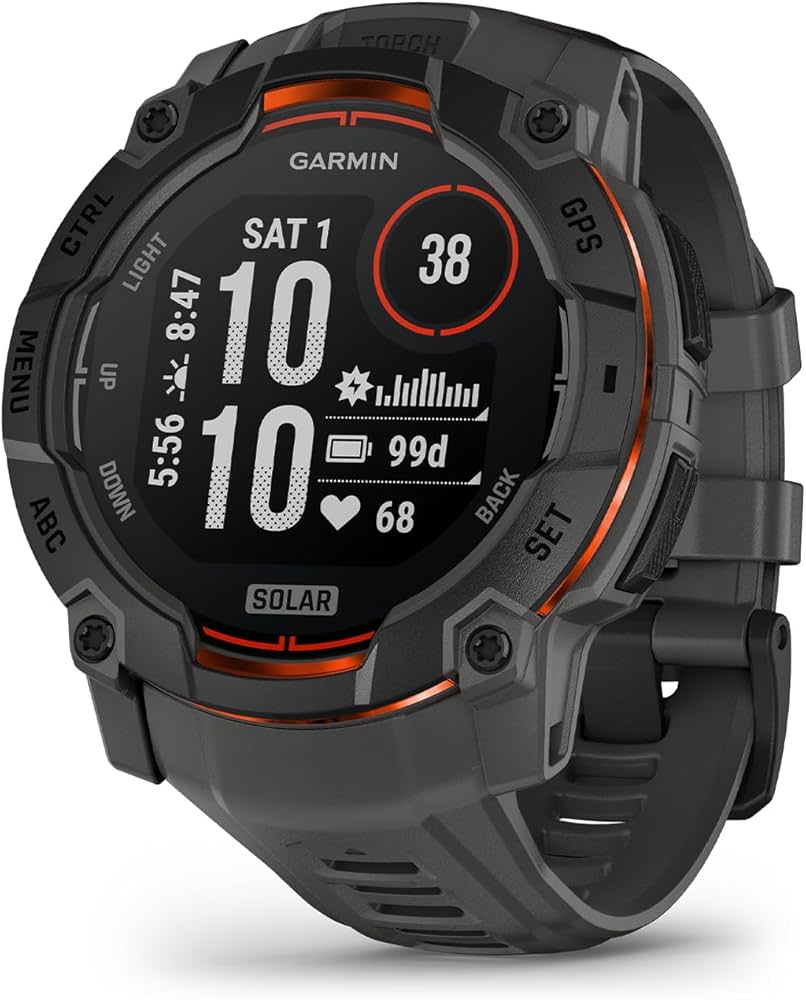
All-day wear with advanced sleep/stress tracking.
Garmin Vivosmart 5 Reliable Garmin Connect app sync, long battery, accurate health metrics.
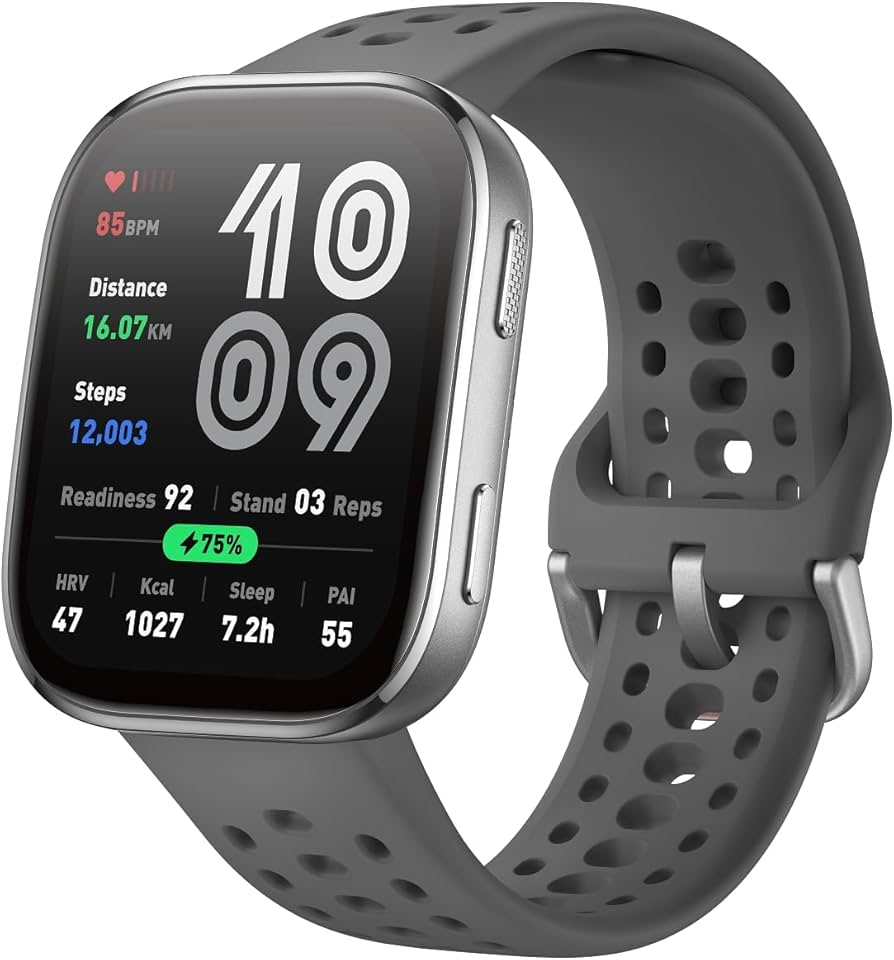
Affordable entry-level tracking with 18-day battery.
Amazfit Band 7 Zepp app offers quick sync, Alexa built-in, budget-friendly.
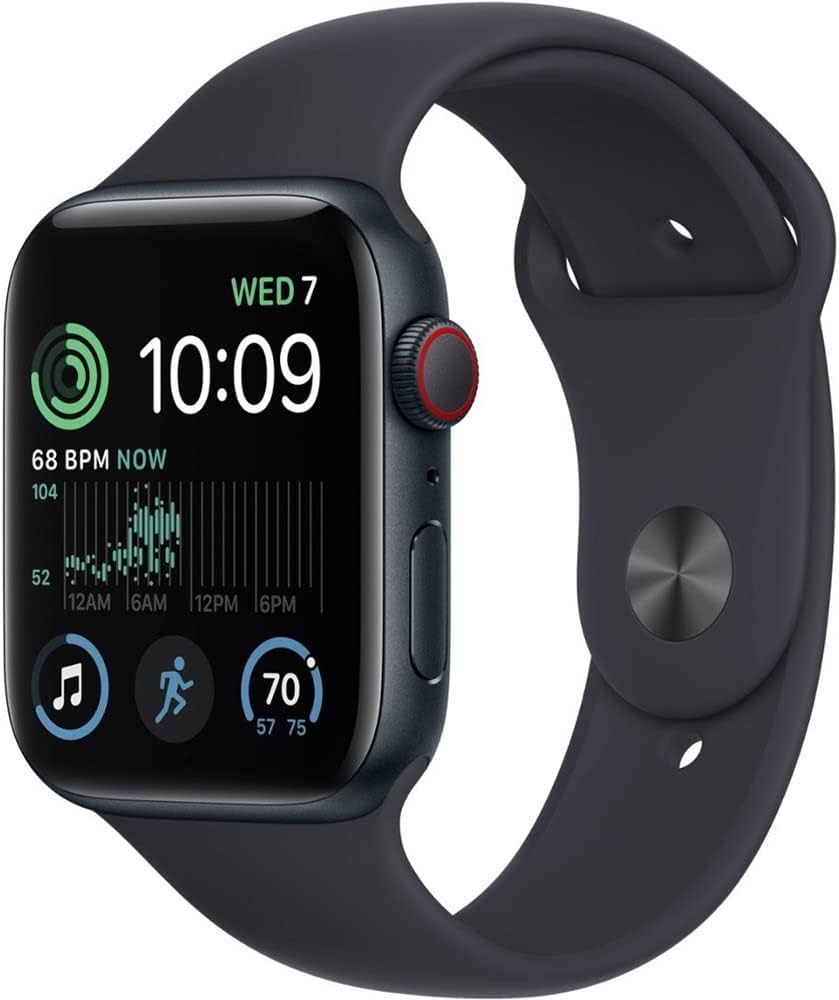
iOS users wanting smartwatch features.
Apple Watch SE (2nd Gen) Instant iPhone sync via Watch app, ECG and fall detection.
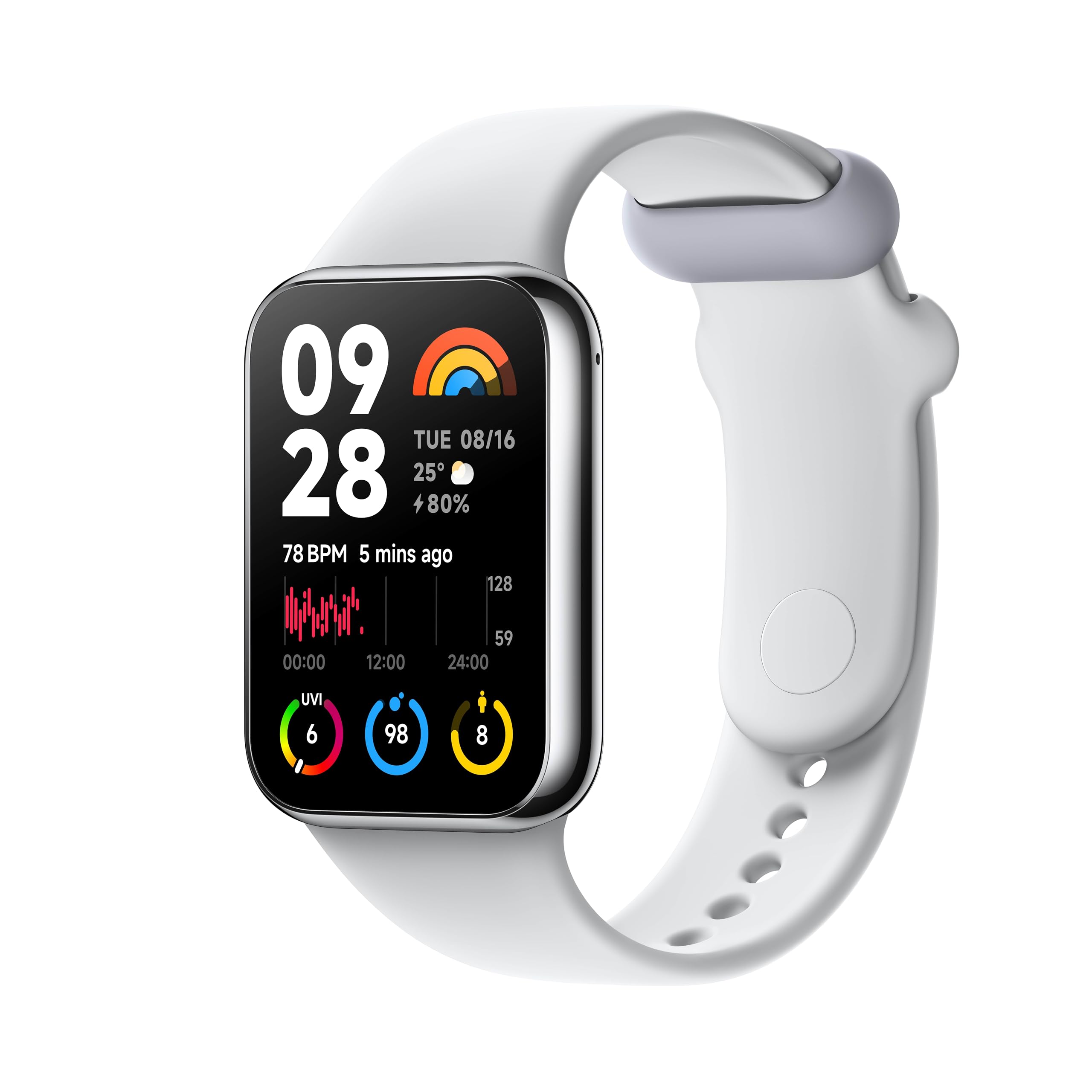
Budget Android users for basic steps/sleep.
Xiaomi Smart Band 8 Mi Fitness app syncs fast, 16-day battery, SpO2 monitoring.