If you've recently bought a health monitor like a Fitbit, Garmin, or Withings scale, you might be wondering how to get its data into Apple Health. Syncing your devices to Apple Health centralizes your health metrics—everything from steps and heart rate to sleep and weight—in one place. This makes it easier to track trends, share with your doctor, and get a complete picture of your well-being. In this guide, I'll walk you through the general process for connecting almost any health monitor to Apple Health, with specific examples for popular brands. Expect to spend about 10–20 minutes per device, and no technical expertise is required.
▸What You'll Need
- •An iPhone with Apple Health app (pre-installed on iOS 8.2 and later)
- •A compatible health monitor (e.g., fitness tracker, smartwatch, scale, blood pressure monitor)
- •The companion app for your device (e.g., Fitbit, Garmin Connect, Withings Health Mate)
- •A stable Wi-Fi or Bluetooth connection
- •Your Apple ID and password (for app permissions)
Estimated Time: 10–20 minutes per device
Difficulty: beginner
▸Step-by-Step Instructions
Step 1: Set Up Your Health Monitor and Companion App
Before you can sync, you need to have your device paired with its own app. Follow the manufacturer's instructions to charge your device, install the companion app (e.g., Fitbit, Garmin Connect, Withings Health Mate), create an account, and pair your device via Bluetooth. Make sure your device is fully syncing data to its own app first. For example, with a Fitbit, you should see steps, heart rate, and sleep in the Fitbit app. This ensures the data is ready to be exported to Apple Health.
💡 Tips:
- •Keep your device fully charged during initial setup to avoid interruptions.
- •Allow all requested permissions (location, Bluetooth, notifications) for a smooth experience.
⚠️ Warnings:
- •Do not skip the initial pairing process—it's required for the sync to work.
Step 2: Open the Companion App and Find the Health Connect Settings
Open the app that came with your health monitor. Look for a section labeled 'Health Connect,' 'Apple Health,' 'Data Sharing,' or similar. This is often found in the app's settings, profile, or account menu. For example, in the Fitbit app, tap your profile picture > 'App Settings' > 'Health Connect.' In Garmin Connect, tap the menu (three lines) > 'Settings' > 'Health Data' > 'Apple Health.' In Withings Health Mate, tap 'My devices' > select your device > 'Apple Health Sync.'
💡 Tips:
- •If you can't find it, use the app's search feature or check the help section.
- •Some apps require you to tap 'Connect' or 'Link' to start the process.
⚠️ Warnings:
- •Make sure your companion app is updated to the latest version to see the Apple Health option.
Step 3: Authorize Data Sharing with Apple Health
After tapping the Apple Health option, you'll be prompted to grant permissions. A screen from Apple Health will appear, listing all the data types your device can share (e.g., steps, heart rate, sleep, weight, blood pressure). You can toggle each type on or off. For a complete sync, I recommend allowing all relevant data. Tap 'Allow All' or individually toggle each type, then tap 'Allow' or 'Save.' This grants the companion app permission to write data into Apple Health and read data from it, enabling two-way sync if supported.
💡 Tips:
- •If you're unsure, allow the main metrics (steps, heart rate, sleep) first—you can change permissions later.
- •Some apps also allow Apple Health to read data (e.g., for Garmin Body Battery). Enable that if you want reverse sync.
⚠️ Warnings:
- •If you deny permissions now, you'll have to repeat the process to enable them later.
- •Be selective with write permissions if you use multiple devices to avoid duplicate entries.
Step 4: Confirm the Sync Is Active
After authorizing, you should see a confirmation in your companion app, often a message like 'Connected to Apple Health' or a green indicator. Some apps will also show a last sync timestamp. To verify, open Apple Health, tap the 'Browse' tab, select a data type like 'Steps,' and check if data from your device appears. It may take a few minutes for the first sync to complete. If you see data from your device, you're all set.
💡 Tips:
- •Force-close and reopen both apps if data doesn't appear immediately.
- •Check that the dates align—data from today should show in Apple Health within 5–10 minutes.
⚠️ Warnings:
- •If no data appears, go back to step 3 and make sure you enabled write permissions for that specific data type.
Step 5: Adjust Sync Frequency and Background Refresh (Optional)
Most apps sync automatically whenever they're open and have an internet connection. To improve reliability, you can enable background app refresh for the companion app. Go to iPhone Settings > General > Background App Refresh, find your app, and toggle it on. Also, in the companion app's settings, look for a 'Sync Frequency' option and set it to 'Every 15 minutes' or 'Real-time' if available. This ensures data transfers even when the app isn't actively open.
💡 Tips:
- •Background app refresh uses battery—if you're concerned, set it to 'Wi-Fi only.'
- •Some devices (like Withings) sync passively via Wi-Fi, so background refresh isn't needed.
⚠️ Warnings:
- •Turning off Background App Refresh may delay syncs until you manually open the app.
Step 6: Test the Sync with a Manual Trigger
To ensure everything is working, manually trigger a sync. Open your companion app and pull down on the main screen (or tap a 'Sync' button if available). This forces the app to push recent data to Apple Health. Then open Apple Health and check the data again. Note the time of your test—the data should appear within a minute. For example, if you just took a walk, steps should update. This test confirms both read and write permissions are set correctly.
💡 Tips:
- •If you have a scale, step on it and watch the weight sync to Apple Health via the companion app.
- •For heart rate monitors, record a short workout and check that heart rate data appears.
⚠️ Warnings:
- •Don't panic if it takes up to 5 minutes—some apps batch sync every few minutes.
Step 7: Set Up Additional Devices (If Applicable)
If you have multiple health monitors (e.g., a Fitbit and a Withings scale), repeat steps 2–6 for each device. Apple Health can combine data from different sources. However, to avoid duplicate step counts, you may want to designate one device as the primary step tracker. To manage this, in Apple Health, go to 'Browse' > 'Steps' > 'Data Sources & Access' and drag your preferred device to the top. This tells Apple Health to prioritize that source if there's overlap.
💡 Tips:
- •For weight, you can keep multiple sources—Apple Health will average or show the latest, depending on settings.
- •Consider turning off step writing for secondary devices (e.g., in the companion app permissions) to avoid double counting.
⚠️ Warnings:
- •Overlapping data (like steps from both a phone and a watch) can skew your totals. Managing sources is key.
Step 8: Monitor and Maintain the Sync Over Time
Once set up, the sync should run in the background automatically. However, occasional checks are wise. If you notice gaps in data, open the companion app to trigger a sync. Also, keep both your iPhone and your health monitor's firmware updated. When you get a new phone, your Apple Health data will transfer via iCloud, but you'll need to re-authorize the companion apps. For long-term maintenance, review permissions in Apple Health every few months to ensure everything is still allowed.
💡 Tips:
- •Use the 'Health' widget on your iPhone’s Home Screen to see a quick snapshot of synced data.
- •Export your Apple Health data occasionally via the 'Export All Health Data' option in your profile for backup.
⚠️ Warnings:
- •If you replace your device, you must unpair the old one from the companion app to avoid sync conflicts.
▸Pro Tips
- •Enable 'Background App Refresh' for your companion app to ensure automatic syncing even when you don't open it.
- •Use the 'Data Sources & Access' section in Apple Health to prioritize one device over another for each data type.
- •If you're using a device that syncs via Wi-Fi (like a Withings scale), make sure your iPhone is on the same network.
- •For wearables like Fitbit or Garmin, allow notifications on your iPhone to get sync reminders if something goes wrong.
- •Periodically check the 'Health Connect' section in your companion app to see the last sync time and confirm it's recent.
- •When setting up multiple devices, stagger the permissions to avoid overwhelming Apple Health with duplicate data.
- •Use the 'All Health Data' view in Apple Health to quickly spot which data sources are contributing.
- •If you use an iPhone with an Apple Watch, note that native Watch data is already in Apple Health—you may not need to sync extra steps from another device.
▸Common Mistakes to Avoid
- •Skipping permission toggles: Many users rush through the authorization screen and miss turning on write permissions for key data types like heart rate or sleep. Always double-check that you've allowed 'Write' for the data you want.
- •Using outdated apps: An old version of the companion app may not support Apple Health sync or have bugs. Always update to the latest version from the App Store.
- •Not managing data sources: When syncing multiple devices, failing to set a priority source can lead to inflated step counts or duplicated entries. Use the 'Data Sources & Access' setting to fix this.
- •Expecting real-time sync: Some devices (like Fitbit) sync every 15–30 minutes, not instantly. Patience is key—manually triggering a sync can help if you need immediate data.
- •Ignoring privacy restrictions: If you have 'Limit Ad Tracking' or other privacy settings on, they can interfere with background sync. Check that your companion app has 'Allow Background Data' enabled in iOS settings.
▸Troubleshooting
Problem: My device is not showing up in Apple Health after following the steps.
Solution: First, confirm that the companion app is installed and you're signed in. In the companion app, go to Apple Health settings and re-authorize permissions. If still missing, restart both your iPhone and the device. Also ensure your iOS is updated (iOS 15+). If the problem persists, uninstall and reinstall the companion app, then repeat the setup.
Problem: Data syncs but appears as duplicates or incorrect values.
Solution: This usually happens when multiple sources are writing the same data type. In Apple Health, go to the specific data type (e.g., 'Steps'), tap 'Data Sources & Access,' and edit the priority order. Place your primary device at the top. You can also turn off write permissions for secondary devices in their companion apps.
Problem: My Fitbit/Garmin/Withings app says 'Connected to Apple Health' but no data appears.
Solution: Verify that the companion app has the correct permissions. Open Apple Health, tap your profile, go to 'Apps,' and check that the app is listed and has all toggles enabled. If it's missing, return to the companion app and re-link. Also, ensure that the device itself is synced to the companion app—open the app and wait for it to sync before checking Apple Health.
Problem: Syncing works for a while but then stops.
Solution: This can happen after an iOS update or app update. Re-authorize permissions in the companion app's Apple Health settings. Also, check that Background App Refresh is still enabled for the app. If using Bluetooth, ensure the device is nearby and charged. For Wi-Fi devices, confirm your iPhone is on the same network.
Problem: I'm getting a 'Unable to Sync' error message.
Solution: This often indicates a temporary server issue or an incompatible iOS version. Update your iPhone and the companion app. Try resetting your device by unpairing and repairing it with the companion app. If the error persists, contact the device manufacturer's support for further assistance.
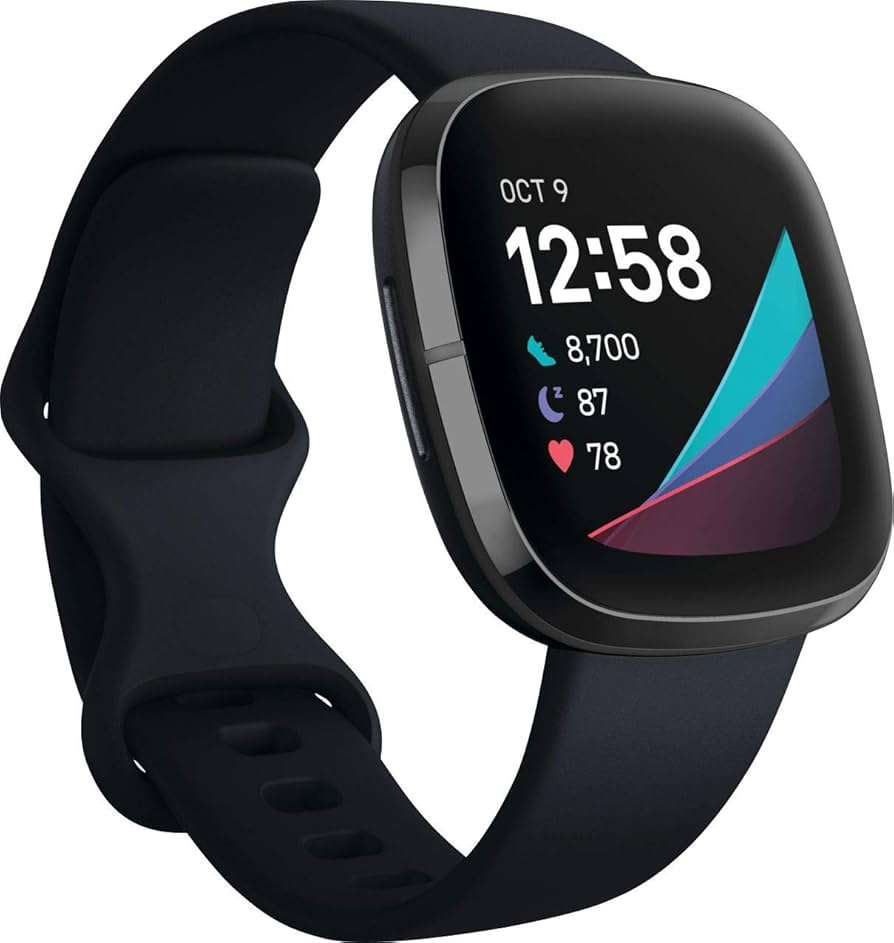
Fitbit Charge 6
The Charge 6 offers excellent heart rate monitoring, sleep tracking, and stress management, and it syncs seamlessly with Apple Health via the Fitbit app. It's one of the most popular fitness trackers with reliable data accuracy.
Best for: Best for users who want a dedicated fitness tracker with GPS and Google integration but also need Apple Health sync for a complete health overview.
Price Range: $149.95 - $159.95
Garmin Venu 3
The Venu 3 is a premium smartwatch with advanced health metrics like Body Battery, sleep coach, and HRV status. It syncs natively with Apple Health through Garmin Connect, making it a top choice for athletes and health enthusiasts.
Best for: Ideal for runners, swimmers, and those who want detailed training metrics alongside daily health tracking, all synced to Apple Health.
Price Range: $449.99 - $499.99
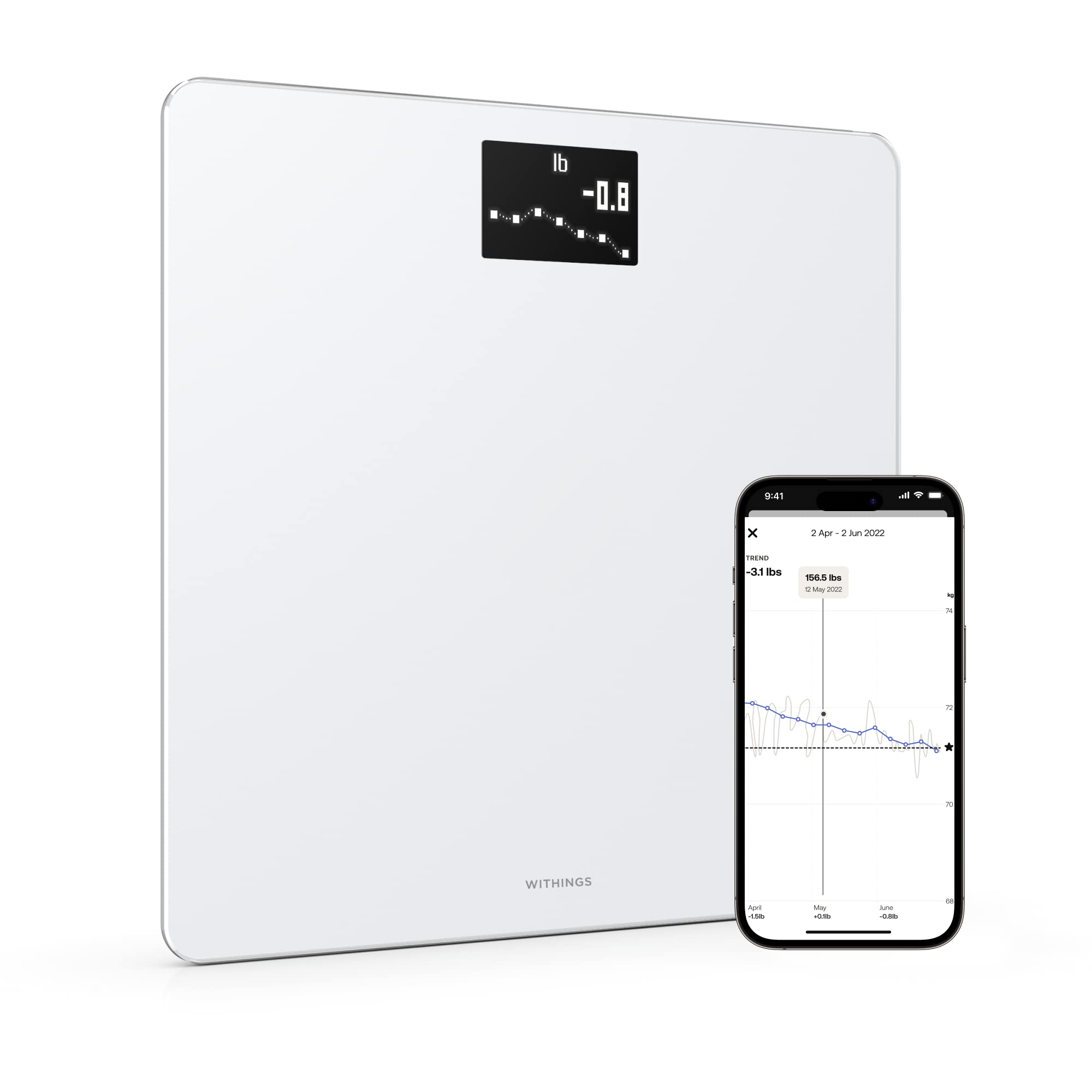
Withings Body Smart Scale
This smart scale measures weight, body fat, muscle mass, and more, and automatically syncs via Wi-Fi to the Withings Health Mate app, which then pushes data to Apple Health. No Bluetooth pairing needed—just step on.
Best for: Perfect for users who want effortless weight and body composition tracking without manual syncing. Great for families with multiple users.
Price Range: $99.95 - $109.95
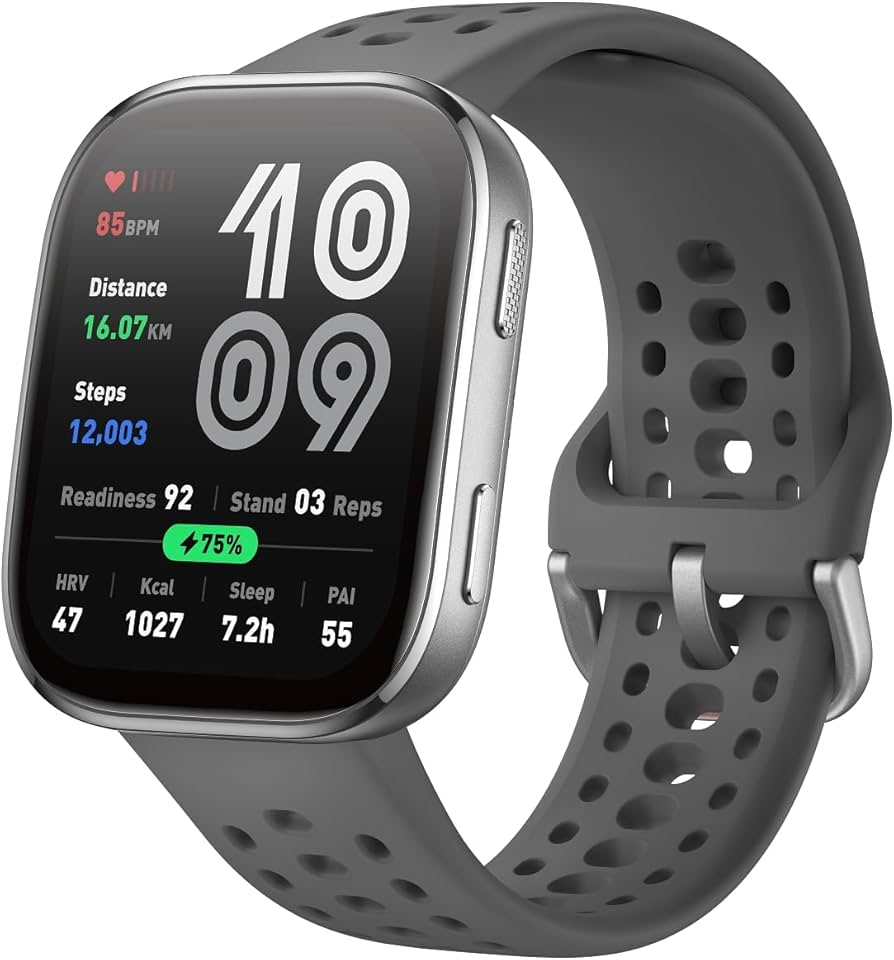
Amazfit Band 7
An affordable fitness band with SpO2, heart rate, and sleep tracking. It syncs with Apple Health via the Zepp app. Great entry-level option for those new to health tracking.
Best for: Budget-friendly way to get step, sleep, and heart rate data into Apple Health. Suitable for casual users who don't need advanced metrics.
Price Range: $39.99 - $49.99
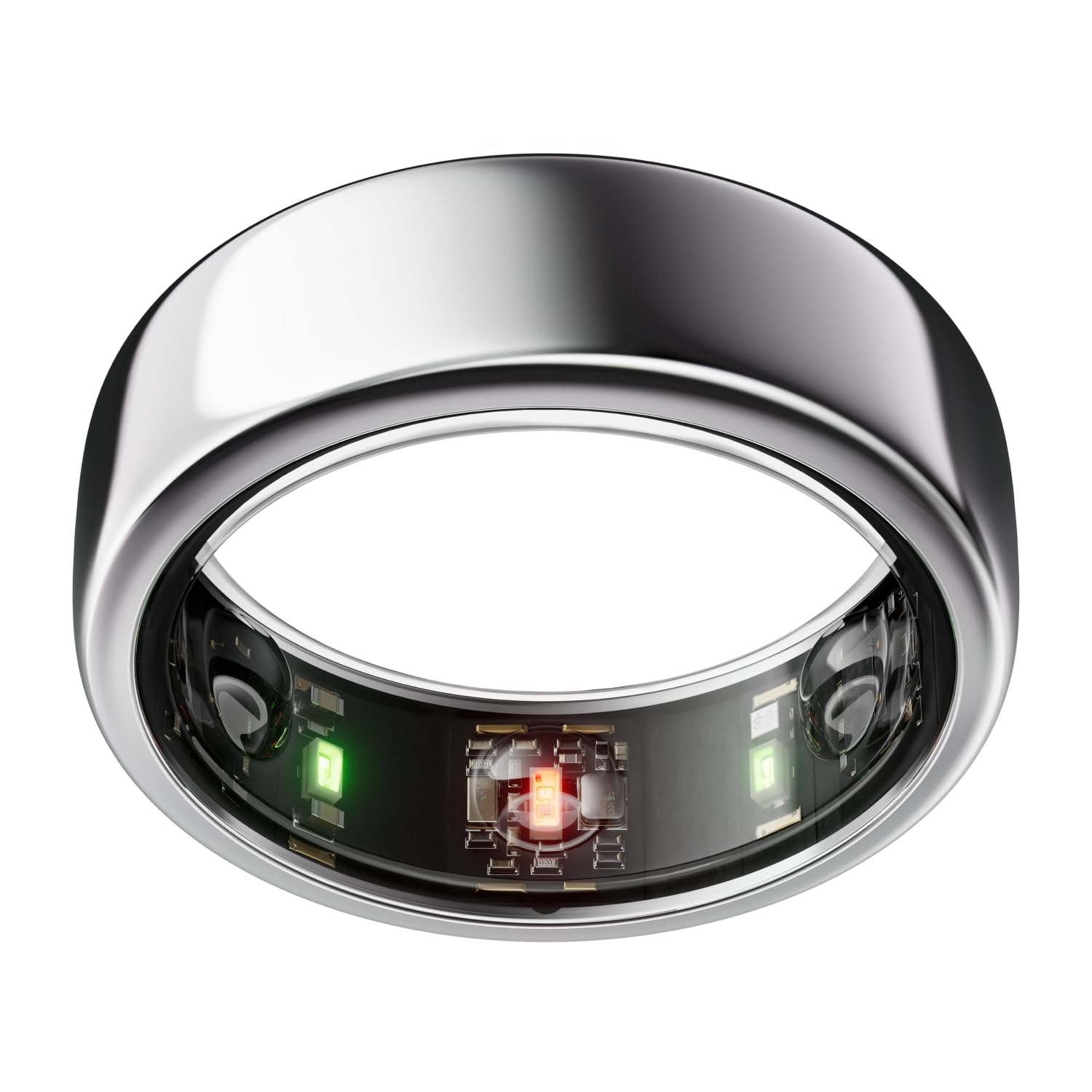
Oura Ring Gen 3
The Oura Ring tracks sleep, readiness, and activity with a sleek form factor. It syncs wirelessly to the Oura app and then to Apple Health, providing comprehensive sleep and recovery data.
Best for: Excellent for those who prefer a ring over a wristband and want deep sleep insights and readiness scores integrated with Apple Health.
Price Range: $299 - $399