Ever flipped your 2-in-1 laptop screen only to have it glitch, freeze, or refuse to switch modes? You're not alone—many beginners struggle with clunky mode switches that disrupt workflow. Whether you're jotting notes in tablet mode or watching videos in tent mode, smooth transitions make these versatile devices shine.
In this guide, you'll learn foolproof steps to switch modes effortlessly on Windows-based 2-in-1 laptops (most common). We'll cover physical flips, software tweaks, and optimizations for glitch-free performance. Expect to spend just 10-15 minutes practicing, with beginner-friendly instructions—no tech expertise needed.
By the end, you'll confidently toggle modes like a pro, boosting productivity and enjoyment from your convertible laptop.
▸What You'll Need
- •A charged 2-in-1 laptop (at least 50% battery)
- •Stable, flat surface
- •Internet connection for updates (optional but recommended)
- •Optional: Active stylus for tablet mode testing
Estimated Time: 10-15 minutes
Difficulty: beginner
▸Step-by-Step Instructions
Step 1: Identify Your Laptop's Supported Modes
Start by checking what modes your 2-in-1 supports—typically laptop, tablet, tent, and stand. Open your laptop's user manual (search online by model) or look for hinge markings.
Why it matters: Not all 2-in-1s handle every mode equally; knowing yours prevents forced attempts that could strain the hinge.
Success looks like: A list of 3-4 modes confirmed via Settings > System > Display or manufacturer's site.
💡 Tips:
- •Use Windows Search for 'Tablet mode' to preview icons.
⚠️ Warnings:
- •Don't force unknown modes—check specs first.
Step 2: Update Windows and Drivers
Outdated software causes 80% of mode-switch glitches. Go to Settings > Update & Security > Windows Update > Check for updates. Install any available, then restart.
For drivers: Search 'Device Manager,' expand 'Human Interface Devices' and 'Display adapters,' right-click > Update driver.
Why it matters: Fresh drivers enable auto-detection of orientation changes.
Success looks like: 'You're up to date' message and smooth reboot.
💡 Tips:
- •Enable automatic updates to avoid future issues.
⚠️ Warnings:
- •Skip if battery <30%—plug in first.
Step 3: Enable Auto-Rotation and Tablet Mode
Swipe from right edge (or click Action Center) > Rotate screen icon (ensure it's unlocked). In Settings > System > Tablet, toggle 'When this device automatically switches...' to On.
This auto-adjusts UI for modes.
Success looks like: Screen rotates freely when tilted; tablet keyboard hides in tablet mode.
💡 Tips:
- •Test rotation lock toggle in Notification Center.
Step 4: Switch from Laptop to Tablet Mode
Gently flip the screen 180° backward until it lays flat against the keyboard. Windows should auto-switch to tablet mode (touch keyboard appears).
Support the base to avoid wobble.
Why it matters: Proper technique prevents hinge wear.
Success looks like: Touchscreen responds, on-screen keyboard pops up, apps resize for touch.
💡 Tips:
- •Practice slowly—most hinges have 360° smooth rotation.
⚠️ Warnings:
- •Avoid twisting side-to-side; only rotate from center.
Step 5: Try Tent and Stand Modes
Fold screen halfway back for tent (screen facing out) or further for stand (keyboard inward). Adjust angle for stability.
Success looks like: Device stands firm without falling; video playback works great in tent.
💡 Tips:
- •Use on non-slip surface for tent mode.
Step 6: Test Touch and Stylus Input
In tablet mode, swipe, pinch-zoom, and test any stylus. Open Notepad or Edge to verify.
Customize in Settings > Devices > Pen & Windows Ink.
💡 Tips:
- •Calibrate stylus if laggy via Pen settings.
Step 7: Switch Back to Laptop Mode and Optimize
Flip screen forward to original position. Keyboard reappears automatically.
Tweak Settings > System > Multitasking for snap layouts across modes.
Success looks like: Seamless return with no manual restarts needed.
💡 Tips:
- •Hotkey: Windows + Ctrl + O for quick rotation toggle.
▸Pro Tips
- •Keep hinges clean with microfiber cloth for smoother flips.
- •Use a stand or lap desk for stable tent mode viewing.
- •Enable 'Tablet mode shortcuts' for one-handed navigation.
- •Battery saver mode extends life during tablet use.
- •Pair Bluetooth keyboard for hybrid laptop-tablet workflows.
- •Customize taskbar for touch-friendly icons in tablet mode.
- •Practice weekly to build muscle memory.
▸Common Mistakes to Avoid
- •Forcing the hinge too fast—causes wear; flip slowly.
- •Ignoring updates—leads to freezes; check monthly.
- •Rotation lock on during switch—screen stays sideways; toggle off.
- •Low battery flips—device sleeps mid-switch; charge first.
- •Overloading tent mode with heavy apps—use lighter ones.
▸Troubleshooting
Problem: Screen doesn't rotate or mode doesn't switch
Solution: Toggle rotation lock, restart explorer.exe via Task Manager, or update Intel/AMD graphics drivers.
Problem: Hinge feels stuck or loose
Solution: Clean gently; if persistent, contact manufacturer warranty support.
Problem: Touchscreen unresponsive in tablet mode
Solution: Run Windows Troubleshooter (Settings > Update > Troubleshoot > Other > Hardware).
Problem: Frequent freezes during switch
Solution: Disable startup apps in Task Manager; seek pro help if hardware issue.
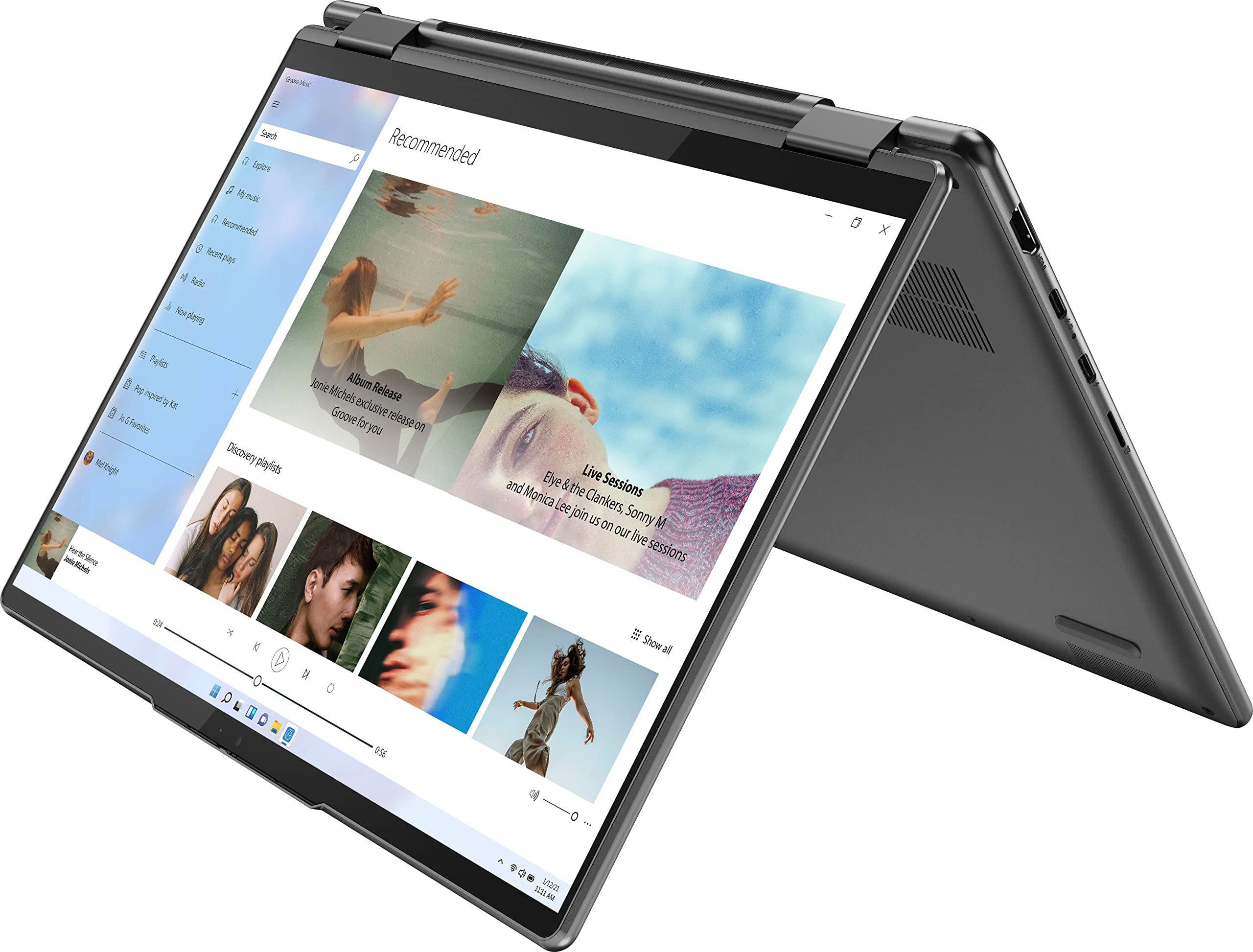
Lenovo Yoga 7i 14" 2-in-1 Laptop
Exceptionally smooth 360° hinge and reliable auto-mode detection make switching effortless for beginners.
Best for: Daily mode flipping for work/study; Intel Core Ultra processor handles transitions without lag.
Price Range: $700-$900
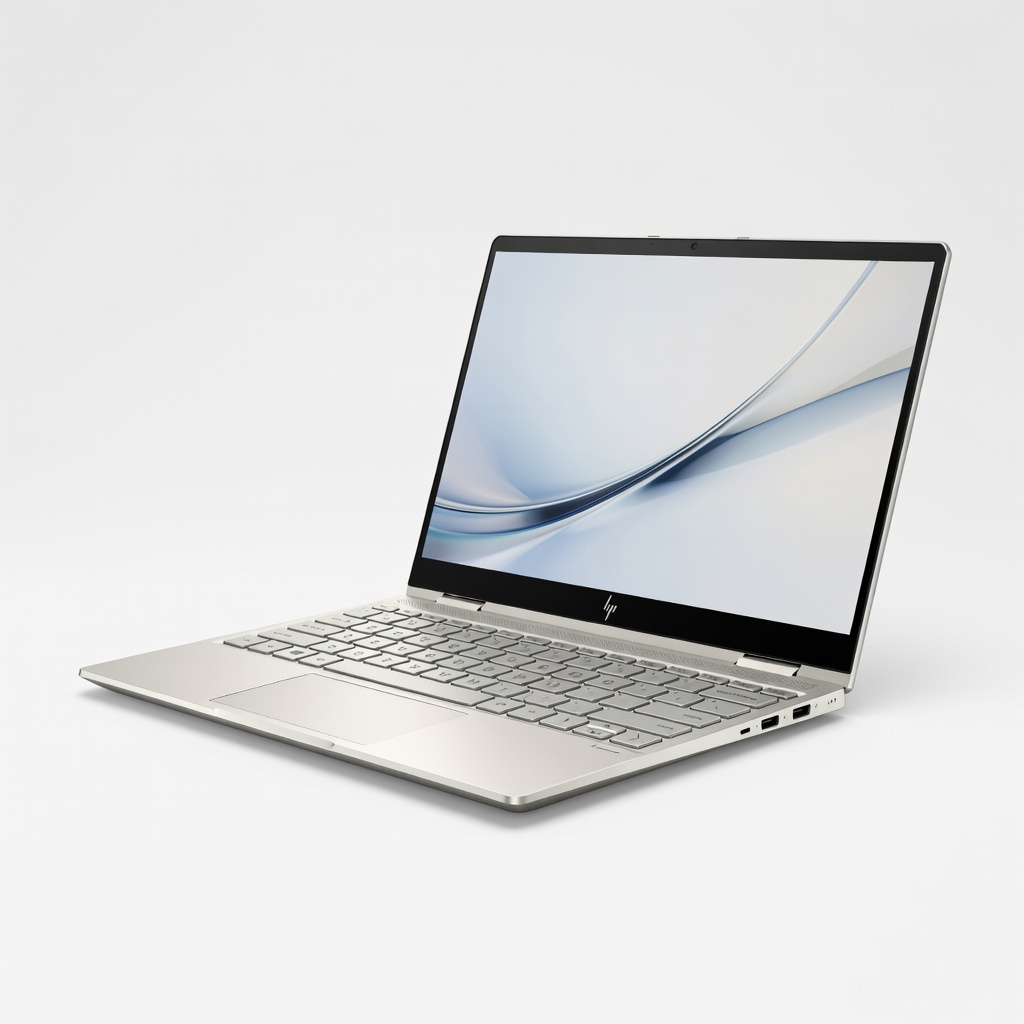
HP Spectre x360 14 2-in-1
Premium aluminum hinge with haptic feedback ensures precise, glitch-free mode changes.
Best for: Creative pros needing tablet for drawing and laptop for typing.
Price Range: $1,000-$1,400
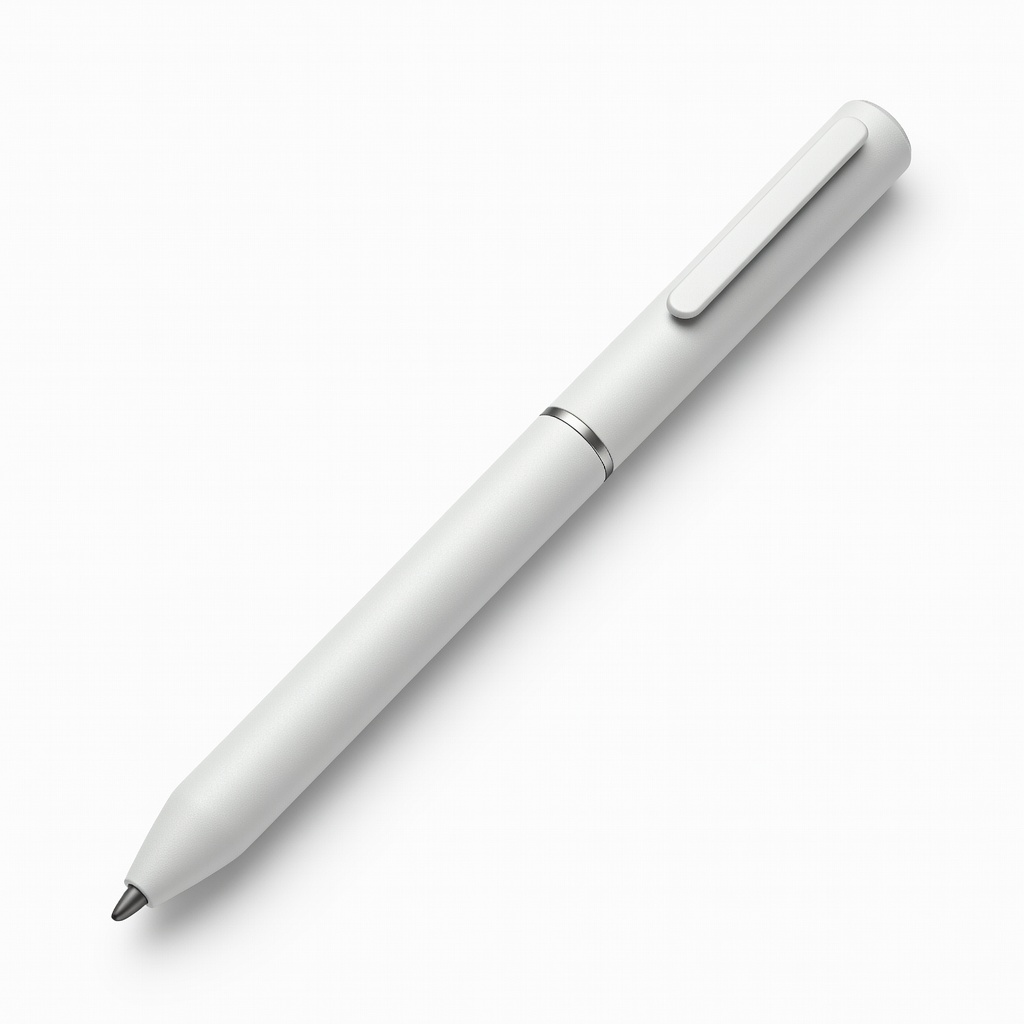
Lenovo Precision Pen 3
Enhances tablet mode with pressure-sensitive input; pairs perfectly with Yoga/Spectre for smooth stylus flips.
Best for: Note-taking or sketching during mode switches.
Price Range: $50-$70
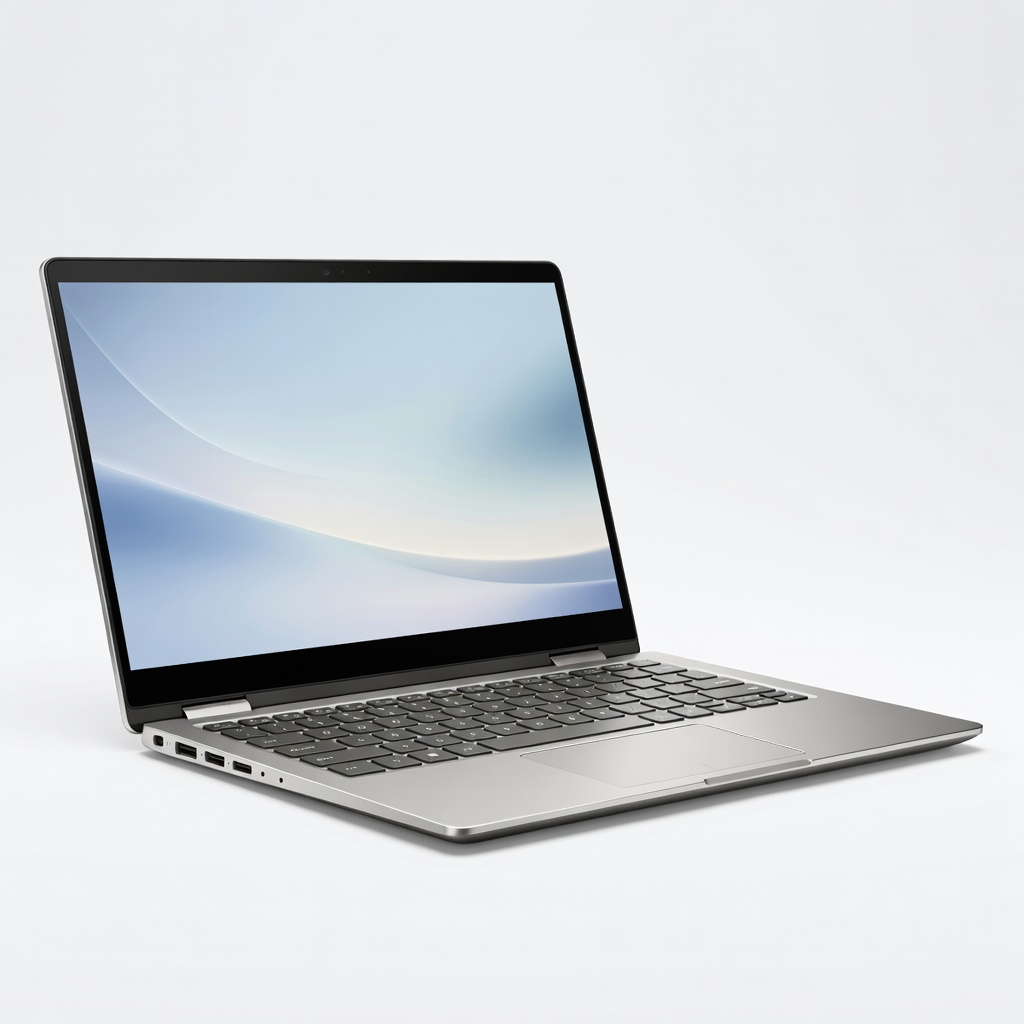
Dell Inspiron 14 2-in-1
Budget-friendly with sturdy hinge for beginner practice without breaking the bank.
Best for: Entry-level users learning modes.
Price Range: $400-$600
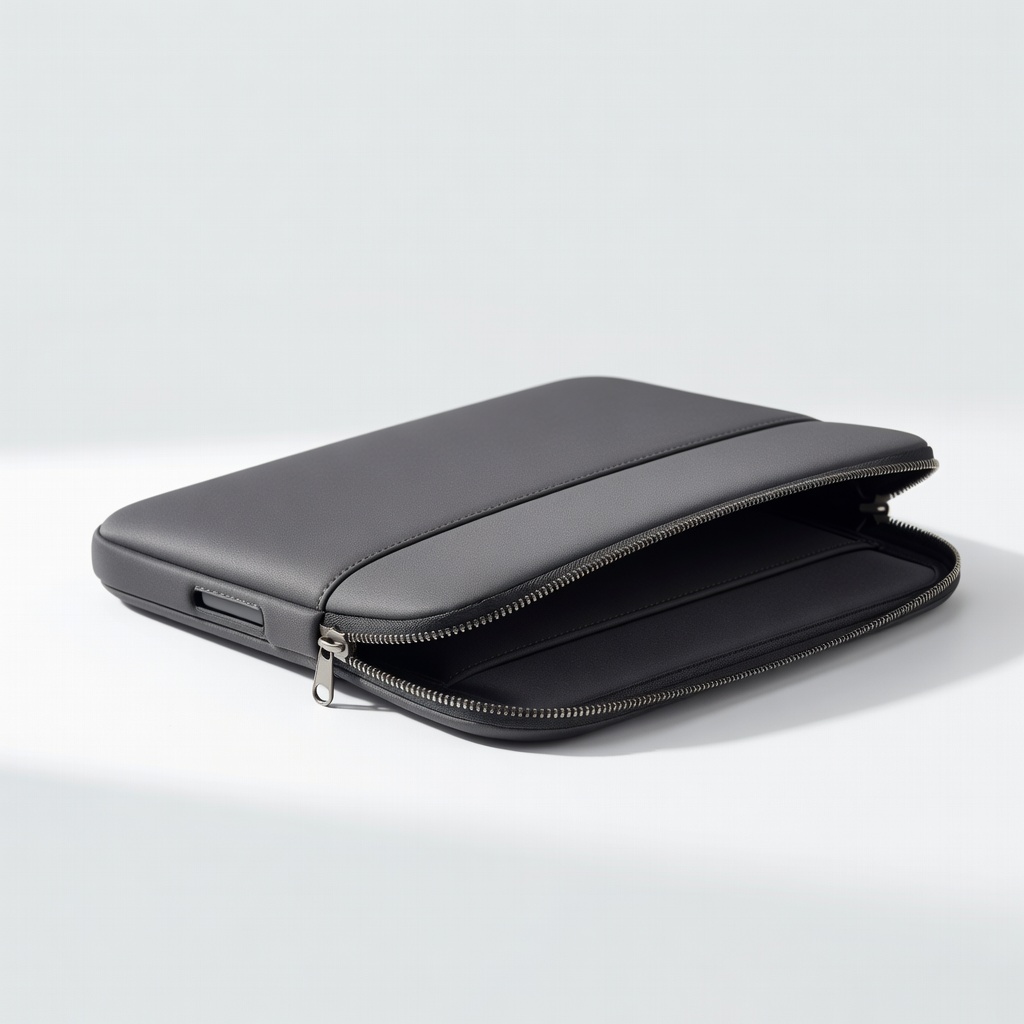
MoKo 2-in-1 Laptop Sleeve Case
Protects hinge during flips and adds grip for stable tent/stand modes.
Best for: Portable protection for frequent switchers.
Price Range: $20-$30