
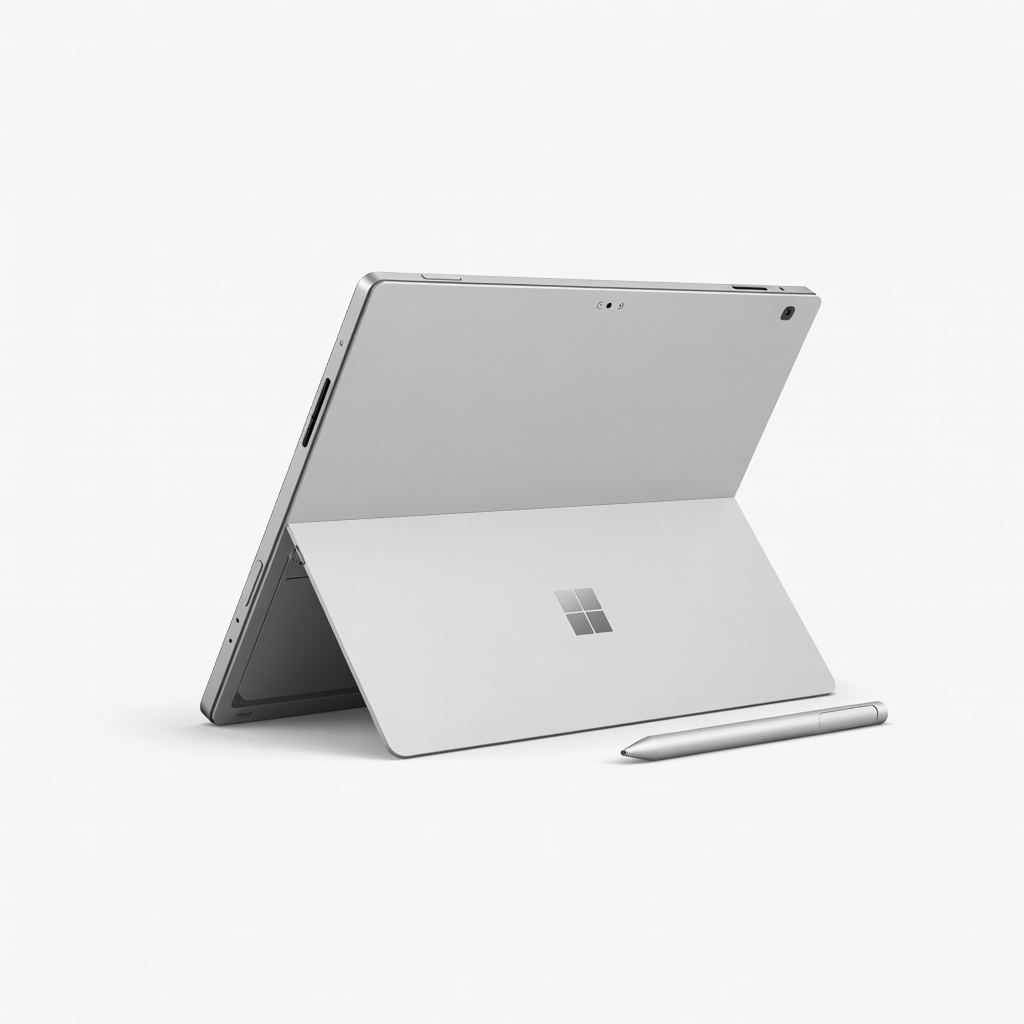
Microsoft Surface Pro 11
Ultimate tablet-laptop hybrid for professionals needing portability.
$1000-$1500
Microsoft Surface Pro 11 Best detachable 2-in-1 with Snapdragon X Elite for seamless mode switching and long battery.
Get the App
Better experience on mobile
Master seamless mode switching on your 2-in-1 laptop in minutes for laptop productivity and tablet versatility.
Struggling to flip your 2-in-1 laptop into tablet mode for note-taking or media viewing? Many beginners miss the simple hardware flip or software toggle, leaving their device stuck in laptop form. This guide fixes that, helping you unlock the full potential of devices like Surface, Yoga, or Spectre x360.
You'll learn step-by-step how to switch between laptop, tent, and tablet modes on Windows 11 2-in-1s (most common), with tips for ChromeOS variants. Expect smooth transitions, auto-adjusting interfaces, and keyboard disabling for a true tablet feel.
The process takes just 1-2 minutes, is beginner-friendly, and requires no extra tools—just your charged device.
Estimated Time: 1-2 minutes Difficulty: beginner
Check if your device is flip-style (screen rotates 360 degrees on a hinge, e.g., HP Envy x360) or detachable (keyboard removes, e.g., Surface Pro). Look for a 360-degree hinge or detach button near the trackpad.
Why it matters: Steps vary slightly by type. Flip-style auto-detects rotation; detachable needs manual detachment. Success: You know your model—search 'YourModel tablet mode' if unsure.
💡 Tips:
Plug in your laptop and ensure it's updated (Settings > Windows Update > Check for updates). Restart if needed.
Why: Low battery can interrupt mode switches; updates fix rotation bugs. Expect: Smooth operation post-update. Takes 30 seconds.
⚠️ Warnings:
Gently rotate the screen 180+ degrees clockwise until it folds back over the keyboard. The device should auto-rotate and enter tablet mode—keyboard deactivates, taskbar optimizes.
Why: Hardware trigger signals Windows to adapt. Success: Screen flips fully, touch interface enlarges icons. If not, proceed to next step.
💡 Tips:
Swipe from the right edge (or click Action Center icon in taskbar) > Expand 'Tablet mode' tile > Toggle ON. For rotation lock: Action Center > Rotation lock OFF.
Why: Manual override for finicky sensors. Expect: Full-screen Start menu, optimized touch navigation.
Press the detach button (usually on deck edge), lift screen away from keyboard. Dock reattaches similarly.
Why: Enables slim tablet use. Success: Screen works standalone, keyboard powers off automatically.
⚠️ Warnings:
Tap apps, use touch gestures (pinch-zoom), pair stylus if available. Try tent mode (fold to 270 degrees for stand viewing).
Why: Verifies switch worked. Success: Responsive touch, no keyboard input interference.
💡 Tips:
Rotate screen forward (flip-style), reattach keyboard (detachable), toggle Tablet mode OFF in Action Center.
Expect: Keyboard/trackpad reactivate, desktop returns.
Problem: Mode doesn't switch after rotation
Solution: Toggle rotation lock OFF, restart, or update hinge drivers. Test in Safe Mode.
Problem: Keyboard inputs in tablet mode
Solution: Force Tablet mode ON via Action Center or Settings > System > Tablet > 'When I sign in' to 'Use tablet mode'.
Problem: Touch not working
Solution: Calibrate in Control Panel > Hardware > Tablet PC Settings. Clean screen.
Problem: Detachable won't detach
Solution: Hold power button 30s to reset, ensure unlocked. Seek manufacturer support if stuck.
Best detachable 2-in-1 with Snapdragon X Elite for seamless mode switching and long battery.
Best for: Ultimate tablet-laptop hybrid for professionals needing portability.
Price Range: $1000-$1500
Premium flip-style with Intel Core Ultra, precise 360 hinge, and stylus support for effortless switches.
Best for: Creative work, note-taking in tablet mode.
Price Range: $1200-$1400
Affordable flip 2-in-1 with AMD Ryzen, reliable sensors, and vibrant touchscreen.
Best for: Beginners wanting value for daily laptop/tablet use.
Price Range: $700-$900
Enhances tablet mode with pressure-sensitive writing/erasing; stores magnetically.
Best for: Digital inking, annotations on any 2-in-1.
Price Range: $100-$130
Budget-friendly entry-level flip with solid build for basic mode switching.
Best for: Students or casual users.
Price Range: $400-$600
Ultimate tablet-laptop hybrid for professionals needing portability.
Microsoft Surface Pro 11 Best detachable 2-in-1 with Snapdragon X Elite for seamless mode switching and long battery.
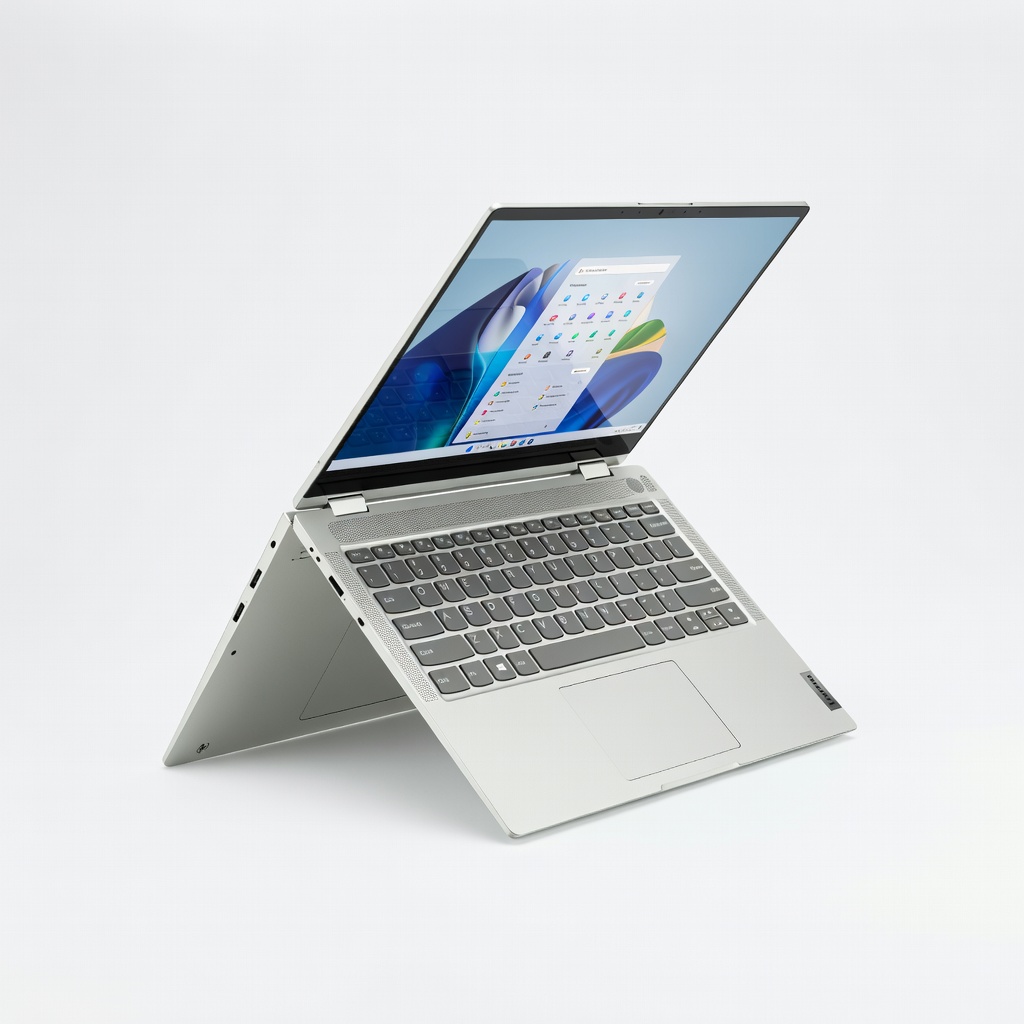
Creative work, note-taking in tablet mode.
Lenovo Yoga 9i 2-in-1 (14 inch) Premium flip-style with Intel Core Ultra, precise 360 hinge, and stylus support for effortless switches.
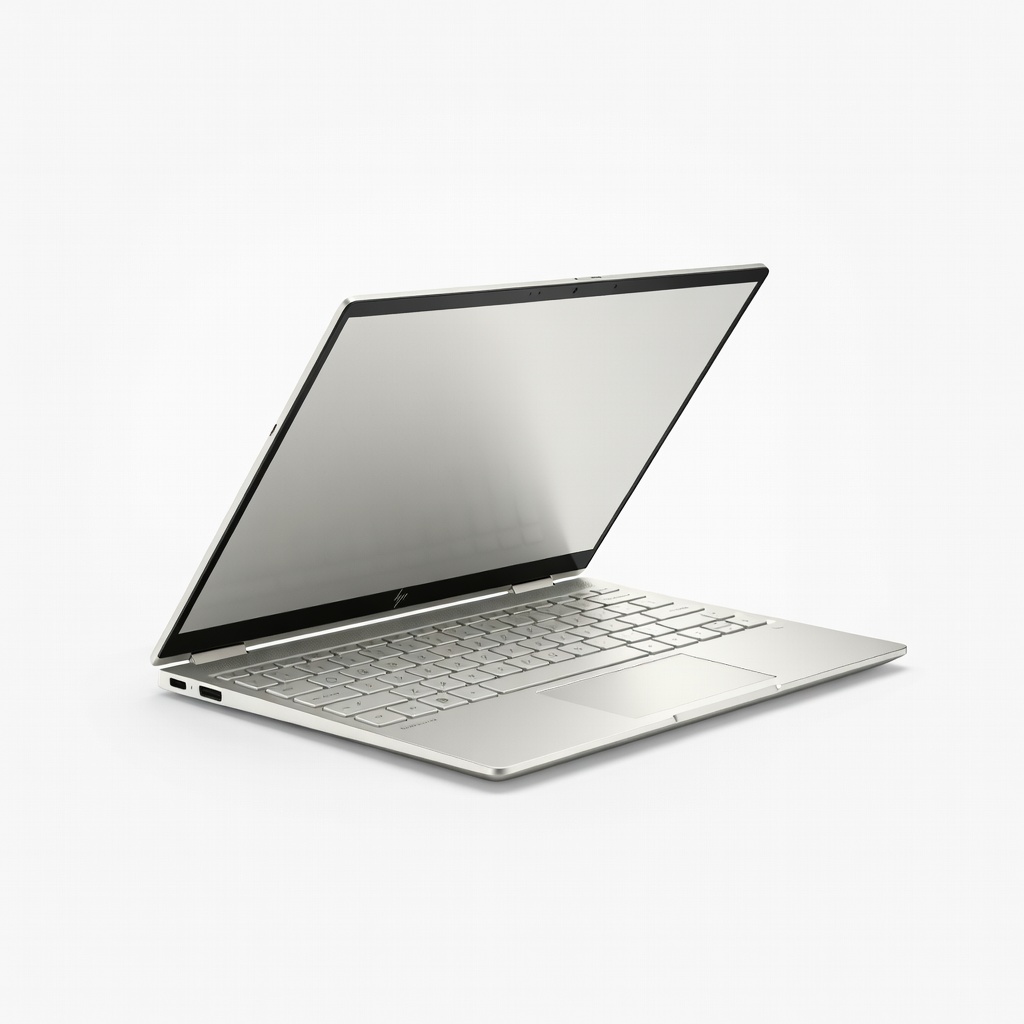
Beginners wanting value for daily laptop/tablet use.
HP Envy x360 14 inch Affordable flip 2-in-1 with AMD Ryzen, reliable sensors, and vibrant touchscreen.
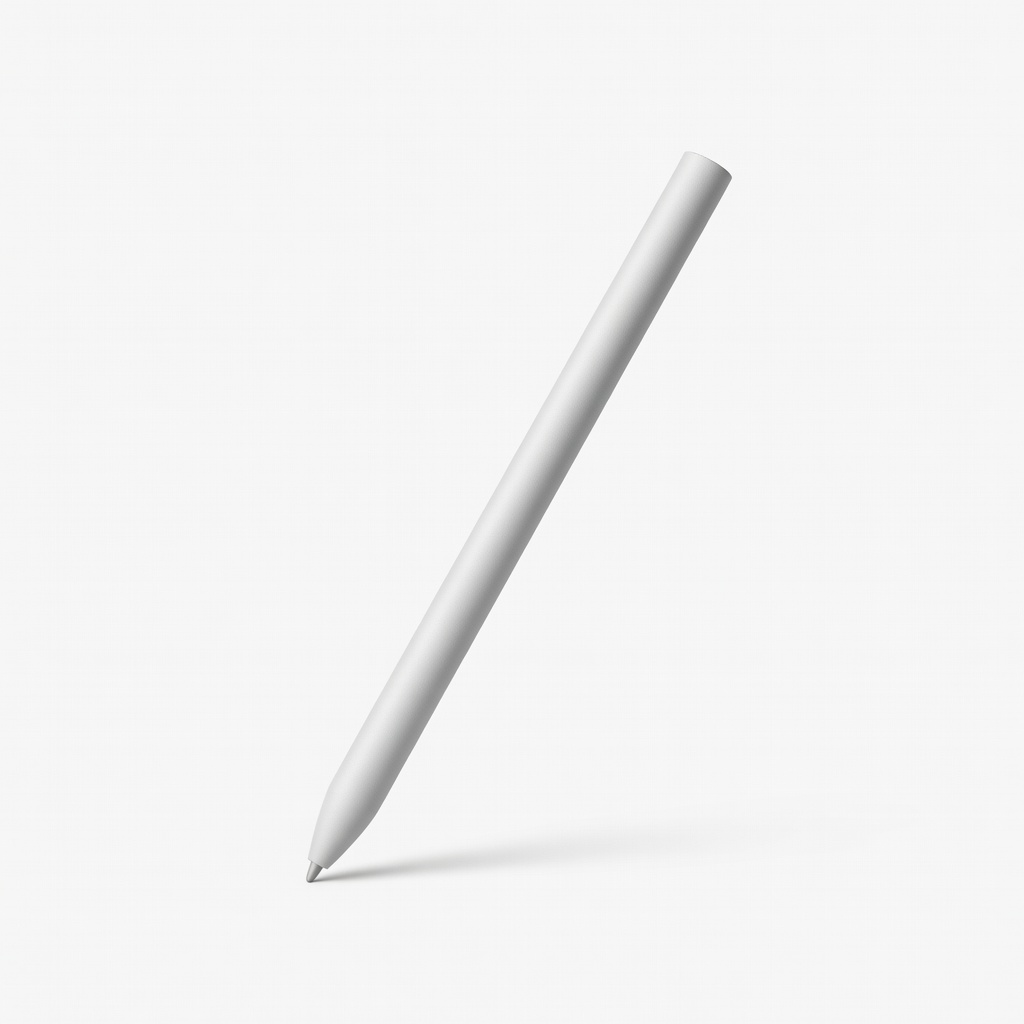
Digital inking, annotations on any 2-in-1.
Microsoft Surface Slim Pen 2 Enhances tablet mode with pressure-sensitive writing/erasing; stores magnetically.
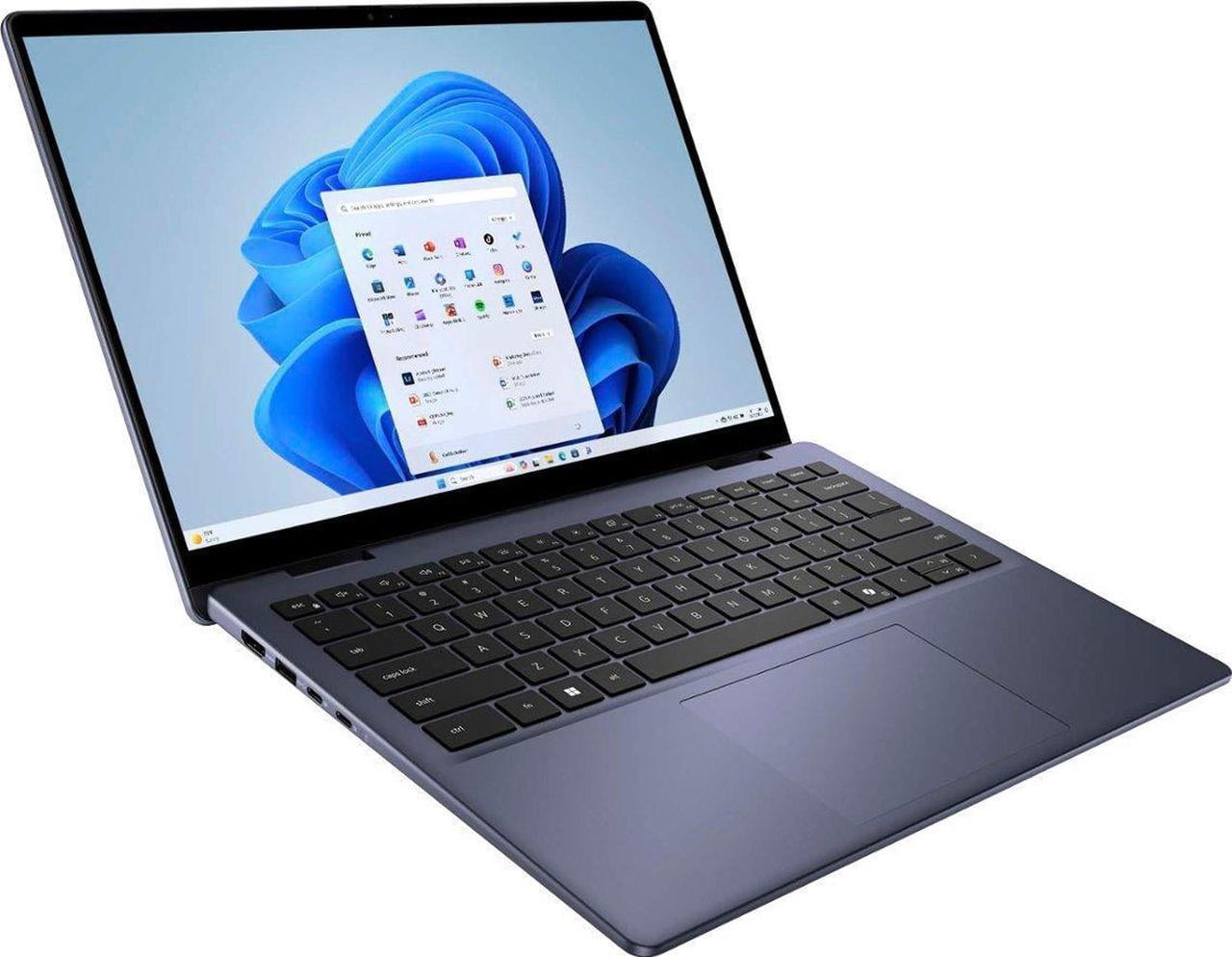
Students or casual users.
Dell Inspiron 14 2-in-1 Budget-friendly entry-level flip with solid build for basic mode switching.