Ever struggled to use your 2-in-1 laptop comfortably on the couch or during travel because it feels awkward in laptop form? Switching to tablet mode unlocks the full potential of these versatile devices, letting you draw, browse, or watch videos with intuitive touch controls. This guide is perfect for beginners who want to make the most of their convertible laptop without technical headaches.
You'll learn simple, universal steps that work for most Windows-based 2-in-1s like Surface, Lenovo Yoga, or HP Spectre. The process involves a quick physical fold and minor software tweaks—no tools required. Expect to complete it in under 5 minutes, with instant results like auto-rotating screens and disabled keyboards for a true tablet experience.
By the end, your device will feel like a dedicated tablet, ready for note-taking or media consumption on the go.
▸What You'll Need
- •A compatible 2-in-1 laptop (e.g., Lenovo Yoga, Microsoft Surface Pro, HP Spectre x360 with 360-degree hinge)
- •Charged battery (at least 50% to avoid interruptions)
- •Optional: Active stylus pen for drawing/precision input
- •Windows 10 or 11 updated to latest version (required for auto-detection)
Estimated Time: 2-5 minutes
Difficulty: beginner
▸Step-by-Step Instructions
Step 1: Confirm Your Laptop Supports Tablet Mode
Start by checking if your 2-in-1 is designed for tablet use. Look for a 360-degree hinge that allows the screen to fold fully back over the keyboard. Common models include Lenovo Yoga series, Microsoft Surface, Dell Inspiron 2-in-1, or HP Envy x360.
Why it matters: Not all laptops support this; clamshell ones won't flip properly. Open your laptop's user manual (search online via model number) or check specs on the manufacturer's site. Success looks like confirming 'convertible' or '2-in-1' in the description.
If unsure, search 'Is [model] tablet mode compatible?'—expect a yes for most modern 2-in-1s.
💡 Tips:
- •Take a photo of your hinge for reference if troubleshooting later.
Step 2: Update Windows and Drivers
Ensure smooth operation by updating your OS. Press Windows key + I to open Settings > Windows Update > Check for updates. Install any available updates, especially touch and display drivers.
This prevents glitches like non-rotating screens. Restart if prompted. Success: Updates complete, no errors in Device Manager (search for it and expand 'Human Interface Devices'—no yellow warnings). Takes 1-2 minutes.
⚠️ Warnings:
- •Avoid skipping this; outdated drivers cause 70% of tablet mode issues.
Step 3: Enable Auto-Rotate and Disable Rotation Lock
In Windows, go to Settings > System > Display. Toggle off 'Rotation lock' if present. For Windows 11, it's automatic, but confirm under Power & battery > Screen and sleep that rotation is enabled.
Why: Allows the screen to adjust orientation when flipped. Expect the screen to flip to portrait/landscape instantly upon folding.
💡 Tips:
- •Swipe from right edge (or click notification icon) to access Quick Settings for instant toggle.
Step 4: Physically Fold into Tablet Mode
Gently rotate the screen 360 degrees until it folds flat over the keyboard (screen facing out). For detachable models like Surface Pro, detach the keyboard base.
Hold the base steady to avoid strain. Success: Screen now acts as a standalone tablet; keyboard should auto-disable to prevent accidental presses.
⚠️ Warnings:
- •Don't force the hinge—stop if it resists; consult manual for your model.
Step 5: Activate Tablet Mode in Action Center
Swipe from the right edge or press Windows + A to open Action Center. Tap the 'Tablet mode' tile (if available in Windows 10) or note Windows 11 auto-switches. Apps now optimize for touch with larger icons.
Test by opening Edge or Notepad—interfaces enlarge for fingers.
💡 Tips:
- •Pin touch-friendly apps like OneNote to Start for quick access.
Step 6: Test Touch Input and Gestures
Tap the screen to navigate, pinch to zoom, swipe for scrolling. Open Settings > Devices > Touchpad (disable if interfering) and test multi-touch.
Success: Responsive touches, no cursor jumping. Pair a stylus if you have one via Bluetooth settings.
Step 7: Reattach or Unfold to Laptop Mode
To reverse, unfold the screen or reattach keyboard. Tablet optimizations auto-disable. Rotation lock can be re-enabled if needed.
Why: Easy switch back for typing sessions.
▸Pro Tips
- •Use a stylus for precise drawing—pairs instantly via Bluetooth.
- •Enable 'Tablet mode' in Taskbar settings for always-on optimization.
- •Keep vents clear when folded to prevent overheating.
- •Customize Start menu for large touch tiles via Settings > Personalization.
- •Charge via USB-C while in tablet mode for all-day use.
- •Swipe down with three fingers for Task View multitasking.
- •Update BIOS from manufacturer site for hinge stability.
▸Common Mistakes to Avoid
- •Forcing the hinge without checking model limits—causes damage; always verify specs first.
- •Leaving rotation lock on—screen stays landscape; toggle it off in Display settings.
- •Ignoring driver updates—leads to laggy touch; run Windows Update weekly.
- •Using in tent mode without disabling keyboard—triggers accidental inputs; fold fully.
- •Overlooking battery drain—tablet mode uses more power; dim screen brightness.
▸Troubleshooting
Problem: Screen won't rotate
Solution: Turn off Rotation lock in Quick Settings; restart explorer.exe via Task Manager or reboot.
Problem: Keyboard types when folded
Solution: Manually detach or use Fn + touchpad key combo (check manual); update keyboard drivers.
Problem: Touch not responding
Solution: Clean screen, recalibrate in Pen & Windows Ink settings; reinstall HID drivers from Device Manager.
Problem: Mode doesn't auto-switch
Solution: Windows 11 issue—ensure latest build; manually toggle in Action Center or seek Microsoft support.
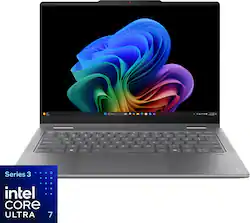
Lenovo Yoga 7i 2-in-1 Laptop (14", Intel Core Ultra)
Excellent 360-degree hinge and auto-tablet detection for effortless switching; top-rated for beginners.
Best for: Daily use, note-taking, and media on the go.
Price Range: $800-$1000
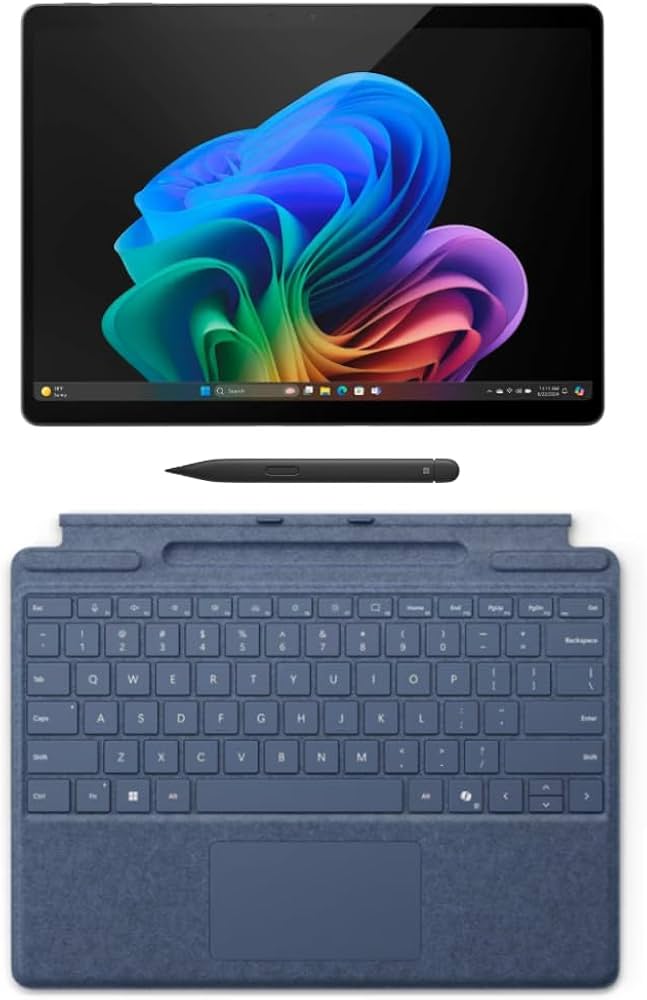
Microsoft Surface Pro 11 (with Keyboard)
Detachable design perfect for pure tablet mode; best touch precision and Windows integration.
Best for: Professional drawing or portable work without bulk.
Price Range: $1000-$1500
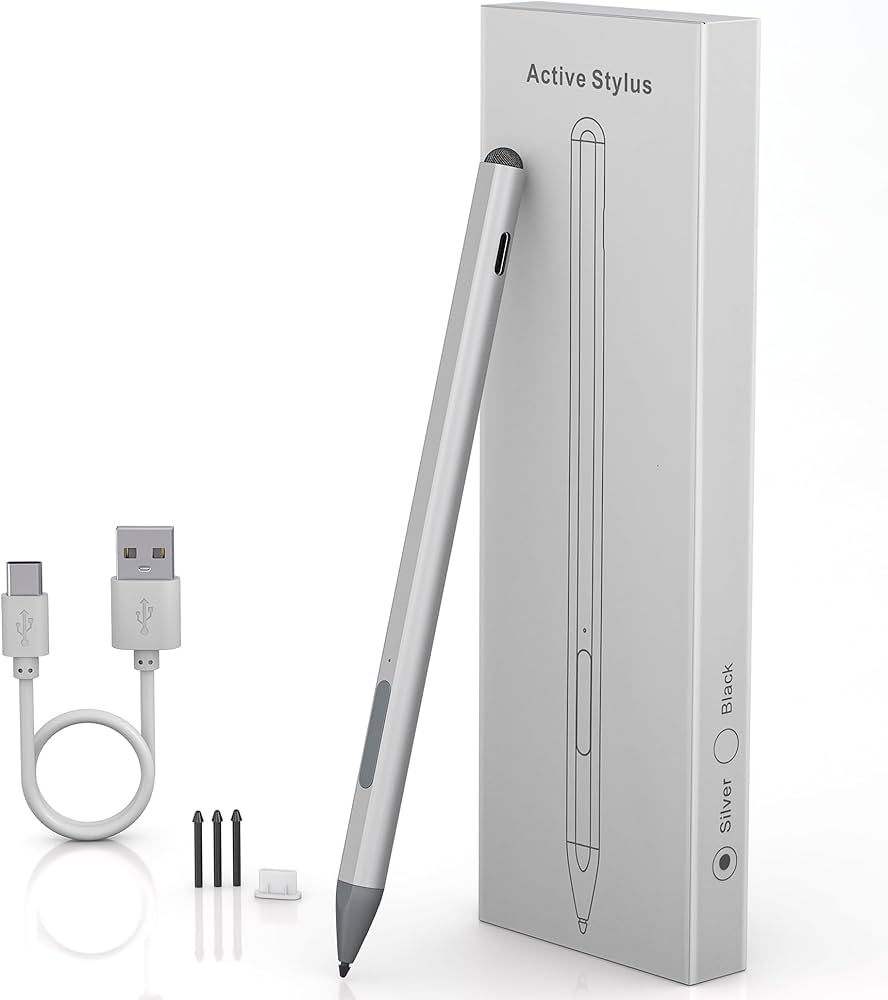
Microsoft Surface Pen
Enhances tablet mode with pressure-sensitive input; stores magnetically on compatible devices.
Best for: Handwriting notes or sketching in apps like OneNote.
Price Range: $99.99
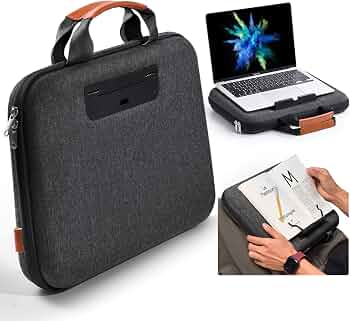
toLuoway Laptop Sleeve for 13-14" 2-in-1
Protects screen and ports in tablet mode; slim for travel.
Best for: Safely carry folded device in bags.
Price Range: $19.99-$25
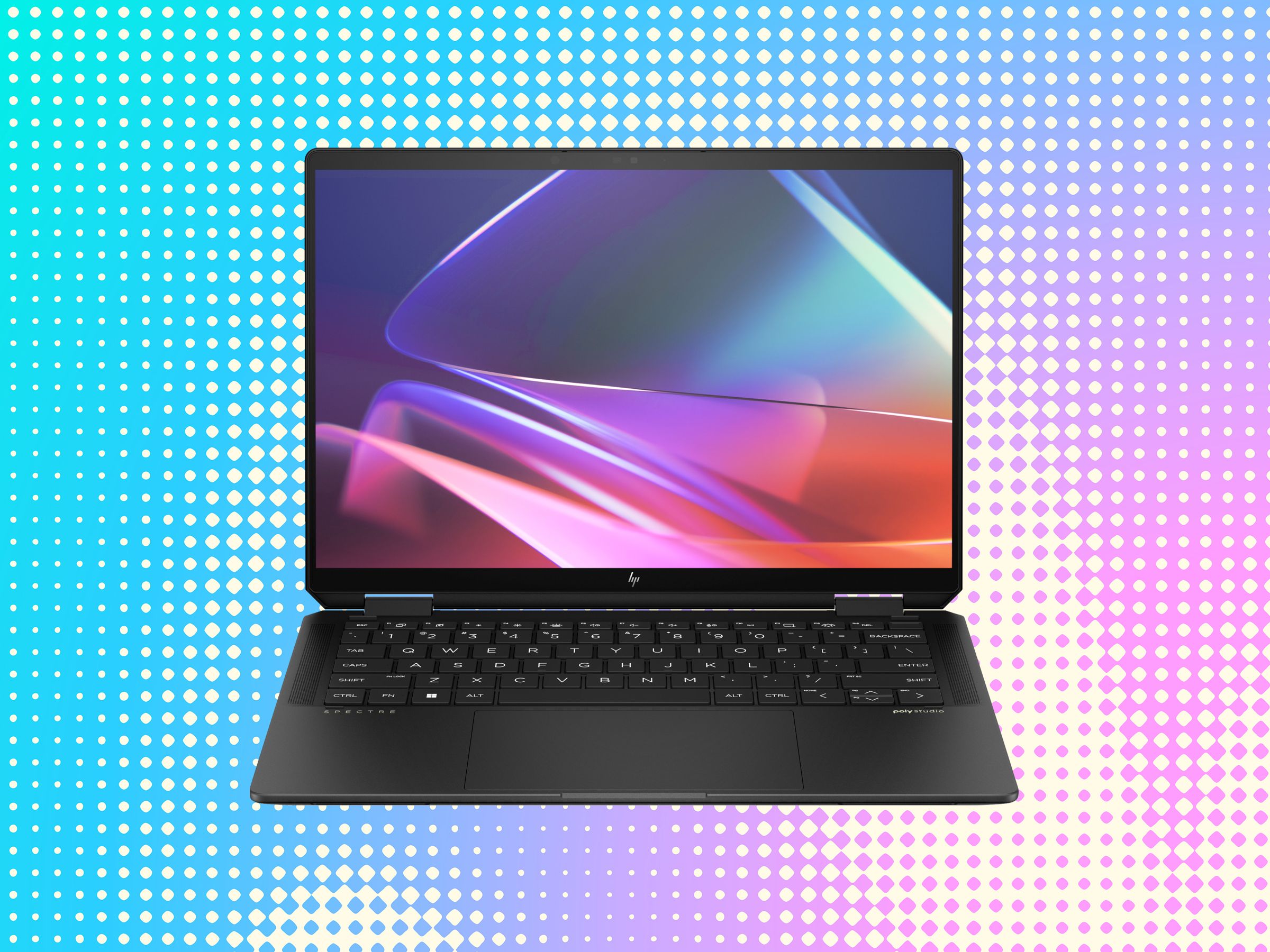
HP Spectre x360 14 (2024)
Premium build with haptic touchpad that disables in tablet mode; OLED screen for vivid viewing.
Best for: Creative pros needing high-end display.
Price Range: $1200-$1400