
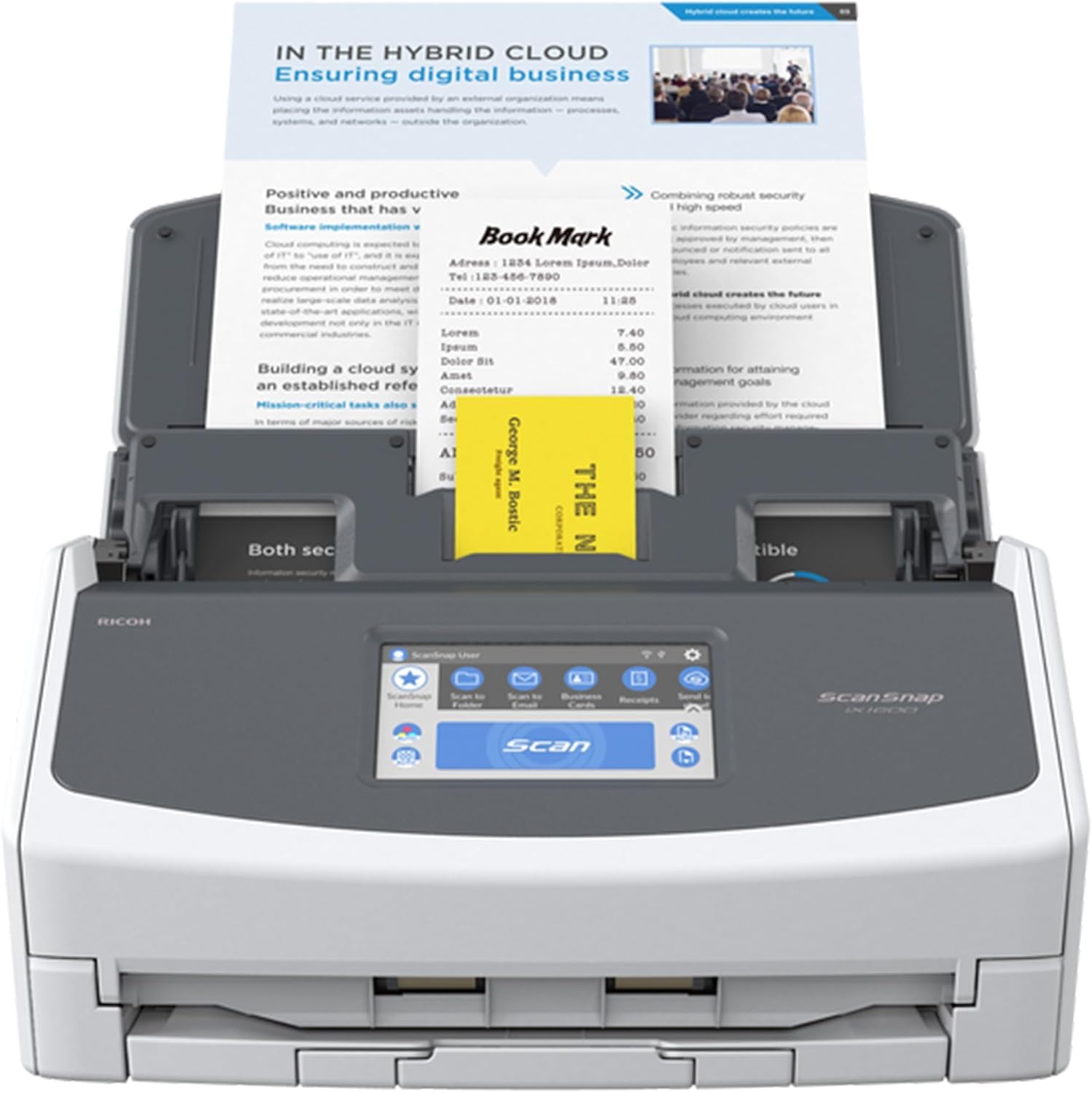
Fujitsu ScanSnap iX1600 Document Scanner
High-volume scanning of records at home.
$424.99
Fujitsu ScanSnap iX1600 Document Scanner Fast, duplex scanning with OCR for searchable PDFs—perfect for bulk medical docs.
Get the App
Better experience on mobile
Securely digitize, organize, and protect your aging parents' medical records for easy access and emergency preparedness in minutes.
Managing medical records for aging parents can be overwhelming, especially during health emergencies when every second counts. Scattered papers lead to lost information, repeated tests, and unnecessary stress. Digitizing these records ensures you have everything organized, searchable, and accessible from anywhere.
In this guide, you'll learn a step-by-step process to gather, scan, store, and secure your parents' medical documents. By the end, you'll have a centralized digital vault ready for sharing with doctors or family. The process takes 4-6 hours initially but saves countless hours long-term.
Expect intermediate computer skills—no advanced tech required. We'll cover best practices for privacy and backups to keep sensitive data safe.
Estimated Time: 4-6 hours for initial setup; 15-30 minutes per update Difficulty: intermediate
Start by collecting every medical document from doctors' offices, hospitals, pharmacies, and home files. Include test results, prescriptions, vaccination records, insurance cards, doctor's notes, and imaging reports (e.g., MRIs on CD).
Why it matters: Incomplete records lead to gaps in care. Create a checklist: lab results, allergies, medications, procedures, family history. Sort into piles by category as you go.
Success looks like: A single box or folder with all papers—no more hunting through drawers.
💡 Tips:
⚠️ Warnings:
Organize papers into folders: Medications, Lab Tests, Imaging, Insurance, Vaccinations, Allergies/History, Providers. Use physical folders or envelopes temporarily.
Why it matters: Logical categories make digital organization easier and searching faster. Redact sensitive info like full SSNs if sharing later.
Expect: 30-60 minutes; you'll identify what needs scanning (e.g., skip receipts).
💡 Tips:
Use a scanner for high quality or your phone's camera app (e.g., Notes on iPhone or Google Drive scanner). Scan in color at 300 DPI, PDF format for multi-page docs. Take clear, flat photos in good light—no shadows.
Why it matters: Digital copies preserve originals while allowing searchability (use OCR-enabled apps). Save as searchable PDFs.
Success: Crisp, legible files ready for naming.
💡 Tips:
⚠️ Warnings:
Rename each file: YYYY-MM-DD_Category_DocumentName.pdf, e.g., '2023-05-15_Labs_BloodWork.pdf'. Add parent’s initials if multiple people.
Why it matters: Consistent naming enables easy sorting and searching—no more 'IMG_001.jpg' chaos.
Expect: Time-consuming but worth it; use bulk rename tools on computer if many files.
💡 Tips:
Select a cloud service like Google Drive or Dropbox. Create a main folder: 'ParentsMedicalRecords' with subfolders matching your categories.
Why it matters: Cloud access from any device; free up to 15GB.
Success: Empty main folder waiting for uploads.
💡 Tips:
Drag files into corresponding subfolders. Use folder descriptions for notes (e.g., 'Last updated 2024-01').
Why it matters: Centralized hub for all records.
Expect: Full folders; test search function.
💡 Tips:
⚠️ Warnings:
Enable 2FA on your account. Create password-protected folders or use built-in encryption. Limit sharing to specific people.
Why it matters: HIPAA-level privacy protects against breaches.
Success: Locked vault; test access.
💡 Tips:
Copy the entire folder to an external drive. Encrypt the drive if possible.
Why it matters: Cloud outages happen—backups ensure redundancy.
Expect: Duplicate set stored safely offsite.
⚠️ Warnings:
Once verified, shred all physical docs using a cross-cut shredder.
Why it matters: Reduces identity theft risk.
Success: No paper trail left.
💡 Tips:
Schedule quarterly reviews: add new records, archive old ones. Share read-only access with siblings or doctors.
Why it matters: Keeps records current.
Success: Calendar reminders set.
💡 Tips:
Problem: Scans are blurry or skewed
Solution: Use a flatbed scanner or app with auto-correction; ensure even lighting and straight edges.
Problem: Files too large for upload
Solution: Compress PDFs with tools like SmallPDF or Adobe Acrobat online.
Problem: Privacy concerns or accidental sharing
Solution: Revoke access immediately via account settings; use granular permissions.
Problem: Forgot password to storage
Solution: Use recovery options or password manager; seek IT help for locked accounts.
Fast, duplex scanning with OCR for searchable PDFs—perfect for bulk medical docs.
Best for: High-volume scanning of records at home.
Price Range: $424.99
Rugged, encrypted backup drive with USB-C speed for secure offline storage.
Best for: Redundant backups resistant to drops and water.
Price Range: $109.99-$129.99
Affordable, reliable for secure disposal of originals post-digitization.
Best for: Shredding sensitive papers to prevent identity theft.
Price Range: $49.99
Compact, battery-powered for on-the-go scanning without a computer.
Best for: Scanning at doctor's offices or travel.
Price Range: $199.99
Large capacity for long-term backups at budget price.
Best for: Archival storage of historical records.
Price Range: $129.99
High-volume scanning of records at home.
Fujitsu ScanSnap iX1600 Document Scanner Fast, duplex scanning with OCR for searchable PDFs—perfect for bulk medical docs.
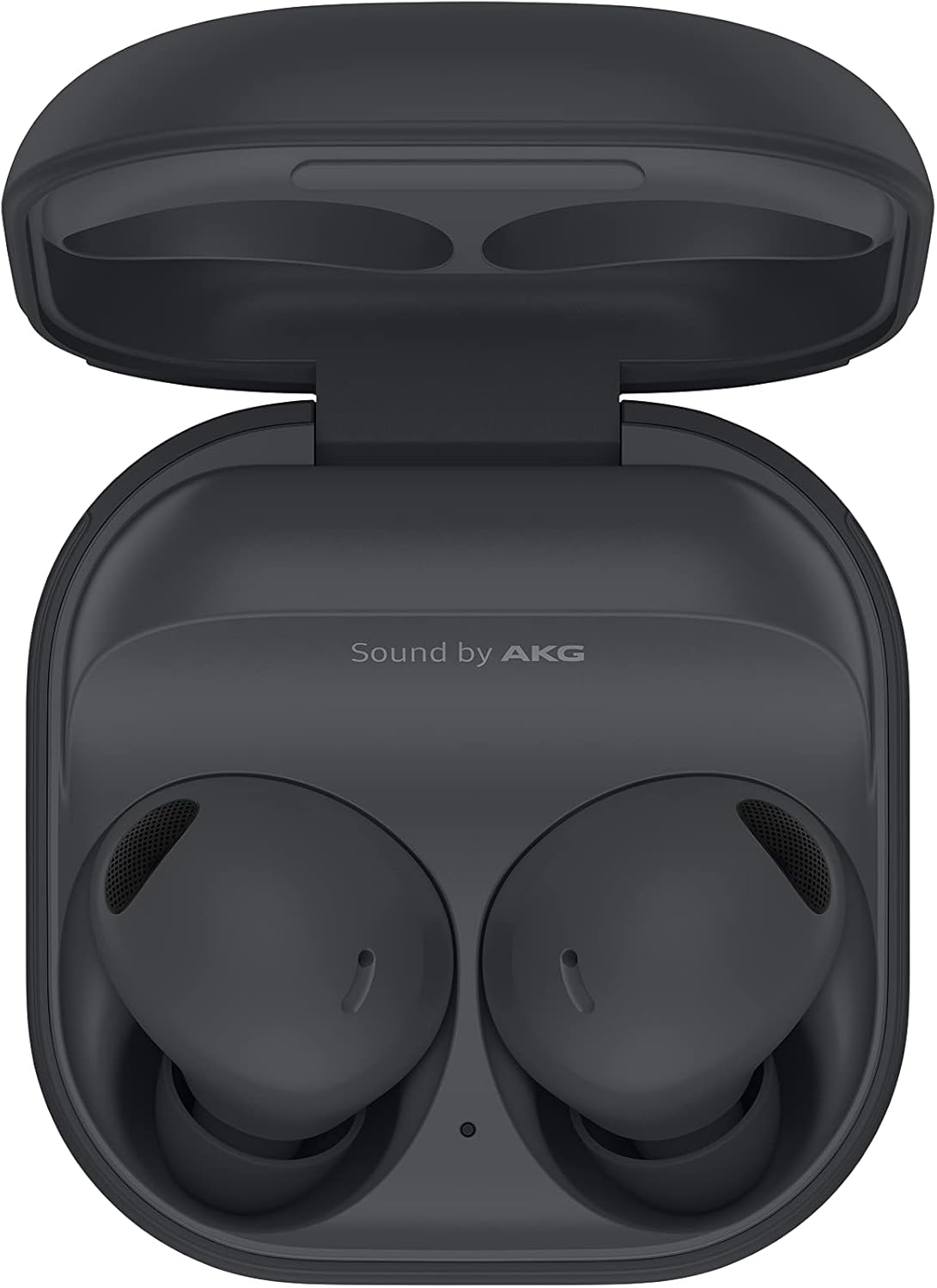
Redundant backups resistant to drops and water.
Samsung T7 Shield 1TB Portable SSD Rugged, encrypted backup drive with USB-C speed for secure offline storage.

Shredding sensitive papers to prevent identity theft.
Amazon Basics 12 Sheet Cross Cut Paper Shredder Affordable, reliable for secure disposal of originals post-digitization.
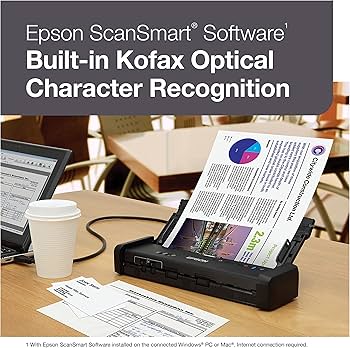
Scanning at doctor's offices or travel.
Epson WorkForce ES-200 Portable Scanner Compact, battery-powered for on-the-go scanning without a computer.
Archival storage of historical records.
Western Digital 5TB My Passport HDD Large capacity for long-term backups at budget price.