
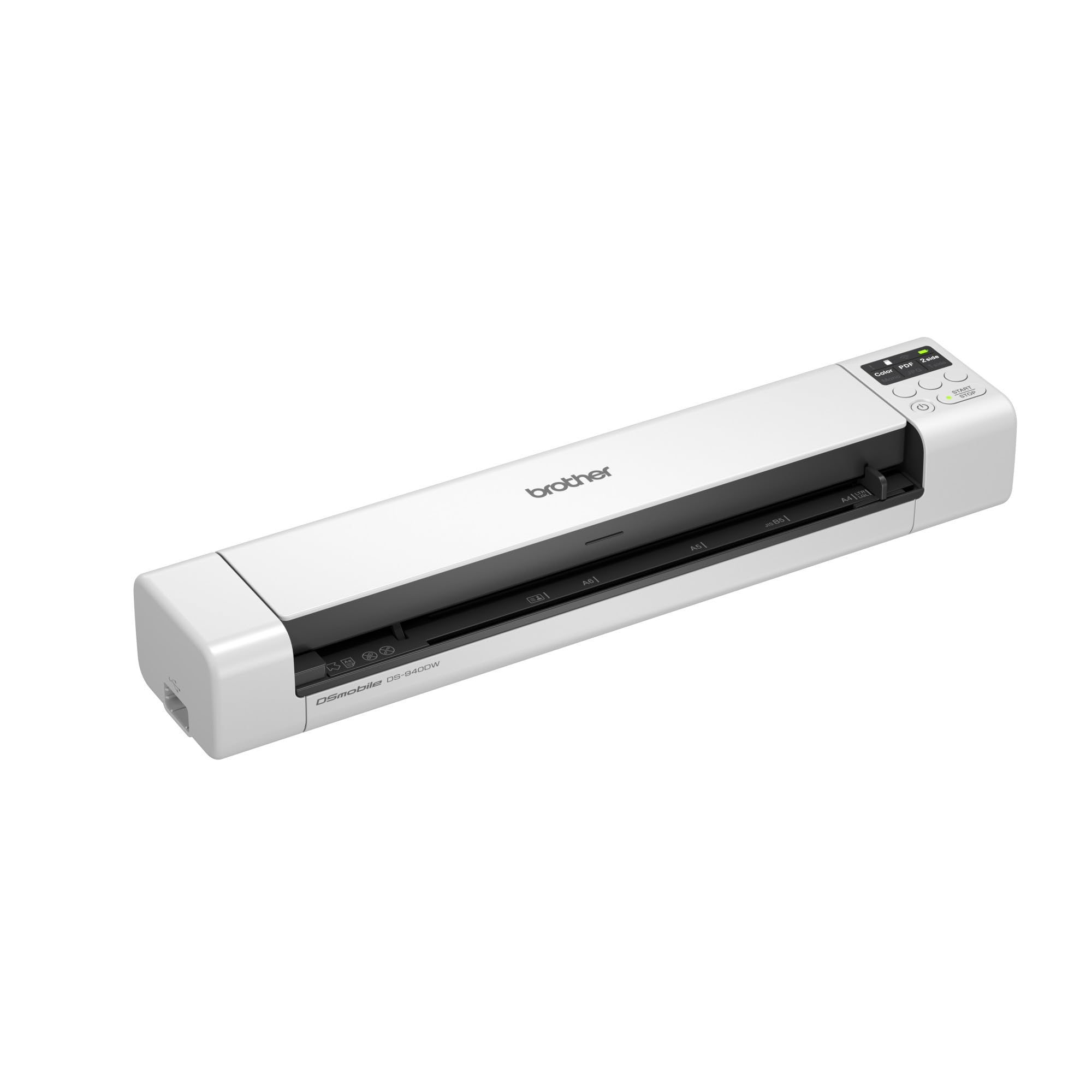
Brother DS-940DW Mobile Document Scanner
Digitizing 100+ pages quickly on-the-go or desk.
$149.99
Brother DS-940DW Mobile Document Scanner Portable, wireless scanning at 16ppm with auto-feed—ideal for bulk account books without flattening spines.
Get the App
Better experience on mobile
Protect your financial records from loss or theft by digitizing and encrypting account books with foolproof steps for lasting security.
Losing physical account books to fire, theft, or damage can devastate your business or personal finances, leading to compliance issues and audits nightmares. In today's digital world, securely storing them online or locally eliminates these risks while making access easier from anywhere.
This guide teaches intermediate users how to scan, organize, encrypt, and store account books digitally using free and paid tools. You'll achieve tamper-proof, accessible backups ready for tax season or reviews. The process takes 45-90 minutes for 100-200 pages, depending on your setup.
Expect straightforward steps with security best practices—no advanced coding required. By the end, your data will be encrypted, backed up, and protected by multi-factor authentication (MFA).
Estimated Time: 45-90 minutes (plus scanning time based on volume) Difficulty: intermediate
Collect all physical account books, ledgers, receipts, and related documents in one place. Sort them chronologically or by category (e.g., sales ledger, expense journal) to streamline digitization.
Why it matters: Organized input prevents missing pages and makes digital filing intuitive. Expect a pile of 50-500 pages; flatten curled edges with heavy books overnight for crisp scans.
Lay out books on a clean, well-lit surface away from direct sunlight to avoid glare.
💡 Tips:
⚠️ Warnings:
Decide between phone camera (free, quick) or scanner (higher quality). Download Adobe Scan (iOS/Android) for OCR (text recognition) or use a portable scanner.
Phone apps auto-straighten and enhance images; scanners handle bulk faster. Success: Test one page—text should be legible at 300 DPI or higher.
Why: Poor scans lead to unreadable records during audits.
💡 Tips:
⚠️ Warnings:
Open books flat and capture one or two pages at a time. Use app's auto-capture or scanner's feeder for books (remove binding if possible).
Process in batches: Scan 20-50 pages, review for completeness. Export as searchable PDF. Expect 1-5 minutes per 10 pages.
Why: High-res digital copies preserve details like handwritten notes.
💡 Tips:
Create folders like /AccountBooks/2024/SalesLedger/ on your computer. Rename files: SalesLedger_2024_Jan.pdf. Merge multi-page scans into single PDFs.
Use consistent naming: YYYY-MM-DD_Category_Page.pdf. Success: Files open quickly and sort alphabetically by date.
Why: Easy retrieval prevents 'where is that file?' frustration.
💡 Tips:
⚠️ Warnings:
Download VeraCrypt (free, open-source). Create an encrypted container: New Volume > Encrypted file container > Standard VeraCrypt volume. Set size (e.g., 10GB), strong password (20+ chars).
Mount as virtual drive, move files inside, dismount. Success: Files are inaccessible without password.
Why: Encryption protects against theft—even if stolen, data is gibberish.
💡 Tips:
⚠️ Warnings:
Choose local (encrypted USB/SSD) or cloud (pCloud with client-side encryption). Sign up for service, enable 2FA.
Local: Copy container to drive. Cloud: Upload via encrypted client. Why: Redundant storage beats single-point failure.
💡 Tips:
Configure MFA (e.g., Google Authenticator) on accounts. Create 3-2-1 backup: 3 copies, 2 media, 1 offsite.
Automate cloud sync. Test: Lock device, verify access via MFA. Success: Secure login from new device.
Why: MFA stops 99% of account hacks.
💡 Tips:
Spot-check files: Open encrypted PDFs, search text. Run antivirus scan. Schedule quarterly reviews.
Document your setup in a separate secure note. Success: All data intact and quick to access.
Why: Ongoing habits prevent decay.
⚠️ Warnings:
Problem: Can't read scanned text
Solution: Re-scan at 300+ DPI with OCR enabled; use apps like ABBYY FineReader for fix.
Problem: Forgot VeraCrypt password
Solution: No recovery—always back up headers file separately; start over with new container.
Problem: Cloud upload fails
Solution: Check file size limits (split large PDFs); use desktop app over web.
Problem: MFA blocks access
Solution: Use backup codes saved in password manager; contact provider if lost.
Portable, wireless scanning at 16ppm with auto-feed—ideal for bulk account books without flattening spines.
Best for: Digitizing 100+ pages quickly on-the-go or desk.
Price Range: $149.99
Rugged, IP65-rated with hardware encryption and fingerprint unlock—perfect for local secure storage.
Best for: Storing encrypted VeraCrypt containers offline.
Price Range: $99.99-$129.99
Hardware 2FA token works with all major clouds—prevents phishing better than SMS.
Best for: Securing cloud accounts for account book access.
Price Range: $49.99
Hardware-encrypted USB with PIN keypad—FIPS 140-2 certified for sensitive financial data.
Best for: Portable, offline backup of small ledger sets.
Price Range: $100-$150
Digitizing 100+ pages quickly on-the-go or desk.
Brother DS-940DW Mobile Document Scanner Portable, wireless scanning at 16ppm with auto-feed—ideal for bulk account books without flattening spines.
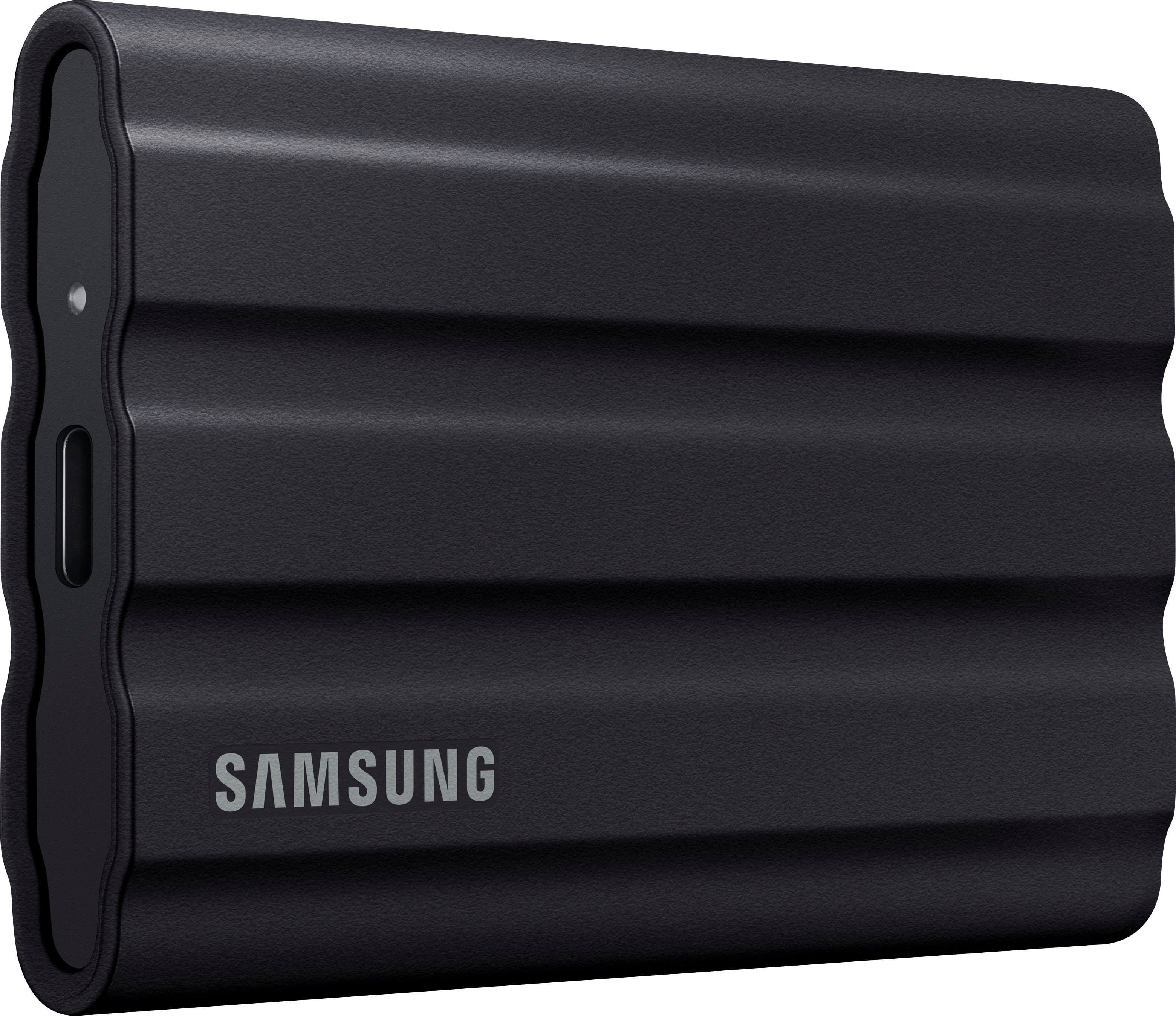
Storing encrypted VeraCrypt containers offline.
Samsung T7 Shield 1TB Portable SSD Rugged, IP65-rated with hardware encryption and fingerprint unlock—perfect for local secure storage.
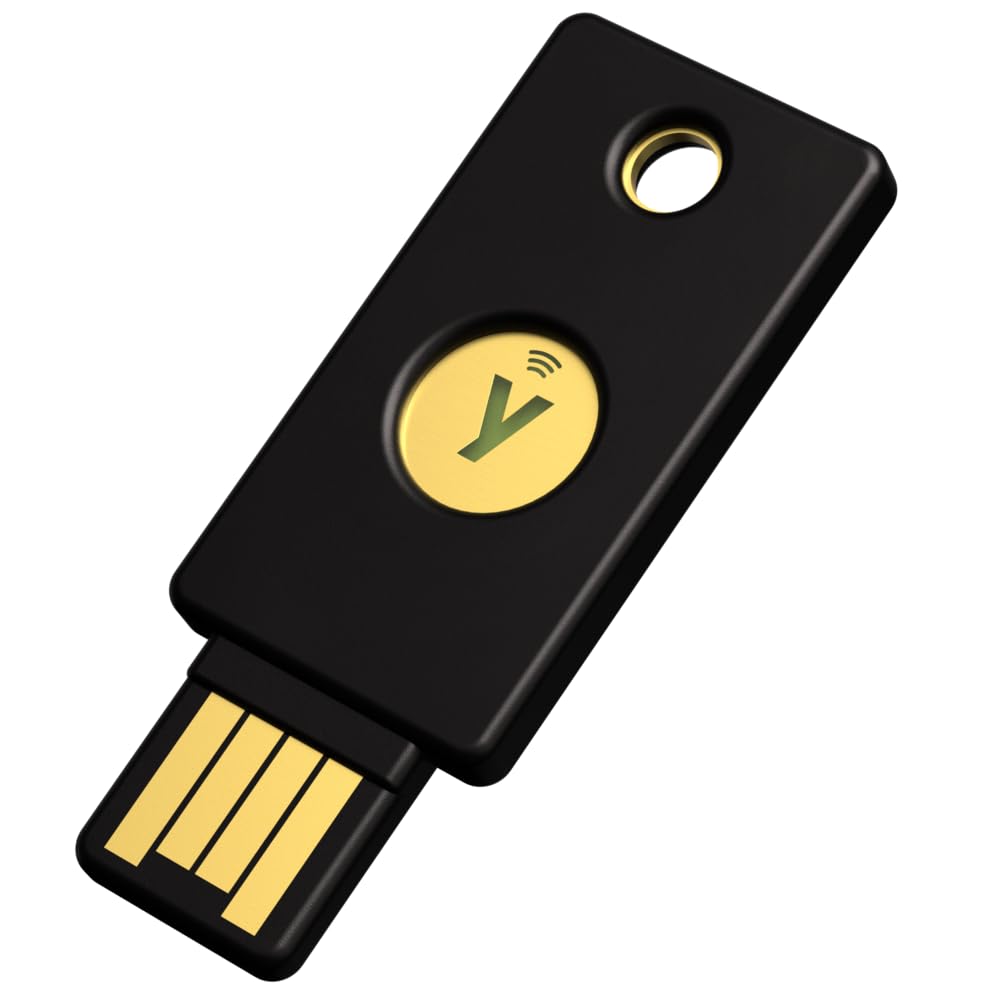
Securing cloud accounts for account book access.
YubiKey 5 NFC Security Key Hardware 2FA token works with all major clouds—prevents phishing better than SMS.
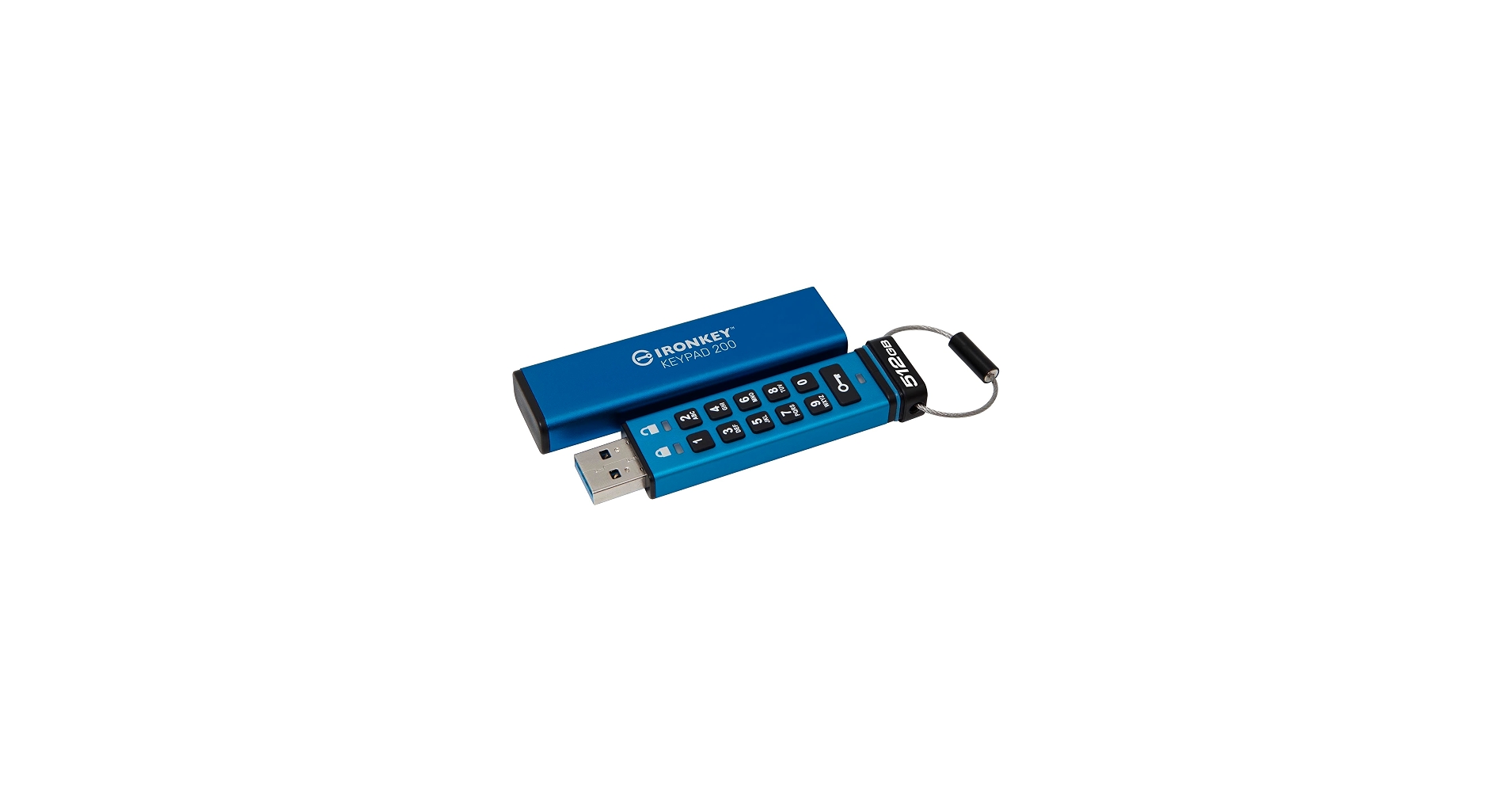
Portable, offline backup of small ledger sets.
Kingston IronKey Keypad 200 40GB USB Flash Drive Hardware-encrypted USB with PIN keypad—FIPS 140-2 certified for sensitive financial data.