Setting up Amazon Alexa for the first time can feel intimidating if you're new to smart speakers, but it's actually a straightforward process that opens the door to hands-free music, reminders, and home automation. Many beginners worry about technical glitches or privacy concerns, but with the right steps, you'll have your device ready to assist in no time. This guide addresses common pain points like Wi-Fi connectivity issues and ensures a smooth experience.
In this tutorial, you'll learn how to unbox your Alexa device, install the necessary app, connect to your network, and personalize your assistant. By the end, you'll be able to issue voice commands like 'Alexa, play my favorite playlist' with confidence. The entire process is designed for beginners and typically takes 10-15 minutes, assuming you have a stable internet connection.
Expect simple, sequential instructions with tips to avoid hiccups. No prior tech experience is needed—just follow along, and you'll transform your home into a smarter space.
▸What You'll Need
- •Amazon Echo or compatible Alexa-enabled device (e.g., Echo Dot, Echo Show)
- •Smartphone or tablet (iOS 14+ or Android 8+)
- •Stable Wi-Fi network (2.4 GHz recommended for initial setup)
- •Amazon account (free to create if you don't have one)
- •Optional: Ethernet cable for wired models like Echo (4th Gen)
Estimated Time: 10-15 minutes
Difficulty: beginner
▸Step-by-Step Instructions
Step 1: Unbox and Plug In Your Alexa Device
Start by carefully opening the box of your new Amazon Echo or Alexa device. Inside, you'll find the speaker, power adapter, and any included cables. Place the device in a central location, away from direct sunlight or moisture, to ensure optimal audio pickup and longevity.
Plug the power adapter into the device and then into a wall outlet. The light ring on top should illuminate in a spinning orange pattern, indicating the device is powering on and entering setup mode. This step is crucial as it prepares the hardware for software configuration—without power, nothing else can proceed.
What success looks like: The device chimes or shows a light ring pulsing orange/blue, signaling it's ready for pairing. If it doesn't light up, double-check the outlet and cable connections.
💡 Tips:
- •Choose a spot near an outlet but within Wi-Fi range for easy access.
- •Keep the packaging in case you need to return or troubleshoot.
⚠️ Warnings:
- •Avoid placing it near microwaves or cordless phones, which can interfere with Wi-Fi signals.
Step 2: Download the Amazon Alexa App
On your smartphone or tablet, open the App Store (iOS) or Google Play Store (Android). Search for 'Amazon Alexa' and download the official app—it's free and essential for managing your device. The app acts as the control center, allowing you to set up, customize, and control Alexa remotely.
Once installed, open the app and grant necessary permissions like microphone and location access (for weather and traffic features). This ensures seamless integration with your device. Why it matters: The app handles the Bluetooth pairing and Wi-Fi setup that the device itself can't do alone.
Success indicator: The app opens to a welcome screen or prompts you to sign in. If you encounter download issues, ensure your phone's OS is up to date.
💡 Tips:
- •Enable notifications in the app for alerts on new features or reminders.
⚠️ Warnings:
- •Don't download third-party apps mimicking Alexa, as they may pose security risks.
Step 3: Sign In or Create an Amazon Account
Launch the Alexa app and tap 'Sign In' if you have an Amazon account, or 'Create Account' if not. Enter your email, password, and verify via phone or email. An Amazon account is required because Alexa ties into Amazon's ecosystem for shopping, music, and more.
During signup, you may need to provide billing info if you plan to use Alexa for purchases, but this is optional for basic setup. This step links your device to your personal preferences, like music libraries or contacts.
What to expect: A confirmation screen after login, leading to the setup wizard. If you forget your password, use the recovery option—it's quick.
💡 Tips:
- •Use a strong password and enable two-factor authentication for security.
⚠️ Warnings:
- •Avoid sharing your account details; Alexa setup is personal.
Step 4: Connect Alexa to Your Wi-Fi Network
In the app, select 'Devices' > 'Add Device' > 'Amazon Echo' to start the guided setup. The app will prompt you to scan for your device via Bluetooth—ensure Bluetooth is enabled on your phone. Alexa will announce it's ready to connect.
Select your home Wi-Fi network from the list and enter the password. The device supports 2.4 GHz and 5 GHz bands, but 2.4 GHz is more reliable for initial setup. This connection enables cloud-based features like weather updates and smart home control.
Success looks like: The light ring turns blue and stops spinning, with the app confirming 'Device Connected.' You may hear a chime from the speaker.
💡 Tips:
- •If your router has a guest network, use the main one for better performance.
⚠️ Warnings:
- •Incorrect Wi-Fi passwords will cause failures—double-check capitalization.
Step 5: Personalize Your Alexa Voice and Settings
Follow the app's prompts to train Alexa's voice recognition. Say 'Alexa, enroll my voice' and repeat phrases as instructed—this improves accuracy for commands. Next, set your location, time zone, and music preferences (e.g., link Spotify or Amazon Music).
Customize wake word (default 'Alexa') and enable skills like news briefings. This personalization makes Alexa feel tailored to you, enhancing daily use.
What success feels like: Alexa responds correctly to 'Hello' or a test command, and the app shows your device as 'Online' in the dashboard.
💡 Tips:
- •Enroll multiple voices if sharing with family for better recognition.
⚠️ Warnings:
- •Speak clearly during voice training; mumbling can reduce accuracy.
Step 6: Test and Explore Basic Commands
Say 'Alexa, what's the weather?' or 'Alexa, set a timer for 5 minutes' to test functionality. If it responds accurately, your setup is complete. Use the app to add skills or connect smart devices like lights.
This verification ensures everything works before diving deeper. Why it matters: Early testing catches issues like poor audio placement.
Success: Immediate, helpful responses without delays.
💡 Tips:
- •Experiment with fun commands like 'Alexa, tell me a joke' to get comfortable.
⚠️ Warnings:
- •If no response, check Wi-Fi in the app under Devices.
▸Pro Tips
- •Position your Echo at ear level for better voice pickup in noisy rooms.
- •Update the Alexa app regularly for new features and bug fixes.
- •Use the app's 'Routines' to automate daily tasks, like morning briefings.
- •Enable 'Do Not Disturb' in the app for quiet hours to avoid interruptions.
- •Link multiple services early, like calendars, for seamless integration.
- •For privacy, review and delete voice recordings in the app's history section.
- •Test in different rooms to find the best spot for whole-home coverage.
▸Common Mistakes to Avoid
- •Entering the wrong Wi-Fi password: This halts setup—always verify network name and password case-sensitivity to avoid frustration.
- •Placing the device too far from Wi-Fi router: Weak signals cause connection drops; keep it within 30 feet initially.
- •Skipping voice enrollment: Leads to misheard commands—enroll voices right away for accurate responses.
- •Forgetting to update phone OS: Incompatible versions block app download; check for updates before starting.
- •Using a VPN during setup: It can interfere with detection—disable it temporarily.
▸Troubleshooting
Problem: Device won't power on or light up
Solution: Check the power cable and outlet. Try a different outlet. If it persists, reset by holding the action button for 20 seconds.
Problem: Wi-Fi connection fails repeatedly
Solution: Restart your router and phone. Ensure you're on a 2.4 GHz network. Forget the network in the app and retry.
Problem: App doesn't detect the device
Solution: Enable Bluetooth and location services on your phone. Move closer to the device and refresh the setup screen.
Problem: Alexa doesn't respond to commands
Solution: Verify Wi-Fi status in the app. Re-enroll your voice or check for mute button activation on the device.
Problem: Setup freezes on account sign-in
Solution: Clear app cache or reinstall. Use a different browser for web-based signup if needed. Contact Amazon support if unresolved.
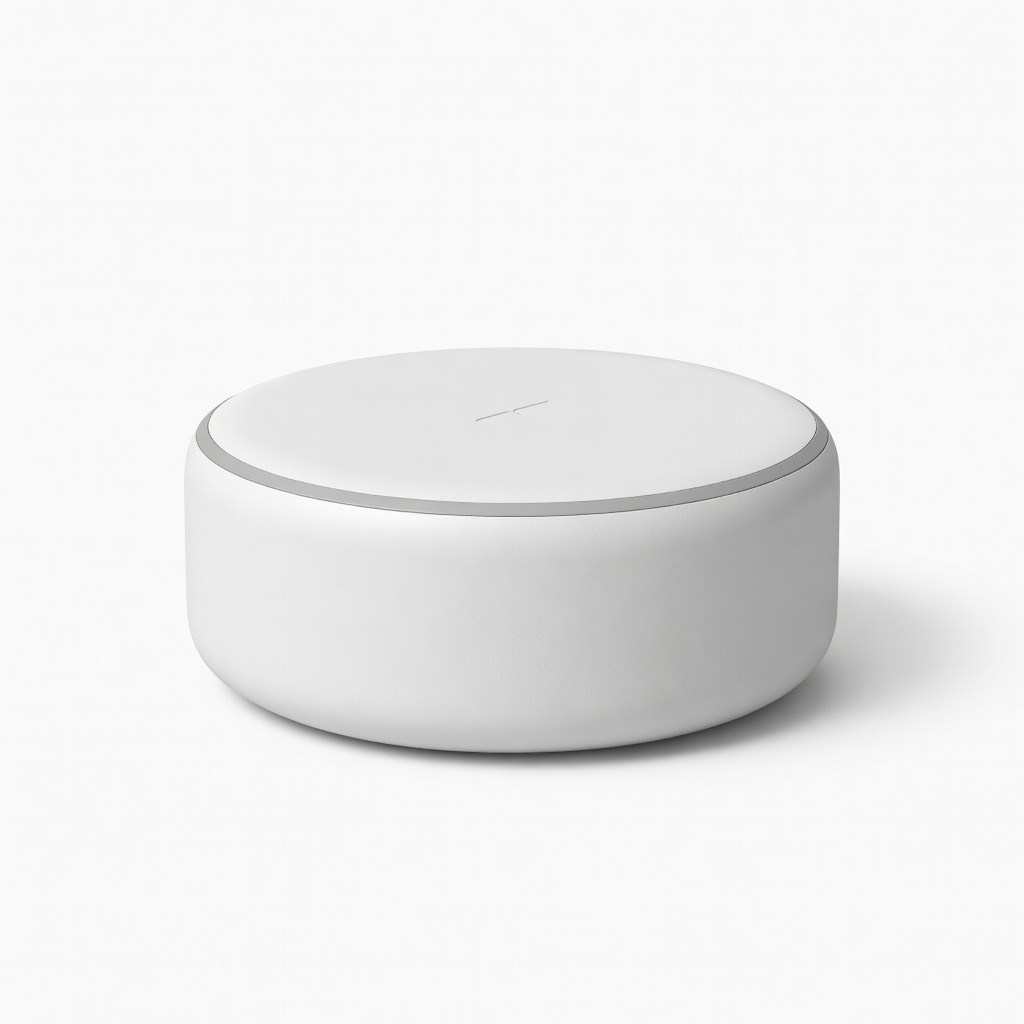
Amazon Echo Dot (5th Gen)
This compact smart speaker is perfect for beginners due to its affordable price, easy setup, and built-in Alexa for voice control.
Best for: Ideal for first-time users wanting music, timers, and basic smart home integration in small spaces like bedrooms or kitchens.
Price Range: $30-50
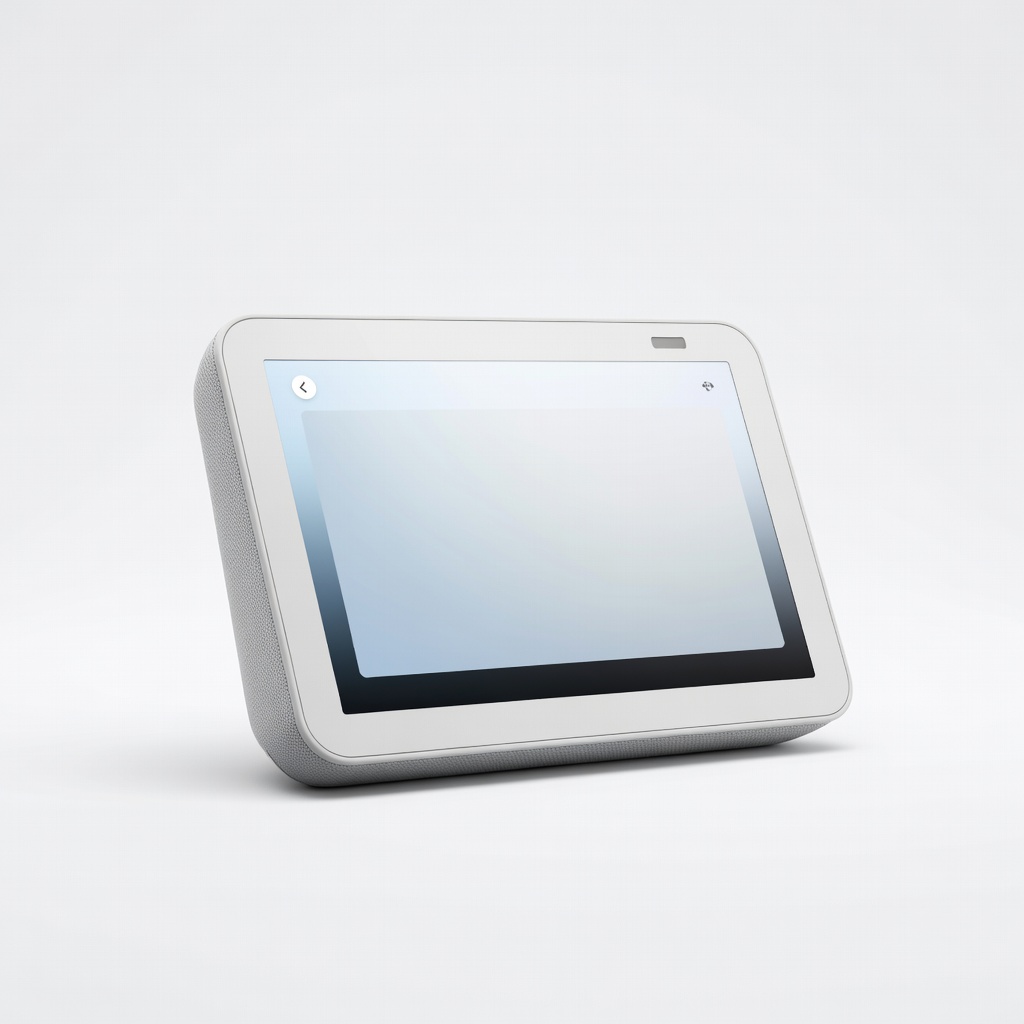
Amazon Echo Show 8 (3rd Gen)
Combines Alexa with a touchscreen for visual responses, making setup and daily use more intuitive for visual learners.
Best for: Great for video calls, recipes, or seeing who's at the door when paired with a smart doorbell.
Price Range: $100-150
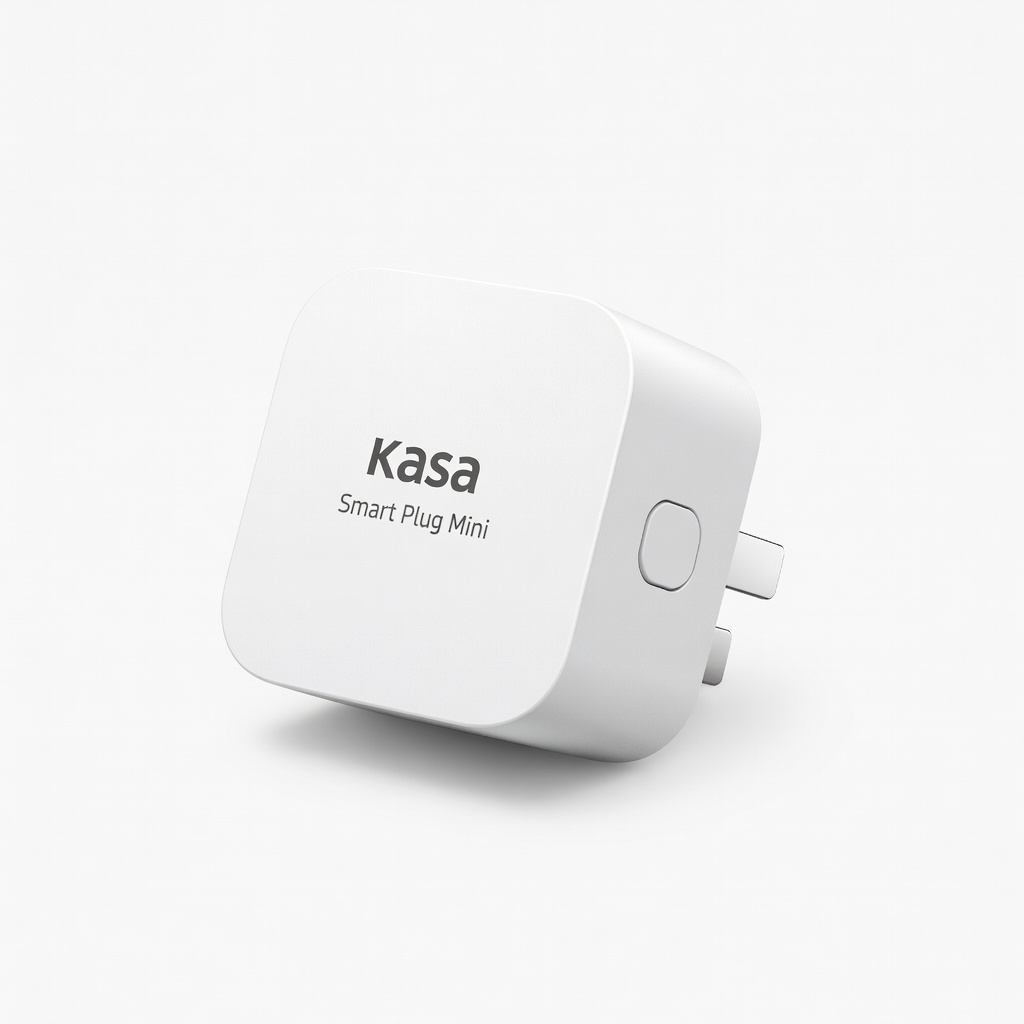
TP-Link Kasa Smart Plug Mini
Easily integrates with Alexa for voice-controlled outlets, expanding your smart home without complexity.
Best for: Control lamps or appliances hands-free after basic Alexa setup, perfect for automating routines.
Price Range: $15-25
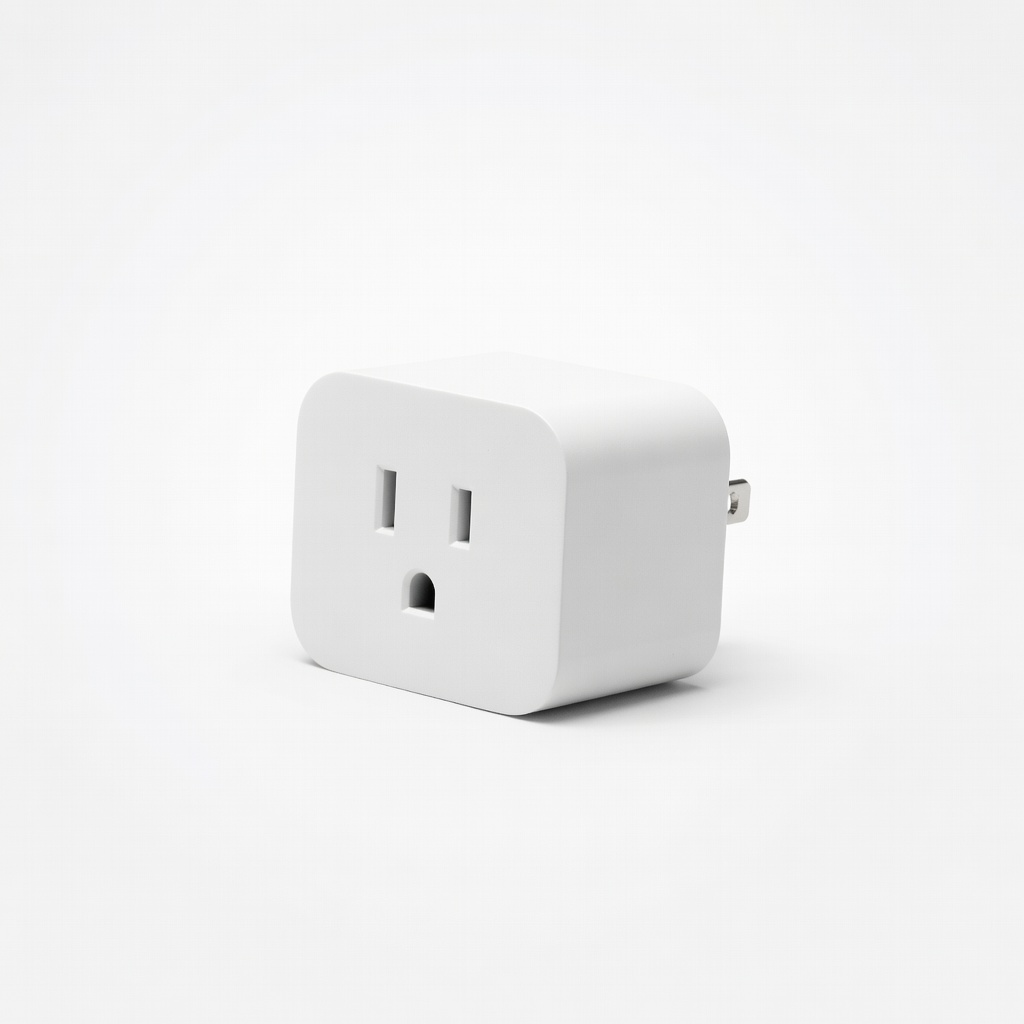
Amazon Smart Plug
Official Amazon product ensures seamless compatibility and reliable performance with Alexa devices.
Best for: Turn any plugged-in device into a smart one, like coffee makers, for scheduled use via voice commands.
Price Range: $20-30