
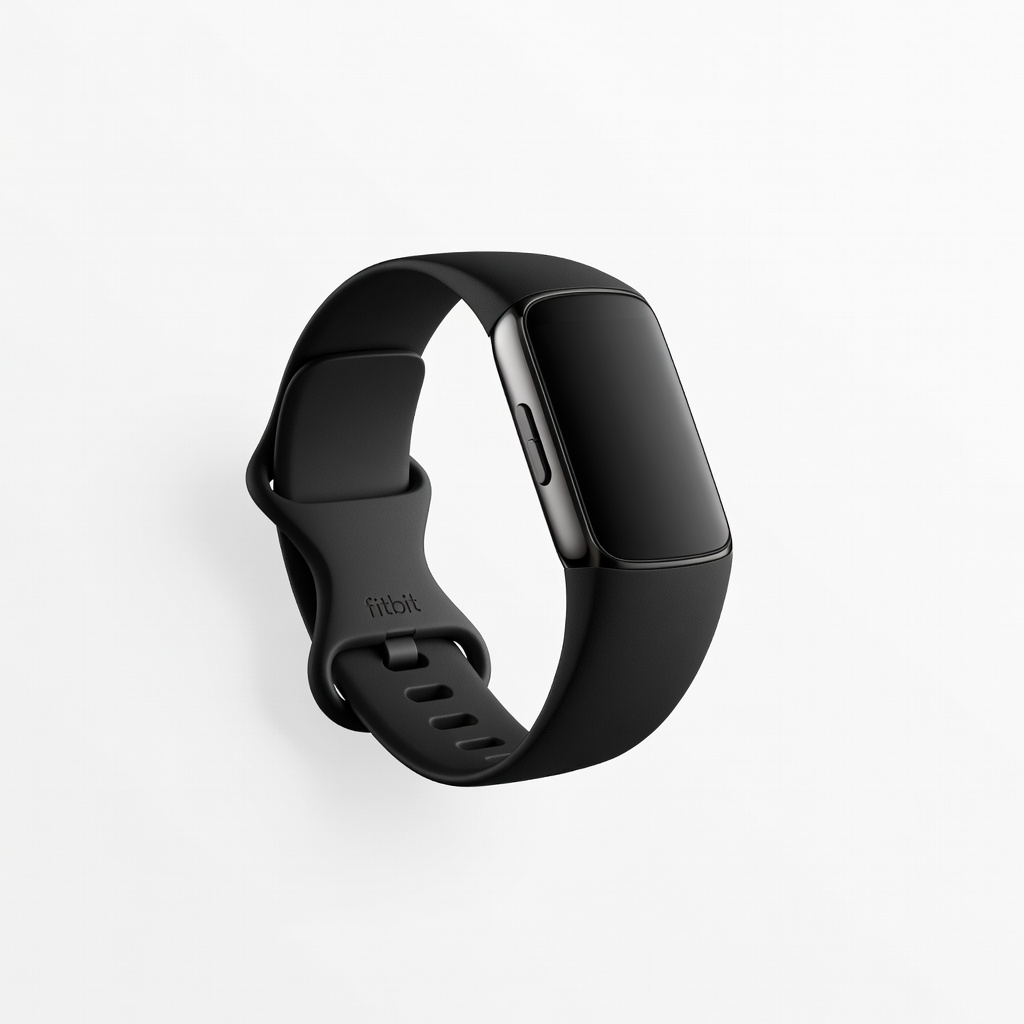
Fitbit Charge 6
Daily activity tracking for beginners with mobility aids.
$159.95
Fitbit Charge 6 Senior-friendly with 7-day battery, fall detection, simple app, and ECG for heart health.
Get the App
Better experience on mobile
Step-by-step guide to easily configure activity trackers so seniors can monitor health, steps, and falls safely in minutes.
As we age, staying active is crucial for health, but seniors often face challenges like forgetfulness, tech intimidation, or physical limitations. Fitness trackers bridge this gap by monitoring steps, heart rate, sleep, and even detecting falls—empowering independence without constant supervision.
In this beginner-friendly guide, you'll learn how to unbox, pair, and customize a tracker specifically for seniors. Expect a simple process taking 20-30 minutes, with tips to make it frustration-free. By the end, your loved one will have a working device synced to their phone for real-time insights.
No prior tech experience needed—we break it down into clear steps, focusing on popular, senior-friendly models with long battery life and simple interfaces.
Estimated Time: 20-30 minutes Difficulty: beginner
Open the packaging carefully and locate the fitness tracker, charging cable, and any quick-start guide. Plug the cable into a USB port or wall adapter and connect it to the device. Most trackers show a charging icon or LED light when powering on.
Charging ensures the battery is full (typically 1-2 hours for 7+ days of use), preventing interruptions during setup. Seniors benefit from long battery life to avoid daily charging hassles.
Success looks like: Device lights up or vibrates, battery icon shows progress.
💡 Tips:
⚠️ Warnings:
On the smartphone, go to the App Store (iPhone) or Google Play (Android). Search for the tracker's app (e.g., 'Fitbit' or 'Garmin Connect'). Tap Install and wait for download.
The app is the brain of the tracker—it handles pairing, data syncing, and custom senior settings like simplified notifications. Grant permissions for Bluetooth, location (for GPS accuracy), and notifications when prompted.
Success looks like: App icon on home screen, opens without errors.
💡 Tips:
Launch the app and tap Create Account (or sign in if existing). Enter email, password, and verify via email/SMS. For seniors, use a simple password and family-shared account if needed for oversight.
This step unlocks cloud syncing for data backup and sharing reports with doctors. Choose 'Family Account' options where available for caregiver access.
Success looks like: Welcome screen with profile setup prompt.
⚠️ Warnings:
In the app, tap Set Up Device or the + icon. Ensure Bluetooth is on (Settings > Bluetooth). Hold the tracker near the phone; the app scans and connects automatically.
Pairing links the device for real-time data transfer. Wake the tracker by tapping its screen or button if it sleeps.
Success looks like: Confirmation message 'Device paired successfully' with device name listed.
💡 Tips:
⚠️ Warnings:
Follow app prompts to input age, height, weight, gender, and wrist (left/right). Set activity level to 'Sedentary' or 'Lightly Active' for realistic goals. Enable features like fall detection if available.
Accurate profile calibrates step counts, heart zones, and reminders tailored to seniors (e.g., gentle hourly move alerts).
Success looks like: Dashboard shows personalized daily goal (e.g., 5,000 steps).
💡 Tips:
In app settings, adjust notifications (vibrate-only for quiet alerts), goals (lower steps if mobility-limited), and display (large fonts, always-on screen). Turn on sleep tracking and heart rate monitoring.
Customization prevents overwhelm—seniors love simplified views showing just steps and time.
Success looks like: Tracker screen updates with custom watch face; test vibrate.
💡 Tips:
Wear the tracker, walk 10 steps, check app for data. Force sync via app (pull down refresh). Review first report for accuracy.
Testing confirms everything works; initial sync populates history.
Success looks like: App dashboard live-updates steps/heart rate.
⚠️ Warnings:
Problem: Pairing fails or device not found
Solution: Restart phone/tracker, forget Bluetooth device and re-pair, update app/firmware.
Problem: No data syncing
Solution: Check Wi-Fi/Bluetooth on, force sync in app, ensure profile complete.
Problem: Battery drains fast
Solution: Disable always-on display, reduce notifications, charge fully overnight.
Problem: Tracker uncomfortable
Solution: Adjust band loosely, try different wrist, select smaller size next time.
Senior-friendly with 7-day battery, fall detection, simple app, and ECG for heart health.
Best for: Daily activity tracking for beginners with mobility aids.
Price Range: $159.95
Slim design, hydration/sleep tracking, long battery—ideal for subtle wear.
Best for: Seniors wanting discreet monitoring without bulky watches.
Price Range: $149.99
Budget option with 18-day battery, SpO2 monitoring, Alexa integration for voice commands.
Best for: Affordable entry for tech-shy seniors on fixed income.
Price Range: $45.99
Fall detection, SOS, large display—perfect for iPhone users needing emergency features.
Best for: Active seniors with iPhones wanting phone integration.
Price Range: $249
Daily activity tracking for beginners with mobility aids.
Fitbit Charge 6 Senior-friendly with 7-day battery, fall detection, simple app, and ECG for heart health.
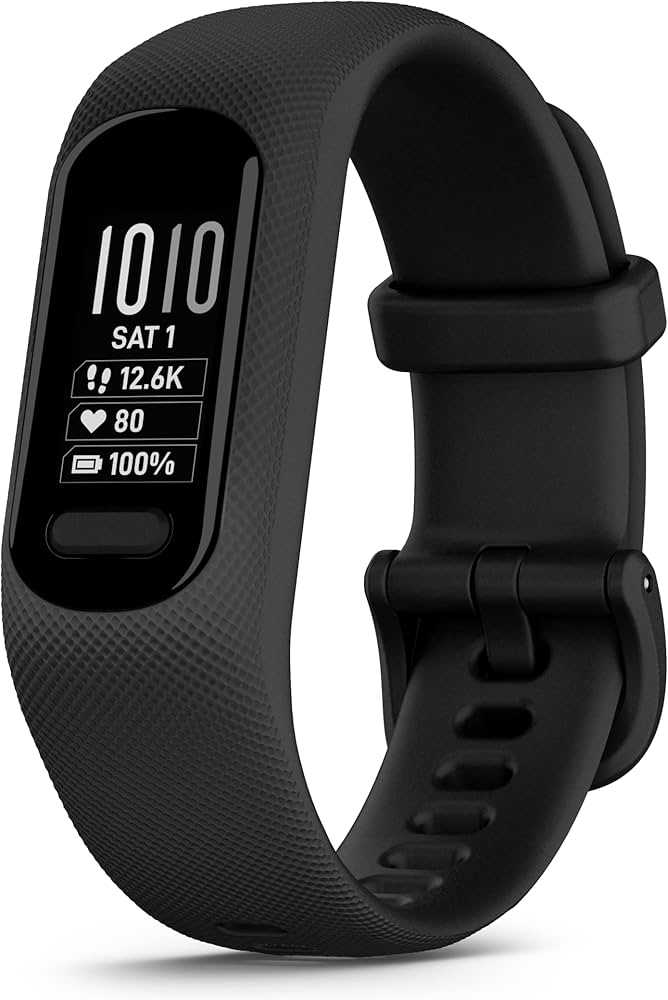
Seniors wanting discreet monitoring without bulky watches.
Garmin Vivosmart 5 Slim design, hydration/sleep tracking, long battery—ideal for subtle wear.
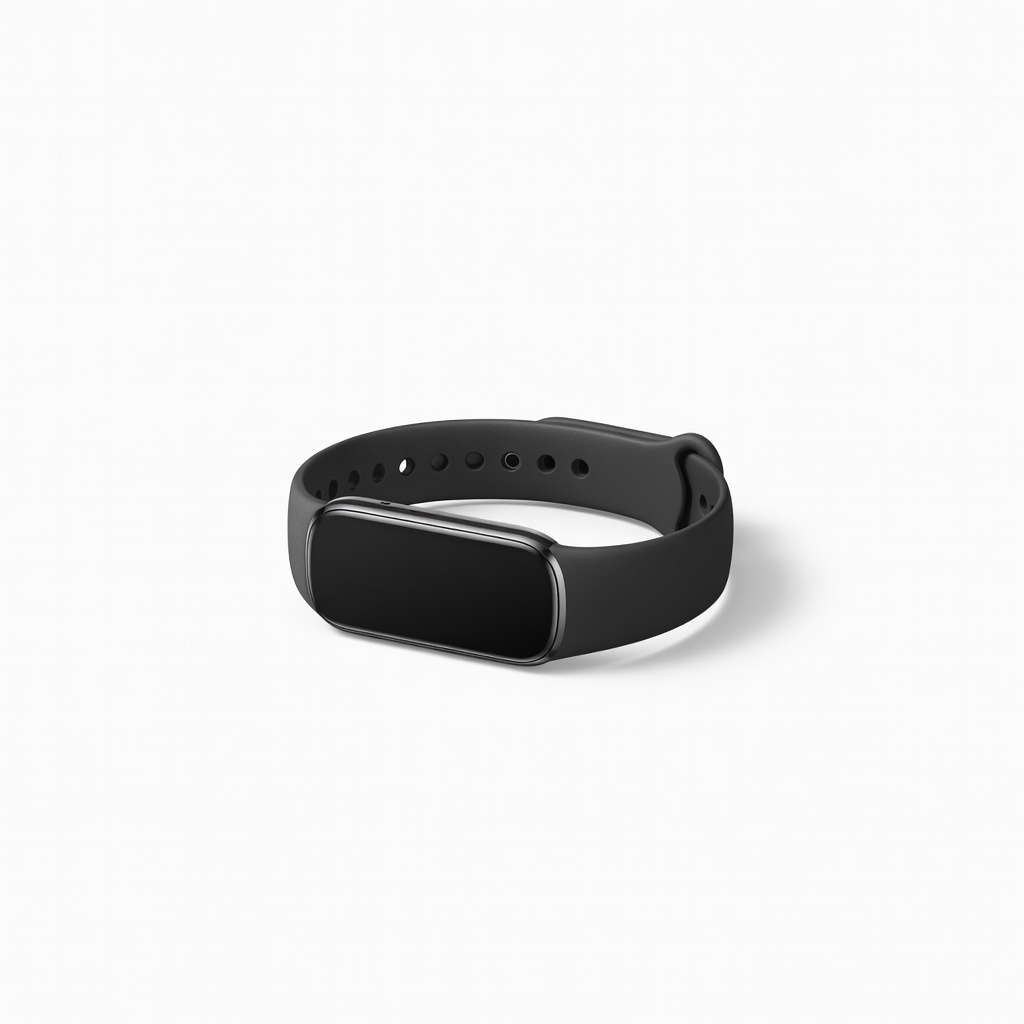
Affordable entry for tech-shy seniors on fixed income.
Amazfit Band 7 Budget option with 18-day battery, SpO2 monitoring, Alexa integration for voice commands.
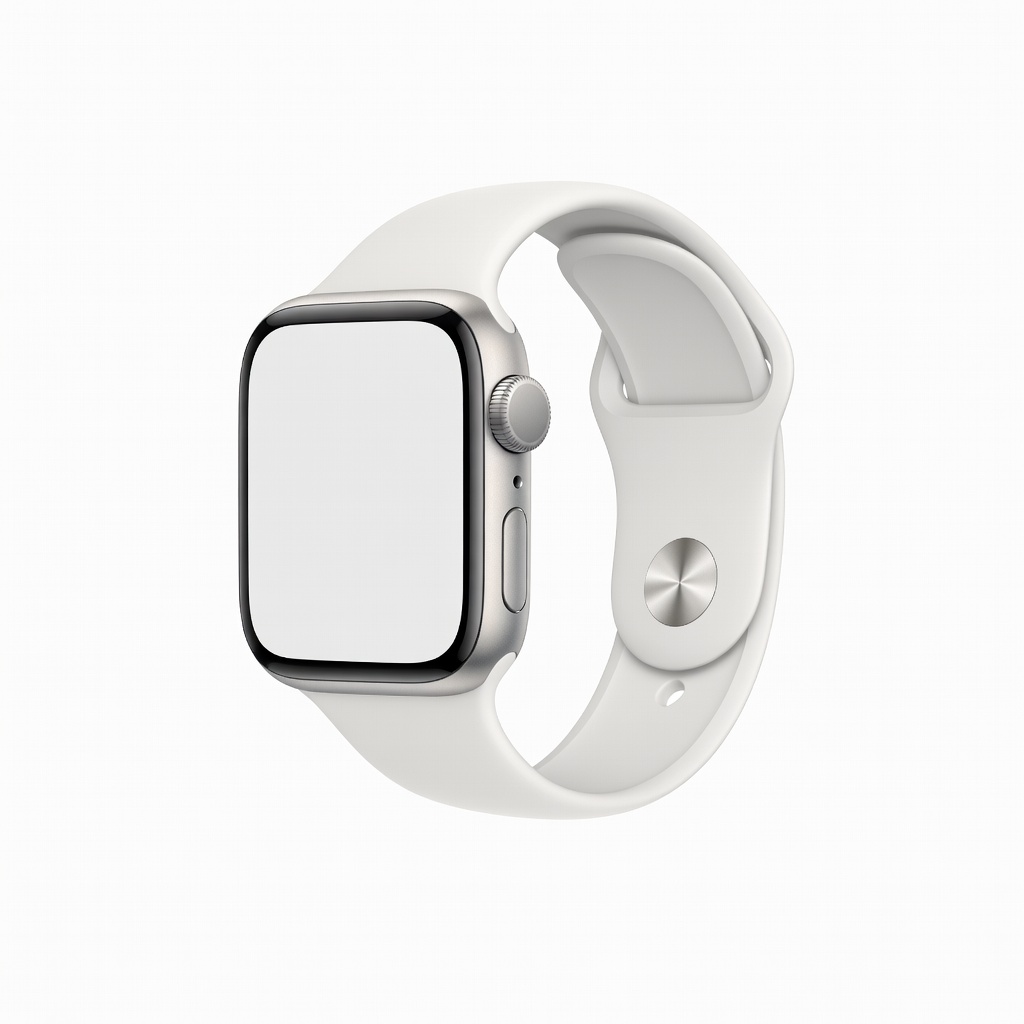
Active seniors with iPhones wanting phone integration.
Apple Watch SE (2022) Fall detection, SOS, large display—perfect for iPhone users needing emergency features.