2-in-1 laptops promise the best of both worlds: a full keyboard for typing marathons and a touchscreen tablet for sketching or Netflix binges. But out of the box, many users struggle with finicky mode switching, poor touch response, or battery drain in tablet mode—leaving you frustrated instead of flexible.
In this guide, you'll learn to fully configure your 2-in-1 for effortless dual-mode use, from hardware assembly to software tweaks. Whether it's a convertible like the HP Spectre or a detachable like the Surface Pro, these steps ensure smooth transitions. Expect 20-30 minutes of setup, perfect for intermediate users comfortable with basic Windows settings.
▸What You'll Need
- •2-in-1 laptop (convertible or detachable model)
- •Power adapter and cable (included)
- •Microsoft Surface Pen or compatible stylus (optional for pen input)
- •USB drive for driver backups (optional)
- •Stable Wi-Fi connection
- •Microsoft account (required for Windows setup)
Estimated Time: 20-30 minutes
Difficulty: intermediate
▸Step-by-Step Instructions
Step 1: Unbox and Assemble Hardware
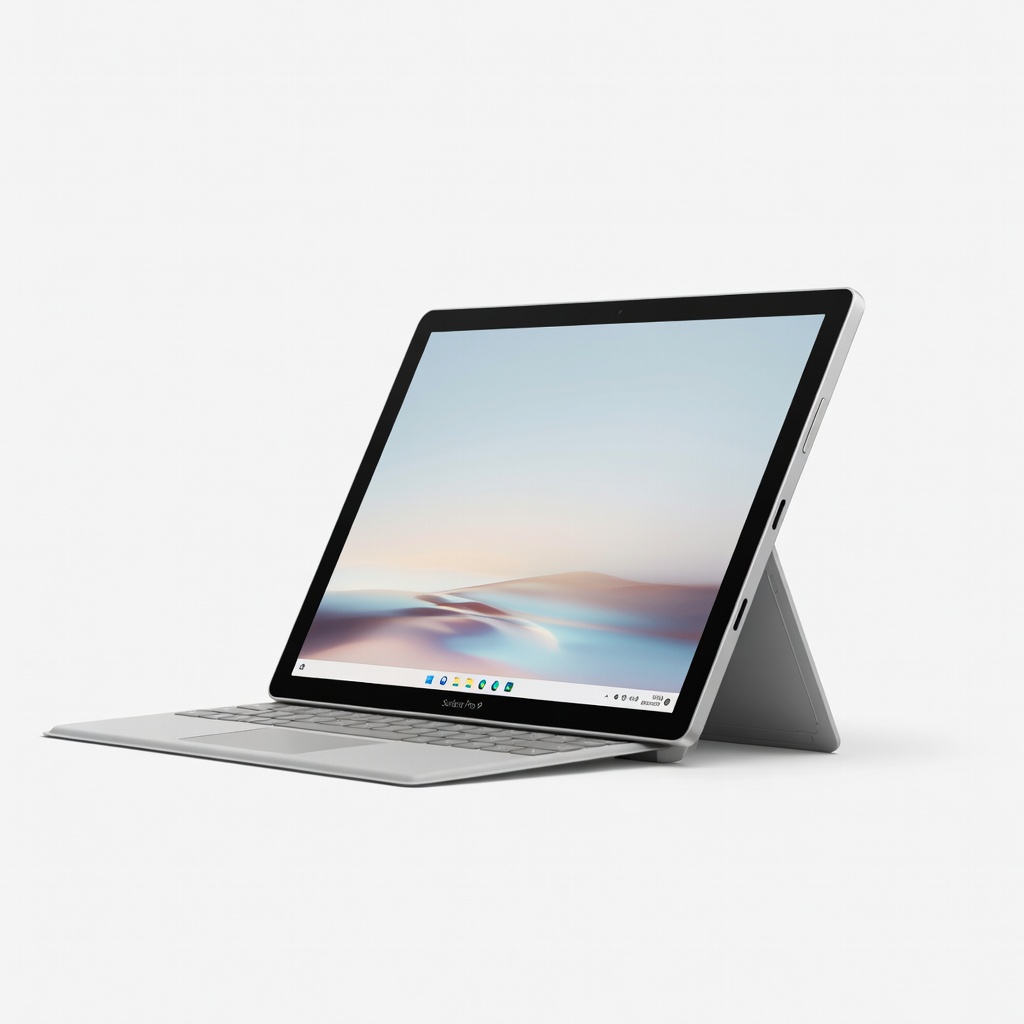
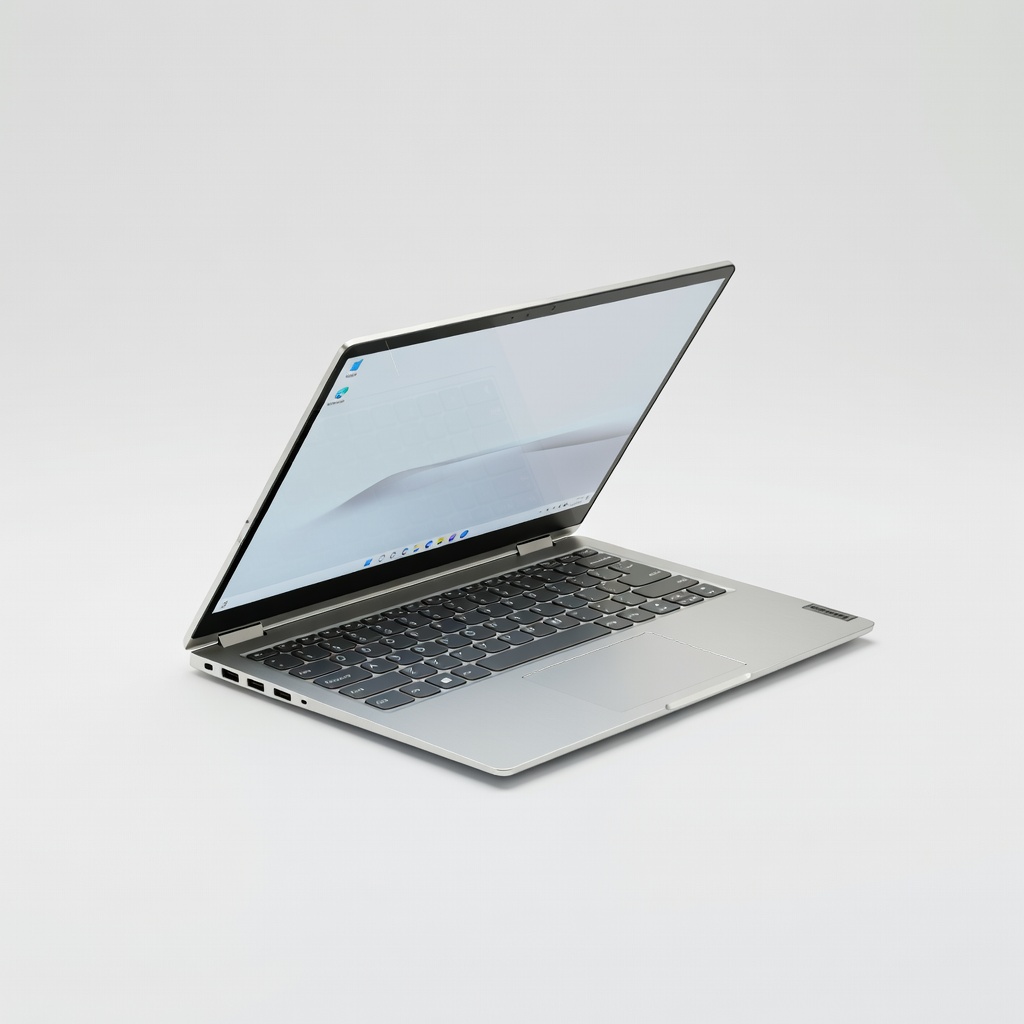
Start by carefully unboxing your 2-in-1 laptop. For detachable models like the Microsoft Surface Pro, attach the Type Cover keyboard by aligning the connectors and pressing firmly until it clicks. Convertible models like the Lenovo Yoga flip open automatically—no assembly needed.
Power on the device using the power button. This initial hardware check ensures everything is secure. Success looks like a powered-on screen with no loose parts or error lights.
💡 Tips:
- •Test the kickstand or hinge for smooth movement before proceeding.
⚠️ Warnings:
- •Avoid forcing connections—misaligned clips can damage ports.
Step 2: Complete Initial OS Setup
Follow the on-screen Windows Setup wizard: Select language, connect to Wi-Fi, sign in with your Microsoft account, and set a PIN. Choose 'Set up for personal use' for optimal touch features.
This step installs the base OS tailored for touch input. You'll see the desktop appear once done, confirming success.
💡 Tips:
- •Skip Cortana setup if you prefer privacy.
Step 3: Update Windows and Firmware
Go to Settings > Update & Security > Windows Update > Check for updates. Install all available updates, including optional ones for touch and graphics.
Restart as prompted. Why? Updates fix mode-switching bugs and improve battery life in tablet mode. Expect 5-10 minutes; success is 'You're up to date' message.
⚠️ Warnings:
- •Don't interrupt updates—power loss can corrupt files.
Step 4: Download Manufacturer Drivers
Visit the manufacturer's site (e.g., HP Support, Lenovo Vantage app). Search your model, download the latest chipset, touch, and pen drivers.
Install in order: chipset first, then touch/pen. Restart. This optimizes dual-mode sensors. Success: No yellow exclamation marks in Device Manager (search for it).
💡 Tips:
- •Use the pre-installed app like Dell SupportAssist for auto-detection.
Step 5: Enable and Calibrate Touch Input
Settings > Devices > Touchpad > Reset sliders. Then, search for 'Calibrate the screen for pen or touch input' in Start menu and run it.
Follow prompts to tap points on screen. This fine-tunes accuracy for tablet mode. Expect responsive swipes post-calibration.
⚠️ Warnings:
- •Clean screen first—smudges skew calibration.
Step 6: Configure Display and Rotation
Settings > System > Display > Advanced display settings. Enable 'Allow the computer to automatically detect the orientation.' Test by flipping to tablet mode.
Why? Ensures auto-rotation. Success: Screen rotates correctly when tilted.
💡 Tips:
- •Lock rotation temporarily via Action Center for desk use.
Step 7: Set Up Pen/Stylus Support (Optional)
Pair your stylus via Bluetooth (Settings > Devices > Bluetooth). Install OneNote or similar for testing. Customize pen button in Pen & Windows Ink settings.
This enhances tablet sketching. Success: Smooth ink trails without lag.
Step 8: Test Dual Mode Switching
Flip to tablet mode (or detach keyboard), swipe from edges for gestures, then revert to laptop. Open Task View to see optimized tablet UI.
Success: Fluid switches, tablet-optimized apps like Netflix fullscreen.
💡 Tips:
- •Pin tablet-favorites to Start menu.
⚠️ Warnings:
- •Overheating? Ensure vents are clear.
▸Pro Tips
- •Enable 'Tablet mode' auto-switch in Settings > System > Tablet for instant UI changes.
- •Use PowerShell command 'Get-TabletMode' to check mode status.
- •Customize Action Center tiles for quick mode toggles.
- •Install Microsoft PowerToys for advanced window snapping in laptop mode.
- •Backup drivers with Double Driver tool before updates.
- •Charge to 100% before first dual-mode test for accurate battery insights.
- •Map stylus buttons to OneNote for instant notes.
▸Common Mistakes to Avoid
- •Skipping driver updates: Leads to laggy touch—always check manufacturer site.
- •Ignoring rotation settings: Screen stays landscape in tablet mode—enable auto-detect.
- •Forcing hardware: Damages hinges—let mechanisms guide movement.
- •Not calibrating touch: Inaccurate input—run calibration after every major update.
- •Using without Microsoft account: Limits sync and touch features.
▸Troubleshooting
Problem: Touch not responding in tablet mode
Solution: Restart, recalibrate touch, or reinstall HID drivers from Device Manager.
Problem: Mode won't switch automatically
Solution: Check Settings > System > Multitasking > Tablet mode > 'When I sign in.'
Problem: Pen lag or no pressure sensitivity
Solution: Update pen firmware via manufacturer app; test in Paint 3D.
Problem: Battery drains fast in tablet mode
Solution: Power plan to 'Balanced'; disable keyboard backlight in tablet mode.
Microsoft Surface Pro 9 (Intel i5, 16GB RAM)
Top detachable 2-in-1 with excellent dual-mode support and magnetic keyboard attachment.
Best for: Professionals needing portable tablet for notes and laptop for work.
Price Range: $999-$1,200
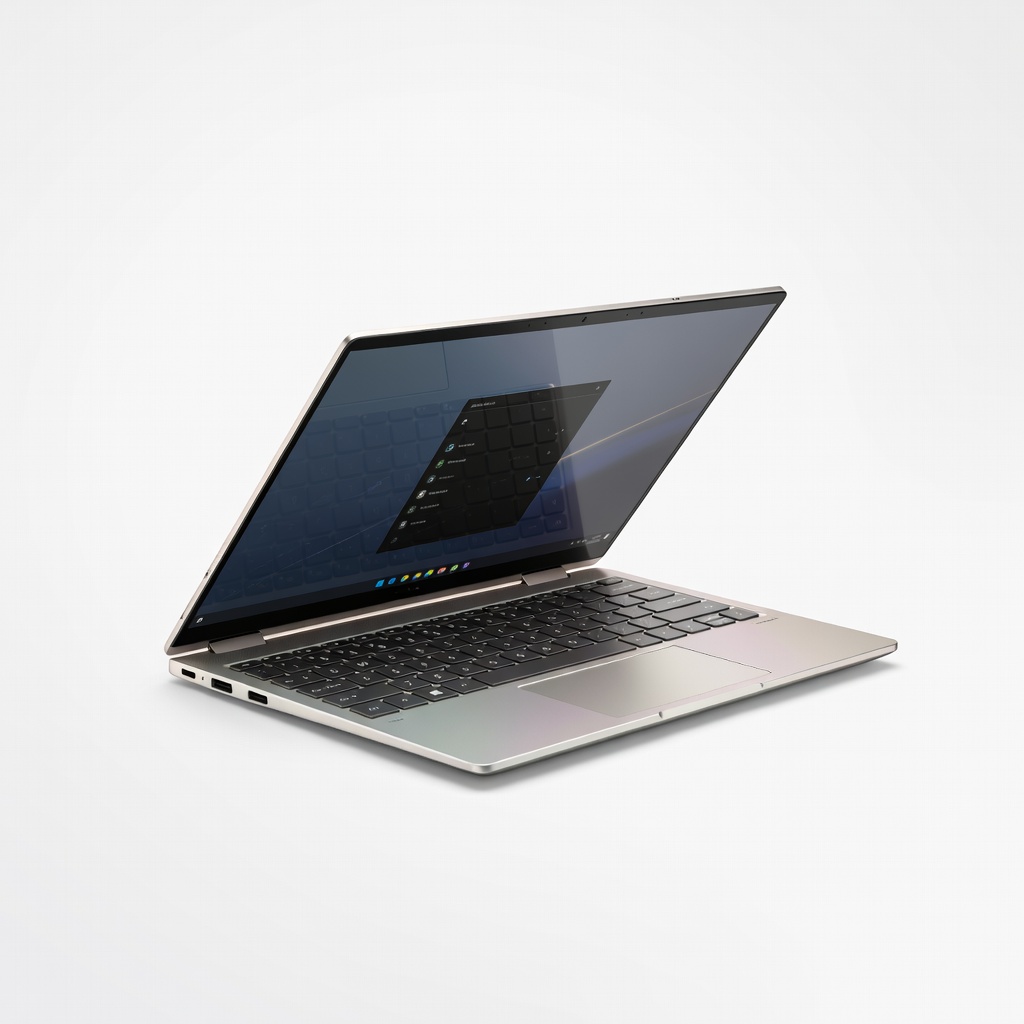
HP Spectre x360 14 (2024, Intel Core Ultra)
Premium convertible with 360-degree hinge, OLED touch screen, and stylus included.
Best for: Creative users flipping between design apps and productivity.
Price Range: $1,200-$1,500
Lenovo Yoga 7i 14 2-in-1 (Intel Core i7)
Budget-friendly convertible with strong battery life and pen support.
Best for: Students balancing classes and media consumption.
Price Range: $700-$900
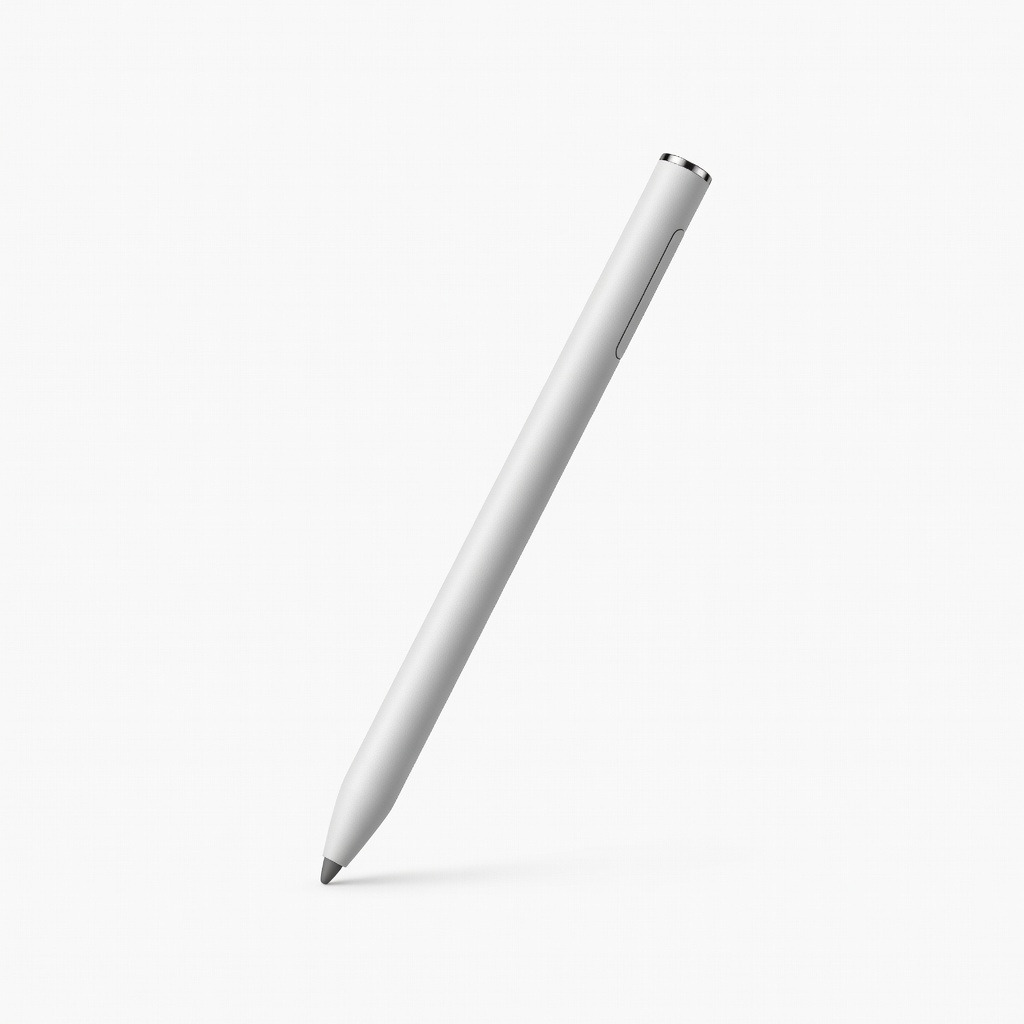
Microsoft Surface Pen
Essential accessory for precise input in tablet mode on Surface devices.
Best for: Note-taking or drawing during setup.
Price Range: $99.99