Struggling with your AirPods not connecting, one side cutting out, or random audio glitches? You're not alone—millions of users face these issues due to software hiccups or pairing problems. Resetting your AirPods to factory settings is a simple troubleshooting step that wipes out custom configurations and lets you start fresh, often solving problems without needing Apple support.
In this guide, you'll learn the exact steps to reset any model of AirPods, from the originals to the latest Pro 2. The process is quick and doesn't erase firmware updates—it's reversible by re-pairing. Expect a straightforward 5-minute task that's perfect for beginners, requiring no technical expertise.
By the end, your AirPods will be ready to pair anew, potentially breathing new life into your wireless listening experience.
▸What You'll Need
- •AirPods (any model: 1st, 2nd, 3rd gen, Pro, or Max) with the charging case
- •iPhone, iPad, or Mac with Bluetooth enabled (optional, for re-pairing after reset)
- •A stable surface to work on
Estimated Time: 5-10 minutes
Difficulty: beginner
▸Step-by-Step Instructions
Step 1: Place Both AirPods in the Charging Case
Start by ensuring both AirPods are securely inside their charging case. If one is in your ear or elsewhere, gently remove it and snap it into place. Close the lid of the case firmly for at least 30 seconds. This initial step discharges any residual power and prepares the AirPods for the reset by syncing them with the case's internal chip.
Why does this matter? The case acts as the control hub for your AirPods, and this pause helps clear temporary glitches in the Bluetooth connection. You'll know it's time to proceed when the 30 seconds are up—no lights or sounds are needed here yet.
Expect the AirPods to feel snug and the case to latch shut without resistance.
💡 Tips:
- •If your AirPods are low on battery, charge them briefly first to avoid interruptions.
⚠️ Warnings:
- •Don't force the AirPods into the case; misalignment can damage the charging contacts.
Step 2: Open the Case Lid and Check the Status Light
After 30 seconds, open the lid of the charging case while keeping it upright. Look at the front status light (or inside for older models). For most AirPods, it should be off or amber if charging. If you see a green light, your AirPods are charged—proceed anyway.
This step confirms the AirPods are powered and ready for reset. It matters because an uncharged case could interrupt the process. Expect no immediate changes; the real action starts next.
For AirPods Max, place them in their case (Smart Case) instead, but the process is similar.
💡 Tips:
- •Hold the case steady to avoid accidental closure.
⚠️ Warnings:
- •If the light doesn't appear, ensure the case has some battery—plug it in for 15 seconds if needed.
Step 3: Press and Hold the Setup Button on the Back
Locate the small setup button on the back of the charging case, near the bottom. Press and hold it for 15 seconds. You'll see (or hear if connected) the status light flash amber several times, then turn white. This indicates the reset is in progress, disconnecting your AirPods from all previously paired devices.
Why it matters: Holding the button triggers the factory reset, clearing Bluetooth pairings, volume limits, and custom settings. For AirPods Pro or 3rd gen, the light is inside the case—keep the lid open. Expect the flashing: amber (disconnecting) to white (ready to pair).
If using AirPods Max, press the noise control button and Digital Crown simultaneously for 15 seconds instead.
💡 Tips:
- •Count the seconds aloud to ensure you hold long enough—many skip this and fail.
⚠️ Warnings:
- •Don't release early; under 10 seconds won't fully reset.
Step 4: Verify the Reset with the Flashing Light
Continue holding until the light flashes white at least once after the amber sequence. Release the button once this happens. Close and reopen the lid to confirm—the AirPods are now factory reset and unpair from any device.
This confirmation step ensures success; the white flash means they're in pairing mode. It matters for avoiding partial resets that leave glitches. Expect a clean slate—no more old connections.
Your AirPods won't play audio or connect automatically now.
💡 Tips:
- •If no light shows, try charging the case fully and repeat.
⚠️ Warnings:
- •For wireless charging cases, the button might be touch-sensitive—press firmly.
Step 5: Re-Pair Your AirPods with Your Device
With the lid open, bring the case near your iPhone or iPad. A setup animation should pop up—tap 'Connect.' If not, go to Settings > Bluetooth and select your AirPods. Follow on-screen prompts to complete pairing.
Why it matters: Resetting erases old pairings, so re-setup restores functionality with fresh settings. Expect seamless audio and controls post-pairing. For Android or other devices, use Bluetooth settings manually.
Success looks like full connectivity—test by playing music.
💡 Tips:
- •Forget the device in Bluetooth settings first if re-pairing fails initially.
⚠️ Warnings:
- •Ensure your device is updated to the latest iOS for best compatibility.
Step 6: Test the Reset for Full Functionality
Play audio on your device to test both earbuds, controls, and battery status. Check for balanced sound and no dropouts. If issues persist, the reset worked—further problems might need software updates.
This final check confirms everything's resolved. It matters to verify before daily use. Expect crisp audio and responsive touch controls.
You're done—enjoy your refreshed AirPods!
💡 Tips:
- •Update AirPods firmware via iPhone after pairing for optimal performance.
⚠️ Warnings:
- •If one AirPod doesn't work, clean the contacts gently.
▸Pro Tips
- •Always start with a full charge to prevent mid-reset failures.
- •Reset monthly if you switch devices often to avoid pairing clutter.
- •Use the Find My app post-reset to re-enable location tracking.
- •For frequent resets, consider a protective case to prevent physical damage.
- •Pair in a quiet Bluetooth environment to avoid interference.
- •Label your case if you have multiple Apple devices for quick identification.
- •After reset, customize settings like noise cancellation right away for personalization.
▸Common Mistakes to Avoid
- •Not holding the button long enough (under 15 seconds), leading to incomplete resets—always time it.
- •Forgetting to place both AirPods in the case, causing one to stay paired—double-check before starting.
- •Skipping the 30-second lid close, which doesn't clear temporary caches—patience pays off.
- •Attempting reset without charging, resulting in no light response—charge first.
- •Re-pairing to an old device without forgetting it in settings, perpetuating glitches—clear Bluetooth history.
▸Troubleshooting
Problem: No flashing light during reset
Solution: Charge the case for 15-30 minutes and try again. If it persists, the case battery might be faulty—contact Apple Support.
Problem: AirPods won't re-pair after reset
Solution: Restart your iPhone, forget the AirPods in Bluetooth settings, and bring the open case close to the device. Ensure iOS is updated.
Problem: One AirPod doesn't work post-reset
Solution: Clean the earbud and case contacts with a soft, dry cloth. Repeat the reset focusing on seating both properly. If needed, visit an Apple Store.
Problem: Reset doesn't fix audio issues
Solution: Update your device's software and AirPods firmware (via proximity to iPhone). For hardware faults, seek professional diagnosis.
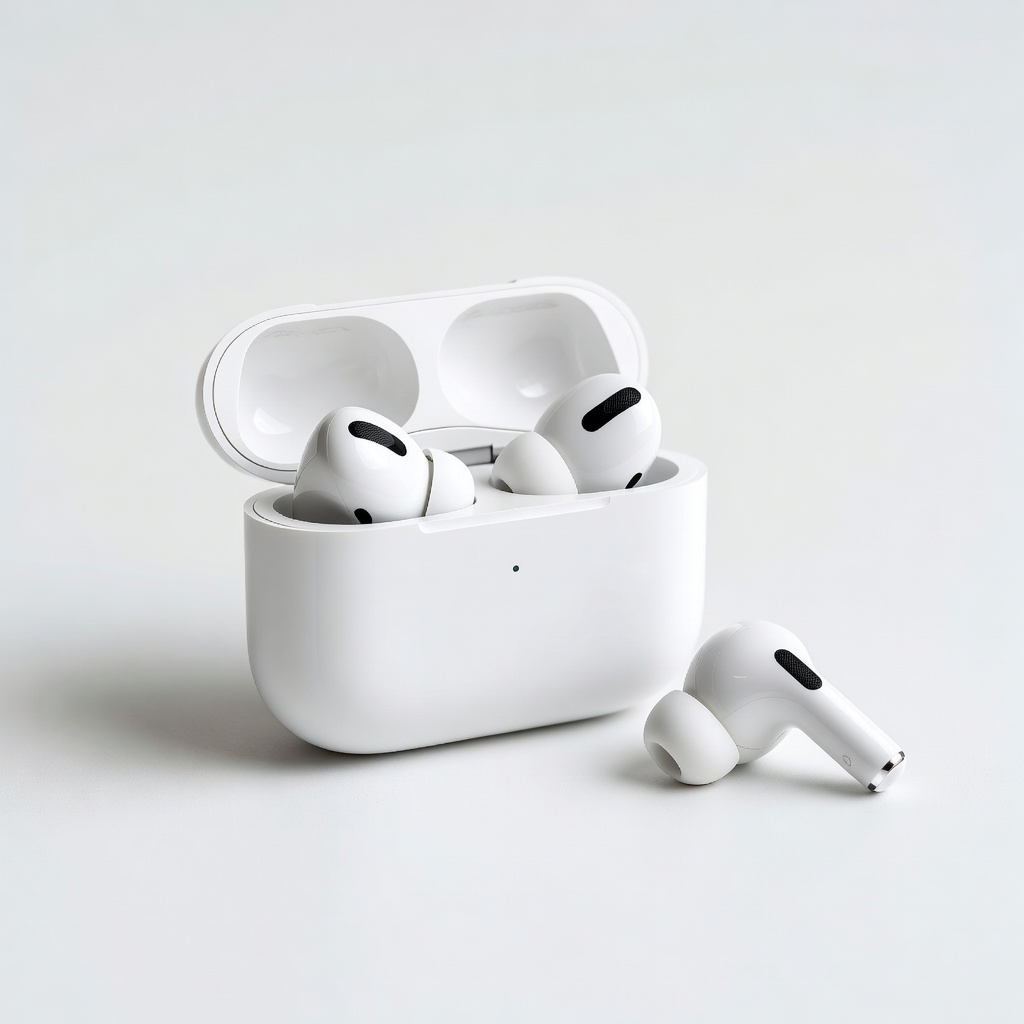
Apple AirPods Pro (2nd Generation)
If resetting doesn't fully resolve issues, upgrading to these provides better noise cancellation and easier troubleshooting via advanced chipsets.
Best for: For users experiencing frequent glitches on older models—ideal for immersive listening during workouts or calls.
Price Range: $199-$249
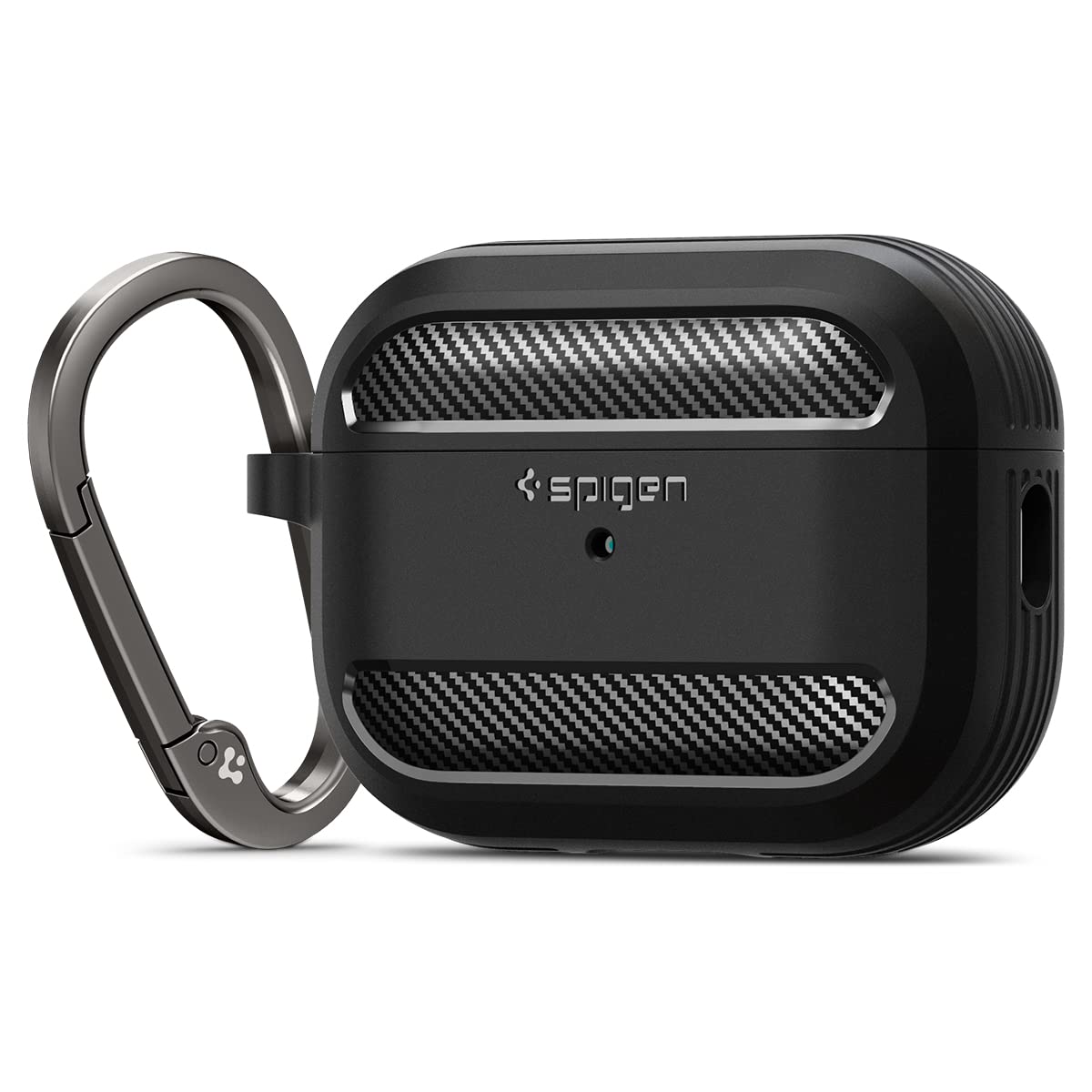
Spigen Rugged Armor AirPods Pro Case
Protects the charging case from drops that can cause reset-needing damage, with precise button access for easy resets.
Best for: Daily commuters or active users needing durable, slim protection without bulk.
Price Range: $15-$25
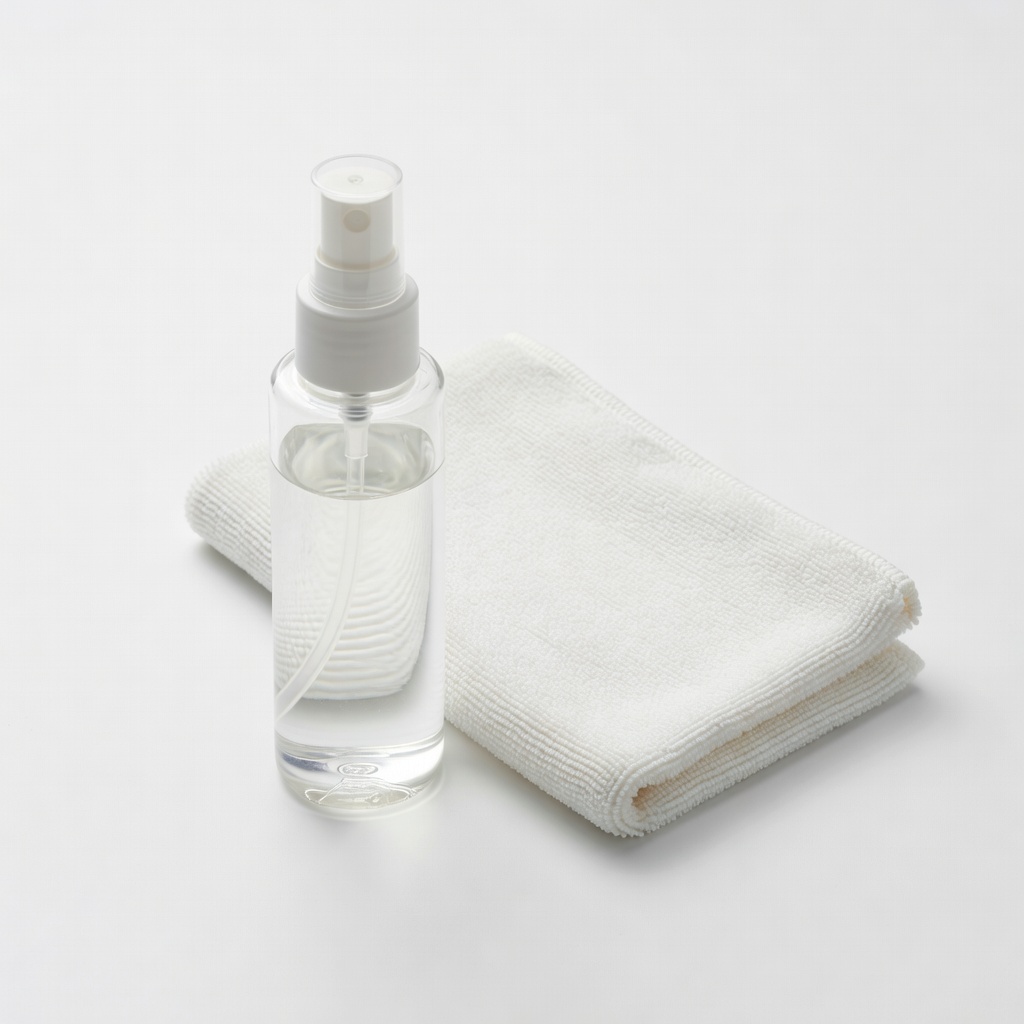
WHOOSH Screen Cleaner Kit
Keeps AirPods and case contacts clean to prevent connectivity issues that lead to resets—safe for Apple products.
Best for: Routine maintenance after workouts or in dusty environments to avoid buildup.
Price Range: $10-$20
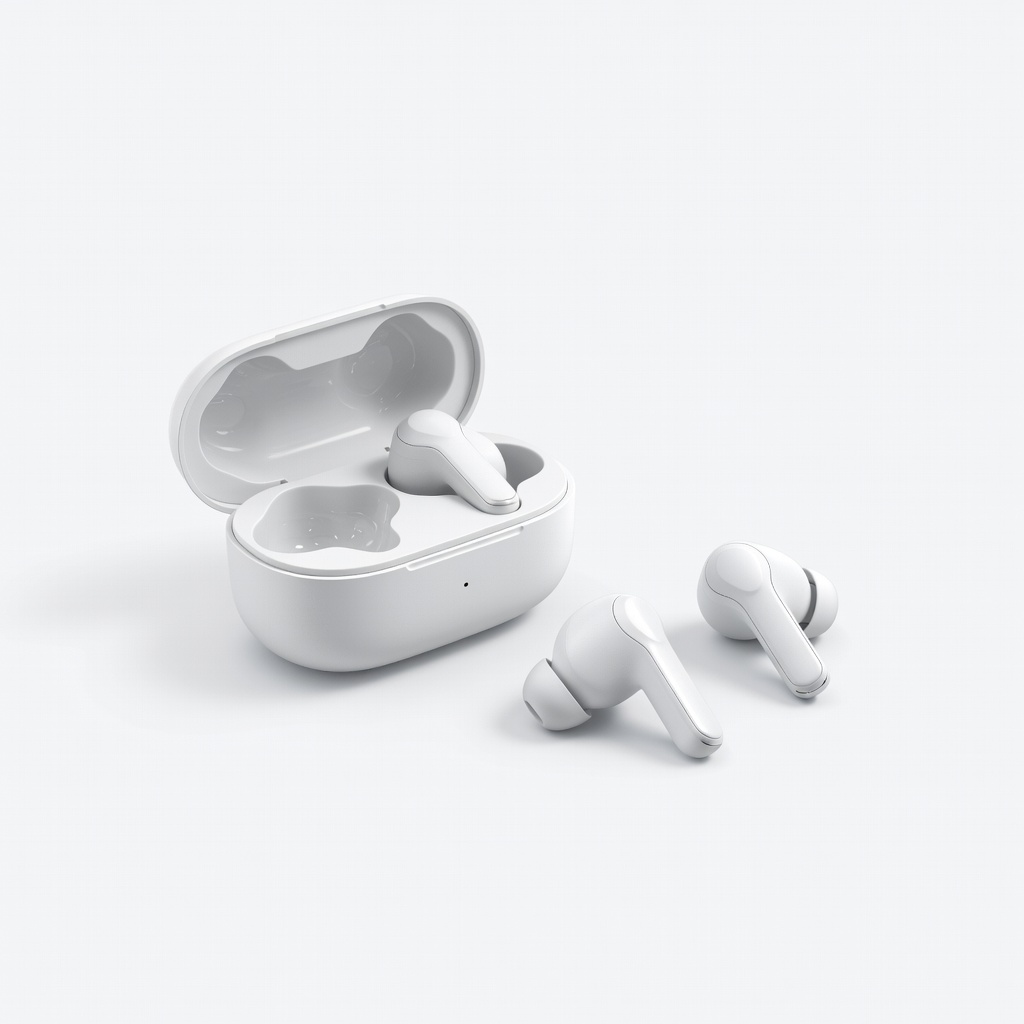
Anker Soundcore Life P2 Mini True Wireless Earbuds
A budget alternative if AirPods issues persist; offers similar reset ease with longer battery life.
Best for: Cost-conscious beginners wanting reliable earbuds for calls and music without Apple ecosystem lock-in.
Price Range: $30-$50