Your smart bulb was working perfectly yesterday, but today it won't respond to the app, your voice commands, or even the light switch. Before you throw it away, know that most smart bulb issues can be solved with a simple reset. In this guide, we'll walk you through the most effective ways to reset any smart bulb, regardless of brand, and get your home back in smart order.
You'll learn the basic power-cycle method, how to use the manufacturer's app to reset, and what to do when the bulb still won't reset. We'll also cover common mistakes and answer frequently asked questions about smart bulb resetting. By the end, you'll be able to diagnose and fix most issues in less than 15 minutes.
▸What You'll Need
- •Your smart bulb (installed or removed)
- •Ladder or step stool (if bulb is in a ceiling fixture)
- •The manufacturer's mobile app (e.g., Philips Hue, Wyze, LIFX)
- •2.4 GHz Wi-Fi network name and password
- •A paperclip or similar small tool (for bulbs with physical reset buttons)
- •Optional: smart plug for easy power cycling
Estimated Time: 10-15 minutes
Difficulty: beginner
▸Step-by-Step Instructions
Step 1: Turn Off the Power to the Bulb and Wait
The first thing to try is a simple power cycle. Turn off the wall switch that controls the bulb (or unscrew the bulb if it's in a lamp). Wait at least 10 seconds. This gives the bulb's internal capacitors time to fully discharge and resets the bulb's basic electronics. Turn it back on and test if the bulb responds. If not, move on to the next step.
Why this works: Many momentary glitches are caused by power surges or software hiccups. A full power cycle clears the bulb's memory and often restores connectivity.
💡 Tips:
- •Wait the full 10 seconds—don't just cut power and immediately restore it.
- •If your bulb has a physical switch, use that instead of the app.
⚠️ Warnings:
- •For ceiling fixtures, use a sturdy ladder to reach the bulb safely.
- •Ensure your hands are dry when touching the bulb or switch.
Step 2: Identify Your Bulb’s Reset Method
Most smart bulbs have a specific reset procedure that's unique to the brand or model. The two most common methods are the on/off cycle (turning the switch off and on repeatedly) and a physical reset button on the bulb's body. Check the user manual or the manufacturer's website for your model.
If you don't have the manual, search online for "[brand] [model] reset instructions." Knowing the correct method will save you time and prevent unintended issues.
💡 Tips:
- •Look for a small sticker on the bulb that may indicate reset instructions.
- •Some apps have a 'Help' or 'Troubleshooting' section with reset guides.
⚠️ Warnings:
- •Don't guess—using the wrong pattern might not reset the bulb and could confuse it further.
Step 3: Use the Power-Cycle Reset (On/Off Pattern)
For many brands, quickly toggling the switch on and off a certain number of times will trigger a reset. The most common pattern is 5 on/off cycles, ending with the switch on. Specific examples:
- •Philips Hue: Turn off the light, wait 10 seconds, then turn it on and off quickly 5 times (within 2 seconds), leaving it on. The bulb will blink, indicating a reset.
- •Wyze Bulb: Turn the switch off and on 5 times (about 1 second each), then leave it on. The bulb will flash.
- •LIFX: Turn off and on 5 times, and the bulb will cycle through colors, showing it’s reset.
- •TP-Link Kasa: Toggle on/off 3 times, leaving it on for the fourth.
After the reset, the bulb will usually be in pairing mode. If it doesn't reset the first time, try again but slightly faster or slower depending on the brand's recommended timing.
💡 Tips:
- •For bulbs without a physical switch (like plug-in bulbs), use the switch on the lamp or a smart plug to simulate the toggling.
- •Watch for the blink pattern—each brand has a distinct confirmation sequence.
⚠️ Warnings:
- •Some bulbs require the pattern to be exactly as specified; practice to get it right.
- •Avoid toggling too rapidly, as some bulbs may not register the cycle.
Step 4: Use the Physical Reset Button (If Available)
Some smart bulbs—like the LIFX Color A19 and certain TP-Link models—have a tiny reset button often hidden in a small hole on the bulb's body. Use a paperclip or a pin to press and hold the button for about 5-10 seconds. You should see the bulb blink or flash, indicating it has been reset to factory settings.
If your bulb has this button, this method is often the most reliable and is a direct alternative to the power-cycle method.
💡 Tips:
- •Insert the paperclip gently to avoid damaging the button.
- •Keep holding until you see a distinct visual indicator (blink, color change).
⚠️ Warnings:
- •Don't use a metal object that might cause a short circuit; an unfolded paperclip is fine.
- •Make sure the bulb is powered on when pressing the reset button.
Step 5: Reset via the Manufacturer’s App
After performing a power-cycle reset (or sometimes without it), you may also need to remove the bulb from your account to clear its association. Open the app for your bulb (e.g., Hue, Wyze, LIFX) and navigate to the device settings. Look for options like 'Remove Device', 'Reset', or 'Delete'. Follow the on-screen prompts.
This step is crucial because the bulb may still remember your Wi-Fi or hub and may not re-pair unless removed. In many apps, the removal process will also reset the bulb to factory default.
💡 Tips:
- •Screenshot your device settings before removing in case you need to re-enter them.
- •For bulbs that use a hub (like Hue), you may need to reset the bulb through the hub's app.
⚠️ Warnings:
- •This action cannot be undone temporarily—you'll have to re-pair the bulb afterwards.
- •If the app shows the bulb as 'offline', you may need to do a physical reset first.
Step 6: Re-add the Bulb to Your Network
Now that your bulb is reset, it should be in pairing mode (usually indicated by blinking). In the app, go to 'Add Device' or '+' and select the type of bulb. Follow the app's instructions to enter your Wi-Fi password (make sure it's the 2.4 GHz network, as most smart bulbs don't support 5 GHz).
Hold your phone close to the bulb during pairing (within 10 feet) for a smoother connection. Wait for the app to confirm the bulb has been added. This usually takes 30-60 seconds.
💡 Tips:
- •If pairing fails, reboot your phone's Wi-Fi and try again.
- •For hub-based bulbs (Hue), you may need to tap the button on the hub to allow pairing.
⚠️ Warnings:
- •Double-check that you are selecting the correct network band; using 5 GHz instead of 2.4 GHz is a common pairing failure.
- •Don't try to pair too many bulbs at once—do them one at a time.
Step 7: Test the Bulb and Troubleshoot If Necessary
Once the bulb is re-added, give it a name and test it with both the app and your voice assistant (if applicable). Turn it on/off, adjust brightness, and change colors to ensure everything works. If the bulb is still not responding, try the reset steps again or check for firmware updates in the app.
If the bulb fails to respond after multiple resets, it might be broken. In that case, reach out to the manufacturer's customer support—there may be a warranty replacement available.
💡 Tips:
- •Create a routine or automation to verify the bulb is fully integrated.
- •If you have multiple bulbs, resetting them one at a time avoids confusion.
⚠️ Warnings:
- •Don't immediately buy a new bulb if yours is under warranty—contact support first.
- •If the bulb overheats or shows smoke, stop using it immediately and contact a professional.
▸Pro Tips
- •Always try the power cycle first—it's the simplest fix and works about 50% of the time.
- •Keep your bulb's model number and firmware version handy for quick troubleshooting.
- •Use a smart plug to control power to a bulb that's hard to reach, letting you reset it without a ladder.
- •Set your smart bulb to pairing mode before you start the app reset process to avoid delays.
- •If your bulb supports Bluetooth and Wi-Fi, try re-pairing via Bluetooth first to test if the hardware is okay.
- •Delete the bulb from your app before doing a physical reset to avoid leftover 'ghost' devices.
- •For bulbs that need a hub, ensure the hub is online and updated before resetting.
- •If you're resetting multiple bulbs, label them with masking tape to keep track of which one is which.
▸Common Mistakes to Avoid
- •Not waiting long enough between power cycles—the bulb needs time to fully discharge.
- •Using the wrong on/off count—each brand has a specific pattern; check your manual.
- •Forgetting to remove the bulb from the app before resetting, causing the bulb to re-pair to old settings.
- •Trying to pair over 5 GHz Wi-Fi instead of 2.4 GHz—most smart bulbs only support 2.4 GHz.
- •Giving up too early—some reset patterns need to be repeated 2-3 times before they take effect.
▸Troubleshooting
Problem: The bulb doesn't blink or show any sign of resetting when using the on/off pattern.
Solution: Make sure you're using the correct pattern for your specific brand. If the pattern is correct, try slowing down your toggling speed. If it still doesn't work, use the physical reset button if available.
Problem: The bulb was reset but won't pair with the app.
Solution: Restart your phone's Wi-Fi, ensure you're on the 2.4 GHz network, and move closer to the bulb. For hub-based bulbs, put the hub into pairing mode first.
Problem: The app still shows the bulb even after resetting it.
Solution: Delete the bulb from the app before doing the physical reset. If it's already deleted but still appears, log out and back in or clear the app's cache.
Problem: The bulb resets every day on its own.
Solution: This could indicate a serious hardware issue, such as a weak Wi-Fi connection or a failing capacitor. Check your router settings and ensure the bulb is on a stable network. If the problem persists, contact support.
Problem: The bulb turns on but the app shows it as 'offline'.
Solution: Power cycle the bulb and check if your router is broadcasting on 2.4 GHz separately from 5 GHz. You may need to enable 'legacy mode' on your router.
Problem: After resetting, the bulb is stuck in pairing mode and blinks continuously.
Solution: Let it blink—this is normal. If it doesn't stop after 10 minutes, give the bulb another power cycle and try the app pairing process again.
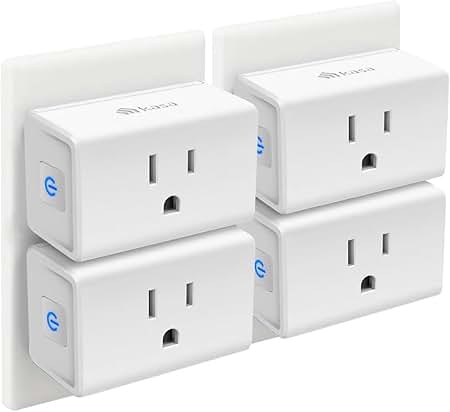
TP-Link Kasa Smart Plug Mini
A smart plug lets you power-cycle your bulb remotely, which is extremely useful for resetting hard-to-reach bulbs. You can even create routines to turn the plug off and on for you.
Best for: Use it to easily reset a ceiling bulb without a ladder, or to control a lamp with a smart bulb that lacks a physical switch.
Price Range: $15-$25
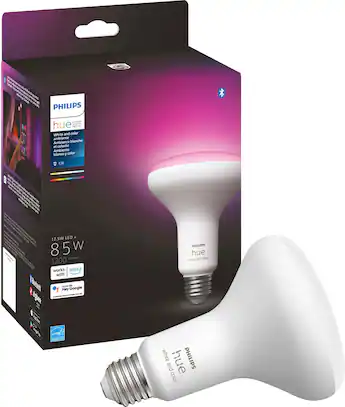
Philips Hue White and Color Ambiance Smart Bulb
Philips Hue bulbs are known for their reliable and easy reset process. If your current bulb is beyond saving, this is a great upgrade that integrates seamlessly with major smart home platforms.
Best for: Replace a troublesome smart bulb with one that offers smooth resetting and a robust ecosystem.
Price Range: $40-$60 per bulb
Wyze Bulb Color
A budget-friendly smart bulb that's very easy to reset with a simple on/off pattern. It also works with both Alexa and Google Assistant, making it a versatile choice.
Best for: A cost-effective replacement if your current bulb is defective, or as a secondary bulb for less critical areas.
Price Range: $25-$35 for a 4-pack
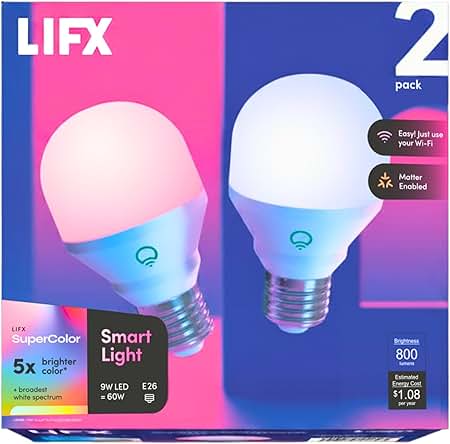
LIFX Color A19 Smart Bulb
LIFX bulbs have a physical reset button, giving you a direct and reliable reset method that doesn't rely on power patterns. They also offer app-free control via the cloud.
Best for: Best for users who want a reliable reset method via a physical button and don't want to rely on power cycling.
Price Range: $40-$60 per bulb
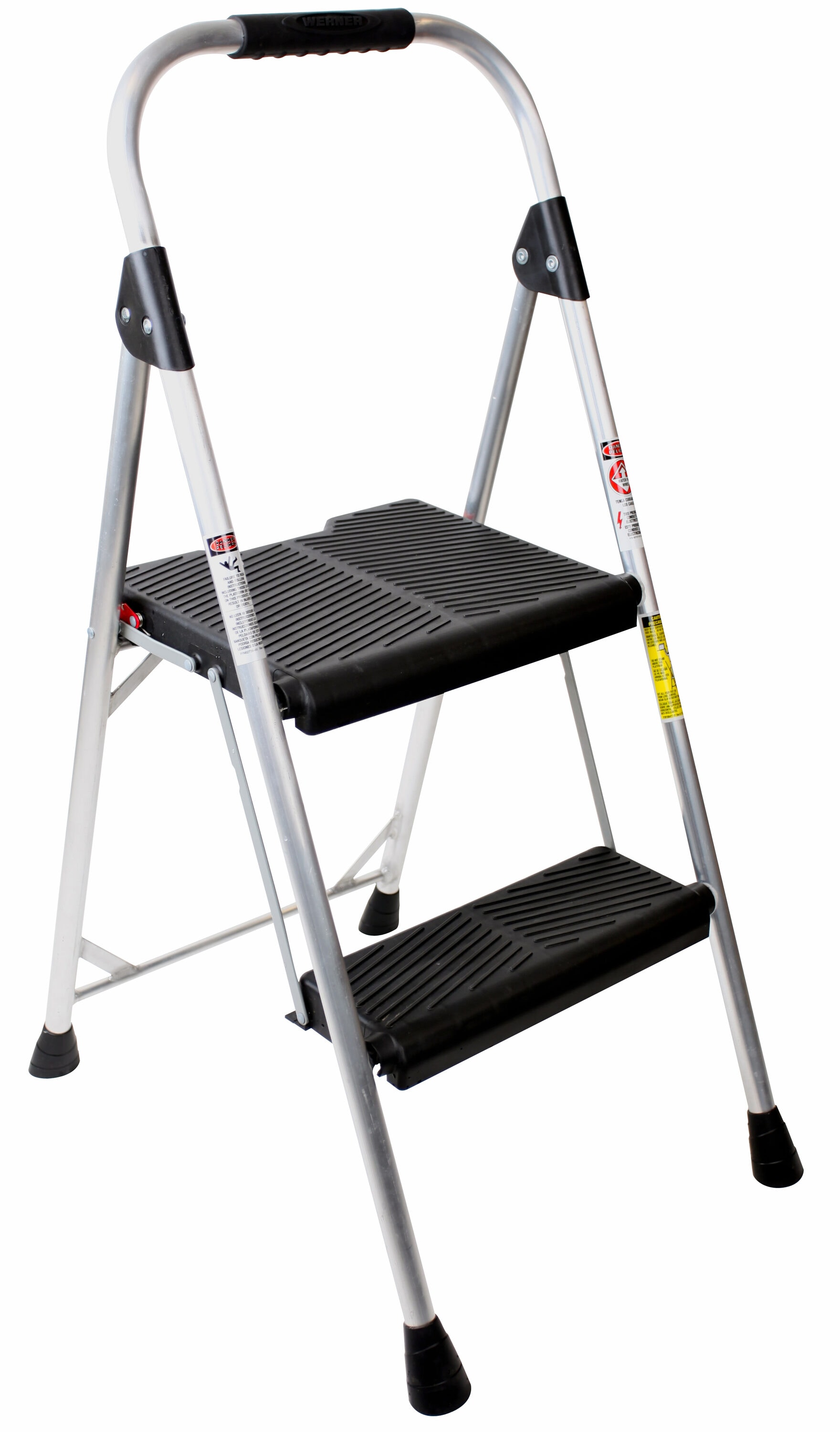
Werner Aluminum Step Stool
A sturdy, lightweight ladder is essential for safely reaching ceiling fixtures when resetting or installing smart bulbs.
Best for: Use it to access bulbs in high ceilings or recessed lighting during the reset process.
Price Range: $30-$60