
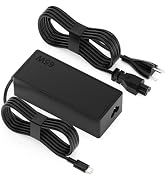
YPREALM Universal Laptop Charger 65W
First-line power test before disassembly.
$19.99
YPREALM Universal Laptop Charger 65W Compatible with 95% of laptops via 9 DC tips and adjustable voltage; quick plug-and-play for booting.
Get the App
Better experience on mobile
Step-by-step guide to safely access files from a laptop that won't power on due to a failed charger—without losing data.
Your laptop suddenly won't turn on, and you realize the AC adapter is dead. Panic sets in as precious photos, documents, and work files seem trapped inside. Don't worry—this is a common issue, and you can recover your data without expensive repairs or data recovery services.
In this intermediate guide, you'll learn two reliable methods: first, using a replacement charger to boot the laptop and back up files; second, removing the storage drive for direct access on another computer. We'll prioritize safety to avoid damaging components. The process takes 20-60 minutes, depending on your laptop model and whether disassembly is needed. No advanced soldering or BIOS tweaks required.
Expect clear steps with visuals in mind, real-world tips, and when to stop and call a pro. By the end, your data will be safely copied to an external drive.
Estimated Time: 20-60 minutes Difficulty: intermediate
Unplug the AC adapter from the wall and laptop. Inspect the adapter cable for fraying, burns, or bent pins. Plug it into another device if possible (like a phone charger port) or use a multimeter to check voltage output (should match laptop specs, e.g., 19V).
Why? Confirms it's not a battery, screen, or motherboard issue. Success: Adapter shows no light/power or low voltage reading.
Image description: Close-up of a damaged AC adapter cable with burn marks next to a multimeter displaying voltage.
💡 Tips:
⚠️ Warnings:
Search for your laptop model + 'AC adapter' (e.g., 'HP Pavilion 15 AC adapter'). Borrow one if possible, or buy a universal model with adjustable voltage/amps matching your original (check barrel size, e.g., 5.5x2.5mm).
Why? Quickest way to power on without disassembly. Success: Laptop shows power light or fan spin.
Test immediately: Plug in, hold power button 30 seconds.
💡 Tips:
With new adapter, plug in and power on. If it boots to login/desktop, immediately connect an external drive and copy files from Users folder or Documents.
Use File Explorer (Windows) or Finder (Mac) for drag-and-drop. Prioritize critical files. Why? Non-invasive method. Success: Desktop accessible, files copying (watch progress bar).
If battery is removable, remove it first for direct DC-in power.
💡 Tips:
⚠️ Warnings:
If no boot (e.g., no lights), fully discharge: Hold power button 60 seconds. Disconnect all cables. Wear anti-static strap, ground yourself by touching metal.
Why? Removes residual power, prevents ESD damage to drive. Success: Laptop fully inert.
💡 Tips:
⚠️ Warnings:
Flip laptop over, remove all bottom screws (track with magnetized tray). Use spudger to gently pry panel clips—start at edges.
Consult model-specific guide (iFixit.com). Why? Accesses internals safely. Success: Panel off, revealing battery/drive.
💡 Tips:
⚠️ Warnings:
Locate battery (usually rectangular), disconnect orange cable from motherboard. Unscrew/remove battery.
Why? Eliminates power risks. Success: Battery out.
Find HDD/SSD (2.5-inch bay or M.2 slot). Unscrew bracket, slide out drive. For SSD, release clip.
Why? Isolates data storage. Success: Drive in hand (HDD metal caddy, SSD small chip).
💡 Tips:
⚠️ Warnings:
Plug SATA end of drive into USB adapter/enclosure, connect to working PC. Drive appears as external disk.
Copy files. Why? Bypasses laptop power issue. Success: Files visible, accessible (may need admin rights).
💡 Tips:
Reverse steps: reinstall drive/battery/panel/screws. Test with new adapter.
Why? Restores functionality. Success: Panel secure, no loose parts.
Problem: Drive not detected on second PC
Solution: Try different USB port/cable; check Disk Management for unallocated drive (assign letter); test on another PC.
Problem: Laptop powers on but no display
Solution: External monitor via HDMI; reseat RAM—issue may not be adapter.
Problem: Screws won't budge
Solution: Apply heat (hairdryer) to loosen Loctite; use correct bit size.
Problem: Files inaccessible (permissions error)
Solution: Boot second PC to Linux live USB for read access; or take ownership in Properties.
Problem: Still no power with new adapter
Solution: Motherboard failure likely—stop, seek pro data recovery.
Compatible with 95% of laptops via 9 DC tips and adjustable voltage; quick plug-and-play for booting.
Best for: First-line power test before disassembly.
Price Range: $19.99
Supports 2.5/3.5-inch HDD/SSD up to 18TB; fast 5Gbps transfer for quick backups.
Best for: Connecting extracted drive to any PC.
Price Range: $25.99
95 precision bits including Pentalobe for Apple/Dell; magnetic tray prevents lost screws.
Best for: Disassembly without stripping bits.
Price Range: $34.95
Tool-free, supports SSD/HDD; UASP for 5Gbps speeds; durable aluminum.
Best for: Permanent external housing if not reassembling.
Price Range: $12.99
Grounds you affordably; alligator clip for any outlet.
Best for: ESD protection during internals handling.
Price Range: $5.99
First-line power test before disassembly.
YPREALM Universal Laptop Charger 65W Compatible with 95% of laptops via 9 DC tips and adjustable voltage; quick plug-and-play for booting.
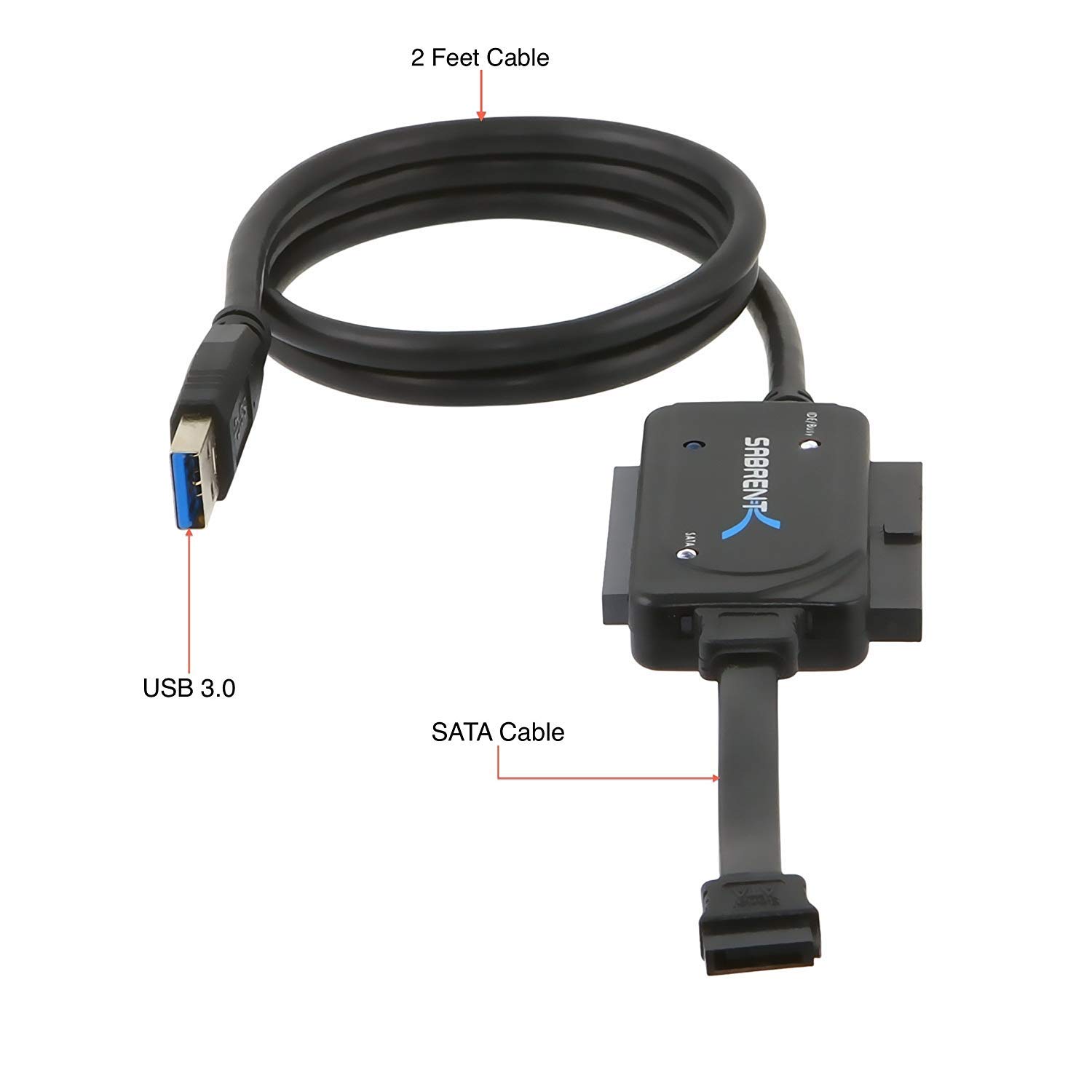
Connecting extracted drive to any PC.
SABRENT USB 3.0 to SATA/IDE Adapter Supports 2.5/3.5-inch HDD/SSD up to 18TB; fast 5Gbps transfer for quick backups.
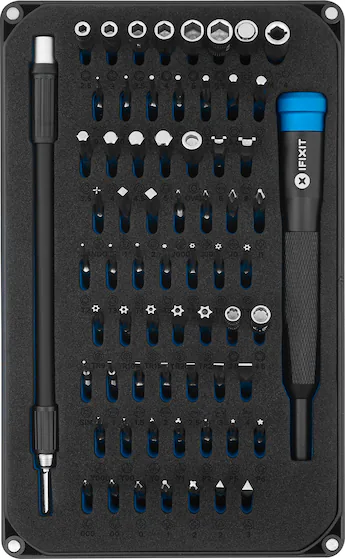
Disassembly without stripping bits.
iFixit Mako Driver Kit 95 precision bits including Pentalobe for Apple/Dell; magnetic tray prevents lost screws.
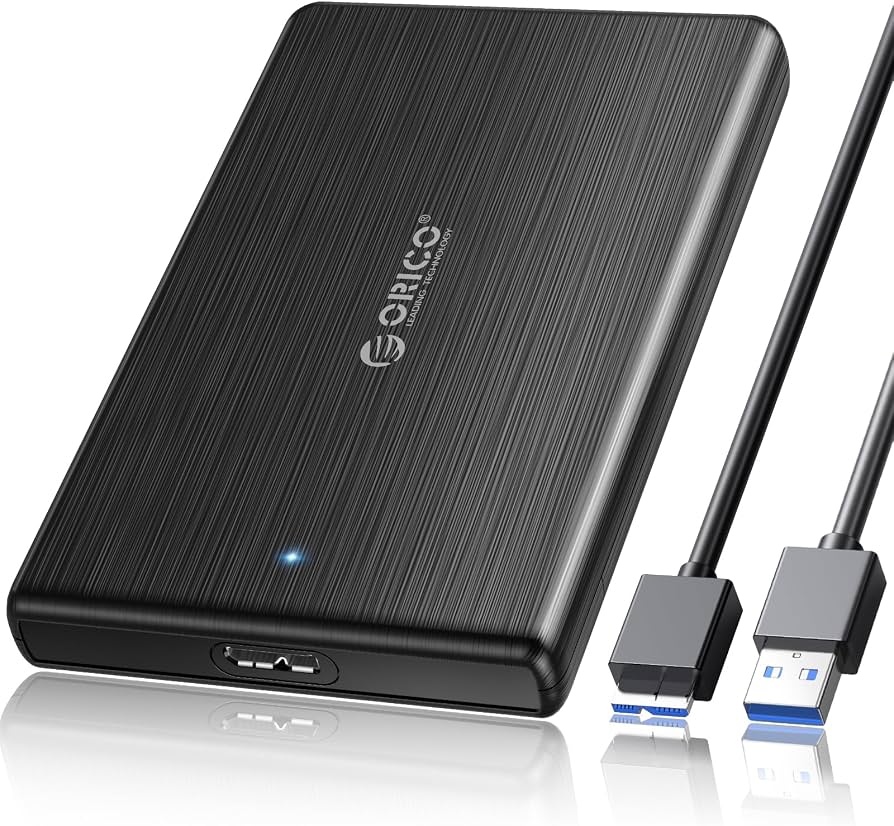
Permanent external housing if not reassembling.
ORICO 2.5 Inch HDD Enclosure USB 3.0 Tool-free, supports SSD/HDD; UASP for 5Gbps speeds; durable aluminum.
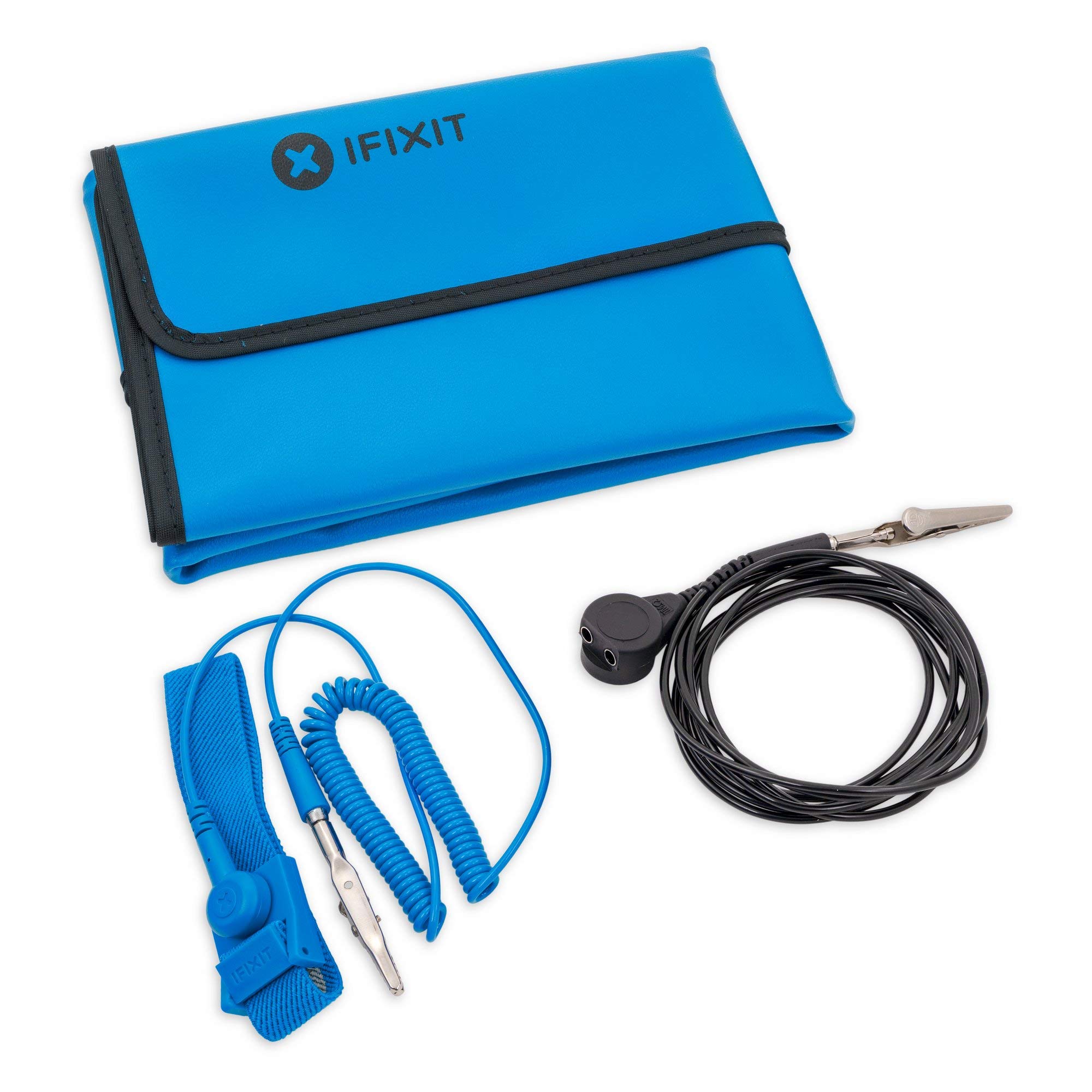
ESD protection during internals handling.
iFixit Anti-Static Wrist Strap Grounds you affordably; alligator clip for any outlet.