
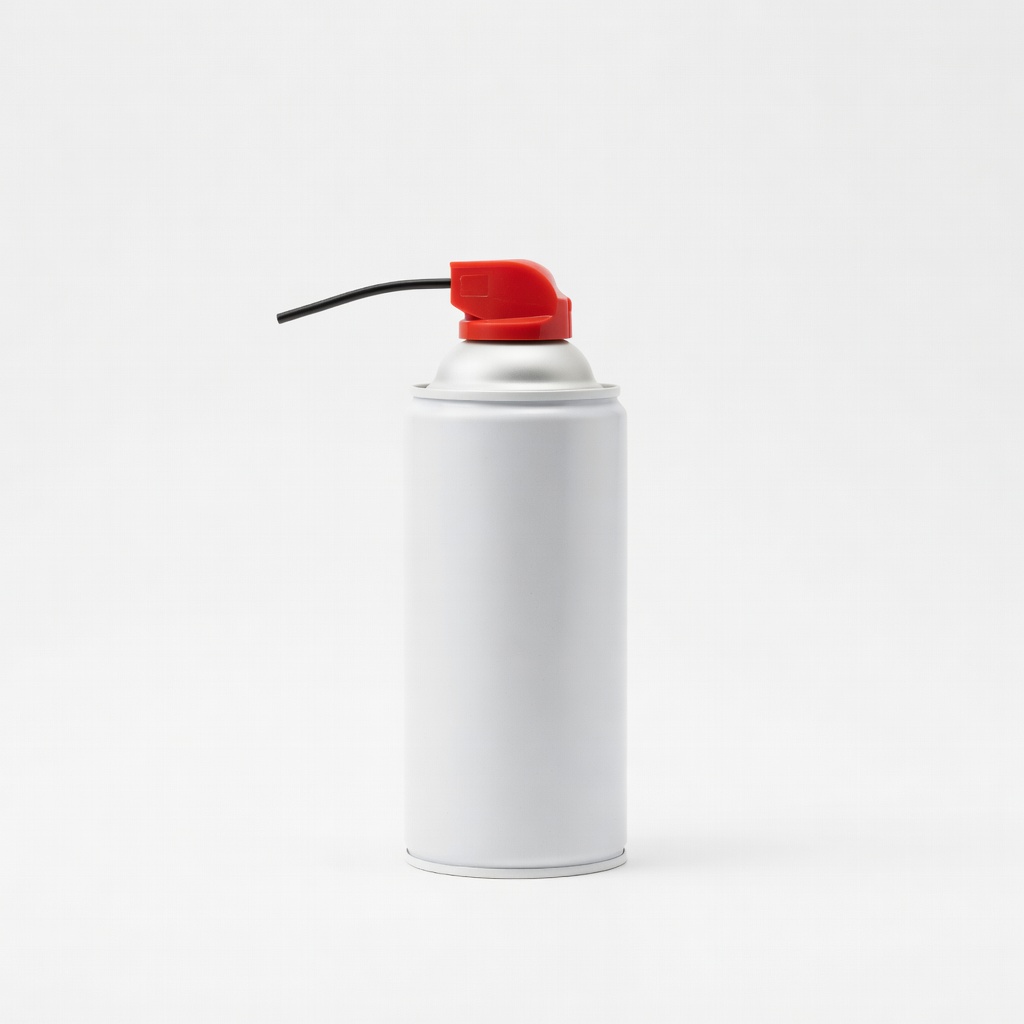
Dust-Off Compressed Air Duster
Weekly cleaning of hinge crevices.
$10-$15
Dust-Off Compressed Air Duster Essential for dust-free hinges without residue or damage.
Get the App
Better experience on mobile
Extend your 2-in-1 laptop's hinge life with simple daily habits and maintenance to avoid frustrating breaks and repairs.
2-in-1 laptops offer the flexibility of a tablet and laptop in one, but their hinges endure constant stress from flipping modes, leading to wear, creaking, or complete failure within 1-2 years for many users. This common issue can cost $200+ to fix or force a full replacement. Don't let it happen to you.
In this beginner-friendly guide, you'll learn proven steps to prevent hinge wear through proper usage, cleaning, and protective habits. Expect smooth operation and longevity up to 5 years with minimal effort.
The process takes just 10-15 minutes initially, plus 2 minutes weekly for upkeep. No technical skills needed—just consistent care.
Estimated Time: 10-15 minutes initial setup + 2 minutes weekly maintenance Difficulty: beginner
Start by checking your 2-in-1 laptop's hinge mechanism. Most models like Lenovo Yoga or HP Spectre use 360-degree hinges or tented designs. Flip the screen fully and note if it's stiff, loose, or has infinite adjustment.
Why it matters: Knowing the type helps tailor care—friction hinges wear faster from dust, while geared ones need gentle handling. Open your user manual or search '[your model] hinge type' online.
Success looks like: You understand limits (e.g., max 360° rotation) without forcing it.
💡 Tips:
⚠️ Warnings:
Always support the laptop base with one hand while opening the screen with the other. Use both hands for closing—gently guide from the center of the screen top.
Why it matters: Uneven force causes twisting stress on hinges. Expect smoother action and no creaks after habit formation.
Practice 5-10 times daily until natural.
💡 Tips:
⚠️ Warnings:
Power off and unplug. Use compressed air to blow dust from hinge crevices (short bursts, nozzle at 45° angle). Wipe exterior with microfiber cloth lightly dampened with isopropyl alcohol.
Why it matters: Dust and grime act like sandpaper, accelerating wear. You'll see less resistance and quieter operation post-cleaning.
Dry thoroughly before use.
💡 Tips:
⚠️ Warnings:
Position your laptop on an adjustable stand raised 4-6 inches. This reduces forward hinge pressure during tablet mode or typing.
Why it matters: Constant flat use strains hinges; stands distribute weight. Success: Hinge feels stable even after hours.
Adjust to eye level for ergonomics.
💡 Tips:
Slide into a padded sleeve when carrying or not in use. Avoid stacking heavy items on top.
Why it matters: Bumps and pressure deform hinges over time. Expect no dents or looseness after travel.
Remove before powering on to prevent pinching.
💡 Tips:
⚠️ Warnings:
Gently rock the screen side-to-side at full open. Listen for new noises; check for play or gaps.
Why it matters: Early detection prevents total failure. Tight hinges = success; note changes in a journal.
If loose, limit use and consult manufacturer.
💡 Tips:
Avoid rapid tablet-laptop flips more than 20x daily. Pause 5 seconds between modes.
Why it matters: Thermal expansion + motion fatigues metal. Hinges last longer with deliberate use.
💡 Tips:
⚠️ Warnings:
Problem: Hinge creaks or sticks
Solution: Clean thoroughly with compressed air and inspect for debris. If persists, apply manufacturer-approved lubricant sparingly or seek service.
Problem: Screen wobbles or loose
Solution: Stop use immediately. Tighten if user-serviceable (rare); otherwise, professional repair to avoid breakage.
Problem: Hinge hot during use
Solution: Improve airflow with stand/cooling pad. Update drivers. If ongoing, warranty claim for defect.
Problem: Uneven gap or alignment
Solution: Reset via BIOS (search model-specific). Persistent? Factory service needed.
Essential for dust-free hinges without residue or damage.
Best for: Weekly cleaning of hinge crevices.
Price Range: $10-$15
Lint-free and streak-free for safe exterior wipe-downs.
Best for: Daily/weekly hinge area polishing.
Price Range: $12-$14
Reduces hinge stress by elevating and stabilizing angles.
Best for: Daily desk use in laptop or tent mode.
Price Range: $25-$35
Padded protection prevents travel impacts on hinges.
Best for: Carrying or storage for 13-15 inch 2-in-1s.
Price Range: $20-$30
Budget-friendly riser with ventilation for heat reduction.
Best for: Portable option for home/office.
Price Range: $25-$40
Weekly cleaning of hinge crevices.
Dust-Off Compressed Air Duster Essential for dust-free hinges without residue or damage.
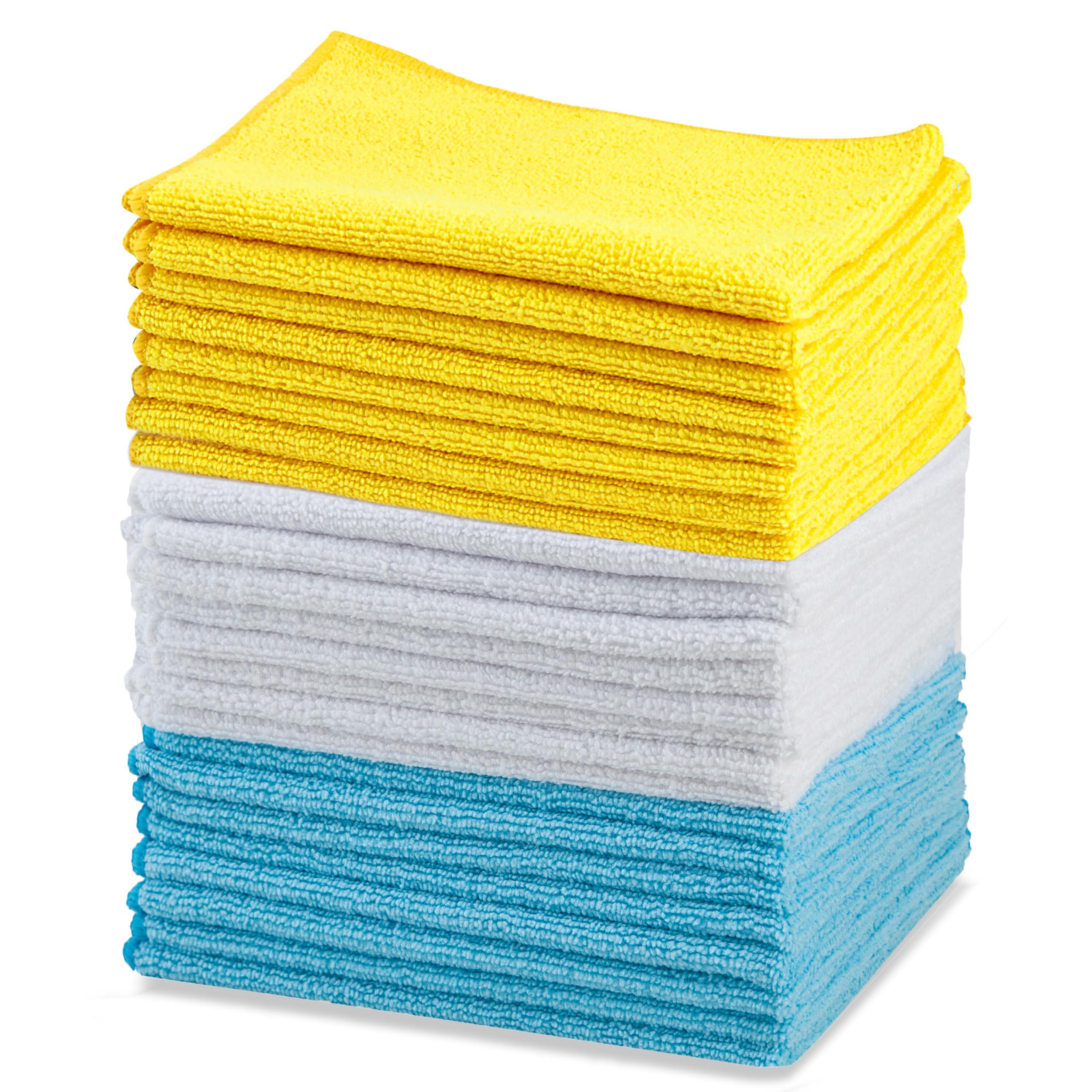
Daily/weekly hinge area polishing.
Amazon Basics Microfiber Cleaning Cloths Lint-free and streak-free for safe exterior wipe-downs.
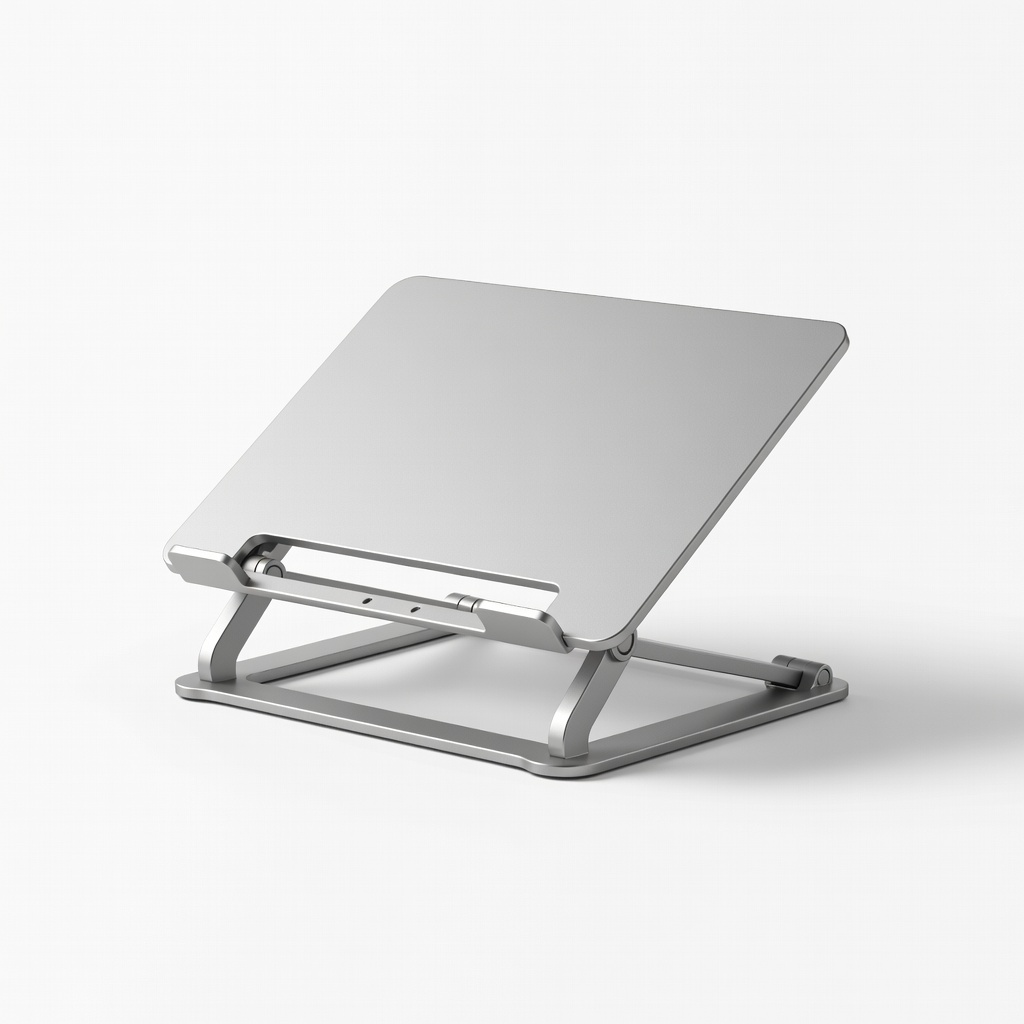
Daily desk use in laptop or tent mode.
Lamicall Laptop Stand Adjustable Reduces hinge stress by elevating and stabilizing angles.
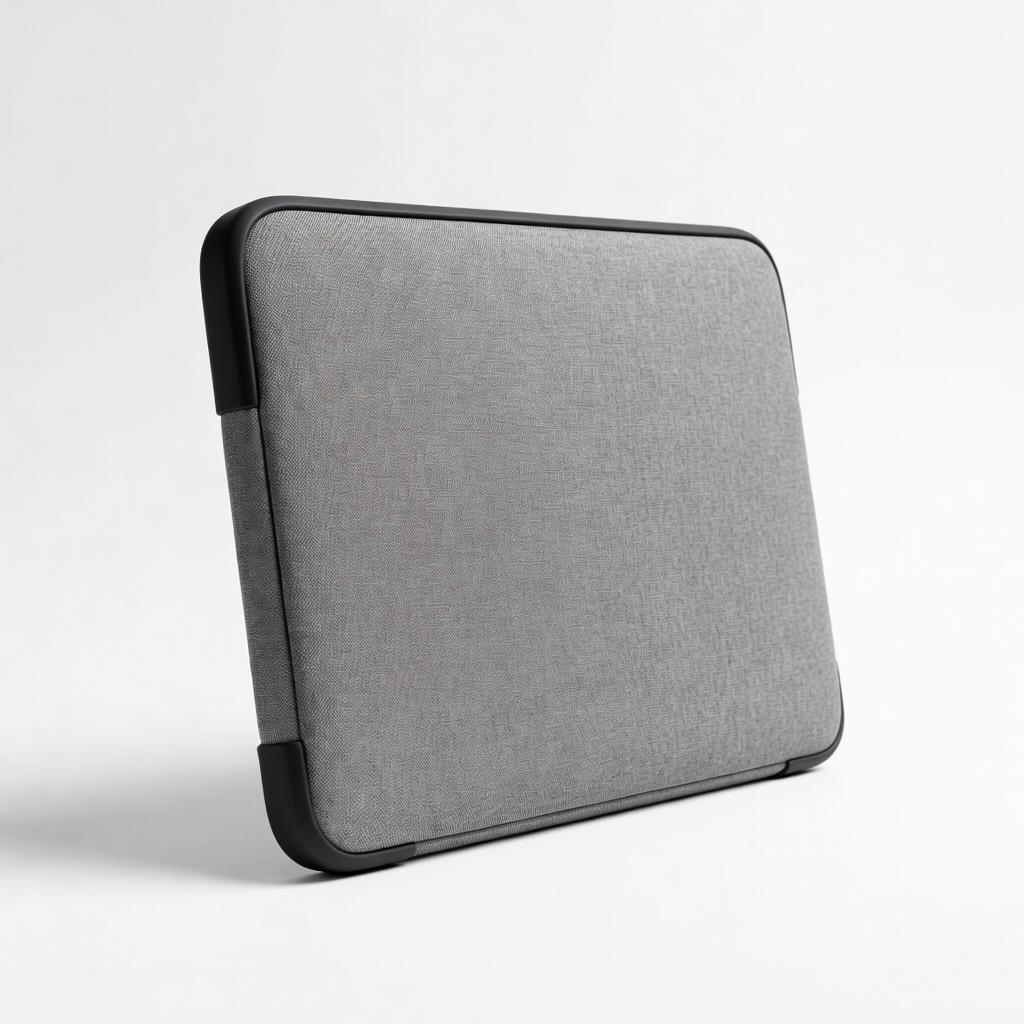
Carrying or storage for 13-15 inch 2-in-1s.
tomtoc 360 Protective Laptop Sleeve Padded protection prevents travel impacts on hinges.
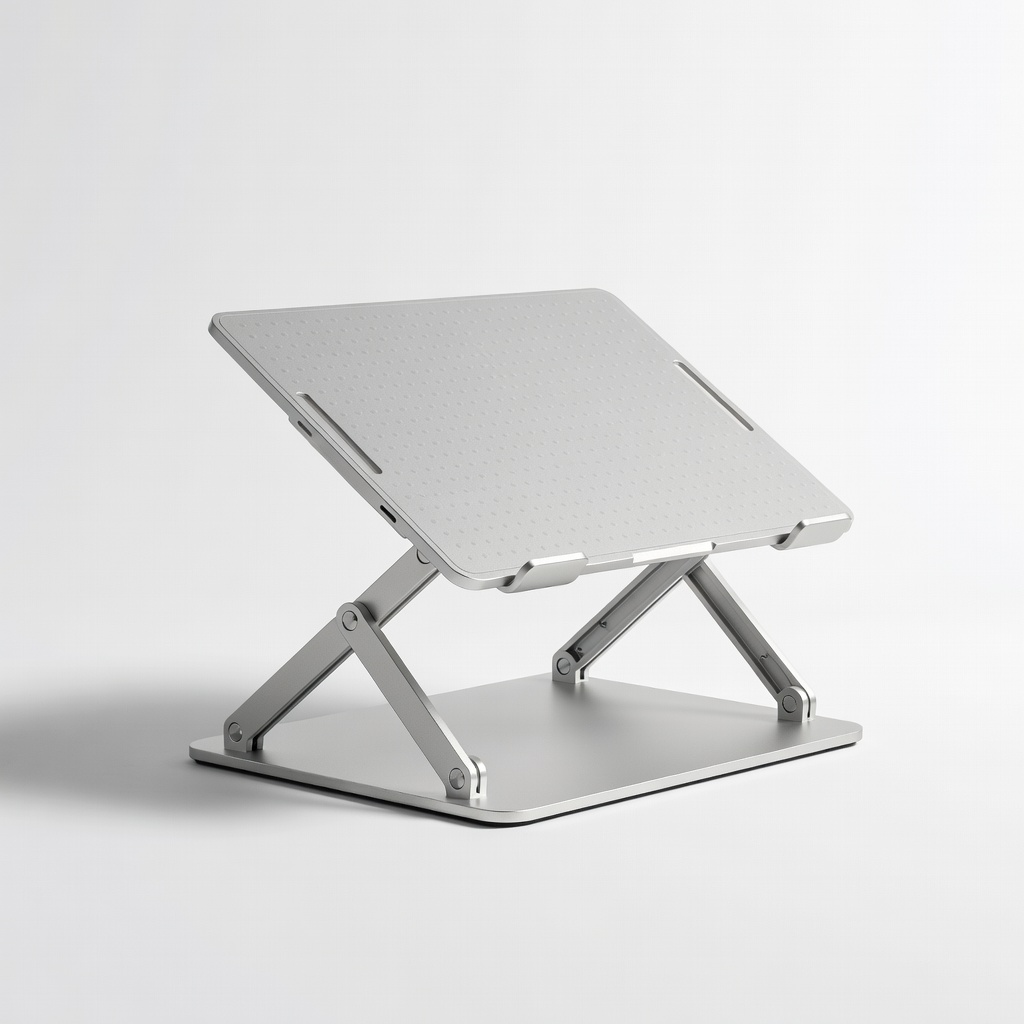
Portable option for home/office.
Nulaxy Laptop Stand Ergonomic Budget-friendly riser with ventilation for heat reduction.