
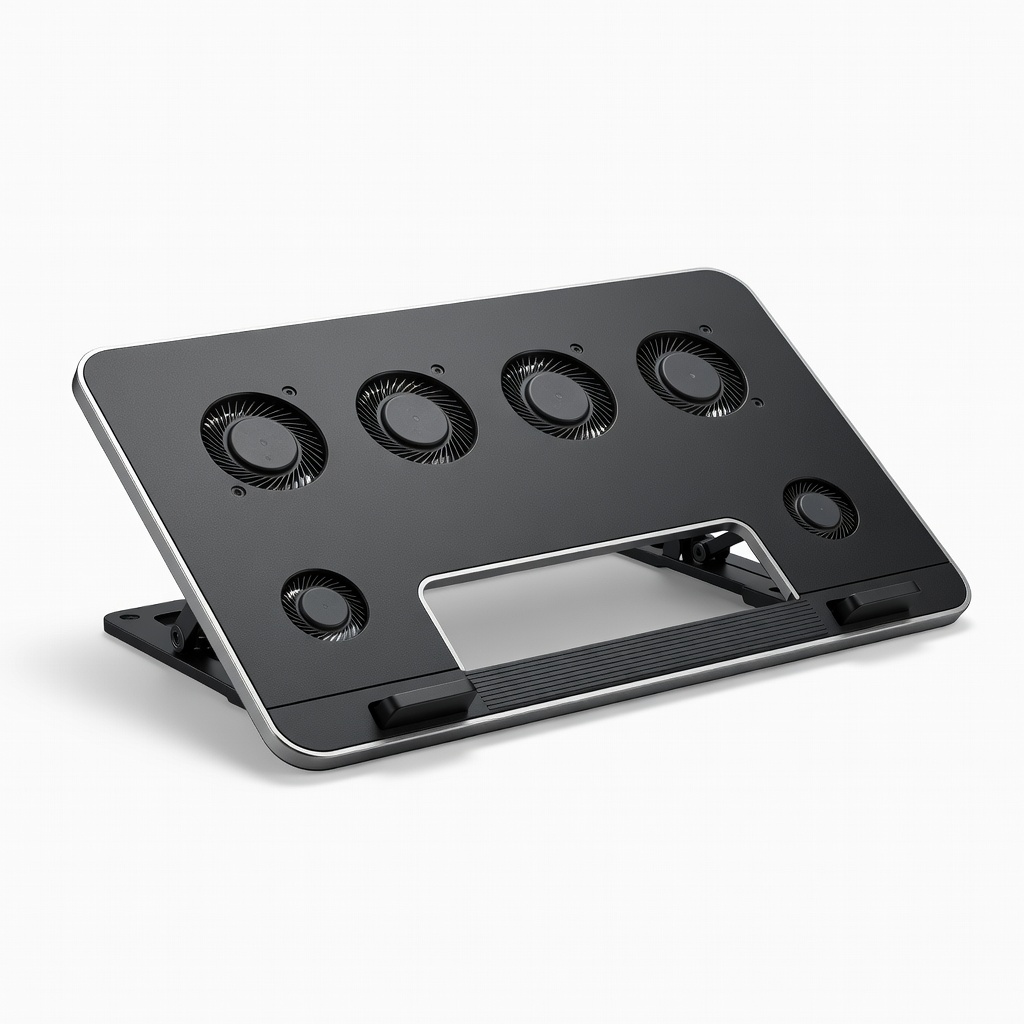
Kootek Laptop Cooling Pad 5 Fans
Daily gaming sessions on slim laptops like Surface Pro.
$29.99
Kootek Laptop Cooling Pad 5 Fans Powerful 5-fan design with adjustable height boosts airflow for 2-in-1s, dropping temps 20°C.
Get the App
Better experience on mobile
Master simple tweaks and tools to keep your 2-in-1 laptop cool, throttle-free, and gaming-ready without hardware mods.
Gaming on a 2-in-1 laptop sounds ideal—versatile tablet mode by day, immersive sessions by night—but overheating is a common killer. Throttled performance, sudden shutdowns, and reduced lifespan plague slim designs like the Lenovo Yoga or HP Spectre x360 during AAA titles. The compact form factor squeezes powerful GPUs into tight spaces with limited airflow, turning fun into frustration.
In this guide, you'll learn proven, intermediate-level strategies to drop temps by 15-25°C, from software tweaks to hardware aids. We'll cover monitoring, cleaning, optimization, and gear upgrades. Expect 30-45 minutes for initial setup, plus 5-minute habits for ongoing play. No soldering required—just smart prevention.
By the end, your 2-in-1 will handle games like Cyberpunk 2077 or Fortnite without breaking a sweat, extending its life and boosting FPS.
Estimated Time: 30-45 minutes for initial setup + 5 minutes weekly maintenance Difficulty: intermediate
Download and run free tools like HWMonitor (cpuid.com) or MSI Afterburner to track CPU/GPU temps in real-time. Launch during a gaming benchmark (e.g., Cinebench or in-game) to baseline your issue—aim for under 85°C idle, 95°C load.
Why it matters: Without data, you're guessing. Expect idle temps 40-60°C, gaming 80-100°C on stock 2-in-1s. Success: Overlay shows live graphs; note peaks above 90°C signal action needed.
Pro tip: Set alerts for 95°C to auto-pause games.
💡 Tips:
⚠️ Warnings:
Visit your manufacturer's site (e.g., Dell, Lenovo) for latest GPU drivers (NVIDIA/Intel/AMD), chipset, and BIOS. Use GeForce Experience or AMD Software for auto-updates. Run Windows Update too.
This fixes thermal throttling bugs. Reboot and test—expect 5-10°C drops. Success: No yellow flags in Device Manager; smoother frame rates.
Outdated firmware causes 20% efficiency loss.
💡 Tips:
⚠️ Warnings:
Power off, unplug, and use compressed air to blast vents, keyboard, and ports (short bursts, nozzle at 45°). For deeper clean, remove bottom panel (check iFixit guide for your model) and blow fans.
Dust buildup insulates heat—monthly cleans drop temps 10-20°C. Success: Fans spin freely; less whirring noise.
Image: Disassembled 2-in-1 bottom with fans exposed.
💡 Tips:
⚠️ Warnings:
Prop your laptop on a stand or cooling pad with fans. In tent/clamshell mode for gaming—avoids tablet mode blockage.
Boosts airflow 30%; expect 15°C cooler. Success: Steady 70-85°C loads.
💡 Tips:
⚠️ Warnings:
In Windows Power Plan, select 'High Performance.' Use Armoury Crate (Asus) or Vantage (Lenovo) for 'Performance' mode. Cap FPS in games to 60 via NVIDIA/AMD control panel.
Prevents max clocks/heat. Success: Balanced FPS without spikes.
💡 Tips:
⚠️ Warnings:
Drop to medium settings, disable ray tracing/V-Sync. Use DLSS/FSR upscaling.
Cuts GPU load 40%. Success: Playable FPS at safe temps.
💡 Tips:
⚠️ Warnings:
Game in 18-24°C room, on hard surface, away from sun/carpets. Use AC/fan.
Ambient heat adds 10°C. Success: Consistent lows.
💡 Tips:
Problem: Temps still over 100°C after steps
Solution: Check for faulty fan (listen for rattles); repaste thermal compound or contact support.
Problem: Sudden shutdowns
Solution: BIOS thermal limit hit—clean thoroughly or RMA if under warranty.
Problem: Software conflicts post-update
Solution: Rollback drivers via Device Manager; test in clean boot.
Problem: No improvement with cooling pad
Solution: Ensure fans face intake vents; upgrade to active fan model.
Powerful 5-fan design with adjustable height boosts airflow for 2-in-1s, dropping temps 20°C.
Best for: Daily gaming sessions on slim laptops like Surface Pro.
Price Range: $29.99
High-performance, non-conductive paste for DIY repasting, improving heat transfer 10-15°C.
Best for: Annual maintenance on gaming 2-in-1s after warranty.
Price Range: $8.99
Safe, powerful for deep vent cleaning without residue.
Best for: Weekly dust removal in hard-to-reach laptop internals.
Price Range: $11.99
Ergonomic elevation improves passive cooling and typing.
Best for: Prolonged gaming in tent mode.
Price Range: $24.99
Quiet fans with RGB, metal mesh for max airflow on high-end 2-in-1s.
Best for: Intense AAA gaming marathons.
Price Range: $49.99
Daily gaming sessions on slim laptops like Surface Pro.
Kootek Laptop Cooling Pad 5 Fans Powerful 5-fan design with adjustable height boosts airflow for 2-in-1s, dropping temps 20°C.
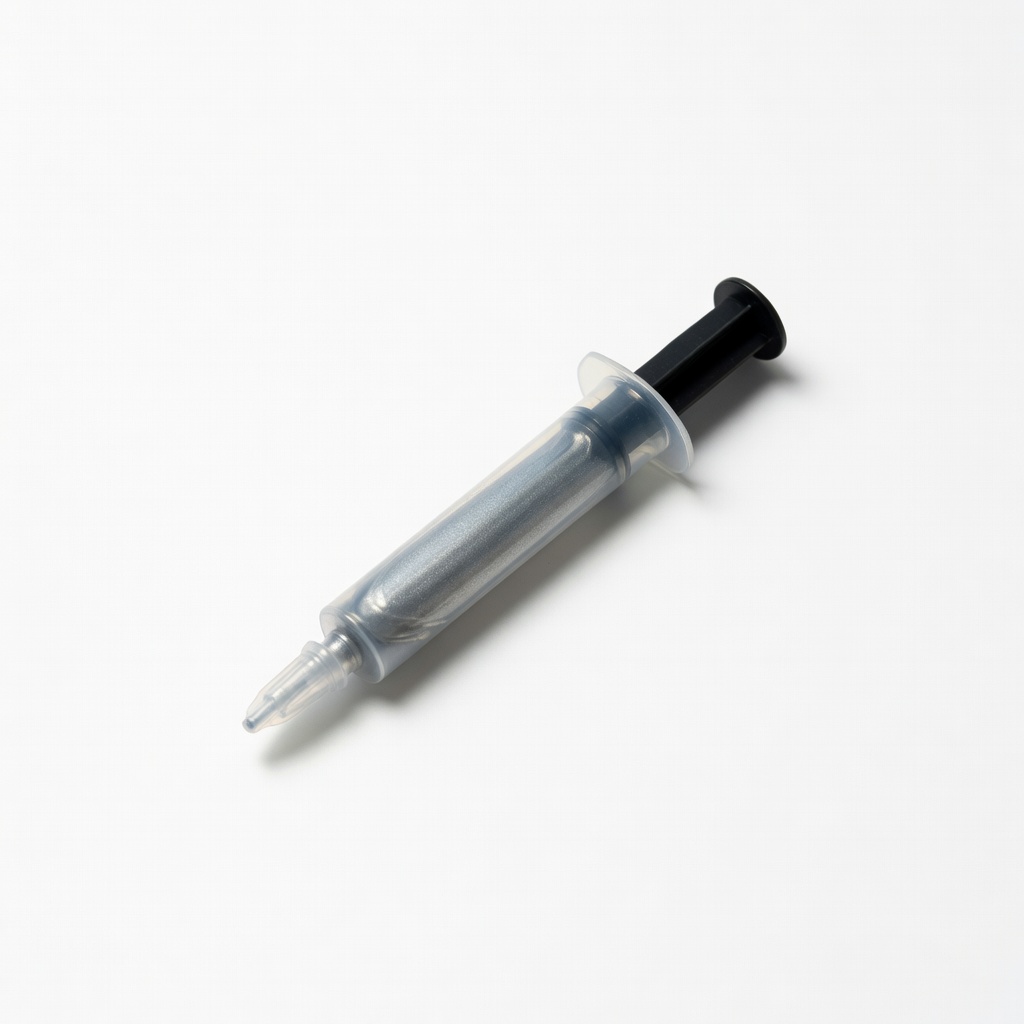
Annual maintenance on gaming 2-in-1s after warranty.
Arctic MX-4 Thermal Paste High-performance, non-conductive paste for DIY repasting, improving heat transfer 10-15°C.
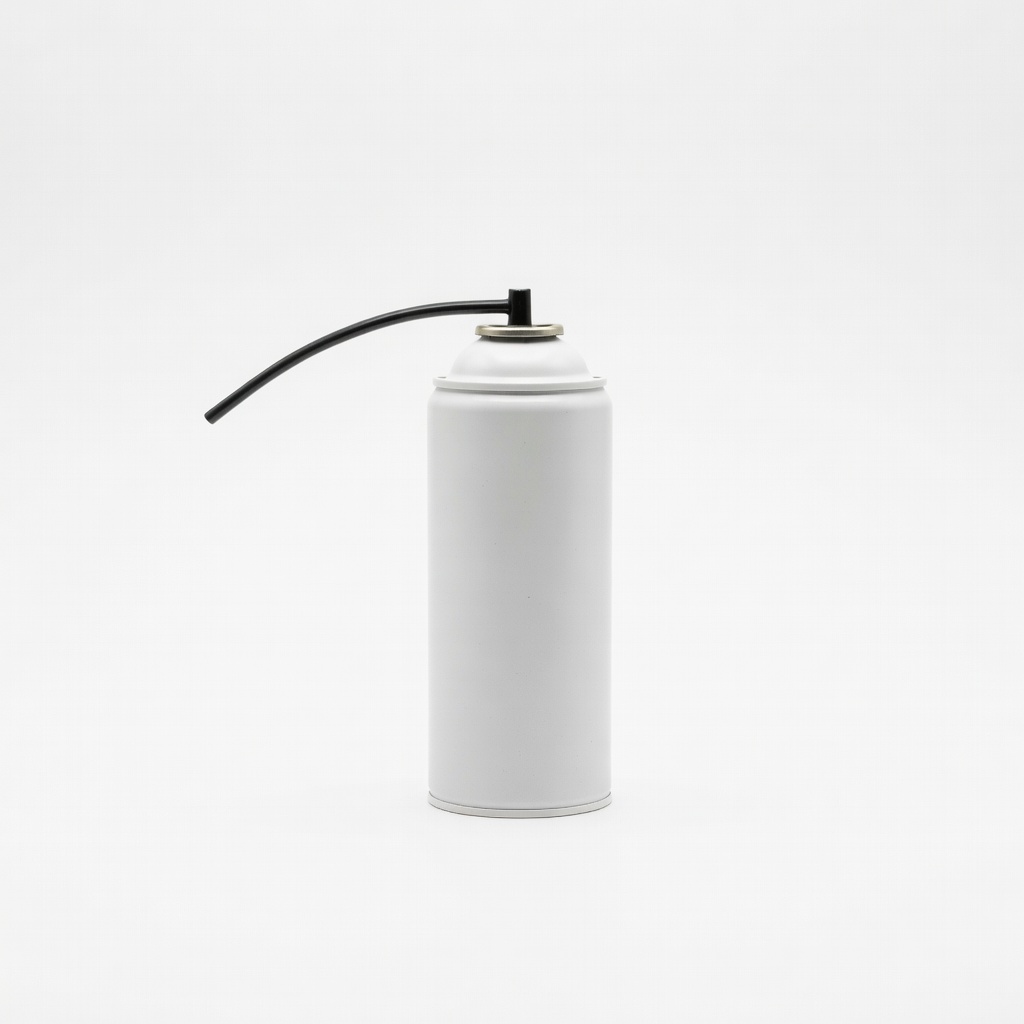
Weekly dust removal in hard-to-reach laptop internals.
Dust-Off Compressed Air Duster Safe, powerful for deep vent cleaning without residue.
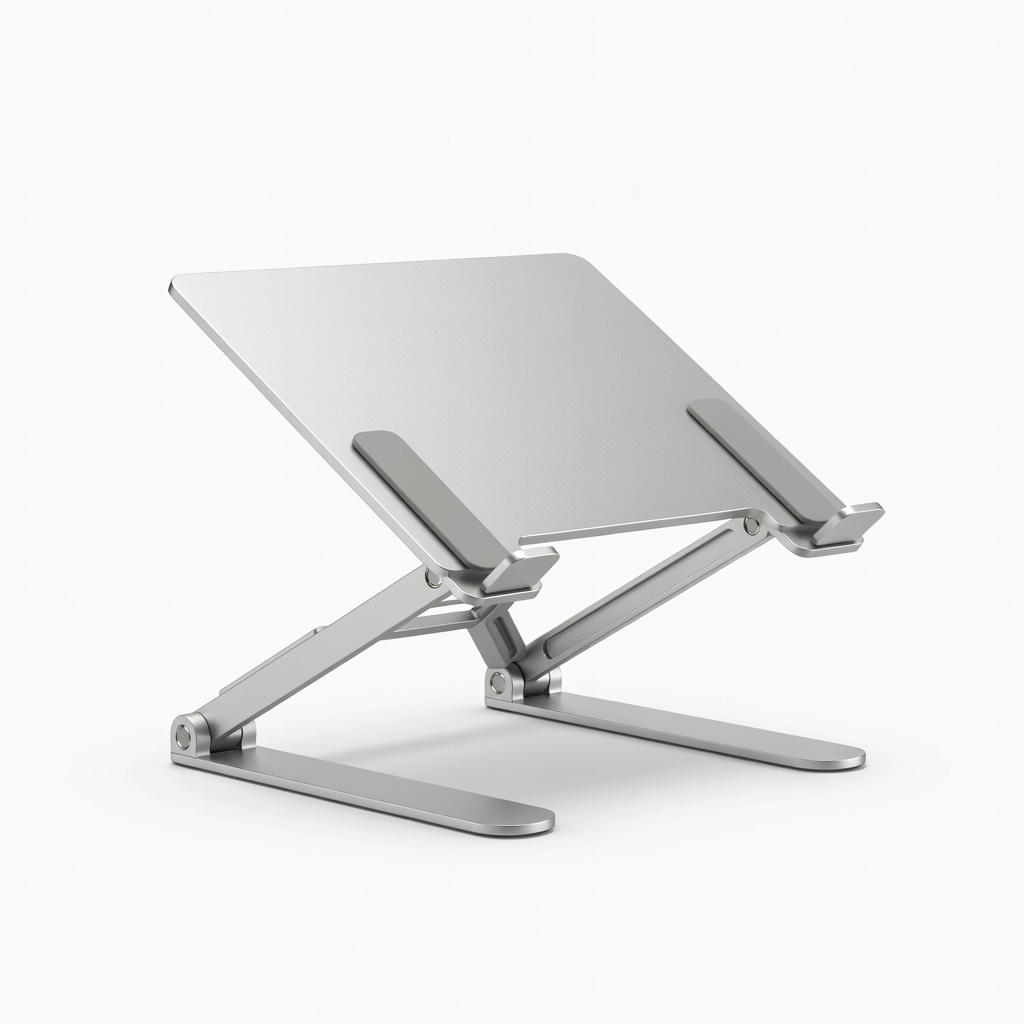
Prolonged gaming in tent mode.
Nulaxy Laptop Stand Adjustable Ergonomic elevation improves passive cooling and typing.
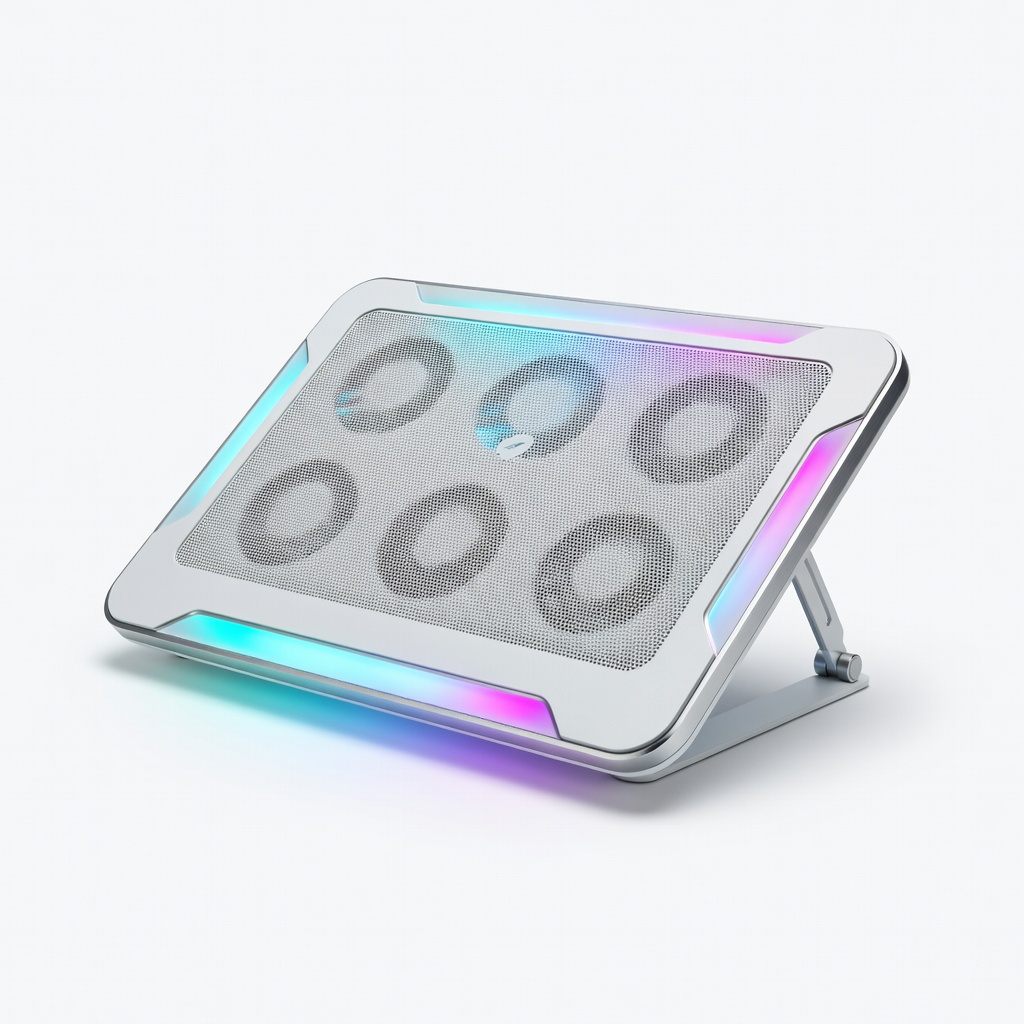
Intense AAA gaming marathons.
KLIM Ultimate + RGB Laptop Cooling Pad Quiet fans with RGB, metal mesh for max airflow on high-end 2-in-1s.